Author: David Harrison

  • Scams

    You might want to consider signing up for the Which! Scam Service, I have …

    There are necessary steps we can all make to protect ourselves from fraud. But as they become more sophisticated, it can be difficult to know what’s genuine. We’re here to act as a source of trusted advice for those times when you’re just not sure.

    From email scams and copycat websites to nuisance calls and tax rebate scams, our guides help you to spot a scam or get money back.

    — Forum Responses —

    Here’s a nasty one, which on the surface looks OK – just remember that if you’re using Facebook Messenger, you shouldn’t need to login to Facebook again, and vice versa.

    Passwords harvested by fraudster (from Which? Scam Watch)

    remember also my advise, if you do use Fb, or FB Messenger please Logout – I know it’s a pain but there’s a distinct chance that if you don’t Fb will record all your internet comings and goings and you’ll get loads on unsolicited emails, etc.

    David Harrison May 29, 2020 6:26 pm

  • Protected: Covid-19 Tracing app

    This content is password-protected. To view it, please enter the password below.

  • Using Zoom safely

    Updated 13th May

    Since this article was originally written back on March 31st, some other U3A have started using Zoom, and I thought it sensible to Review this article and see if I should change anything in it. Any changes will be marked in red. However, before I start, a couple of things.

    Zoom have recognised that there were defficiencies in their security model and have moved in their new client (version 5) to implement end-to-end encryption – that’s what you get from WhatsApp. After May 30th, all users will be using version 5 because a forced upgrade will occur on any person attempting to join a Zoom meeting after that date. However, you are recommended to upgrade before that day and you can do that from this link.

    A member has also sent me this really useful Infographic on implementing Zoom which I would recommend reading carefully …


    I could stop here, but there's a few things I differ from the advice in that infographic which will be highlighted below and which I've also discussed in another article here.

    You might also like to take a look at this article with video that explains the new features on Zoom v.5.

    So here’s the original article, as I said published on March 31st …

    Since writing this article, just over a week ago – gosh it seems longer than that – more groups have started using Zoom, and it’s also clear that it’s being used very widely by friends, families, communities, etc. It’s also clear that Zoom has responded to some of the criticisms that have been levelled against it and disabled some of the “unintended” consequences of allowing people to Login using their Facebook credentials. That is all good news, so my concerns have been diluted, but I think it’s still wise to “proceed with caution” and to this end I’ve collected together some guidelines which I hope will be of use. First of all – you need to get started by signing-up and installing some software on your device.

    Installing Zoom on your Desktop, Tablet or Phone.

    Zoom is a multi-platform piece of software – that puts it in a great place to serve the maximum number of people who are all using different equipment. This puts it in the same category as Skype and Google Hangouts.
    It’s important to remember that the software was intended for business users, and so some of the language might be slanted in that direction. No matter, what you do need to do, is sign-up to get an account. I would not recommend using your Facebook credentials; I might be tempted to link my Google account to Zoom and use it to Login; but overall, it’s probably better to setup an account directly. I have given advice before to use a “throwaway” email account – one you’ve created which is separate from your main email account for this sort of thing. You can have many Google (gmail) accounts – I probably have 6 or 7!
    Once you’ve provided an email address – you’ll be asked to confirm it from an email that will have arrived in your Inbox. Then you’ll be asked to provide normal identity stuff – your name, and then provide a password for your account-you’ll  get a screen which provides you with this information. This is what you can do with your account – you don’t need to press Upgrade Now.

    It might be a good idea to allow your self the time before your first meeting to look at the three videos which are in your welcome email – they will give you a flavour of what Zoom is all about and how to take part in a video call.
    If you’re going to use a Windows PC or an Apple Mac, now would be a good time to have a look at this page and install the app on your desktop or laptop – but if you’re really careful with your privacy, see the cautionary note below about using a desktop or laptop. [I don’t have this fear now, so I would disregard my cautionary note.]

    If you’re using a smartphone, or tablet, it would be a good idea to check this page and install the app on your device.

    If you’ve done all that and have an idea how it’s going to work – you’re ready to start. I’d suggest having a go with a friend or family member first, to practice and test your understanding. If you’ve got a problem with anything add a comment to this post and someone will try and get back to you with an answer/solution.

    So now we come to making things safer for you. As I said before there have been concerns about Zoom’s Privacy policies or procedures, so although they have tightened up these there are a couple of things you should do. [I’ll add some screenshots from my iPad shortly. I didn’t and I won’t be doing this.]

    First of all some tips on which device to use and how to use it …

    • I’ve said this already, but I’ll repeat it. Don’t sign into Zoom with Facebook. This stops Zoom from collecting your Facebook profile info. Although, if you’re already giving all your private info to Facebook, maybe it doesn’t matter.
    • Use a separate device if you need to do anything during the call, if possible, in that way you stop Zoom from tracking any other activity on the device.
    • If you’re an Apple user, use an iPad or iPhone instead of your Mac. Zoom’s iOS app is subject to Apple’s App Store rules, which gives an extra degree of security. The Mac version is a direct download from Zoom, so you have no idea what’s inside. The same is probably true for Windows – but I haven’t checked. So it’s generally safer to use a Mobile device rather than a desktop/laptop. [I don’t consider this a problem now. Zoom have increased their security and it’s MUCH MORE convenient to use a laptop/desktop as you can more easily see everyone on the call in a Gallery view – rather than having to scroll across images of people on a smaller screen device.]

    Hints and tips on staying safe …

    If you do decide to use Zoom, the company offers a few good tips on its blog for staying safe. First, don’t share a meeting link on social media or any public forum, because then anyone who sees it can join. This can lead to “Zoom bombing,” where bad actors crash the party, and drop off a payload of porn and/or other disruptions, before leaving. Something you definitely want to avoid!

    Next, if you’re hosting the event, do not use your Personal Meeting ID (PMI) to do it. “Your PMI is basically one continuous meeting,” says Zoom, “and you don’t want randos crashing your personal virtual space after the party’s over.”

    I use Scheduled Meetings even for Recurring Meetings, I can then send a Meeting Invite round in Beacon, that users just click on to join. This is much easier than sending out invites to every meeting.

    Also, consider making use of the Zoom “Waiting Room,” which is a way to control who can get into your meeting. [This is now the default setting for a meeting.]You can then decide who you want to admit to the call. [This may not be relevant to your calls, but it’s worth bearing in mind if someone you don’t know somehow appears on the call. Next time they won’t because you’ll have implemented the Waiting Room.]

    For more information on staying safe, read Zoom’s blog post, as mentioned above.

    Zoom changed a couple of their Default settings from today – 5th April. Now when you join a meeting the default setting from the host is to ENABLE a Waiting Room, from which the Host can invite people in.

    The second change is to set a Password on Personal Meeting IDs (PMI). It’s not recommended anyway to use PMI as it’s like a permanently open meeting; far better (if you’re the host), as I’ve described above and elsewhere, to create a specific meeting ID which sets a password anyway. Here’s a link that better explains these changes.

  • Protected: Notes from Zoom Meeting – 30th April 2020

    This content is password-protected. To view it, please enter the password below.

  • Hardware issues? We will fix your PC

    Several members of the Computer Group, and others in U3A, have reason to be grateful to Neil the principal of “We will fix your PC” a local computer “fixer”. He also is a dab hand at fixing Macs, and mobile devices, and will give you an honest assessment of whether a job can be done, or not. No job is too small, and his pricing is very fair.

  • Setting up a Zoom meeting as Host

    I've been asked by a couple of members how I set up the Zoom video-call meeting. This short video hopefully explains how I have done it – I'm sure others would suggest alternatives .

    Look also here – an earlier post.

  • Protected: Notes from Zoom Meeting – 23rd April 2020

    This content is password-protected. To view it, please enter the password below.

  • Have I been pwned?

    Have I been pwned?: Another use case for this very handy website that tells you whether your email address has been hacked is a check on your password – just click on this link and supply your “favourite” password to see if it’s out in the wild!

  • Using a Password Manager and implementing Two Factor Authentication

    Introduction – passwords, passwords, passwords.

    Log in to your e-mail account. Log in to your bank account. Log in to Facebook, WhatsApp or twitter. Log in to your Amazon account, or any other retail site. Log in to your photo sharing service. Log in to Thought grazing, or any other membership based organisation eg U3A, Which?
    Is it possible to remember the number of applications you use on a regular basis that require a password? How do you keep track of all of all those passwords?

    Here are a few tricks you might have tried or considered (with hints about why you may want to steer clear of some of them):

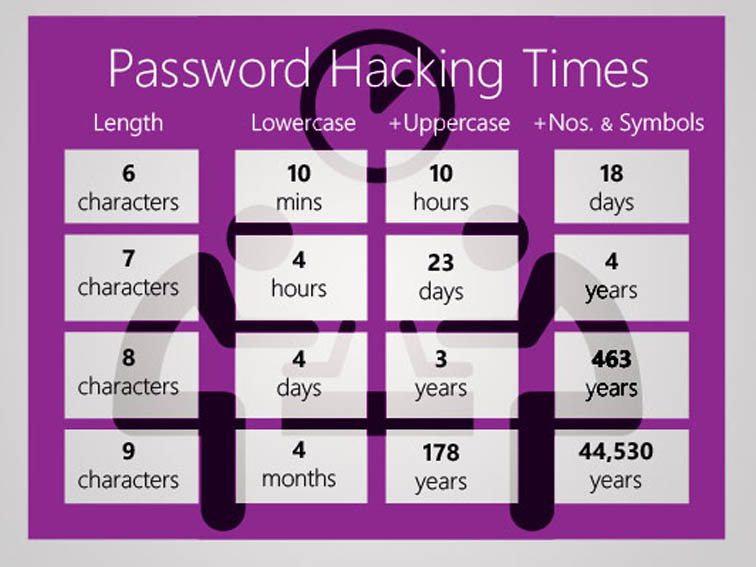
      • Memorise passwords. This is a great technique if you use your passwords every day, but maybe not for those you only need occasionally. If you don’t use a password regularly, there’s a good chance you could forget it if you rely on your memory alone. In addition, Web browser cookies can remember your login session for days or weeks at a time, meaning you only enter the password manually once in a while even if you use it every day. This could therefore be a weakness and security breach if someone stole your computer. So to login to your computer, or connect to your bank this might be the best approach, but be mindful of the potential security breaches and use for only a limited number of uses. [NB The login credentials to your bank are not saved on your computer, but other sites may well store them in cache or cookies to make it “easier” for you to connect!]
      • Use the same password everywhere. Memorising a single password for every account does make life simpler. For security reasons, though, this isn’t a great idea, because it makes it easy for a hacker who finds your user name and password for one account to break into your other accounts, too. So what you could do is have a base (root) password that is the same, and then add something you believe you’ll remember to identify the pairing of the password with the site (a variable). Thus making the password unique to that site. So if you wanted to connect to Boots the Chemist you might choose “B00ts&” before your root password. I gave some ideas on choosing a root password in an earlier post.
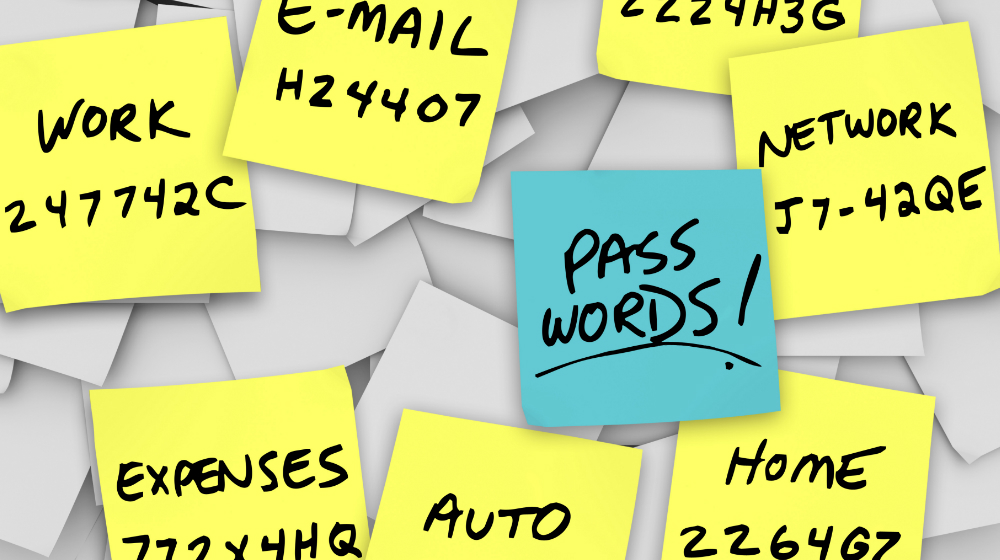
      • Write passwords down on paper. This is an ideal solution if you can hide the written information where no one else has access and you can remember where that place is :-). However not only is this a risk if someone finds the list, but a written list or an assortment of scraps of paper could also be lost or damaged, and you’ll need to find and update the list each time you update a password. This is most definitely the most frequently chosen option, and most certainly is the worst option too.
      • Write passwords into a file on your computer or mobile device. This is less likely to get lost than the paper, but you do risk losing the file if you have hardware failure. In addition, this file is as vulnerable to hackers as other files on your computer. You could encrypt it for an added layer of security, which makes this strategy similar to the next solution. I used this option for a while with the file saved on Dropbox and protected by a Password, so it was safe from loss – but it wasn’t encrypted and most definitely wasn’t very safe – but it was a safer option than the previous method.
      • Use password management software. Password management software is a utility you can use to save and retrieve all your passwords. This software could be a standalone application on your local computer or a feature within another application (such as your browser) – or both. This option greatly limits hackers’ possible routes to your password data while adding convenient features for organising and retrieving information. This is the strategy that is strongly recommended for everyone and for use on a single computer – it can be FREE.

    When I sat down to write this piece, I obviously looked around to see whether there was any information I could reference. After I’d done that, it was clear that there was no point in me re-inventing the wheel. So I point you at this excellent introduction to Password Managers and review of the leading Password Managers out there. Read it before you go any further!.

    Password managers – how do they work? Are they safe?

    So you’ve read the article mentioned above? Yes – then proceed. Otherwise I really do insist you go back and read it.

    So now you know there are browser-based password managers, cloud-based password managers and locally-stored password managers. You do know that, don’t you? If not, go back and read this article again!

    Are they safe? – you only have to remember ONE password, the master password, and that unlocks your Password Vault. So compared with unsafe, easy to guess passwords, or scraps of paper – they are very safe; and you can’t lose them, forget them, or mislay them. They’re all in one place!

    How do they work? – well, I don’t need to tell you much about this because you’ve already read this, haven’t you? Essentially, you can choose to let the Password Manager generate random passwords for every site you need to provide login credentials for, or you can provide the Password Manager with a password when prompted. I tend to do the latter using the “variable + root” approach I discussed before. It’s not that I don’t trust my Password Manager, it’s just that for many of the sites that I use frequently, it’s quicker and easier for me to supply the password because I can remember it!

    Which Password Manager you choose to use is down to your situation – you could read this Review of Password Managers – which picks Dashlane and LastPass as best products. Either of these would be good to implement and use but they have different use cases. I use LastPass and pay a small amount annually so that I can use it on more than one device. I also use it because as it’s cloud-based, I can log into my LastPass account from any machine and access my online services. Dashlane lets you make the choice of local machine or cloud-based password storage – but it is not free, whilst Keepass (which is open source and free) works on a single machine, the passwords are stored on that machine – so that might be the option for you. If you only tend to use a laptop or desktop for browsing websites where you need to provide Login credentials, the free version of LastPass or KeePass is more than adequate.

    Note: I do not recommend for the reasons explained in the article, that you use the Password Managers contained in your browser.

    How do you use your Password Manager?

    This is really beyond the scope of this article but elements of usage are covered in the two articles that have been referenced above. You should refer to the documentation for your chosen Password Manager.

    What’s all the fuss about Two-factor Authentication then? Do I really need it if I’m using a Password Manager?

    Well yes you do! It’s bandit country out there on the Internet. You’ll know  that if you’ve been on Have I been pwned? and seen your email address has been captured by a leak, or a hack. So it’s always possible that someone has got at least part of your login credentials, and from that it might be possible for them to request a new password – blocking you from using a service – or they may have even requested a new userid!  So that’s where 2FA comes in.

    What is it though?

    Essentially once you’ve implemented 2FA you’ll be asked for secondary information about yourself (Face-ID, or Touch-ID if you’re using an iPhone) or confirmation that you are the person you’re purporting to be – by asking you to supply a code that is displayed on a smartphone or other device you own, and which is to hand. Thus having your UserID and Password is not sufficient alone to access your account.

    If you’ve used Online Banking recently you’ll have noticed they’ve implemented 2FA widely. In fact I believe they’ve been required to by the Banking Regulator. Thus accessing your bank from your device is intrinsically safer now than it used to be.

    I’m not going to say much more about 2FA , I’m going to refer you again to a Guide rather than repeat the information myself – and quite possibly make a mistake in doing that. There are a number of sources of reference out there, from Google, Apple, Microsoft but the one that I’m pointing you at is this one which I think explains things well, and also points at how to implement it for a number of popular and well-used platforms and services.

    Making life easier with an Authenticator for 2FA

    Wouldn’t it be nice – instead of waiting for the site you are trying to access to send you a code to type into the box they’ve provided – if you could just look at your phone and see a code on it that you could then provide and type in?

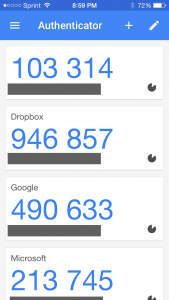
    That’s what an Authenticator does. Perhaps the best known is Google Authenticator – and that’s the one I use on my iPhone, but there are others. You might consider using LastPass Authenticator for instance, I’ve meant to try it out for quite a while, and there’s also Authy, which has significant advantages over Google Authenticator – but it’s perhaps best to get experience using the Google software first.

    And that’s it! Thanks for getting to the bottom of this long article. I promise you, if you follow the advice and guidance included in it, and in the referenced articles, your online life will be much safer, more secure and your stress levels will be reduced!

  • Video calling – Covid-19 and beyond [Updated]

    Video calling – Covid-19 and beyond [Updated]

    The current crisis is forcing us all to consider how we can maintain face-to-face social contact at a time when that simply is not desirable, or even permissible. To this end we might look to video-calling  as a possible solution. Let’s look at the options – this list will undoubtedly be updated, so please check back and also add your thoughts and experiences in the Comments area below.
    WhatsApp is the simplest means of keeping in contact face-to-face and works well for a one-to-one call; you can also use it for audio calls and of course chat – but you can use it for calling up to four others. Here’s how you do it. It’s available for iPhone (iOS) and Android phones and you can use it from a webapp that runs on Windows or MacOS. It’s encrypted which means that your conversations should be secure, but it is owned by Facebook so one can never tell what might happen to it, or your data, in the future. You can also use Facebook Messenger to connect to up to 50 people – but I wouldn’t go there!
    If you are a Mac/iPhone/iPad user wanting to call someone who also has Apple equipment you should really just use Facetime and look no further. Here’s how to use it from mobile devices, and here from your laptop or desktop. If you want to do a Group video-call then you can – up to 32 people can be on the same call! Here’s a User Guide which is applicable if you’re using the latest versions of Apple’s MacOS – Catalina (or Mojave), and here’s one for the mobile users. You cannot use Facetime however to chat with someone who doesn’t have Apple equipment.

    So we turn to Google Hangouts which has the benefit of working cross-platform (that is Apple, Windows, Linux and Android users can all use it) and can also support Group video-calling as well of up to 25 people. This is the application that on the surface of things is well suited to most group video-chat situations, and is the one I’ll be focussing on using most over the next few weeks. It has the real advantage that whilst there are dedicated apps for mobile devices, it just requires a browser and a web-address on desktop/laptops. Here’s how to get started with Google Hangouts.
    There’s a Microsoft offering as well – perhaps the oldest and best known piece of video-calling software, so much so it’s been adopted as the generic term for video-calling – Skype. It’s the most obvious competitor to Hangouts as again it’s cross-platform and indeed it’s hugely scaleable as you can have up to 50 devices on a single call (how do you manage that?!) but I’m afraid I find the way of calling, the potential for charging (why and when), the connection with your phone number and account, and general way to go about using Skype just a little bit too complicated for me. One day, maybe I’ll find the time to research it more, but for the moment …
    Finally, in this first pass of applications you can use for video-calls, there’s Zoom. We’ve used it and set it up for a call from a Mac to an iPad. It is cross-platform – so that’s good. It has a good reputation for person-to-person calls where it’s free but a little fiddly to setup, but I believe it won’t scale well for Group chat – as it’s principal focus is Business. I believe you’ll have to pay for that facility, so for the moment, I’m discounting it.
    [Update]
    Since writing this I’ve been pleased to here that several U3A members have been using Zoom – I’ll be trying it out myself shortly. However there are a few things you should take notice of which are described in this article and this one. I’d suggest you take the time to read both of them and don’t think they’re not relevant because they’re from a Mac user website.
    There are a couple of other articles I’ve come across just recently on setting up Zoom, and using Zoom for online meetings, and again I’d suggest that you might read them. One hint/tip that seems quite sensible – get someone else to setup the meeting/server – don’t host it yourself. Selfish but safe!
    Please add comments on your use of Zoom, or any other video-calling software in the Comments below.