Category: Networking

  • How does the Internet work?

    [Revised 17th January 2023 and February 22nd 2024]

    Now there’s a question. Once upon a time it was a little easier to answer. You connected your computer with a piece of wire to a socket in the wall and beyond the wall was ??

    So perhaps it’s never been easy to answer that question. It’s not magic, it’s not fluffy, it’s actually really complicated technology which works in a relatively simple way to make things relatively easy for us to use it. Let’s start with a few videos …

    How does the internet work? – This [updated] BBC Bitesize page (produced for children) is a really good starting point to help you understand how the internet works and introduces some of the terminology (ie protocols, packets) that will be useful to you to understand the other videos.

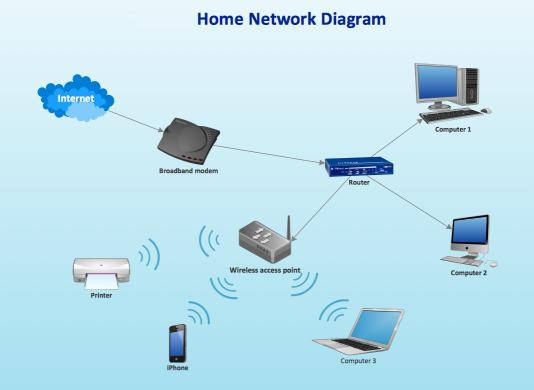
    How the Internet Works in 5 Minutes – the internet is not a fuzzy cloud. The internet is in effect a wire (or a fibre-optic cable), actually buried in the ground or carried as wires between posts. Computers connected directly to the internet are called Servers, while the computers you and I use are clients, because they are not connected directly to the internet, but through an Internet Service Provider. Mobile devices away from the home, connect to the internet using radio-waves to connect to cell-towers with increasing capacity being generated by increasing the frequency modulation of the waves (ie 3G, 4G, 5G and even 6G). Mobile devices in the home or in the office, or in public hot-spot spaces, use WiFi to connect to the internet using two frequencies – 2.4GHz and 6GHz. All of these require Routers to shuttle packets of information across the internet, and transmit e-mail, pictures, and web pages. Although this video is a little dated, it really does explain the process of what happens when you connect to the internet …

    A more recent video and the ones that are referenced at the end of the video will get you a long way to understanding the technology that makes up the Internet.

    How Does the Internet Actually Work? – this discusses how internet traffic can be labelled to ensure that packets of data can arrive at their destination with the minimum amount of disruption [- but it is a biased view in favour of scheduling]. However for an impartial point of view of Net neutrality, you should probably look at this video produced by Vimeo – strong supporters of Net Neutrality …

    … and the policy documents from the Internet Society and Electronic Frontier Federation.

    Finally a couple of alternative views of the internet. First, Andrew Blum (in a TED Global talk) philosophically examines What is the Internet, really? A journey that started for him when he found out a squirrel had chewed through a cable led to him exploring trans-ocean cables and the very physical nature of the internet – a wire! Then this rather entertaining video …

    … takes us from very local internet and cell-phone technology, through an examination of data centres such as the former Western Union office at 60 Hudson in Manhattan, to laying ocean cables and the future with balloons acting as transmitting stations for low-density inhabitation, or remote areas.

    You might also be interested in seeing a Google Data Centre, in particular the pieces on security and cooling are interesting. [However, all of this increasing use of the internet comes at a cost to our environment as the advance of Artificial Intelligence and its huge need for energy for increased computing power comes at a cost.]
  • Protected: Two Obscure Problems

    This content is password-protected. To view it, please enter the password below.

  • Home networks – some notes

    I’ve written and talked about this subject on a number of occasions. I’ll bring these together in one place, before delving into the specifics of router configuration which prompted the subject for the meeting on Feb 4th, 2021.

    For many of us home networking means WiFi, and the first article I wrote was on the subject of “Flaky WiFi” on October 11th, 2016. Members of the group had commented on their WiFi connection appearing to drop and in this article I tried to explain how all the bits and pieces hung together and how you could test your network to see it was working the way your Internet Service Provider (ISP) was proclaiming it should be!

    Then, later on (January 26th, 2017), we discussed “Broadband speeds, WiFi routers (their type and security), and extenders or boosters” and as the title suggests we focussed on networking in the house and how it is provided by Internet Service Providers, such as VirginMedia, BT, Sky or TalkTalk.

    I described “How the Internet works” in this post on June 29th, 2017, with links to a few videos and policy documents which hopefully explain the topic better than I could. Not much has changed since then; IPv6 is still to appear in the domestic market, so we still use IPv4 for internet addressing.

    Finally, on July 27th, 2020, I wrote about “Improving home network performance” which is really what I’m going to revisit in this post.

    So … what do you need to take a look at?

    On your router:

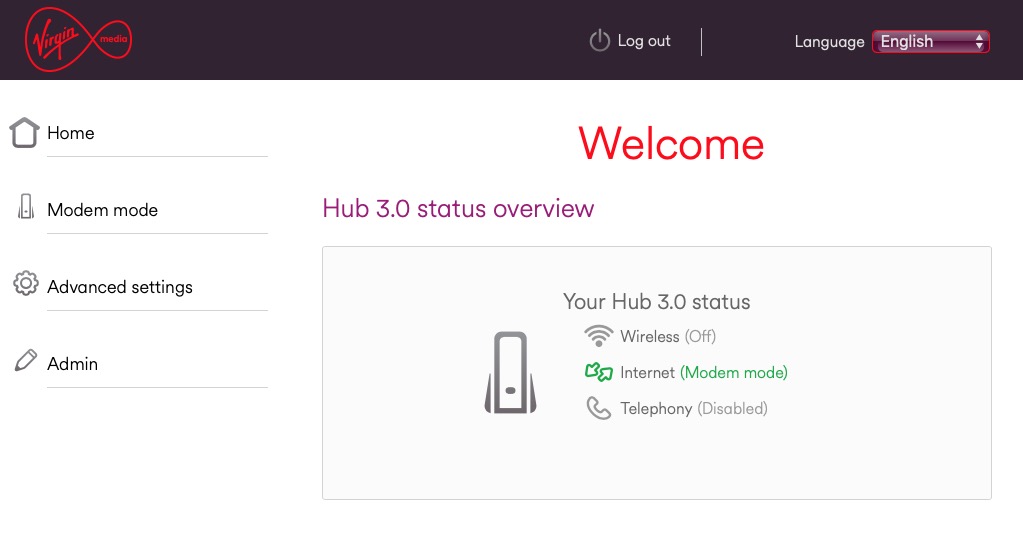
    If you’re using an integrated modem/router – often called a hub, typing in the IP address 192.168.1.1 will bring up a screen something similar to this …

    … mine is different because I’ve disabled the router functionality so that I can use my own router – a Netgear Orbi Mesh Network – so to just access the modem part of MY hub I use the IP address 192.168.100.1. You can see from the above that only the Modem is active.

    So for most users with an integrated modem/router, the first thing you need to be able to do is to access your Router’s Admin Dashboard. This article explains how to do it using the cmd prompt in Windows, but it is probable that your hub/router has an application you can start to do this, or that you can access it from a browser window. For most you would just enter the IP address 192.168.1.1 and supply the UserID admin and the password that I’ve created – the default is quite commonly ‘password’, so you ought to change that!!!

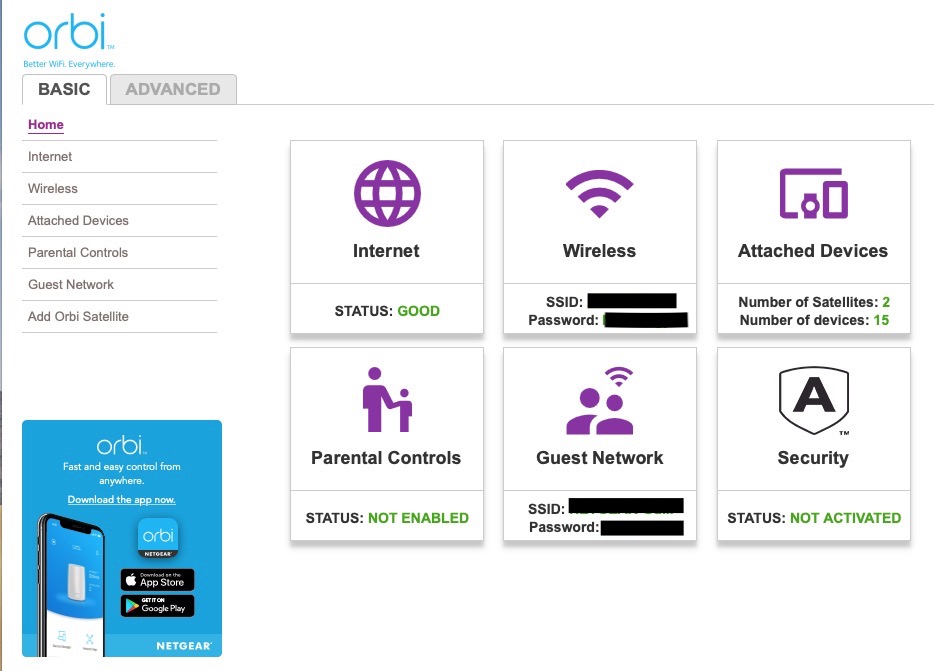
    The above screen is for my mesh network, but non-mesh would be similar. Clicking on Internet will give you the ability to change some of the settings for your connection.

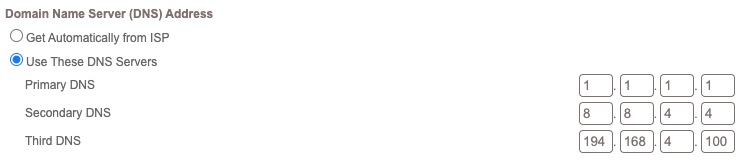
    Of these the most useful to change is the Domain Name Server (DNS) – these are the servers that translate a URL (eg digital.cardiffu3a.org.uk/) into an IP address. I've chosen to replace the default DNS supplied for my VirginMedia (ie 194.168.4.100) Hub (I've disabled the router functionality on the SuperHub so that it only acts as a modem) for two servers run by Google (1.1.1.1 and 8.8.4.4). The reason I've done this is that these servers are replicated around the internet and will almost certainly be closer to my router than VirginMedia which I think the closest one is in Bristol.

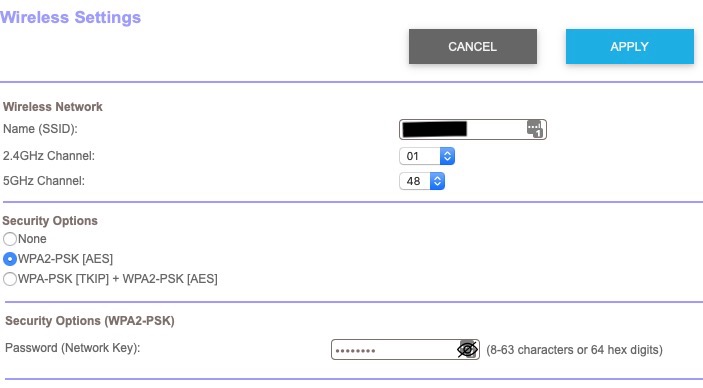
    All the other settings can probably be left as they are. The next option is where you configure the name of your network and the channels you’re going to use.

    If you don’t like the name supplied to your network by your ISP, you can change the SSID. I did to make it a little more meaningful. You should then consider changing the 2.4Ghz Channel. If you can set the channel to Auto – you should do so because generally the router will then find the best channel for your network. If that’s not possible and you have found your WiFi to be “flaky” due to you and your neighbour using the same Channel(s), try setting the channel manually to one that’s not being used. The article I mentioned before describes how you can find the best Channels for a Mac, and this one identifies a Windows Tool that does the same thing – there’s a Download link at the bottom of that documentation. Here’s an article that describes all the possibilities.

    Generally 2.4GHz has a wider range of signal but lesser bandwidth (throughput), and 5Ghz the opposite – shorter distance, but higher bandwidth. On my system my 2.4GHz channel gives me 400Mbps and the 5Ghz channel 866.7Mbps.

    You’ll want to look at your Security Options and make sure that you choose the best for the devices that you’re going to connect to your router. Generally, for a home network, WPA2-PSK [AES] should be sufficient.

    This article from the Apple website provides a very thorough and detailed examination of what settings you should deploy for your router, and why. Worth a read, even if you’re not an Apple Fanboy!

    On your device …

    Make sure the security settings match that you’ve just set on your router; remember the SSID and Password you’ve created, and re-connect to your network.

    And that’s about it … I hope. Questions??

  • Protected: Home Broadband using 5G

    Protected: Home Broadband using 5G

    This content is password-protected. To view it, please enter the password below.

  • Using Paypal instead of Credit Cards

    This was a question that was raised during the General Meeting discussions. PayPal has a Buyer Protection and Fraud Protection policy which for small transactions (ie <£100), and for transactions with companies/individuals you regularly do business with, is probably sufficient protection.

    For large value items (ie >£100) and up to £30,000 you might prefer to choose using your credit card because of the Section 75 protection you get.

  • Improving home network performance

    Improving home network performance

    This short note is written to advise on possible performance improvements you can employ if you feel that your network is “slowing down”. It may be that you just feel files, or pages, are taking longer to download, or display; or it may be that you feel it’s taking “too long” to connect to the remote site from your browser.

    The first case can often be resolved by moving your WiFi router, if possible, to a better location. Remember that although WiFi can appear to go through walls and ceilings, the more you expect it to do, the worse will be the signal. So move the WiFi router and perhaps you’ll get a better signal. This is often not possible, so the next thing to consider is to use one of the ethernet ports on the back of the router and connect the computer to the router by ethernet cable, rather than using WiFi. This will always provide better network performance. This may not always be convenient so the last solution is to “extend” your network using either a WiFi extender, or a different approach called Powerline. This article explains the difference between the two and also includes a commentary on ethernet cable as well.

    If you opt for Powerline, you will plug a unit into a 13amp socket near to your router and connect it with an ethernet cable to the router, and then on the same electric circuit (ring main) plug in another box which can be just another ethernet socket, or more likely it will have a WiFi capability. Systems from Trendnet, TP-Link, D-Link and others are amongst those you could purchase. Here’s a review of possible systems, most of which can be purchased from Amazon. It is possible to configure these to use the same SSID as your router, but you may have to make do with having a separate network when you connect to these points.

    Alternatively, your ISP will often have a solution that will mean that you can use the same SSID for the extended WiFi access points, or you can purchase WiFi extenders (as described above) from Amazon which you can then configure to use the same SSID as your router. So that’s the first case taken care of. What if you just feel that your network is lazy, is there anything you can try to improve performance.

    Well first – and perhaps you should have done this first anyway – you should check whether your ISP is delivering something near to the broadband speed it’s contracted to provide. We’ve talked about this before but test your internet speed using something like Speedtest. [As an aside, you can also download the Speednet app for your mobile device and walk round the house testing your signal this way too.] If that’s not the problem, and it just seems to take too long to make connections, then perhaps you should apply some new configurations to your router.

    The first thing you can do is to see if you and your neighbours are battling to use the same wireless channels. The common ones used are 1, 6 and 11 as they don’t overlap. However for this reason, sometimes, routers might be “hard-wired” to use one of these channels and so two nearby networks might actually be using the same channel which could then be interfering with each other. Read this article to learn more about this, and then once you’ve tested your network and it looks as though you could be suffering this way, you’ll need to refer to your router manual (or talk to your ISP) to change the channel(s) you use. Why channels? Well because most routers now broadcast signals at two wavelengths – 2.4Ghz and 5Ghz. What’s the difference – read this article.

    The other thing you can do is look at how your router is setup with its DNS server. Your ISP will have configured your router to use their DNS servers, but it might be that these are not the best ones for your locality – especially if you’re on a laptop and are moving about a bit! So what is a DNS server, and what does it do, and why might this be important?

    A DNS server translates a URL (such as https://digital.cardiffu3a.org.uk/) into a sequence of numbers – an IP address – that instructs the modem that transmits and receives data going and coming from the internet where to go. This whole process is explained in some detail in this article. If you decide to change the DNS settings on your router, or just on a device, you can look at this article which shows you how to do it.

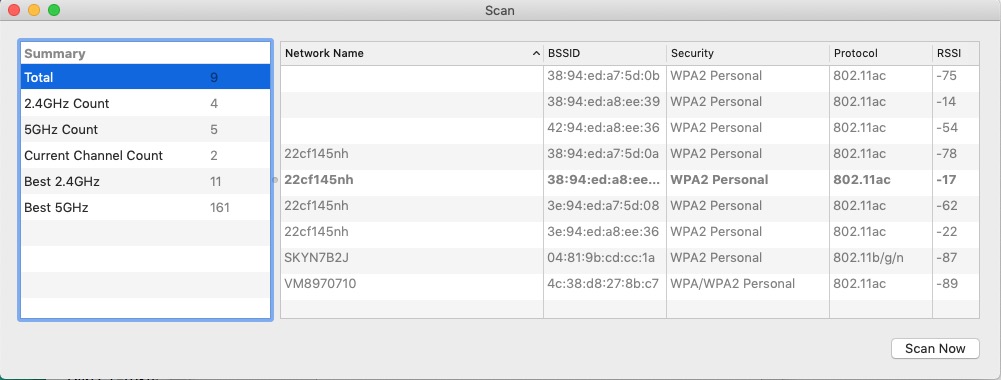
    In my case, I’d been disappointed in the performance of my new Netgear Orbi routers which although they seemed to shovel the data around very fast, there was a noticeable lag/delay in achieving connections, and I’d also felt that the router was dropping connections more than it should. So, bearing in mind I have a Virgin Media Superhub that’s only running in modem mode with the Netgear Orbi router behind it, I changed the configuration of the router which was pointing at VirginMedia’s DNS servers to point at Google’s secondary DNS server. I also checked what channels were being used by nearby WiFi networks using the Mac’s Wireless Diagnostics tool described in this article …

    … which indicated that I should change the 2.4Ghz channel that was being used from 1 to 11, and to set my 5Ghz channel to 161.

    I left the DNS server setting on my devices to be ‘automatic’. This makes it much easier to “roam” away from the house with a mobile device. I then ran a test called namebench (from Google) to try and find the best DNS server for my home network, but you don’t need to do this. I would suggest you look at this article and then experiment with Cloudflare, Google, and OpenDNS perhaps in that order until you get a response to your internet request that satisfies you. Leave your ISPs DNS server in the list of servers (the third in the list below) – just-in-case.

  • Protected: Questionable Broadband Speed

    This content is password-protected. To view it, please enter the password below.

  • Protected: It's Internet Thursday – 28th November 2019

    This content is password-protected. To view it, please enter the password below.

  • Protected: WiFi: improving your reception, and mesh systems – March 28th 2019

    This content is password-protected. To view it, please enter the password below.

  • Protected: How the web was won – Feb 28th 2019

    This content is password-protected. To view it, please enter the password below.