Author: David Harrison
-

Before you upgrade …
It’s that time of the year again for Apple users; the new devices are being shown to the world and you might once again if you’re an Apple fanboy or fangirl be thinking about a new purchase, OR upgrading your software with the new operating systems each with the ’27’ suffix.
We’ll leave the hardware devices aside, they can be expensive and with every year that passes I have to question whether I need a new shiny device. My iPhone 14 Pro is now at least 4 years old, my MacBook Pro older still, and I’m happy with the Mac Mini 4, and iPad Pro I bought over the last couple of years – so no hardware for me. However software upgrades always have to be considered.
Some devices run out of steam and can’t take the latest software. That’s inevitable and you can’t really complain about that. Technology moves on and to get the new features of an operating system you might eventually have to upgrade your hardware. That’s technological life! With advances in technology security issues pop up to the surface and the unintended consequences of some code become apparent. That forces the need for software updates and upgrades. These should not be dismissed as not relevant to you. They might be, and you will never know that until you fall foul of an insidious bit of malware. This has become more apparent with the advent of AI, because technology companies are now using the tools that this new technology provides to find the bugs and glitches in their own software, so ignore security updates at your peril!
So why is this post targeted at Apple users? Or, more specifically Mac users, those running the MacOS operating system. It’s because support for old Intel processors in these systems is coming to an end.
Back in 2020 Apple started manufacturing their own silicon; their own processors on a chip. They created new architectures for their computers and these are described as the “M series”. The Macs have gradually moved from the former Intel processors, to the M series and now, no Mac is being made with an Intel processor. They’re all M series machines – M1 -> M6.
To achieve a smooth transition to the new architecture Apple had to provide a software emulation of the Intel chipset to enable software written for the Intel platform to run on the new Apple processors. This emulator was called Rosetta. However Rosetta is just as vulnerable as any other piece of software to malware, so Apple gave early notice that support for Rosetta would not be long-term; at some stage it declared that with the launch of MacOS 28, in autumn 2028, Rosetta would not be supported and would not run on the M series machines running MacOS 28. So a lot of old Intel based software would become end of life, and this is really what this post is all about.
Apple is not springing this upon its users, it warned us it was coming and we should now take stock and prepare for the change.
Since a date earlier this year – if you were running MacOS 26 (Tahoe) – if you ran a piece of software that relied on Rosetta you’d have received a warning that the application would not run on MacOS 28. OK that’s two years away … I can ignore that for the moment. However, from this month, if you were to install MacOS 27 (Golden Gate), that software will not run because you need to install Rosetta manually – it’s not pre-installed as part of the operating system as it has been since 2020. So installing Rosetta may be something you have to do.
This is how you do that. [Click the link]
I was going to describe how you did the install, how you identified the apps that would cease working with MacOS 28, but it’s all well-explained in the article above. If you’re a Mac user, please read it.
So what should you consider doing now?
Well, I used the information in the article to review and identify all the applications that I had installed on my Mac to see if they were described as Intel (Universal and Arm64 being OK). [I think you can ignore any that say 32-bit because they won’t work anyway, they’re left-overs and I’m not sure how to clean your system of these – I will research that though.]
I then looked to see if I was using the application, if not, I uninstalled it – it’s amazing the dross that you leave in your Applications Folder and how liberating it feels to say goodbye.
If there was an application that I thought I’d need going forward, I looked to see if I’d missed an upgrade to it that would provide Apple Silicon compatibility, and then upgraded it.
Some upgrades might involve a cost, so I looked to see if there was an alternative that I could use to provide the same functionality. I did this as well for applications where no upgrade path was provided – for applications that had stopped being supported some time before.
But for some applications, in my case Epson printer drivers and applications, the situation was not clear. I put these applications on watch. I now knew which applications I would have to resolve before I upgraded next year to MacOS 28.
That might seem a long time away but for something like printer support this is vital and I don’t want an expensive piece of hardware to suddenly not work unexpectedly.
Here’s another way of identifying the apps that might give you problems.
Click on the Apple icon (top-left hand side of the screen) and then More info … to get the System Settings screen:
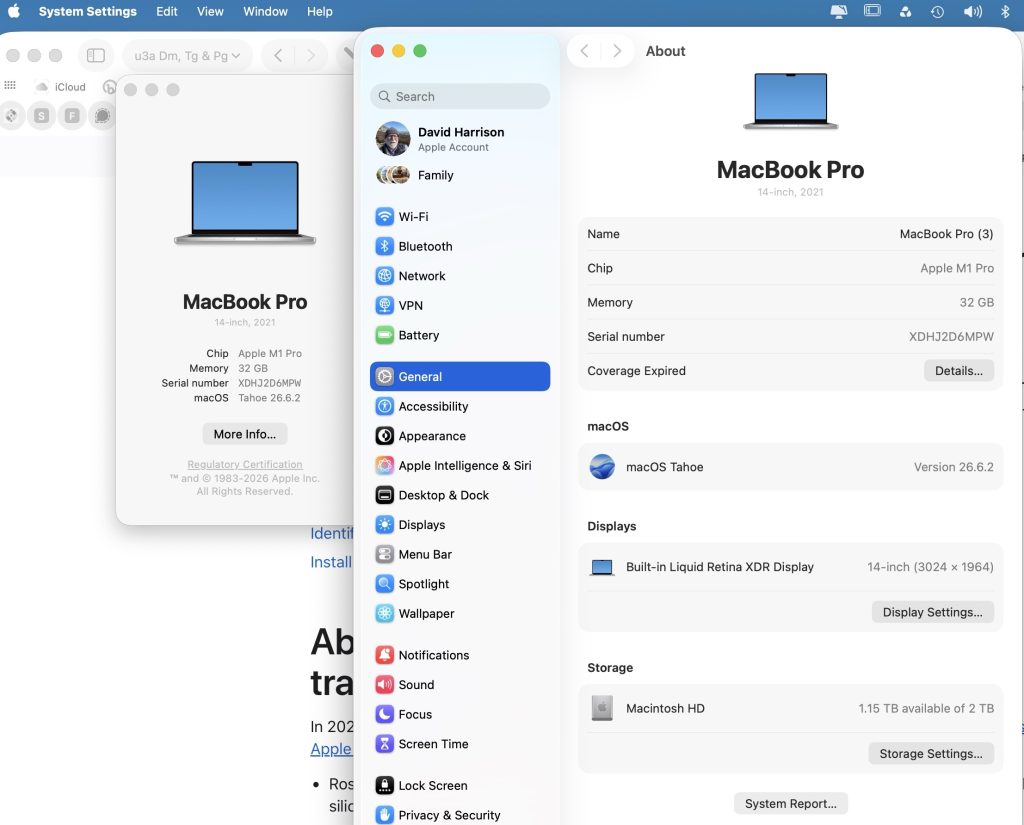
Systems Settings screen Choose System Report and then scroll down to Software > Applications:
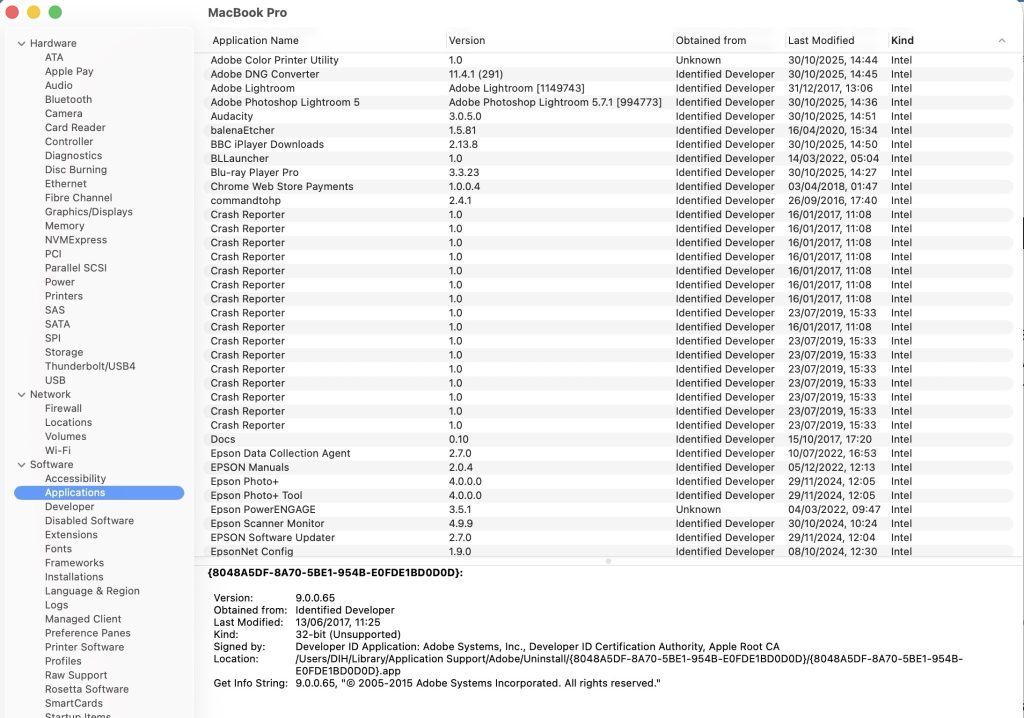
System Report > Software > Applications screen Click on the box “Kind” to sort the Applications by Kind, and you will be able to scroll down to find the Intel applications you have to consider.
All the best. Good luck.
PS. Usual advice, don’t in any case upgrade your OS until it’s got at least past the 27.1 version; they’re already working on beta-versions of 27.2.
-

AI for me (Perplexity)
Creating and Managing Preferences in Perplexity
AI assistants become more useful when they understand how you prefer to work. Whether you use Perplexity for research, writing, technical support, product comparisons or everyday questions, a few well-chosen preferences can make responses more relevant, consistent and easier to use.
Perplexity works slightly differently from services that use a standalone preferences file. Rather than uploading a permanent document, you normally add your preferences through its AI Profile, Personalisation or custom-instructions settings.
The AI Profile: Your Default Preferences
Think of the AI Profile as a set of standing instructions. It tells Perplexity how you generally want it to respond and what background information is useful to keep in mind.
Your profile might include:
- Your preferred writing style and level of detail
- Whether you prefer headings, lists, tables or brief answers
- Your language and location
- Your interests or areas of expertise
- Devices, software or platforms you commonly use
- Special instructions, such as using UK spelling or avoiding jargon
A useful profile does not need to be long. A concise set of clear instructions is often more effective than a detailed personal biography.
Write in clear, natural English. Start with a direct answer and keep responses concise but complete.

Use headings, bullets and numbered steps when they improve readability. Use tables for comparisons.

For recommendations, explain the main trade-offs. For information that may have changed, verify it with current sources.

Avoid unnecessary jargon, hype and generic AI phrasing.
This gives Perplexity a reliable baseline without making every answer sound rigid or over-formatted.
Treat It as a Living Document
Your profile does not have to be final. It is worth reviewing it occasionally as your needs, interests and working habits change.
You might add an instruction after noticing a recurring irritation, for example:
- Use UK spelling
- Do not assume I use Windows
- Put commands and code in code blocks
- Explain the safest option first
- When editing my writing, preserve my intended meaning
It is equally sensible to remove instructions that do not make a noticeable difference. A short profile that you maintain is usually more valuable than a long one full of outdated details.
Different Modes for Different Tasks
Many people use an AI assistant for several unrelated jobs. The style that works well for technical troubleshooting may not be ideal for drafting an email, planning a trip or editing a blog post.
A practical approach is to keep a few profile blocks in a note-taking app, then paste in the one that best suits the task. Three useful examples are technical, casual, and writing or editing modes.
Technical Mode
Technical mode is useful for software problems, hardware decisions, research, troubleshooting and step-by-step tasks.
Be direct, accurate and practical. Diagnose the likely cause before suggesting a fix.

Give the safest and least disruptive option first. Where relevant, include the likely cause, how to verify it, step-by-step actions and a fallback option.

State assumptions clearly. Highlight compatibility issues, risks and trade-offs. Use headings, bullets, numbered steps and code blocks where useful.
This mode encourages answers that are structured, practical and easier to apply independently.
Casual Mode
Casual mode suits everyday questions, light recommendations, hobbies, travel ideas and quick explanations.
Write in a clear, friendly and practical tone. Start with the answer and keep the response easy to scan.

Avoid unnecessary jargon and over-structuring. For recommendations, suggest the best option first, then offer a few alternatives with brief trade-offs.
This keeps answers useful without turning a simple question into a detailed report.
Writing and Editing Mode
Writing mode is useful for website copy, emails, blog posts, captions, documentation and rewriting.
Write in clear, natural language that sounds human and specific.

Avoid hype, clichés, corporate filler and generic AI phrasing. Preserve my intended meaning unless I ask for a rewrite.

For editing, provide usable copy directly. If helpful, offer both a light edit and a stronger rewrite. Prefer clarity over cleverness.
This can be particularly helpful when you want to avoid the overly polished, repetitive or generic language often associated with AI-generated text.
Use Short Instructions in Individual Chats
You do not always need to replace your main profile. A short instruction at the start of a new conversation is often enough to set the style for a one-off task.
Examples include:
- Answer this in technical mode
- Keep this brief and conversational
- Rewrite this in natural UK English
- Give me a practical answer with no jargon
- Compare these in a table and recommend one
This is often the quickest way to change tone or format while keeping your normal profile in place.
Profiles, Memory and Chat History
It is useful to distinguish between three related but different things.
Profile instructions (sometimes described as Personalisation) are the preferences you enter deliberately in settings. They tell Perplexity how you generally want it to respond.
Memory is information that may be retained from conversations to personalise future answers. This may include interests, recurring projects, preferences or details you have shared.
Chat history is the record of previous searches and conversations in your account.
An AI assistant may appear to know more about you over time because it is using remembered information or past conversations. That is not necessarily the same as changing the visible text in your profile.
Does Perplexity Alter Your Profile Automatically?
Your visible profile and custom instructions should remain something you control. There is no reason to assume that the text you have entered in settings is silently rewritten without your involvement.
However, Perplexity may use remembered information and previous activity to personalise responses. This means its understanding of your interests or preferences may extend beyond the wording in your profile.
If you value close control, review the relevant settings periodically. Look for options to:
- View or clear remembered information
- Manage chat history
- Adjust personalisation features
- Review data-retention or model-improvement settings
- Update or remove profile instructions
It is also sensible to avoid adding highly sensitive personal, financial or business information unless you are comfortable with it being retained under the service’s policies.
A Simple, Sustainable Setup
For most people, an effective arrangement is straightforward:
- Create one short, general profile with your core preferences.
- Keep two or three specialised versions in a notes app or plain text file.
- Use brief per-chat instructions for occasional changes of tone or format.
- Review your profile and memory settings every few months.
- Remove details that are no longer useful or that you would rather not retain.
The aim is not to make the assistant know everything about you. It is to provide enough context to save time, reduce repetition and produce answers in a form that suits the task at hand.
-
Energy ‘appiness
[Update: October 2026]
I hadn’t expected to write a further update quite so soon, but following on from taking Axle VPP on board, I came across an offer from a company called PredBat (who coincidentally had some of GivEnergy’s engineers working with them to support ex-GivEnergy customers). The offer from Predate was to fully manage the charge and discharge from your battery, but in a way that appears to be more beneficial to the consumer than the Intelligent Octopus tariff. I was just about to sign up for PredBat (my son-in-law was already trialling it) when I became aware that Wonder Watt were launching a service to fully manage your battery according to algorithms connected to projected solar forecast, next-day Octopus tariffs and projected domestic usage – which it had learnt from history of your previous usage..
I immediately applied to join the beta test first running the application in dry-run mode (which didn’t change my inverter settings) and then a couple of weeks ago I switched over to let Wonder Batt control my inverter.
Some screen shots to illustrate how it works …
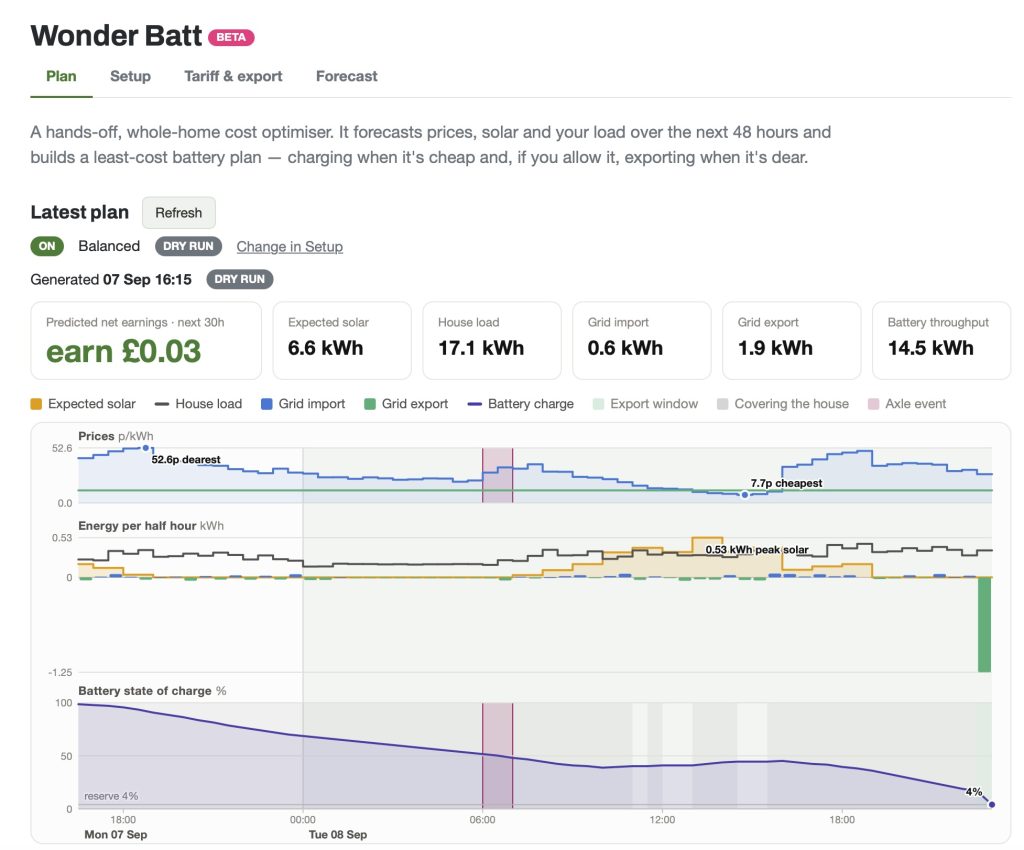
Startup screen (showing Dry Run mode) 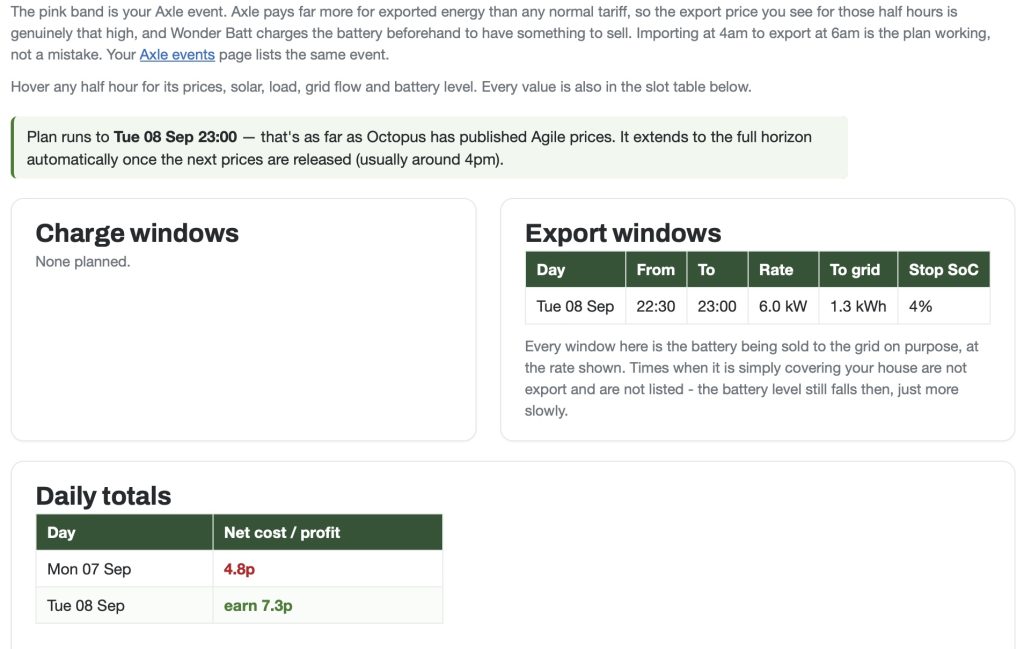
Wonder Batt shows what it’s going to do 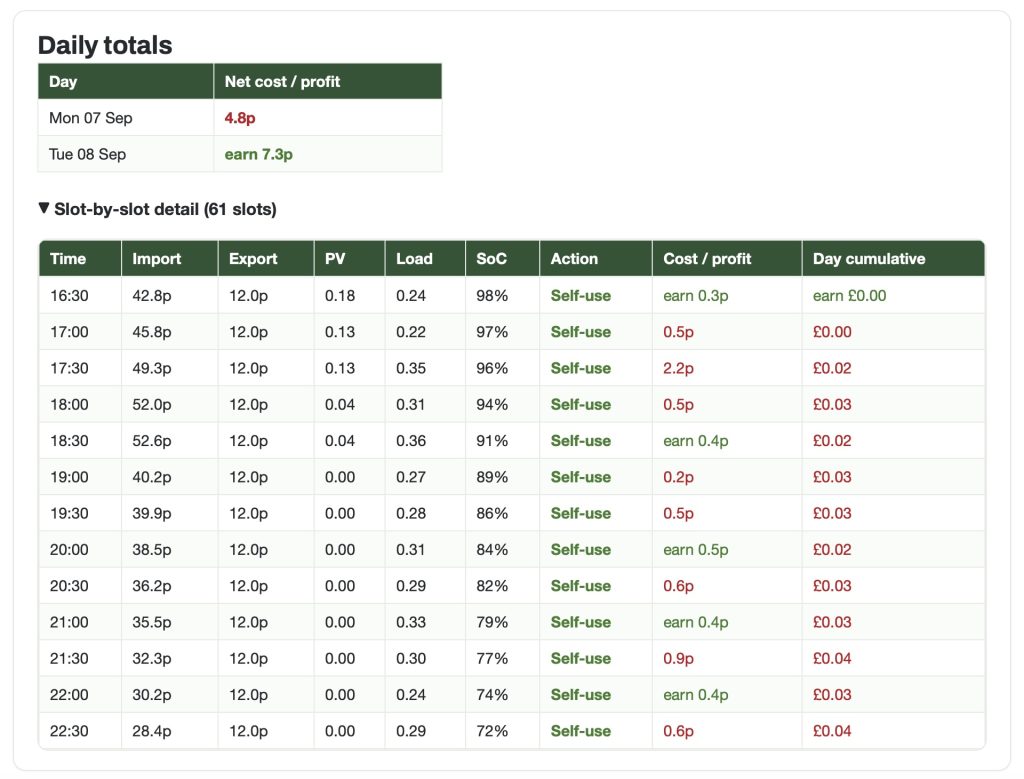
… with detail of how it’s going to do it. Tariffs are published for the next day at 4pm … 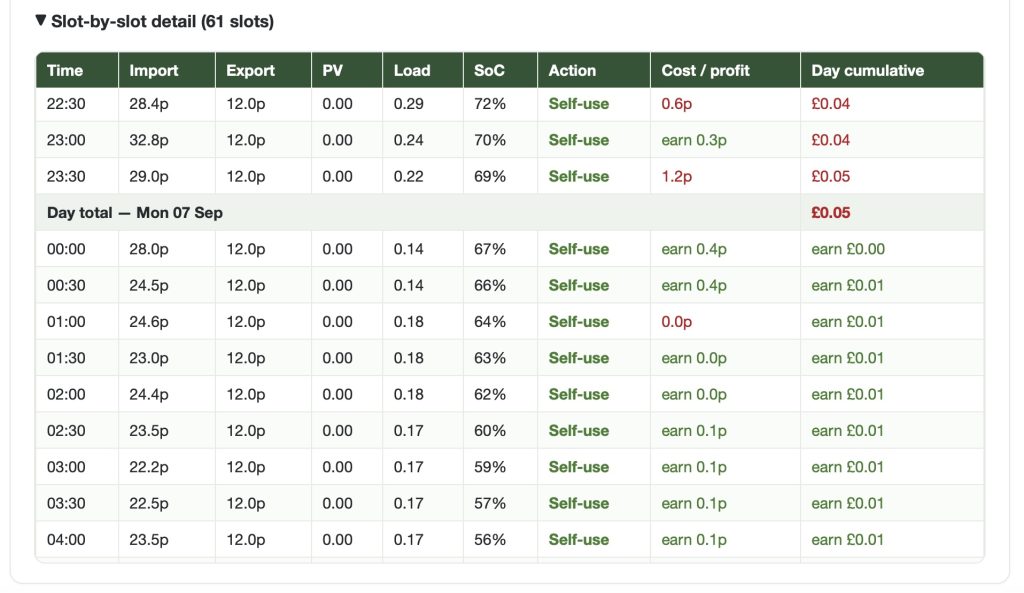
Self-use is you are running off your battery, with no charge from the Grid 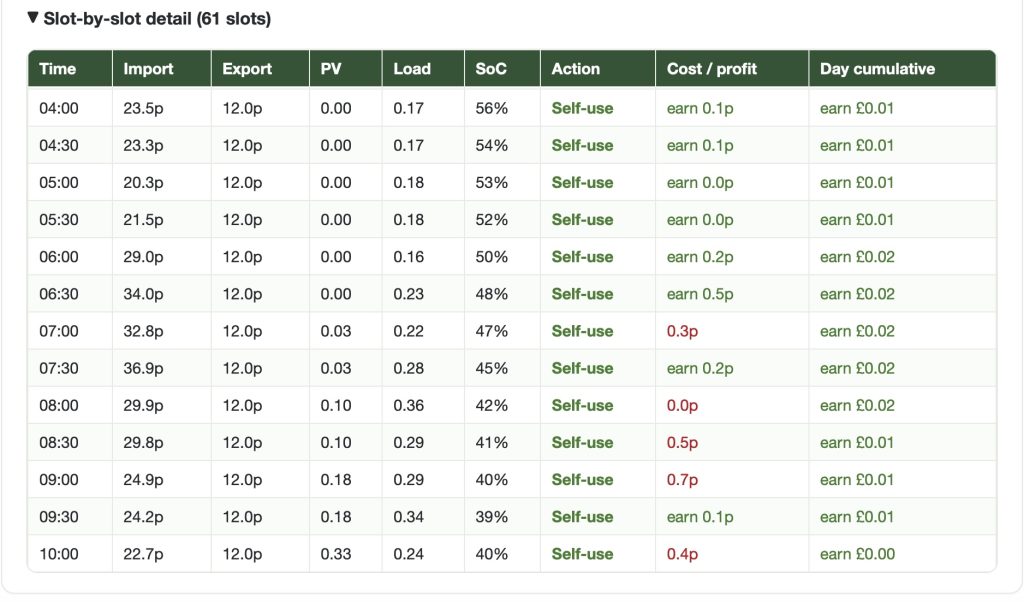
SoC is the level of charge in your battery – you set a minimum (ie 4%) below which you can’t use it 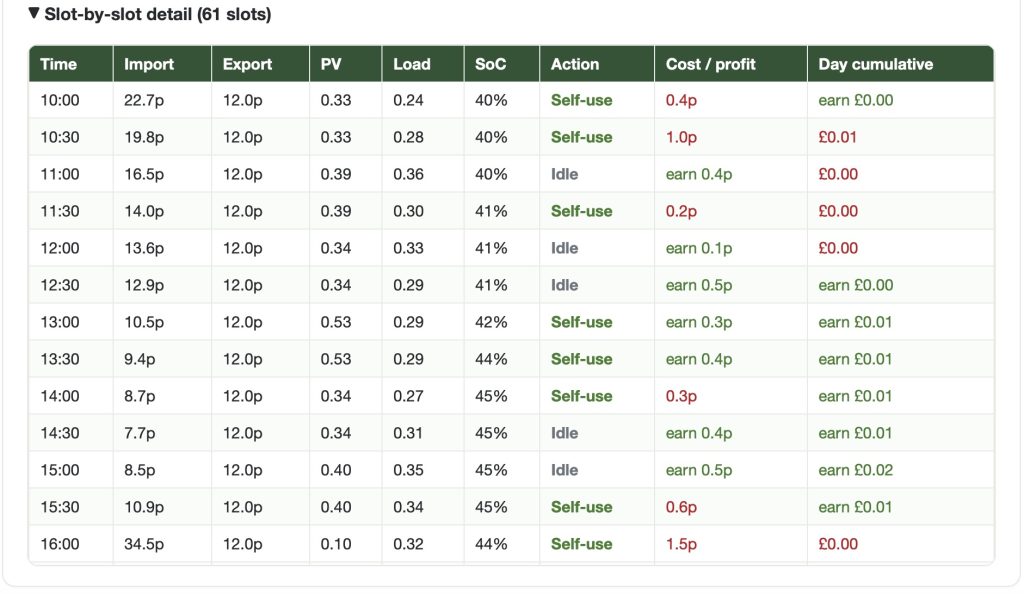
Idle is an estimate that you’ll not be charging or discharging the battery 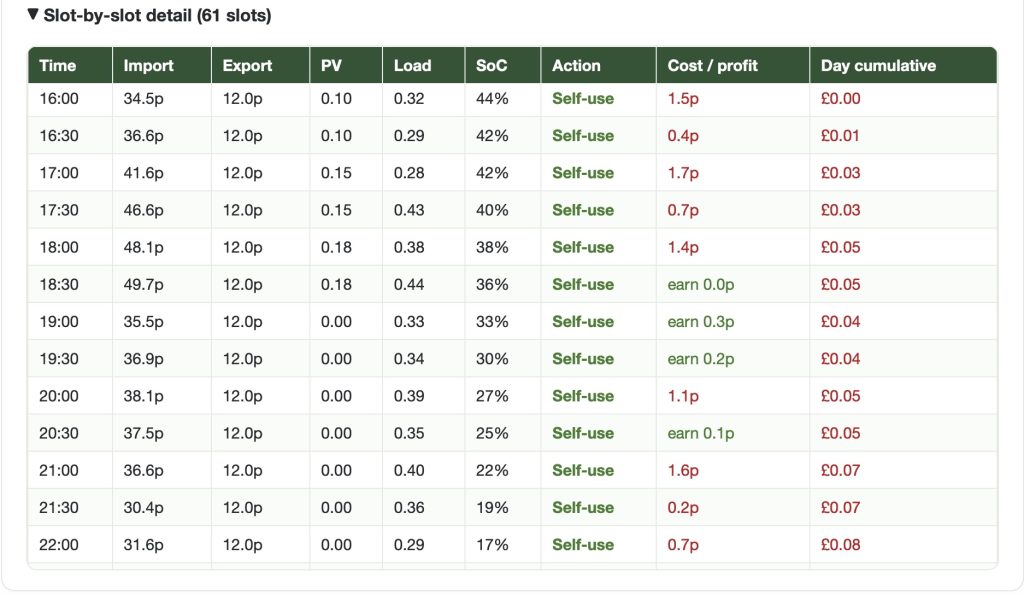
None of the estimates takes into account the standing charge for Import from the Grid 
Export is the amount you’ll discharge to the Grid. On this day there was NO charge (Import) from the Grid My experience with this service/application is very good. It takes notice of my forthcoming Axle Events and doesn’t discharge to the grid for 3 hours before an Event, and moreover will re-charge the battery if the SoC-level (the level of charge in your battery) is not sufficient to get the full benefit of the discharge.
It is important to remember that Axle are giving us £1 and Octopus will be giving us £0.12p per hour for every kWh of discharge, so with the maximum charge rate set by Octopus at £0.99p per hour it is impossible not to be in credit during an Axle Event.
So that’s where we are now. No doubt there will be more updates to follow, but that’ll be for a new post. This one details the situation as we go into Autumn 2026. I don’t envisage anything changing, unless we’re forced to change.
====
My previous post – Digital matters does Energy on our experiences in getting solar panels, a battery + inverter, and early experiences with switching tariffs took our story to September 2024. The initial installation had been completed 12 months earlier and we’d spent a while looking at different Octopus Tariffs before deciding that Agile Octopus was the one that best suited our needs. We did not have many panels (11) and the battery was sized to provide storage capacity for them, and power the house during the whilst topping-up from “cheap”er electricity overnight.
This has worked really well, and the Infrared panels from Herschel ensure that we have a warm kitchen to walk into first thing in the morning. We still haven’t made significant use of the IR heater in the garden room but know it’s there if we need to have heat there in a cold snap.
So Agile Octopus for Input and Fixed (12m) Octopus Export seemed to be the ideal pairing. However with 48 import sessions a day, one would have to just stab at the best times to charge the battery and which slots to avoid importing energy from the grid. At this time we were not really looking at recovering any cost from the Grid by exporting and at 16p a kWh we were only getting a small amount of income.
Then I discovered Wonder Watt – an app that I could schedule the times of import from the grid. This app not only was a time-saver – meaning that I didn’t have to worry about going into the GivEnergy dashboard to change settings – which is not a trivial exercise. Soon after trialling the app, I willingly subscribed for a year’s use which cost me c.£60, and I will renew later this year as it’s saved us far more than £60.
At the heart of the app is that you can set up a max. of 12 charging windows, which you can constantly change if you wish. [You can also leave Wonder Watt to make an optimal selection based on local weather forecast – but I don’t!] Below you can see the charging windows that are Active, and the one that is inactive (the high-cost 16:00 – 20:00 Peak charge session). For all the Slots chosen within each window, should the battery level fall below the SOC figure then the battery will charge up to the SOC target figure, subject to the tariff being below a cost (ie 18p kWh) which you can stipulate, or leave blank to charge at any cost..
So the Summer slots I’m using (5) are these …
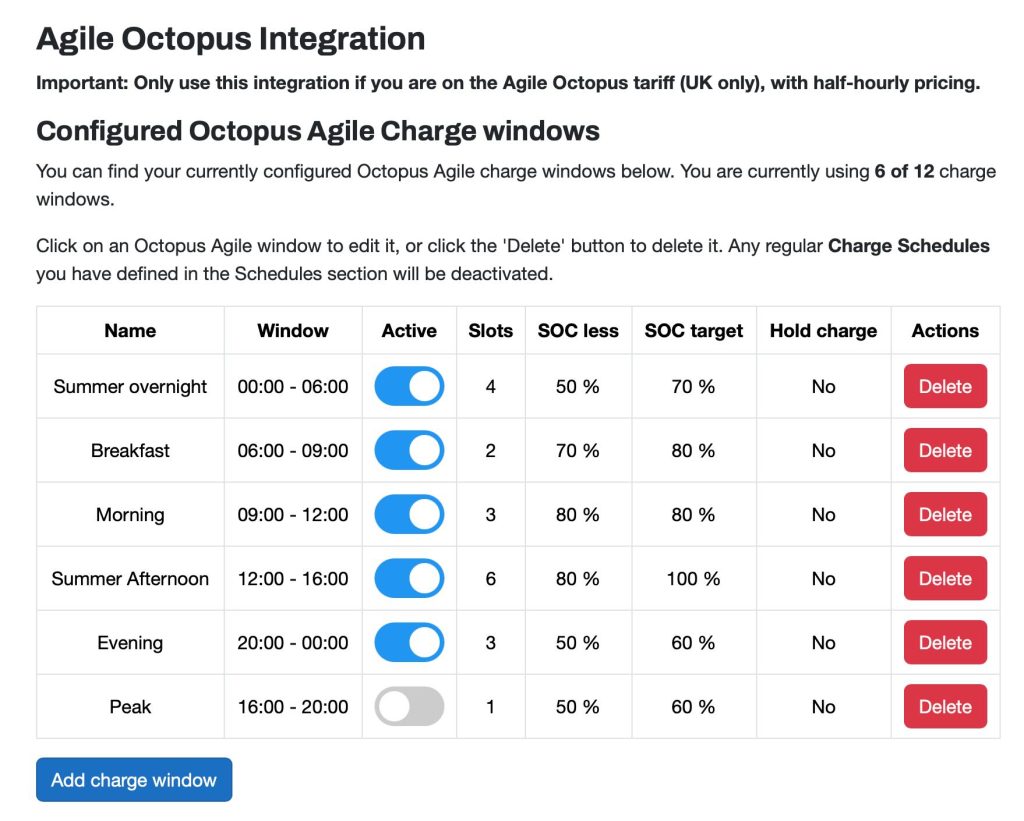
… and for today, as I type this, these are the tariffs for the 46 slots …
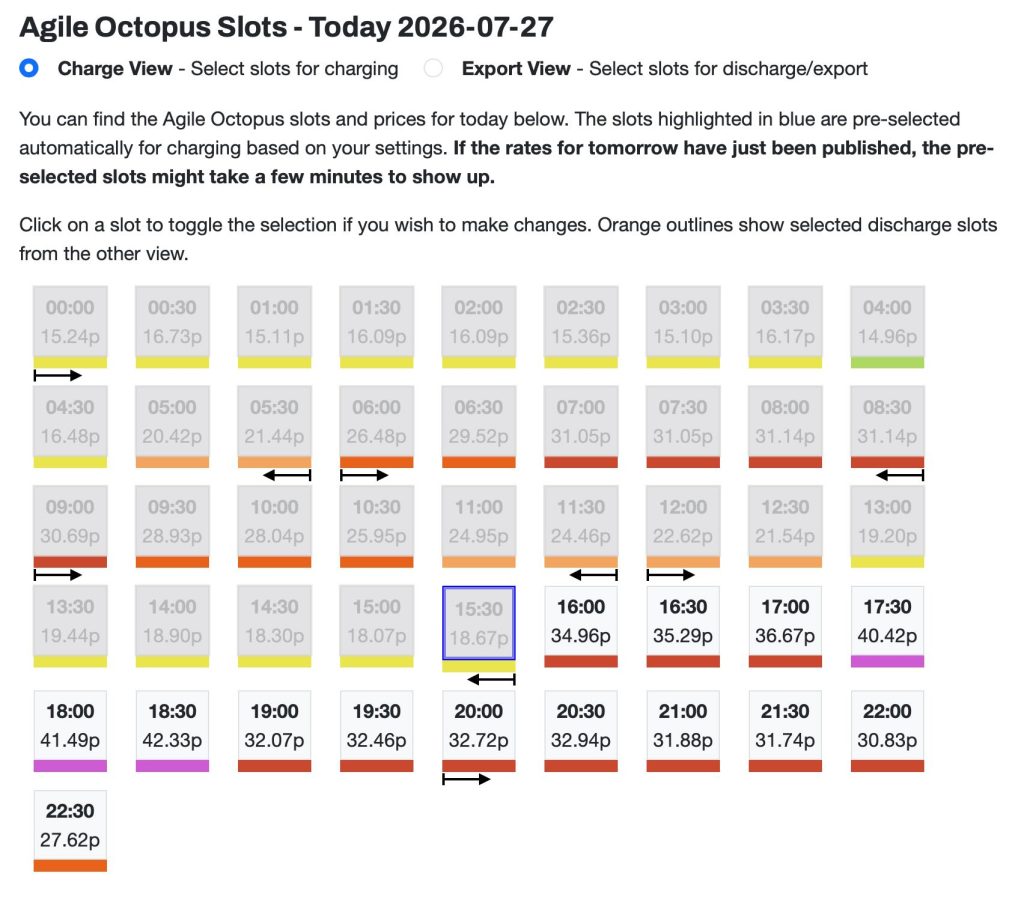
… so you can see the variation and the need to manage your call upon the grid to minimise costs. Below you will see the tariff charges for tomorrow which are published at about 16:00 and the ones potentially selected by Wonder Watt for grid import on the basis of the criteria set in the Charge windows table (above).
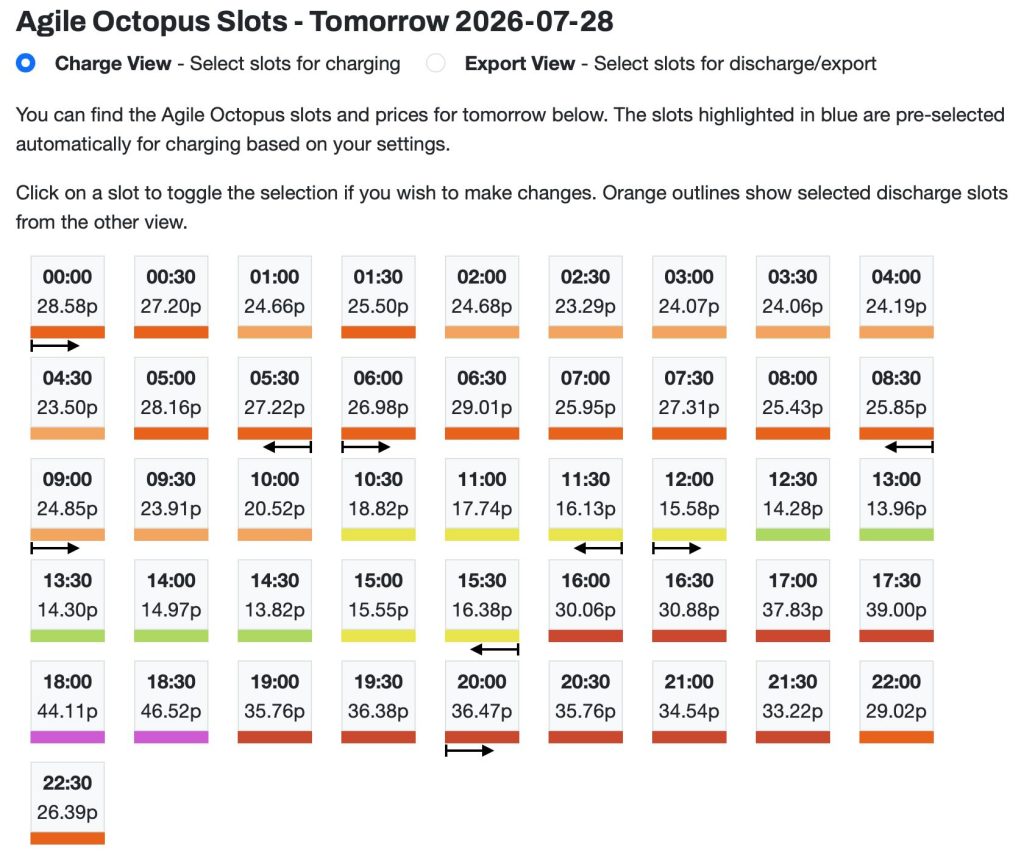
You can see the variation from one day to another, hence the need for Wonder Watt ‘appiness!!!
All was going swimmingly well until about three months ago when our Battery supplier – GivEnergy went into administration.
This of course caused some concern, but the immediate concern we had of not being able to schedule the inverter for charging slots was ameliorated by the news that a separate company GivEnergy Software was still in business and if we were to subscribe (a cost of £4.99pm) things could continue as normal … phew!
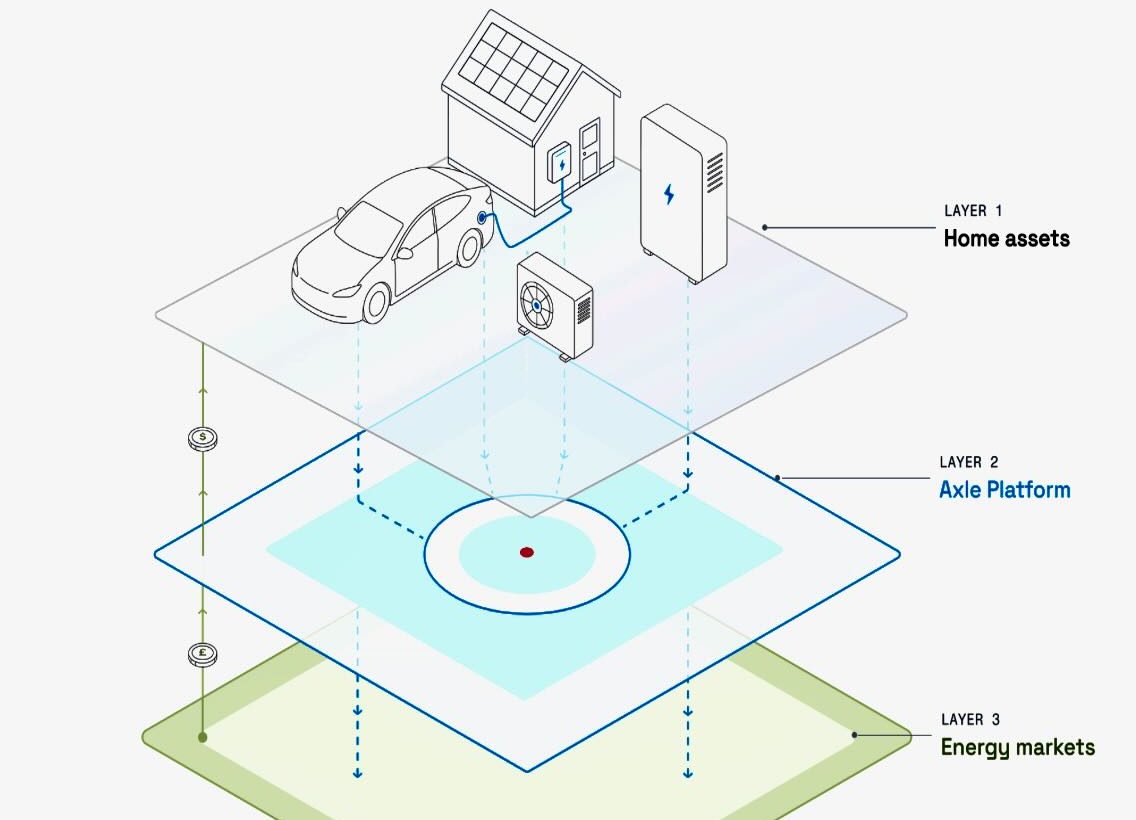
A few weeks later we had notification that a recent start-up Virtual Power Plant (VPP) company – Axle – was prepared to pay our GivEnergy Premium subscription and would guarantee to pay us £10pm if we were to sign-up to their service which requires us to accept Events of an hour long when they would take power from our battery and sell it to the grid. They offer a “tariff” of £1 kWh which is significantly better than Octopus Fixed Export (now 12p kWh) which we would get as well, thus £1.12 kWh for an hour of export.
Now this where the maths gets really interesting. The max. tariff that Octopus are able to charge us for Agile is .99p kWh, so we would still be in credit if we charged and discharged at the same time, at the worst possible Octopus Import tariff – which has never happened!!!! [The highest import tariff I recall was 50p kWh in a window (16:00 – 20:00) when we wouldn’t be charging anyway.
So as long as we ensure that the battery is fully, or nearly fully charged, before an Event, we can export and benefit to the sum of £1.12 kWh. So far we have participated in 6 Events and our account shows us that we have earned c.£20. Looking at the battery statistics it appears that an hours discharge to Axle drains the battery by c.33%, so that is manageable as you have 24hrs to vary your Wonder Watt windows if necessary.
So a little more about Axle. Announcing an Event you get an email which gives you 24hrs notice of it happening. If you don’t want to take part you can opt out from your account screen.

Invitation to participate in an Export Event 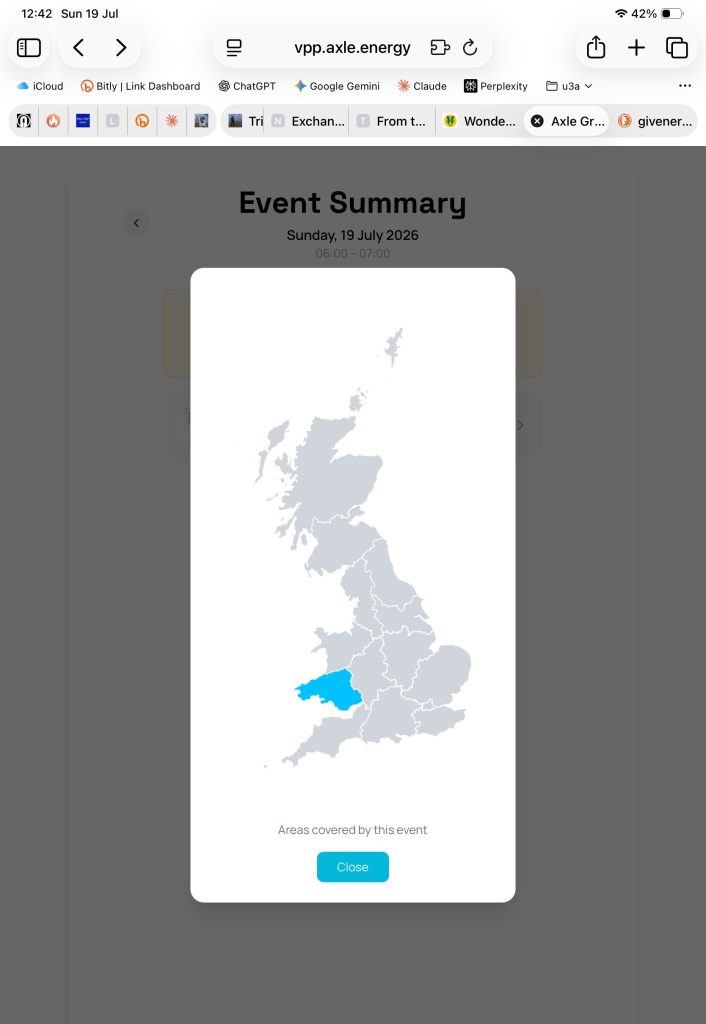
It’s selective by region, so this one was targeted at only South Wales … then when it’s finished, you get another email …
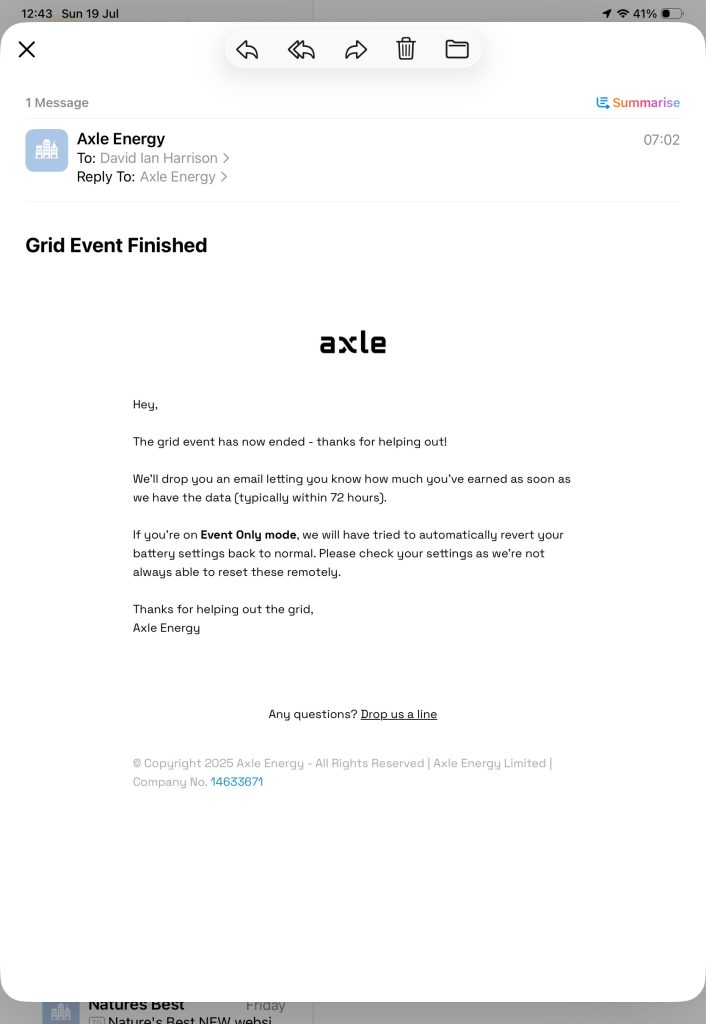
The Event has completed, and you then wait to see how much you have earned. … and within 72hrs you get another email ..

Your Axle account screen So that’s about it. Has it worked for us … short answer, yes! We needed to ensure a warm house, and were interested in reducing our costs from the £3600 we were paying to British Gas to something more acceptable.
If you can read this spreadsheet you will se how this has been achieved.
Bearing in mind that during 2024 when energy prices were really high and the Energy Cap had to be introduced, we were able to reduce the amount of energy used (by clever use of the solar power), and the cost was only slightly greater than the previous year. Getting under £2000 was a marked improvement than £3600 when we were with British Gas.
This year with better management of the battery charging you can see we’ve stored more solar to the battery, to be used later, at the expense of less direct solar to home energy use.
It also looks as though our costs will be the same, or reduced for 2026, but the Axle Events will push us into significant gains – not something we’d planned for, and not something the system had been designed for. A really great result. Wonder Watt + Axle, you’ve given us ‘appiness.
Here’s the slide deck from the presentation on 23rd July.
-
Virtual Payment “Cards”
Something I’ve just become aware of – the ability to create and use on-off payment details for online retail purchases. This is a facility that’s appearing with the new payment cards – Revolut, Monzo and payment/transfer systems – Wyse. In essence you can setup your account to use payment details just once from your account and then they will be removed from your card, thus enabling you to protect the source of your payment.
Here’s a short presentation of what you can do, using Revolut as an example …
-
A comparison of chatbots
Which one should you consider using, and why?
At a meeting on 22nd January I gave this short presentation …
Here are some other slides that might be of interest