Tag: Google Photos

  • Notes from Zoom meeting – 21st January 2021

    Apologies (again) for the late arrival of these notes. Covid is certainly slowing me down – is that the same for you!!?? We kicked-off by going round the screen, several members had nothing to raise, no IT-problems is a Critical Success Factor for the group. Am I doing something right? {Don’t answer that.}

    Owen described the installation of his Vodafone 5G Broadband service which he’s written up in this post. It’s an interesting development and points to the future of rural broadband as well … maybe. Certainly a more environmentally friendly alternative, but you need to ensure that there’s take-up/adoption, and of course hills can make construction of such a network very costly. But, for rural Pen-y-Lan in a cable desert it’s a winner!

    Sianed had been having problems with OpenReach after damage to the cable feeding her property. Hopefully that’s now been resolved.

    Ted was experiencing contention issues due to the increased number of devices using his home network with his son now living in the house as well. The same son had improved the performance by disabling one of the channels on the router. This led to a short discussion on wavelengths and channels used by the router and suggests that a repeat session on that topic might be worthwhile. {I’m going to do that at the next meeting on Thu 4th Feb.} He was also having some difficulty with adapting to the new WordPress Block Editor for his Family History blogs. I sympathised, but urger him to stick with it, I’d now made the switch and was finding it SO MUCH better! I suggested that perhaps a “special” extra session on WordPress might be worthwhile and possible?

    David Hughes was experiencing problems with getting The Times on his iPad, whilst it was running on his wife’s. We ran through a number of possible solutions, which David had already attempted, so we were left with a puzzle which was not very helpful for David as he had been experiencing language challenges with the offshore IT Support Desk. {Is that me being sufficiently political correct?}

    Fred praised the steps that Cardiff County Council had made towards inclusivity for those who were threatened by digital exclusion with the distribution of tablets, and adoption of new policies. He was also having much more pressing difficulties with a kitchen roof which he’d not been able to have fixed until a date in February. We sympathised with the challenges of someone moving to a new area and not having the list of useful contacts. To this end Christine offered me the contact details of a roofer – thanks!

    Mike was enjoying his better broadband at reduced price. Great!

    Renee had an interesting problem which was she had a satellite receiver dish with no manual and was having difficulty in making it work. I offered to supply a link to a manuals site that I’d used to good effect. Here are a couple – https://www.usermanuals.tech/ and https://www.manualslib.com/ – there are others. Someone (Paul or Phil ??) did suggest perhaps using a laptop with USB, rather than trying to connect to her TV. We await developments with interest. She also wondered whether there was anywhere you could look to find the meaning of emojis, there is – here it is Emojipedia.

    Jim reviewed his difficulties with using an additional SD-Card for his new phone and thanked Paul for resolving the problem. He was now saving his photos on the card, and not using it as extended SIM memory. he also told us about his decision to take out a subscription to Google Drive/Photos to ensure that he could save his photos (taken with his phone) on Google at Original Quality. I expressed the view that perhaps this would not be an issue for smartphones as the limit for High Quality was 16Mp {most smartphones being 12Mp}. I sent him this link – Google Photos “High quality” vs “Original”: What’s the difference and should you care – which you might be interested in which compared different compressions with Google Photos.

    Christine was still having difficulties with her WiFi still losing service when she was trying to play chess with another user (her husband) in another room in the same house. I suggested that this might be an issue which we could solve with our session on router configuration {see above}.

    Phil was revelling in having discovered how good Google Docs is! {He ought to look at LibreOffice as well} It’s good to have a personal recommendation and I concur … why people are still paying money to Microsoft for Office when there’s free and open source alternatives that read .docx formats (and in the case of LibreOffice – write .docx), is a puzzle to me! He was also wondering whether anyone had come across an online version of Cluedo; he had updated his favourite gadget – his Firestick; and showed us how to move Zoom windows. Oh! Bliss!

    That means that Marie-Christine, Ann (who had to leave the meeting), Margaret and Marilyn had no issues to raise.

    So what have I been up to? The greatest success has been able to get my new Sony Bluetooth headphones working so that I can listen to music and not disturb anyone! Other than that I’ve been in organisation mood. I’ve sorted out my cloud drives – Google, iCloud and Dropbox so that they all have a distinct and different purpose; respectively photos and webwork, documents and archiving/backup. A lengthy job that I couldn’t have managed without dupeGuru, a rapidly favourite bit of Mac software. I then went on to start deleting duplicate (of which there were many) family history records. Duplicates are a pain in the neck – you never know whether you’ve got exactly the right one. That’s where dupeGuru comes in. I did have an anxious moment however when Dropbox informed me I’d deleted over 20,000 files. I restored them just in case, which put me back half-a-day; I hadn’t made a mistake!!! A neighbour across the road stores a backup disk of my photos and so I recovered that and did a backup and returned it to them. I do this every year. I have back-ups on an external disk connected to the computer as well for day-to-day use.I upgraded a few apps; removed Flash – hope you’ve done that too! However most of what I did was connected with my concerns with WhatsApp and it’s changes to it’s Privacy Policy.

    We had a discussion on this – or rather I spoke at length of my concerns. They appear in three places – this blog; on the public – Thought grazing and my personal blog – Just thoughts. I won’t say any more at this time, but I will be reviewing my use of WhatsApp (in particular) before the new deadline of May 15th; and will be considering leaving Facebook and instagram after removing my content – a subject for a meeting at a later date when they decide to move away from Ireland.

  • Google Photos – Album Archive

    This started when I wanted to find out how many images I have in Google Photos, which they don’t tell you. After some digging I discovered my Google Dashboard, which again isn’t easy to find, so here’s the link (to yours of course):
    myaccount.google.com/dashboard .
    This told me basic information about all my Google apps, including the fact that I have over 200 images in Photos. I was surprised to be told in addition that I have over 600 albums though! Following that link, I discovered that these are stored in my Album Archive.

    When my tablet and phone photos are uploaded, they are put into albums according to the day they are taken. That is OK, but it turns out that when I delete old images, the empty album remains. I will now start deleting these empty albums from the Archive, but it seems I have to do it one at a time. I can’t at the moment see a way of selecting a group of them.

    I hope that is of interest to someone.

  • What I did on my holidays … 64-bit and photo-editing – 26th September 2019

    What I did on my holidays … 64-bit and photo-editing – 26th September 2019

    Welcome & Boot-up
    Introductions
    What do you want / expect from the Group?
    Please tick your attendance, pay £1.50 and agree that you want to join the “Thought grazing” website I run where the notes of the meeting are posted, and that you are interested in joining a WhatsApp Group.

    For those who’ve expressed an interest in “Thought grazing” and establishing a WhatsApp Group, I’ll send out an email following the meeting with UserIds and Initial Passwords for new members. [You can change your password if you want to – I’ll write a post that explains how you can do that.] The Password for Password Protected pages on the website is the same as everyone’s initial UserId Password, namely – Ca3rdyddU3A
    Does anyone have any difficulties in connecting to the Thought grazing website?
    Does anyone want to join the WhatsApp Group but is unsure how to do it?
    I think it best to gloss over the chaos that followed – we’ll get there; here’s how to add members to the Group so that I don’t forget … add member to Contacts on my phone, then I can see them in WhatsApp to add them as a member of the Group. Easy when you know how … duh!
    Incidentally Paul has written a post detailing how you can add WhatsApp to a Tablet.
    Do we all know the difference between Google and an Internet Browser?  – Don’t be shy. This is perhaps the most important thing to be sure about before we go any further. Two links to look at – Just google it … and the notes from the first meeting last year.
    What’s happening to Digital Projects? Well the first one has been announced, it’s a re-run of a Digital Photography course using Adobe Lightroom and it’s announced in the latest Newsletter on the new Cardiff U3A website.
    Which brings me to our webpage on the new website, the Photography Group has already added information to their page.

    • What do you think should be on it?
    • Should we have a number of pages?
    • Any ideas for an image to head the page?

    Helping others in Cardiff U3A with Computing/IT issues …

    • a WhatsApp Help & Advice Group? We agreed to do this and I’ll write to the Committee for them to consider.
    • [Update: The committee is going to consider this at their meeting in October. Further update: We decided to withdraw our offer until we felt more confident in using a Group for ourselves!]]
    • opening-up Thought grazing to non-Group members? We agreed not to do this

    Visits. We agreed visits to the Barclays ‘Maker Space’ which Mario will arrange for us, see details below …
    In addition, as part of our community commitment,  we have also opened a new office in Cardiff designed to help businesses grow and start up in Cardiff. Great for budding Entrepreneurs (which statistics show can be high in the over 50s)  and inventors. Part of the Eagle Lab office hosts  a “Maker Space” that houses laser cutting, vinyl printing, 3D printing, electronics equipment including soldering etc. It has a distinctly digital feel too with a really switched on Engineer running the lab. We can host groups there and would be happy to chat with your Digital Projects group and your Science groups coordinators, to discuss with them what is available there and whether they would like to bring members along to take a look at the facilities, or host a meeting there. Please feel free to ask them to contact me and I can discuss what they need, what we have, what we can do to support your members.
    … in the approach to Easter, and also a visit to the new BBC Centre after Easter.
    I’ll approach Cardiff Uni about the possibility of a visit maybe before Christmas, and Fred suggested a visit to Brains new brewery site as an alternative.
    [Update: Unfortunately I was unsuccessful in getting a useful visit to the Computer Centre of Cardiff University; I have another idea, but Fred has offered to contact Brains and their new brewery at Cardiff Gate for a visit before Christmas.]
    Finally, I posted an article about the forthcoming MacOS Upgrade to Catalina – which is a 64-bit operating system – and what it might mean for Mac desktop/laptop users. This has prompted me to consider this as a topic (not Mac specific) for later in this meeting. There are several links in that article that you may wish to follow, and which are not listed below, if you’re a Mac user.
    Other issues raised:
    Gill asked whether it was possible to print from an iPhone to a printer. Members were able to say … yes, if the printer supports AirPrint. I presume there’s an Android equivalent?
    Renee asked about opening compressed files in emails on an iPhone. We got some way to solving that one, but agreed to take it onboard as a conversation on the WhatsApp Group.
    If I’ve forgotten anything, please let me know.
    Gear Guide
    Has anyone bought, or obtained anything recently they’d like to tell us about? It doesn’t have to be a computer, laptop, tablet or phone – just something that’s digital, ie used a computer processor in some way?
    Apps Galore
    That slot in the meeting where members are encouraged to share their experience (and possibly excitement) at a new app they’ve started using for their smartphone, tablet, laptop or desktop machine.
    Renee mentioned that she’d found DuoLingua a very interesting application for helping her learn a language just recently – others had used it as well.
    What’s IT all about?
    The next upgrade to MacOS – Apple’s operating system for its desktops and laptops (not iPads and iPhones) is 64-bit. Any software that is not compliant, that is it’s not written to meet the specification of 64-bit, will not run on your machine once the operating system has been upgraded. What does this mean though? Do Windows users face a similar issue, now or in the future?
    I’m going to use this article as the basis for the explanation, using Windows as the operating system in question. But first, does everyone know what an Operating System is?
    It has to be said upfront that Microsoft has been extremely “kind” to its users, offering backward compatibility even back to MS-DOS (a 16-bit operating system) for a long time so that you can even now still run old DOS programs using a 16-bit emulator for Windows 10. However, Microsoft has also confused its users ever since Windows XP by providing two versions of its operating system, one for 32-bit and one for 64-bit. If you had a previous version of Windows – XP, 7, or 8 – which had the 32-bit operating system installed on your machine, you are more than likely to have got the 32-bit version of Windows 10 installed on it when you did the free upgrade. But you can upgrade to the 64-bit version if your hardware will allow it. And there’s the rub, not all hardware will allow 64-bit processing and that’s why the MacOS upgrade is both helpful and annoying.
    It’s helpful in that it sets a new benchmark for all software developers. They’ve known since December 2018 that this change was coming, and it’s not particularly challenging for Mac users as machines back to 2012 (including therefore my MacBook Pro) will be able to make the switch.
    But why the change? Well as the first article spells out the biggest advantage of using a 64-bit processor is that it can address a much larger amount of RAM (Random Access Memory) and so therefore machines with more than 4Gb of RAM will benefit from faster processing if the applications are written to the 64-bit code base. Also more programs will be able to held in RAM, enabling faster switching between applications. Graphics intensive applications with the dependance on a large amount of memory space will also work faster. So there are huge benefits.
    So should you as a Windows user upgrade to 64-bit Windows 10? That depends upon what you use your computer for. If you decide to stick with 32-bit be aware that Microsoft will one day dump 32-bit in the same way they “dumped” DOS, but the community of users is so massive that undoubtedly a 32-bit emulator will be written, by someone! But, you may choose to make the switch, if your hardware can take it, before you’re forced to jump; and in the meantime be aware that you’ll undoubtedly and progressively experience a slowing down of your software as more of them become 64-bit, and if you try and run a large number of them concurrently (at the same time) in different windows.
    Some more links for you to ponder …
    How to switch from 32-bit to 64-bit Windows 10
    FAQs from Microsoft on 32-bit and 64-bit computing
    32-bit app compatibility for Macs with current Mojave operating system
    Incidentally, my MacBook Pro is still running High Sierra, the operating system before the latest one – Mojave. I intend to upgrade it to Mojave and then leave it at that operating system so that I can run some 32-bit applications such as Office 2011 and Adobe Lightroom 6 (and earlier) for a while longer. It is a seven-year old machine … it’s doing very well with the upgrades it’s had to it’s hardware – solid state disk, RAM increased, replacement battery – it’s not ready for the scrapyard yet, and it’ll be more difficult to upgrade to Mojave soon, once Catalina has been released.
    My machine’s running slow!
    Quite co-incidentally I’ve been approached by a U3A Group Facilitator who’s having problems with the performance of their machine.
    This led me to do a search of Google for good articles that might be of help and value. We’ve looked at this before, of course for Windows, and I’m adding a couple of links below which might be of interest and assistance.
    I use MacPaw‘s CleanMyMac 3 on my MacBook Pro, and I will probably upgrade to CleanMyMac X for both desktop and laptop before I do any upgrades to Catalina. Here’s a blogpost on how you can improve performance on your Mac.
    Here’s an article that makes suggestions on how to clean-up both PCs and Macs.
    So … to the Windows PC. Here are a couple of links:
    Some quick ways of speeding-up Windows 7, 8 and 10 PCs.
    Tips to improve performance with a Windows 10 PC – from Microsoft
    Set of links from an earlier Thought grazing post on Windows 10 maintenance
    Easy-peasy photo-editing … believe me!
    You’ve taken a photo, or been sent it in an email, but you just feel that you could make it just a little bit better. Don’t despair, there’s an easy way of editing a digital photo in just a few steps if you have a Google Photos account, and if you don’t – here’s how to get one and how to get started with organising your photos.
    Some thoughts. Most smartphones take images of 12mp or perhaps a little more. You can print a decent 15 x 10 inch picture from an image of that size

    Google allows you to upload images without any compression up to 16mp – happy days!
    So on to a demonstration … some simple edits to enhance an image.

    For more guidance on Google Photos, the use of Backup and Sync and much more, you might like to visit (or re-visit) this Thought grazing page.


  • Google Photos and Google Drive, and the Apps I can't do without – July 11th 2019

    Boot-up
    A couple of postings from Jim and me on Thought grazing, including Jim’s annoyance at having a Windows 10 upgrade foisted on him.
    Google Photos and Google Drive
    Jim posted on Thought grazing last month about the proposed changes to the way that Google Photos, Google Drive and Backup and Sync  were going to work together. This is Google’s blogpost on the changes they are making and here is the help document explaining what will happen after July 10th, I suspect many of you will also have received this email …

    Simplifying how Google Photos & Google Drive work together
    You are getting this email because you sync items between Google Photos and Google Drive.
    Over the next few weeks, we are making some changes to help simplify how Google Photos and Google Drive work together. We are making these changes based on the feedback that we’ve heard that the connection between these services is hard to understand.
    Your photos and videos will no longer automatically sync between Google Photos and Google Drive.
    You will still be able to upload to both services using the Backup and Sync app on your computer.
    We’re also adding a new “Upload from Drive” feature that lets you copy photos and videos to Google Photos.
    Your existing photos and videos are still in Google Photos and Google Drive.
    You can read our Help Centre article or learn more about these changes in our blog post.

    Add photos and videos from Google Drive to Google Photos
    So … it’s really important to understand what Backup and Sync is doing, and this is determined from the Preferences screen.


    Also from Backup and Sync you have links to your local Google Drive, your Google Drive on the web and Google Photos on the web …

    … the interface is slightly different on Windows, but the first button will bring up something like this …

    … the second button (from the web) will bring up something like this …

    … and the third button (again from the web) will reveal something like this …

    Now I wanted to test the Upload from Google Drive (which you should be able to do from the Upload button on the top-right of the screen), but it’s not yet operational  – and it’s the 11th July! However, I see now that I can drag and drop images which is new, although the imported image is not easy to find unless you add it to an album at the time of import!
    On my iPhone, the Google Photos app settings look like this …

    … and then the Settings screen looks like this …

    … with everything I’m uploading (Backup and Sync) NOT counting towards my storage limit as I’ve chosen the “High Quality” (15Mp) option. Then on my Google Drive app, the open screen looks like this …

    … and if I open the Google Photos folder that I had at one time been syncing with Google Drive, it looks like this …

    … with the warning that they are no longer connected. If I then look at Google Drive settings …

    … the Photos setting being like this …

    … and the Backup settings being like this …

    … you can see the Backups are clearly defined. As it happens I don’t Backup from my iPhone as I sync everything to my Desktop and that’s where my Backups of Google Drive, Contacts, Calendar are done.
    So I think the separation of automatic sync’ing between the two could be a distinct advantage. You just need to make sure you set up your Backup and Sync options, or preferences the way you want it to work for each of Google Drive and Google Photos.
    PS: How to do screen shots from an iPhone – hold the Power button down and press the Home button and then release the Power button. The image will transfer to your Photos Library, and if you’ve got Google Photos linked to your Photos Library, it will appear there as well, and then be Sync’d up to your Google Photos on the web, from where you can Download them to your desktop to insert them in a document – like this one!
    Anything else, issues, problems.
    Next and last meeting: Sound
    News
    Google Maps may be getting public transport information.
    New warning over automated phone call scams.
    BT to offer Free Telephone Number to Report Nuisance Calls – 0800 150 150 – it’s a scam!!!
    Reasons to Install a Password Manager
    How to find out if your Facebook account has been hacked.
    George Felton has passed away.
    The Apps I can’t do without
    Working smarter?
    eMail – use a client and link it to the service; that way you can archive mail and contacts locally rather than leave it on a server which is useful if you change provider; you can also read your mail offline. I also recommend using Google (Gmail) – they have no restrictions on the number of accounts you have. Each one you open – you get 15Mb of cloud storage on Google Drive too.
    Calendar – I’d be lost without my Google Calendar. Everything goes into it and it’s held in an account which my wife and I share. So everything that either of us puts in, appears in the others Calendar and we then use the Calendar client on our devices. I’m also beginning to use Reminders on my iPhone as I quite like the nagging it does on the lock screen, so that I don’t forget to do something!
    Contacts – we do the same with Contacts; the same Google Account holds all our contacts. We don’t store number on our phones, we just sync them down to the client application on our devices.
    Cloud storage
    You name it, I’ve tried it and/or am using it. In practice my preferred method of working separates things I may wish to share – which I put on Google Drive, or Dropbox – and those things I want to access from more than one device – which I put on iCloud. I tried OneDrive, but it’s just too “windoesy”.
    Browser?
    I think I’ve tried them all and I change about a bit. Currently my preferred one is Safari because all my kit is Apple, but Brave is a really strong contender to replace Chrome (it’s the same “under the hood”). I’m now exclusively using DuckDuckGo as my search engine of choice on all but Chrome.
    Text 
    I hate to admit it but I’ve got to like texting and also using WhatsApp – rumoured to be about to arrive on the iPad soon! The important thing about using communication tools is to use the most appropriate one in its correct context.
    For example

    1. You require an answer to a question, or you want to make arrangements with someone – use eMail; it provides a better message trail  and usually there is no urgency, so asynchronous communication is best.
    2. You want to let someone know what time you’re arriving – unless it’s urgent and you need to arrange a meeting in which case use a phone – use text.
    3. You want to discuss something but it’s not time critical – use WhatsApp.
    4. You want to discuss something and it is time critical – use the phone!

    Note taking
    I’ve mentioned it so many times before, it must be boring but Evernote is just great for recording almost everything and for saving/archiving almost anything.
    Maps
    I still prefer Google Maps, but Apple’s Maps are getting better and now that our cars have got Apple’s CarPlay, I may be tempted to move. [I can also use Google Maps through CarPlay, I believe.] I also have a subscription to OS Maps – as they’re the best [I’ve an annual subscription which allows me to print maps off as well].
    Photography
    I prefer Google Photos to Apple’s Photo app, because Google works better with Apple, than Apple works with Google. I also love the new Flickr and have taken out a Pro account to enable me to store more photos there.
    Password Manager and Security
    I truly don’t know how I could manage without LastPass. With so many online accounts it would be impossible to remember all the sign-on credentials, so it’s a life-saver! I’m also increasingly using two-factor authentication for a lot of sites, and Google’s Authenticator is a useful app that helps there as it means you don’t have to wait for a 6-digit number to be texted to you.
    Newsreader
    Apart from the subscription apps that I’ve got to read national newspapers, and the BBC app – which I’m not so impressed with these days – and Wales Online – which I dip into regularly; I use Feedly which aggregates new posts from all the websites I’m interested using a protocol called RSS (Really simple syndication) so that several times during the day I look to see what’s going on in the areas I’m interested in – Photography, Technology and West Ham!! It’s a great way of keeping in touch with things. I’m hoping to do more with this and linking them to my Flipboard magazines going forward.
    The Weather
    Ever since the Beeb ditched the Met Office I’ve preferred the Met Office app – you know where the data is coming from and it’s proved very accurate over the past couple of years, even when abroad as it links to the national meteorological services of counties around the world if it can!
    Cardiff Bus and Cardiff Gov
    Two apps that are invaluable – the latter also sends me reminders of what kind of bin collection I should expect.
    And there’s of course many more, but I was trying to answer the question – “The apps I can’t do without”. What are yours?

  • Scams, SIMs and security – 27th June 2019

    Boot-up
    Feedback from the last meeting (John). Any progress with websites from anyone else??
    Thought grazing: Jim posted on Google Photos, Google Drive and Backup and Sync. This is Google’s blogpost on the changes they are making and here is the help document explaining what will happen after July 10th.
    I posted about using URL shorteners and reminded you how I use Pocket and Flipboard.
    The Computer Group for next year. We’ll meet as we meet now, every second and fourth Thursday of the month.
    Digital Picture Frames – anyone use them? I’ve had Nix recommended to me. Alternatives – try Foliobook on an iPad, or a screensaver linked to Dropbox on a Desktop PC.
    Travel and digital photography.
    SMART meters, SMETS2 and Hive. Discussion on optionsswitching suppliers. Hold off for now?
    How do Password Managers Work?  Should you use one? Which one should you use?
    Anything else, issues, problems.
    News
    Apple’s WWDC Showcase summary – loads of updates and new hardware. The 8-minute video summary. Apple’s promotional videos from the event. Apple splits iPhone and iPad operating systems by introducing iPadOS – what’s new in both?
    What new features will there be in iPadOS? Mouse support for the iPad. Finally, external drive support for the iPad – this is how it will work.
    New features for MacOS – Catalina coming in the autumn.
    Apple’s iOS 13 will provide some protection against spam phone calls.
    New features in iPadOS, iOS and MacOS for photographers. Click here and here too!
    Apple finally kills off iTunes!
    New features for Dropbox on the Apple platforms.
    What Wireless Security are you using, and should you consider changing your router?
    Don’t charge your phone/tablet under your pillow at night – and other electrical tips!
    Identity Theft
    This will probably be one of the most challenging posts I’ve ever attempted to write because in all truth, I don’t think we really still know what actually happened to my daughter’s online identity, let alone wholly knowing how it happened, but I’m going to try and explain the sequence of events as an alert to you all, and a reminder to us too!
    Some background and a plausible explanation of why she got herself into the situation she found herself.
    She’s been self-employed for a short while now, working as a freelance journalist, and had just submitted her first tax returns in that capacity.
    She’s working from home, with two young children with one under six months old and both very demanding of her time.
    The family is living in my local son’s house whilst they “do up” their new house.
    She’s adept at multi-tasking (obviously too adept as it turns out) and is (as many of her age are able to do) capable of nestling her phone between chin and shoulder whilst doing other tasks!
    What happened next!
    She had a phone call purporting to come from HMRC – we’re presuming this was just a fortuitous coincidence from the fraudster’s point of view – saying that she had a refund owing. As explained above she thought this was quite possibly the case! She was told to click on a link to complete the process of getting the refund. She had her youngest son on her hip, was preparing a meal and was “distracted”. She filled-in the required information from the link!!!!
    Agh! No!
    Shortly afterwards (same day) she presented her credit card at a supermarket and payment was refused. She realised something was wrong. She found she didn’t have access to her online banking. She contacted the bank by phone. They “supposedly” froze her account but it was apparent that at least two transfers of money had been made to someone who was a Payee in her account – why? That’s the clever bit of the scam, I’ll explain later!
    More payments appeared to have been made … help!!!
    How could this be? The account was frozen … wasn’t it?
    Get the family involved!
    Having a son who’s an IT expert comes in useful, especially if he lives on the other side of the world! He worked through the night (day) in securing as many of her accounts as he could. Changing passwords, which were admittedly rather weak and used more than once (should have listened to Dad) – but they had no idea just how much data had been downloaded, or indeed just how much they had to start with as a result of perhaps a previous “pwned” event.
    Having a local son who’s also very practical and logical helps also. He suggested that she contact the payee and tell them about the payment and request it be refunded. What transpired next turns out to be the “clever” part of the scam, although on this occasion it wasn’t conducted very expertly because they attempted multiple payments to the same payee. The payee confirmed that they’d had this payment, wondered what it was and had been a bit puzzled as to why Mr X had contacted them and requested a refund to a bank account because “he’d made a mistake”. This was obviously NOT the same account as that from which the payment had originated and turned out to be the way the scammers were hoping to transfer funds from the hi-jacked bank account to their own! Fortunately, my son’s suggestion alerted the payee and they advised their bank NOT to transfer the money.
    Phew! How did this all happen when the bank account was supposed to be frozen?
    The key to this scam was getting control of my daughter’s mobile phone number. She didn’t realise it immediately, but soon became aware that it had been “stolen” through a scam called SIM swapping. This usually is done by a distressed person going into a mobile phone shop and pleading for a new SIM with a phone number “because their phone has been stolen” and “it’s absolutely imperative they have their number back immediately as there’s something very important happening right now”.  This is described here.
    Why do they want to do this? Because they can transfer calls to the rightful owner of the phone to their own phone.
    Why do they want to do this? Because they can then request the bank account to be unfrozen, and also use their access to the phone number for any number of authorisation features.
    And what is more they can lock you out of your phone accounts.
    How did they do this in this case? Well GiffGaff is an online service provider and they have stated that they did everything they were supposed to do to authenticate the request for a SIM swap – but it is evident that there are serious weaknesses in their processes. They have stated they are looking at this for the future. Just Google “GiffGaff SIM swap Fraud” to see what is returned – it’s frightening!
    So what happened next, and was there a happy ending?
    Well, believe it or not, even with a personal visit to the bank and assurances that no more payments would be made, the bank did allow the account to be unfrozen and transfers out of her account were attempted. A second visit to the bank resulted in heartfelt apologies over the way their fraud department had handled the problem and a complaint being raised by the branch against their own department on my daughter’s behalf – I don’t know the outcome of that!
    Well, there was a happy financial outcome. Thanks to the prompt action and thinking of my local son, the initial transfer was halted. It’s not conclusive whether my daughter could have received compensation (as detailed here) as she was the instigator of the problem through her own mistake (the HMRC phone call). All other attempted transfers were eventually trapped by the bank and refunded to her – so no financial loss.
    However …
    Much more significant than the potential financial loss was what it did to her confidence. She insisted on getting a new phone, because she wouldn’t accept any advice from any family member (especially me) that there wasn’t anything on her phone that wouldn’t continue to monitor her.
    She also lost all confidence in using any online systems – which up until then she’d been very reliant upon.
    She also lost a lot of confidence in herself as she realised just how gullible (but extremely unfortunate) she’d been … but the positive side of this, and the main reason for sharing this is that she’ll be much more careful in the future!
    Postscript.
    We don’t know whether the identity theft side of this will ever be resolved. We all know that a huge amount of information is held on us on the internet. We all know that some websites have had their security breached and identity information stolen. We don’t know what was held by others about my daughter. She was a public figure, a journalist on a national newspaper, they now have the potential to add even more information to their database about her if they managed to download information from her email (and other) accounts before my son locked them down. We just don’t know.
    There was a mysterious book that arrived at her house with a cryptic message in it.
    There have been some scamming emails purporting to come from her since this event.
    We just don’t know whether these are connected to the fraud event or are just strange random occurrences … and I suppose we never will know just how much additional information they may have downloaded – emails, photographs, documents, etc. etc. Very frightening.
    NatWest Guide to Fraud
    Some privacy tips for iPhone users.


  • Google Photos

    Towards the end of his talk on WordPress last week, John had a few words about Google Photos.  I said that in my experience with my Android devices, they automatically synced with Google Photos in the Cloud.  That is to say that if I take a shot with my phone it is automatically uploaded to Photos, and then downloaded to my tablet.  And it’s the same from tablet to phone obviously.  So I can view the images when I’m offline.  This facility is already installed when you buy an Android device.  However I said I wasn’t sure what happened with my Windows laptop.
    It turns out that you have to download the ‘Backup and Sync’ app, which I had actually done.  However it seems I should also have created a ‘Google Photos’ folder in my Google Drive folder, which I hadn’t done.  I have now, but not all the older photos have been downloaded, for some reason.  The other problem I had was that I couldn’t see the icon for the app, to check the settings, because it was in the ‘hidden icons’ section of my task bar (at the bottom of the screen).
    The plot will thicken next month though, when Drive will no longer automatically sync with Photos, they will be separate apps.  I’m not totally clear about how this affects backups, except that if you want a photo in Drive to be backed up in Photos, you will have to do it manually, and presumably vice versa.
    Maybe someone else can clarify the situation better than I have.

  • Digital image editing – Feb 14th 2019

    Boot-up
    Any follow-up on our Tidying-up Photos session last time?
    Phishing quiz – https://www.makeuseof.com/tag/google-quiz-help-spot-phishing-emails/ – any feedback? [Ted was concerned about providing his details at the start of the Quiz. His fears were understandable, but unnecessary – read the Comment beneath this post, from me.]
    Jim’s keyboard experience
    My iMac adventure [Update: Not only did I get a free drive, but a free screen AND a replacement case which had a dent in it – possibly caused by Apple they admitted/offered/suggested.]
    Any other member issues?
    News
    Facebook Messenger, WhatsApp and Instagram to possibly share same messaging infrastucture – BBC report, Cult of Mac article.
    Have yourself a digital calling card, or alternatively create an online presence; for instance – this is me.
    Keyless cars at risk of theft. [Sianed advised us that VW are apparently the worst and uses a lined purse for her keys, the same as the one she puts her contactless cards in.]
    Protect your browsing history with a VPN. [We’ll come back to look at VPNs another day.]
    Facebook in-house developers blocked by Apple, and Google too!
    Google+ closing down in April. [Don raised this issue. If you’ve got a Google+ account then it will cease to work after April 1st. Google allow you to “Takeaway” your data – I gave a link to this in the previous notes – I believe you can’t do the same with your Facebook information.]
    Google launches apps to help the hard of hearing (volunteers?). [Thanks Ted, Martin and Jim for offering to look at this, which is only (I know see) available for Android devices, so you might not be able to do the testing. Apologies if this applies.]
    How to Back-up your iCloud Photo Library.
    Google’s contribution to Internet Safety Week, including Protecting your data wherever you go on the web.
    Mesh WiFi router firm bought by Amazon. [Thanks Paul for volunteering to research Mesh WiFi systems for us for the next meeting.]
    Samsung’s first TV with Apple’s Airplay 2 now on sale (US only?).
    Digital Image Editing using Gimp
    Gimp stands for GNU Image Manipulation Program and was written originally for the operating system GNU but has been ported to many other platforms including Windows and MacOS; GNU stands for GNU’s Not Unix; it’s open source software; it’s free and it can be trusted.
    You can download Gimp for your computer from this link. User documentation is available from this link, and some tutorials are available here.
    So first of all you need to Install Gimp.
    For today, I’m just going to concentrate on a couple of areas
    A simple introduction to Gimp, including changing the size of an image, and cropping an image.
    Using curves to improve the quality of the colour in an image
    However, I can’t recommend using Gimp. It’s a techies toy, not really a usable photo-editing tool. So what do I suggest for free photo-editing?
    For tablet/smartphone users it has to be Snapseed (from Google) which is available for both Android and iOS platforms. A tutorial on what you can do it with Snapseed is provided here. You could also try Adobe Photoshop Express.
    For Windows there’s Adobe Photoshop Express, or you could try Microsoft Photos.
    For Mac users you really only have their Photos app as Photoshop Express is not available for MacOS, so it’s Gimp or maybe Fotor which you can get from the Apple Appstore – but I don’t have any experience of using it. I don’t think I can recommend using Picasa any longer.
    If you want to do your photo-editing online, then apart from Google Photos and editing your photos stored in iCloud (for Mac users), you should look at Pixlr, which has a whole range of free and chargeable offerings that run from your browser and in particular Pixlr X which doesn’t require Flash, looks really good and easy to use, and is probably better investing time and effort in than trying Adobe Photoexpress Online, which is a bit clunky and requires Adobe Flash Player to be installed.


  • Getting started with Digital Photography (revisited) – Organising your pictures

    This post re-visits a subject I looked at back in 2017, and developed last year when I looked at how Google Photos could be used for simple editing. The links to these posts are here …
    First two posts which set out how I go about learning about photography and the decisions I made on which software to use …
    Getting started with Digital Photography: Part 1
    Getting started with Digital Photography: Part 2
    Then three posts about using Google Photos …
    Getting to grips with Google Photos
    More Google Photos – some simple image manipulation
    Sharing an image (or album) from Google Photos
    … I haven’t checked that all the links are still “active”, so if you come across any that are not working, don’t despair, just let me know and I’ll sort it!
    What this posts addresses is something much more fundamental
    Tidying-up your photos and getting ready to import/process them
    This is not a trivial task; for too many years your photo collection (and mine) has been allowed to grow unchecked and uncared for. The downside of digital photography is that you have no hard copy to sort into boxes, or albums, and no cases to put 35mm slides/transparencies into either!!
    Taking a photo has become the end in itself, and because it’s so easy to do and it doesn’t cost much to take multiple pictures of the same scene/person, that’s what you do.
    You know all this. I don’t need to tell you, and yet you keep on putting off the evil day when you have to do something about it and get to grips with sorting all those pictures out, labelling (tagging) them and putting them into some form when you can actually find the one you want, or the place/holiday/person you want without scrolling through loads of images whilst the person you want to show the picture(s) to politely (or perhaps not) waits for you to find (not always) the picture(s).
    So now’s the time to sort your digital photo collection out. Get some order into them. Get rid of duplicates, and make a new year resolution to not let them get on top of you again. Read this article to see what you might need to do, and make a list of the things you might wish to do.
    Let’s assume however that you’re starting from scratch, what would be a good set of practices …

    1.  Store all your pictures in one place on your computer – eg Google Photos on a Google Drive – and create a folder structure that helps you find them
    2. Tag them (to describe what/where/who is in them) and title them – img2634.jpg doesn’t tell you much!
    3. Back them up, consider using cloud storage for this as well – eg Google Drive, iCloud, Dropbox, OneDrive etc.
    4. Consider using an automatic way of backing-up the photos to the cloud so that they can be shared as well as preserved – eg Google Backup and Sync

    … again you probably know all of that, but just in case!
    Here’s an article that suggests a few tools to help you start the clean-up and another one from The Guardian.
    So what’s my recommendation? Only one approach of many, but here it is … shoot it down!

    1. If you don’t want to pay out anything to organise your Photos and you don’t have an Apple Mac – let Google do it for you (and this is the solution I’ll describe below).
    2. If you do have a Mac, use the Photos app on your iPhone or iPad and the Photos application on your Mac desktop or MacBook [a couple of provisos for this however based on sharing with non-Apple users, or using in a non-Apple environment].
    3. Create a Google Account, if you haven’t got one already, and get 15Gb of free Google Drive (cloud) storage and unlimited storage if you choose to store the photos in High Quality (rather than Original Quality)
      It’s a good idea in any case to have a Google Account as it allows you to create another eMail address – I’m a strong advocate for having more than one eMail address anyway. Go to Google Accounts to setup your Google ID – you can use your existing eMail address if you want to. Then with your account set up you can go to this page. I would suggest you download the Backup and Sync application for your desktop at the same time. Installing the application on your Windows PC, or your Apple Mac, will then create a Google Drive Folder in which you can store information and which then will then be backed-up to your Google Drive “in the cloud”. Voila – you have peace of mind that your precious information has been saved. Any changes you make to the information will be synchronised with the version saved on your cloud storage.
    4. Set Google Photos up as a folder in your Google Drive.
    5. Allow Backup and Sync to copy photos from your phone/tablet to Google Photos (in your Google Drive).
    6. Only Import photos from your camera to your computer into a Google Photos folder using a structure such as [Year]>[Month & Date]
    7. Change the name of your photos in the folder to something a bit more meaningful.
    8. Get ready for some processing and sharing.


  • Sharing an image (or album) from Google Photos

    Sharing an image (or album) from Google Photos

    To finish off this series of posts on using Google Photos, this post complements the email that I sent out to the Cardiff U3A Computer Group which encouraged them to do some “homework” and share a photo stored in Google Photos with me.

    This post uses a couple of photos which I took this week of some toadstools that had appeared in our garden after the heavy rains we’ve had this month and which Jenny was worried might be Honey Fungus. I took them to achieve an identification – which I hope I’ve got right!
    From my  Google Photos desktop I can see this …
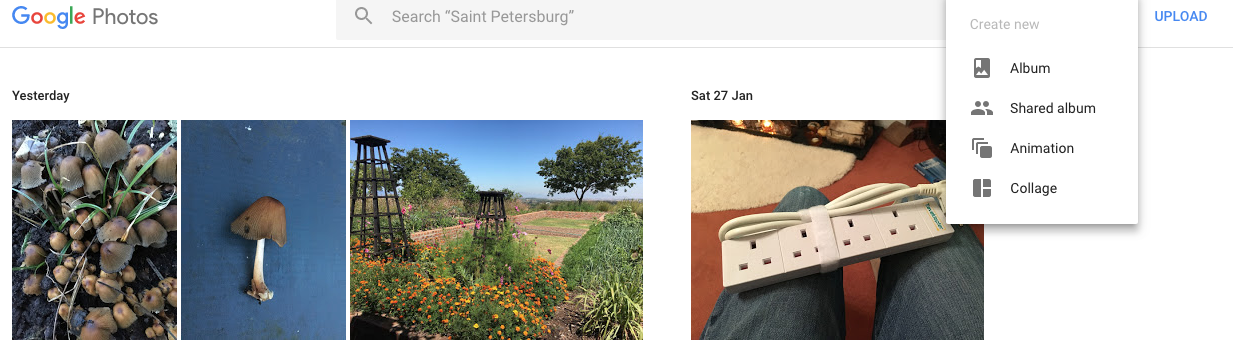
     

    … I need to select Create, then Album and click on the photos I want to put in the Album …
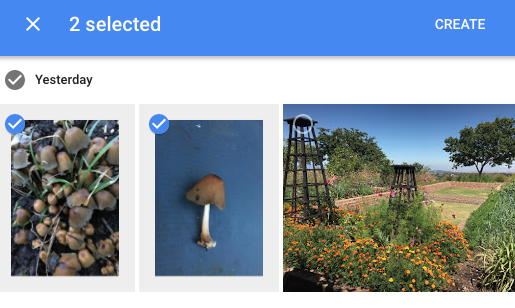
     

    … and click on Create and give the Album a name …
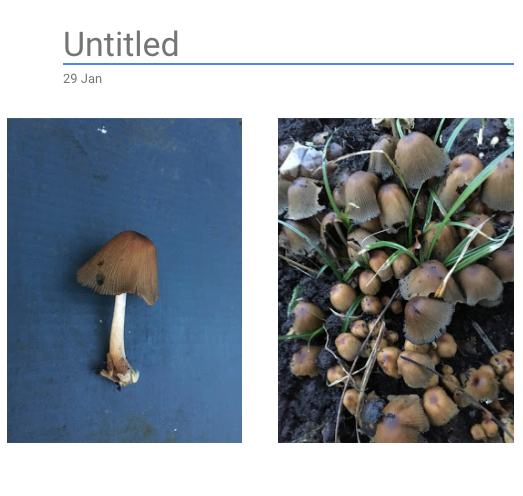
     

    … in this case I’m calling the album “Common Inkcap” and then click on the Tick in the top left-hand corner of the screen.
    Now I can Share the album using the ShareShare icon in the top right-hand corner of the screen, and clicking on Get link

    … and after clicking on COPY I can email the link to the album to anyone, or if you’re a Google+, Facebook or Twitter user I can share a link to any of those social media sites.
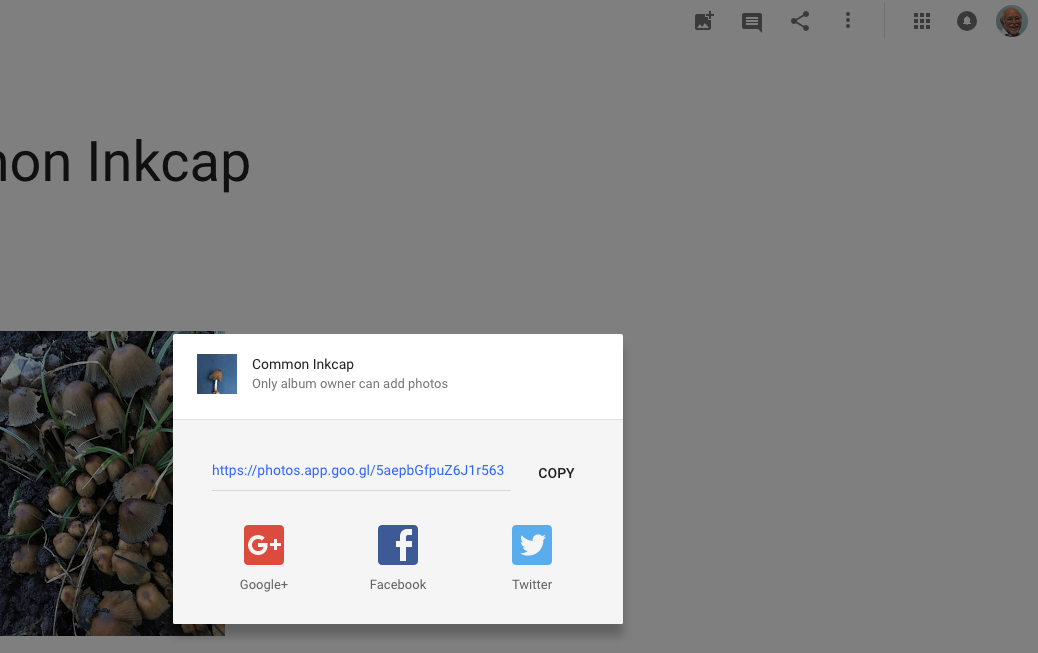
     

    At another time, you can change the Sharing options from the More options  Moremenu in the top right hand corner of the screen …
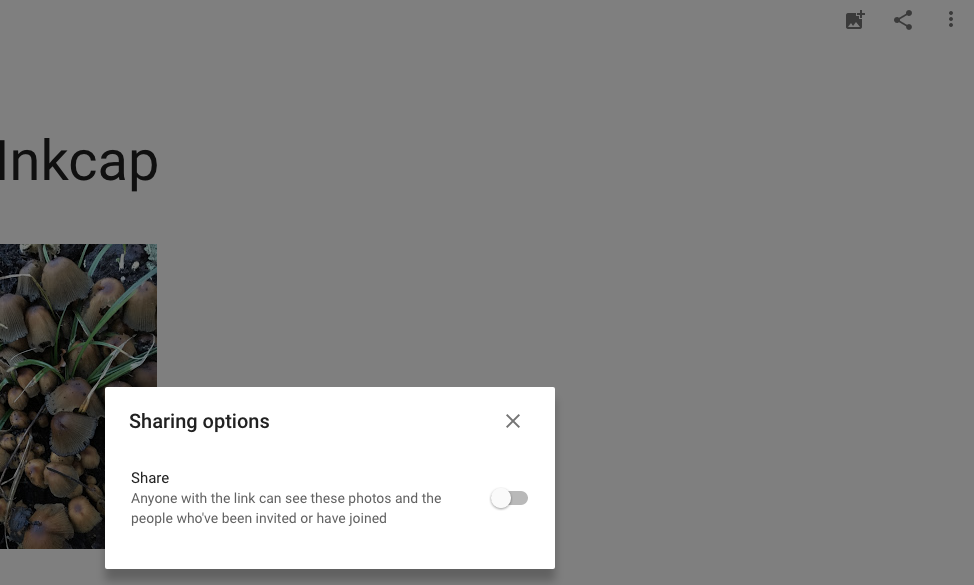
     

    … and click on the slider to let others if they have the link to see the album, and you’ll see a screen like this …
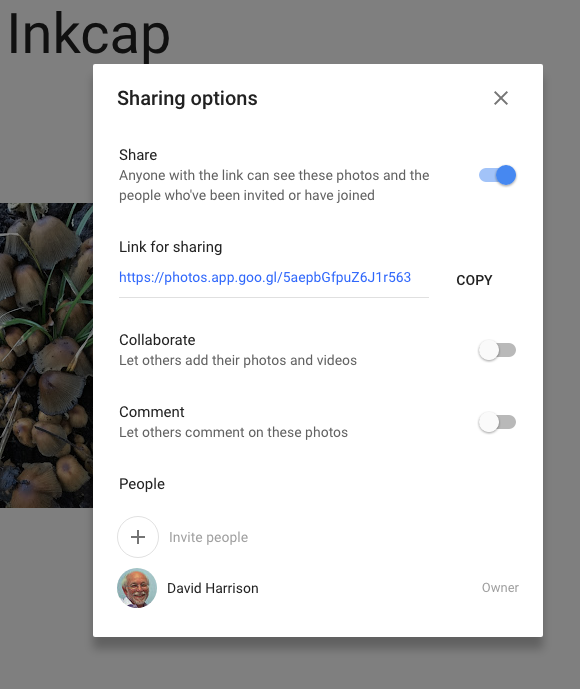
     

    … and you can choose how others will interact with your album, but that’s for another day.


    In case you’re interested here’s a link to the album
  • More Google Photos – some simple image manipulation

    More Google Photos – some simple image manipulation

    Following up from my earlier post which covered uploading images from your mobile device, or camera, to Google Photos; this post picks up from the point where the images have been uploaded and gives you an idea of what simple editing you can do to your photos. This Google article  with separate tabs to follow for Computer (browser-based), Android and iOS (iPhone/iPad) sets out the scope of the things that you can do. For this post I’m only looking at what you can do on a Computer, from your browser.

    What I’m going to do is to take the “featured” image from the earlier post and show a few screenshots of things that I have done to it, perhaps to improve it – although that might be rather difficult as it’s a rather boring subject. So here’s the original photo (unedited), taken with my Sony NEX-6 camera and stored onto its SD-card and then uploaded into Google Photos, using the SD-card reader on my computer.


    Let’s crop it a bit to get rid of the spade handle. First I double-clicked on the image in my Google Photos pictures at https://photos.google.com and this menu appeared …
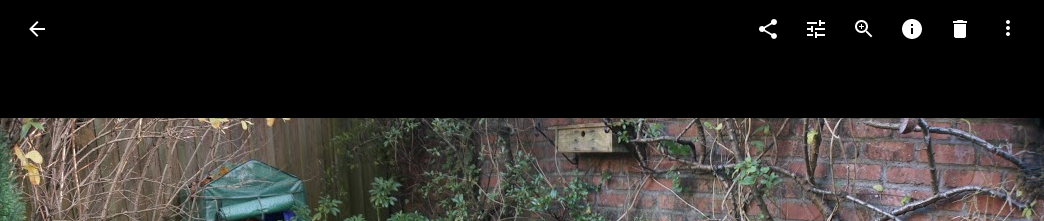

    The first icon  Share allows you to Share the Image, the second icon  Edit to Edit the Image, the third to Enlarge (or Zoom) the Image, the fourth to get Info on the Image, the fifth to Delete the Image and the sixth  More gives you More Options. I clicked on Edit to Edit the Image.
    Another window opens to show you this …
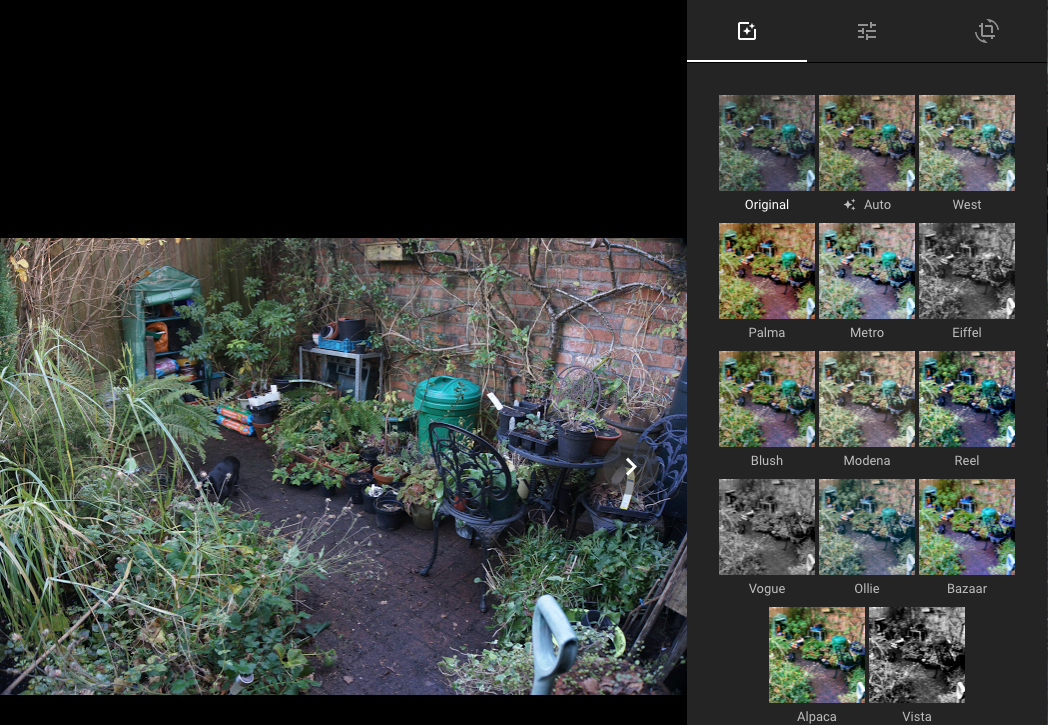

    … you’re being offered a range of filters  Photo filters which you can apply to change the appearance of your image. I’m not going to use this option preferring to do it manually, but I’d encourage you to have a quick peak at what automatic enhancements can be made to an image from this selection of effects. For the moment I want to do a crop (change the viewing window of the image), so I’m going to click on the  Crop & rotate icon to Crop and Rotate.


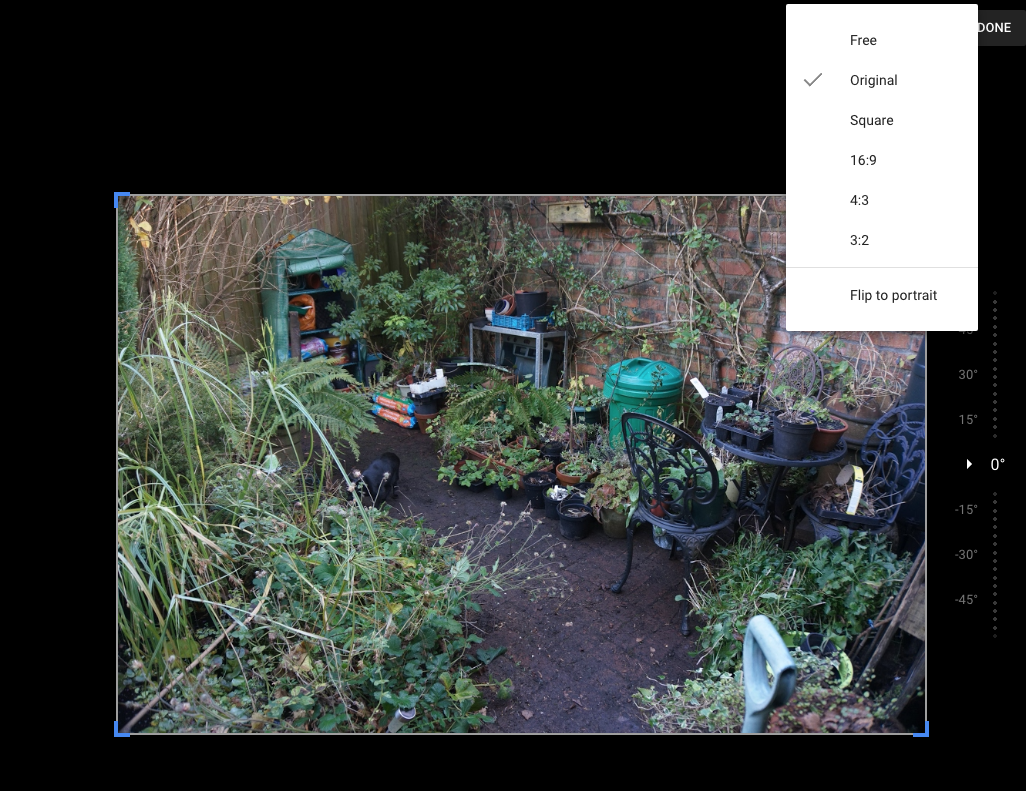
    On this screen, the first icon allows you to  select the Aspect ratio of the image you want (as shown above). Selecting one of these will apply an automatic crop. The second icon allows you to Rotate the Image. You can then drag the corners or edges of the image now to crop to exactly the form of the image that you want to keep. The third icon allows you to Reset your edits to start again, and Done is clicked when you’ve finished editing. So in this case, I want to keep the Original aspect ratio and just get rid of the spade handle manually …
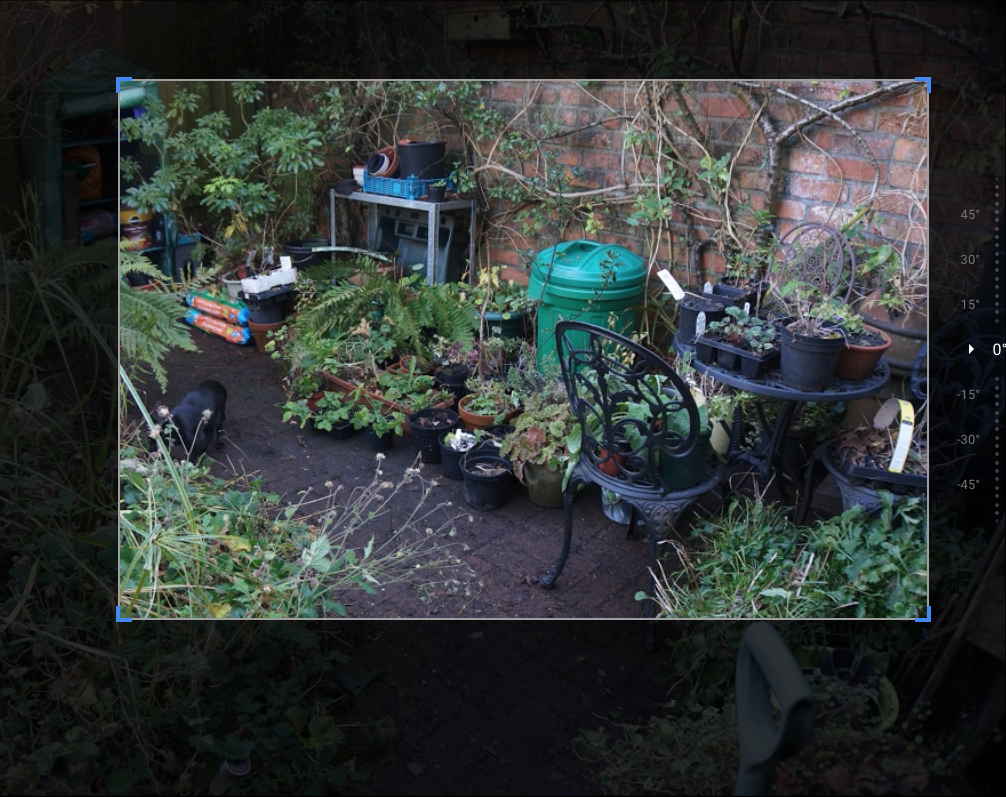

    … so I drag up from the bottom right-hand corner, and down from the top left-hand corner to get the cropped window on the image above. I can move the crop window around the image by clicking and dragging on it until I have it just the way I want it. I could also finely rotate the image if I thought I’d not got it completely straight by clicking and dragging on the slider on the right-hand side of the image. So, having done this, I have an image I want to work with so I click on Done and I get returned to the Edit window …
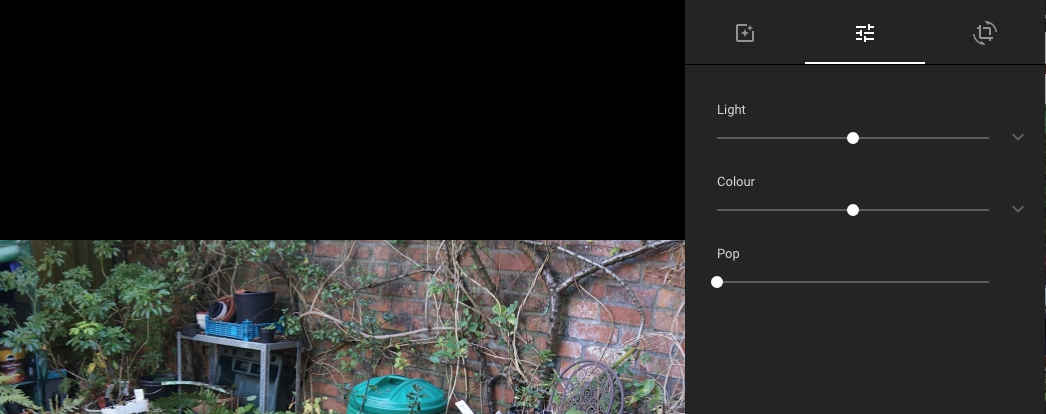

    … you can see I have the choice of changing the Light, Colour and Pop (sharpness) of the image. By adjusting these sliders I could arrive at something like this …
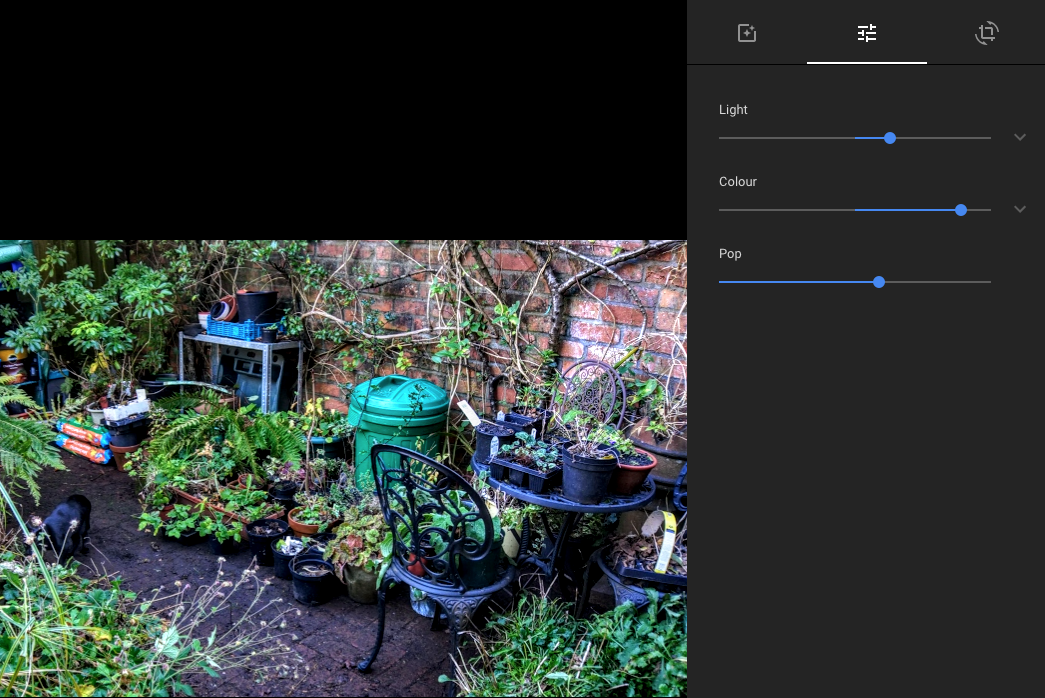

    … but even finer changes can be made by clicking on the arrow against each of these elements and adjusting individual components, so I could end up with changing the Light a little and adding a Vignette to the corners with some Warmth from the Colour slider to give me this …
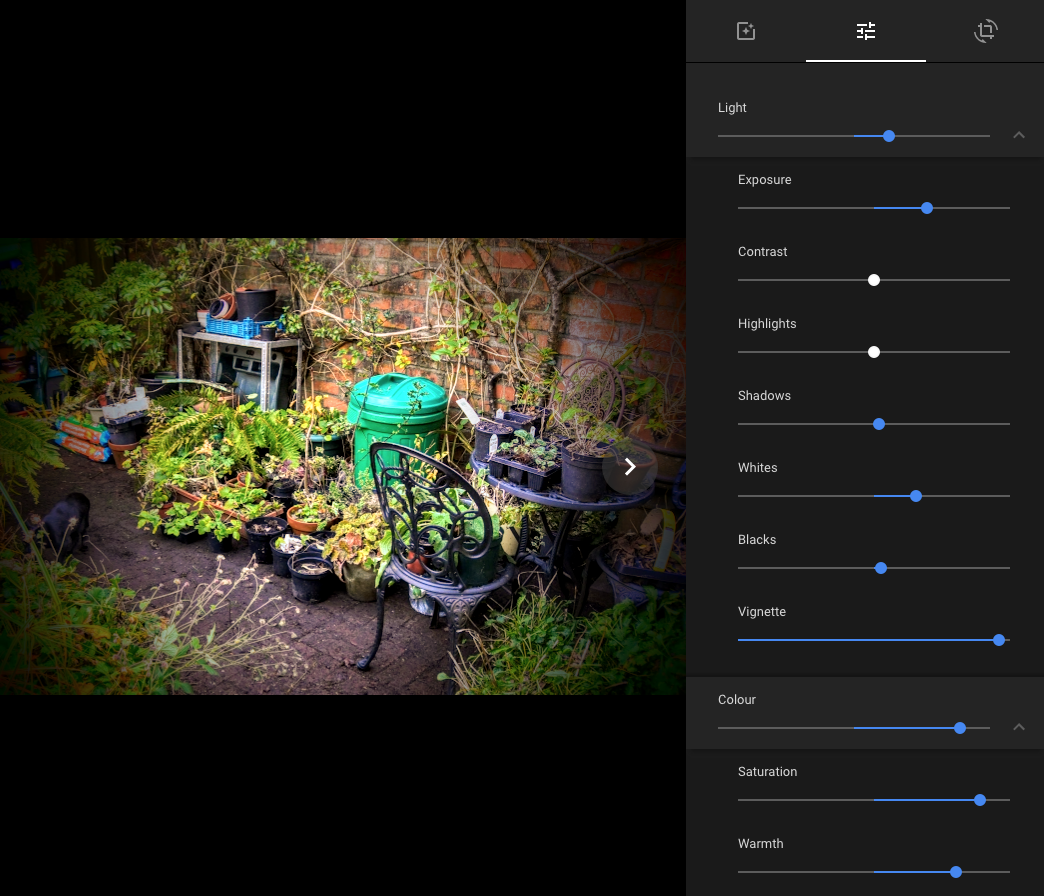

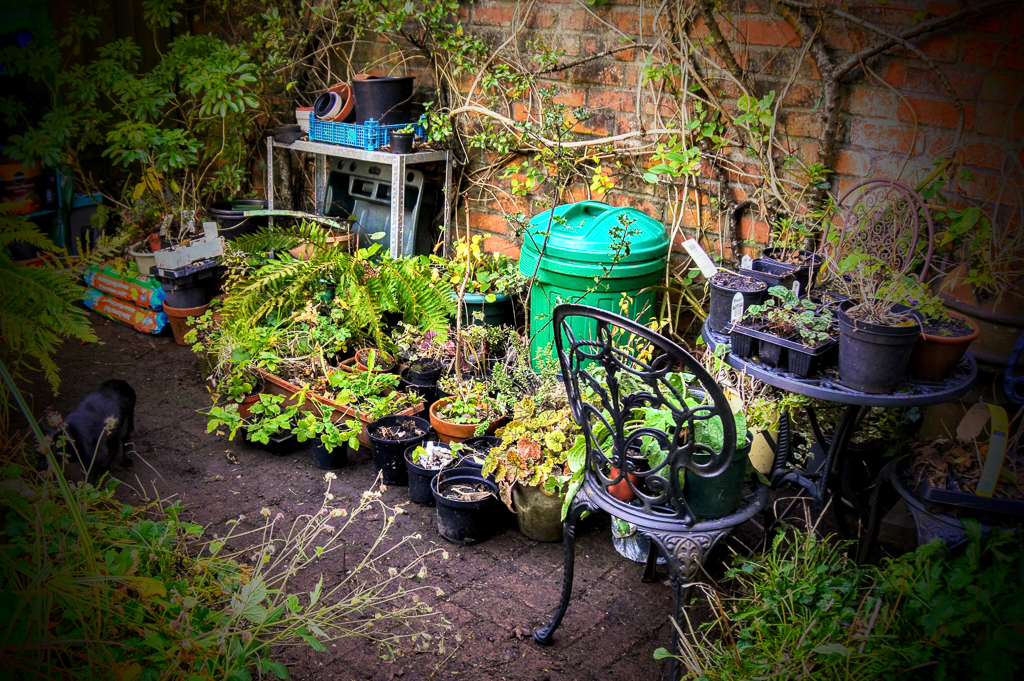
    Now I know I’m biased, but I think that this almost becomes a reasonable picture. All you need to do is to select Save Copy from the More Options  Moremenu, return to the Photos by pressing on the Return arrow in the top left-hand corner of the screen and you can see the new processed image next to the original.
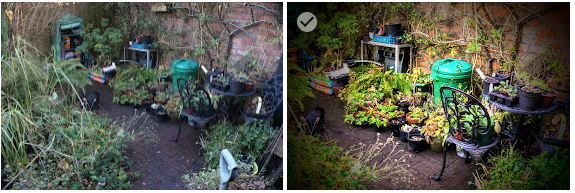

    What do you think?