Tag: Google Photos

  • Google Photos & Snapseed – an update

    I’ve posted articles on using Google Photos a few times. Of course with the passage of time, features, and interfaces, change, so it is always useful to just review “what’s occurring”, and see whether there’s anything that needs correcting, or adding to. I will try and go back and edit the posts listed below to reflect changes that I’m aware of.

    First and foremost it’s important to note that I don’t tend to use Google Photos for anything other than sharing photos with family and friends, so my use of the editing features is a bit limited. I am however a strong advocate of using Snapseed (available from both the Google Play, and Apple App Store) as a photo editor, but as it works best with the Google Photos app, it’s necessary to install Google Photos as well. [Snapseed is not available as a native desktop app on Windows or MacOS; it’s only available on mobile devices (Android and iOS/iPadOS).] So the first link that’s important to be aware of is this one …

    Google Photos and Apple revisited – if you’re an Android user you can skip this article and move to the next paragraph – all your photos taken with your camera will be safely housed in the Google Photos app!!! If you’re an Apple user it’s important to understand how synchronisation works with Google Photos and the Photos app on iOS. If you’re not careful you can either end up with duplicate photos on both platforms, or worse still deleting photos from a device thinking that there’s a copy “in the cloud”.

    The next bit of housekeeping is to understand what happens if you want to delete a photo from Google Photos – it’s not entirely straightforward (but it is easier than in the Apple world!!!). This article I wrote – “How do you delete photos from Google Photos?” – attempts to help you delete what you want to delete from your device, or from Google Photos on the web. This is particularly a problem if you’re an Apple user with a Camera Roll, rather than an Android user with Google Photos – so you’d be advised to read it.

    So we finally get to editing our photos and using Snapseed. This article – “Snapseed and Google Photos” – is a good overview and will take you quite a way down the road of installing Snapseed, it covers the basics of how to get photos from a camera (rather than a smart phone) into Google Photos, and some basic editing of a photo. There are also links in the article to earlier posts on using Google Photos as well as a video on “getting started” and some additional references that I found useful.

    The new stuff!

    How To Use Google Photos: The Ultimate Beginner’s Guide [2023] – if you want to just stick with what’s possible for you to do in Google Photos this is just about as good a guide as you’ll get. It goes through all the features of the app, but doesn’t cover editing photos in any detail. If you want a video that covers the same ground, you might like to watch this [I’d like to remind you of the point I made about his reference to Backup and Sync if you’re an Apple user – my earlier comments apply!!! He has decided to use both iCloud and Google Photos on the web for two backups.]. Google’s help guide to editing photos is provided here.

    So we turn to Snapseed – here’s a beginner’s video on how to use Snapseed for editing, you should also refer to the article quoted in the earlier post – Complete Guide To Using Snapseed To Edit Your iPhone Photos – from which I also recorded the video from my computer screen, but it’s obviously better using the link from the article. Also please note that although iPhone is mentioned in the title, it’s 100% applicable to Android phones as well. Finally you might probably want to look at this – SNAPSEED: ULTIMATE USER GUIDE + TIPS (2024 UPDATE) – if I’ve convinced you that Snapseed is the “goto” app for photo editing on your smart device.

    Google is always updating its apps, and this is particularly true now that we have AI. So a recent update introduces the possibility of background blur – which can make a portrait of a person stand out more, by weakening the effect of the background. Google writes about its new AI features here, and here,

    Finally … this article has been all about using Google Photos, which might have let you think that Apple’s Photos app is not so good. In a forthcoming post, I will be examining how Apple Intelligence (available in the autumn) will quite possibly revolutionise Apple’s photo applications, and will for some, if not all, Apple users mean they might be less likely to use Google Photos going forwards. They’ve already moved to allow the sharing of albums stored in iCloud to anyone via a link. That’s progress!!!
  • Apple’s iCloud and Google Photos

    A short post to highlight an issue that I wasn’t aware of, and now have to be very wary of. Indeed Ian’s comment about whether you need the Google Photos app installed on your iPhone is prescient – you most probably don’t if you’re backing-up photos to your iCloud account. And if you’re backing-up photos to a google account (as described in the earlier post), there are different ways of doing it which means you quite possibly don’t need the Google Photos app on your phone.

    Remember, you can always look at the photos stored in the Google cloud from photos.google.com on your Apple phone or tablet – you don’t need the app installed.

    So here goes … another learning point. I’ll type it in capitals so that you don’t miss it!

    IF YOU DELETE PHOTOS FROM THE GOOGLE PHOTOS APP ON YOUR IPHONE OR IPAD AND IGNORE THE WARNING – THEY WILL BE DELETED FROM ICLOUD AS WELL.

    There, I’ve said it. I didn’t realise it, and always shied away from deleting photos in Google Photos because I didn’t really understand what the warning meant. But now I do and obviously that’s not something I want to do, so how do I go about removing photos from the app, and/or from the Google cloud. Read on!

    Scary, eh?! Take care when deleting photos from your iPhone

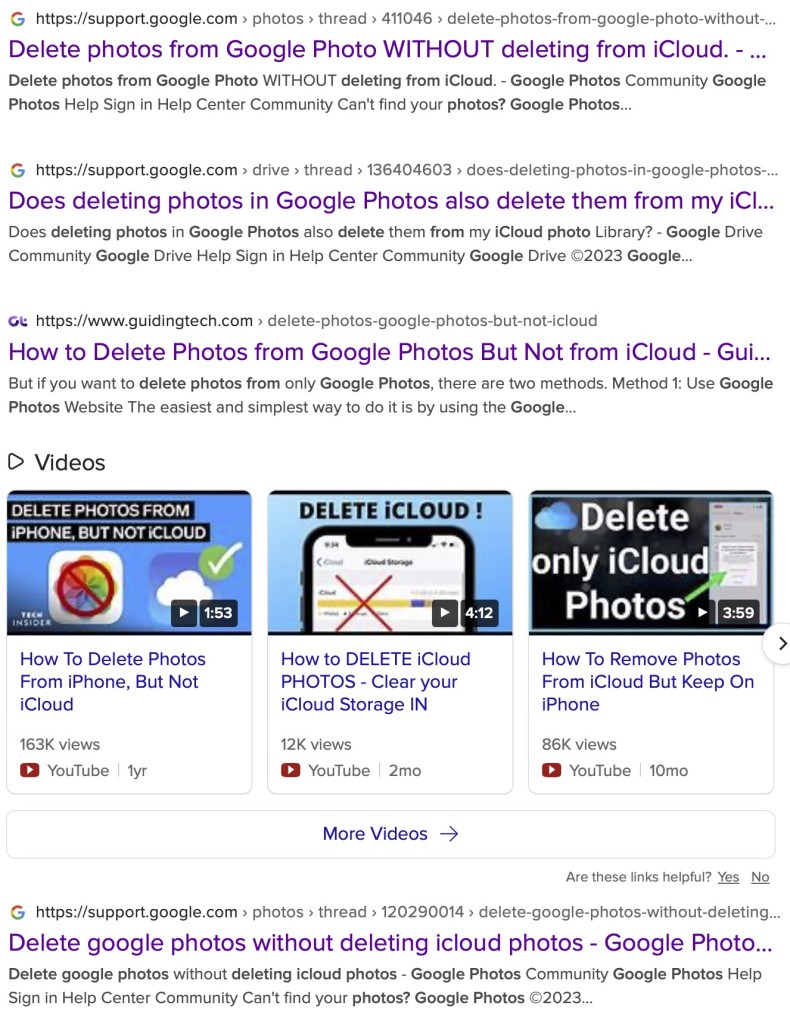
    What I’ve researched is well summarised in the following article …

    How to Delete Photos from Google Photos But Not from iCloud

    and a couple of posts on the Google Photos support forum …

    Does deleting photos in Google Photos also delete them from my iCloud photo Library?

    Google Photos deleted my iCloud Photos library

    So what do I take from this?

    1. If you want to delete photos from Google Photos – do it on the Google Photos website, not in the app on your iPhone or iPad. If you have synchronisation active, they will then be deleted from the app on your device as well.
    2. If you want to quickly delete all photos from your Google Photos app, just delete the app having first ensured that you’ve switched off Backup and Sync, because if you don’t, when you re-install the app, they will be synchronised back to your iPhone/iPad.
    3. If you don’t need the Google Photos app, uninstall the app, no photos will be deleted from your phone, they will still be in your Camera Roll and will have been stored on iCloud, nothing will be deleted from the Google Photos website either, so you will have to do that deletion from photos.google.com – see Case 1 above.
    4. An unlikely scenario, but one to be aware of – If you turn off iCloud before deleting photos from Google Photos on iPhone, then the photo will be removed from your device and Google Photos. It will stay on iCloud. However, if you enable iCloud again on the same phone, the photo will be removed from it too.
    5. And even more unlikely, but probably unexpected and a potential surpriseDisabling Backup and sync will not have any effect on your iCloud photos as it is just a setting to enable or disable backup service on Google Photos. If you disable it and then delete photos from the Google Photos app on your device, they will be removed from the device as you are technically deleting the device copy on your iPhone/iPad. And once it is deleted, the iCloud copy gets deleted automatically.

    Remember. Google Photos in the cloud, and iCloud Photos do NOT work the same way. Apple aims to synchronise all images across all devices with “the master” being held in the cloud. The Google Photos app is just a portal looking into the images on the device, and synchronising (if chosen) those images with ones stored on photos.google.com.

    I hope that makes it all perfectly clear 🙂 🙂 🙂

    In summary, do not delete photos in Google Photos directly from your iPhone if you have both apps on the device. Use the Google Photos website to remove photos. It is suggested that you should delete a few photos initially. Then, check them in iCloud after some time. If the photos are still there, you can go ahead and delete them in bulk.

  • Snapseed and Google Photos

    If you want to edit, even if only in a minor way, the photos on your smart device (phone or tablet, Android or Apple), two offerings from Google should be tried first. If you’re an Android (Google) device user, it’s a no-brainer.

    The Google Photos app will be installed on your device when you get it, and all you need to do is install Snapseed from the Google Play store. If you’re an iOS or iPadOS (Apple) device user then there’s a couple of extra steps you need to do before you can get started.

    This guide concentrates on Snapseed. I’ve written about Google Photos previously and I’m providing links to them below. I’ll check to see that things haven’t changed materially since I published these posts …

    Getting to grips with Google Photos – needs some updating and revising, and links need to be checked.

    More Google Photos – some simple image manipulation – basically sound, but I need to check to see if there are any additional tools added.

    Sharing an image (or album) from Google Photos – should be just about up-to-date.

    How do you delete photos from Google Photos? – more recent so I’m assuming that it’s good-to-go, but I’ll check of course.

    Although Snapseed is intended for use on smart mobile devices, you can install it on either a Windows PC or a Mac, but I have no experience of doing this, so it would be a project you would be taking on ahead of me. So for that reason I’m only looking at the app that you can download either from the Google Play, or Apple App stores.

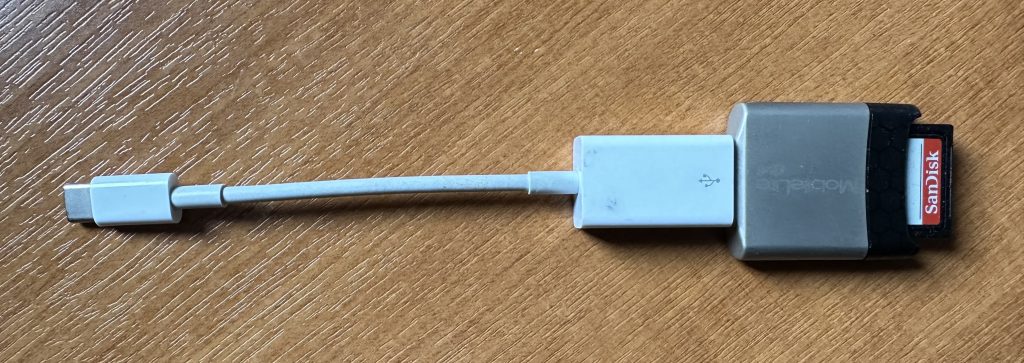
    So for camera users (rather than smart phone users), you will first of all need to get the photos onto your device. This could be by a direct cable connection from your camera to your phone, or by transfer using Bluetooth or WiFi, but more likely might be by using a SD-card cable like this one I have for the Apple gear. [It will either have to have a Lightning or a USB-C connector – check first before buying one.]

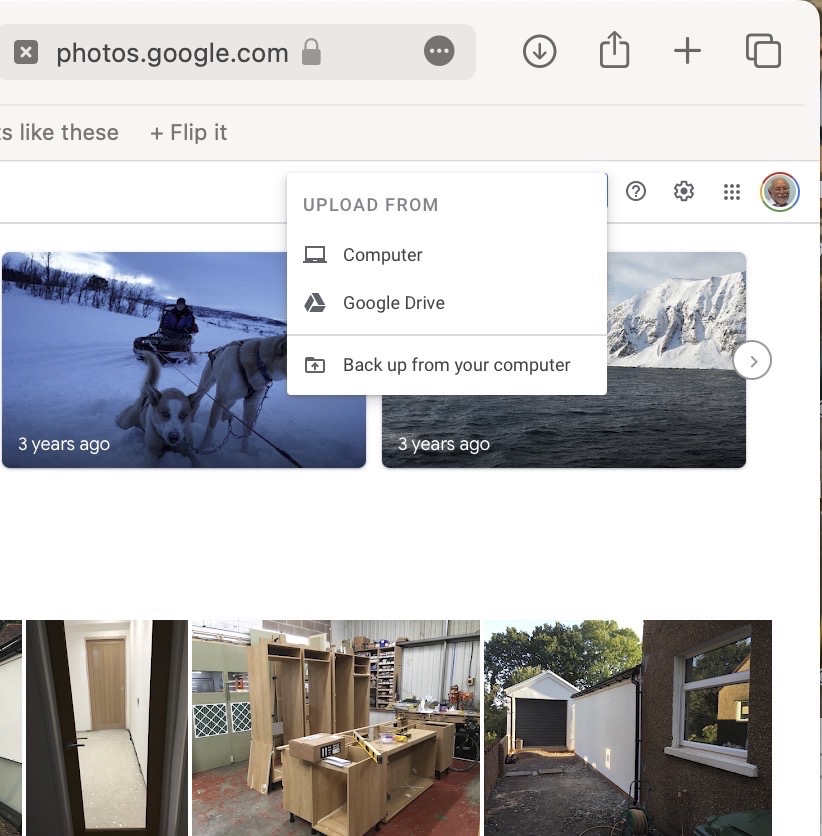
    The image(s) thus transferred will be added to your photo library be it Google Photos, or Apple Photos. Another way of adding photos on your computer to your Google Photos would be an Upload to photos.google.com – you will need a Google account to do this. This is how you would do it …

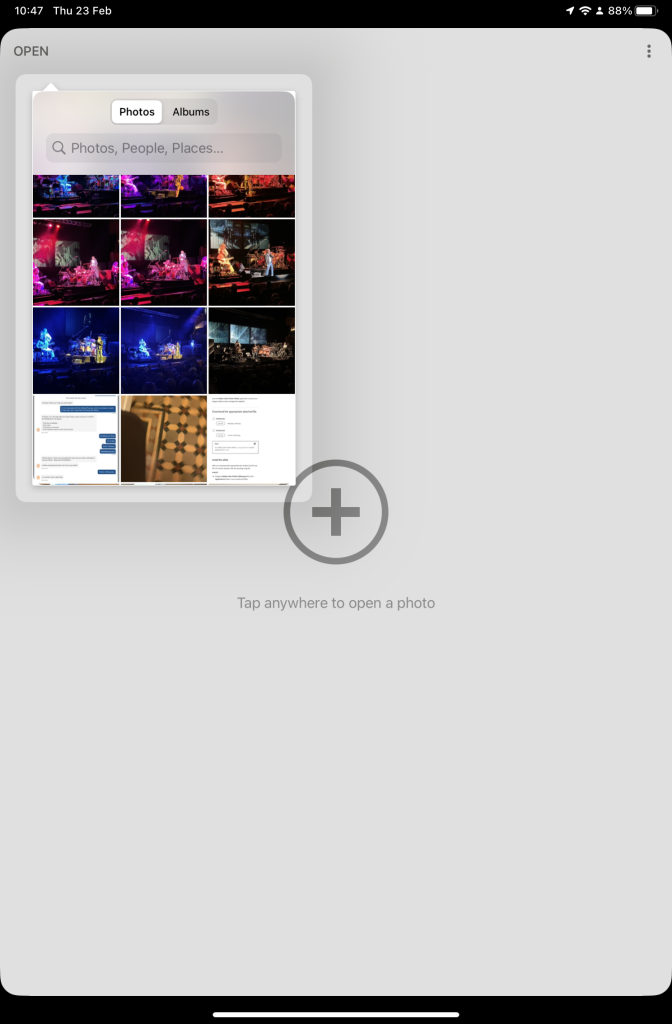
    Select Import to Upload images to Google Photos
    Select images from the Computer (or from Google Drive)

    You could decide to use Google Backup to synchronise all your photos from your iPhone (or iPad) to Google Photos as an “easy” way of getting the photos on your Apple device into Google Photos, but this is not necessary to use Snapseed as it can access your Apple Photos directly; so I don’t because I’m already backing-up my photos to iCloud. [I only discovered in November I was also sync’ing to Google Photos, so I stopped doing that then and saved some Google Drive storage, and a whole lot of complications about knowing what was where.] But if you want to synchronise from your Apple Camera to Google, this is how you do it from the Google Photos app on your device …

    Instructions on how to synchronise Photos on Apple devices to Google Photos

    You should now install the Snapseed app on your device(s) from the Google Play, or Apple App stores, if you haven’t already. If you’re an Apple user you might choose to install the Google Photos app at the same time – although you don’t need it to use Snapseed, but you might just like to compare how it works.

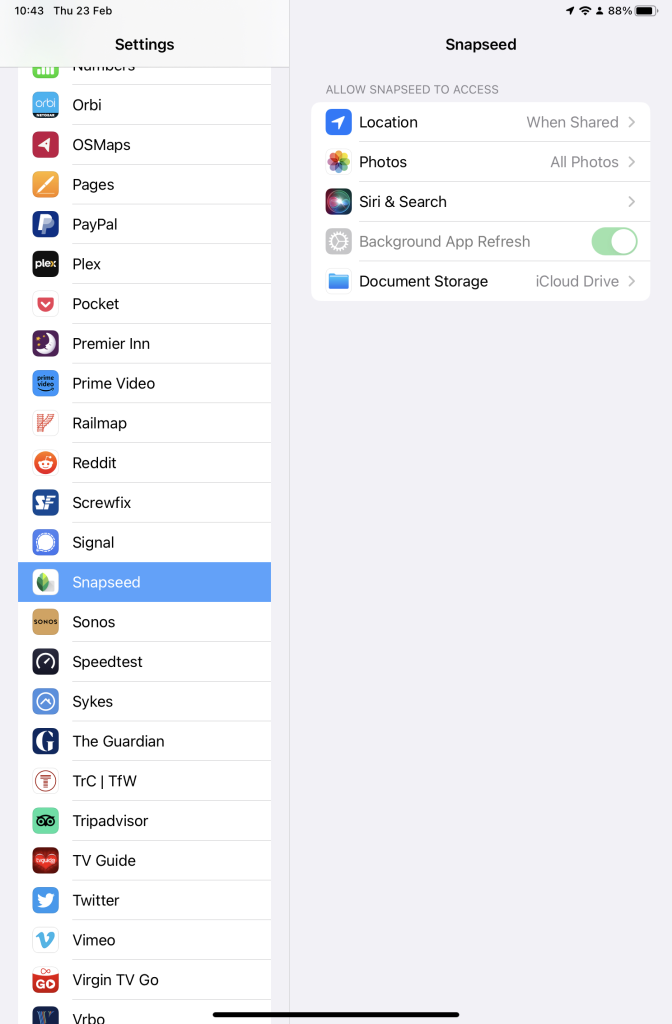
    Next up, if you’re an Apple user you need to allow access to your Photo Library to Snapseed (and optionally Google Photos). This will allow both apps (on iOS) to access the Photos in your Camera Roll on your iPhone or iPad.

    Setting up Google Photos and Snapseed to be able to look at Apple Photos on device(s)

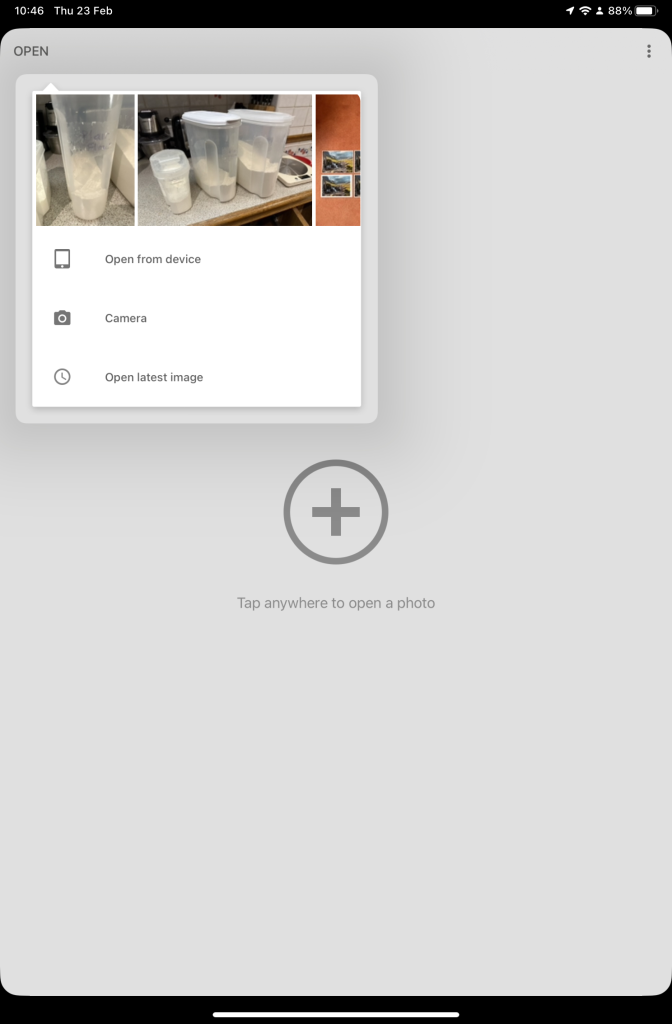
    So now your ready to start editing. Open the Snapseed app on your device – you are prompted to Open from device (ie look at the images in your Photo Library), or you can access the camera to take a shot, or Open latest image that you’ve taken. The steps from then on are relatively straightforward and you will have selected the image that you want to Use.

    Open Snapseed and look at the photos on your local device
    Select an image to edit, and click-on Use
    … and so start editing.

    That’s about it. This video (recorded from my screen, hence background noise and rather low audio volume) gives a reasonable introduction on how the Snapseed app works …

    Here are some links that you might find of interest:

    Complete Guide To Using Snapseed To Edit Your iPhone Photos

    How to Edit Photos in Snapseed

    Using your Android camera to take photos; but I believe all Android phones have slightly different camera interfaces, so you’re better off researching that for yourself. [NB If you have come across a really good guide, let me know and I’ll add it to the list here.]

    How to Use the Camera on an Android Phone: The Basics Explained

    Then for the iPhone …

    How to use iPhone Camera: A guide for beginners and pros

    A Beginners Guide To Incredible iPhone Photography

    How To Use The iPhone Camera App To Take Incredible Photos

    I hope that helps. Please advise if you come across something that doesn’t quite work for you, it might be my notes!!!

  • Getting photos to the cloud(s) and back

    This article is prompted by a combination of a casual enquiry about sending photos from your iPhone to Google Photos (hosted on a Google Drive), and my own discovery that I was backing-up iPhone photos to BOTH iCloud and Google Photos.

    Observation one. Google Photos and iCloud Photos don’t work in quite the same way. Whereas you can access the Photos you may have stored on Apple’s iCloud storage from icloud.com through the iCloud Photos app, you cannot access Google Photos from drive.google.com directly – you have to go to photos.google.com to access them. Google Photos uses up some of your Google Drive storage – you get 15Gb “for free” with a Google account – but it’s a standalone application, in the same way as Google Mail is. It’s an important distinction. Google provides you with applications which make use of their cloud storage, Apple provides cloud storage alongside access to applications which use that storage and which synchronises back to devices.

    The iCloud window {Access to all Apple applications and cloud storage}
    The Google Drive window {NB No access to Photos, or Mail}
    The Google Photos window {separate from Google Drive}

    Observation Two. This article concentrates principally on Google and Apple, because they are the two principal players in the Camera and Cloud Storage space. There are other cloud storage solutions on which you can store photos, eg Microsoft’s OneDrive, and Dropbox. I will only refer to these briefly at the end of this article. There are undoubtedly other cloud storage solutions, but I won’t be writing about them.

    Observation Three. Anything I write about the link between Camera and Photos on an Android/Google system is second-hand knowledge, and I cannot verify it!

    Observation Four – the final one. This article does not seek to cover the general topic of transferring photos from a phone to your computer. This is more than adequately covered in this article. I suggest you read it too.

    Not wishing to be dismissive, but just because it’s so straightforward – I’m going to discuss Google Photos first. If you have an Android phone and thereby have a Google account, you automatically have 15Gb of cloud storage and the two are linked, and by default any photos you take on your phone are backed-up to your Google account. This is described well in the Google Support article. A couple of things are worth highlighting however: a) you can switch-off automatic back-up and synchronisation of your photos, in which case all backups would need to be done manually; b) you should carefully choose the “quality” of the photos you back-up – they may not be the same as that of the photo on your device; and c) it would appear that you could backup photos to a different account from your main one, thus adding to the free 15Gb you get with each account. [Alternatively, for £15.99 a year you could get an additional 100Gb of storage from Google. If you aren’t an Apple user this is definitely worth considering.]

    It’s not that much more difficult if you want to save photos from your iOS (iPhone or iPad) device to the Google cloud storage. Again the Google Support article describes the process and the options quite well.

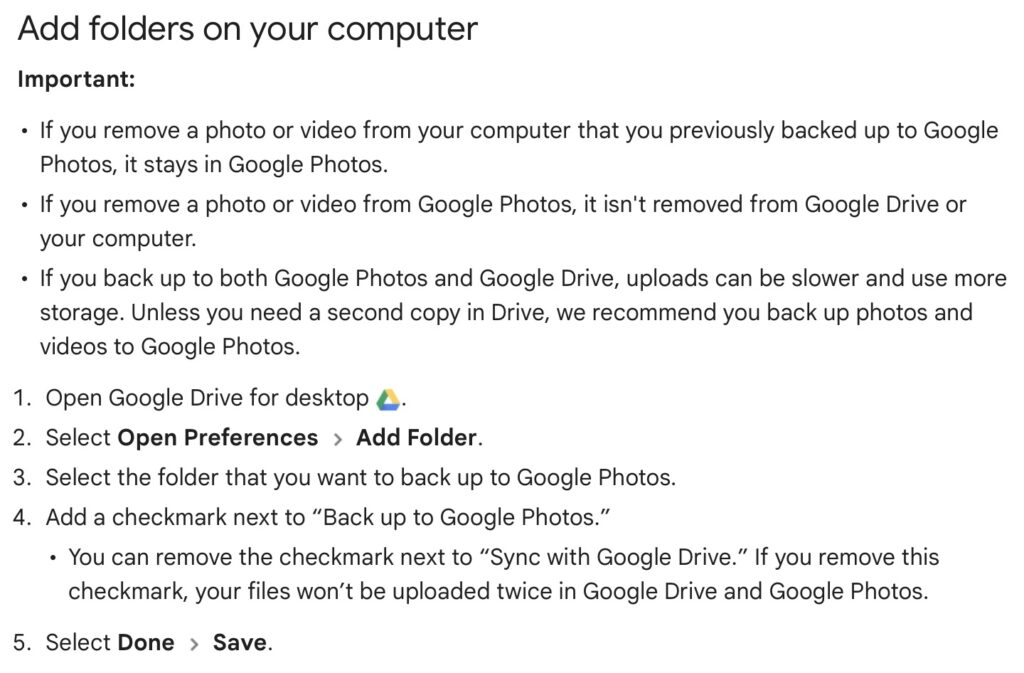
    Similarly if you’ve transferred photos to your computer (eg from a camera SD-card), then Google’s got you covered to back-up and sync to their Cloud storage in this article. You should nominate a folder on your computer that Google Drive will monitor for newly added files which will then be backed-up and synced to either Google Drive, or to Google Photos, or both, depending upon the option(s) you’ve chosen.

    Note (4) – you might get two copies if you don’t uncheck “Sync with Google Drive”

    For this to work however, you do need to be sure you’ve a) installed the Google Drive on your computer, and b) you’ve set the preferences the way you want them. In my case, since I’ve increased the amount of Google storage I have, I’ve chosen to Mirror a folder (in itself called Google Drive) – then both the folder on the computer, and the one in the cloud should be exactly the same. A mirror in fact. Anything I add to (or edit on) my local Google Drive will be copied to my Google Drive in the cloud.

    So we turn next to the Apple ecosystem. [I should feel more confident here, but as you may have noted that I disclosed at the start of this article that I was doing something extremely stupid and not noticing my idiocy.] Here the support page on Apple Photos and iCloud I think really does a good job of explaining your choices and how to set up backup to their cloud storage. I don’t think I can improve on it. But what if you’ve got Google Photos installed as well on your iOS device? This is where I made my foolish mistake. I enabled Backup and Sync on my iPhone and so I got TWO copies of every photo – one in my Google storage in Google Photos and the other in my iCloud storage. Duh!!!

    Disabling the Backup and Sync left me with an image which was shared locally between the Google Photos and Apple Photos apps. How could I get that image (or group of images) onto Google Photos to perhaps share with friends or family?

    It turns out that there are two reasonably easy ways of doing this. By enabling iCloud Photos on the phone (or tablet) …

    Set iCloud Photos to On

    … I can then download from iCloud to a folder on my computer which I can then upload to Google Photos from. Really rather simple and not a use case for Google Photos Backup and Sync to be employed.

    Alternatively, I could go into the Google Photos app, select the image I want to send to Google Photos in the cloud and Share it by getting a link and then sending myself a message. The act of sharing it copies the image to the cloud, from which I can then add it albums, etc.

    Using either of these approaches allows you then to obtain a link for the album which you can then Share to a list of users, or obtain a link for public sharing.

    Once you get the photos onto Google Photos the fun starts. It’s not intuitive what happens when you decide you want to delete them either from the cloud, or from your device. In fact it’s downright confusing. I’ve written about this in another place (the public Thought grazing) and life is too short to repeat anything on here that I’ve already written over there, and believe still to be correct. Best of luck!!!

    The situation with deleting photos from Apple Photos and iCloud Photos is slightly more straightforward and I’ve written this up already, so won’t repeat it.

    It goes without saying that keeping it all in the Apple ecosystem (for me) makes a lot of sense, and with the ability to share albums on the way – it’s not yet as sophisticated as the Google Photo Albums service – I may transition away from Google Photos altogether in time.

    If you’re a PC Windows user with an iPhone, then a solution is beginning to appear that enables you to use the Windows Photo application with iCloud. You can install iCloud for Windows on your PC and then you should be able to manage your iPhone photos from your desktop.

    For Dropbox users, you can setup an automatic upload of photos to the service. They even give you a bit more free storage if you enable this, or at least they used to!

  • iCloud Photos, Photos on Apple Devices and iCloud Drive

    The seed for this topic was sown by Ian at our meeting on October 13th 2022. I had to admit that although I had a reasonable idea of what happened with Google Photos, I was unsure what happened with Apple’s cloud offering.

    I was reasonable quick in advising (and it’s reported in the notes of the meeting), that as expected …

    I can confirm that deleting a file on iCloud Drive from the Files app on an iPhone will delete it from icloud.com and your iCloud drive on MacOS as well – which is what you would expect should happen.”

    However, the situation of Photos stored in the Apple Photos app (on iPhone or iPad) and iCloud Photos should also be noted – for completeness.

    I’m not going to write anything; just provide three links to follow to clarify …

    How to Delete Photos From iPhone but Not iCloud

    How to Delete Photos From iCloud (While Keeping Them on Your iPhone)

    and

    How to recover a deleted photo or video on your iPhone or iPad

    If you want to delete a Photo from both device and iCloud Photos. Just ensure Sync is left on and then you can delete the image from either the device or icloud.com

    Having confirmed all this, and having more storage space on iCloud, and understanding that sharing Photo Albums is about to come to Apple Photos, and having checked that Sync’ing does seem to be working for iCloud Photos (from my Apple devices), I checked my Google Photos settings settings and switched-off Back up and Sync. I was doing far too many cloud backups!!! Always worth checking. If I want a Photo to be on Google Photos (for sharing for instance), I will now Upload, not rely on syncing.

  • Notes of Zoom meeting – 23rd June 2022

    First off can I thank Sianed for taking over the meeting for the “round the screen” session which enabled me to take notes and have the fun of “lifting my hand” to speak.

    There was not much to report back on from the previous meeting. I mentioned that I’d come to a determination that all media and messages in WhatsApp (and Signal) was held on the phone that was registered to WhatsApp (or Signal); the images on the desktop (and the iPad for Signal) were synced to the phone. This it was agreed could cause some phones to easily run out of memory.

    As far as News was concerned there were just a couple of items that I’d already added to the Flipboard magazine – one on moving chat histories from an Android phone to an iPhone, and another about new features that were to be added to Apple’s Homekit (for developers), which we might find some use of in our use of Smart devices in the future. [NB We need to give this area much more attention and look at the Smart home more.]

    I then thanked everyone who’d replied to the survey about a future venue for our face-to-face meetings. Not unexpectedly, nothing came out as a definite area of agreement for everyone, but some things did come through – no preference for room layout; a desire for a bit of social distancing (and good ventilation) from a couple of members; and no real need for catering. Taking these into consideration, it appeared to me that if we could return to URC that would be a good solution – probably using the Upper Room (rather than Meeting Room 1). I suggested that the meeting after next we should meet at URC and try the venue out – so that’s where we’ll meet on 21st July, our last meeting of the year. [Subsequently, I’ve re-visited URC, have been impressed that they have a new projector system for the Upper Room and I’m now working with them (Bob) to perhaps enhance the WiFi system which they badly want to improve themselves. Watch this space!

    We then had a very short break and Sianed took over!

    Paul returned to the issue he’d been having with Resources and Chrome; in discussion with Ted it became apparent that there was a need for a comprehensive article on where videos were stored in WhatsApp and I undertook to write such a post. [Following the meeting I did post a few links on Signal, which might be useful in the meantime.]

    David reported that his screen sharing from his iPad to the TV was now working well for his Bridge-playing Tutorials [a link to this is on Signal – thanks David].

    Ralph thanked Paul for the advice he’d given on driving licence renewal.

    Steve recommended investigating the use of iCloud – it’s not very expensive to get 50Gb of cloud storage – if you’re an Apple user.

    Christine reported that after a bit of a quiet period, the scams had started again and she’d had ones from Amazon and Paypal [I would recommend everyone consider subscribing to the Which Scam Alert Service] and perhaps one from Welsh Water, but there was some discussion over whether this was the Priority Registration Service – which is worth joining in case there’s a disruption in water supply, or indeed joining the similar registers for our utilities. [We’ve done this.]

    Fred had gone to the recent General meeting (Roald Dahl) and learnt a few things, and had also renewed his driving licence following Paul’s advice.

    Jim was still not sure about where WhatsApp/Signal stored images etc. and reserved the right to comment later, following my investigations.

    Renee reported that the online portal for registering a change in marital status was a nightmare. No further comment – we suspected that very few (if any) of us were likely to be needing to use that portal 🙂

    Ann had got into a pickle with downloading photos to her Google account that had then filled up her allotted storage and mail had stopped working. I sent a few links (on Signal) to help her work this one out but again promised to wrire n article on that as soon as possible.

    I had nothing to report – I’d been too busy in the garden!

    I then gave a brief review on the internet browser and search engine markets, the links I used are on Flipboard, but I will try and write an article about this too.

    Just like me, Sianed didn’t report on anything – something I too often forgot to do.

    That’s about it. A couple of articles for me to write which I’ll try and do as soon as I can.

    Our next meeting will be on July 7th which will be an outdoor social meeting at The Castle Coffee bar, where we met before. Pleas try and come along if you can.

    Finally, you’ll remember that I left the WhatsApp group and left Jim as the Admin. I asked him last week whether there had been any relevant activity on it. He reported that there had not. Therefore we agreed that he should close it, and that he’ll do shortly. Anyone not using Signal, I strongly encourage you to download the app and start using it. Let me know and I’ll add you to the Computer Group group on Signal.

  • Google Photos

    Barbara asked a question about Google Photos, and I’ve re-visited the articles that I wrote a couple of years back, updated them to be relevant (I hope) – but I can’t be certain all the screen shots are the same as the present Google Photos on the web – and present them here for you to look at; if you’re interested.

    First an article on “Getting to grips with Google Photos“, which basically tells you how to get your photos into Google Photos so that you can edit them online using the editor that’s available in Google Photos on the web. It might also be useful to bear in mind the article I wrote today on “How to delete photos from Google Photos“to get an understanding of how Google Photos actually works.

    Then an article on “Simple Image Manipulation“, which introduces you to the online Google Photos Editor.

    Finally an article on “Sharing an image (or album) from Google Photos“.

    I hope these are of use and of interest.

  • How do you delete photos from Google Photos?

    Seems a pretty easy question to ask. Should be a relatively easy question to answer. Wrong! It’s a minefield of complication and you can quite easily find yourself deleting images from places you don’t want them to be deleted from. In this article I’m not going to even attempt to enter the minefield but after this easy one …

    How do you delete photos from Google Photos on the web but not from the Camera Roll on your iOS (iPhone/iPad) device …

    Google Photos will only delete photos from your Camera Roll if you grant it permission to do so.  If you delete from https://photos.google.com/ and then go to your phone app you will have an assistant card asking for permission to “Remove it from this device”  If you dismiss the card the photo will remain in the Camera Roll.

    … I’m just going to refer you to these three articles …

    First the generic article that covers all eventualities and takes into account the place of  Backup and Sync in the process for the Android world

    How to delete Photos from Google Photos but Not from Phone

    note the important piece of text in this article …

    “While keeping a file on Google Photos and deleting it from a device is easy, it’s not simple to do so the other way round. When you delete a synced photo from the Google Photos app, it gets wiped from your phone and the cloud storage.”

    … so take care and read what follows in that article.

    For the iOS (iPhone/iPad) world

    How to Delete photos from iPhone but Not from Google Photos

    … so heaven help you if you’ve got both Android and iOS devices; the process is not the same for both!

    Lastly, and to fully understand what’s going on, it’s important to perhaps try to understand how Google Photos actually works. You can do this by reading this article …

    What happens when you Delete photos from Google Photos.

    … if that hasn’t made you feel suicidal, can I just wish you the best of luck. Perhaps buying a new phone, or taking out a Google One subscription is the only answer.

    Could that be the reason why it’s so complicated to delete a Photo from Google Photos?

    ====

    You might also find these articles from Google useful. Firstly an introduction to Backup and Sync and how it works with photos and videos (hint, it doesn’t actually do any sync’ing) …

    Back up photos and videos

    … then, a guide to help you work out what size of image/video you might want to backup and sync (or upload) to Google Photos on the web …

    Choose the upload size of your photos and videos

    … you perhaps need to refer to this post to see why this might be important.


  • Changes to Google Storage

    Changes to Google Storage

    If you’ve got a Google account – you use Google Photos, Google Drive (and the Google Docs suite) or Gmail – you’ll probably have received an email telling you about the changes that Google are making to the way it calculates how much of the 15Gb of storage the company allocates to you has been used. They have also spelled out clearly when they will delete content that has been inactive for more than two years.

    This post relies heavily (almost verbatim) on information already available on Google’s Help Pages – which should always be taken as the main source for information.

    Currently each Google Account includes 15 GB of free storage quota, which is shared across Gmail, Google Drive, and Google Photos. You can add to your storage quota by purchasing a Google One membership (where available). To learn more about your quota, see what items count towards your storage.

    Prior to June 1, 2001

    The following items count against your storage quota

    • Original quality photos and videos backed up to Google Photos
    • Gmail messages and attachments, including your Spam and Trash folders
    • Most files in Google Drive, including PDFs, images, and videos

    If you go over your storage quota

    • You can no longer upload new files or images to Google Drive
    • You can’t back up Original quality photos and videos to Google Photos
    • Your ability to send and receive email in Gmail may be impacted
    • You can still sign into and access your Google Account

    After June 1, 2001

    The following additional items will count against your storage quota:

    • High quality and Express quality photos and videos backed up to Google Photos after June 1, 2021. Learn more about this change.
    • Files created or edited in collaborative content creation apps like Google Docs, Sheets, Slides, Drawings, Forms and Jamboard.
      • Only files created or edited after June 1, 2021 will count against your quota.
      • Files uploaded or last edited before June 1, 2021 will not count against your quota.

    And this is how your usage impacts your data

    If you do not use Gmail, Google Drive (including Google Docs, Sheets, Slides, Drawings, Forms or Jamboard) or Google Photos for 2 years, your content within the inactive product(s) may be deleted (after reasonable advance notice).

    If you go over your storage quota

    • You can’t upload new files or images to Google Drive.
    • You can’t back up any photos and videos to Google Photos.
    • Your ability to send and receive email in Gmail can also be impacted.
    • You can’t create new files in collaborative content creation apps like Google Docs, Sheets, Slides, Drawings, Forms and Jamboard. And until you reduce your storage usage, neither you nor anyone else can edit or copy your affected files.
    • You can still sign into and access your Google Account.

    When you have been over your storage quota for 2 years, your content in Gmail, Google Drive (including Google Docs, Sheets, Slides, Drawings, Forms and Jamboard files) and Google Photos may be deleted.

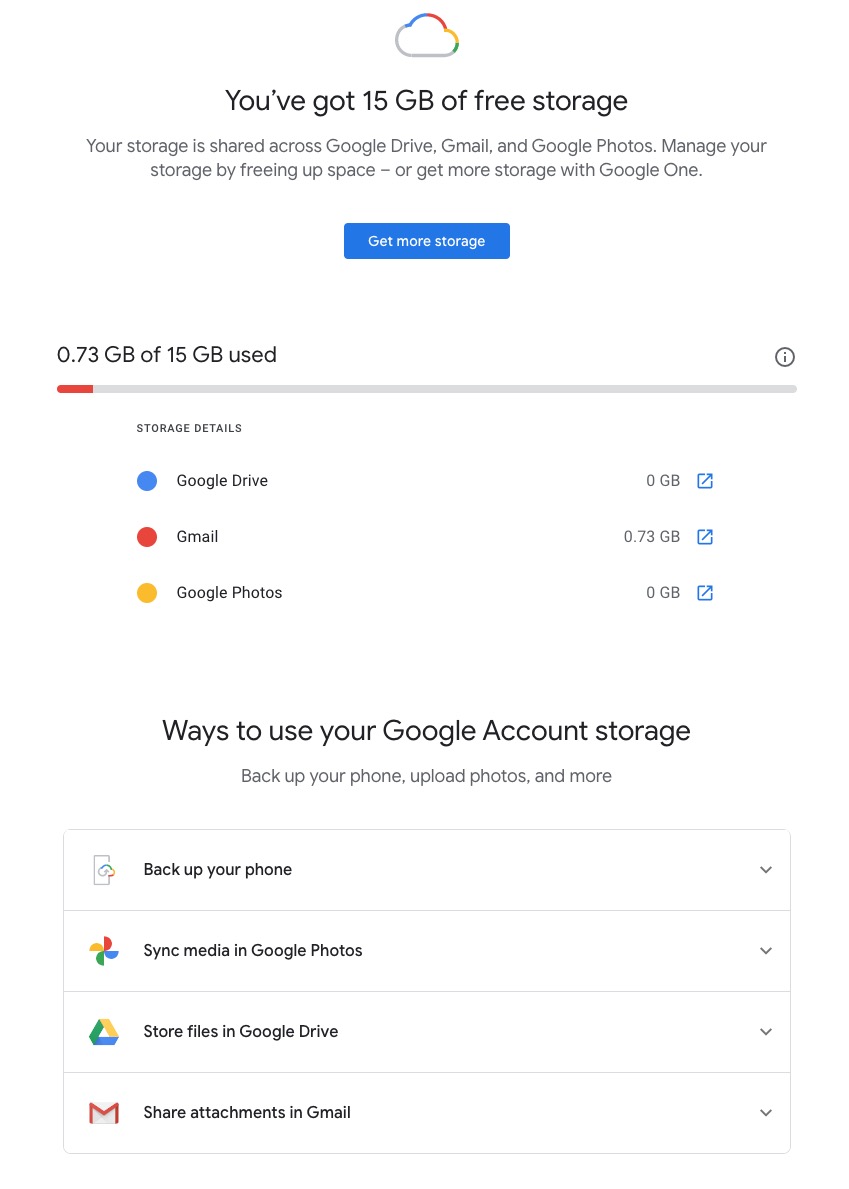
    So it’s time to do a stock take of what Google Storage you’re using. You’ll see something like this if you’ve got an active Google account …

    Seeing how you may be using your Google Storage, with June 1st approaching might seem pretty frightening to you, so you might need some help to know what you should do, and whether purchasing a Google One plan might be right for you …

    What happens when you’re over quota

    When you’re over quota, it means you’re using more storage space than you have available. If you’ve been over quota for 2 years or longer, and you have not freed up or purchased more space to get back under quota, all of your content may be removed from Gmail, Drive and Photos. But before that happens, we will:

    • Give you notice using email and notifications within the Google products. We will contact you at least three months before content is eligible for deletion.
    • Give you the opportunity to avoid deletion (by paying for additional storage or removing files)
    • Give you the opportunity to download your content from our services. Learn more about how to download your Google data.

    How to go back under quota

    We provide access to storage management tools that help you identify ways to free up storage space at https://one.google.com/storage. Another option to free up space is to download your files to your personal device and then delete them from your cloud storage.

    However …

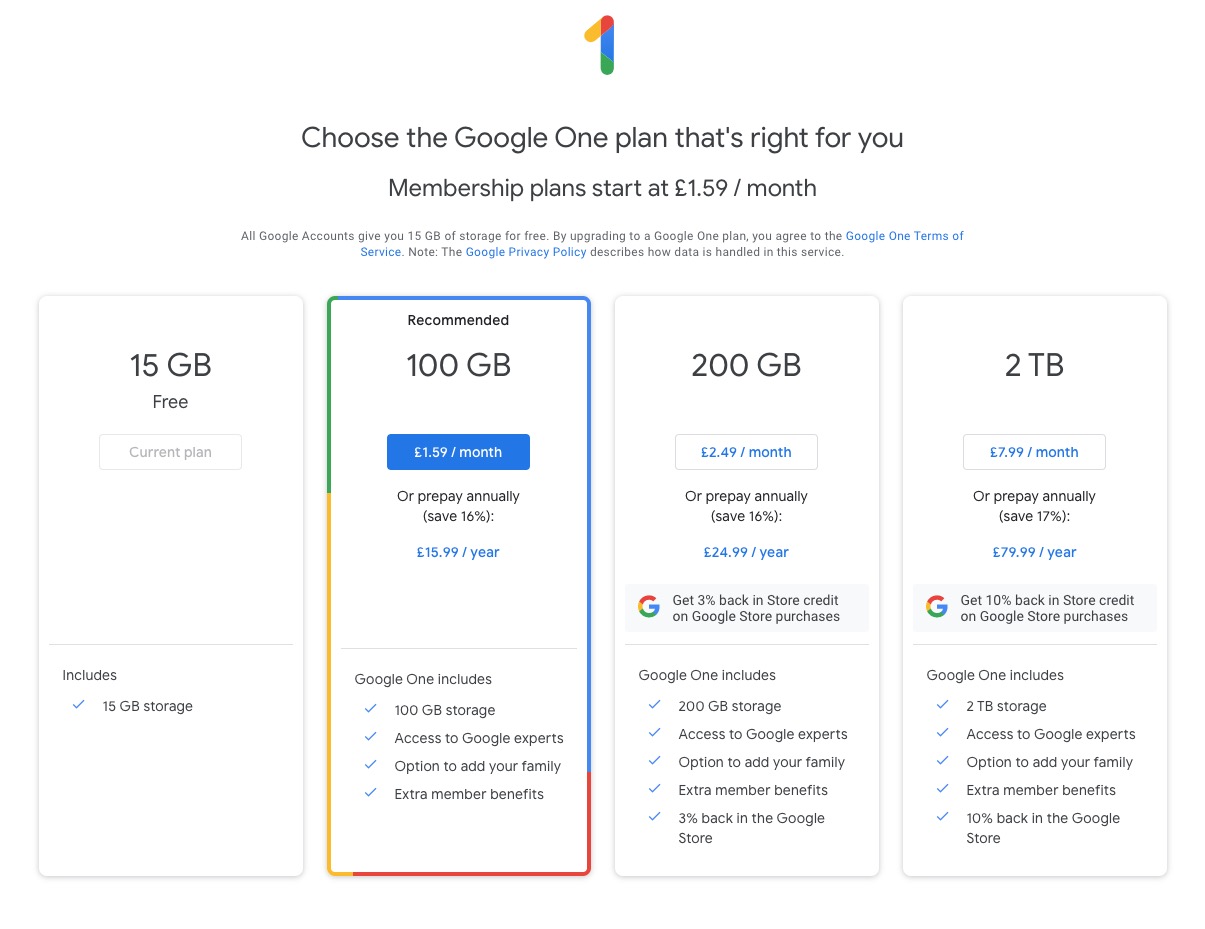
    If you want more storage space for Gmail, Drive, and Photos, you can upgrade to a larger storage plan with Google One.  You can click on the link “Get more storage” from the page that you should have arrived at above, and you’ll be offered the opportunity of purchasing a Google One Storage Plan …

    But what happens when you’re inactive?

    When you have been inactive in Gmail, Google Drive (including Google Docs, Sheets, Slides, Drawings, Forms, Jamboard or Sites files) or Google Photos for 2 years, all of your content may be removed from that product. But before that happens, we will:

    • Give you notice using email and notifications within the Google products. We will contact you at least three months before content is eligible for deletion.
    • Give you the opportunity to avoid deletion (by becoming active in the product)
    • Give you the opportunity to download your content from our services. Learn more about how to download your Google data.

    If you’re a Google One member with no outstanding payment or quota issues, you are considered active.

    Important: As an example, if you’re inactive for 2 years in Photos, but still active in Drive and Gmail, only your Google Photos content will be deleted. Content in Gmail and Google Drive (including Google Docs, Sheets, Slides, Drawings, Forms and Jamboard files) will not be deleted if you are active in those products.

    How to stay active in these products

    The simplest way to keep your data active is to periodically visit Gmail, Google Photos, and Google Drive (and/or collaborative content creation apps like Google Docs, Sheets, Slides, Drawings, Forms, Jamboard and Sites) on the web or through a Google app. Make sure you’re signed in and connected to the internet.

    Please note that you may have multiple accounts set up on your device. Activity is considered by account, not by device. Make sure you’re using the services for all accounts on which you wish to remain active.

    The article from Google concludes with some FAQ which you might like to refer to, including one answer on how to preserve content from a loved one if they pass away and the use of their Inactive Account Manager.

    In another article, I will attempt to answer the vexed question of how to delete photos from Google Photos in your storage plan, your computer and your device the way that you want them to be deleted, ie not deleting them all, just deleting them from the place you want them deleted!!!!

    Lastly, here’s a link to how to delete files (and reduce the count against your quota) from Google Drive.

  • Notes from Zoom meeting – 1st April 2021

    Another full screen with 16+ of us spurring the lovely sunshine for a chat! I started the meeting off by talking about the changes to Google Photos that will occur on June 1st and the 15Gb of free storage you get with Google Drive. I’ve written about these separately, so won’t include that content with these notes.

    I also touched upon the deletion of photos from Google Photos, on computers, the cloud and mobile devices, but again, I’ve written a separate post on that so won’t repeat anything here.

    I rushed through the new content on the Flipboard magazine, highlighting the post on Reddit, which was a response to the question Steve asked at the last meeting (he also asked about RSS feeds but I responded to that one in the last notes); the iOS 14.4.2 (or 12.5.2 for older devices) that Owen had alerted us to; and articles on the latest update to Audacity and a review of the “best” photo-editing apps – I can recommend Snapseed for anyone using Google Photos in particular.

    We then went round the screen (although not in the order of Jim’s screenshot above – many thanks again). I’ll only mention things that people raised …

    Owen opened a discussion about the possibility of mixed media (in person, face-to-face PLUS Zoom) that the Committee was going to discuss in the near future. The following suggestions were put forward, and Owen would welcome any further ones as well. Don suggested Alternate Meetings rather than joint ones. Jim suggested that there might be challenges with getting the sound quality right.I said that I thought the management of the meeting might prove challenging, and in particular Screen Sharing might be difficult. Steve commented on the number coming into such meetings. Paul highlighted the issue of remote attendees being able to see in person attendees. Phil suggested the setup would have to be – two laptops, two screens, two cameras and a high quality WiFi!!! We all agreed this would be unlikely at the URC 🙁

    Barbara would be grateful for any information on Google Photos and I promised to make available some links to articles I’d written in the past. [This prompted me to think that a lot of what we’d got on the old Google+ platform would still be relevant, and caused me to look after the meeting at this presumably underused resource.] After the meeting I resolved to do more actively with the Forums and Topics area of the website – so watch out, you’ve been warned – another place for you to look!!

    Paul retold his recurring story of negotiations with TalkTalk suggesting he was thinking of moving to Sky Central. He managed to reduce his fee to £22 for Broadband, TV – no premium channels, free calls and overseas calls) from £27pm. Seems like a bargain!!!

    David H had been alerted that his Google Photos account was at 85% storage capacity and he’d been asked to consider upgrading to Google One (Jim and I both have such accounts) which would give a total of 115Gb of storage. He’d started looking round for a method of transferring photos from the Google Photos Cloud to his desktop and had settled upon using the Mozilla Foundation’s free email client – Thunderbird to do that job. [Personally, I’m not sure why David couldn’t have just downloaded the photos, but perhaps I’ve forgotten to note something he said.]

    Jim mentioned that he’d been experimenting with the Intel Graphics Command Centre (see below) …

    … as a means to calibrate the displays on his devices so that the colours were comparable. I commented that I’d spent some time recently trying to do the same with a Samsung TV and after some time had completed the calibration, only to end up with a Profile that I couldn’t detect a difference from the supplied one!!!!

    Jonathan mentioned he’d recently been working on Photos Books using a process he’d been introduced to by Jessops (now sadly going into administration for the third time). The system he’d used was from a company called Cewe – I will include the details he supplied to me in a Forum called Photo Albums, and add a few other possibilities there as well – please feel free to add any you have chosen with a brief review of what you like, or dislike about it.

    Steven was interested at Paul’s TalkTalk pricing – he might be taking that further as it’s approaching his contract renewal time. I mentioned that anyone thinking of changing ISP should very seriously consider opening a Gmail, Yahoo mail or Outlook/Hotmail (Microsoft) account and use that as it would ease the pain of moving away from one ISP to another. You can setup forwarding from your ISP’s mailer to the chosen one before you move (or even if you don’t intend to move at this time), and inform everyone (I did so by putting a note in the Signature of my email) of your new email address.

    Don was doing just this email accounts thing at this very moment, and I quickly showed how to add a Google account to an existing account from the Icon displayed on a Google Chrome (or Gmail, Drive, or Photos) page.

    John also commented on Photo Albums, but I didn’t note down the one he was using. Perhaps you could add a Comment/Reply in the Photos Albums Topic? I have recorded he said it cost c.£30 for 28 photos, and you could get both hardback and softback editions.

    Phil noted that in his research recently for a new computer he’d realised that cloud storage was cheaper than hard disk storage. [My comment: you need to get the right balance. Cloud storage is slow – it’s OK for archiving stuff. I’ll set out my thinking/strategy in a Topic at a later date.]