
Tag: Apple
-
Apple Trade In Scheme
I had an Apple MacBook Air. I bought it early in the lockdown year 2020. At the time, I bought the base model with just 256 Gb of storage. I decided that I could probably get around that limitation simply by storing things in my Apple Cloud. For a while, that appeared to work. Then a few weeks ago I decided to find out how much actual storage I had left available. I’d actually used nearly 200 Gb.
It was then that I discovered that Apple operated a trade in scheme. It works like this. You log on to the Trade In website and provide the details of your device; serial number and the state of its general condition. The then give you an indication of the estimated value. I was offered £275. Considering that I’d made good use of this laptop for about five years, I felt that was a good deal.
Problem was, until then, I really hadn’t thought of getting a new computer. Perhaps about two years in the future was my thinking. However, if my laptop was worth £275 now, I really didn’t think it would be worth that much in two years time.
I’d heard so many good things about the Apple Mac Mini that I decided that this might be for me. It dawned on me that although I’d bought a laptop five years ago, I had never ever taken it out. I had it connected to a large monitor. I also had Apple bluetooth keyboard and mouse. I really didn’t need a laptop.
You start the Trade-In process by filling in an on-line form. Basically, you get asked about the device’s condition. Any scratches, bumps or bulges, that sort of thing. From this, you get awarded a valuation. If you accept, in a few days time, you receive a delivery; a box to pack your device and some instructions on how to proceed.
This isn’t just limited to Apple devices. They accept other brands but they only pay out in the form of an Apple gift card.
I had to create a back-up using something called Time Machine. This, supposedly creates a file containing all of your documents and settings from your old machine. This can then be plugged in to your new machine, which will then set itself up just like your old machine. Well. We’ll see.
I then had to re-set my laptop to day one, thus deleting everything from my old laptop. After that, I packed up the laptop using the provided box and took it to the post office.
I’ll be honest, I found this process a bit emotional. Watching the laptop delete all of the data, then handing it over to the post office, it was a bit like taking an old dog to the vet for the last time. But, hey ho, we must move on.
I made one mistake. Apple devices have a feature called Find My. This is a security device. If your device is lost or stollen, Find My helps you to locate it. It has to be turned off before you start the procedure. They can’t proceed until it is turned off. Eventually I found that you could turn off this feature ‘in the cloud’.
Be prepared for a wait. This isn’t a fast process. It appeared to me that every step along the journey takes 3-5 days. 3-5 days to receive your box. 3-5 days for your device to be delivered to Apple. 3-5 days for them to confirm your valuation, 3-5 days to receive your Apple gift card. Only then will you be able to order your new device.
I suppose you need to think long and hard before considering this service. You could find yourself without your computer for three to four weeks. Also, I estimate that I’m going to get about 25%-30% of my original purchase. Maybe I should have delayed or found another way to fund my new computer. However, I console myself by looking at YouTube videos that tell me that the new Mac Mini is indeed the best thing since sliced bread.
-
The drawbacks (possibly/allegedly) of entering the Apple ecosystem
I’m only posting this to indicate just how open and fair I am (HaHa) …
https://www.howtogeek.com/before-you-commit-to-the-apple-ecosystem
-
Smart TVs
I last ran this topic in 2019 pre-Covid, so a lot of water (dare I say streams) will have gone under the bridge since then, but actually not much has changed either. Essentially screen technology has improved and some suppliers have adopted a standard LED technology across their range, which makes choice easier, and also they (particularly LG, but other main players too) now use the same operating system platform across their range – thus making it easier to use different TVs from the same manufacturer.
What hasn’t changed is the way they compete with each other for the “smartness” of their devices, so I will spend some time on that, without giving too much in the way of recommendations – that has to be a very personal choice, but hopefully if you’re undecided you may find something of use to make a choice.
So first the questions you need to ask yourself, with a guide to possible answers.
Do you need a Smart TV? Concerns about privacy; advertising; snooping [Reveal – you don’t need a Smart TV, it’s just terribly difficult to avoid getting/buying a new one – and I certainly wouldn’t recommend buying an older model second-hand!]
Articles on “How to buy a dumb TV” and Best Dumb TVs (US-based articles) and in the UK
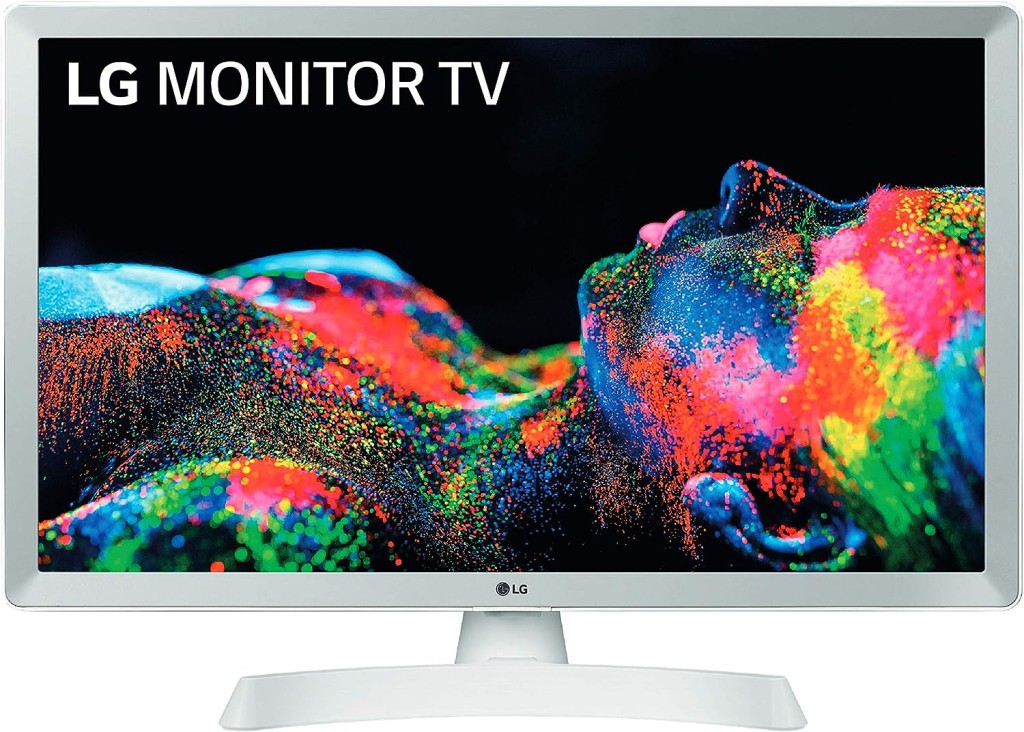
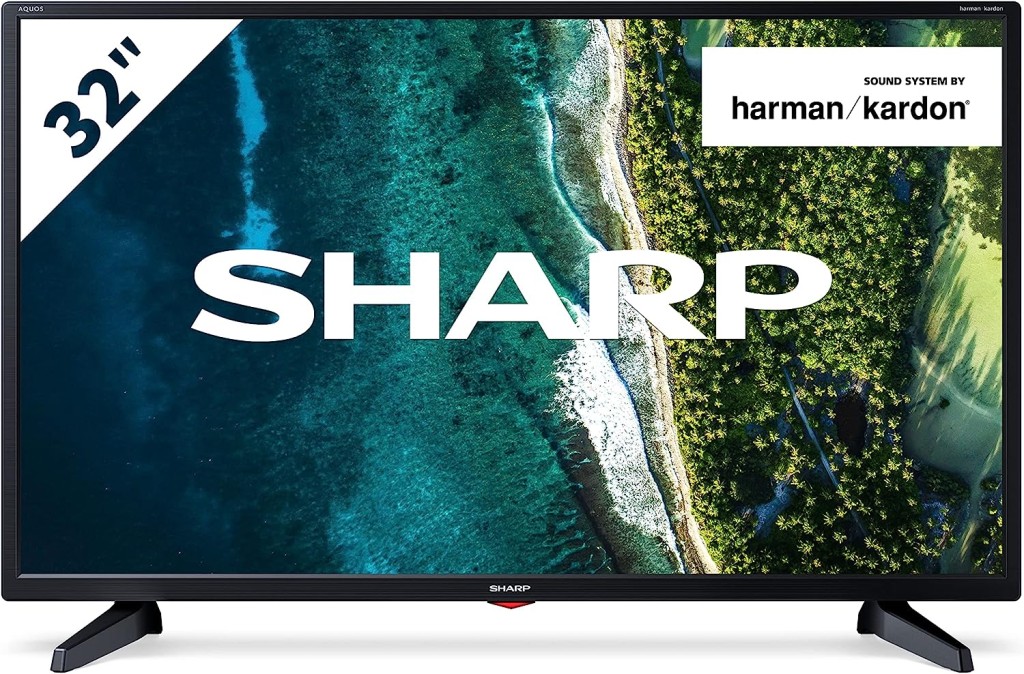
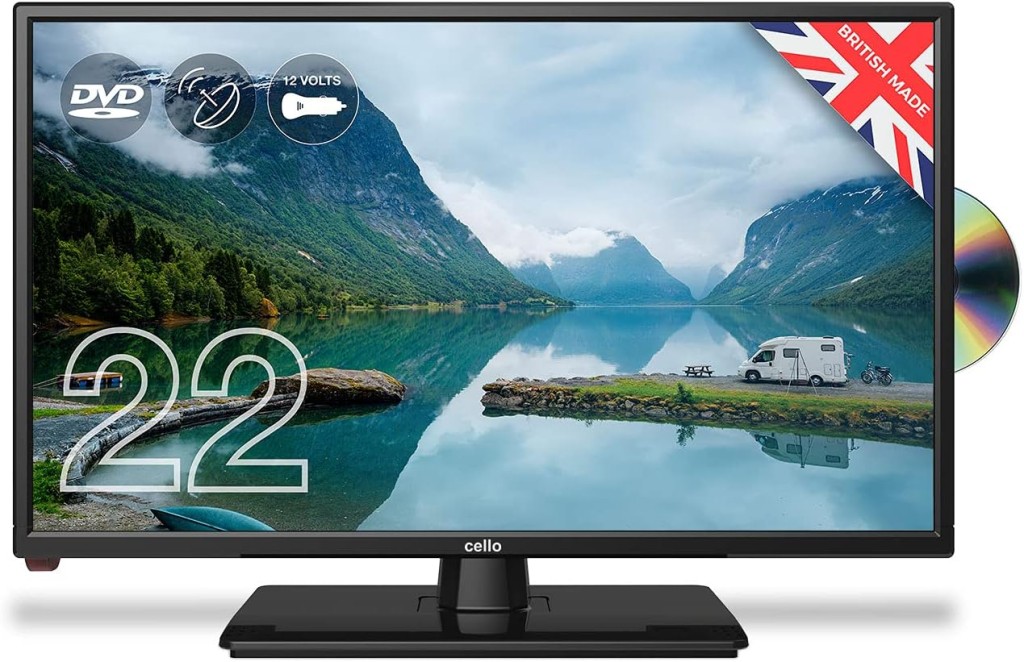
Links to non-Smart TVs (from Amazon UK) – one model from LG; Sharp quite possibly; Cello the major supplier in the UK market.
Finally a dated article from my last summary, but the findings are no less valid and do indicate that a streaming device might be worth considering.
Is the built-in Smart TV provided the best way forward? Well from a convenience point of view, quite probably yes; but if you’re concerned about obsolescence of the Apps on the platform; privacy etc – quite possibly not. An alternative is to buy a TV monitor (or a computer monitor) and pair it with a streaming box from Apple, Roku, Amazon or Google. [This is an option I’m carefully looking at for a new TV in the kitchen, because all the main suppliers don’t seem to supply an option smaller than about 29″ which would (I feel) be just too imposing in a relatively small space).]
Freeview or FreeSat? Both require an aerial or satellite dish, but there are ways of watching Freeview (Freeview Play) as a stream, or watch Freeview as an app on your mobile device and cast/play it to your TV. If you only want the main “terrestrial” services and don’t require streamed services (from the Internet) – these could be for you. There’s also YouView which is a packaged service combining terrestrial channels with some popular streamed services which is then available on certain platforms (ie BT TV, EE TV, TalkTalk TV and Sony TV) – a sort of semi-Smart TV service.
Do you need a TV at all, or could you just use your laptop/tablet instead? Well that’s certainly a possibility. For personal use I’d not discount it and all the major streaming services do have apps for laptops/tablets.
However as the reference to Youview (above) makes clear, if you choose to get your TV service from BT, or Virgin, or TalkTalk or EE, they will provide a box which could provide a lot of what you need for your TV viewing with out the need for Smart TV. These boxes will have replay, and recording as standard features.
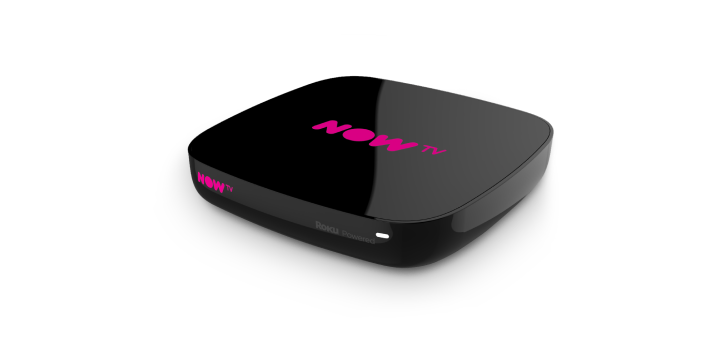
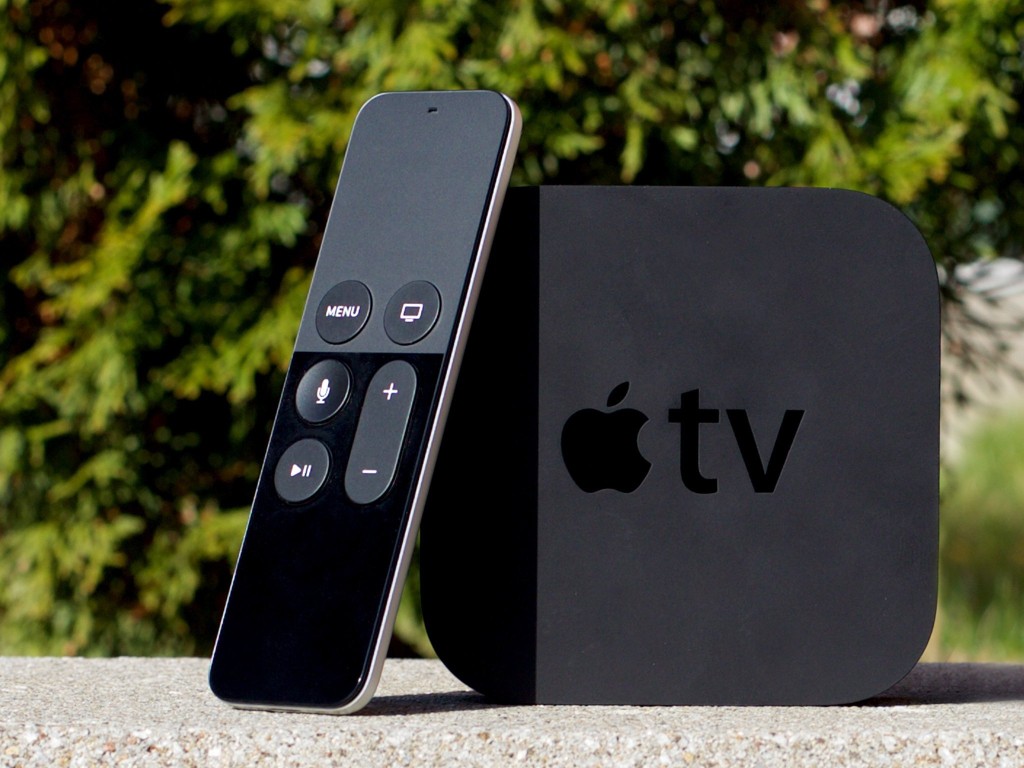
Then there are the streaming service boxes – all of which have their own Smart TV features. I’ve mentioned Roku already, but there’s Google Chromecast, Now TV (which is built on the Roku platform) and of course Apple TV boxes, which can all run alongside your Smart TV apps, or add to your Dumb TV offerings. With a Roku device you can also use Apple’s Homekit and Airplay – useful for sending your Apple device’s screen to the TV – and control it with Amazon Alexa or Google Assistant.
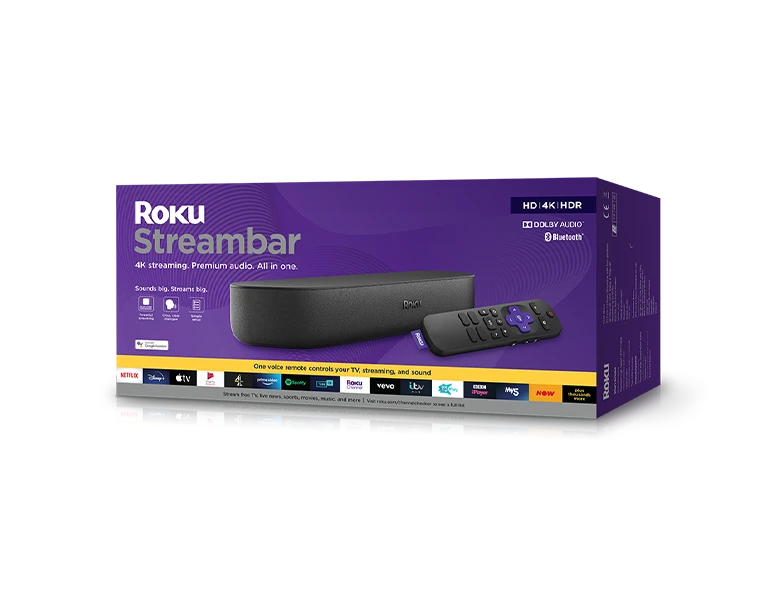

Which neatly leads into Voice assistants and Sound.
Without much risk of contradiction I can say that the audio quality from all TVs is poor unless you are willing to pay mega-bucks. If you’re willing to pay a little bit extra, it’s worth investigating the Soundbar that pairs with your TV manufacturer, or alternatively to look at an offering such as Sonos – there are others, and I’m not going into this area.
What is worth considering when looking at a Smart TV is how it integrates into the rest of your Smart Home. It really is worth stopping and considering whether you’re a Alexa, Google Assistant or Siri home. You quite possibly have acquired devices from several manufacturers not realising that they all have different voice assistants and not all of them integrate easily (if at all) into your Smart Home Hub – Nest, HomeKit, Echo, or SmartThings – to name a few.
If we look at just the Voice assistants and TVs – Samsung supports its own Bixby (which integrates, I believe with it’s own SmartThings smart home platform), Google Assistant and Amazon Alexa and whilst it has a very good integration withe Apple through its Apple TV app, and through AirPlay doesn’t allow you to use Siri voice assistant, or integrate it into Apple’s Homekit ecosystem. Indeed it’s only LG that has a good integration with Apple Homekit enabling you to use Siri to control the TV. [Indeed LG is a good platform for voice assistants because it supports Google Assistant and Alexa as well as it’s own little known ThinQ system.]
To give you an idea of the complexity of the problem, this article lists the commands you can use with a Samsung TV to control it in three “languages” – native Bixby, Assistant and Alexa. You should really look at this article to get a better handle on Voice Assistants for your TV.
What other alternatives are there to watching streamed digital content on your TV?
Well the most obvious one is to use your PC/Mac as the TV and use software on the PC/Mac to record Free-to-Air content. You will need a digital tuner for the PC/Mac to get the content.The best known company in this area is Hauppage and you can see a list of their products here … http://www.hauppauge.co.uk/site/products/prods.html
There are other companies in this field but I can only vouch for Hauppage. I once installed a card in my Windows PC, and I still use a USB Tuner with my MacBook Pro to watch TV.
Postscript.There also DIY streaming solutions. I have built a Plex server, but Plex as an app is also a possibility, streaming content across the internet from an app. My Plex server allows me to archive content I want to watch and watch it from anywhere in the world from a server running at home. That used to be useful for my family in Australia before they started using a VPN.
I’d known about Plex for quite a long time but had (prior to 2016) not done anything about it. I’d formally used iTunes essentially as a media server built around a MacMini that sat under the TV with all content that I could record from Get iPlayer Automator and my media that I’d digitised including my CD collection, as well as the streamed versions purchased and downloaded from iTunes/Amazon.
I set about a project to install Plex on the MacMini (which I’d upgraded with a new SSD drive, an extra 4Gb of RAM and an install of the latest MacOS (then High Sierra, it now runs Catalina). Here are a few links to show you my direction of travel.
Plex now lets you stream and record live TV—if you have an antenna and tuner
How it works
Working with my Apple TV and Sonos
And I’ve signed-up for a lifetime subscription to Premium services so that I can …
Record free-to-air content … I’ll let you know how it goes!!I forgot to mention new display technologies from LG/Sony/Panasonic called OLED, and Samsung – QLED. This article explains what these are. It would appear that Samsung and Sony just lead the pack on their use of QLED technology, but it is a race that all will try and compete and try to win. WYSIWYG or what you like is what you buy (WYLIWYB).
I haven’t handled other screen technology – 4K, 8K, HD-Ready, Curve-screen 3D and more – notes from the last time I did this topic, here and here (two different links).
Other links (useful if you have an online Which? account) – not sure whether they’re open to everyone …
http://www.which.co.uk/reviews/internet-tv-boxes/article/recommendations/which-best-buy-internet-tv-boxes
http://www.which.co.uk/reviews/pvrs-and-set-top-boxes/article/recommendations/which-best-buy-pvrs-and-set-top-boxesJust too much to mention!!!!! So in conclusion, some more links …
For the Samsung aficionados – their argument why their platform is the best for Smart TV; a persuasive argument (for me) from LG as to why their support for Apple Homekit maybe the best way forward for me; a review of HomeHubs which might be of use/interest in helping to come to a decision on what you might want to do in your house re. smart homes (a topic we will definitely study again in “Digital matters”); and finally a review of all the major Smart TV platforms for you to ponder over and consider whether anyone has a significant advantage over any of the others FOR YOU! I stress again, this is a very personal decision.
And finally, some more links from the previous presentation to maybe make you think and help your decision-making.
Watching Sky TV without signing-up to a long-term subscription serviceIf you’ve got a Mac you can download programmes from BBC iPlayer and keep them forever using Get iPlayer Automator
Then there’s TVCatchUp – watching TV “on the go”
-
Snapseed and Google Photos

If you want to edit, even if only in a minor way, the photos on your smart device (phone or tablet, Android or Apple), two offerings from Google should be tried first. If you’re an Android (Google) device user, it’s a no-brainer.
The Google Photos app will be installed on your device when you get it, and all you need to do is install Snapseed from the Google Play store. If you’re an iOS or iPadOS (Apple) device user then there’s a couple of extra steps you need to do before you can get started.
This guide concentrates on Snapseed. I’ve written about Google Photos previously and I’m providing links to them below. I’ll check to see that things haven’t changed materially since I published these posts …
Getting to grips with Google Photos – needs some updating and revising, and links need to be checked.
More Google Photos – some simple image manipulation – basically sound, but I need to check to see if there are any additional tools added.
Sharing an image (or album) from Google Photos – should be just about up-to-date.
How do you delete photos from Google Photos? – more recent so I’m assuming that it’s good-to-go, but I’ll check of course.
Although Snapseed is intended for use on smart mobile devices, you can install it on either a Windows PC or a Mac, but I have no experience of doing this, so it would be a project you would be taking on ahead of me. So for that reason I’m only looking at the app that you can download either from the Google Play, or Apple App stores.
So for camera users (rather than smart phone users), you will first of all need to get the photos onto your device. This could be by a direct cable connection from your camera to your phone, or by transfer using Bluetooth or WiFi, but more likely might be by using a SD-card cable like this one I have for the Apple gear. [It will either have to have a Lightning or a USB-C connector – check first before buying one.]
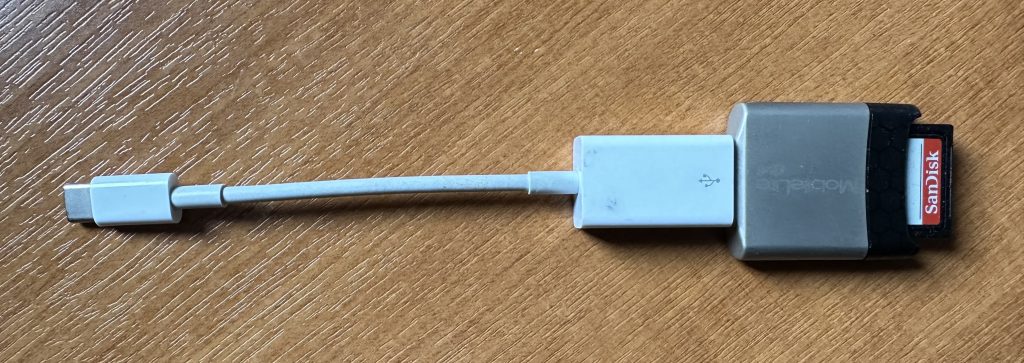
The image(s) thus transferred will be added to your photo library be it Google Photos, or Apple Photos. Another way of adding photos on your computer to your Google Photos would be an Upload to photos.google.com – you will need a Google account to do this. This is how you would do it …

Select Import to Upload images to Google Photos 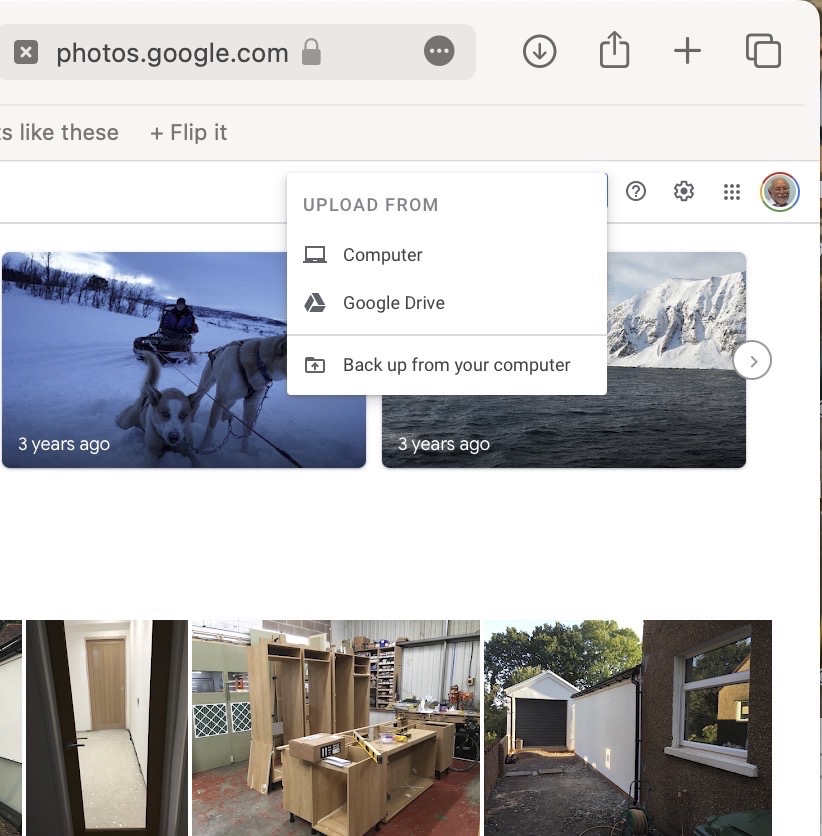
Select images from the Computer (or from Google Drive) You could decide to use Google Backup to synchronise all your photos from your iPhone (or iPad) to Google Photos as an “easy” way of getting the photos on your Apple device into Google Photos, but this is not necessary to use Snapseed as it can access your Apple Photos directly; so I don’t because I’m already backing-up my photos to iCloud. [I only discovered in November I was also sync’ing to Google Photos, so I stopped doing that then and saved some Google Drive storage, and a whole lot of complications about knowing what was where.] But if you want to synchronise from your Apple Camera to Google, this is how you do it from the Google Photos app on your device …

Instructions on how to synchronise Photos on Apple devices to Google Photos You should now install the Snapseed app on your device(s) from the Google Play, or Apple App stores, if you haven’t already. If you’re an Apple user you might choose to install the Google Photos app at the same time – although you don’t need it to use Snapseed, but you might just like to compare how it works.
Next up, if you’re an Apple user you need to allow access to your Photo Library to Snapseed (and optionally Google Photos). This will allow both apps (on iOS) to access the Photos in your Camera Roll on your iPhone or iPad.

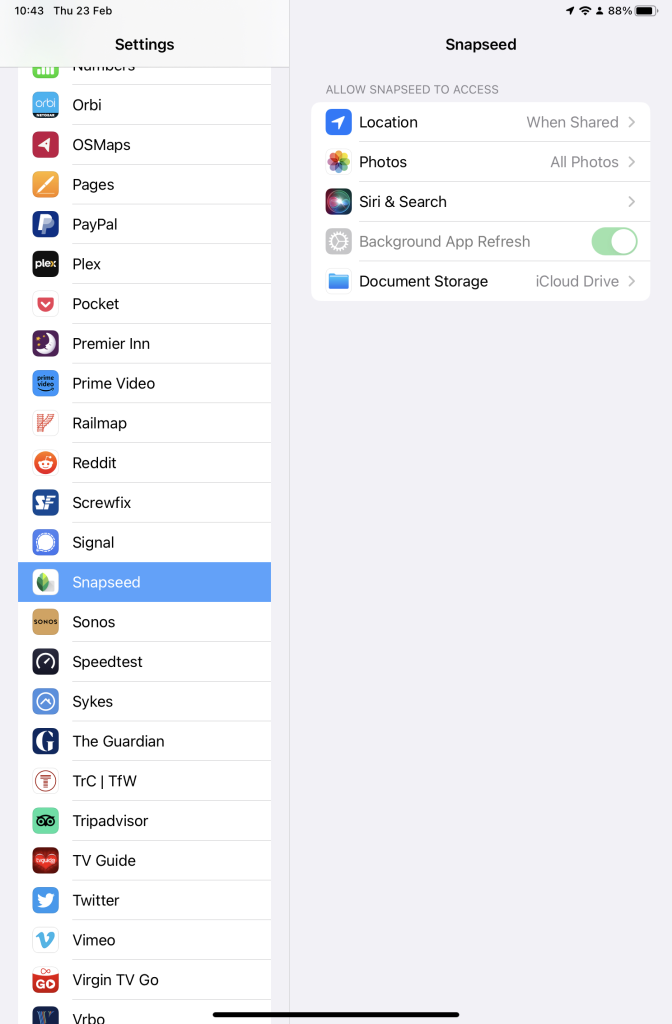
Setting up Google Photos and Snapseed to be able to look at Apple Photos on device(s) So now your ready to start editing. Open the Snapseed app on your device – you are prompted to Open from device (ie look at the images in your Photo Library), or you can access the camera to take a shot, or Open latest image that you’ve taken. The steps from then on are relatively straightforward and you will have selected the image that you want to Use.
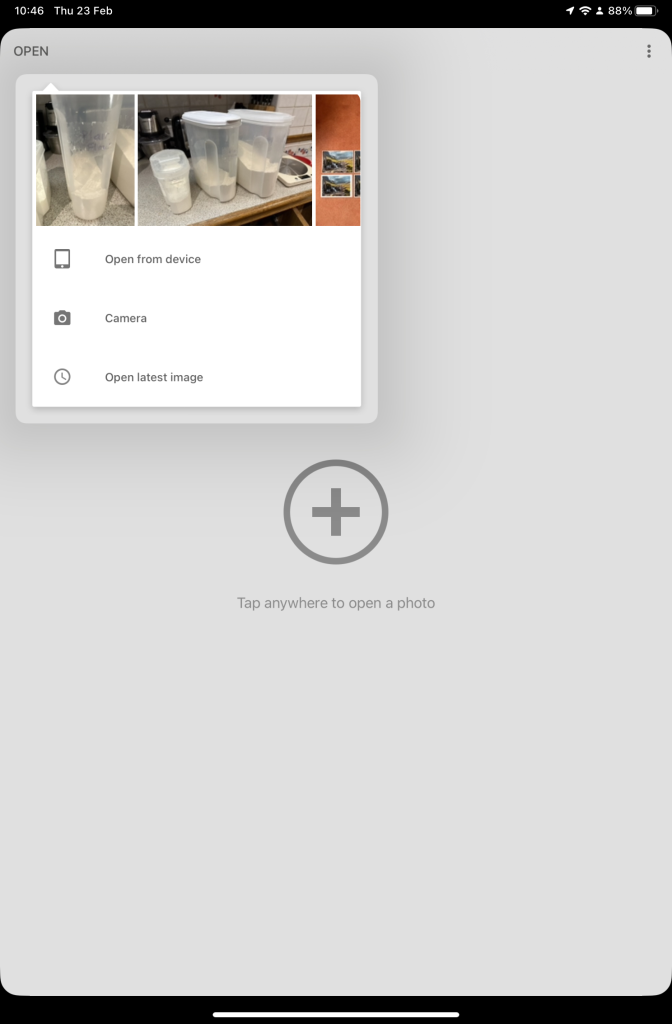
Open Snapseed and look at the photos on your local device 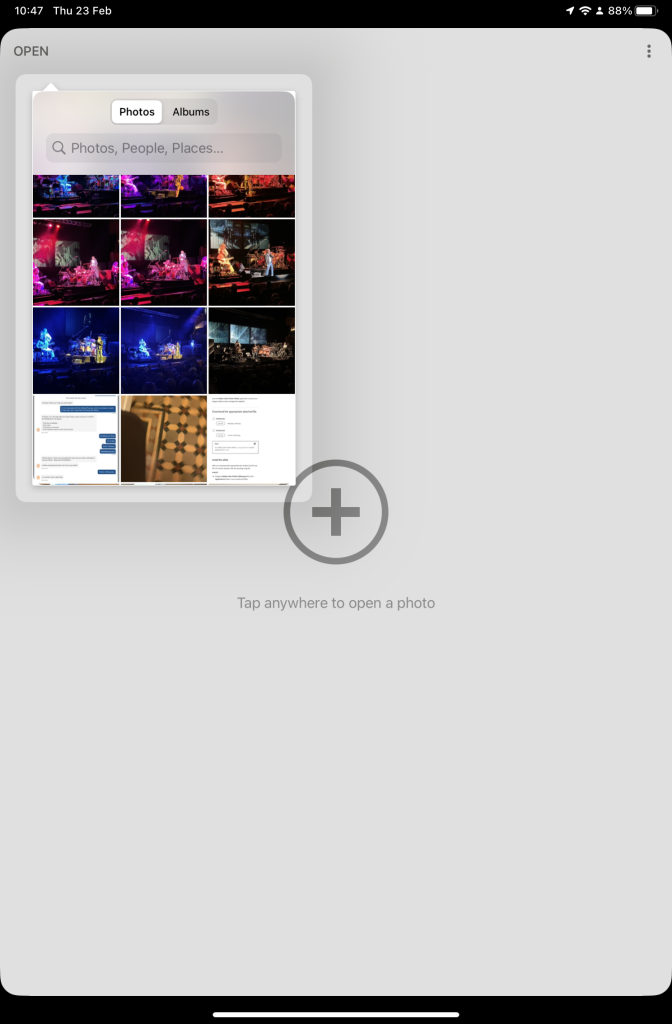
Select an image to edit, and click-on Use 
… and so start editing. That’s about it. This video (recorded from my screen, hence background noise and rather low audio volume) gives a reasonable introduction on how the Snapseed app works …
Here are some links that you might find of interest:
Complete Guide To Using Snapseed To Edit Your iPhone Photos
How to Edit Photos in Snapseed
Using your Android camera to take photos; but I believe all Android phones have slightly different camera interfaces, so you’re better off researching that for yourself. [NB If you have come across a really good guide, let me know and I’ll add it to the list here.]
How to Use the Camera on an Android Phone: The Basics Explained
Then for the iPhone …
How to use iPhone Camera: A guide for beginners and pros
A Beginners Guide To Incredible iPhone Photography
How To Use The iPhone Camera App To Take Incredible Photos
I hope that helps. Please advise if you come across something that doesn’t quite work for you, it might be my notes!!!
-
A satisfying and pleasant end to a trying day.
You’ve got to hand it to Apple. They do look after their customers well – at least this one they do!
You may remember I’d been having trouble with the boot-up of my 2013 iMac – yes, it’s at least 5 years old. It’s a powerful machine which I bought to do photo work and it’s been a delight, but the problems reported here …
I’ve now had an introduction to the SBOD
… had come back this month. After a couple of attempts to fix the problem myself, which I had assumed to be software problems, which involved me re-installing the operating system on a completely clean disk (ie I had to re-install all my data and applications from backup which was painless and automatic, but took a bit of time), I contacted their support via online chat, and after Traci had exhausted everything she could remotely, I was referred to the Genius Bar in the local Apple Store for an appointment that same day (actually 18:45 in the evening). A very competent and pleasant hardware technician (David) did “triage” on the machine and announced that the Fusion Drive was in fact faulty – it was a hardware problem.
And … they offered to replace and repair it at no cost to myself as I’d bought it from Apple, not elsewhere.
That’s the way to create brand loyalty. Thanks David. Thanks Apple Store, Cardiff. -

Is it time to move to more paid subscription services?
I have to admit, the events of the past few weeks have made me look much more seriously at paying more for the IT services that I’ve taken for free up until now. Of course they’ve never been free, I’ve had to put up with the adverts and the email messages I don’t really want – alerting me to this deal, or that deal, and I’ve willingly put up with that as a price worth paying for the service I’ve been receiving. But two events have changed my mind, and moreover I feel the IT world is actually changing slowly as a consequence of the mistakes (to be exceptionally generous) of Facebook and Google; and the decision of Apple to switch more attention to Services, targeting this as their main income stream for the future, and not relying on Hardware alone.
So what were the earth-shaking events in the Harrison-IT-world? Well the first was Google’s announcement that having hidden the news of a potential security weakness in an API, for several months (presumably to secure their stock-market price at the time Facebook was struggling, and presumably also after ensuring that the potential breach was secured) they used this as an excuse to kill-off (sorry “sunset”) Google+ next August. Now this service was not the success Google hoped it to be, and most definitely has not generated the revenue they hoped it might, but for me, my family and for many communities (particularly of photographers – because of the close linkage to Google Photos) – it was a hugely valuable tool. Now, we have to look for another social media platform. It could be Google Photos – Google may have plans to “enhance” it to take on features from Google+, or it could be another platform, but it’s just a pain in the neck having to move off something we’re used to! Google have real history with “sunsetting” tools that people get used to using [Thanks to @MrSimonWood for this link.]
The second was Flickr’s announcement that they were going to limit their Free account to 1000 images – excluding those that were licensed under Creative Commons, which a lot of mine are. They are encouraging users to take out a Pro subscription to remove restrictions and allow more and larger images to be uploaded. This didn’t meet with the same “horror” feeling. I immediately felt that this was a decision that would secure the future long-term of the service under the new owners – SmugMug. [A feeling that I didn’t have when 500px made changes to their platform which led me to delete my account.] So I immediately subscribed and took advantage of the first-year discount price (still available for a few more days I believe).
So what am I saying. I’m saying that if there’s a service that I really want, and I really need some feeling that it’s going to be around for a while, I should pay for it. I wasn’t given that option by Google – shame on them; it appears I’ll never be given that opportunity by Facebook. Both of them are essentially marketing and advertising platforms. I don’t see either of them being able to develop a hybrid model as Flickr has been able to do.
This all makes Adobe’s Creative Cloud Photography Plan and Microsofts’ Office 365 seem so much more sensible. I’ll continue with the former, but decline the latter as my roots are now firmly planted in the Apple world where I look to see how they will develop their Service offerings in Music, TV, Home and Car fields.
Interesting times.