
Tag: 2020
-
Have I been pwned?
Have I been pwned?: Another use case for this very handy website that tells you whether your email address has been hacked is a check on your password – just click on this link and supply your “favourite” password to see if it’s out in the wild!
-
Using a Password Manager and implementing Two Factor Authentication
Introduction – passwords, passwords, passwords.
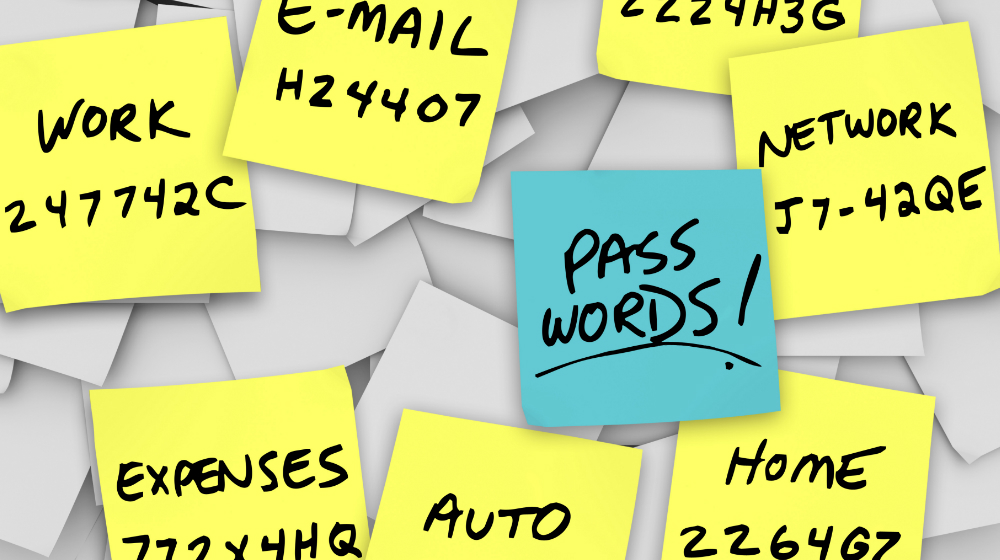
Log in to your e-mail account. Log in to your bank account. Log in to Facebook, WhatsApp or twitter. Log in to your Amazon account, or any other retail site. Log in to your photo sharing service. Log in to Thought grazing, or any other membership based organisation eg U3A, Which?Is it possible to remember the number of applications you use on a regular basis that require a password? How do you keep track of all of all those passwords?Here are a few tricks you might have tried or considered (with hints about why you may want to steer clear of some of them):
-
- Memorise passwords. This is a great technique if you use your passwords every day, but maybe not for those you only need occasionally. If you don’t use a password regularly, there’s a good chance you could forget it if you rely on your memory alone. In addition, Web browser cookies can remember your login session for days or weeks at a time, meaning you only enter the password manually once in a while even if you use it every day. This could therefore be a weakness and security breach if someone stole your computer. So to login to your computer, or connect to your bank this might be the best approach, but be mindful of the potential security breaches and use for only a limited number of uses. [NB The login credentials to your bank are not saved on your computer, but other sites may well store them in cache or cookies to make it “easier” for you to connect!]
-
- Use the same password everywhere. Memorising a single password for every account does make life simpler. For security reasons, though, this isn’t a great idea, because it makes it easy for a hacker who finds your user name and password for one account to break into your other accounts, too. So what you could do is have a base (root) password that is the same, and then add something you believe you’ll remember to identify the pairing of the password with the site (a variable). Thus making the password unique to that site. So if you wanted to connect to Boots the Chemist you might choose “B00ts&” before your root password. I gave some ideas on choosing a root password in an earlier post.
-
- Write passwords down on paper. This is an ideal solution if you can hide the written information where no one else has access and you can remember where that place is :-). However not only is this a risk if someone finds the list, but a written list or an assortment of scraps of paper could also be lost or damaged, and you’ll need to find and update the list each time you update a password. This is most definitely the most frequently chosen option, and most certainly is the worst option too.
-
- Write passwords into a file on your computer or mobile device. This is less likely to get lost than the paper, but you do risk losing the file if you have hardware failure. In addition, this file is as vulnerable to hackers as other files on your computer. You could encrypt it for an added layer of security, which makes this strategy similar to the next solution. I used this option for a while with the file saved on Dropbox and protected by a Password, so it was safe from loss – but it wasn’t encrypted and most definitely wasn’t very safe – but it was a safer option than the previous method.
-
- Use password management software. Password management software is a utility you can use to save and retrieve all your passwords. This software could be a standalone application on your local computer or a feature within another application (such as your browser) – or both. This option greatly limits hackers’ possible routes to your password data while adding convenient features for organising and retrieving information. This is the strategy that is strongly recommended for everyone and for use on a single computer – it can be FREE.
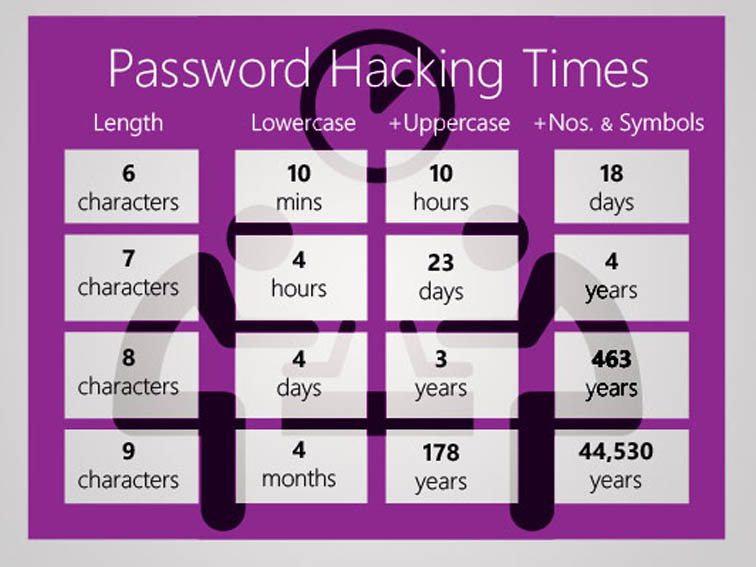
When I sat down to write this piece, I obviously looked around to see whether there was any information I could reference. After I’d done that, it was clear that there was no point in me re-inventing the wheel. So I point you at this excellent introduction to Password Managers and review of the leading Password Managers out there. Read it before you go any further!.
Password managers – how do they work? Are they safe?
So you’ve read the article mentioned above? Yes – then proceed. Otherwise I really do insist you go back and read it.
So now you know there are browser-based password managers, cloud-based password managers and locally-stored password managers. You do know that, don’t you? If not, go back and read this article again!
Are they safe? – you only have to remember ONE password, the master password, and that unlocks your Password Vault. So compared with unsafe, easy to guess passwords, or scraps of paper – they are very safe; and you can’t lose them, forget them, or mislay them. They’re all in one place!
How do they work? – well, I don’t need to tell you much about this because you’ve already read this, haven’t you? Essentially, you can choose to let the Password Manager generate random passwords for every site you need to provide login credentials for, or you can provide the Password Manager with a password when prompted. I tend to do the latter using the “variable + root” approach I discussed before. It’s not that I don’t trust my Password Manager, it’s just that for many of the sites that I use frequently, it’s quicker and easier for me to supply the password because I can remember it!
Which Password Manager you choose to use is down to your situation – you could read this Review of Password Managers – which picks Dashlane and LastPass as best products. Either of these would be good to implement and use but they have different use cases. I use LastPass and pay a small amount annually so that I can use it on more than one device. I also use it because as it’s cloud-based, I can log into my LastPass account from any machine and access my online services. Dashlane lets you make the choice of local machine or cloud-based password storage – but it is not free, whilst Keepass (which is open source and free) works on a single machine, the passwords are stored on that machine – so that might be the option for you. If you only tend to use a laptop or desktop for browsing websites where you need to provide Login credentials, the free version of LastPass or KeePass is more than adequate.
Note: I do not recommend for the reasons explained in the article, that you use the Password Managers contained in your browser.
How do you use your Password Manager?
This is really beyond the scope of this article but elements of usage are covered in the two articles that have been referenced above. You should refer to the documentation for your chosen Password Manager.
What’s all the fuss about Two-factor Authentication then? Do I really need it if I’m using a Password Manager?
Well yes you do! It’s bandit country out there on the Internet. You’ll know that if you’ve been on Have I been pwned? and seen your email address has been captured by a leak, or a hack. So it’s always possible that someone has got at least part of your login credentials, and from that it might be possible for them to request a new password – blocking you from using a service – or they may have even requested a new userid! So that’s where 2FA comes in.
What is it though?
Essentially once you’ve implemented 2FA you’ll be asked for secondary information about yourself (Face-ID, or Touch-ID if you’re using an iPhone) or confirmation that you are the person you’re purporting to be – by asking you to supply a code that is displayed on a smartphone or other device you own, and which is to hand. Thus having your UserID and Password is not sufficient alone to access your account.
If you’ve used Online Banking recently you’ll have noticed they’ve implemented 2FA widely. In fact I believe they’ve been required to by the Banking Regulator. Thus accessing your bank from your device is intrinsically safer now than it used to be.
I’m not going to say much more about 2FA , I’m going to refer you again to a Guide rather than repeat the information myself – and quite possibly make a mistake in doing that. There are a number of sources of reference out there, from Google, Apple, Microsoft but the one that I’m pointing you at is this one which I think explains things well, and also points at how to implement it for a number of popular and well-used platforms and services.
Making life easier with an Authenticator for 2FA
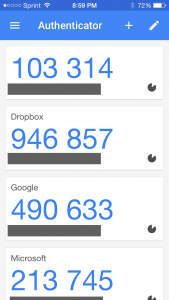
Wouldn’t it be nice – instead of waiting for the site you are trying to access to send you a code to type into the box they’ve provided – if you could just look at your phone and see a code on it that you could then provide and type in?
That’s what an Authenticator does. Perhaps the best known is Google Authenticator – and that’s the one I use on my iPhone, but there are others. You might consider using LastPass Authenticator for instance, I’ve meant to try it out for quite a while, and there’s also Authy, which has significant advantages over Google Authenticator – but it’s perhaps best to get experience using the Google software first.
And that’s it! Thanks for getting to the bottom of this long article. I promise you, if you follow the advice and guidance included in it, and in the referenced articles, your online life will be much safer, more secure and your stress levels will be reduced!
-
-
![Video calling – Covid-19 and beyond [Updated]](https://digital.cardiffu3a.org.uk/wp-content/uploads/2020/03/skype_video_calling-1.jpg)
Video calling – Covid-19 and beyond [Updated]
The current crisis is forcing us all to consider how we can maintain face-to-face social contact at a time when that simply is not desirable, or even permissible. To this end we might look to video-calling as a possible solution. Let’s look at the options – this list will undoubtedly be updated, so please check back and also add your thoughts and experiences in the Comments area below.
WhatsApp is the simplest means of keeping in contact face-to-face and works well for a one-to-one call; you can also use it for audio calls and of course chat – but you can use it for calling up to four others. Here’s how you do it. It’s available for iPhone (iOS) and Android phones and you can use it from a webapp that runs on Windows or MacOS. It’s encrypted which means that your conversations should be secure, but it is owned by Facebook so one can never tell what might happen to it, or your data, in the future. You can also use Facebook Messenger to connect to up to 50 people – but I wouldn’t go there!
If you are a Mac/iPhone/iPad user wanting to call someone who also has Apple equipment you should really just use Facetime and look no further. Here’s how to use it from mobile devices, and here from your laptop or desktop. If you want to do a Group video-call then you can – up to 32 people can be on the same call! Here’s a User Guide which is applicable if you’re using the latest versions of Apple’s MacOS – Catalina (or Mojave), and here’s one for the mobile users. You cannot use Facetime however to chat with someone who doesn’t have Apple equipment.

So we turn to Google Hangouts which has the benefit of working cross-platform (that is Apple, Windows, Linux and Android users can all use it) and can also support Group video-calling as well of up to 25 people. This is the application that on the surface of things is well suited to most group video-chat situations, and is the one I’ll be focussing on using most over the next few weeks. It has the real advantage that whilst there are dedicated apps for mobile devices, it just requires a browser and a web-address on desktop/laptops. Here’s how to get started with Google Hangouts.
There’s a Microsoft offering as well – perhaps the oldest and best known piece of video-calling software, so much so it’s been adopted as the generic term for video-calling – Skype. It’s the most obvious competitor to Hangouts as again it’s cross-platform and indeed it’s hugely scaleable as you can have up to 50 devices on a single call (how do you manage that?!) but I’m afraid I find the way of calling, the potential for charging (why and when), the connection with your phone number and account, and general way to go about using Skype just a little bit too complicated for me. One day, maybe I’ll find the time to research it more, but for the moment …
Finally, in this first pass of applications you can use for video-calls, there’s Zoom. We’ve used it and set it up for a call from a Mac to an iPad. It is cross-platform – so that’s good. It has a good reputation for person-to-person calls where it’s free but a little fiddly to setup, but I believe it won’t scale well for Group chat – as it’s principal focus is Business. I believe you’ll have to pay for that facility, so for the moment, I’m discounting it.
[Update]
Since writing this I’ve been pleased to here that several U3A members have been using Zoom – I’ll be trying it out myself shortly. However there are a few things you should take notice of which are described in this article and this one. I’d suggest you take the time to read both of them and don’t think they’re not relevant because they’re from a Mac user website.
There are a couple of other articles I’ve come across just recently on setting up Zoom, and using Zoom for online meetings, and again I’d suggest that you might read them. One hint/tip that seems quite sensible – get someone else to setup the meeting/server – don’t host it yourself. Selfish but safe!
Please add comments on your use of Zoom, or any other video-calling software in the Comments below.
-
Microsoft re-enters the browser war!
 After Netscape Navigator was eclipsed by Microsoft’s Internet Explorer as the browser of choice for many – mainly because it was hard-wired into Windows initially – the world of internet browsers has seen first the rise of Firefox from the Mozilla Foundation as an alternative open source option and then the succession to Google’s Chrome and it’s huge market presence.
I’ve written about Google’s dominance and the alternatives to Chrome before in “Just Google it …”
Now Microsoft has stirred from its inactivity in the browser market place. It has ditched its proprietary Edge browser and replaced it with … Microsoft Edge. No confusion there then!
It is interesting because it will run on MacOS as well as Windows, something the old Edge didn’t do, and will use the same open source code base – Chromium – as Google’s Chrome and of course Brave (my browser of choice). This allows them to use Extensions written for that code base. I already use many extensions written for Chrome in my Brave browser.
What will this mean for Google especially as Microsoft Edge will effectively have a built-in ad-blocker? Who knows. It’s certain that as more users decide to use the Microsoft version of Chromium, so Google’s business model and revenue stream will come under attack. Will they retaliate in some way? Probably not. Interesting times.
Here’s an article that describes keyboard shortcuts that you can use with Microsoft Edge. -
Whats Up with WhatsApp
[11:18, 28/01/2020] David Hughes: I have just discovered I can access what’s app on my iPad as well as my phone. Isn’t technology wunerful ![11:27, 28/01/2020] Jim Bartlett: I think you still have to have your phone connected, David.[11:30, 28/01/2020] David Harrison: I think you do too. Paul showed us a way of doing that at tge beginning of the year when we started using WhatsApp. I’ll share the link later. Me … it’s rumoured they’re going to release an iPad App – I’ll wIt for that! But, perhaps, you’re ahead of me![13:01, 28/01/2020] Margaret Lewis: When I started using Whats App, pre Computer Group days, I found I could not have it on both Android phone and tablet. Had to be one or the other. Confirmed by kids, and its now only on the tab. I would be delighted if anyone knows a way to have it operational on both.[17:31, 28/01/2020] Jim Bartlett: Margaret, your tablet will have a different phone number to your mobile’s, yes? That means they can both be on WhatsApp, but they won’t be able to read each other’s messages, any more than they can read mine.Now, you are a member of the Computer group, so you can read and reply to other members’ WhatsApp messages.So the answer to your problem is to form a new WhatsApp group, and make your tablet and your phone members, so they can then see what each of them are doing. Simple! (I hope.)(If the problem is that you want your phone to be in the Computer group too, then send a request from it to David.)[17:37, 28/01/2020] Paul de Geus: Jim, That sounds an interesting option wrt grouping.[18:04, 28/01/2020] David Harrison: Hi @Margaret Lewis As far as I know (or knew) I’d added your phone to the Group, unless your tablet has a SIM in it and that’s the phone number you gave me.[18:05, 28/01/2020] David Harrison: The number I have ends 5213[18:32, 28/01/2020] Margaret Lewis: Thanks for all the comments.Yes, it all operates through the one and only mob no. that you have.The issue seems to be that, as far as I understand it and was led to believe, WA only operates on one device for the account.I have several WA groups so live happily with the present set up but availability on the phone too would obviously give more flexibility and more instant access.[18:37, 28/01/2020] Jim Bartlett: Have you read my reply, Margaret? You can open a new WhatsApp account for your phone, and ask David to add it to the Computer group. Jim[11:50, 29/01/2020] Jim Bartlett: “The one and only mob. no. that you have.” Are you saying your tablet uses the same number as your phone, Margaret?[19:01, 29/01/2020] Margaret Lewis: As far as I know it doesnt have a number. I certainly only have one number, on the phone.[20:39, 29/01/2020] Jim Bartlett: Can anyone else in the Computer group tell Margaret how to find out if her tablet has a phone number? (Presumably it has a sim.) She obviously won’t be able to join the WhatsApp group without one.[21:41, 29/01/2020] Margaret Lewis: Well Ive been in the computer group Whats App since last Sept and others before that.[21:44, 29/01/2020] Jim Bartlett: Yes of course, Margaret, but via your phone, not your tablet. That is what I am trying to help you with.[21:54, 29/01/2020] Paul de Geus: Most Tablets in the UK do not have a SIM, it is usually an extra cost option , that cannot be retrofitted. There are various workarounds for extra connectivity if really needed.[22:37, 29/01/2020] David Harrison: Just a thought – there are unofficial Messenger apps for WhatsApp on the iPad (maybe Android as well) – could it be this that’s causing confusion?[22:39, 29/01/2020] David Harrison: I used one for a while about 18months ago before deleting it. These apps link to WhatsApp Web which is the only way I’m aware of that allow you to use WhatsApp through browser technology.[22:40, 29/01/2020] David Harrison: This is really confusing to me as well as @Margaret Lewis no doubt. Bring both devices in next meeting if you can and we’ll try and sort it out.[09:29, 30/01/2020] Jim Bartlett: That’s a good plan, David. Then we will be able to see if Margaret’s tablet has a sim slot, (like my Nexus).[14:36, 30/01/2020] David Harrison: I’m truly confused with WhatsApp. I’ll write a blogpost about it when I eventually feel confident enough about how it works to do so !!! 🤣🤣🤣[18:00, 30/01/2020] Margaret Lewis: I definitely do not have a sim on the Android tablet. The WA app is the official one.Shedding a bit more light, it was originally set up on the Android phone, which has a number. Not understanding the technicalities, I assumed at that stage that I could just add the app to my tablet also, which I did over a year ago, and then use both. I discovered that it did not operate on both devices together and so deleted the phone one and kept the tablet which has worked without any problems.Does this explain things, have I inadvertently discovered that you can set up on the phone with a number yet operate on another device?My original query was to try to get the same WA on both, but as no one seems to know if or how I think I will leave well alone and carry on. “Keep calm and carry on”. Many thanks for all the input.[18:22, 30/01/2020] Jim Bartlett: If you wrote that on your tablet, Margaret, then your tablet has the number +44 7480 925213. What I don’t understand is how it could have a number if it doesn’t have a sim. Anybody?[18:28, 30/01/2020] Margaret Lewis: Yes I only ever use WA on the tablet, the only place it is installed. While on line now I have also been successfully engaged in a WA chat with my daughter, using same app, same device. The number is my (only) mobile phone number. It accesses the phone for which I pay a monthly sum. I pay nothing for the tablet and never have.I think I will keep things running as they are rather than investigate too closely and lose things![18:30, 30/01/2020] David Harrison: Fascinating! Android is obviously one step ahead of Apple because there isn’t an app for iPad, only iPhone, so it’s not possible to do what you seem to have done.[18:34, 30/01/2020] Margaret Lewis: My husband is sitting here. I am reminded that he uses WA on his tablet too. He hasnt even got as far as a smart phone![18:37, 30/01/2020] Paul de Geus: Margaret has inadvertevly but effectively followed the procedure I outlined at one of our sessions last year, When I explained how to What’s App an Android tablet that does not have a SIM, but using another spare android phone number.[18:38, 30/01/2020] David Harrison: Ah! Yes! It’s coming back to me. However I’ve just done a quick search @Paul de Geus and there categorically is not an official WhatsApp app for Android tablets – at least that’s what I’ve read 🥴[18:40, 30/01/2020] David Harrison: https://www.techadvisor.co.uk/how-to/google-android/whatsapp-tablet-3517280/[18:43, 30/01/2020] Paul de Geus: You just download WhatsApp from Playstore on the android tablet and follow instructions, but use an existing android phone number not already linked to What’s App.I think we wrote it up on Thoughtgrazing[19:22, 30/01/2020] David Harrison: Yes you did @Paul de Geus – I’m confused of course, again (not being an Android person), the article above (Nov. 2019) states that there isn’t an official WhatsApp app – can you comment on that?[19:25, 30/01/2020] Paul de Geus: They did not expect you to find the workaround for a non SIM device,that can use the official WhatsApp app.[19:28, 30/01/2020] Paul de Geus: When you load and use the app,it expects you to provide a phone number for the device it is on…..but, it does not realise that you may have supplied a phone number not physically connected to that device.[19:29, 30/01/2020] Paul de Geus: Hence the workaround works.[19:56, 30/01/2020] Margaret Lewis: Sounds about right. I would have downloaded from Play Store, provided the number but then found, as I now realise, that it was not possible to have 2 copies of the app operational on the same number. As I said, I uninstalled the one on the phone to keep the tablet up and running. I assumed I had overlooked something and was hoping that one of you knowledgable folks maybe could help in sorting it on 2 devices. I now understand the system and reasons why I cant do this, so sorted. -
Managing your eMail
This post was created for the Cardiff U3A Computer Group meeting on the 23rd January 2020, but is possibly of more general interest.Starting Point – the givens; what we’re trying to achieve
- Having a manageable amount of email will make your life easier and better.
- Focus on lifestyle habits rather than hard-and-fast rules.
- Work out what you don’t want from your email, and then create habits that prevent it from happening.
- Work out how you will handle email daily and if you can – weekly, and monthly, and decide whether you need a method to archive or store emails, or the information contained in them.
- The importance of context. Use the appropriate tool wherever possible.
- You need an immediate answer – use the phone, and leave a voice message if there’s no reply, possibly with a text message – “please get back to me after you’re listened to your voice mail” – as backup.
- You need a record of the answer to a question – use email; and seek confirmation by email if the answer comes back a different way.
- You need to just keep in touch, or chat – use text (SMS) messaging or WhatsApp (or any other – I don’t want to recommend one – chat platform).
Tools you can use (all the “F’s”)
Forever email – whatever your email address is now, seriously consider getting an email address that will last forever and not be dependent upon your currently favoured Internet Service Provider (ISP). So … Google’s gmail.com mail would be a good choice, as (if you’re wedded to one technology, say Apple) would be the email provided by that supplier, eg icloud.com. Here’s an article that lists the best email accounts currently. Personally, I wouldn’t go beyond the first three, and I would be tempted to say only the first two! So that would give you a choice of Google, Microsoft plus (in my case) Apple.
Fake email address – you don’t have to have just one email address. Create a duplicate for using when a retailer asks for your email address.
For you alone – don’t share an email address with a partner; have separate ones; you can always setup an email programme to read both email accounts on one device (eg a tablet). Keep your personal email address for yourself, and for life!
Feature-rich email program (a rather contrived “f” this one) – use the mailer that your operating system provides for you. On Windows and Apple this would be called Mail. On your phone or tablet it might be called Gmail or Outlook. There are others as well.
Forward your email to one place – if you’ve set up a new email address, you can forward mail from your old address to your new one and then apply filters (see below).
Filters – these are very useful and relatively easy to set up (or create). They allow rules to be followed and your email to be handled the way you want it to be handled and not just hang around clogging up your Inbox.
Flags (or labels) – you can put a marker against individual messages in some email programs. Perhaps a colour code to indicate their urgency or priority.
Folders – these are invaluable and when combined with a service such as the three (Google, Microsoft or Apple) I’ve mentioned, can ensure that you have an archive of messages that should last as long as you realistically would ever want them.Techniques to keep your eMail under control
Aim for Only 20 Items in Your In-box
[Warning … Do as I say, not as I do!!!]. Twenty e-mails means that you can see your whole in-box without scrolling. As soon as you deal with a message, file or delete it. Only messages from the past week that you’ve yet to respond to belong in your in-box.
Stick to a Schedule (difficult but invaluable)
[Warning … Discipline needed] Even though I check my mail several times a day just in case something pops up which really needs to be urgently handled, I try to not process them right away. I try to only do that once a day, either at the beginning of the day or in the evenings. So I need to adhere to respecting the difference between checking and processing. So …
Delete ruthlessly, when you’re checking
Don’t reply immediately unless …
Can you write back in two minutes or less? If so, do it immediately, and delete the incoming email from your Inbox. Your reply together with the original message should be in your Sent mail.
If an e-mail requires more time, perhaps flag it so it can be handled during a scheduled window later that day or the next morning.
Important … if an email looks as though it can’t be answered easily – pick up the phone!
Sounds obvious but … you don’t need to read every single mail that comes in. Pick and select what’s relevant to you.
I subscribe to several newsletters – but I don’t read all the mails that are sent to me. I don’t delete them either, because I know they may have valuable information contained in them. Instead, I sometimes set up filters to automatically archive them to different folders (labels on Gmail), or move them to the appropriate folder manually. I only read them when I want to get more information on the topic.
Remember you can Unsubscribe from an email list – it’s not difficult and can reduce the amount of email you get quite considerably!
Turn off notifications that appear on your desktop. You really don’t need that kind of message appearing which drags you to your Inbox!!
Close email when you need to concentrate on something else. Close your email application or sign out of webmail when you need to do work that requires real focus for at least 30 minutes. When an email program is open, it’s tempting to check periodically (or obsessively) for new mail. Closing the program entirely (not hiding it) removes the temptation.
Try to remember to remove old email messages from your Trash Can, unless you’ve set it to Auto-Delete after a week, or a month, or whatever.
Email programs and setting up accounts. This is much easier now than it used to be and instructions are usually provided for your email provider on their website, eg Google’s Gmail.More on Folders and Filters, and Flags (Apple)
Folders (or labels, if you use gmail) are there to help you organise your mails.
Firstly, use a relevant naming system to what you’re doing.
Secondly, use hierarchy structure. First level folders are for the big categories, and second level folders are for sub-categories, and so on.
These work best when you’re using an email program such as Mail or Outlook.
Filters are tools that help you sort out the mail automatically when it gets into your mail. There are 2 basic things are required for a filter – (1) The term to look out for (2) Action to apply if the term is matched. You can set up filters for different email addresses, subject titles, body text … whatever! Depending on what filter it is, the mail will be automatically sorted into a respective folder / archived, or moved to the Trash can.
Flags are ways of colour coding a message to give you an indication of how you might want to handle the message.
