Category: Archive
-

CCTV presentation to the Group
Here are the slides from the presentation. The links unfortunately don’t work from the slides, but they are added below the relevant slides in Orange type.

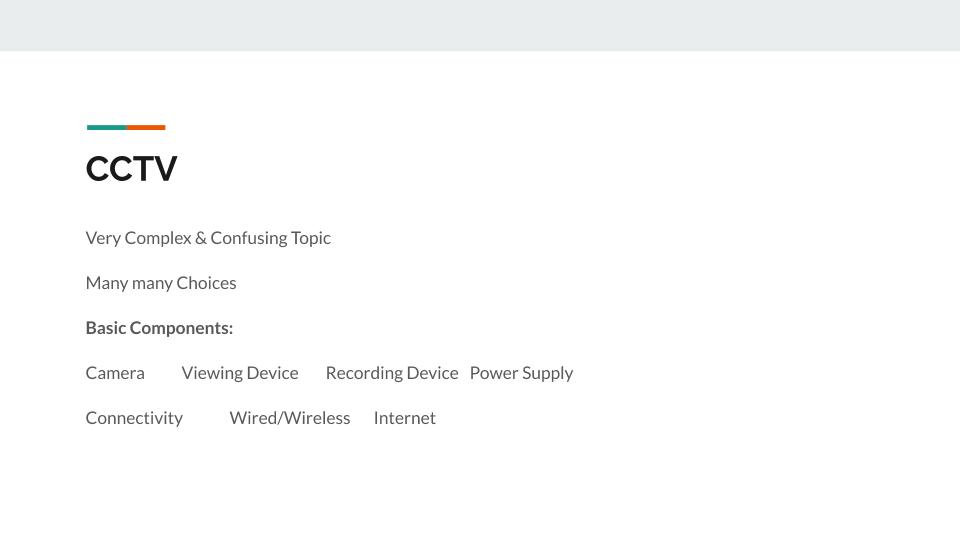
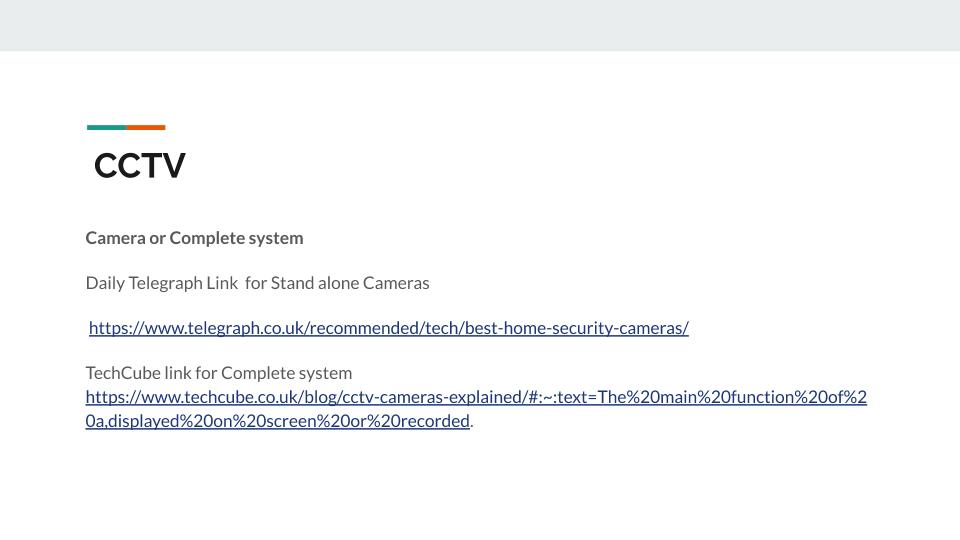
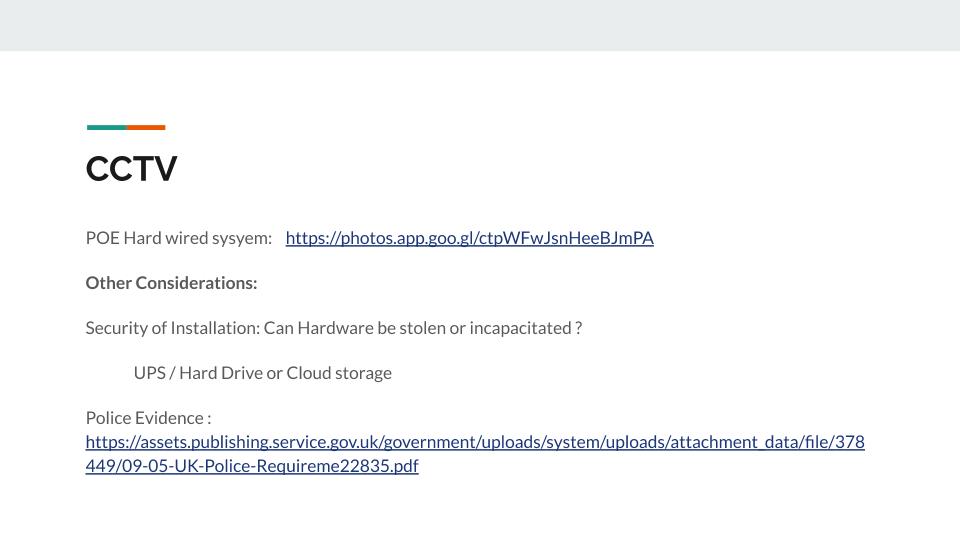
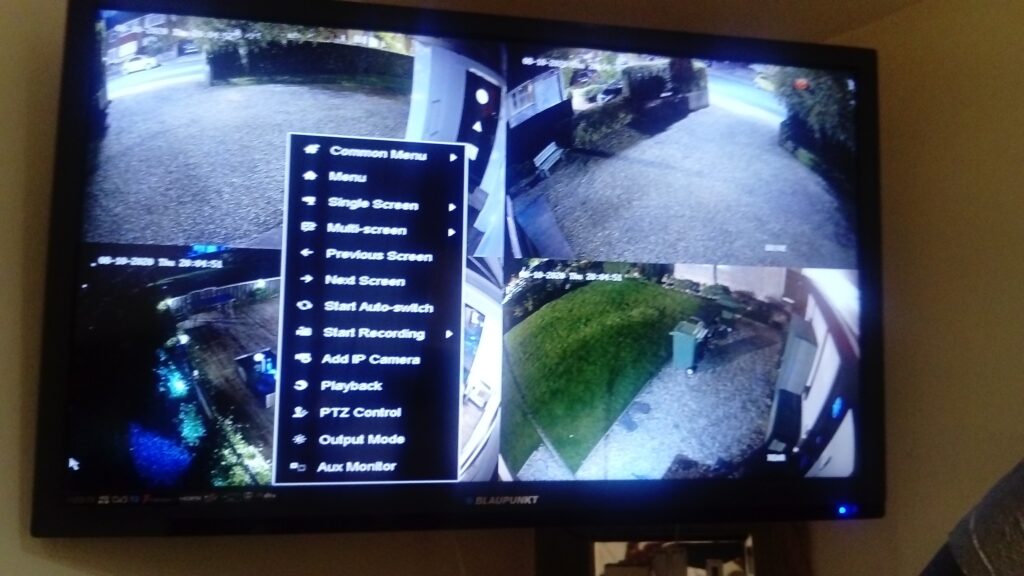
Some screenshots from my installation of four cameras at night showing Menu screen…
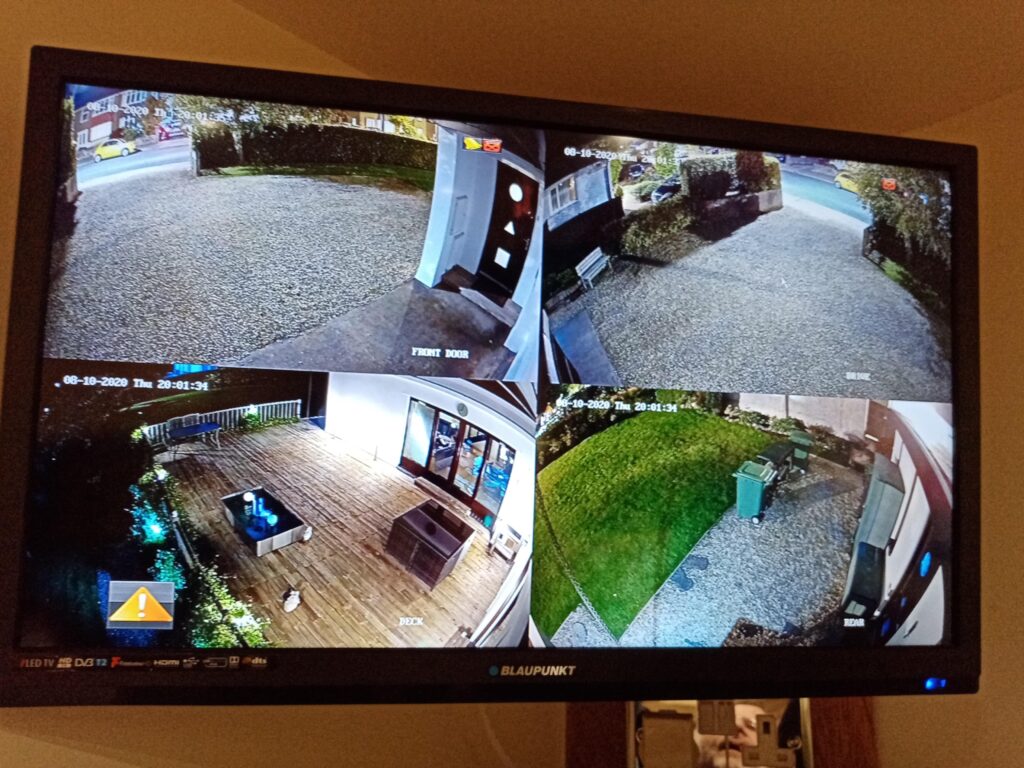
… and showing here Normal Nightime Monitor screen …
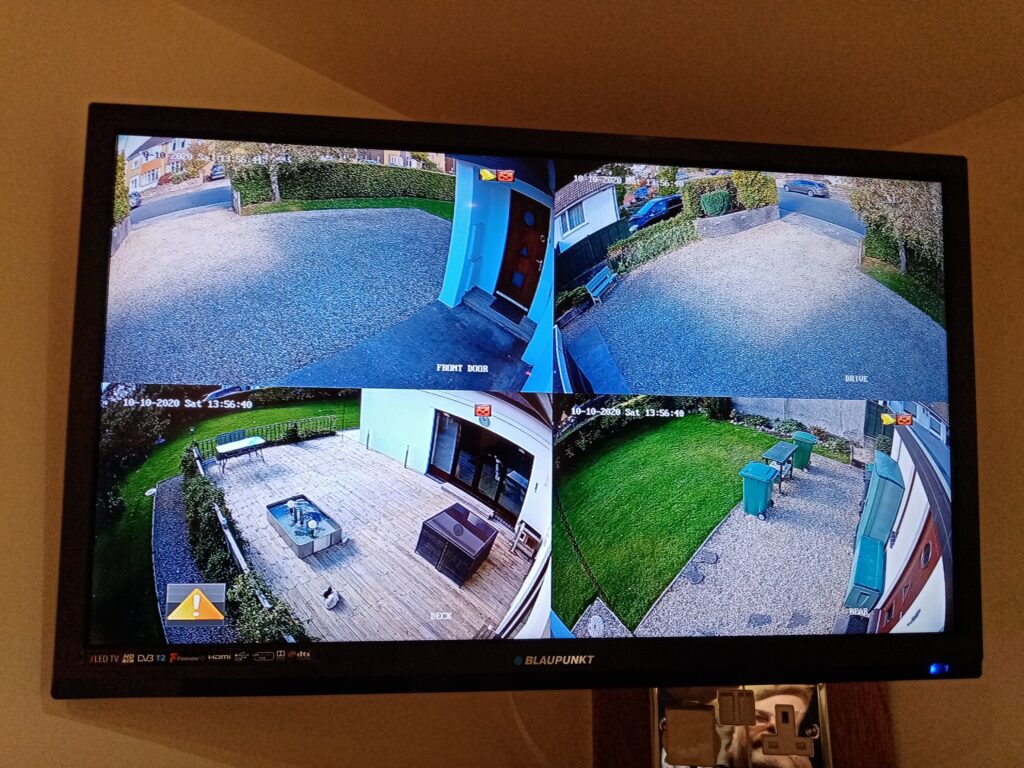
Day time image of 4 cameras 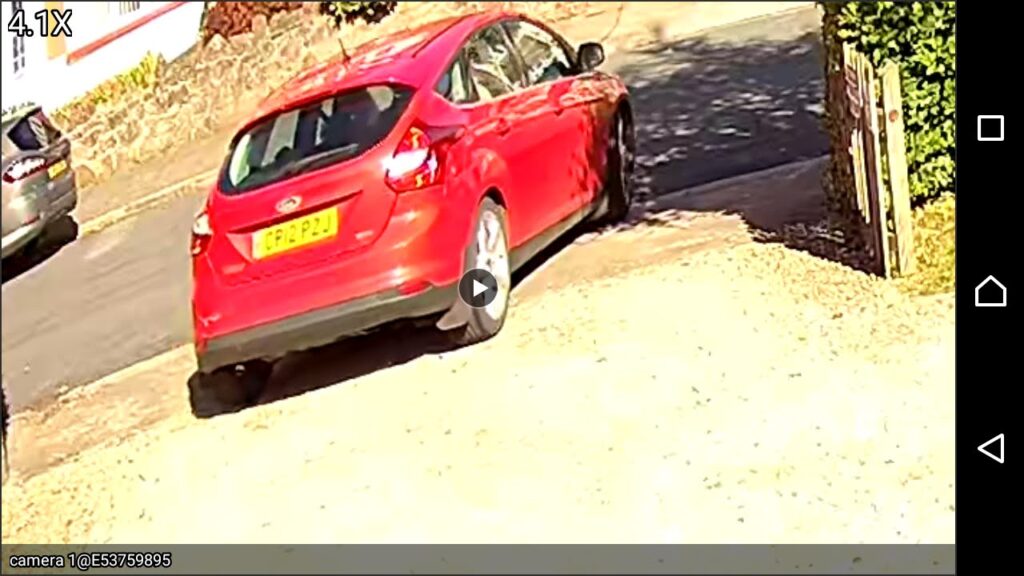
Intruder Alert ! -
Bookmarking & browsers
At the meeting yesterday someone, I believe it could have been John, asked how you could move bookmarks from one browser to another. It’s a good question, and I’ll try and answer it below, but perhaps an alternative answer is even better and that’s what this post will also address. But first, exporting and importing bookmarks for the common browsers.
However Microsoft has been changing it’s browsers quite a bit over the past couple of years. Internet Explorer was phased out for a bespoke re-write which was called Edge; this in turn was then completely re-engineered to use the same Chromium platform as Google Chrome, Brave and others, which was called NEW Edge. Confusing eh!?
Internet Explorer – read this article [Internet Explorer 11 was the default browser for Windows 10, but you may find that it’s been replaced in one of its automatic upgrades by Edge]. For all older versions of Internet Explorer including ones for versions of Windows older than Windows 10 – you might like to look at this article.
Edge – if you’ve got the NEW Edge browser rather than the old legacy EDGE version (which should still be on your machine, as should Internet Explorer 11, if you’re running Windows 10) – this is probably the easiest way of exporting your bookmarks/favourites from a Microsoft browser. Alternatively you should look to see how you can run Internet Explorer if you’ve got the OLD Edge installed on Windows 10. Then you could use the notes above for Exporting from Internet Explorer. Alternatively upgrade either of them to NEW Edge and use the first link in this paragraph to export your Favourites. Simples!
Note: Exported Microsoft Favourites (Bookmarks) are stored as .htm (HTML) files.
If you’re using Brave this article explains how you can Import and Export Bookmarks.
There must be a better way, and there is! You could use a third-party application such as Evernote, which can not only store Bookmarks, but also whole articles through the installation of a Browser Extension which allows you to “clip” content to a “note” in your Evernote datastore held in the cloud. Evernote has long been a favourite piece of software of mine and I pay an annual subscription to get an extended service from it, but there is a really good free version which you can use to trial it and see if you like it. The screen shot shows that you can save the whole article, or just part of it. [One great feature is that it only saves the article, not the additional content, sidebars, panels, etc which often hold ads.]

Alternatively, you could use a Bookmark Manager such as diigo. Again this sits as an extension in your Browser and every time you want to save the link to a website, you click on the diigo extension, and perhaps add some tags to help you find the site at a later date …
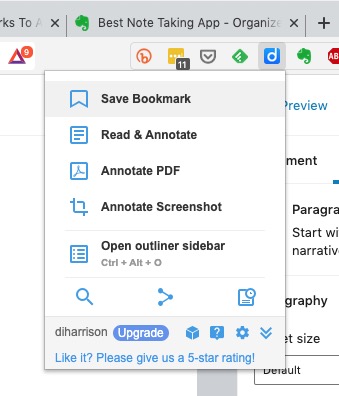
… and after pressing Save Bookmark, it saves the page with a brief excerpt …

Finally there’s Pocket which combines bookmarking with a facility for offline reading of webpages. This used to be a great feature when trains didn’t have good WiFi and you could catch-up on your reading, but it’s still a very useful way of storing web content for reading away from the Internet and it’s the way I store all articles that I come across that I’m going to use in Computer Group meetings. Again, you can install a browser extension for all the major browsers that makes it very easy just to click on a webpage and it’s immediately saved and synchronised to any device that has Pocket running on it.
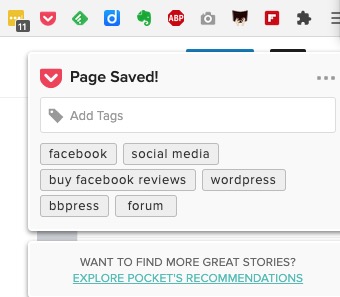
Looking at the bar in the browser above (Brave) you can see icons for LastPass, Pocket, Feedly, diigo, Evernote, AdBlock Plus, GoFullPage (full page screen shot), Push to Kindle, and Flipboard plus the extension to open the Extensions Library. Of course the screen shots for an Android or iOS device would be different; these are just taken from a browser running on a desktop or laptop.
Extensions are really neat, BUT only install ones from the Extensions Library of your Browser. Generally Chrome Extensions will work in Brave. That’s probably a topic for another post at some later date.
-
Covid-19 NHS Tracing App
I will add more detail later, but just wanted to create this for the meeting later today.
The long-awaited app is launched today (24th September).
It’s a really positive step forward I feel, even though there’s the inevitable doom and gloom merchants already slating it.
What is really a sad state of affairs (and here I stray into political waters – dangerous, I know) is that the Track and Trace (outside Wales, where we have tried to do things much more locally and involved local Public Health experts from an early stage much more) is that it does appear to be putting the cart before the horse. The app should have been in place before they allowed the pubs/hospitality outlets to be opened. It should have been made mandatory. You shouldn’t have been able to enter unless you scanned yourself in (or failing that supplied a verifiable name and address. Mini-rant over!
So it’s available on iOS devices from the iPhone 6s onwards, and Android devices from 2017 (Android 6) onwards. You download it from the appropriate app store.

This is how it works …
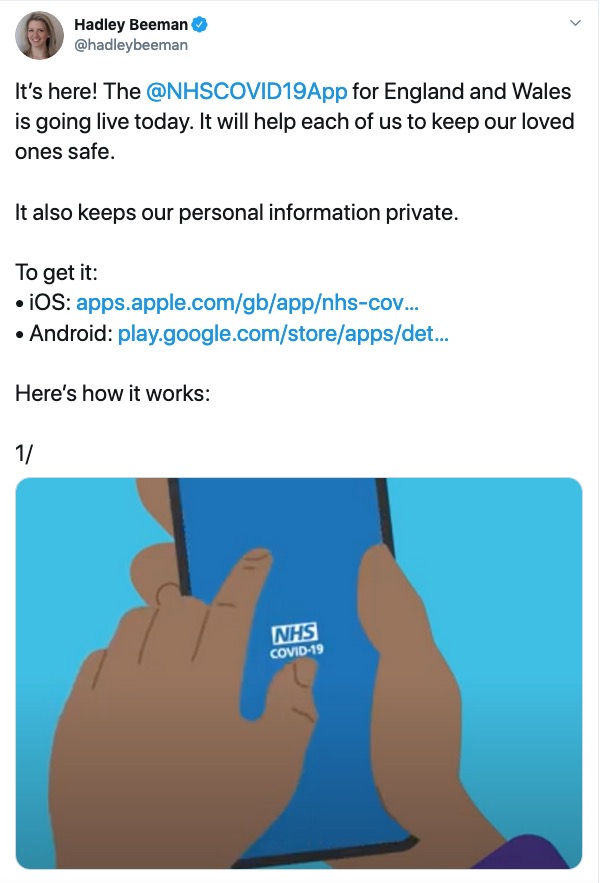
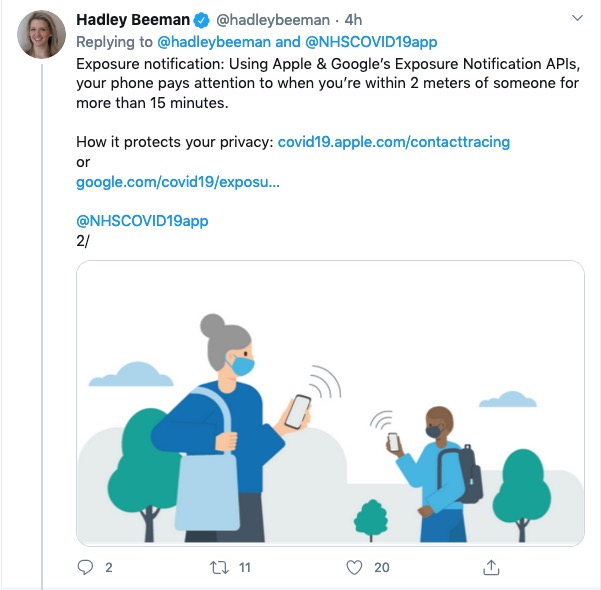
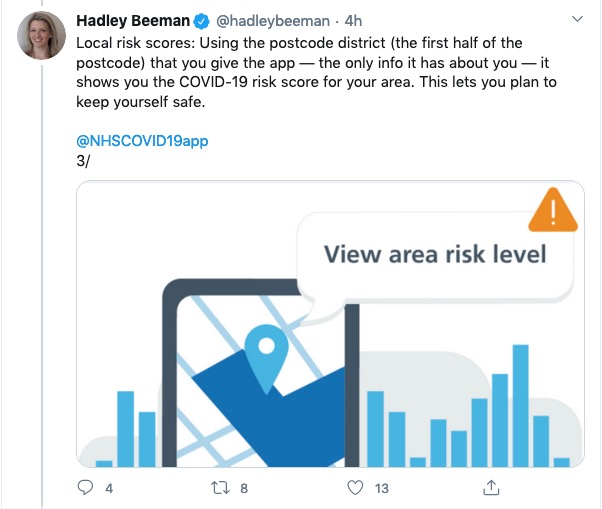
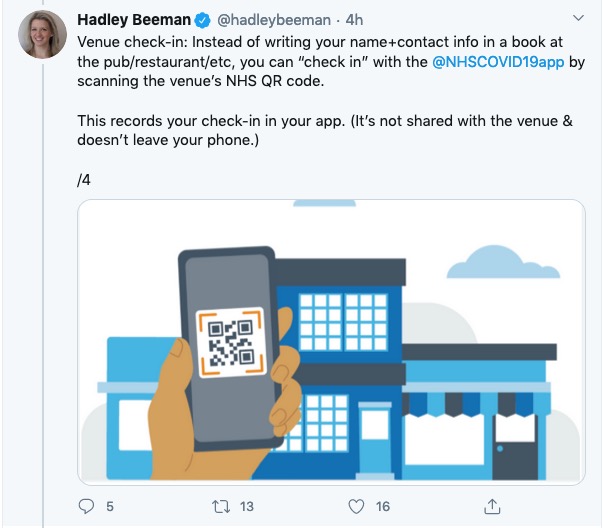
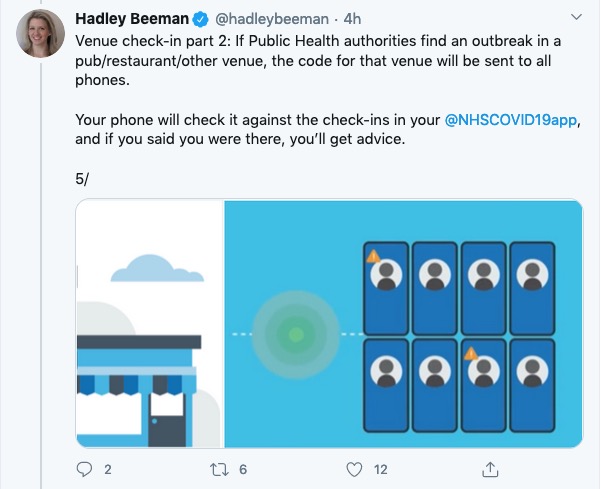
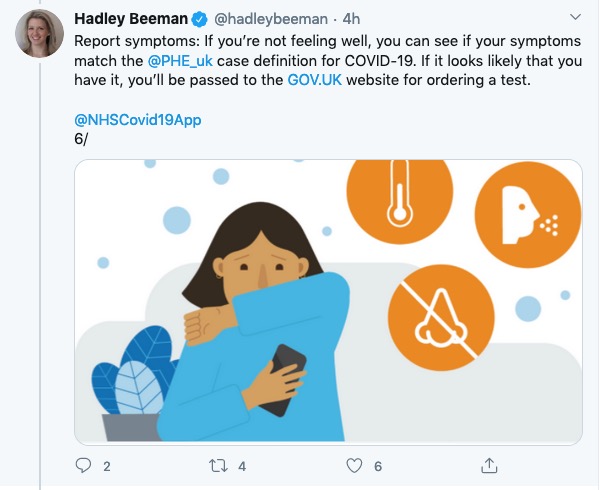
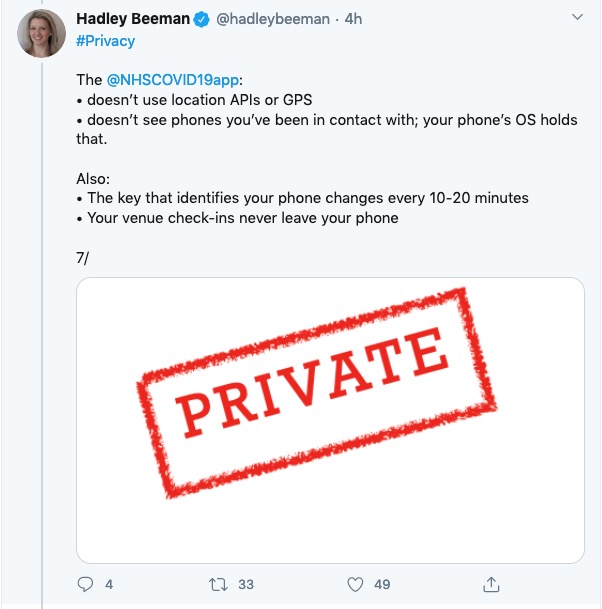
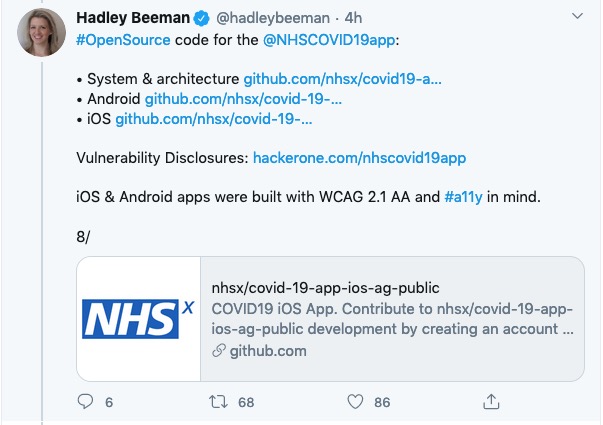
I’ll get back on to this following the meeting. Please post Comments, or ask Questions below, or raise a Topic in the Covid-19 Forum.
How does it work? This article from Wired UK provides a comprehensive explanation.
The BBC’s explanation of how it works (as an infographic).
Screenshots from installing the app on my iPhone 6s
The app is highlighted on the App store (at least for Apple) today …
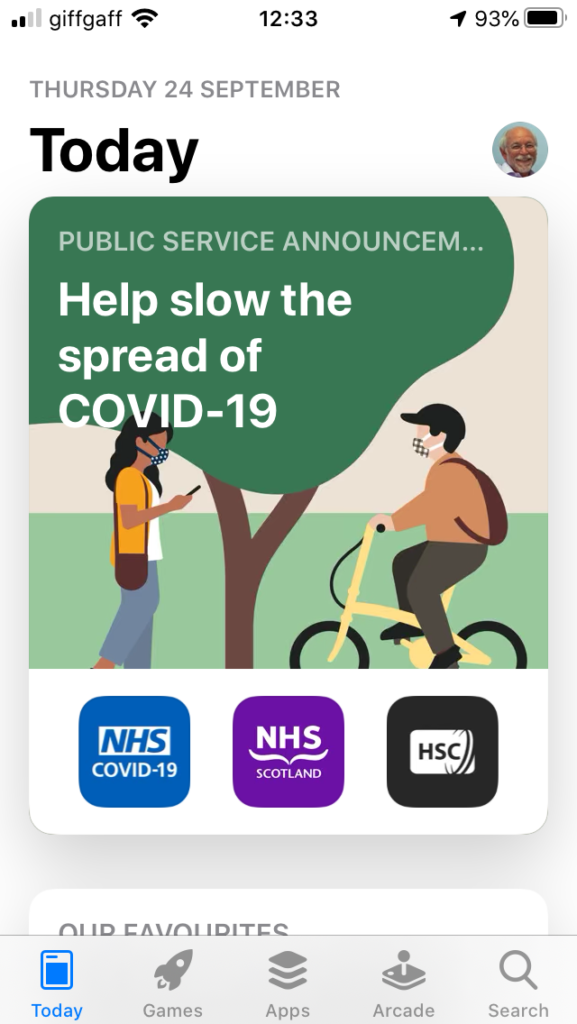
… download and install, and start the app …
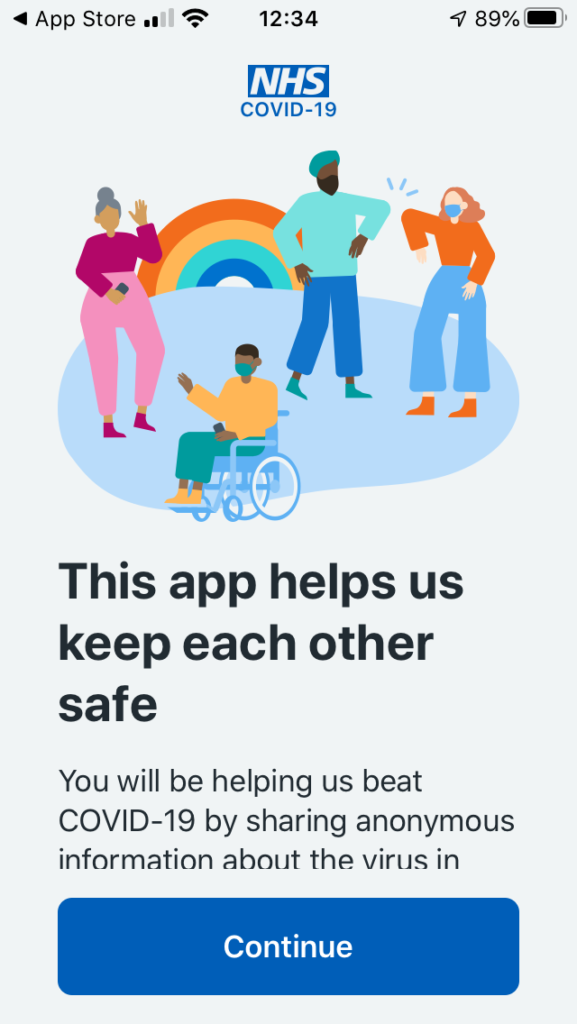
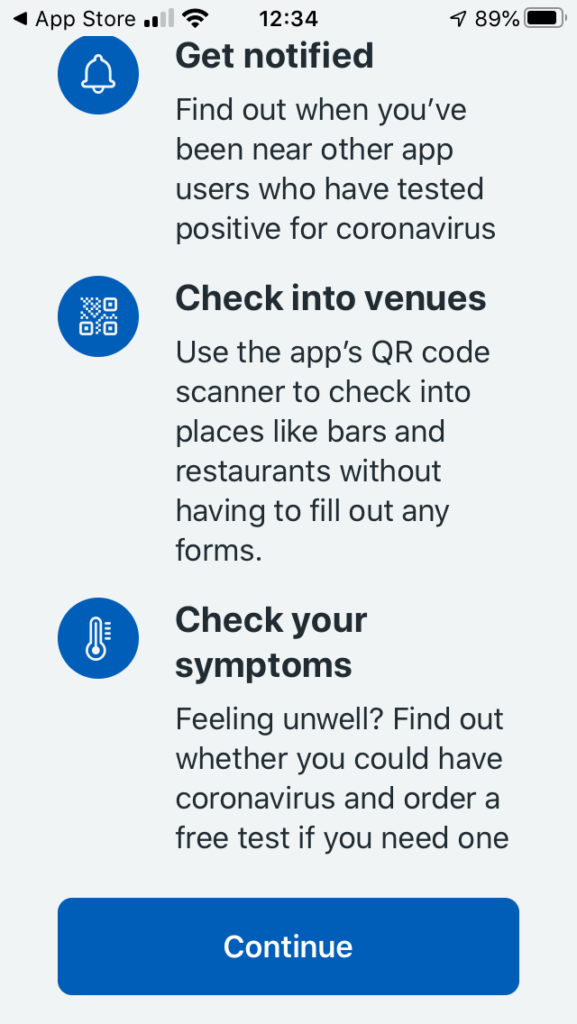
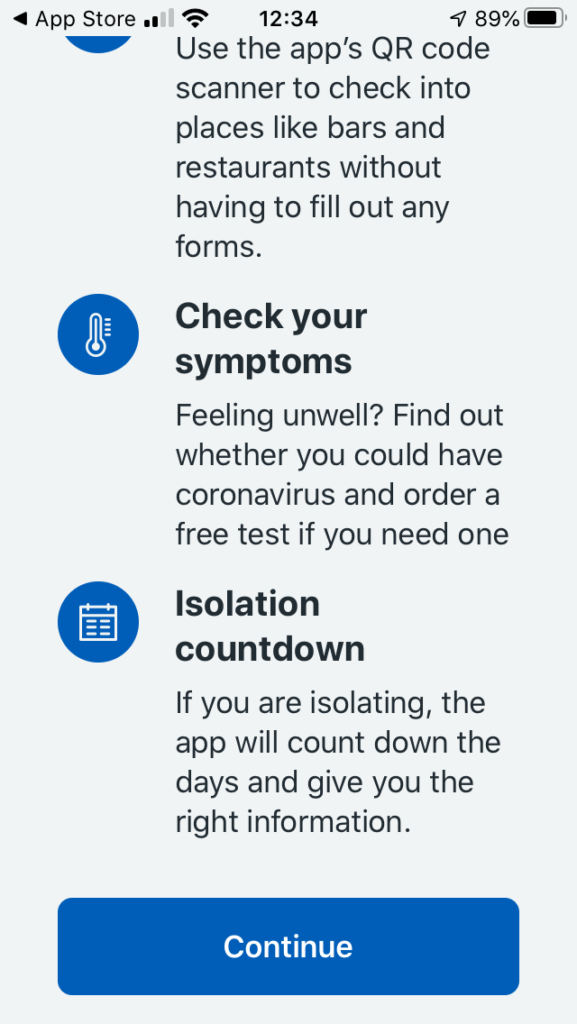
You will be asked a couple of questions, including an age enquiry …
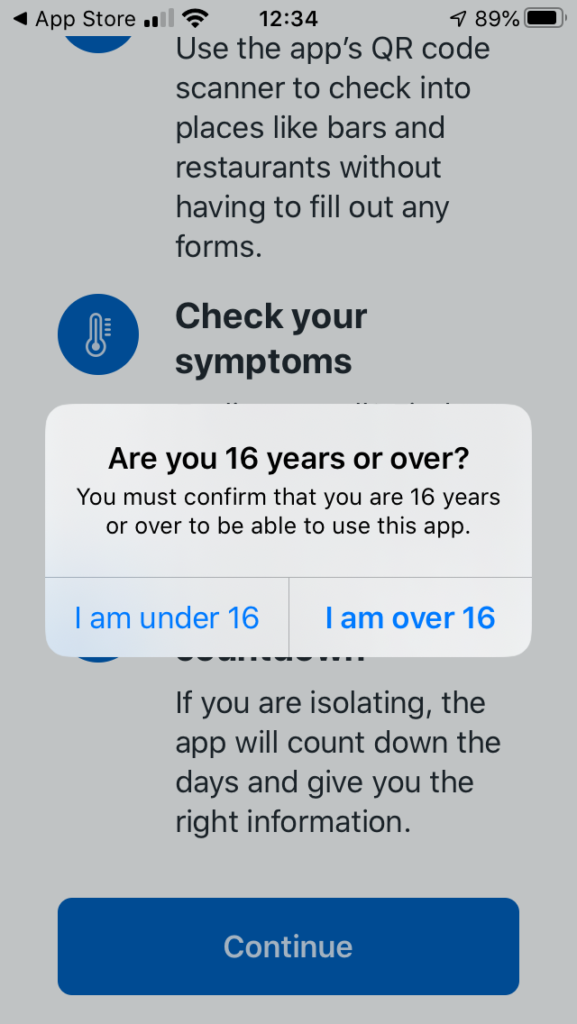
… and then a Privacy section, which is actually very good and worth reading. The developers have done all they can to make you aware of what the app does, and how it protects your privacy.
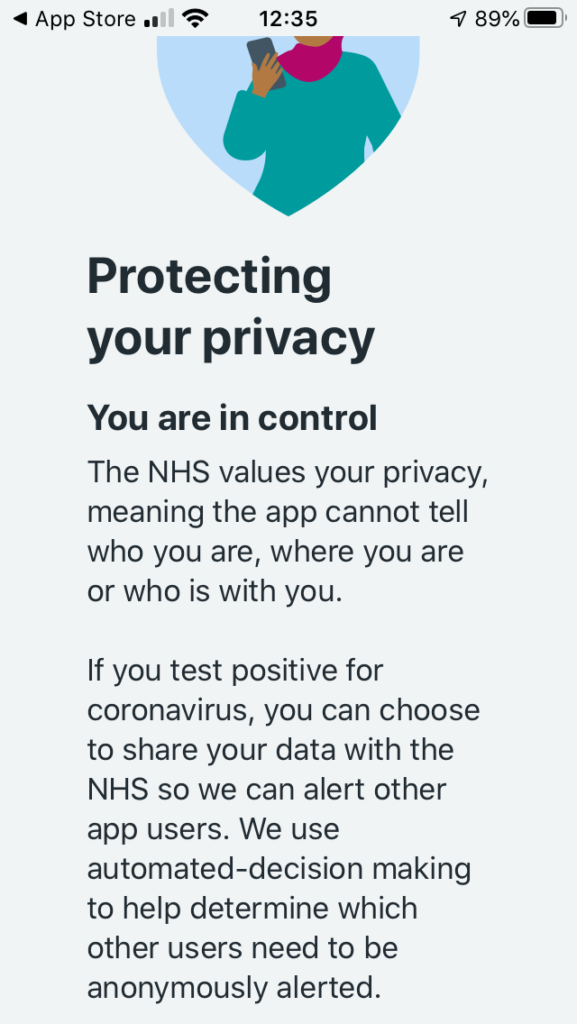
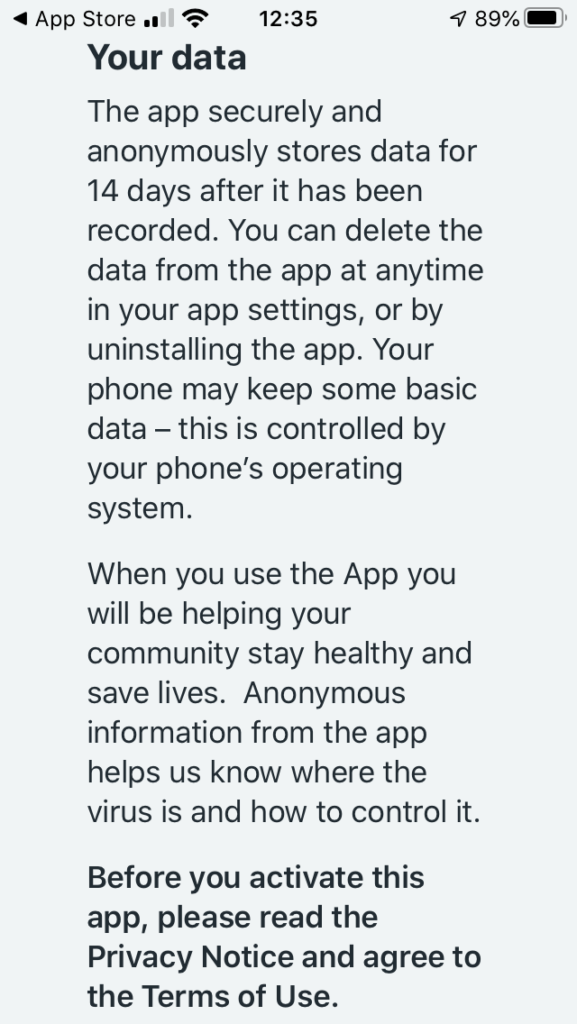
So if you click on the Privacy link you will be taken to the UK Government website that gives you more information, after first informing you that it uses cookies …
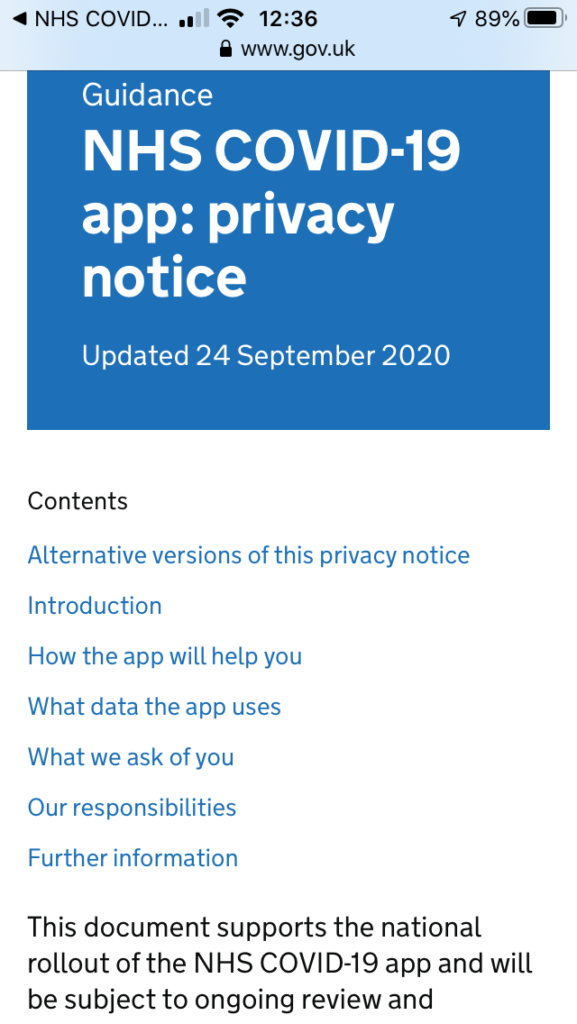
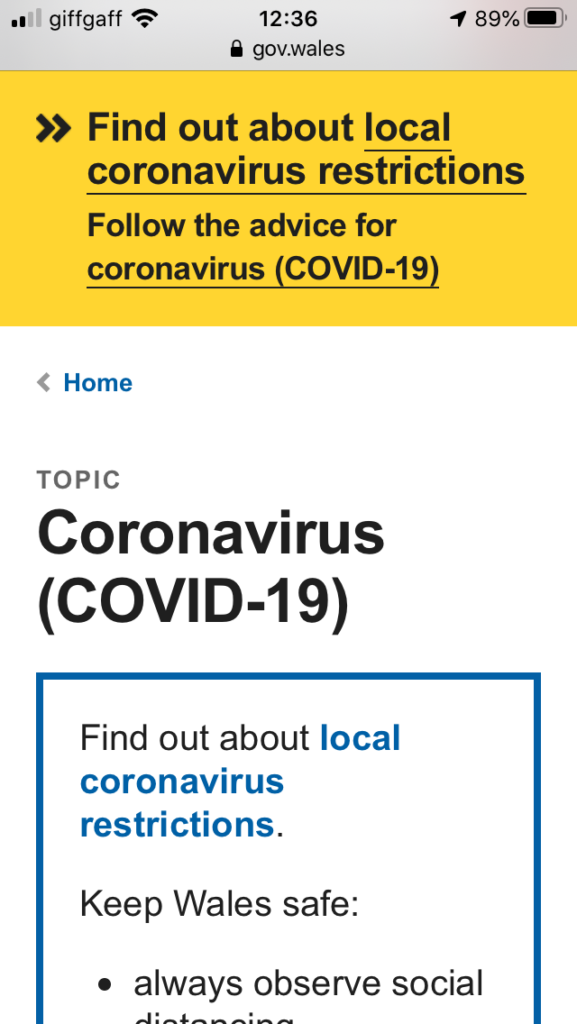
You might like to click through to the Welsh pages to find out more about Local restrictions …
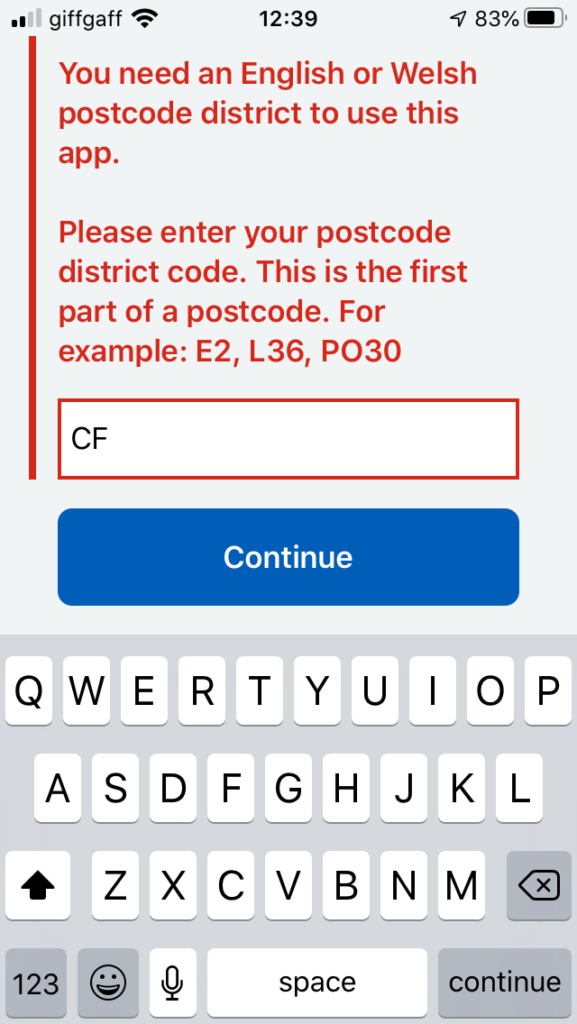
… then you need to supply the first part of your postcode. The developers have acknowledged there’s a weakness in the app currently in that if you move your location, you can’t change it in the app. They are working on a workaround/fix/upgrade. This would apply if you were to go on holiday somewhere else, or if you were a student moving away from your home.
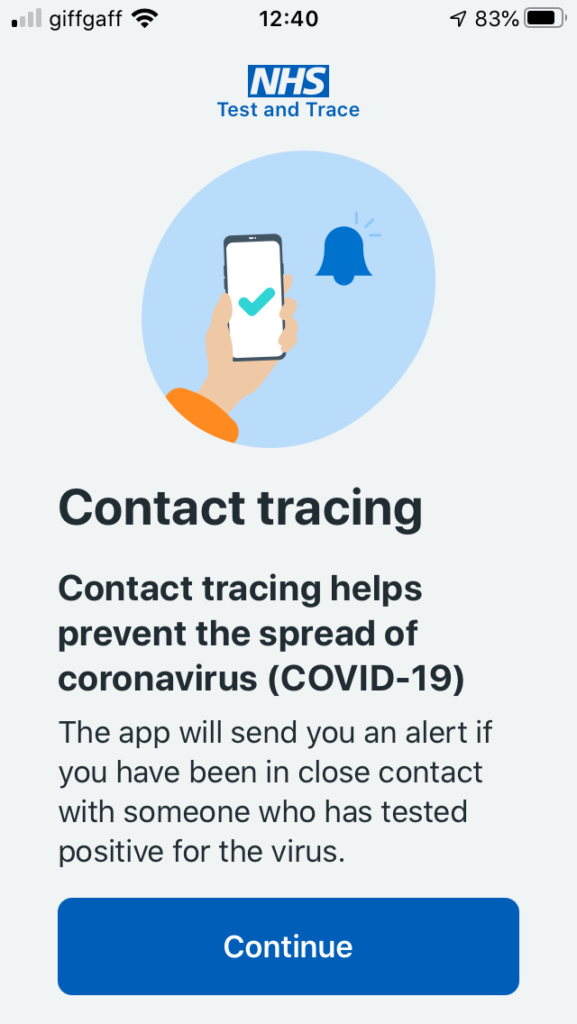
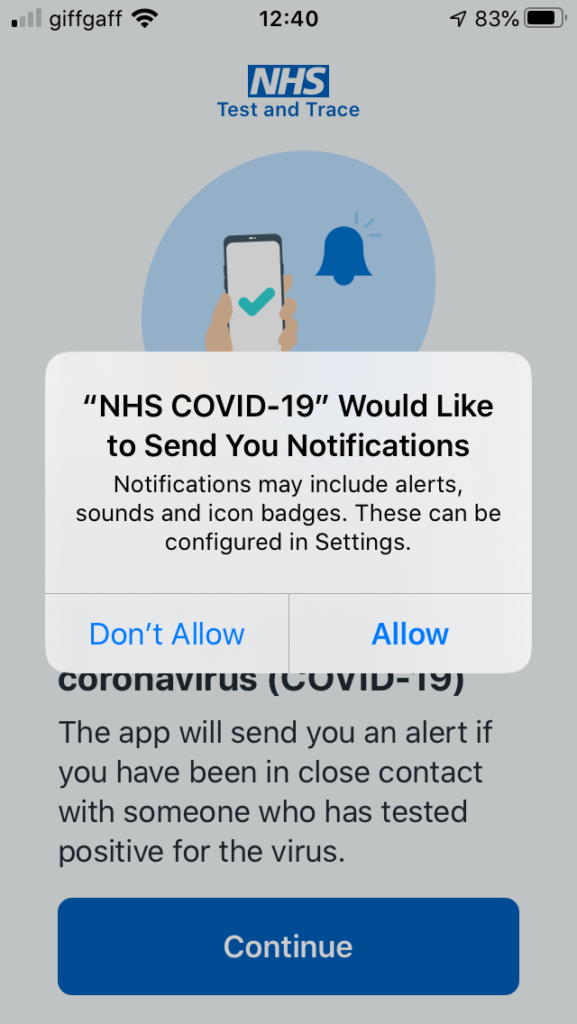
Having done that you’re into the app, it starts scanning and you’re on your part of the Covid-19 Tracing community.
You can see that north Cardiff is at a Medium risk level (as I believe the whole of Cardiff is) …
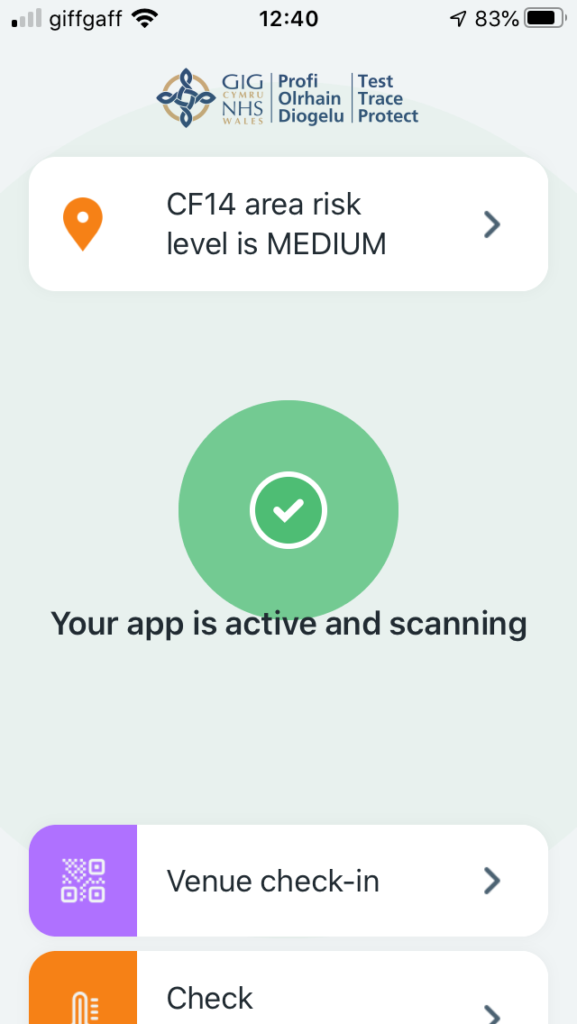
… and then you have access to the other features of the app, as shown below …
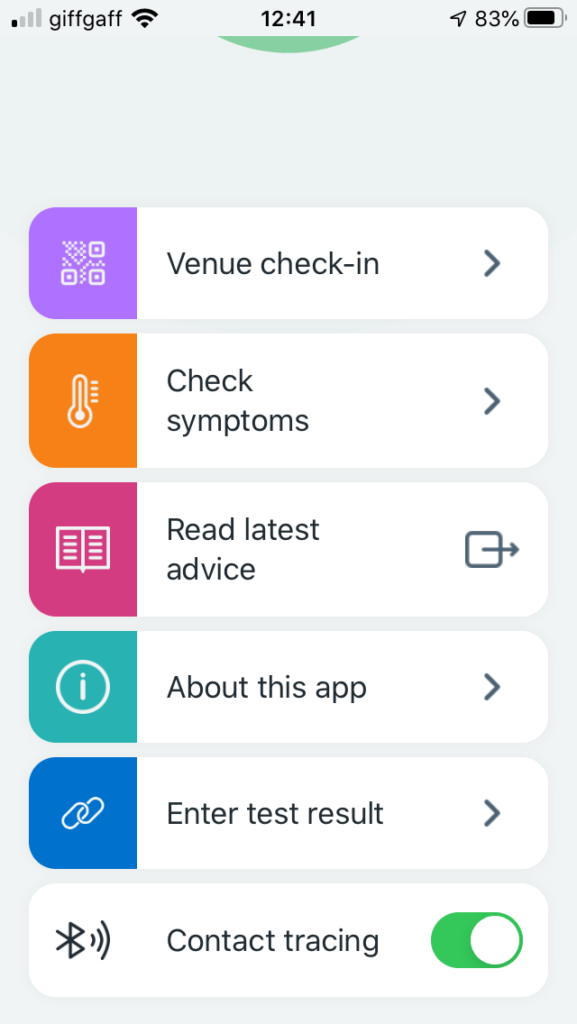
A recent article about the NHS app which addresses possible Security and privacy concerns.
I wondered about creating a QR code for our house
This is how you can do it
… and this is what it looks like …
-
Mario’s laptop and Vista
On the Computer Group Zoom call today, Mario advised that his Sony Vaio machine was running slow when connected to the Internet and using Firefox.
The immediate suggestion was to clear the browser cache (Internet History and Cookies) but then it became apparent it was running Windows Vista as well.
Should Mario upgrade his laptop to Windows 10? That depends on the spec. of the machine – let us know Mario and perhaps we can give some advice.
Should the machine be upgraded to Linux rather than Windows 10. It might as well be because there’s no similarity between Vista and Windows 10, so there’s a learning curve anyway and Linux will run much quicker on an older machine AND the default browser on Ubuntu Linux is Firefox anyway.
So here’s a topic which anyone can comment upon and give advice and experience. For me, I think the Linux route is worth exploring. I’ve just “upgraded” an old Dell Inspiron laptop running Vista to Linux and it runs much faster than it did using Vista and it would never have taken Windows 10!
-
Keeping safe online …
The threats – real and perceived
Luckily, there’s plenty of advice and guidance available – often slanted particularly towards our demographic (ie oldies) …
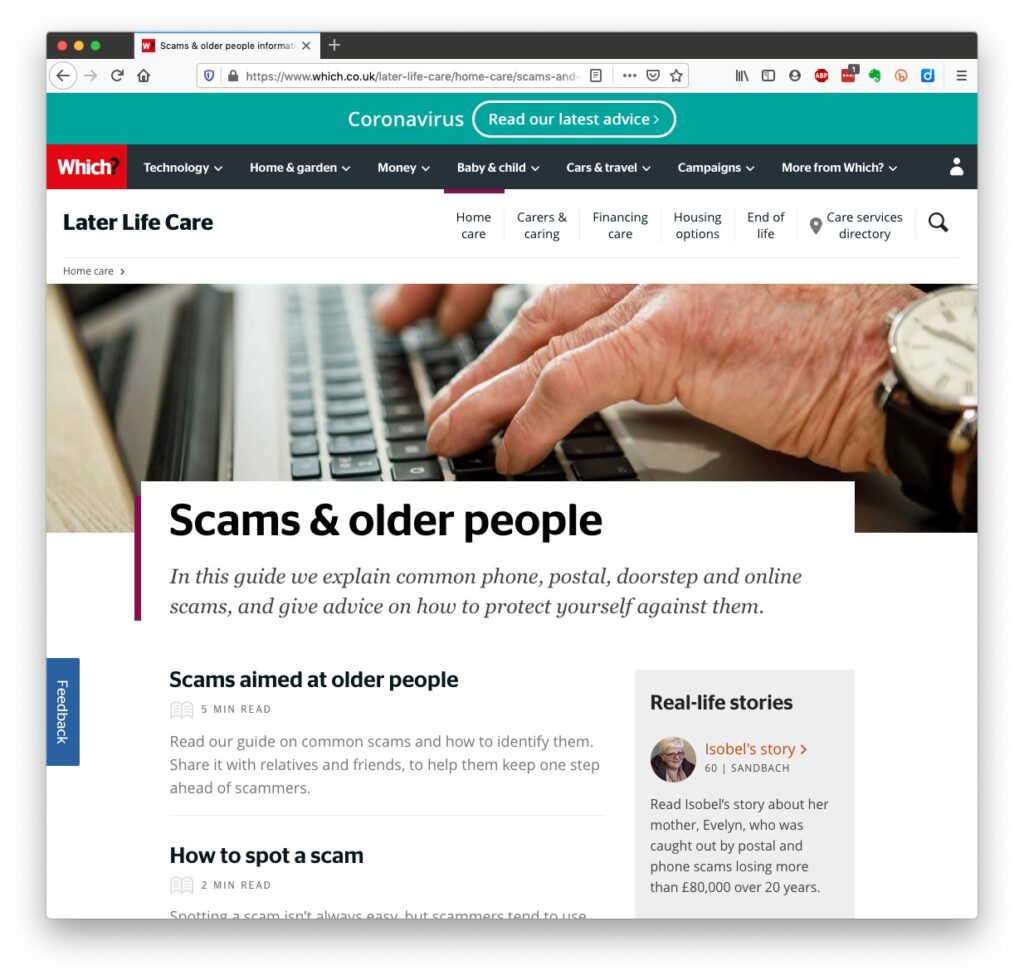
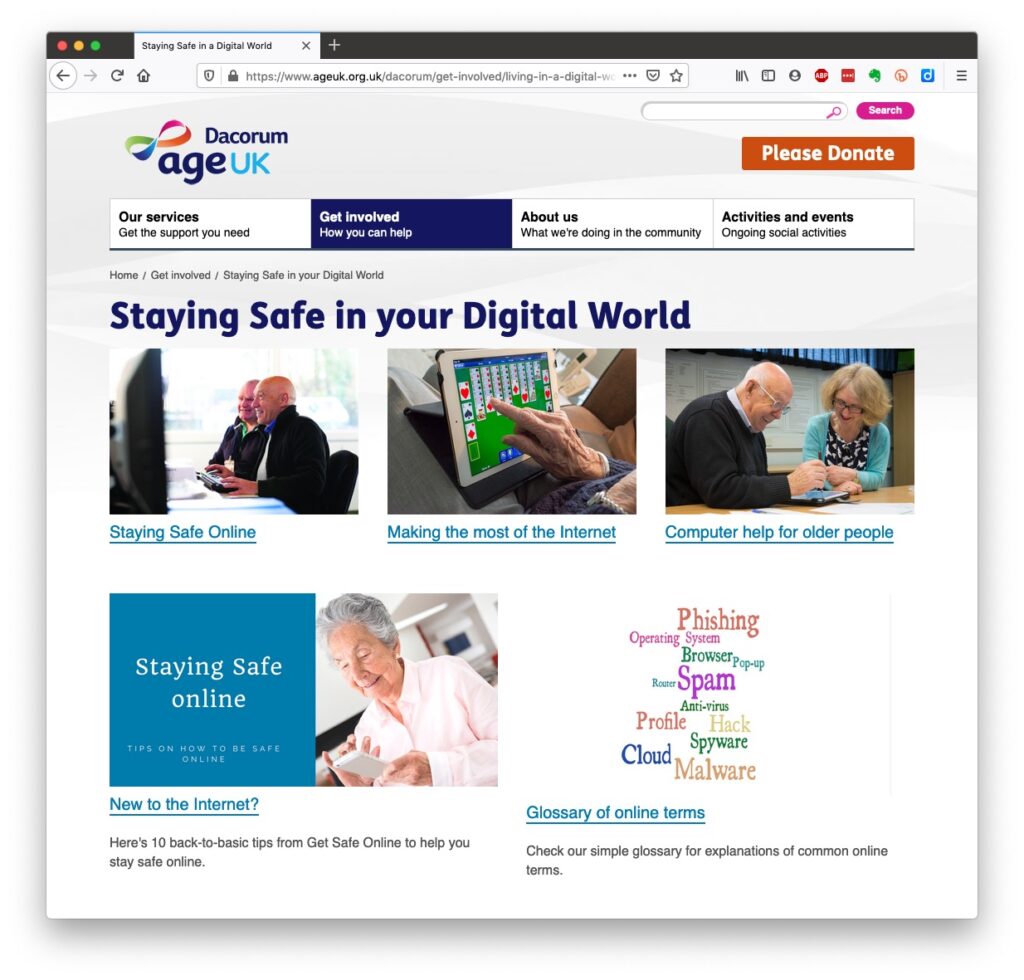
Those two sites are particularly easy to follow and understand, but others are equally informative and targeted.
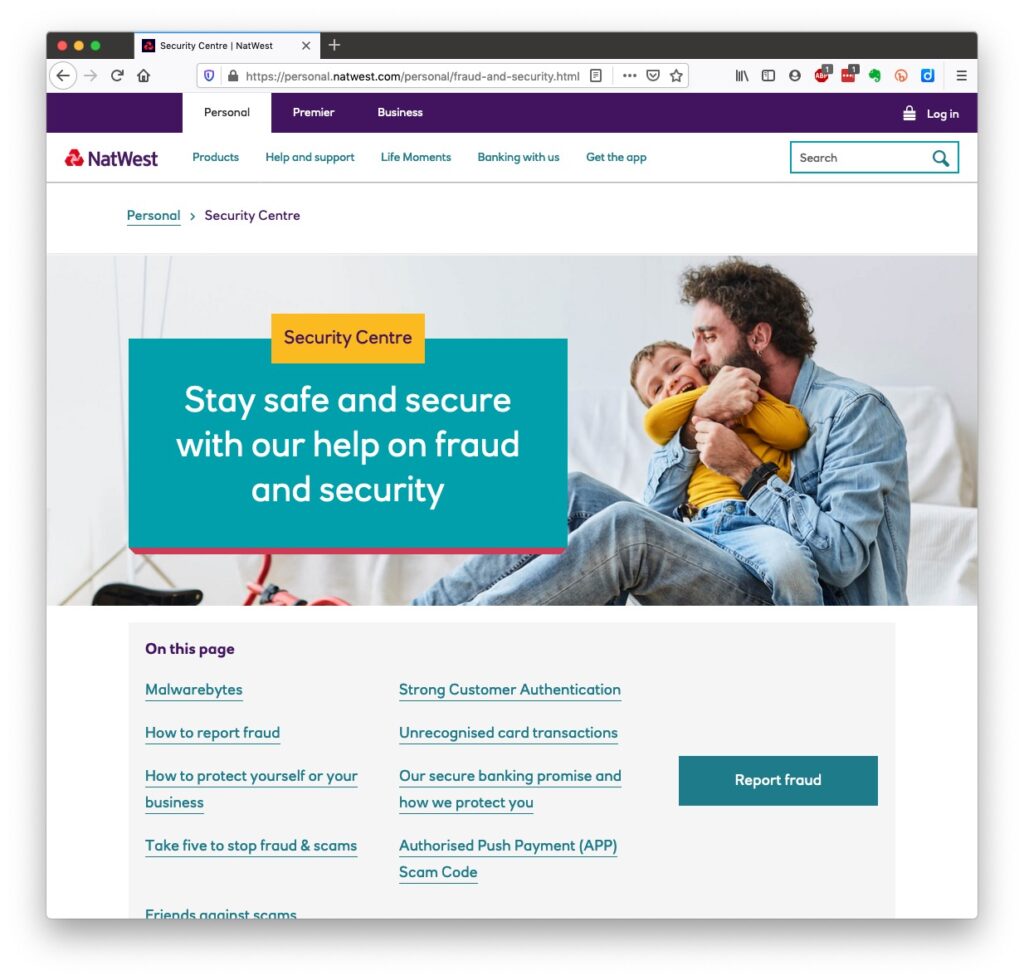
Your bank probably has guidance which it publishes online and which is accessible to everyone, not just their customers …

I’ll return to further information, guidance and references at the end of the talk, but first we need to look at a few issues, discuss some terminology that’s widely used and try and tease out what’s really important, and what’s just an inconvenience and then it’s up to you to judge where you find yourself on the scale of …
Terrified -> Apprehensive -> Sensibly Aware -> Relaxed -> Unconcerned
First let’s distinguish the difference between online security and online privacy. These are two different issues which are however linked. Sometimes you have to relinquish some privacy to receive a service – unless you choose to pay for it (and I’ve long been an advocate of paying for services if they do a job that is necessary); exactly how much privacy are you prepared to relinquish?
Security on the other hand is an absolute – you should not be prepared to accept less than your very best efforts . We’ll deal with that in the third part of the talk.
How do you relinquish your privacy, and how much of a loss of privacy is acceptable?
Some services could not be offered without income from adverts, or paid-for advertising – eg Facebook, twitter and instagram; and some eg Google and Amazon track and provide information to resellers if you don’t block them from doing so. As an example of how much value Google sees in getting knowledge of what you’re doing and where you’re doing it, they paid Apple $8bn recently to remain as the default search engine for any browser that’s running on an Apple device!
Incidentally, if you clicked on that link you’d have been asked whether you wanted to accept cookies – what exactly are they, and what do they do …

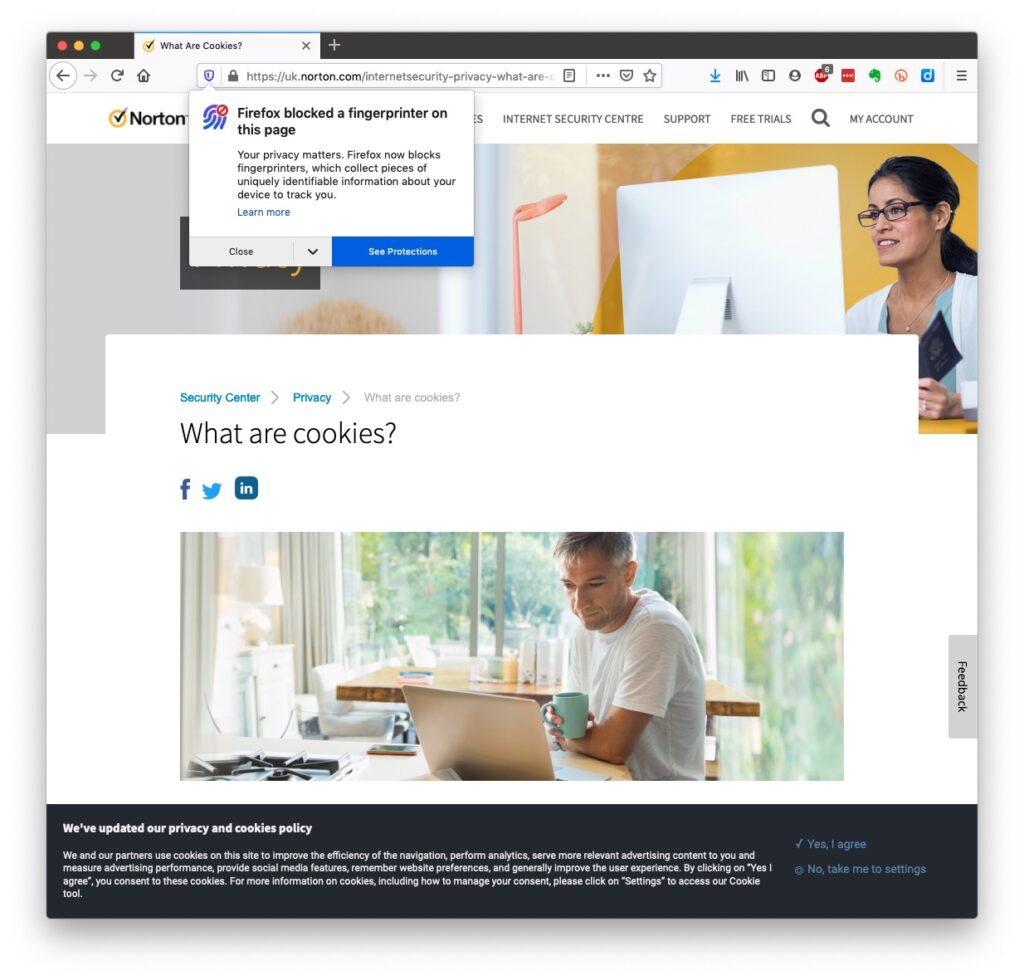
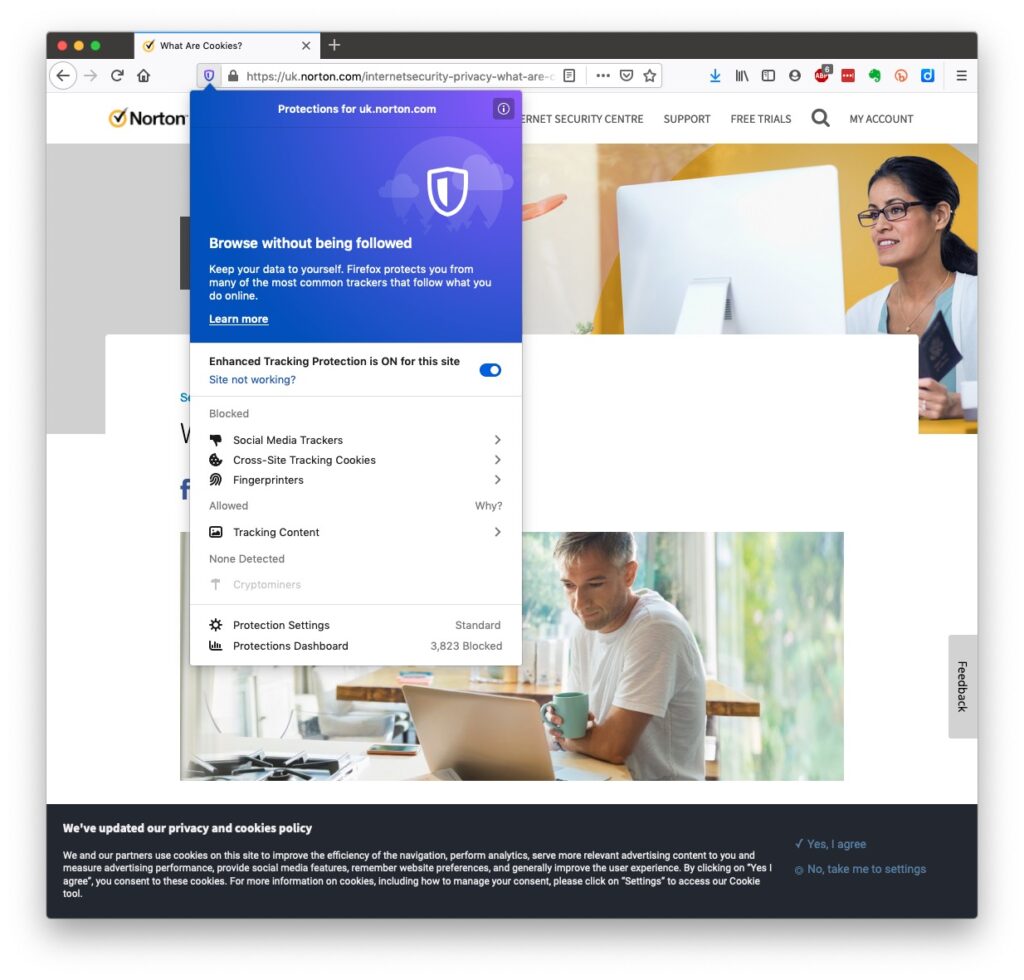
This article from Norton explains what they do quite well. Essentially, they record what you do on a website so that when you return some of the settings are remembered and applied. They do however also have a downside in that some can also act to track your activity once you’ve left the site. For that reason, you should disable in your browser the ability of third-parties to glean information from a cookie, and also to prevent them tracking your activity once you’ve left the site. You can at anytime, clear the cookies from your browser, and indeed on some internet browsers set them up to delete cookies when you leave (close the window) the site. You might also have noticed that my browser – Firefox – alerted me to the fact that Norton was using a Fingerprinting cookie itself …
… we’ll leave that for another day!
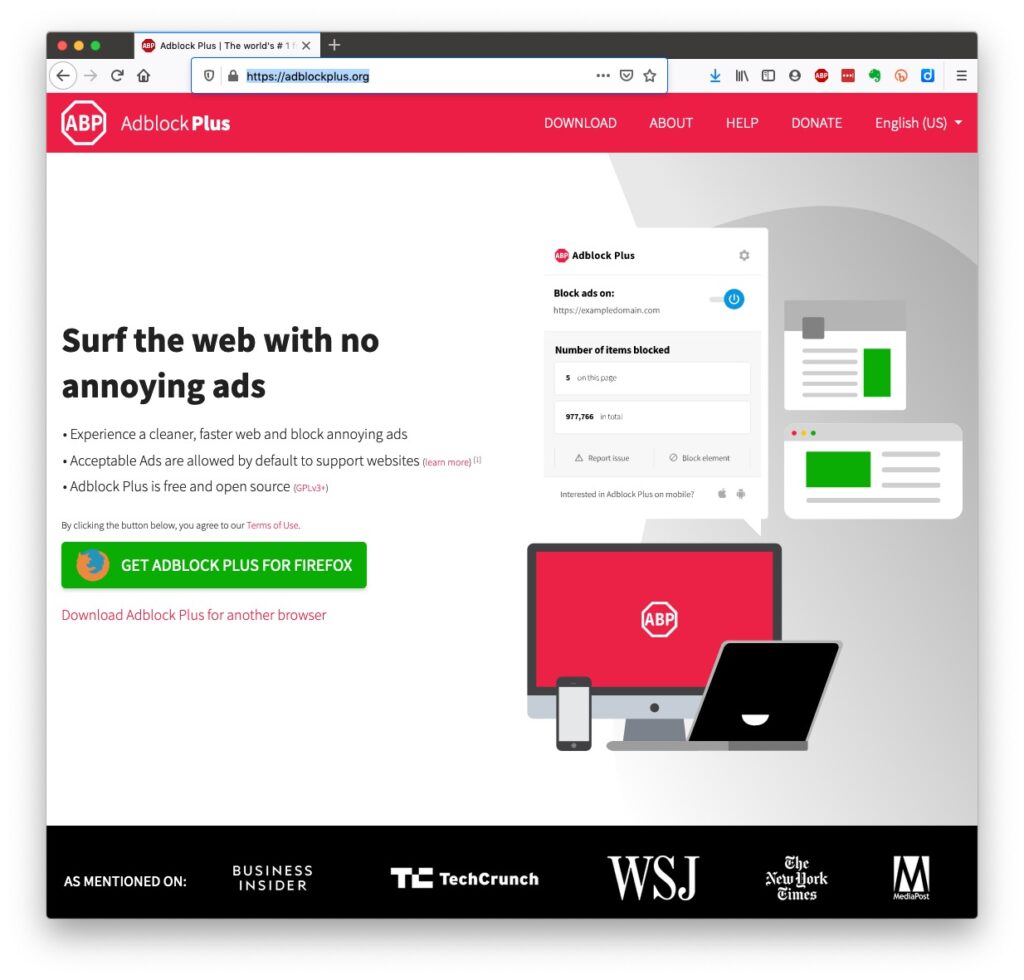
Another thing you might have observed when I opened the link in my Firefox browser was that the site requested that I enabled adverts to be shown. That is because Firefox, like Brave and Microsoft Edge, by default switches adverts off. These are often annoying and having a browser that blocks adverts, or if you use Chrome – using an ad-blocker like AdBlock Plus often makes for a more “pleasurable browsing experience” by limiting the intrusion you might feel upon your privacy.
Which brings us to browsers and search engines
Search engines are not created equal! Whilst Google is often thought to be the same as the internet and is often mistaken by U3A members to be an internet browser, it is in fact just one of a range of possible search engines that you can use to look for information on the internet. It uses a platform called Chromium to display the results of its searches to you through a browser called Chrome. However, other browsers – Microsoft’s new Edge, Brave and Opera all use the same underlying Chromium technology – the difference being they don’t track what you’re doing “to present the content that most meets your needs” (Google’s philosophy) and in some cases (eg Brave) they can actually prevent tracking of your browsing history. For the reasons given above, I use Apple’s Safari, or either Brave or Firefox as my internet browser.
So what safe and private search engine could you use as an alternative to Google. I use DuckDuckGo …
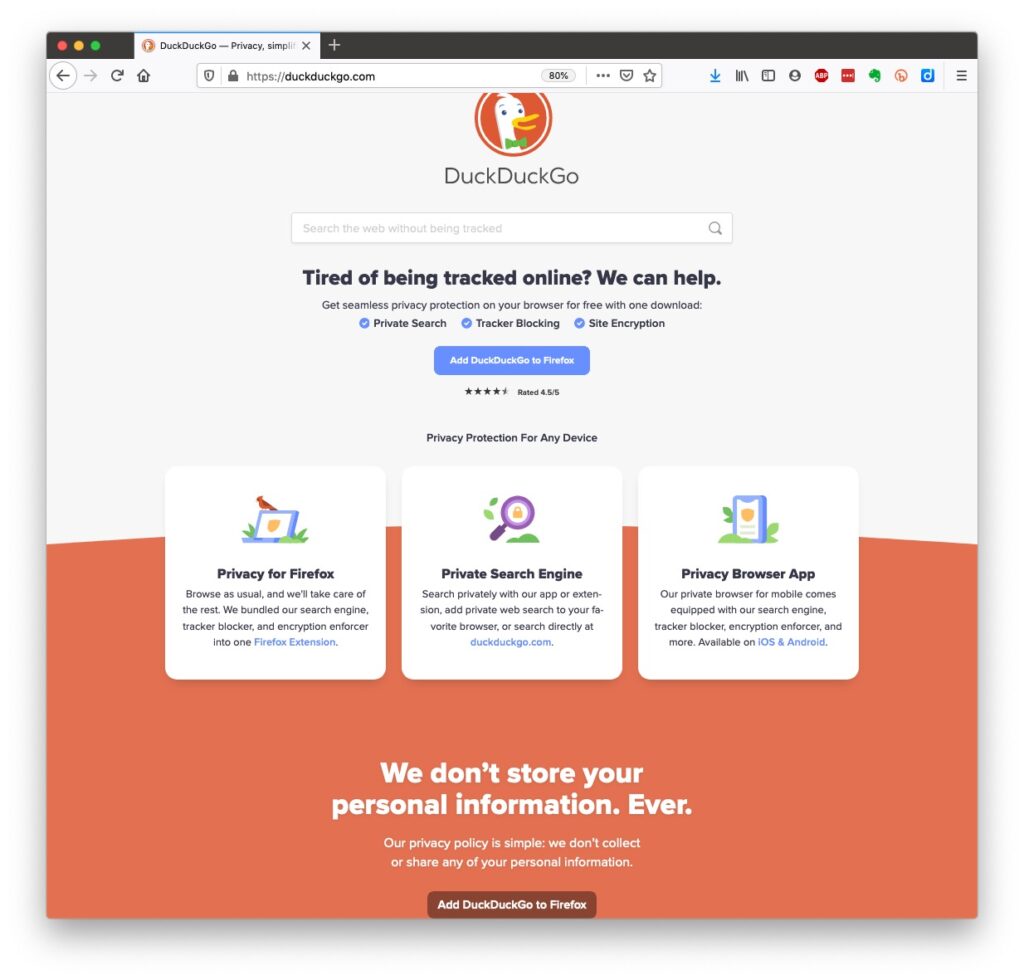
… but others I could have used might have been Bing, Yahoo or another one included in this article or in the list of articles at the foot of the post …
Finally, no discussion of Privacy can ignore Social Media and Facebook in particular. These applications if left to their own default settings are effectively personal information mining engines. They grab what information they can from you, and sell it on to whoever is willing to pay for it, or are indeed the platform for data mining, vis the Cambridge Analytica affair. Online retailers are not exempt from this and Amazon for instance has a wonderful record of your browsing history and who knows what they do with it! So look at this table taken from the recent Which? Publication – Staying Secure in a Digital World – and just check whether you need to change your settings, if you use any Social Media apps …

So that’s Privacy dealt with.
Should you be frightened?
The take away message I want you to have is Frightened – no; cautious – yes!
Online banking is very secure – a recent survey in Which? produced the following scores …

… plus you are protected and most of the banks are increasingly opting to adopt an online and mobile guarantee to refund you where you’ve been the innocent victim of a fraud. Here for instance is Barclay’s “Online and Mobile Banking Guarantee.”
They really don’t want to shell out money, so are trying to educate us to be wise to scams. So let’s take a scam test …

Banks are also often supplying software free (or at reduced cost) for you to install to protect your machine, to protect you from fraud – and of course themselves from having to pay out! I was recently offered a piece of software called Malwarebytes by the NatWest and although I have an Apple Mac computer which are well known to be relatively secure from Viruses, Spyware, Trojans and other malware, I installed it. I was pleased to note that I didn’t have any malware on the machine. We’ll return to this later!
Surprisingly you might think … it’s safer to use the mobile app on your phone, or tablet to do online banking and retail purchases than a web browser. This is because the app on the mobile device has to be verified by Google for Android (Google Play Store) or Apple for iOS/iPadOS (Apple Store). Whereas a browser could be infected, or compromised with malware. That’s something I’ve learnt from preparing this talk!!!
What is more with the advent of Two-factor Authentication (2FA) which makes use of a personal device associated with you, your phone which you’ve protected with your fingerprint, or facial image), is even more secure.
When you’re out and about and NEED to do an online transaction from your mobile – use cellular rather than WiFi. The latter can be really open to “sniffers”. [I must admit I try to avoid doing online transactions when away from a domestic network.] Alternatively use a Virtual Private Network (VPN) to connect through the Public WiFi “Hotspot”.
So we come to phishing and pharming, vishing and smishing – I kid you not! We’ll leave aside spear phishing because we’re not important enough for that! [Please excuse me not going into details on any of these. You can follow the links for further information.]
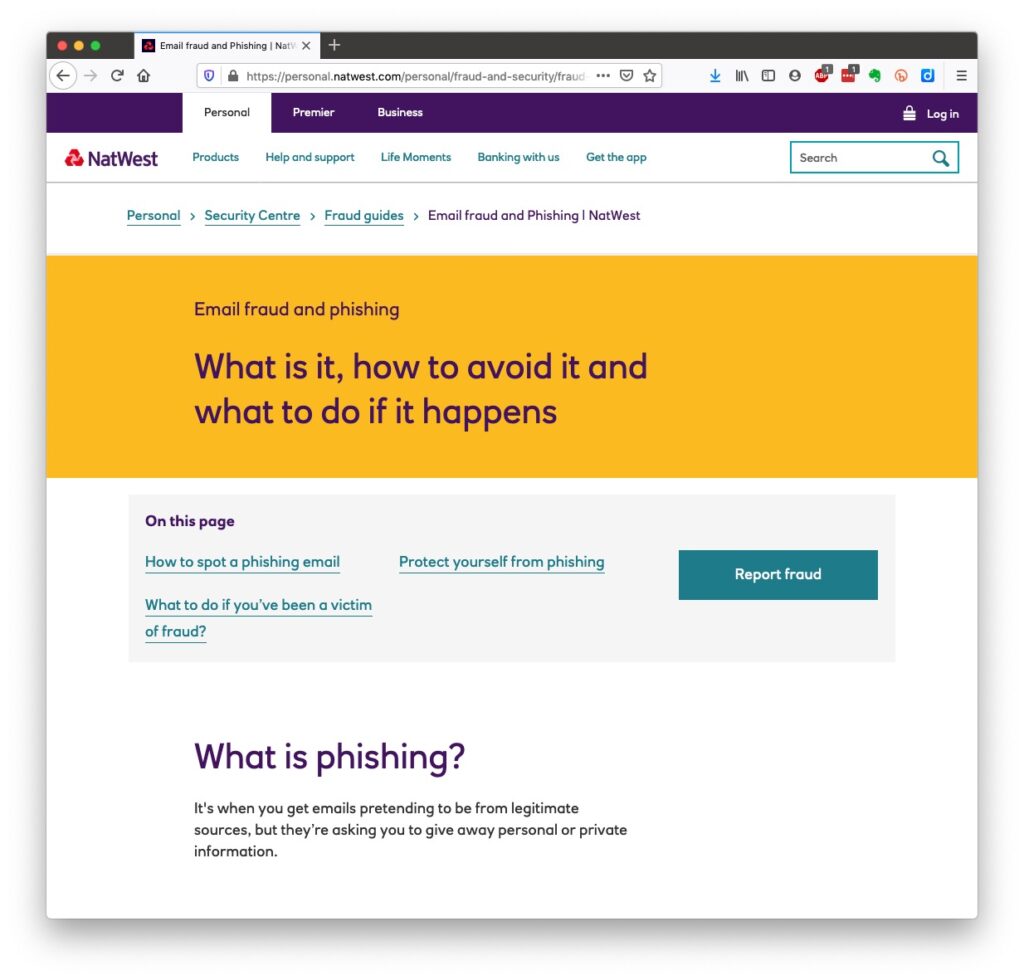

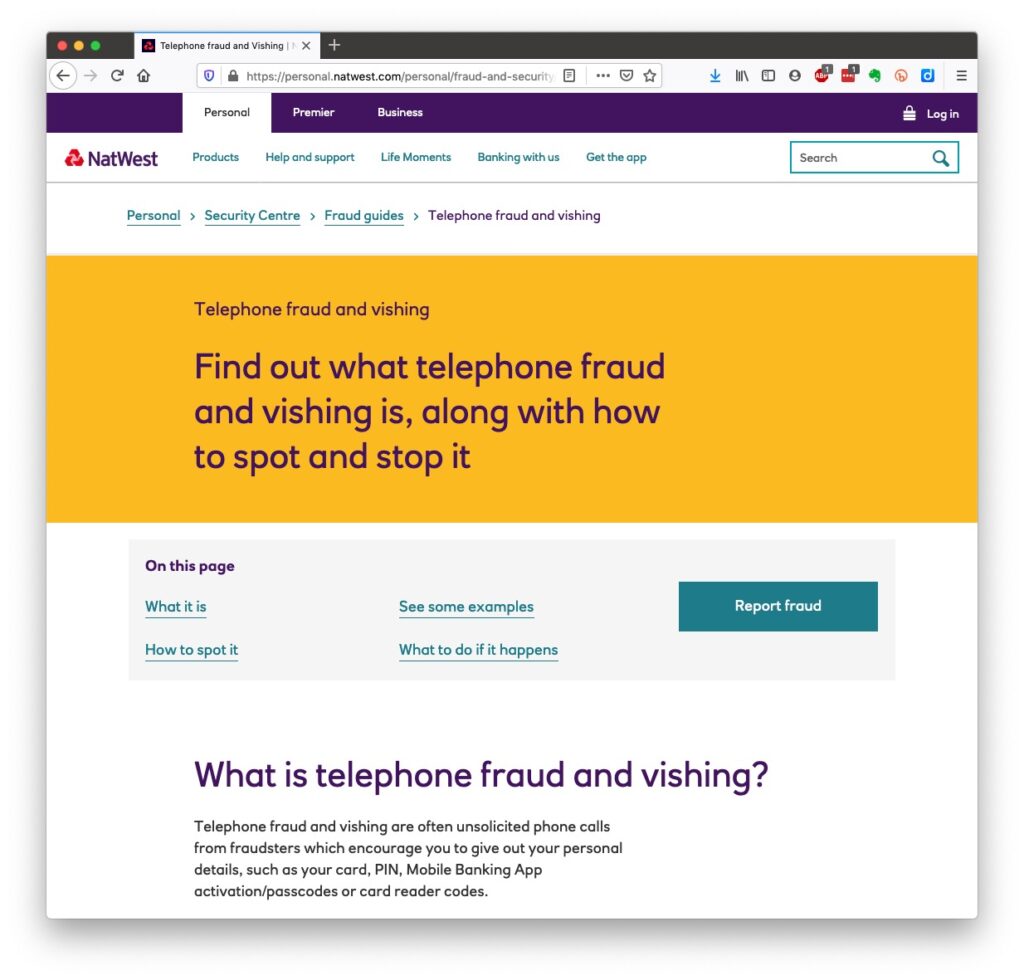

However the most scary scam I’ve been made aware of is one that befell a member of my family when they were distracted sufficiently to become the victim of SIM swapping.
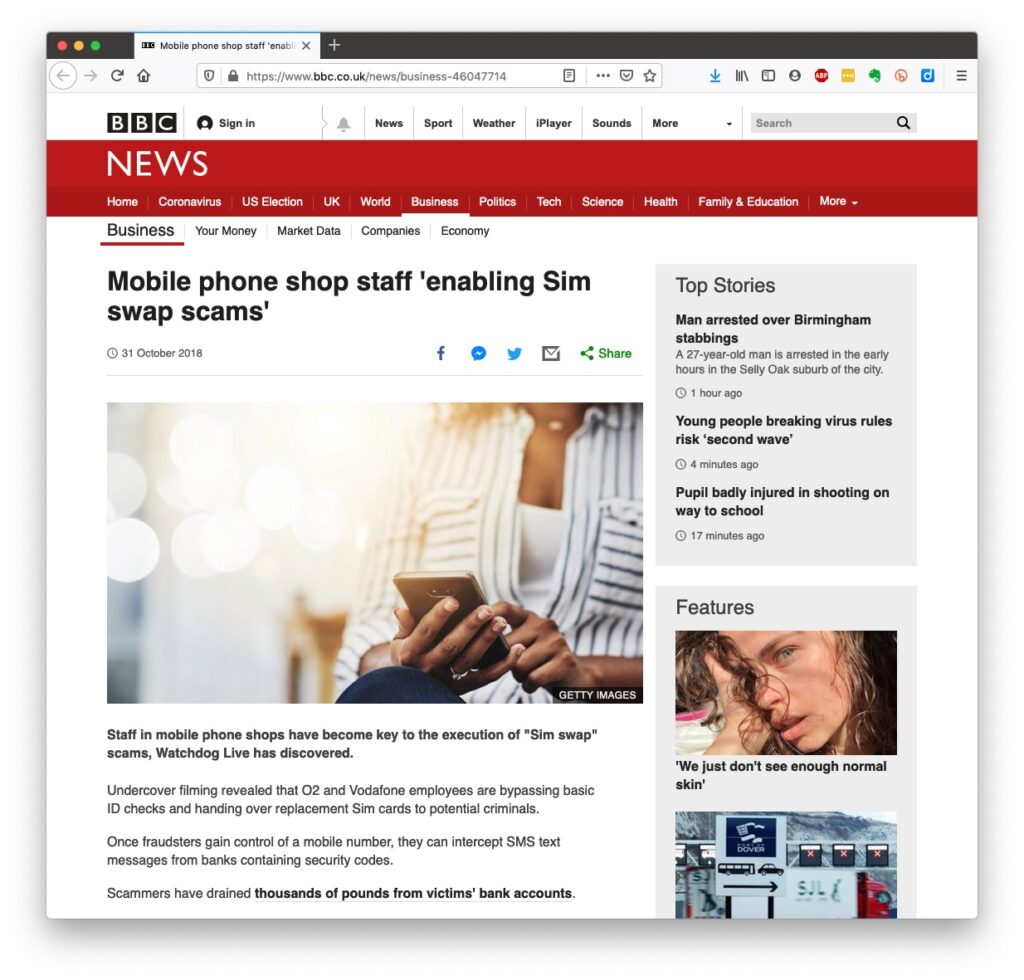
I have discussed this with you before and you can read read the updated post on the public Thought grazing site.
Bruce Springsteen shouts out at his legendary concerts “Is there anyone alive out there?” I hope there are still many of you alive out there with me, because we now arrive at perhaps the most important part of the talk.
What should you do to protect yourself?
Some of these are really quite straightforward, some require some intervention by yourselves.
- Keep your operating software up to date. This is particularly true if you’re a Windows user, and even more true if you are still running an older version of Windows than Windows 10. If you’re using Windows XP, Windows Vista or even Windows 7 you should seriously consider disconnecting your machine from the internet.
- Install anti-malware, or anti-virus software if you’re a Windows user. Don’t pay more than you need to. Windows Defender from Microsoft is Free and for us relatively undemanding users more than sufficient. Keep it up-to-date as well! [As I said previously, your bank might be offering free software as well.]
- Keep the software you use regularly up to date as well. Consider removing any software from your machine you don’t use – this is because software vulnerabilities are discovered sometimes quite a while after the software was first released.
- Be cautious over installing extensions into your browser. These are often extremely useful and valuable tools, ie password managers, Dropbox, note taking, Google Back up and Sync, but if you don’t get them from the official sources then you might be importing vulnerabilities, eg spyware and trojans to your system.
- Very seriously consider logging-out from social media and other retail sites when you’ve finished using them, especially Facebook, you just don’t know what tracking and logging of what you do, even where you are, if you’re logged in on a mobile device.
- Free software is both a boon and a curse. Only download open source software from a reputable site such as Softpedia, and never try and get proprietary software for free. Read this article about Free download sites if you want to know more.
- Remember the golden rule 1 – if it seems too good to be true, it probably is, so steer clear!
- Remember the golden rule 2 – don’t speak to strangers (an oldie but goldie one, that); in other words if you don’t know where an email has come from – ignore it; if the website address looks a little strange – do an internet search on the company or organisation to check if the address you’re looking at is a spoof of the proper one.
- Have more than one email address. Use one as your personal address, other ones you can use to “throw away”when you need to register to a website, but you’re unlikely ever to go back to it again. Or have an email address (UserID) specifically for online purchases. Splitting things like this reduces the risk of you being the victim of fraud.
- Seriously consider using an email service that is NOT connected to your Internet Service Provider (ISP) – if you decide to change your ISP, and you should review them periodically, then you will have real problems if your email address is linked to their service!
- You’ve got Spam filters running? Of course you have – but you better check! Probably your ISP, or email provider (eg Gmail, Yahoo, Microsoft Outlook or Hotmail) is filtering out what it thinks is spam, but occasionally some gets through. If that’s the case then you can always look at the real sender of your message.
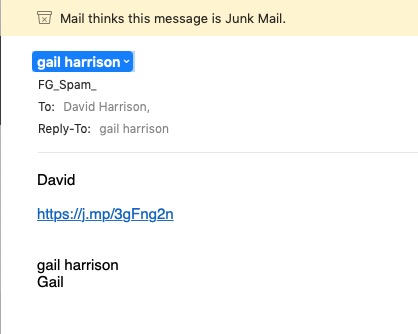
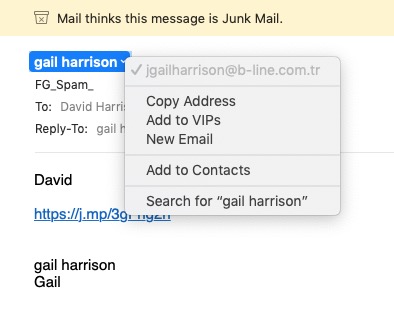
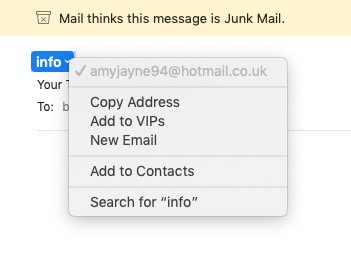

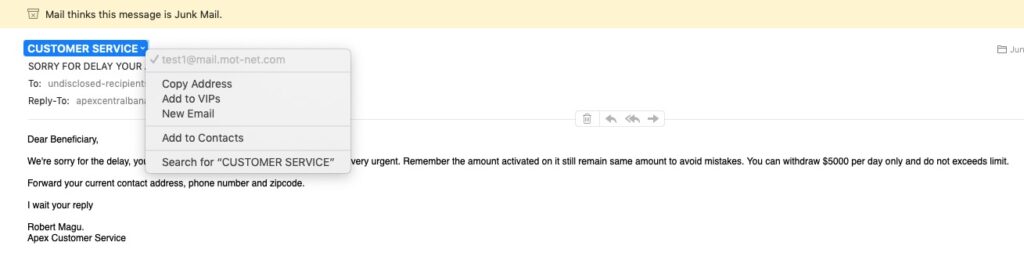
You can also apply filters to divert incoming email into different folders in your email system. That reduces the amount of Junk that you need to review. [I’ve also advocated using the “native” email application for your device rather than rely on the web-based service the email provider has. Thus on a Windows device – use Windows Mail (or Outlook); on a Mac use Mail. You can then easily synchronise your email between devices from multiple email accounts. Tidy!]
So we come to Passwords …
… this is the point at which you need to consider intervention and changing your behaviour! You might also need to do a fair bit of work, but it’s worth it if you want to have a secure internet experience.
Let’s just see what using an insecure Password can lay yourself open to. Frightening eh!?
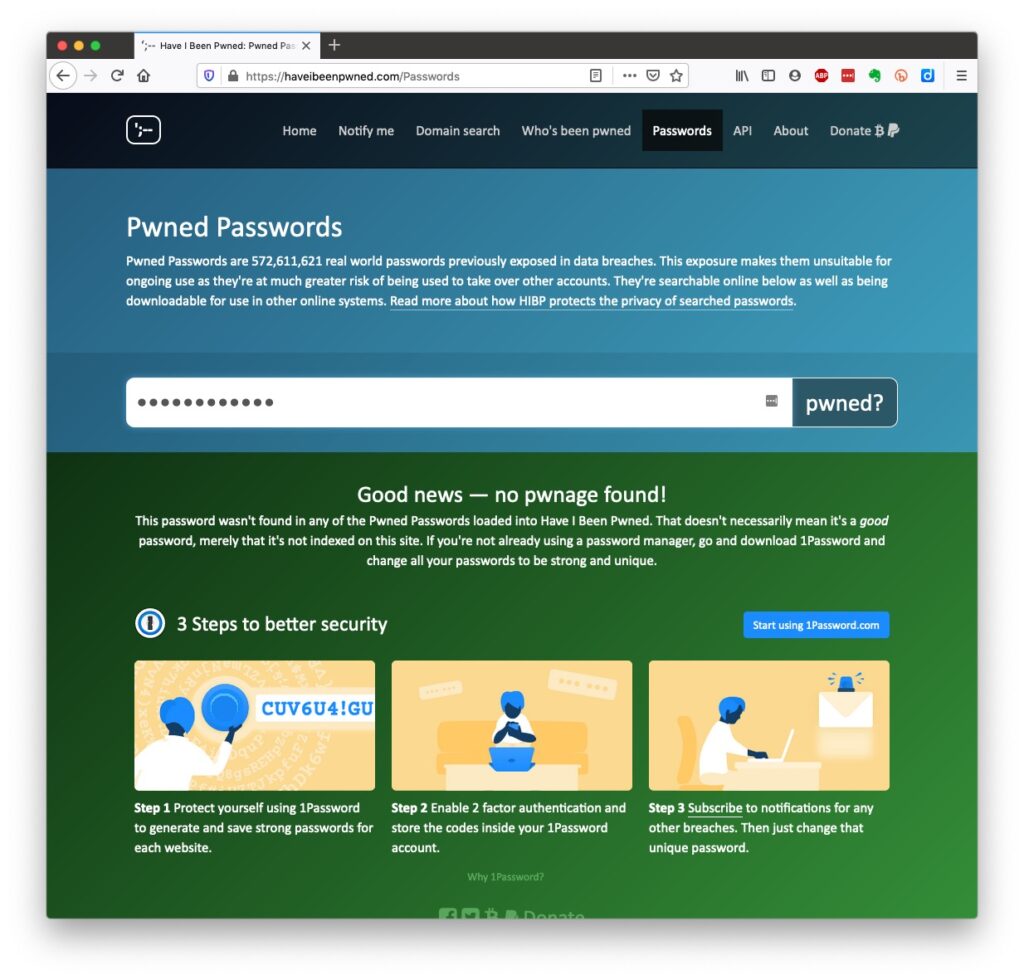
The most common password I use, has not been discovered on any pwned site. Phew! What about the combination of your email address with your password has that been “pwned” (ie stolen through a data breach)?
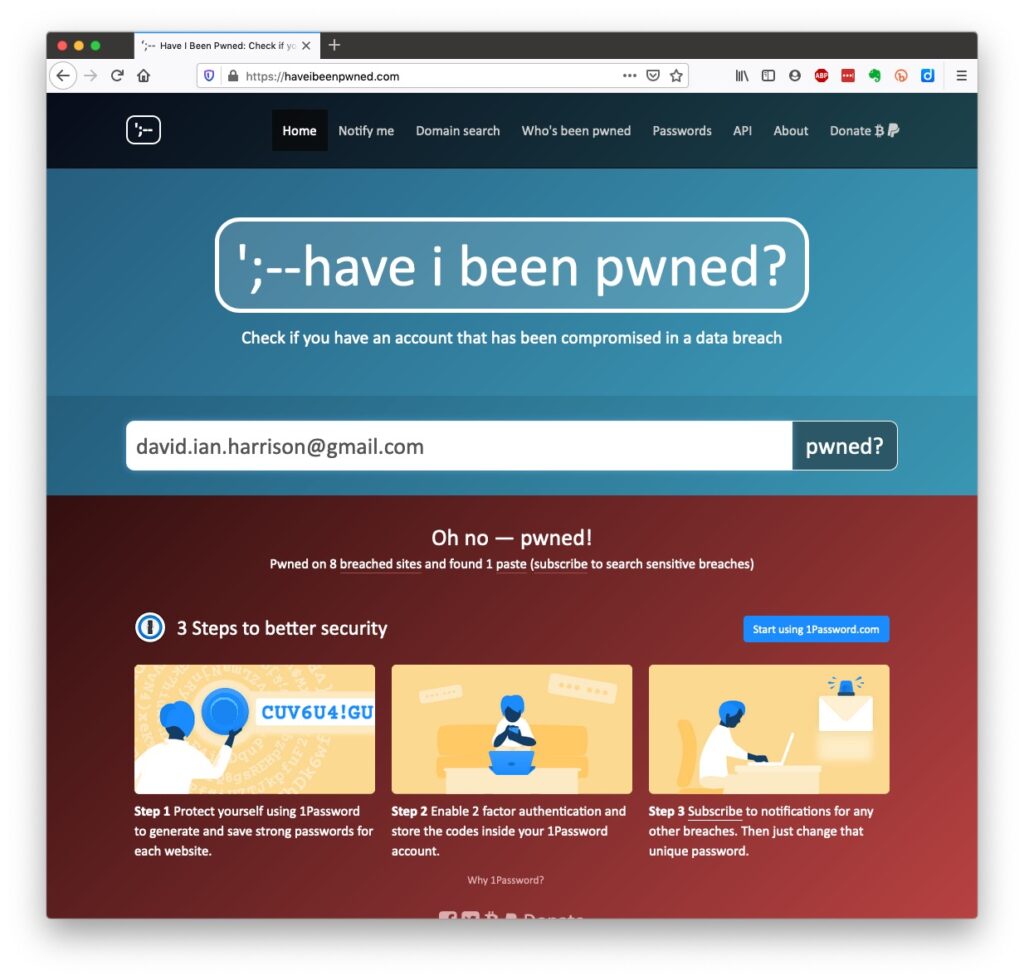
Oh no! I’ve been pwned … but it was a long time ago and I’ve changed my password many times since then! 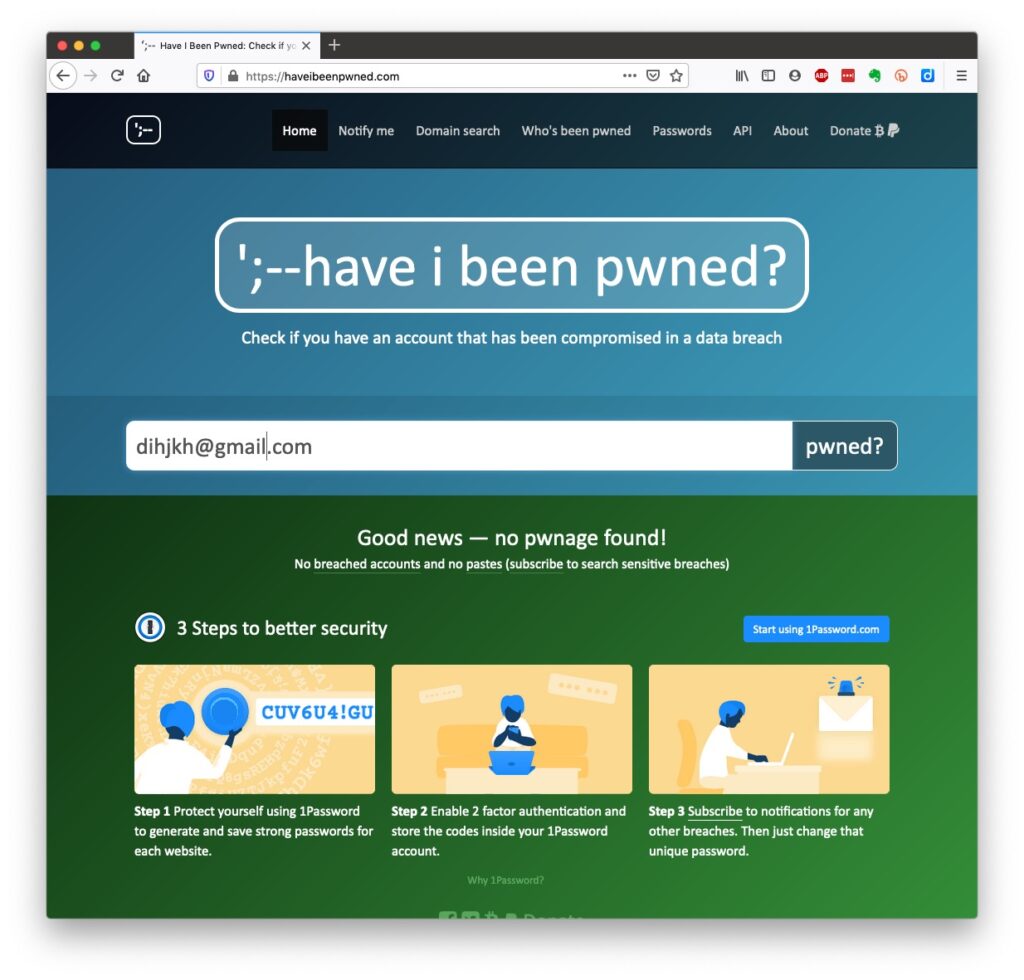
Ah! That’s better – my “throwaway” email and passwords are “safe”! And if you want to see a list of which websites have been breached, it’s alarmingly long!
So … use a unique password for everywhere you sign on. There’s lots of tricks to achieve this; some of which I wrote about in a post quite a long time ago …
… but the real change of behaviour is to use a Password Manager – again I wrote about this a little while ago and linked it to using Two Factor Authentication, which I described earlier.

Password managers
I used to use LastPass and I believe there’s nothing wrong with it – despite the security scares last year, but other common ones are Dashlane and 1Password. Please make up your own minds after reading some Reviews and seriously consider using one.

However the biggest change in Online Security which started last year with Apple’s announcement of the launch of its’ implementation of FIDO is Passkeys.
The Video and the Slides from the talk given to the Cardiff u3a General Meeting
Slides: https://digital.cardiffu3a.org.uk/wp-content/uploads/2020/09/Keeping-safe-online.pdf
References


Which? webpages – Scams & older people
Which? Scam Alert Service – sign up for an email alert
Age UK webpages – Staying safe in your digital world and specifically How to stay safe online
Your bank, eg NatWest – mine has a Security Centre web presence and particularly they provide a number of Fraud Guides
I could give a million references to changing your privacy settings on Social Media, but here are a couple relating to Facebook, perhaps the most challenging service of the lot.
First – what Facebook unchallenged will want to get from you. You are able to disable (prevent) all or some of these … Sign up for Facebook – this is not sign-up site, it’s just one to educate you on the privacy you might give up without realising then How to change settings on Facebook and finally Securing Facebook: Keep your data safe with these privacy settings.