Tag: Snapseed

  • Google Photos & Snapseed – an update

    I’ve posted articles on using Google Photos a few times. Of course with the passage of time, features, and interfaces, change, so it is always useful to just review “what’s occurring”, and see whether there’s anything that needs correcting, or adding to. I will try and go back and edit the posts listed below to reflect changes that I’m aware of.

    First and foremost it’s important to note that I don’t tend to use Google Photos for anything other than sharing photos with family and friends, so my use of the editing features is a bit limited. I am however a strong advocate of using Snapseed (available from both the Google Play, and Apple App Store) as a photo editor, but as it works best with the Google Photos app, it’s necessary to install Google Photos as well. [Snapseed is not available as a native desktop app on Windows or MacOS; it’s only available on mobile devices (Android and iOS/iPadOS).] So the first link that’s important to be aware of is this one …

    Google Photos and Apple revisited – if you’re an Android user you can skip this article and move to the next paragraph – all your photos taken with your camera will be safely housed in the Google Photos app!!! If you’re an Apple user it’s important to understand how synchronisation works with Google Photos and the Photos app on iOS. If you’re not careful you can either end up with duplicate photos on both platforms, or worse still deleting photos from a device thinking that there’s a copy “in the cloud”.

    The next bit of housekeeping is to understand what happens if you want to delete a photo from Google Photos – it’s not entirely straightforward (but it is easier than in the Apple world!!!). This article I wrote – “How do you delete photos from Google Photos?” – attempts to help you delete what you want to delete from your device, or from Google Photos on the web. This is particularly a problem if you’re an Apple user with a Camera Roll, rather than an Android user with Google Photos – so you’d be advised to read it.

    So we finally get to editing our photos and using Snapseed. This article – “Snapseed and Google Photos” – is a good overview and will take you quite a way down the road of installing Snapseed, it covers the basics of how to get photos from a camera (rather than a smart phone) into Google Photos, and some basic editing of a photo. There are also links in the article to earlier posts on using Google Photos as well as a video on “getting started” and some additional references that I found useful.

    The new stuff!

    How To Use Google Photos: The Ultimate Beginner’s Guide [2023] – if you want to just stick with what’s possible for you to do in Google Photos this is just about as good a guide as you’ll get. It goes through all the features of the app, but doesn’t cover editing photos in any detail. If you want a video that covers the same ground, you might like to watch this [I’d like to remind you of the point I made about his reference to Backup and Sync if you’re an Apple user – my earlier comments apply!!! He has decided to use both iCloud and Google Photos on the web for two backups.]. Google’s help guide to editing photos is provided here.

    So we turn to Snapseed – here’s a beginner’s video on how to use Snapseed for editing, you should also refer to the article quoted in the earlier post – Complete Guide To Using Snapseed To Edit Your iPhone Photos – from which I also recorded the video from my computer screen, but it’s obviously better using the link from the article. Also please note that although iPhone is mentioned in the title, it’s 100% applicable to Android phones as well. Finally you might probably want to look at this – SNAPSEED: ULTIMATE USER GUIDE + TIPS (2024 UPDATE) – if I’ve convinced you that Snapseed is the “goto” app for photo editing on your smart device.

    Google is always updating its apps, and this is particularly true now that we have AI. So a recent update introduces the possibility of background blur – which can make a portrait of a person stand out more, by weakening the effect of the background. Google writes about its new AI features here, and here,

    Finally … this article has been all about using Google Photos, which might have let you think that Apple’s Photos app is not so good. In a forthcoming post, I will be examining how Apple Intelligence (available in the autumn) will quite possibly revolutionise Apple’s photo applications, and will for some, if not all, Apple users mean they might be less likely to use Google Photos going forwards. They’ve already moved to allow the sharing of albums stored in iCloud to anyone via a link. That’s progress!!!

  • Snapseed and Google Photos

    If you want to edit, even if only in a minor way, the photos on your smart device (phone or tablet, Android or Apple), two offerings from Google should be tried first. If you’re an Android (Google) device user, it’s a no-brainer.

    The Google Photos app will be installed on your device when you get it, and all you need to do is install Snapseed from the Google Play store. If you’re an iOS or iPadOS (Apple) device user then there’s a couple of extra steps you need to do before you can get started.

    This guide concentrates on Snapseed. I’ve written about Google Photos previously and I’m providing links to them below. I’ll check to see that things haven’t changed materially since I published these posts …

    Getting to grips with Google Photos – needs some updating and revising, and links need to be checked.

    More Google Photos – some simple image manipulation – basically sound, but I need to check to see if there are any additional tools added.

    Sharing an image (or album) from Google Photos – should be just about up-to-date.

    How do you delete photos from Google Photos? – more recent so I’m assuming that it’s good-to-go, but I’ll check of course.

    Although Snapseed is intended for use on smart mobile devices, you can install it on either a Windows PC or a Mac, but I have no experience of doing this, so it would be a project you would be taking on ahead of me. So for that reason I’m only looking at the app that you can download either from the Google Play, or Apple App stores.

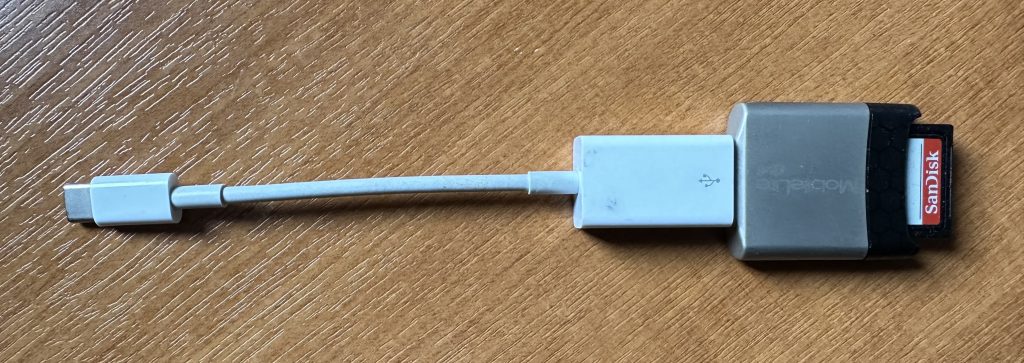
    So for camera users (rather than smart phone users), you will first of all need to get the photos onto your device. This could be by a direct cable connection from your camera to your phone, or by transfer using Bluetooth or WiFi, but more likely might be by using a SD-card cable like this one I have for the Apple gear. [It will either have to have a Lightning or a USB-C connector – check first before buying one.]

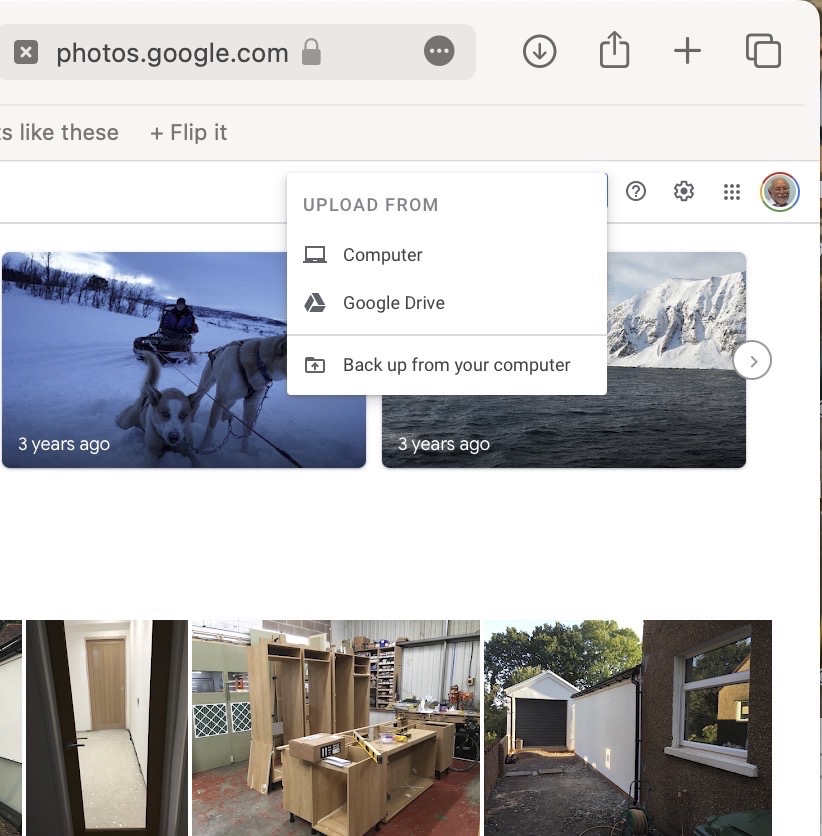
    The image(s) thus transferred will be added to your photo library be it Google Photos, or Apple Photos. Another way of adding photos on your computer to your Google Photos would be an Upload to photos.google.com – you will need a Google account to do this. This is how you would do it …

    Select Import to Upload images to Google Photos
    Select images from the Computer (or from Google Drive)

    You could decide to use Google Backup to synchronise all your photos from your iPhone (or iPad) to Google Photos as an “easy” way of getting the photos on your Apple device into Google Photos, but this is not necessary to use Snapseed as it can access your Apple Photos directly; so I don’t because I’m already backing-up my photos to iCloud. [I only discovered in November I was also sync’ing to Google Photos, so I stopped doing that then and saved some Google Drive storage, and a whole lot of complications about knowing what was where.] But if you want to synchronise from your Apple Camera to Google, this is how you do it from the Google Photos app on your device …

    Instructions on how to synchronise Photos on Apple devices to Google Photos

    You should now install the Snapseed app on your device(s) from the Google Play, or Apple App stores, if you haven’t already. If you’re an Apple user you might choose to install the Google Photos app at the same time – although you don’t need it to use Snapseed, but you might just like to compare how it works.

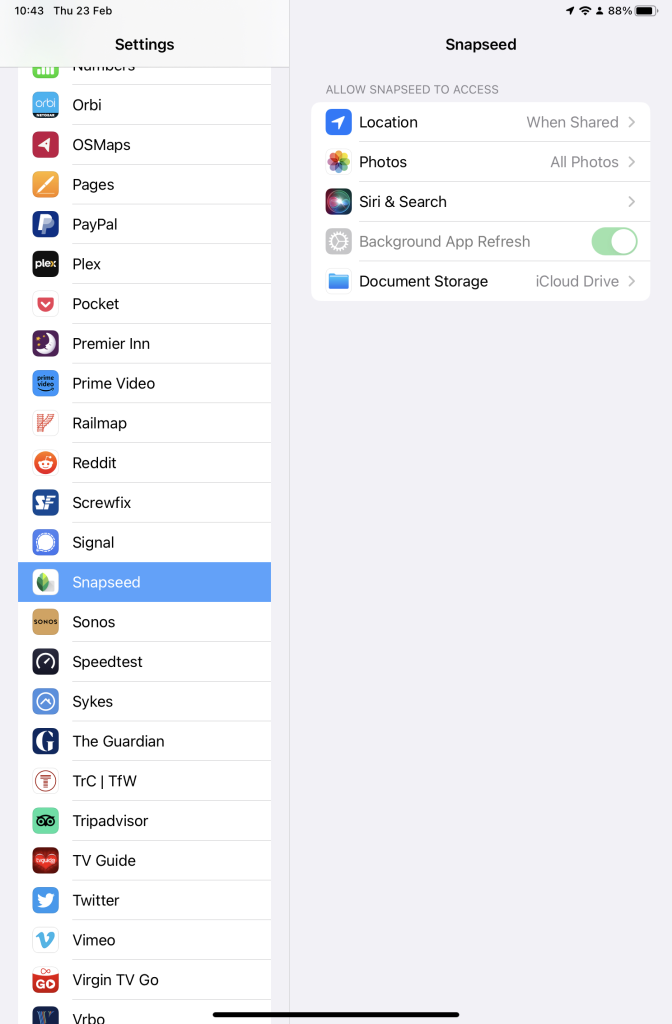
    Next up, if you’re an Apple user you need to allow access to your Photo Library to Snapseed (and optionally Google Photos). This will allow both apps (on iOS) to access the Photos in your Camera Roll on your iPhone or iPad.

    Setting up Google Photos and Snapseed to be able to look at Apple Photos on device(s)

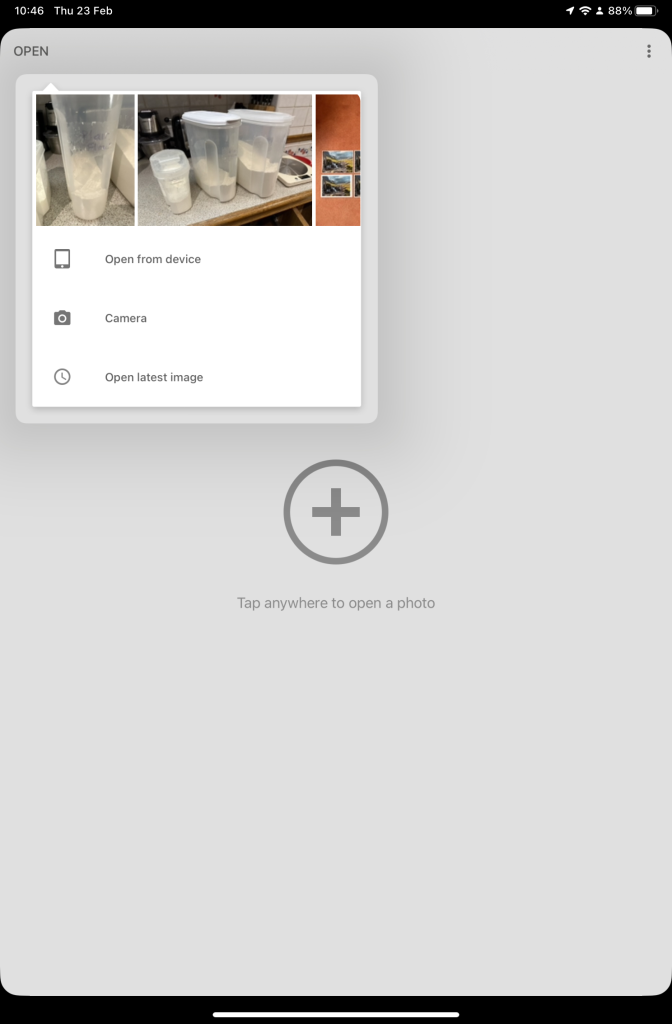
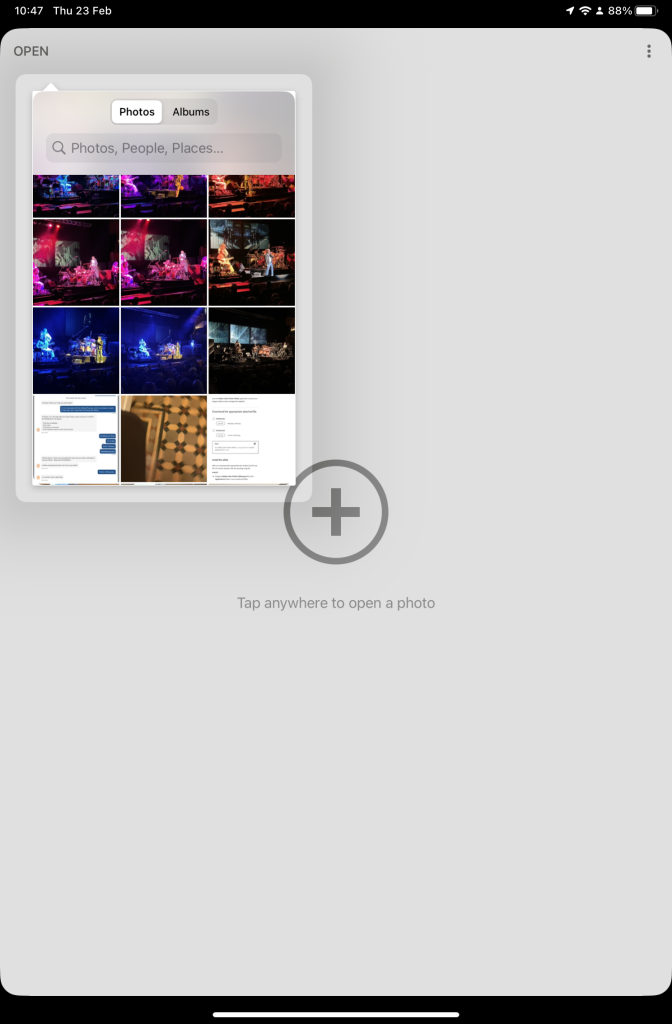
    So now your ready to start editing. Open the Snapseed app on your device – you are prompted to Open from device (ie look at the images in your Photo Library), or you can access the camera to take a shot, or Open latest image that you’ve taken. The steps from then on are relatively straightforward and you will have selected the image that you want to Use.

    Open Snapseed and look at the photos on your local device
    Select an image to edit, and click-on Use
    … and so start editing.

    That’s about it. This video (recorded from my screen, hence background noise and rather low audio volume) gives a reasonable introduction on how the Snapseed app works …

    Here are some links that you might find of interest:

    Complete Guide To Using Snapseed To Edit Your iPhone Photos

    How to Edit Photos in Snapseed

    Using your Android camera to take photos; but I believe all Android phones have slightly different camera interfaces, so you’re better off researching that for yourself. [NB If you have come across a really good guide, let me know and I’ll add it to the list here.]

    How to Use the Camera on an Android Phone: The Basics Explained

    Then for the iPhone …

    How to use iPhone Camera: A guide for beginners and pros

    A Beginners Guide To Incredible iPhone Photography

    How To Use The iPhone Camera App To Take Incredible Photos

    I hope that helps. Please advise if you come across something that doesn’t quite work for you, it might be my notes!!!

  • Digital image editing – Feb 14th 2019

    Boot-up
    Any follow-up on our Tidying-up Photos session last time?
    Phishing quiz – https://www.makeuseof.com/tag/google-quiz-help-spot-phishing-emails/ – any feedback? [Ted was concerned about providing his details at the start of the Quiz. His fears were understandable, but unnecessary – read the Comment beneath this post, from me.]
    Jim’s keyboard experience
    My iMac adventure [Update: Not only did I get a free drive, but a free screen AND a replacement case which had a dent in it – possibly caused by Apple they admitted/offered/suggested.]
    Any other member issues?
    News
    Facebook Messenger, WhatsApp and Instagram to possibly share same messaging infrastucture – BBC report, Cult of Mac article.
    Have yourself a digital calling card, or alternatively create an online presence; for instance – this is me.
    Keyless cars at risk of theft. [Sianed advised us that VW are apparently the worst and uses a lined purse for her keys, the same as the one she puts her contactless cards in.]
    Protect your browsing history with a VPN. [We’ll come back to look at VPNs another day.]
    Facebook in-house developers blocked by Apple, and Google too!
    Google+ closing down in April. [Don raised this issue. If you’ve got a Google+ account then it will cease to work after April 1st. Google allow you to “Takeaway” your data – I gave a link to this in the previous notes – I believe you can’t do the same with your Facebook information.]
    Google launches apps to help the hard of hearing (volunteers?). [Thanks Ted, Martin and Jim for offering to look at this, which is only (I know see) available for Android devices, so you might not be able to do the testing. Apologies if this applies.]
    How to Back-up your iCloud Photo Library.
    Google’s contribution to Internet Safety Week, including Protecting your data wherever you go on the web.
    Mesh WiFi router firm bought by Amazon. [Thanks Paul for volunteering to research Mesh WiFi systems for us for the next meeting.]
    Samsung’s first TV with Apple’s Airplay 2 now on sale (US only?).
    Digital Image Editing using Gimp
    Gimp stands for GNU Image Manipulation Program and was written originally for the operating system GNU but has been ported to many other platforms including Windows and MacOS; GNU stands for GNU’s Not Unix; it’s open source software; it’s free and it can be trusted.
    You can download Gimp for your computer from this link. User documentation is available from this link, and some tutorials are available here.
    So first of all you need to Install Gimp.
    For today, I’m just going to concentrate on a couple of areas
    A simple introduction to Gimp, including changing the size of an image, and cropping an image.
    Using curves to improve the quality of the colour in an image
    However, I can’t recommend using Gimp. It’s a techies toy, not really a usable photo-editing tool. So what do I suggest for free photo-editing?
    For tablet/smartphone users it has to be Snapseed (from Google) which is available for both Android and iOS platforms. A tutorial on what you can do it with Snapseed is provided here. You could also try Adobe Photoshop Express.
    For Windows there’s Adobe Photoshop Express, or you could try Microsoft Photos.
    For Mac users you really only have their Photos app as Photoshop Express is not available for MacOS, so it’s Gimp or maybe Fotor which you can get from the Apple Appstore – but I don’t have any experience of using it. I don’t think I can recommend using Picasa any longer.
    If you want to do your photo-editing online, then apart from Google Photos and editing your photos stored in iCloud (for Mac users), you should look at Pixlr, which has a whole range of free and chargeable offerings that run from your browser and in particular Pixlr X which doesn’t require Flash, looks really good and easy to use, and is probably better investing time and effort in than trying Adobe Photoexpress Online, which is a bit clunky and requires Adobe Flash Player to be installed.