
Tag: security
-
Prevention and protection from Scams
And so we turn to passwords and online security. I’ve dealt with this at some length previously in a post entitled “Keeping safe online” which I last updated in May 2023, and although much of it is still relevant and most, if not all, of the links are still working, I thought to write something from scratch, rather than do another edit/revision.
I’m going to skip to the content at the end of the article referred to above and pick-up the theme of Passwords, Passkeys and Two-Factor Authentication (TFA).
First-of-all – you want a fright? Try typing your favourite password(s) – you do have more than one, don’t you? – into this website.
Secondly, check to see just how vulnerable your email address might be, using …

Screenshot … go to haveibeenpwned? – and if you want to know what pwned means, and how to pronounce it, look here. If a service you use is in this list, you seriously should change your password!
Another approach is to use a tool that looks at your “digital footprint” to examine where you might be exposed. Such a tool is this one from Malwarebytes.
So that’s got your attention, right? You really need to deploy/use a Password Manager to hold your passwords – preferably one that is usable/consistent across all your devices. Two such products are 1Password and Dashlane. Both of which get very good reviews.
The alternative to using a Password Manager application is to use the password security offered by your browser. In Apple’s case this is iCloud Keychain – which stores the passwords – with its associated Passwords app; in Google’s case this is Google Password Manager. Both of these now offer support from one ecosystem to the other – so multi-platform users can choose one or the other. Microsoft also offer a Password Manager using the Edge browser, but its features are possibly not as well developed as those of Apple or Google, nor of dedicated password manager applications such as 1Password or Dashlane which score best with users who have a mixture of Microsoft, Apple and Google devices and applications.
And now we have Passkeys. When assessing whether you want to move to a Password Manager, you MUST check that the chosen one supports Passkeys as defined in the FIDO Alliance …
… and the key to its success and inter-operability is its integration with biometric signatures. So Passkeys are the platform for increased and improved internet security and should be welcomed with open arms – for Apple, for Google and for Microsoft.
If a Passkey can’t be employed on your favourite website, or even if they are, you may be asked to use 2FA (two-factor authentication). Using this means that when you’ve typed in your username and password you’ll be challenged to provide a code from a mobile phone, an authenticator app such as Google Authenticator, or go to another app (particularly if its a Google app), and do that extra second step (hence 2FA) to authenticate you are who you are.
We’re entering the passwordless world. It’s long overdue!
Finally, some other links to help you navigate the digital security world.
7 phone apps you need to secure right away – if you value your privacy – this could have formed the basis of an article in itself. It’s important to just check you’re doing the best you can to secure your favourite apps.
Best antivirus: Which? Best Buys and expert buying advice – a review for both PCs and Macs of anti-virus software – of course you could just be relying and using Windows Defender (for Windows) or nothing at all (if on a Mac), both of which are acceptable decisions, which then leads into …
Everything you need to know about cybersecurity basics – an inventory of terms, some with links to free tests, and the option to purchase tools. The definitions of terms are good.
Online learning events from the u3a – especially a recurring event “Staying Safe Online – A u3a Presentation with Q&A”
-
SIM Locks
A really useful security enhancement to your phone is to implement a SIM lock which ensures that only the pairing of your phone with your SIM can be used together. Thus meaning that a SIM taken out of your phone cannot be used in another phone to receive confirmation text messages in financial scams.
I wrote about this in the post Stolen phone & SIM locking
Towards the bottom of the post the procedures to be followed are described. You just need to remember the PIN you’ve given to the SIM to lock it, as without that it will be IMPOSSIBLE to reconnect your phone to your SIM and your phone number.
-
Chrome settings on Windows
Again, this is a difficult decision on which Forum to post, but I settled on this one. You should read and consider whether the security issues it raises concerns you, or not, and take appropriate action …
-
What is a VPN?
Here’s a video that explains what a Virtual Private Network does. I use NordVPN, but I must remember to switch it off when in the house as it’s quite unnecessary behind my router. It is useful when travelling however, and some might say essential when cruising.
The second half is a bit techie and can be skipped if all you want to do is understand what it does and how it can be used.
-
Home networks – some notes
I’ve written and talked about this subject on a number of occasions. I’ll bring these together in one place, before delving into the specifics of router configuration which prompted the subject for the meeting on Feb 4th, 2021.
For many of us home networking means WiFi, and the first article I wrote was on the subject of “Flaky WiFi” on October 11th, 2016. Members of the group had commented on their WiFi connection appearing to drop and in this article I tried to explain how all the bits and pieces hung together and how you could test your network to see it was working the way your Internet Service Provider (ISP) was proclaiming it should be!
Then, later on (January 26th, 2017), we discussed “Broadband speeds, WiFi routers (their type and security), and extenders or boosters” and as the title suggests we focussed on networking in the house and how it is provided by Internet Service Providers, such as VirginMedia, BT, Sky or TalkTalk.
I described “How the Internet works” in this post on June 29th, 2017, with links to a few videos and policy documents which hopefully explain the topic better than I could. Not much has changed since then; IPv6 is still to appear in the domestic market, so we still use IPv4 for internet addressing.
Finally, on July 27th, 2020, I wrote about “Improving home network performance” which is really what I’m going to revisit in this post.
So … what do you need to take a look at?
On your router:
If you’re using an integrated modem/router – often called a hub, typing in the IP address 192.168.1.1 will bring up a screen something similar to this …
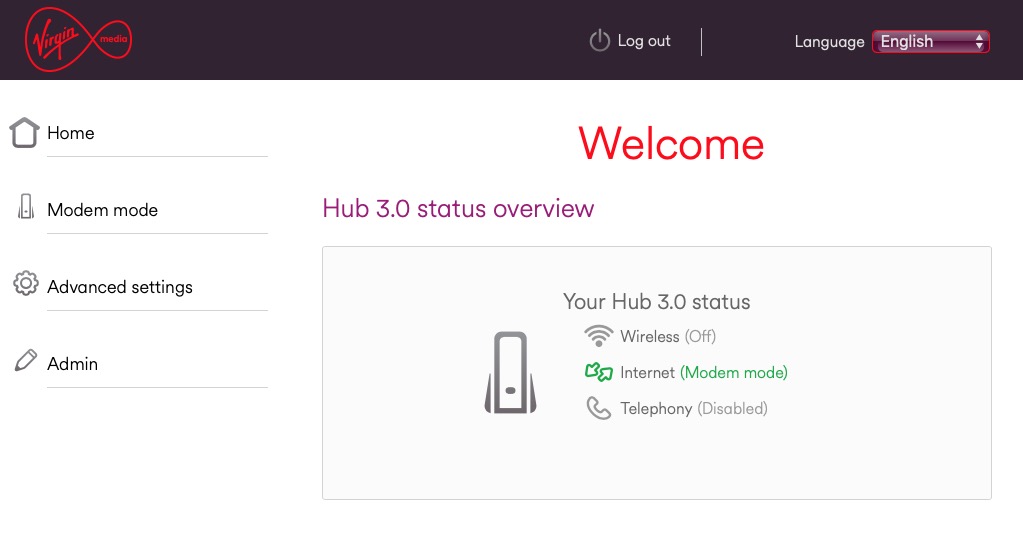
… mine is different because I’ve disabled the router functionality so that I can use my own router – a Netgear Orbi Mesh Network – so to just access the modem part of MY hub I use the IP address 192.168.100.1. You can see from the above that only the Modem is active.
So for most users with an integrated modem/router, the first thing you need to be able to do is to access your Router’s Admin Dashboard. This article explains how to do it using the cmd prompt in Windows, but it is probable that your hub/router has an application you can start to do this, or that you can access it from a browser window. For most you would just enter the IP address 192.168.1.1 and supply the UserID admin and the password that I’ve created – the default is quite commonly ‘password’, so you ought to change that!!!
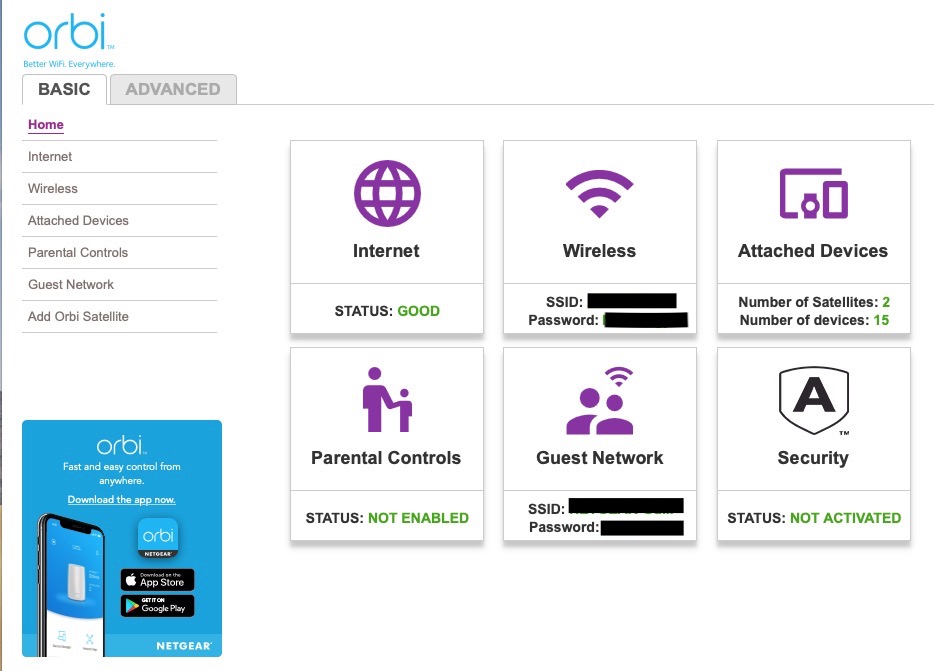
The above screen is for my mesh network, but non-mesh would be similar. Clicking on Internet will give you the ability to change some of the settings for your connection.

Of these the most useful to change is the Domain Name Server (DNS) – these are the servers that translate a URL (eg digital.cardiffu3a.org.uk/) into an IP address. I've chosen to replace the default DNS supplied for my VirginMedia (ie 194.168.4.100) Hub (I've disabled the router functionality on the SuperHub so that it only acts as a modem) for two servers run by Google (1.1.1.1 and 8.8.4.4). The reason I've done this is that these servers are replicated around the internet and will almost certainly be closer to my router than VirginMedia which I think the closest one is in Bristol.
All the other settings can probably be left as they are. The next option is where you configure the name of your network and the channels you’re going to use.
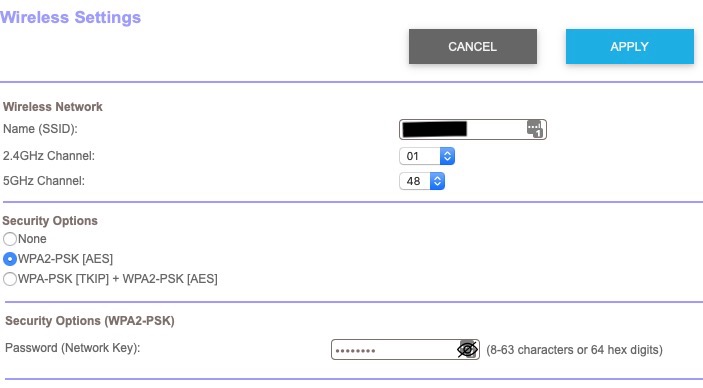
If you don’t like the name supplied to your network by your ISP, you can change the SSID. I did to make it a little more meaningful. You should then consider changing the 2.4Ghz Channel. If you can set the channel to Auto – you should do so because generally the router will then find the best channel for your network. If that’s not possible and you have found your WiFi to be “flaky” due to you and your neighbour using the same Channel(s), try setting the channel manually to one that’s not being used. The article I mentioned before describes how you can find the best Channels for a Mac, and this one identifies a Windows Tool that does the same thing – there’s a Download link at the bottom of that documentation. Here’s an article that describes all the possibilities.
Generally 2.4GHz has a wider range of signal but lesser bandwidth (throughput), and 5Ghz the opposite – shorter distance, but higher bandwidth. On my system my 2.4GHz channel gives me 400Mbps and the 5Ghz channel 866.7Mbps.
You’ll want to look at your Security Options and make sure that you choose the best for the devices that you’re going to connect to your router. Generally, for a home network, WPA2-PSK [AES] should be sufficient.
This article from the Apple website provides a very thorough and detailed examination of what settings you should deploy for your router, and why. Worth a read, even if you’re not an Apple Fanboy!
On your device …
Make sure the security settings match that you’ve just set on your router; remember the SSID and Password you’ve created, and re-connect to your network.
And that’s about it … I hope. Questions??
-
How do I know that a Password manager is not just a phishing site?
Well … first you need to only download the software from the official links of the provider, eg LastPass, Dashlane or 1Password, or from the app store of your mobile device.
Then be assured that the passwords (if you use these downloads) are not stored on a central server anywhere. They are stored in encrypted form on your device. When you open a different device the password is transferred from one “vault” to another in encrypted form. The service provider just provides the encryption algorithm which it can’t have access to itself. So rest assured as long as you use the “official” downloads they’re very safe.
-
Using Paypal instead of Credit Cards
This was a question that was raised during the General Meeting discussions. PayPal has a Buyer Protection and Fraud Protection policy which for small transactions (ie <£100), and for transactions with companies/individuals you regularly do business with, is probably sufficient protection.
For large value items (ie >£100) and up to £30,000 you might prefer to choose using your credit card because of the Section 75 protection you get.