
Tag: Pocket

  • Bookmarking & browsers

    At the meeting yesterday someone, I believe it could have been John, asked how you could move bookmarks from one browser to another. It’s a good question, and I’ll try and answer it below, but perhaps an alternative answer is even better and that’s what this post will also address. But first, exporting and importing bookmarks for the common browsers.

    However Microsoft has been changing it’s browsers quite a bit over the past couple of years. Internet Explorer was phased out for a bespoke re-write which was called Edge; this in turn was then completely re-engineered to use the same Chromium platform as Google Chrome, Brave and others, which was called NEW Edge. Confusing eh!?

    Internet Explorerread this article [Internet Explorer 11 was the default browser for Windows 10, but you may find that it’s been replaced in one of its automatic upgrades by Edge]. For all older versions of Internet Explorer including ones for versions of Windows older than Windows 10 – you might like to look at this article.

    Edge – if you’ve got the NEW Edge browser rather than the old legacy EDGE version (which should still be on your machine, as should Internet Explorer 11, if you’re running Windows 10) – this is probably the easiest way of exporting your bookmarks/favourites from a Microsoft browser. Alternatively you should look to see how you can run Internet Explorer if you’ve got the OLD Edge installed on Windows 10. Then you could use the notes above for Exporting from Internet Explorer. Alternatively upgrade either of them to NEW Edge and use the first link in this paragraph to export your Favourites. Simples!

    Note: Exported Microsoft Favourites (Bookmarks) are stored as .htm (HTML) files.

    If you’re using Brave this article explains how you can Import and Export Bookmarks.

    There must be a better way, and there is! You could use a third-party application such as Evernote, which can not only store Bookmarks, but also whole articles through the installation of a Browser Extension which allows you to “clip” content to a “note” in your Evernote datastore held in the cloud. Evernote has long been a favourite piece of software of mine and I pay an annual subscription to get an extended service from it, but there is a really good free version which you can use to trial it and see if you like it. The screen shot shows that you can save the whole article, or just part of it. [One great feature is that it only saves the article, not the additional content, sidebars, panels, etc which often hold ads.]

    Alternatively, you could use a Bookmark Manager such as diigo. Again this sits as an extension in your Browser and every time you want to save the link to a website, you click on the diigo extension, and perhaps add some tags to help you find the site at a later date …
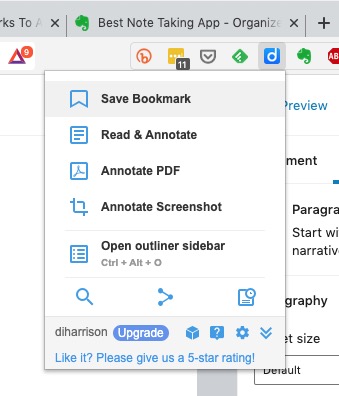
    … and after pressing Save Bookmark, it saves the page with a brief excerpt …

    Finally there’s Pocket which combines bookmarking with a facility for offline reading of webpages. This used to be a great feature when trains didn’t have good WiFi and you could catch-up on your reading, but it’s still a very useful way of storing web content for reading away from the Internet and it’s the way I store all articles that I come across that I’m going to use in Computer Group meetings. Again, you can install a browser extension for all the major browsers that makes it very easy just to click on a webpage and it’s immediately saved and synchronised to any device that has Pocket running on it.
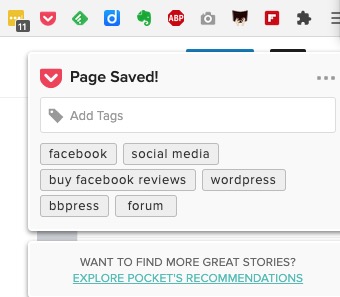
    Looking at the bar in the browser above (Brave) you can see icons for LastPass, Pocket, Feedly, diigo, Evernote, AdBlock Plus, GoFullPage (full page screen shot), Push to Kindle, and Flipboard plus the extension to open the Extensions Library. Of course the screen shots for an Android or iOS device would be different; these are just taken from a browser running on a desktop or laptop.

    Extensions are really neat, BUT only install ones from the Extensions Library of your Browser. Generally Chrome Extensions will work in Brave. That’s probably a topic for another post at some later date.

  • URL shortening and bookmark managers.

    Jim has pulled me up about my use of long rambling URLs in emails I send him – I confess, it was laziness. I could (and should) have installed Bitly – which is a URL shortener which can be installed as an extension in my browser. I needed to create a Bitly account but having done that it works across my various browsers and also on my iPhone (Android app here). I have done that now – perhaps you’d like to look at it.
    Another extension you might want to consider is a development of the  bookmark managers (ie diigo, and the now retired Delicious) which allows you to save links to websites to re-visit later, and also read offline. The one I use is Pocket, it’s how I construct the News item for the meetings. I just save pages between meetings and then before a meeting I review them, and cut’n’paste links to this site, and sometimes (when I remember) also to the Flipboard site.

  • Creating a "magazine" – 25 Oct 2018

    Boot-up
    Meeting – 11th October. Ted Richards was the Convenor of the Group that day looked at Family History software – any questions or issues arising?
    Changes to Thought grazing – https://digital.cardiffu3a.org.uk/
    Logging in to Thought grazing – any problems or issues.
    Password: Ca3rdyddU3A
    Sextortion!!!!
    Email scam threatens to show you watching pornography to your friends
    An old scam with a new “flavour”

    How safe are you online? 10 Questions to ask yourself
    Another Facebook security breach
    What to do if your Facebook account has been hacked
    Google gets itself into trouble too by not telling users of a security hole and kills off Google+
    The Brave browser – follow-up
    also The best secure browser

    News

    Apple and Samsung fined for slowing-down older smartphones
    Deleting your search history if you use Google
    Fake review factories on Facebook
    How to spot a fake five-star review on Amazon
    Creating a magazine using Feedly, Pocket and Flipboard
    Public article will follow – “Creating a Lightroom magazine”
    Curating the web
    Step 1 – create a Feedly account
    Step 2 – select websites you want to get an RSS feed from [What is an RSS feed?]
    Step 3 – check periodically to see what has “popped-up” in your feed reader.
    [NB You can also download an app for your phone or tablet for Feedly]
    Saving for another day, or for off-line reading (bookmarking+)
    Step 1 – create a Pocket account
    Step 2 – save to Pocket from your browser (perhaps using a browser extension), or from a feedly sharing icon
    Step 3 – tag your articles, and read at your leisure, or when you want to
    [NB You can also download an app for your phone or tablet for Pocket]
    Creating a magazine to share with others
    Step 1 – create a Flipboard account
    Step 2 – create a Magazine, and decide whether to make it Private or Public
    Step 3 – add articles to your magazine from Pocket, or from your web browser
    [NB You can also download an app for your phone or tablet for Flipboard]

  • Getting started with Digital Photography: Part 2

    Getting started with Digital Photography: Part 2

    Once you get “hooked” on digital photography, and have chosen the software you are going to use and have started using it – what might be the next step?

    Traditionally you went to the newsagent and bought a magazine to tell you more about your camera, or the software you were using. By doing this you could follow developments in your hobby and pick up advice, hints and tips which were often very useful. However nowadays there is an alternative. You can use the plentiful resources made available on the Internet – often indeed from the magazines that you might have been considering purchasing.

    Here’s a tip to make your browsing and reading more productive.
    I think it’s a “good idea” to sign-up to either flipboard, or feedly – so that you can subscribe to RSS feeds and receive a regular stream of articles (blog posts) that you could find interesting. This is rather like getting a tailored magazine or newspaper delivered to your computer, tablet or phone every day. I tend to use feedly – it’s a bit easier to use and less like a magazine than flipboard – but if that’s the presentation you’d like, go for it.
    Sign-up for a free account on either of these and then whenever you see the RSS icon on a website, you know that you can add that site to your feedly or flipboard account. Both sites work well if you have a Google (gmail) account as you can use that as your identity/userid for registration/login. Both have apps for smart devices and can be used from standard web browsers (Safari, Chrome, Firefox, etc).
    I intend to write a post specifically about using feedly and flipboard shortly.

    The feeds I read regularly include …
    Digital Photography School, DIY Photography, Lightstalking and Petapixel.

    I also follow feeds which are specific to the camera and the software I use. It’s also a good idea to view other people’s images to give you ideas. I referenced in my last post that I share my images my images on Google Photos, flickr, Instagram, flickr and 500px. I’d suggest however that you browse other people’s images on these sites for inspiration!
    I then tend to save articles I’ve liked, or have just not had the time to read in Pocket. It’s a bit like bookmarking a webpage, only with the content as well so you can read the article offline as well. Once it’s there, you can then share the link with others, or even create your own Flipboard Magazine which is what I have done with the Photography magazine on this blog. This is a little more advanced than using Pocket however – so start there. Remember too, bookmarking works best if you add some tags to help you find the article in the future from the many hundred you’ll soon have bookmarked – a problem somewhat similar to the tagging/metadata that you’ll need to get into the habit of providing to identify your images in Adobe Lightroom, or alternatives.
    I also use Evernote (but am thinking of moving to OneNote) as a piece of note-taking software to just record ideas, and other bits of information, when I’m out and about with my iPhone or camera. You can save links from your browser directly to both of these note-taking apps.

    Finally, it’s worth considering finding out if you can attend a photo workshop to learn from a professional. I’ve been on a number of these and personally can recommend …
    Ken Jenkins (Freespirit Images) and his associated blog.

    Finally, I can’t resist of course plugging my own blog –  Just thoughts … where I post my personal thoughts on my approach to photography and digital photography in general. However, my photo blog – Moments like these … is my main platform where I show an image and the describe the story behind it, and this blog is associated with my portfolio / gallery site.