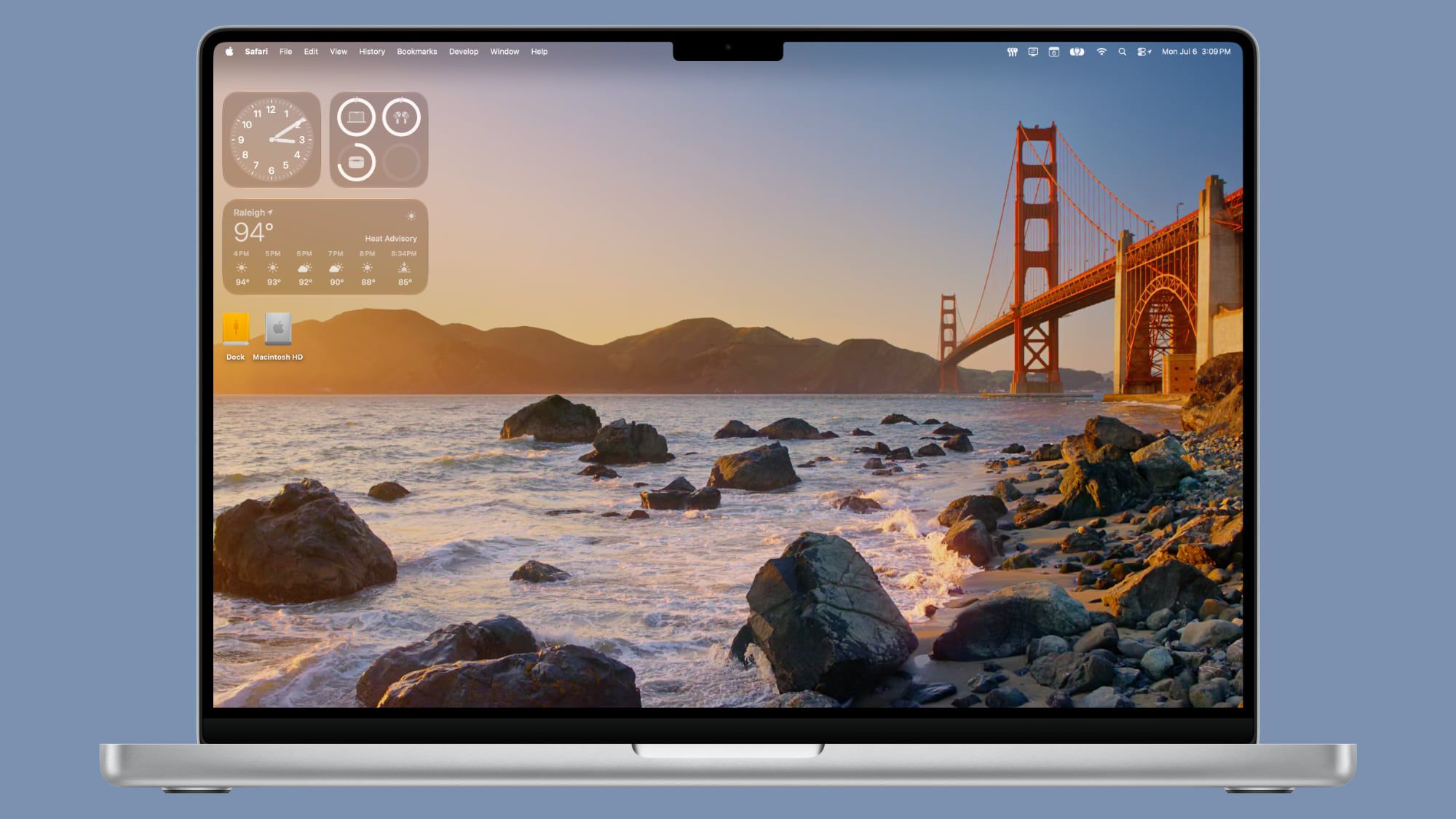
Something I think many Mac users don’t bother with doing. It is customisable, and some subtle changes could make it much more usable and useful to you.
Tag: MacOS
-
Thinking of moving from Windows to MacOS
For me, the problem is the other way round of course, but I know a lot of people are put off switching to Apple because they think it might be too different, and therefore difficult for them to pick up.
Here’s an “explainer” that shows some of the most common differences and explains the comparable names and facilities between the two systems.
-
Screen Prints
In case you are wondering how I take a picture of our Zoom meetings, the answer depends on which operating system you are using. (I am using Windows 10.)
David has supplied these instructions for Apple users:
Taking a screen shot on a Mac …
support.apple.com/en-gb/HT201361
Alternatively from MacOS Mojave onwards there’s a tool called Screenshot – here’s a link to the Help file …
support.apple.com/en-gb/guide/mac-help/mh26782/mac
To do a screenshot of an iOS or iPadOS device, press the power-off button and then the Home button.
With a Windows computer, the simple answer involves the ‘PrtSc’ key, near the right hand end of the top row of the keypad. You might have to press the Alt key or the Fn key, on the bottom row, at the same time. You will have to experiment. A message might pop up, saying the screen shot has been saved somewhere. If that doesn’t happen, the image might have been saved to the clipboard, in which case you will have to choose somewhere to paste it.
The less simple Windows answer involves the Snip and Sketch program, which you access by pressing the Windows key + Shift + S. This gives you the opportunity to crop the picture on the screen, so you only save the area you want.
For Android tablets and phones, press the power and volume-down buttons at the same time. I couldn’t get that to work with my phone though. I did have success by holding the power and ‘home’ buttons together. The screen flashed to show the shot had been taken. The picture went to Google Photos and to the Gallery.
Good luck!
Jim
-
Cleaning-up your PC or Mac???
Try dupeGuru – it’s very good at finding direct matches of files on your machine even when they have different names. It also provides a matching score so that if it’s not exactly sure that it’s found a match it will score it and you can then make a decision after inspection. Otherwise you can delete or move it to an archive folder – just in case!
-
Microsoft re-enters the browser war!
After Netscape Navigator was eclipsed by Microsoft’s Internet Explorer as the browser of choice for many – mainly because it was hard-wired into Windows initially – the world of internet browsers has seen first the rise of Firefox from the Mozilla Foundation as an alternative open source option and then the succession to Google’s Chrome and it’s huge market presence.
I’ve written about Google’s dominance and the alternatives to Chrome before in “Just Google it …”
Now Microsoft has stirred from its inactivity in the browser market place. It has ditched its proprietary Edge browser and replaced it with … Microsoft Edge. No confusion there then!
It is interesting because it will run on MacOS as well as Windows, something the old Edge didn’t do, and will use the same open source code base – Chromium – as Google’s Chrome and of course Brave (my browser of choice). This allows them to use Extensions written for that code base. I already use many extensions written for Chrome in my Brave browser.
What will this mean for Google especially as Microsoft Edge will effectively have a built-in ad-blocker? Who knows. It’s certain that as more users decide to use the Microsoft version of Chromium, so Google’s business model and revenue stream will come under attack. Will they retaliate in some way? Probably not. Interesting times.
Here’s an article that describes keyboard shortcuts that you can use with Microsoft Edge. -

What I did on my holidays … 64-bit and photo-editing – 26th September 2019
Welcome & Boot-up
Introductions
What do you want / expect from the Group?
Please tick your attendance, pay £1.50 and agree that you want to join the “Thought grazing” website I run where the notes of the meeting are posted, and that you are interested in joining a WhatsApp Group.
For those who’ve expressed an interest in “Thought grazing” and establishing a WhatsApp Group, I’ll send out an email following the meeting with UserIds and Initial Passwords for new members. [You can change your password if you want to – I’ll write a post that explains how you can do that.] The Password for Password Protected pages on the website is the same as everyone’s initial UserId Password, namely – Ca3rdyddU3A
Does anyone have any difficulties in connecting to the Thought grazing website?
Does anyone want to join the WhatsApp Group but is unsure how to do it?
I think it best to gloss over the chaos that followed – we’ll get there; here’s how to add members to the Group so that I don’t forget … add member to Contacts on my phone, then I can see them in WhatsApp to add them as a member of the Group. Easy when you know how … duh!
Incidentally Paul has written a post detailing how you can add WhatsApp to a Tablet.
Do we all know the difference between Google and an Internet Browser? – Don’t be shy. This is perhaps the most important thing to be sure about before we go any further. Two links to look at – Just google it … and the notes from the first meeting last year.
What’s happening to Digital Projects? Well the first one has been announced, it’s a re-run of a Digital Photography course using Adobe Lightroom and it’s announced in the latest Newsletter on the new Cardiff U3A website.
Which brings me to our webpage on the new website, the Photography Group has already added information to their page.- What do you think should be on it?
- Should we have a number of pages?
- Any ideas for an image to head the page?
Helping others in Cardiff U3A with Computing/IT issues …
- a WhatsApp Help & Advice Group? We agreed to do this and I’ll write to the Committee for them to consider.
- [Update: The committee is going to consider this at their meeting in October. Further update: We decided to withdraw our offer until we felt more confident in using a Group for ourselves!]]
- opening-up Thought grazing to non-Group members? We agreed not to do this
Visits. We agreed visits to the Barclays ‘Maker Space’ which Mario will arrange for us, see details below …
In addition, as part of our community commitment, we have also opened a new office in Cardiff designed to help businesses grow and start up in Cardiff. Great for budding Entrepreneurs (which statistics show can be high in the over 50s) and inventors. Part of the Eagle Lab office hosts a “Maker Space” that houses laser cutting, vinyl printing, 3D printing, electronics equipment including soldering etc. It has a distinctly digital feel too with a really switched on Engineer running the lab. We can host groups there and would be happy to chat with your Digital Projects group and your Science groups coordinators, to discuss with them what is available there and whether they would like to bring members along to take a look at the facilities, or host a meeting there. Please feel free to ask them to contact me and I can discuss what they need, what we have, what we can do to support your members.
… in the approach to Easter, and also a visit to the new BBC Centre after Easter.
I’ll approach Cardiff Uni about the possibility of a visit maybe before Christmas, and Fred suggested a visit to Brains new brewery site as an alternative.
[Update: Unfortunately I was unsuccessful in getting a useful visit to the Computer Centre of Cardiff University; I have another idea, but Fred has offered to contact Brains and their new brewery at Cardiff Gate for a visit before Christmas.]
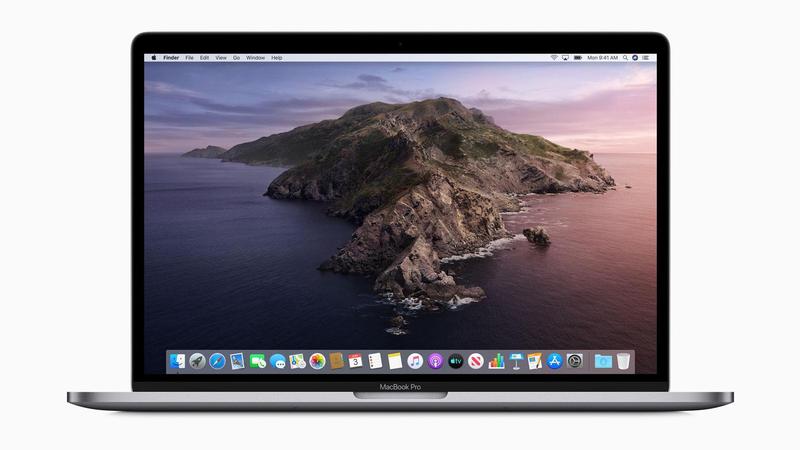
Finally, I posted an article about the forthcoming MacOS Upgrade to Catalina – which is a 64-bit operating system – and what it might mean for Mac desktop/laptop users. This has prompted me to consider this as a topic (not Mac specific) for later in this meeting. There are several links in that article that you may wish to follow, and which are not listed below, if you’re a Mac user.
Other issues raised:
Gill asked whether it was possible to print from an iPhone to a printer. Members were able to say … yes, if the printer supports AirPrint. I presume there’s an Android equivalent?
Renee asked about opening compressed files in emails on an iPhone. We got some way to solving that one, but agreed to take it onboard as a conversation on the WhatsApp Group.
If I’ve forgotten anything, please let me know.
Gear Guide
Has anyone bought, or obtained anything recently they’d like to tell us about? It doesn’t have to be a computer, laptop, tablet or phone – just something that’s digital, ie used a computer processor in some way?
Apps Galore
That slot in the meeting where members are encouraged to share their experience (and possibly excitement) at a new app they’ve started using for their smartphone, tablet, laptop or desktop machine.
Renee mentioned that she’d found DuoLingua a very interesting application for helping her learn a language just recently – others had used it as well.
What’s IT all about?
The next upgrade to MacOS – Apple’s operating system for its desktops and laptops (not iPads and iPhones) is 64-bit. Any software that is not compliant, that is it’s not written to meet the specification of 64-bit, will not run on your machine once the operating system has been upgraded. What does this mean though? Do Windows users face a similar issue, now or in the future?
I’m going to use this article as the basis for the explanation, using Windows as the operating system in question. But first, does everyone know what an Operating System is?
It has to be said upfront that Microsoft has been extremely “kind” to its users, offering backward compatibility even back to MS-DOS (a 16-bit operating system) for a long time so that you can even now still run old DOS programs using a 16-bit emulator for Windows 10. However, Microsoft has also confused its users ever since Windows XP by providing two versions of its operating system, one for 32-bit and one for 64-bit. If you had a previous version of Windows – XP, 7, or 8 – which had the 32-bit operating system installed on your machine, you are more than likely to have got the 32-bit version of Windows 10 installed on it when you did the free upgrade. But you can upgrade to the 64-bit version if your hardware will allow it. And there’s the rub, not all hardware will allow 64-bit processing and that’s why the MacOS upgrade is both helpful and annoying.
It’s helpful in that it sets a new benchmark for all software developers. They’ve known since December 2018 that this change was coming, and it’s not particularly challenging for Mac users as machines back to 2012 (including therefore my MacBook Pro) will be able to make the switch.
But why the change? Well as the first article spells out the biggest advantage of using a 64-bit processor is that it can address a much larger amount of RAM (Random Access Memory) and so therefore machines with more than 4Gb of RAM will benefit from faster processing if the applications are written to the 64-bit code base. Also more programs will be able to held in RAM, enabling faster switching between applications. Graphics intensive applications with the dependance on a large amount of memory space will also work faster. So there are huge benefits.
So should you as a Windows user upgrade to 64-bit Windows 10? That depends upon what you use your computer for. If you decide to stick with 32-bit be aware that Microsoft will one day dump 32-bit in the same way they “dumped” DOS, but the community of users is so massive that undoubtedly a 32-bit emulator will be written, by someone! But, you may choose to make the switch, if your hardware can take it, before you’re forced to jump; and in the meantime be aware that you’ll undoubtedly and progressively experience a slowing down of your software as more of them become 64-bit, and if you try and run a large number of them concurrently (at the same time) in different windows.
Some more links for you to ponder …
How to switch from 32-bit to 64-bit Windows 10
FAQs from Microsoft on 32-bit and 64-bit computing
32-bit app compatibility for Macs with current Mojave operating system
Incidentally, my MacBook Pro is still running High Sierra, the operating system before the latest one – Mojave. I intend to upgrade it to Mojave and then leave it at that operating system so that I can run some 32-bit applications such as Office 2011 and Adobe Lightroom 6 (and earlier) for a while longer. It is a seven-year old machine … it’s doing very well with the upgrades it’s had to it’s hardware – solid state disk, RAM increased, replacement battery – it’s not ready for the scrapyard yet, and it’ll be more difficult to upgrade to Mojave soon, once Catalina has been released.
My machine’s running slow!
Quite co-incidentally I’ve been approached by a U3A Group Facilitator who’s having problems with the performance of their machine.
This led me to do a search of Google for good articles that might be of help and value. We’ve looked at this before, of course for Windows, and I’m adding a couple of links below which might be of interest and assistance.
I use MacPaw‘s CleanMyMac 3 on my MacBook Pro, and I will probably upgrade to CleanMyMac X for both desktop and laptop before I do any upgrades to Catalina. Here’s a blogpost on how you can improve performance on your Mac.
Here’s an article that makes suggestions on how to clean-up both PCs and Macs.
So … to the Windows PC. Here are a couple of links:
Some quick ways of speeding-up Windows 7, 8 and 10 PCs.
Tips to improve performance with a Windows 10 PC – from Microsoft
Set of links from an earlier Thought grazing post on Windows 10 maintenance
Easy-peasy photo-editing … believe me!
You’ve taken a photo, or been sent it in an email, but you just feel that you could make it just a little bit better. Don’t despair, there’s an easy way of editing a digital photo in just a few steps if you have a Google Photos account, and if you don’t – here’s how to get one and how to get started with organising your photos.
Some thoughts. Most smartphones take images of 12mp or perhaps a little more. You can print a decent 15 x 10 inch picture from an image of that size

Google allows you to upload images without any compression up to 16mp – happy days!
So on to a demonstration … some simple edits to enhance an image.

For more guidance on Google Photos, the use of Backup and Sync and much more, you might like to visit (or re-visit) this Thought grazing page.
-

Watch out for Catalina!
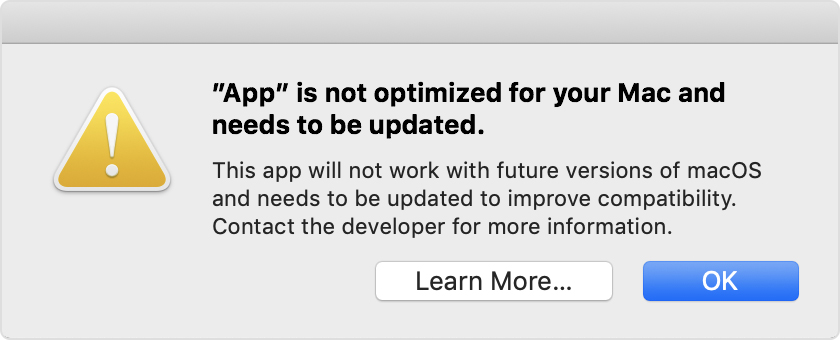
I was asked last week about a message that had appeared on a Lightroom 4 users’ screen with this warning …

… scary eh!?
Well yes it is but if you’ve got a relatively new Mac you do have the choice NOW of making sure you have the latest version of software that will support older versions of Lightroom, and do an upgrade to Mojave (v.10.14) BEFORE Catalina (v.10.15) is released later this year – probably in October. That way you’ll be nearly up-to-date with your version of MacOS and that may be sufficient for you if you don’t feel the need to have the latest version of MacOS.
If you have Lightroom 6 installed (or even 3, 4 or 5), you may be getting the message above EVEN THOUGH it is a 64-bit app. This is because the Installer/Uninstaller and Activation code software is 32-bit. That means the software “should” continue to work, but you won’t be able to re-install it to a MacOS of Catalina (v.10.15), or later.
The only other alternative if you want to stick with Adobe Lightroom is to swallow hard and subscribe at £9.98pm to the Photography Plan of Adobe’s Creative Cloud programme. You do get Photoshop as well as what Adobe call Lightroom Classic, plus their in the cloud version of Lightroom which they (confusingly) call Lightroom!
Adobe detail the changes and implications in this blog post. Another post from Laura Shoe Training gives more information here.
UPDATE: I’ve just read this really useful and interesting article from the magazine MacWorld – I suggest you read it too – and I’ve found out that Microsoft 2011 and Picasa (amongst others on my iMac) will not work with Catalina. Whilst I’m not particularly concerned about losing either of these as there are alternatives I’m already using – such as (in the case of the former) Google Docs, Open Office, Libre Office or Apple’s Pages, Numbers or Keynote applications – it’s better to be prepared and to have made the decision to move before I have to jump! Also in the case of Picasa, that I haven’t got anything in the database that I haven’t catalogued elsewhere – I think that unlikely, but I ought to check!
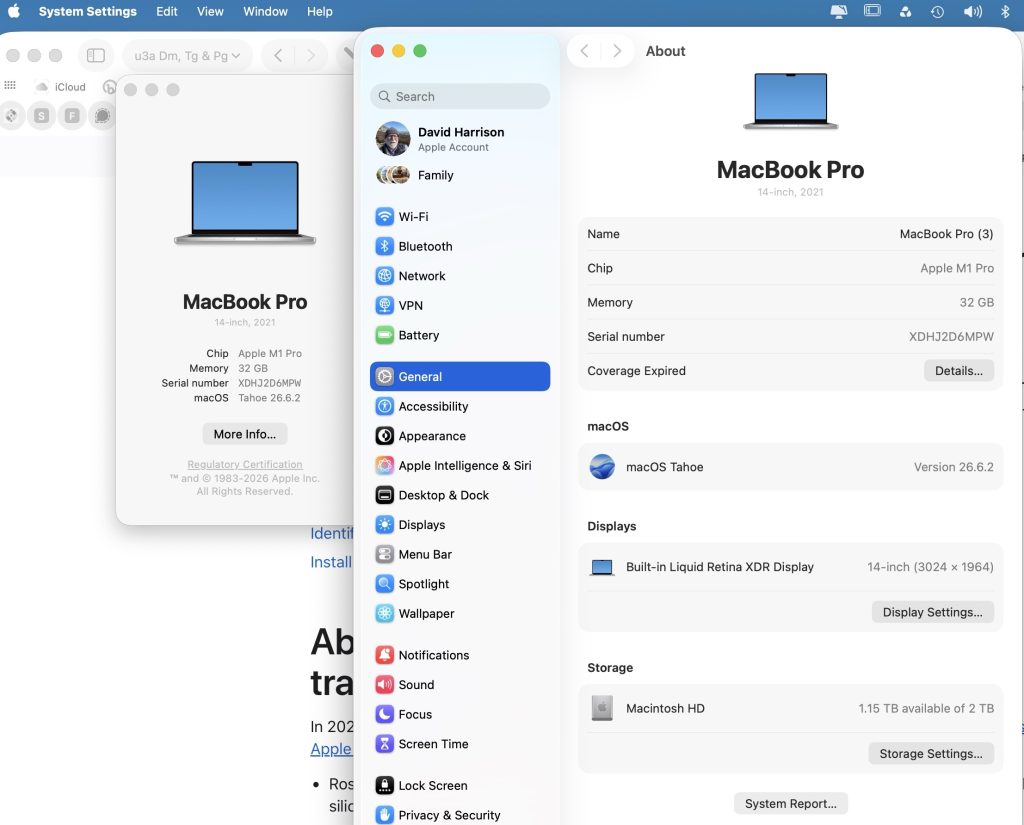
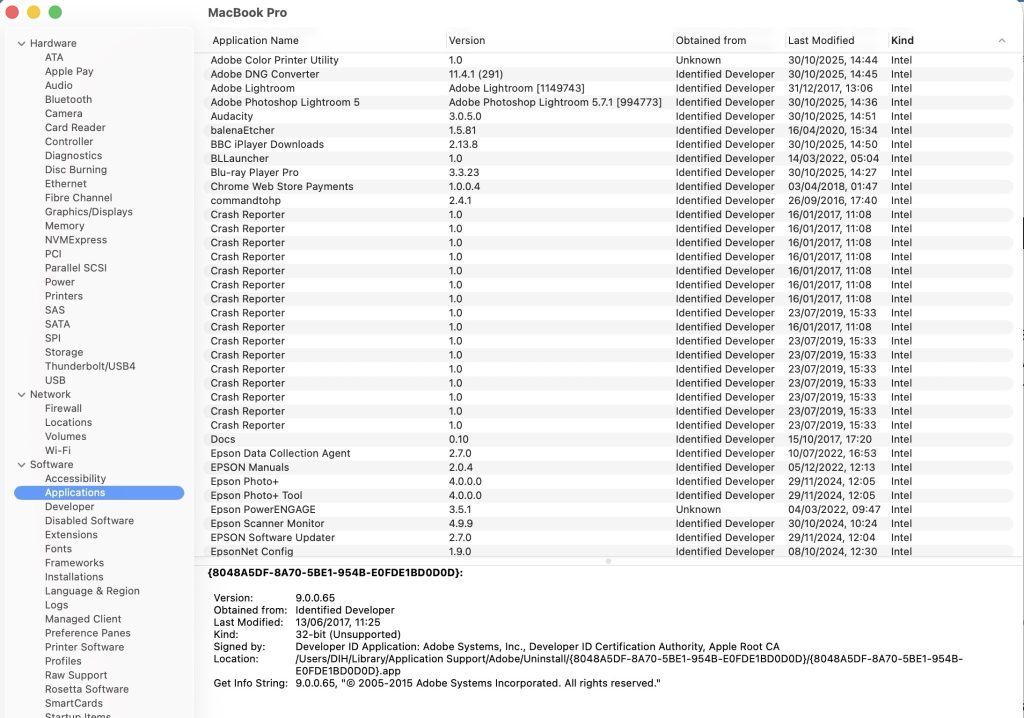
I’ve also stumbled upon an entry in “About This Mac > System Report …” which you get to from the Apple Icon in the top-left corner of your desktop. Go to Software and if you’re running Mojave there’s an entry called Legacy Software. Look at that and you’ll be able to see quickly what software is unlikely to work in Catalina. If you’re running an earlier version of MacOS go to Software and click on Applications and look for non 64-bit applications (a column to the right of the window).
Other links worth following …
MacOS 64-bit – what it means to you
32-bit app compatibility for Macs with current Mojave operating system
-
I've now had an introduction to the SBOD
Now I’ve been uber-charitable about Apple and their MacOS, but yesterday and today I was introduced to the Spinning Beachball of Death which froze me out of doing anything on my iMac whilst I trawled the internet (on another machine) trying to find out what could be wrong.
I’d not left the machine on, in sleep mode, and yet it just crawled through boot and sign-in until it basically gave up the ghost when it got to the Desktop. What could it be?
Obviously it was probably a hardware problem … wasn’t it? Well a bit of Cmd + R work, running disk utility showed everything was in fine fettle, many re-boots later things seemed to be improving, but not all was right. What could it be? Try logging-in to another account on the same machine I thought. Well I had one, but it wasn’t an Admin account, but it was worth a try. This seemed to be much better so I was now thinking about Corruption of the User Profile and the need to Restore from a Time Machine backup … maybe. But then, out of the blue, all seemed to be well again … until this morning, when the SBOD returned.
This time I knew it was likely to be something to do with my User Profile, so I setup a new Admin account once I managed to get to the screen that allowed me to do that. Logged out, and then logged into the new account and, as I hoped, the login screamed through. I set up the machine and right at the end I was told that my Paragon NTFS for Mac (which allows me to read Windows files) needed to be updated as it was not optimal for my version of MacOS (High Sierra, 10.13.6). The penny dropped! This software wasn’t installed on my MacBook Pro. This piece of software was interfering with Finder on the iMac in some way to slow everything down. Quickly into System Preferences then, disable the NTFS for Mac driver, and re-boot. All seems to be well. Some hard lessons learnt and a lot of time wasted.
The lessons learnt?- Have a spare Admin account on your machine so that you can check your user profile
- Disable, or Uninstall any software that you’re not using because inevitably it will go out of sync with something else
- Make sure that you know how to start your machine in a number of different ways to check for faults – I had to print out a cheat sheet to do this
- Make sure you have an up-to-date backup … just in case; I did, so that was my last option, and I’d have been OK … I think!