Tag: Google+

  • The right way to change Ts&Cs – Google learnt it’s lesson

    It’s not long ago that Google was described as “the evil empire” because of its perceived intent on hoovering up all the data it could about us in the endeavour to “provide the best search experience for its users”. Baloney of course – they just wanted to drive the monetisation of their platform as far as they thought they could get away with, and by now you shouldn’t pay too much attention to the search results that appear at the top of a Google search – they’ve almost always been “paid-for”.

    However, out of bad publicity they learned a lesson. When changing terms and conditions of use, or service, its best to explain clearly, and in advance, what they want, and expect, to do, and invite comment. That was most certainly missing from Facebook’s recent debacle with WhatsApp. So to show how it perhaps should be done, I’me including some recent screen shots from Google over the past few months …

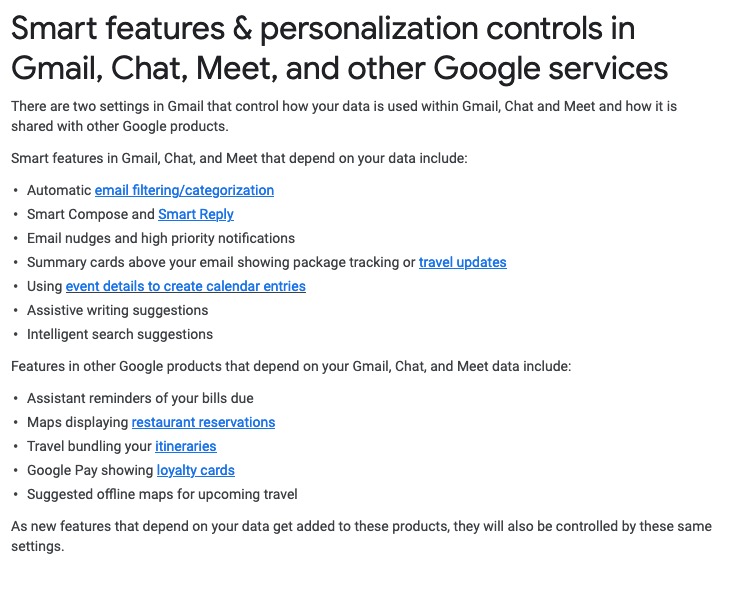
    A very recent change to Google services that is being proposed and communicated to users in an email. This was the first email sent …

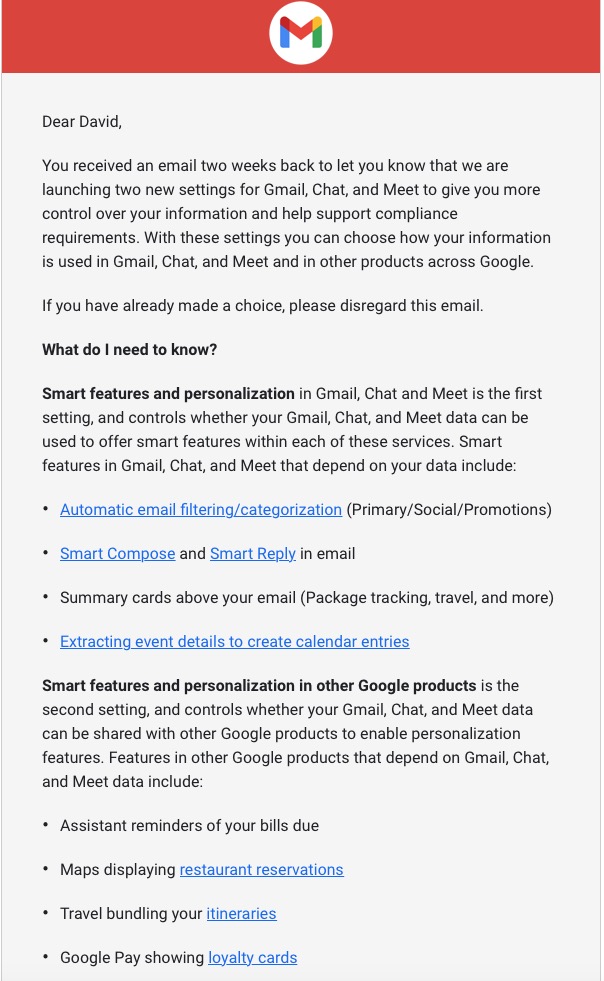
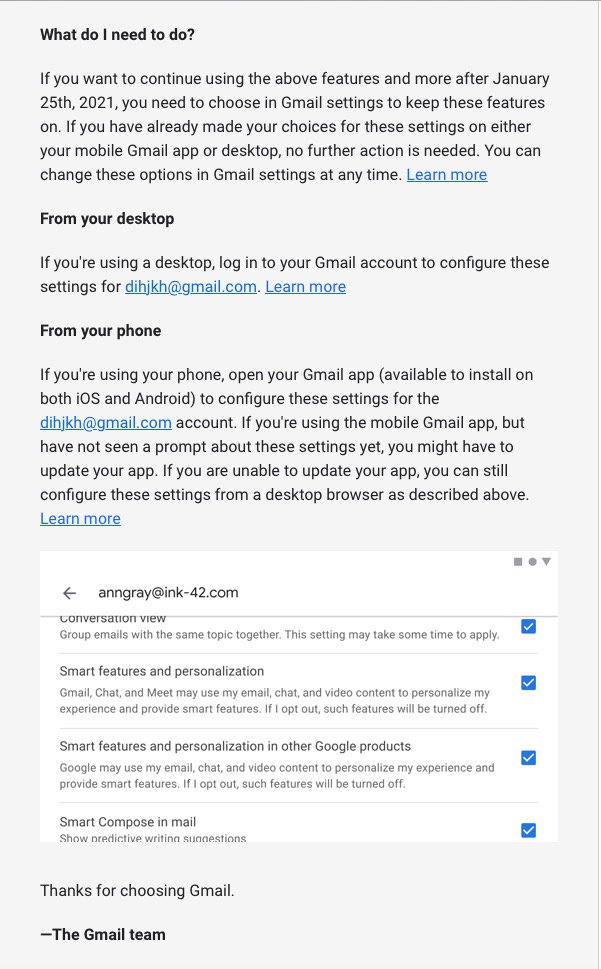
    … which was followed up with this one, which prompted me to do something about it!!!

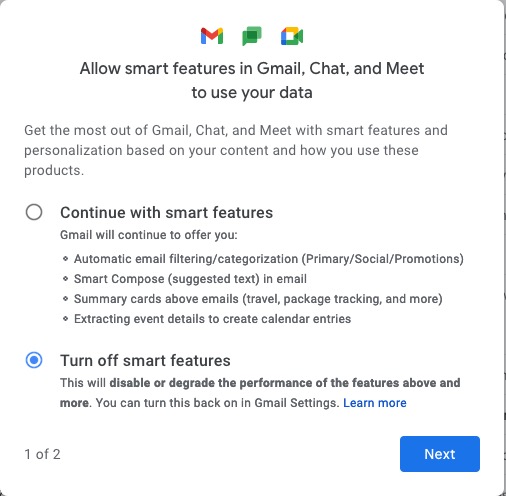
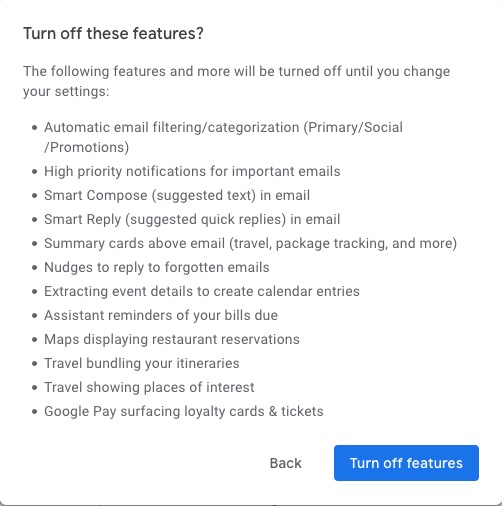
    Once into the application, you receive a screen like this one …

    I’ve now switched off these personalisations, but what I was doing was very clearly explained.

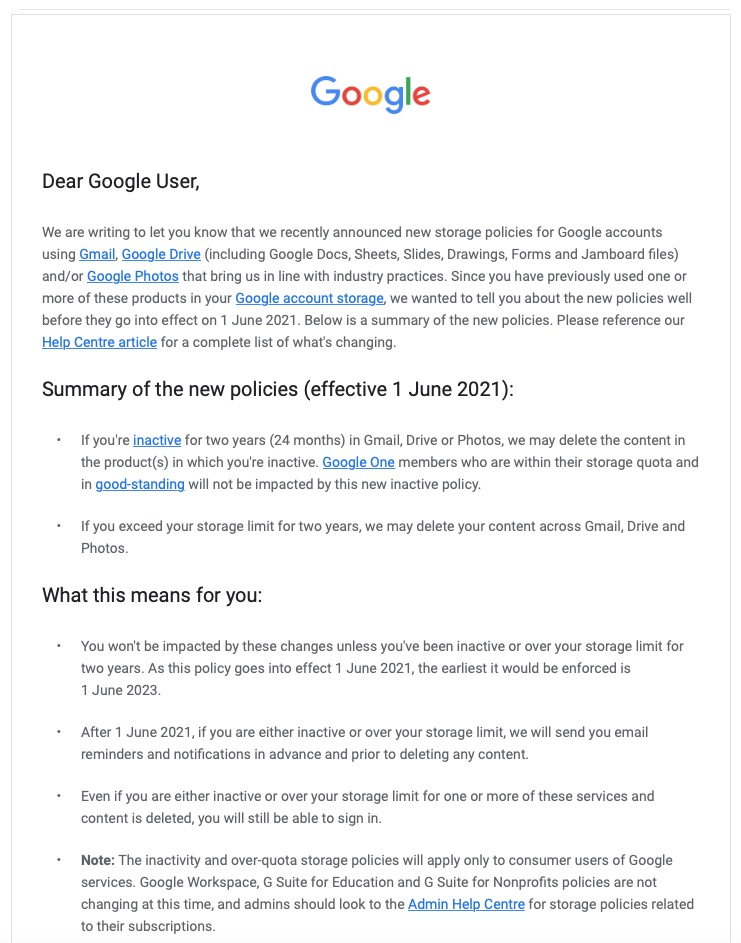
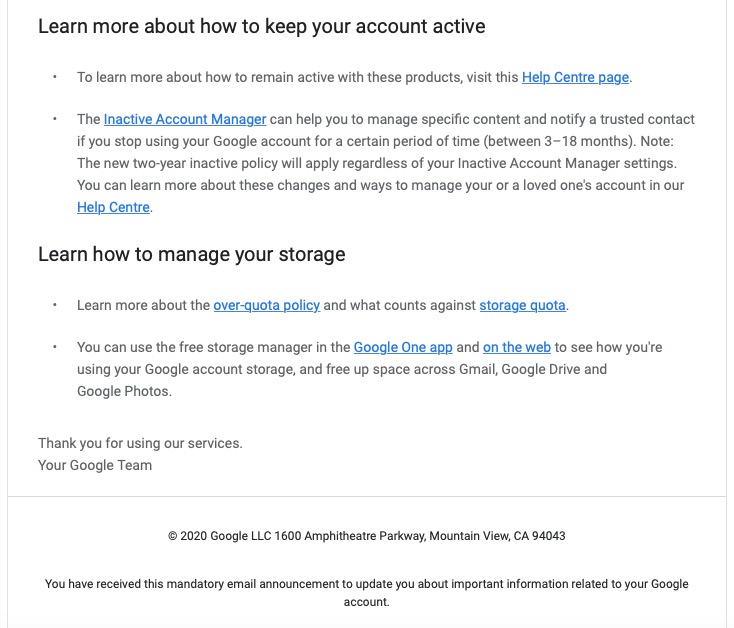
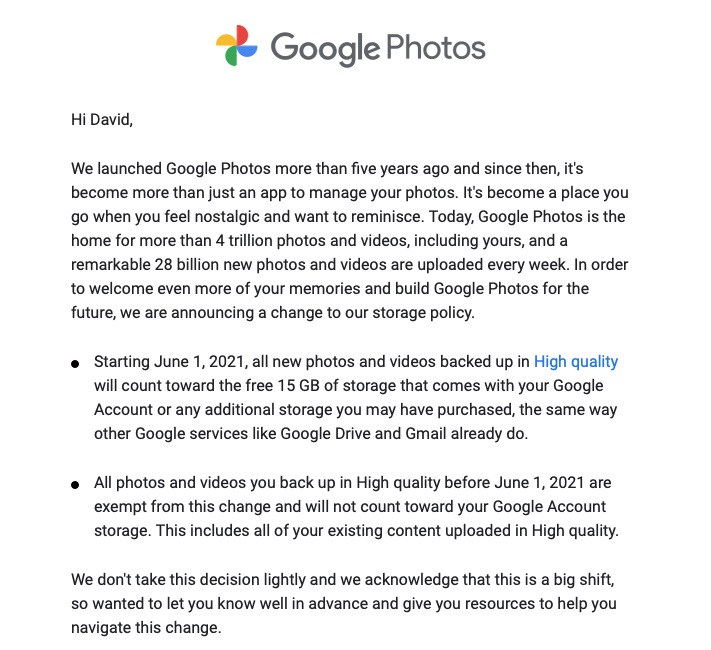
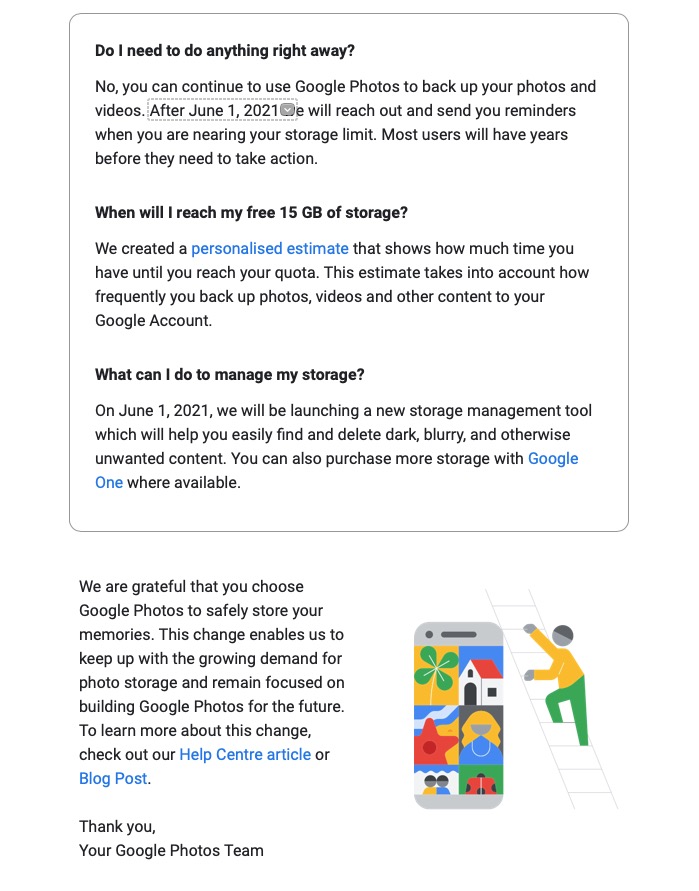
    Then there is this advance warning of changes to the storage policy that covers your Drive and Photos accounts. [I must do something about this as I have a number of Google accounts knocking about.]

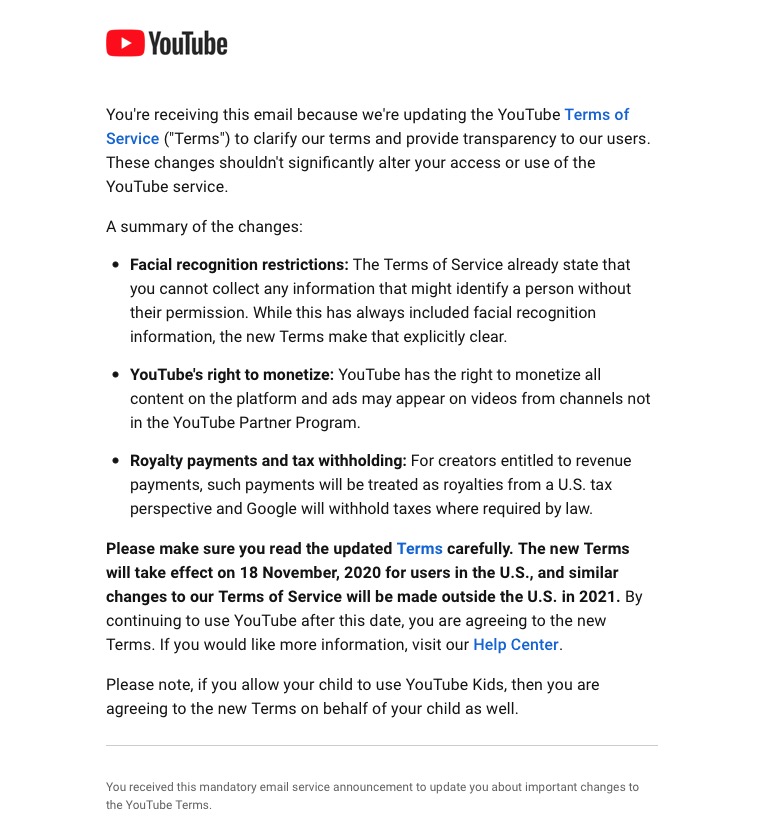
    A clear explanation of changes to YouTube – not ones I like, but there’s no attempt to hide what they intend to do, and it provides a hint that they will apply to us later this year when Google leave Ireland for the US.

    Changes to the Google Photos policy which is causing some distress, but is explained clearly and gives you a lot of time to work out how to use the service after June 1st 2021.

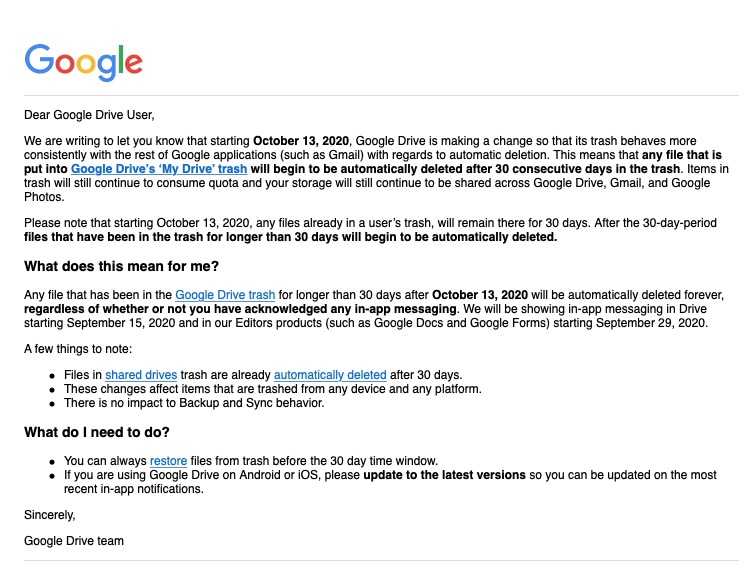
    Early notice of the intended changes to Google Drive, and how files will be deleted.

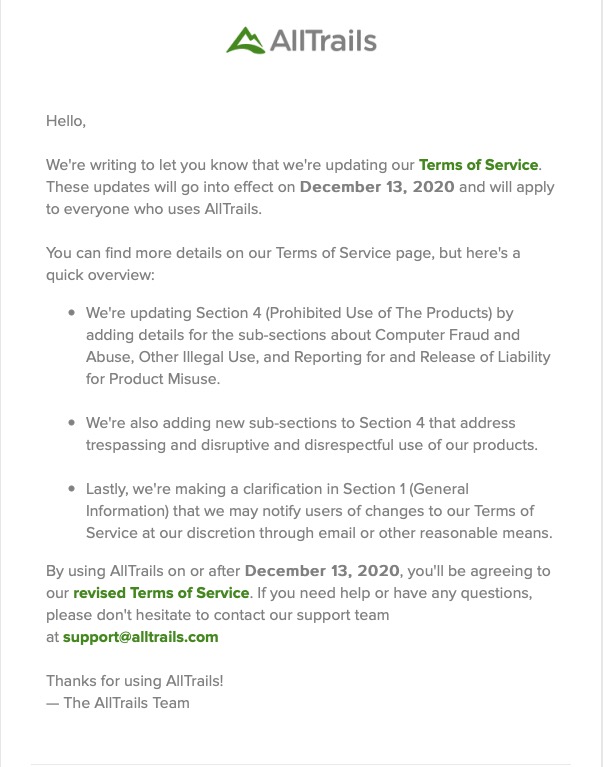
    Finally, another company explains clearly how and why it’s changing it’s Terms and Conditions – not something WhatsApp did. Shame on them!

  • Protected: Notes from Zoom meeting – 18th June 2020

    This content is password-protected. To view it, please enter the password below.

  • Microsoft re-enters the browser war!

    After Netscape Navigator was eclipsed by Microsoft’s  Internet Explorer as the browser of choice for many – mainly because it was hard-wired into Windows initially – the world of internet browsers has seen first the rise of Firefox from the Mozilla Foundation as an alternative open source option and then the succession to Google’s Chrome and it’s huge market presence.
    I’ve written about Google’s dominance and the alternatives to Chrome before in “Just Google it …”
    Now Microsoft has stirred from its inactivity in the browser market place. It has ditched its proprietary Edge browser and replaced it with … Microsoft Edge. No confusion there then!
    It is interesting because it will run on MacOS as well as Windows, something the old Edge didn’t do, and will use the same open source code base – Chromium – as Google’s Chrome and of course Brave (my browser of choice). This allows them to use Extensions written for that code base. I already use many extensions written for Chrome in my Brave browser.
    What will this mean for Google especially as Microsoft Edge will effectively have a built-in ad-blocker? Who knows. It’s certain that as more users decide to use the Microsoft version of Chromium, so Google’s business model and revenue stream will come under attack. Will they retaliate in some way? Probably not. Interesting times.
    Here’s an article that describes keyboard shortcuts that you can use with Microsoft Edge.

  • Protected: All things Google (and more) – 13th February 2020

    This content is password-protected. To view it, please enter the password below.

  • Protected: Settings II (Google) – 9th May 2019

    This content is password-protected. To view it, please enter the password below.

  • Protected: Organising and tidying-up – Part 1 – 6 Dec 2018

    This content is password-protected. To view it, please enter the password below.

  • Is it time to move to more paid subscription services?

    Is it time to move to more paid subscription services?

    I have to admit, the events of the past few weeks have made me look much more seriously at paying more for the IT services that I’ve taken for free up until now. Of course they’ve never been free, I’ve had to put up with the adverts and the email messages I don’t really want – alerting me to this deal, or that deal, and I’ve willingly put up with that as a price worth paying for the service I’ve been receiving. But two events have changed my mind, and moreover I feel the IT world is actually changing slowly as a consequence of the mistakes (to be exceptionally generous) of Facebook and Google; and the decision of Apple to switch more attention to Services, targeting this as their  main income stream for the future, and not relying on Hardware alone.
    So what were the earth-shaking events in the Harrison-IT-world? Well the first was Google’s announcement that having hidden the news of a potential security weakness in an API, for several months (presumably to secure their stock-market price at the time Facebook was struggling, and presumably also after ensuring that the potential breach was secured) they used this as an excuse to kill-off (sorry “sunset”) Google+ next August. Now this service was not the success Google hoped it to be, and most definitely has not generated the revenue they hoped it might, but for me, my family and for many communities (particularly of photographers – because of the close linkage to Google Photos) – it was a hugely valuable tool. Now, we have to look for another social media platform. It could be Google Photos – Google may have plans to “enhance” it to take on features from Google+, or it could be another platform, but it’s just a pain in the neck having to move off something we’re used to! Google have real history with “sunsetting” tools that people get used to using [Thanks to @MrSimonWood for this link.]
    The second was Flickr’s announcement that they were going to limit their Free account to 1000 images – excluding those that were licensed under Creative Commons, which a lot of mine are. They are encouraging users to take out a Pro subscription to remove restrictions and allow more and larger images to be uploaded. This didn’t meet with the same “horror” feeling. I immediately felt that this was a decision that would secure the future long-term of the service under the new owners – SmugMug. [A feeling that I didn’t have when 500px made changes to their platform which led me to delete my account.] So I immediately subscribed and took advantage of the first-year discount price (still available for a few more days I believe).
    So what am I saying. I’m saying that if there’s a service that I really want, and I really need some feeling that it’s going to be around for a while, I should pay for it. I wasn’t given that option by Google – shame on them; it appears I’ll never be given that opportunity by Facebook. Both of them are essentially marketing and advertising platforms. I don’t see either of them being able to develop a hybrid model as Flickr has been able to do.
    This all makes Adobe’s Creative Cloud Photography Plan and Microsofts’ Office 365 seem so much more sensible. I’ll continue with the former, but decline the latter as my roots are now firmly planted in the Apple world where I look to see how they will develop their Service offerings in Music, TV, Home and Car fields.
    Interesting times.

  • Protected: "It's getting to be a bit like Christmas" – 22 Nov 2018

    This content is password-protected. To view it, please enter the password below.

  • Protected: Creating a "magazine" – 25 Oct 2018

    This content is password-protected. To view it, please enter the password below.

  • Getting to grips with Google Photos

    Getting to grips with Google Photos

    It really is rather surprising that given the widespread adoption and use of Google Photos, that I can not find a sensible, easy to read, introductory guide on how to use it. Perhaps it’s because it’s so easy to use? Well, it is – up to a point. That point being how it works alongside Google’s other cloud-based software, ie Google Drive and Backup and Sync, and the now defunct and disconnected Picasaweb – where your photos are still accessible in your Google Archive.

    So this note is an attempt to set out what you can do with Google Photos using images obtained on your phone or tablet, or uploaded from your camera’s SD card. It will principally work from the principle that you’ve taken the photos, you want to upload them to your laptop or desktop (PC or Mac) and then want to work on them there using a web browser. That is not an essential workflow, you can do everything on your mobile device – if that’s where the photos are, even down to editing the photos using Google’s Snapseed application for iOS, or Android devices, it’s just the approach I’ve taken here. So if you want to do everything on your iPhone/iPad or Android device you can learn how to use Snapseed on iOS here, I believe the application is nearly the same on Android.

    To avoid duplication of effort however, here is an article that you should read first. It covers nearly all the features of the device apps, and the web browser version, and in particular handles some of the editing functions available, but it doesn’t cover the intricacies and peculiarities of the Backup and Sync tool.

    So … how do you get photos into Google Photos? This Google article tries to explain how you can use Backup and Sync to do that. How does Google Photos work with Google Drive? This Google article attempts to explain how. Confused, I thought you would be! This is what I’ve done, why I’ve done it and perhaps most importantly how I do it!

    Sometimes, it’s best to work backwards from Google’s most recent announcement because in doing that you can be reasonably sure you’ll be moving in the right direction … forwards! Google has separated Photos from Drive and is encouraging users to deal with them separately. It’s a continuation of the separation which started when Photos was spun out of Google+.

    So how do I get my photos into Google Photos? From the iPhone/iPad (or any other smartphone that has the Google Photos app) it’s quite straightforward.

    From the menu icon, choose Settings, enable Backup & sync and then make decisions as to the quality of the images, and when they’ll be backed up (uploaded). I have opted to use the High Resolution storage option, and for them only to be uploaded when connected to a WiFi network. The reasons for this are that my main photo software is Lightroom and I have a different method of working with that. What I want to use Google Photos for is essentially sharing albums with family and friends.

    From my desktop/laptop it’s almost as straightforward. I connect the camera by USB cable to the computer, or insert the SD card from the camera into the SD card reader in the computer and I will be prompted with this message …

    They should then get uploaded to Google Photos and the images can be seen in my Google Drive as an entry under USB Devices & SD cards, from which I could copy them to a folder on my Google Drive – I don’t recommend you do this.

    So there you have it. I’ve disentangled Google Photos from Google Drive; I’ve used Backup and Sync to upload photos to Google Photos and I’m now ready to edit photos, create albums and share images through Google Photos.

    Finally … if you were a user of Picasa and Picasaweb, your photos are still accessible. What you can, and cannot do with them is recorded in this Google Help document. You can still download and use the PC or Mac Picasa desktop client for editing your pictures and if you want a simple photo-editing tool to get started with as long as you’re using a 32-bit operating system (ie not Apple’s Catalina or later), it’s a good place to start, but, it is no longer linked to Google Photos (or Picasaweb).  However, there is a workaround!

    When you save an image that you’ve edited in Picasa, you can save it to a folder that will then be automatically scanned by Backup and Sync and thus uploaded to Google Photos.

    [NB Only those who attended my two sessions on Google Photos will actually understand why I included the really uninteresting image at the top of this post – I’ll leave the rest of you to ponder on what could possibly be the reason 🙂 ]