
Tag: 2022
-
Browsers and Search Engines – 2022
It’s always worth reviewing which search engine you should use, as it is the browser of choice to “surf the web”. The reasons you might wish to consider which search engine you might wish to use are greater privacy, enhanced security, minimise adverts being displayed, or to get more meaningful pages being displayed, but first we’ll look at the web browser you might want to use.
First things first. If you’re using Internet Explorer you must seriously consider moving to Edge as Microsoft are removing support for Internet Explorer and one day you’ll find it just doesn’t work. If you’re using the initial release of Edge you should also upgrade to the latest version. It’s faster, more stable and uses the same code base (which is the open source Chromium) as some of the other browsers I’ll talk about later.
The next thing to remember is that Google is not a Browser. If you have a Google app on your smart device, it’s just Google’s “convenient” way of getting you to use their search engine and capture lots of useful marketing data from you! Google’s browser is called Chrome, and it uses the same code base as Edge (as mentioned above) – others include Brave, Opera and Vivaldi.
Chrome is by far the most popular browser accounting for more than 80% of the internet browser traffic, it has a wide range of useful extensions, and if you can be bothered to create a Google account and navigate through the preference screens, you can make it reasonably private – but you may wish to install the AdBlock Plus extension – an advert blocker, to stop intrusive adverts appearing on your web pages. [Another way of doing this is to look for Reader View, created for users with visual disability originally, which simplifies the view of a page on your browser screen.
But why use Chrome when you can use another browser which has built-in privacy. I’m talking about Brave. You can deploy many of Chrome’s extensions in Brave and virtually everything you see looks like Chrome, but without tying you to Google. I seriously recommend you look at Brave.
If not Brave, why not Microsoft Edge. The complete re-write of Edge using Chromium and with the support of Microsoft behind it makes this an excellent choice for those who use a lot of Microsoft applications (eg Office 365 which you can run in the browser, just as you can run the Google apps in Chrome) and is growing fast in popularity even if it’s Preferences menus are a bit tricky to work your way through.
If you’re an Apple user, I suggest you look no further than Safari, although all of the others can run on MacOS. It’s optimised for the Apple platform and integrates well with the other apps in the Mac/iPhone/iPad ecosystem.
That leaves two “outliers”. Firefox was one of the first browsers growing out the original work done on Netscape, it’s open source and has a huge and committed user-base. I have nothing to say against it, and nothing much to say for it either. It’s a good solid internet browser.
A couple of references to follow this up then …
The best web browsers for 2022 – ranks them under various categories.
The top ten internet browsers for 2022 – reviews the pluses and minuses of various browsers.
So we turn to Search Engines. You want to find something out on the internet – you just google it, don’t you? Well you can, but there are other choices as well, and this is where privacy concerns might suggest you might want to look at an alternative.
I’ll be upfront. I’ve been using DuckDuckGo (often in combination with Brave) for a couple of years now. I value the fact that my activity on the internet isn’t tracked and the results that are returned are not slanted towards my prior search history, and most importantly my activities are not farmed off to marketing agencies.
There’s nothing wrong with Google Search – it’s the most popular on the internet, but that’s by default rather than choice. The results are presented well, but there is a slant towards promoted results and results based on previous searches. You can change your search preferences a bit, deploy an ad blocker (see above), but why should you haver to!
DuckDuckGo is now presented as an alternative search engine in most, if not all, browsers and exists as an app on smart devices as well. Give a try! It’s my default search engine on my Apple devices.
The only real alternative to Google Search and DuckDuckGo is Microsoft’s Bing. The service has its origins in Microsoft’s previous search engines: MSN Search, Windows Live Search and later Live Search. Bing is now the code base for Yahoo’s search facility as it is for Ecosia – an ethical green alternative. Ecosia importantly doesn’t use any third-party tracking tools, meaning that any search made on the service won’t be seen by any party other than Ecosia. Furthermore, any search made on Ecosia becomes anonymized after one week. In contrast, Google and Bing will hold onto bits of search data (such as the device or date), even after deleting browser history and cookies.
That’s about it, some references then …
The ten best internet search engines of 2022 – a review, like the one above that highlights strengths and weaknesses of the various search engines.
-
Stolen phone & SIM locking
[Minor changes and an addendum 25th January 2024]
A rather disturbing incident involving a stolen phone and credit cards and the ability of a fraudster/thief being able to reset a user’s password/pass-number for a high-street bank occurred in September involving a journalist called Charlotte Morgan. She described what happened to her (and it transpired others) when her phone and credit cards were stolen from a locker in her local gym.
The incident was covered by the BBC https://bbc.in/3Vm8ylH and https://bbc.in/3CukHMS and also in the papers.
The incident was described by the FT Adviser in two reports – firstly the incident, and then (belatedly) Santander’s response.
Charlotte chose to broadcast her experiences on twitter and got a range of helpful and supportive pieces of advice.

So we start with the first piece of advice – keep your phone and your credit cards separate. Don’t store/keep them in the same place. Maybe, if you follow the advice that follows later you should just keep the credit card details only on your phone and dispense with using plastic. For Apple that involves storing the card information in your Wallet.
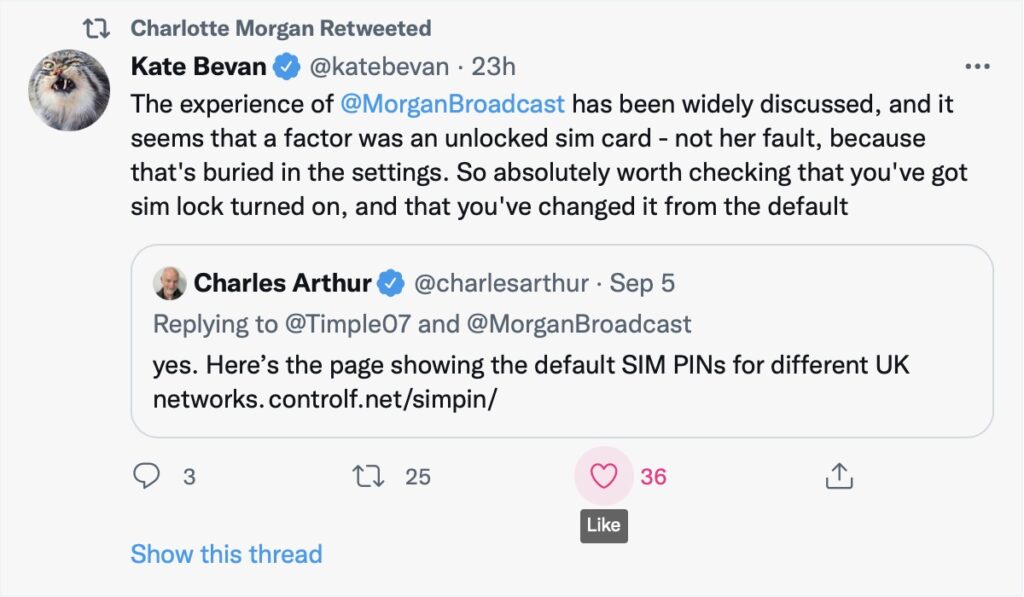
And this is the security loophole that the thief was exploiting. The default setting when you get your new phone, and insert the SIM is to leave the SIM unlocked. This means that the SIM can be taken out of the phone with your network details (and more), and inserted into another phone. Not really what you want, is it? So, lock the SIM to your phone, and by doing that, if the SIM is taken out – it is of no use in another phone. You will need to remember the new PIN you create which you will have to supply when you power-up your phone, or when you change it for a new/replacement. This is obviously an important piece of information to remember!!! There is no way you can recover the SIM PIN yourself if you forget it, you have to contact your carrier and get a new SIM and a PUK.
So what actually happened. This thread explains it well …
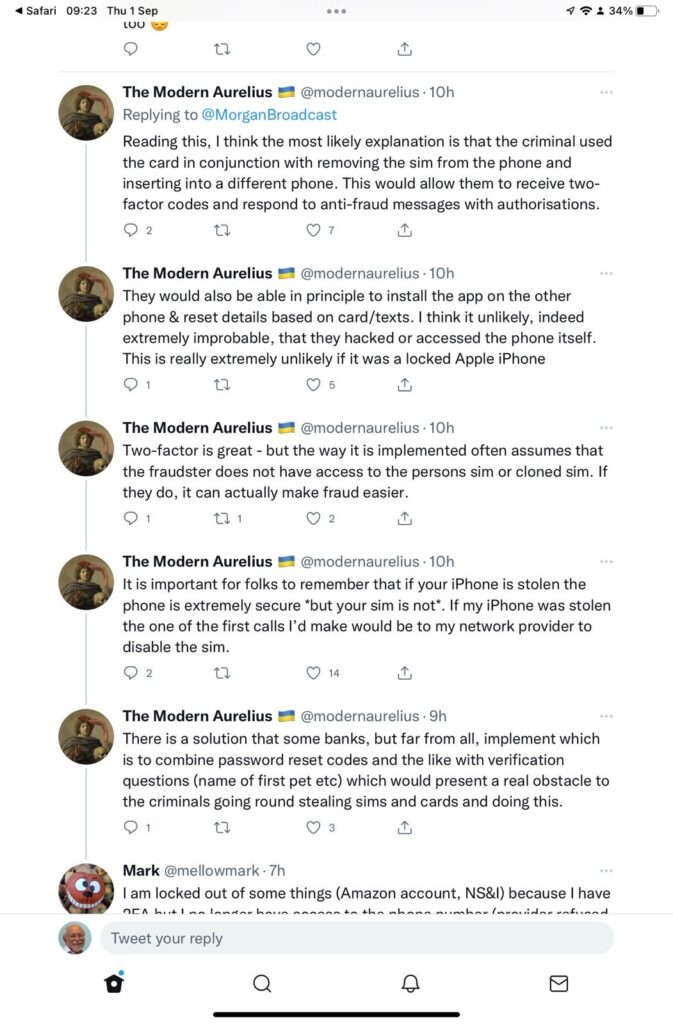
So what do you do? On an iPhone or Android …..
But what are the default SIM PINs that network operators use?
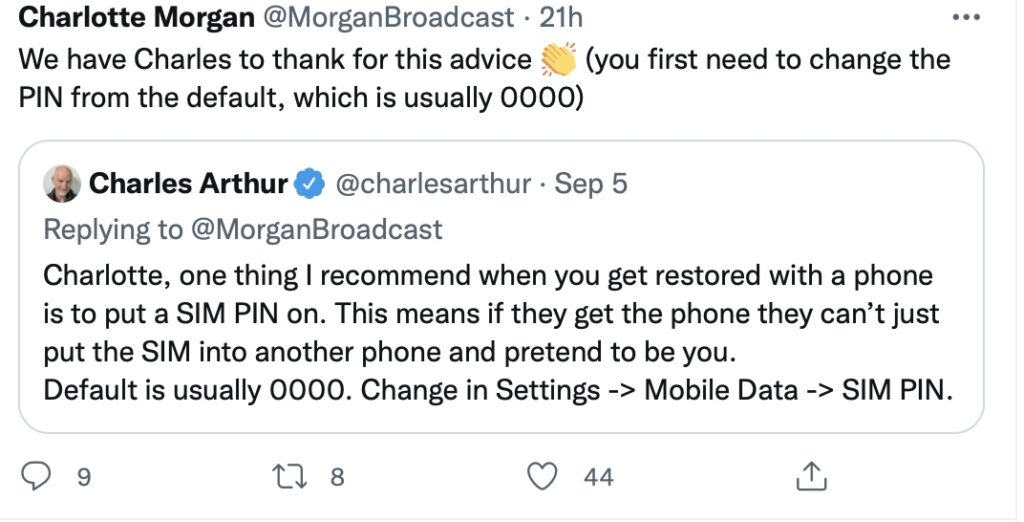
This link will be useful as it lists the default SIM PINs for the major network operators. These are the ones you need to change to your own personally chosen PIN.
It really is quite important. Change your SIM PIN and keep your credit cards separate from your phone.
Addendum: Remember – we had personal experience of SIM swapping and that’s written up in this post entitled “Identity theft”.
-
Getting photos to the cloud(s) and back
This article is prompted by a combination of a casual enquiry about sending photos from your iPhone to Google Photos (hosted on a Google Drive), and my own discovery that I was backing-up iPhone photos to BOTH iCloud and Google Photos.
Observation one. Google Photos and iCloud Photos don’t work in quite the same way. Whereas you can access the Photos you may have stored on Apple’s iCloud storage from icloud.com through the iCloud Photos app, you cannot access Google Photos from drive.google.com directly – you have to go to photos.google.com to access them. Google Photos uses up some of your Google Drive storage – you get 15Gb “for free” with a Google account – but it’s a standalone application, in the same way as Google Mail is. It’s an important distinction. Google provides you with applications which make use of their cloud storage, Apple provides cloud storage alongside access to applications which use that storage and which synchronises back to devices.

The iCloud window {Access to all Apple applications and cloud storage} 
The Google Drive window {NB No access to Photos, or Mail} 
The Google Photos window {separate from Google Drive} Observation Two. This article concentrates principally on Google and Apple, because they are the two principal players in the Camera and Cloud Storage space. There are other cloud storage solutions on which you can store photos, eg Microsoft’s OneDrive, and Dropbox. I will only refer to these briefly at the end of this article. There are undoubtedly other cloud storage solutions, but I won’t be writing about them.
Observation Three. Anything I write about the link between Camera and Photos on an Android/Google system is second-hand knowledge, and I cannot verify it!
Observation Four – the final one. This article does not seek to cover the general topic of transferring photos from a phone to your computer. This is more than adequately covered in this article. I suggest you read it too.
Not wishing to be dismissive, but just because it’s so straightforward – I’m going to discuss Google Photos first. If you have an Android phone and thereby have a Google account, you automatically have 15Gb of cloud storage and the two are linked, and by default any photos you take on your phone are backed-up to your Google account. This is described well in the Google Support article. A couple of things are worth highlighting however: a) you can switch-off automatic back-up and synchronisation of your photos, in which case all backups would need to be done manually; b) you should carefully choose the “quality” of the photos you back-up – they may not be the same as that of the photo on your device; and c) it would appear that you could backup photos to a different account from your main one, thus adding to the free 15Gb you get with each account. [Alternatively, for £15.99 a year you could get an additional 100Gb of storage from Google. If you aren’t an Apple user this is definitely worth considering.]
It’s not that much more difficult if you want to save photos from your iOS (iPhone or iPad) device to the Google cloud storage. Again the Google Support article describes the process and the options quite well.
Similarly if you’ve transferred photos to your computer (eg from a camera SD-card), then Google’s got you covered to back-up and sync to their Cloud storage in this article. You should nominate a folder on your computer that Google Drive will monitor for newly added files which will then be backed-up and synced to either Google Drive, or to Google Photos, or both, depending upon the option(s) you’ve chosen.
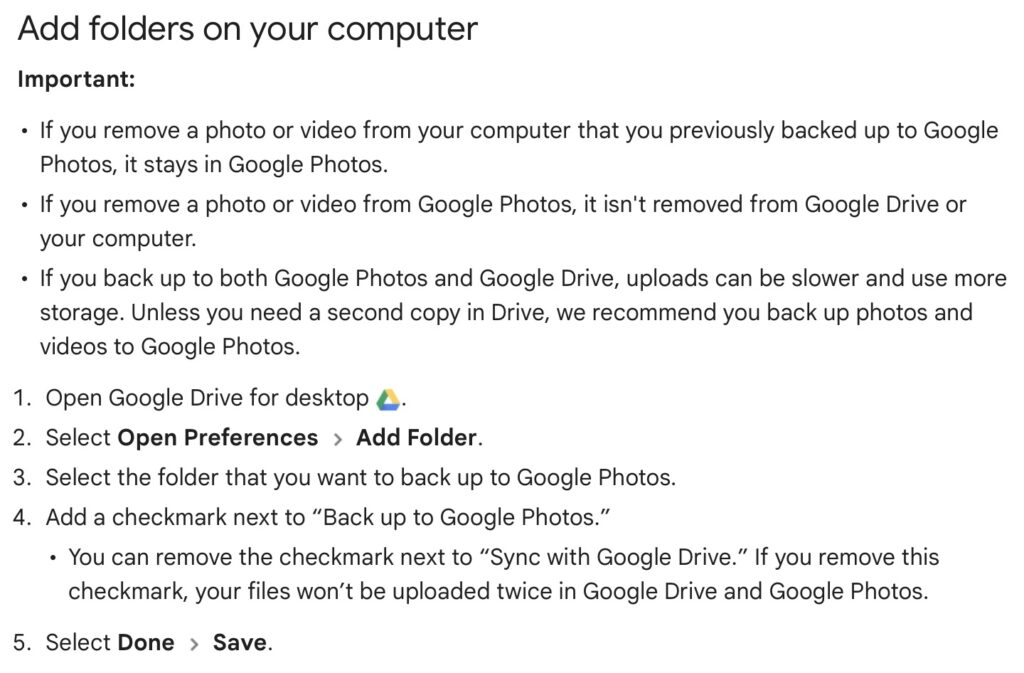
Note (4) – you might get two copies if you don’t uncheck “Sync with Google Drive” For this to work however, you do need to be sure you’ve a) installed the Google Drive on your computer, and b) you’ve set the preferences the way you want them. In my case, since I’ve increased the amount of Google storage I have, I’ve chosen to Mirror a folder (in itself called Google Drive) – then both the folder on the computer, and the one in the cloud should be exactly the same. A mirror in fact. Anything I add to (or edit on) my local Google Drive will be copied to my Google Drive in the cloud.

So we turn next to the Apple ecosystem. [I should feel more confident here, but as you may have noted that I disclosed at the start of this article that I was doing something extremely stupid and not noticing my idiocy.] Here the support page on Apple Photos and iCloud I think really does a good job of explaining your choices and how to set up backup to their cloud storage. I don’t think I can improve on it. But what if you’ve got Google Photos installed as well on your iOS device? This is where I made my foolish mistake. I enabled Backup and Sync on my iPhone and so I got TWO copies of every photo – one in my Google storage in Google Photos and the other in my iCloud storage. Duh!!!
Disabling the Backup and Sync left me with an image which was shared locally between the Google Photos and Apple Photos apps. How could I get that image (or group of images) onto Google Photos to perhaps share with friends or family?
It turns out that there are two reasonably easy ways of doing this. By enabling iCloud Photos on the phone (or tablet) …

Set iCloud Photos to On … I can then download from iCloud to a folder on my computer which I can then upload to Google Photos from. Really rather simple and not a use case for Google Photos Backup and Sync to be employed.
Alternatively, I could go into the Google Photos app, select the image I want to send to Google Photos in the cloud and Share it by getting a link and then sending myself a message. The act of sharing it copies the image to the cloud, from which I can then add it albums, etc.
Using either of these approaches allows you then to obtain a link for the album which you can then Share to a list of users, or obtain a link for public sharing.
Once you get the photos onto Google Photos the fun starts. It’s not intuitive what happens when you decide you want to delete them either from the cloud, or from your device. In fact it’s downright confusing. I’ve written about this in another place (the public Thought grazing) and life is too short to repeat anything on here that I’ve already written over there, and believe still to be correct. Best of luck!!!
The situation with deleting photos from Apple Photos and iCloud Photos is slightly more straightforward and I’ve written this up already, so won’t repeat it.
It goes without saying that keeping it all in the Apple ecosystem (for me) makes a lot of sense, and with the ability to share albums on the way – it’s not yet as sophisticated as the Google Photo Albums service – I may transition away from Google Photos altogether in time.
If you’re a PC Windows user with an iPhone, then a solution is beginning to appear that enables you to use the Windows Photo application with iCloud. You can install iCloud for Windows on your PC and then you should be able to manage your iPhone photos from your desktop.
For Dropbox users, you can setup an automatic upload of photos to the service. They even give you a bit more free storage if you enable this, or at least they used to!
-
iCloud Photos, Photos on Apple Devices and iCloud Drive
The seed for this topic was sown by Ian at our meeting on October 13th 2022. I had to admit that although I had a reasonable idea of what happened with Google Photos, I was unsure what happened with Apple’s cloud offering.
I was reasonable quick in advising (and it’s reported in the notes of the meeting), that as expected …
“I can confirm that deleting a file on iCloud Drive from the Files app on an iPhone will delete it from icloud.com and your iCloud drive on MacOS as well – which is what you would expect should happen.”
However, the situation of Photos stored in the Apple Photos app (on iPhone or iPad) and iCloud Photos should also be noted – for completeness.
I’m not going to write anything; just provide three links to follow to clarify …
How to Delete Photos From iPhone but Not iCloud
How to Delete Photos From iCloud (While Keeping Them on Your iPhone)
and
How to recover a deleted photo or video on your iPhone or iPad
If you want to delete a Photo from both device and iCloud Photos. Just ensure Sync is left on and then you can delete the image from either the device or icloud.com
Having confirmed all this, and having more storage space on iCloud, and understanding that sharing Photo Albums is about to come to Apple Photos, and having checked that Sync’ing does seem to be working for iCloud Photos (from my Apple devices), I checked my Google Photos settings settings and switched-off Back up and Sync. I was doing far too many cloud backups!!! Always worth checking. If I want a Photo to be on Google Photos (for sharing for instance), I will now Upload, not rely on syncing.