
Always good to get a review of the latest scams, and to put your mind at rest too. I intend to write another post for the Cardiff u3a website soon, and this article will be useful background …
Blog
-
The drawbacks (possibly/allegedly) of entering the Apple ecosystem
I’m only posting this to indicate just how open and fair I am (HaHa) …
https://www.howtogeek.com/before-you-commit-to-the-apple-ecosystem
-
The Rule of Six:- Smart watches.
Remember the digital chip that was inserted into the Covid 19 vaccine….the one that would kick into action at some unspecified date and force you to do things that you might not have considered before? Mine forces me to buy tech products. That digital chip even knows my P.I.N. number. An Apple Watch was one of my most recent purchases but I might say that I’m absolutely delighted with the device. It looks after me; a bit like having Jiminy Cricket on my shoulder. It does things for me that are really useful, potentially even vital.

- It has a feature called Fall Detection. Those who know me will know that I’ve had a few falls over the last few years. I’ve sustained quite a few injuries including three broken ribs once. Believe me, falling over is no fun. Luckily, every time it has happened there have been kind Samaritans around, but what if I took a tumble whilst on a park walk, where there was nobody around? That is where Fall Detection comes in. The watch will know when you’ve fallen over. On the screen it will show a message, “You’ve fallen over. Are you O.K.?” You then have one minute to respond to that message. If you don’t respond within one minute, it will send for an ambulance, sending it to the GPS location provided by your watch. Here are a couple of videos. https://youtu.be/yZgzAhBa7Kc?si=2eTcmhPMFsJgIpKi. And https://youtu.be/OWasOBv15qk?si=zjaMW5gnKDcX8j2H
- Medical I.D. You can tell your phone and your watch your ailment and prescription details. Now, I know we should be wary of giving computers too much sensitive information but as far as I know, this information can be gained from my watch by medical professionals in times of trouble only.
- Health monitoring. The watch can give you all sorts of information about your health. This includes a step counter, sleep monitor, it can even monitor your walking steadiness. It is even said that it can detect atrial fibrillation although you might want to check that out yourself. The more expensive models have blood oxygen and ECG apps included. I went for the cheapest model, the SE second generation. (£219 at the moment). I think that is sufficient for my personal level of hypochondria.
- A torch. Nifty ! There are a couple of ways to get the screen to light up, giving you roughly the illumination level of a candle. Sufficient to help you find the toilet during night time excursions in unfamiliar hotel rooms. Use Siri (yes, the watch has Siri) and simply say ’Torch on’, or for Harry Potter fans, say ‘Lumos”. To switch off, simply place your hand over the watch face.
- Answer the phone. If your phone is in another room and rings, you can accept the call from your watch, speaking and listening to your watch. You can also send text messages to your watch using Siri.
- Alarm clock / timer. Simply ask Siri to set an alarm. It wakes you with vibrations on your wrist. This is actually a really pleasant way to be woken up.
Things to be aware of.
The Apple Watch works in conjunction with your iPhone. It won’t do much on its own.
I haven’t looked in to this, but I’m pretty sure that there are alternatives in the Android world that will do pretty much the same thing.
There are other, far cheaper brands of Smart Watch available. I tried a £40 model but I had to stop using it because it made my wrist itch.
Oh, and just one more thing, especially for the gentlemen in the group.
From How An Older Man Should Dress | Older Man’s Clothing Tips 2024
Older Man Clothing Tip #4: Own the Latest Technology
-
Scams – Part 1
[A short series of posts that I aim to also put up on the Digital Matters page of the Cardiff u3a website]
If you watched Rip Off Britain on January 15th [Episode 35 of Series 15 at c. 29mins 45secs into the programme] you will see an expert describe the Scam that one of our members has experienced recently and which has led me to write this post which may well be the first of a number on the subject of Scams.
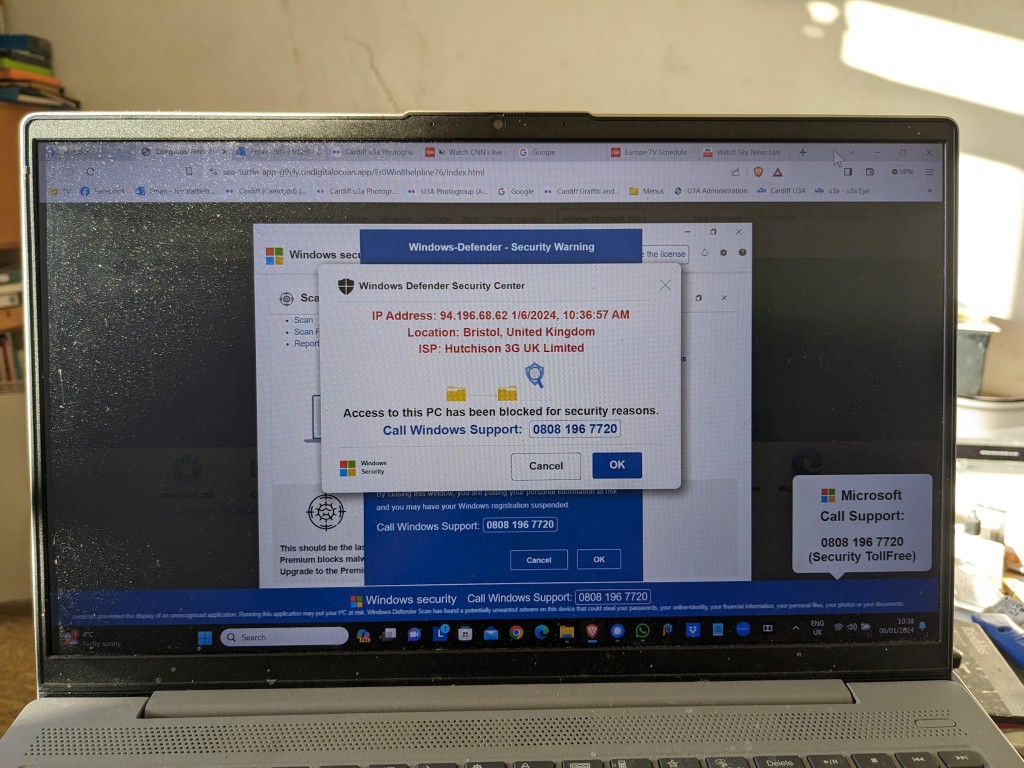
This scam manifests itself by your computer screen being taken over by a popup which also freezes your screen. You are instructed by a voice-over not to turn off your machine but instead to ring a telephone number where you will be “assisted” to unlock your computer which has been locked – in this case supposedly by Microsoft, but it could be any large tech company – for your protection.
This alarming message plus the fact that your screen has frozen may lead you into thinking you better click on the button to seemingly connect to Microsoft. This will lead to a telephone conversation where you will be requested to supply information that will undoubtedly lead to fraud.
Do nothing!
Note well: No tech company will approach you in this way. They will not be doing this form of online monitoring of your devices. In this case the scam is preying on the fact that you are being led to think that your Windows Defender Security package is not working properly. No tech company would readily admit to its users of a deficiency in their programs in this way – that could lead potentially to legal action being taken against them. For a genuine issue they might issue an alert on their webpages and a request to upgrade (or whatever), or they might be forced to send an email to registered users, but they would not send unsolicited messages in this way.
It is important to realise that with this scam, at this stage, the scammers know NOTHING about you. The scam works by malicious code having been added to a website you are visiting, or to an advert on the website you are visiting. The simple solution is to press F11 to unlock your screen, note the website address and make a note not to go to that site again. [I would probably also recommend clearing your internet cache and history from your browser before closing down your computer; waiting a few moments; and then re-booting it.]
The more long-term solution is to install an Ad Blocker such as AdBlock Plus as an extension to your browser. This would act in conjunction with your standard security software which on a Windows machine could well be Windows Defender.
Happy, safer surfing.
If you want to see the recording of the message that our Digital Matters member made of the scam, watch the video below …
-
Notes of Meeting – 14th December
Apologies from Christine, Jo & Paul, Jeanne & Mick, Kate, Jen, Jonathan, David Hughes, Tony and Sianed.
We welcome Iain King to his first meeting.
Thanks to Phil for his presentation on his visit to Bletchley Park.
I then went through a variety of “interesting” items that I’d put up on Flipboard, highlighting the ones on Meta introducing a possible subscription model to avoid sanctions from the EU on data sharing; an article from Which? on printer ink; useful things you can do with a smart plug; and how to keep your iPhone safe from thieves.
Before we adjourned to The Gatekeeper for a Christmas drink, we had a quick run round the room for issues.
Anne still hadn’t found a solution to her McAfee in Spanish language problem.
Phil enquired how many members had a screen protector on their phones, and whether they had been installed in-store, or not. Quite a few members had and they reported that they worked well.
Sheila requested a reminder on how SIM Locks worked and were set up. I’ll add a Topic to the Hardware and Software Forum.
Jenny reported that she was shortly leaving Cardiff to return to London, but was having email problems that we talked through with her.
Iain enquired whether he (as a Windows 10) should upgrade to Windows 11, or not. I said that it was a very personal decision, that might be guided by how old his PC was. As Microsoft are still supporting that version of Windows it was not as pressing as earlier versions.
Yvonne had an iPhone 8 – I think she was enquiring whether it should now be replaced. Well … if you can afford it, yes; otherwise if it’s still doing all you require then, no. But gradually some apps will stop being supported and you’ll need to consider replacing it.
-
Notes of meetings – 12th and 26th October
Apologies (yet again) for not getting the Notes written up for the last couple of meetings. Fortunately there was not too much to record 🙂
Apologies for the 12th were received from David Hughes, Don, Jeanne & Micky, Sianed, Tony, Sheila, Jonathan and Mary. We welcomed Dave and Nita.
Apologies for the 26th were received from Jenny, Renee, Sianed, Jeff, Yvonne, Jonathan, Kate and Margaret.
I went through the procedure to update Member Records on the Cardiff u3a Membership Portal – I can’t change email addresses, or very few other personal details. I described the tools that the group uses – this website, the forums, the Signal group and Flipboard magazine. I also showed the Group page on the main Cardiff u3a website where calendar/meeting information is shown, and where occasionally you will find a blogpost from the group.
I explained that I would not be able to lead the meeting on the 23rd November but was delighted that Phil (supported by Sianed) would lead the session. Phil will give a presentation on his recent trip to Bletchley Park and I have suggested that Sianed leads a discussion on “Computers I have known and loved (or hated); or both!”
I also announced that the session on the 26th would be on “Digital Music” and invited members to come prepared with contributions on apps, hardware and services they used and their experience of using them.
Member issues/news:
Phil told us all about Cyberclean – yellow gloop – that was really good to clean keyboards – this was a follow-up to the maintenance session held previously.
Anne had a cursor problem with the mouse freezing. Unfortunately we were not able to provide any definitive reason why this might be. Could be a driver problem; an interupted Windows update … who knows. Anyway the problem seems to have gone away.
Stella had a new phone and we discussed how you transfer the old SIM to the new phone to keep your old phone number and how to get a PAC to enable you to move from one provider to another.
Phil was very keen on an app called Zotto which enable you to make Notes.
Ralph raised the problematic issue of the analogue to digital phone changeover and Paul commented on how long it had taken for BT to resolve this issue for him.
Dave asked a question about secure email and I confirmed that I felt Proton was a very secure service (I think that was what the issue was!!). He also advised us that he’d be seeing us again in the spring upon his return from the US. In the Digital Music session he told us about his use of an app called Clipgrab to get pieces of music from the internet, but that he was now using VLC Media Player.
-
Digital sound
Starting small
Our smartphone capability – (audio memos, sound recording apps for Android and Apple music recognition (Shazam) and streaming services.
The terminology and technology involved in audio is mind-boggling. You really have to be an expert to get your head around it – and I’m not going to try. There are a wide range of differences in Audio Formats – What is HiRes Audio? It would appear that Spotify has only just recently entered the field of HiRes audio. I’ll just take it as read that I want the best, if I possibly can get it. Currently Apple seem as good, if not better, than the rest.
How to play hi-res music and lossless audio on your iPhone
To get the best quality audio for iPhone and for Android, you may need to dip into those two articles. For the Apple user, you can use AirPlay to stream audio (Apple) to a different device (eg a TV or HomeHub), or use Bluetooth (both Apple and Android) – but Bluetooth is generally not up to the mark on both platforms. Alternatively you should seriously consider using a wired connection using the headphone jack (some Android) or a lightning to aux (headphone jack) dongle (Apple). On my MacBook I do have a headphone jack and when on the desktop it’s connected to a pair of powered Logitech speakers.
Streaming services and their apps
As mentioned above, there a huge set of services requiring you to set up accounts, and install apps – unfortunately (but understandably) most of the free ones are not ad free, which can be distracting …
Best free music apps 2023: free music on Android and iPhone (from What Hi*Fi?)
The best free music apps for iOS and Android (from Digital Trends)
The 7 Best Free Music Streaming Apps for iOS and Android (2023) (from LifeWire)
8 Best Streaming Music Services With an Offline Mode (from LifeWire)
My conclusions from this? We use Apple Music with the recently launched and integrated Classical service as well. Both of these are part of our Apple One subscription which we share with other members of our family. Three of the family still use Spotify, but our son in Australia uses Tidal (for HiRes streaming) and Soundcloud (for new music). You can (and I have) convert Spotify playlists to Apple Music playlists (and vice versa) and I have using this app – Songshift but there are other apps.
Then we turn to Audiophiles, and the world of digital to analog convertors. By an audiophile (in this instance) I’m really just talking about someone who wants to connect a better set of speakers to their digital devices than the internal speakers that are supplied with the device. [In other words I’m setting the bar very low.]
The starting point is to begin to understand the world of Digital to Analog convertors (DACs), so this video hopefully will give an introduction and explain what’s going on in this mysterious world of interconnecting equipment.
I’ll follow this with a couple of articles that you might wish to peruse ..What is a DAC? And why do you need one? (from What Hi*Fi?)
What is a DAC and why would you need one? (from Digital Trends)
You want to use your mobile device as your music player? Use a lightning to USB dongle to connect Apple to a DAC and then to your speakers, or headphones, but be sure to get a Samsung ACTIVE USB to AUX dongle for Android phones, or a USB-C to USB-C (or USB-A depending on your DAC) dongle to connect to your DAC, and on to the headphones or speakers.
So, if you’ve got this far, you might wish to really play your music at the best quality that it has been stored in digital format on your device Watching these two videos might help – or confuse you even more!
For Android …
For iOS …
Recording and editing music/sound on your device – use Audacity, Garage Band (iOS, MacOS) or BandLab (Android or iOS).Then we turn to digital sound playing systems.
A wide field of options including the portable MP3 player – but would anyone want one of these nowadays – and the smart home speaker (with voice assistant) – which we looked at last year, and is definitely a device to look at.
Finally integrating with your home HiFi system.
I wrote about my setup in 2016 and again in 2019 for the group. I also wrote about my experiences on trying to make iTunes work for me better back in 2018 – from this latter post, the MacMini and Plex still remain as part of my setup but I don’t use either to stream music, and iTunes is thankfully dead and buried – well almost!
So what has changed from 2016? Well the external speakers connected to the Marantz amp have disappeared to be replaced by a Sonos Beam Soundbar connected to a new Samsung TV. All the other HifI components remain and are connected to the Marantz amp which is in turn connected to the Sonos Connect “hub”. The Bose speakers are still connected to the Marantz amp, but are rarely used now as we now have an Apple HomeHub which I can stream to using AirPlay, and which can be integrated with the Sonos speakers (I now also have a Sonos Move portable speaker) to provide home wide sound.
It has to be said this is a technological project, rather than an audiophile one, as my hearing has deteriorated to the point where I couldn’t detect HiRes from ordinary sound anyway, and the last time we actually had the same music in the whole house must have been the week after we bought the HomeHub.
The Apple HomeHub is a delightful device – we can “talk” to it using Siri or from Apple Music, and link the Sonos devices to it so that we can direct music to different speakers as required. It’s also the heart of our SmartHome project – more another day, and will provide moths of technology challenges for me using the Apple HomeKit and the interfaces that are being developed to link smart devices to that platform.
The next project – we’re installing solar panels this week, with a battery and a gateway to link to link to the Grid (using Octopus flexible tariffs) – definitely a topic for next year when we’ve got it all sorted.
Jonathan sent me his Sound setup which I reproduce below …
Just for info. – my home audio/cinema set up has some similarities to yours.
When we moved to Cardiff we bought a new house in Pontcanna which was still being built and I took the opportunity to have wiring installed in the walls to ceiling speakers in three rooms. I took advice from an AV specialist who advised Sonos, Spotify, blu-ray player and mini mac for my digital collection.
Sonos serves all 3 rooms, plus a portable speaker, via a marantz amp in the main tv room ( surround plus sub ) and Sonos amps in the other two ( stereo )
Spotify provides all my music needs and I never now use the mac. Nor do I have a CD player in the house since the blu ray/receiver packed up. My cds are all packed up in boxes in the loft! The only stuff I miss is Neil Young and Joni Mitchel after Neil left in a huff!
I have Samsung tvs in 4 rooms – 3 of them Smart and all of them now support Spotify, Youtube, netflix etc. We subscribe to Sky with a main Sky Q box in the main tv room and mini boxes in 3 others.
I’m really happy with it but conscious that the Sonos gear is now 12 years old. They keep trying to get me to upgrade. One day it will be inevitable I guess. Sky might be considered an expensive luxury but we all need one or two of those. It’s brilliant!
-
Autumn cleaning – maintenance
First, an overview
This article from Norton is as good as any at summarising what you should do by way of maintenance – regular tasks that will make your machine run smoother, and possibly faster.
Backups
There are built-in options supplied for both Windows and MacOS – there’s no real reason to look beyond these. This table (for Windows 10) shows the different methods you might consider. I’ve also included this article that might help you understand what your need to do. However, with Windows (it’s never straightforward) you have another option File History, which maybe a better option, as it focuses on saving files to an external hard disk.
For the Mac, I wouldn’t bother going further than TimeMachine. You’ve heard me rave on about the Mac, but it’s true. You may do things differently on a Mac, but they’re just easier.
The most important thing is to do Backups, and do them regularly. My TimeMachine does an incremental backup every hour to an external hard disk. So the most I can lose should the machine crash, is the last 59 minutes. Some items will be excluded from this backup (eg photos) as they are backed-up automatically to iCloud when I import them on to my machine.
Windows 10 and 11 Maintenance
Let’s start by looking at this short video. You’ll want to go back and watch it more than once. Although it is aimed at Windows 10, I think all the utilities mentioned are available from Windows 11 too.
If you prefer reading to watching, and you’re a Windows 11 user, you will possibly find this article useful. If you don’t trust yourself to do the maintenance regularly, then Windows 10 users might find this article useful as it tells you how to schedule automatic maintenance and what it will do, but if you prefer your instruction to be visual you could watch this video instead, or as well.
If it’s just a speed-up you want from your Windows 11 system, you could work your way through the list in this article, but I’d be tempted to do the more comprehensive list of tasks mentioned in the videos above.
MacOs Housekeeping
Here it’s more housekeeping than maintenance, there are some things you can do to improve performance on your Mac, regular maintenance (as mentioned above) is not really required. This article aims to make your machine run better and faster – I’ll have to read it!!
The software I use on my Mac is CleanMyMac X – this article describes what you should do to automatically do some decluttering, which is probably a good thing and which I run once in a while; it obviously recommends that you use CleanMyMac to do it. Quelle surprise!
Operating system updates and upgrades
These are usually well announced by Microsoft and Apple. Generally, if the update is described as a Security Update, you should do it immediately; if it’s described as a bug-fix, or a point release with new features, I would counsel waiting a while … perhaps a couple of weeks, before installing it. Of course you can leave your operating system to do these automatically, so check your settings (as described in the videos) and select the time that your updates will be done.
More substantial upgrades are less frequent and my advice is to wait a while before installing these as it’s always challenging to go back to a previous release, and sometimes the upgrade will affect the running of one of your applications. All serious software developers will apply to get advance access to operating system upgrades to test their software on the new platform; but even with this access some bugs may not appear until the operating system is “out-in-the-wild”.
Internet history, cache and cookie cleaning
These were covered in the earlier videos but you should probably do these quite regularly anyway. You might have noticed that cookies weren’t “cleaned-out”. That’s probably because the majority of them will be re-installed the next time you go to a website, and cleaning them will also mean you have to re-enter information again. Generally, with good anti-virus software these days, cookie cleaning is not essential, as the malware threat has been reduced before they’re added to the browser.
Anti-virus and malware checking
For the Mac I have MalwareBytes (supplied by my bank). For the PC/Windows you know that I recommend Widows Defender, as it’s more than adequate for the “ordinary” user who’s not surfing the dark web! It’s evident that Microsoft have upped their game in this area and you can also deploy other tools to protect your machine. Take a look!
Hardware upgrades – memory, batteries
You might wonder whether you’re up to upgrading memory or batteries on your laptop or desktop, but actually this is a relatively easy job. You can use components from Crucial for memory and hard disk upgrades, and they describe how to do it for specific machines, or you can search for compatible components on the internet. Search for the instructions on how to fit for the specific DIY task. You’ll feel a sense of pride when you’ve completed the task too! A triumph for “person kind” over the machine
A really good upgrade is to replace an old Hard Disk Drive (HDD) with a Solid State Drive (SSD). The performance enhancement you will experience will be noticeable. You can always deploy the old HDD as an external disk and maybe use it for your backups when you place it in an appropriate caddy.
If you’ve not got the courage to do it yourself, you can always ask We will fix your PC to do it for you.
Cleaning screens and keyboards
Often overlooked, your screen and keyboard can always do with a clean, and you’ll be surprised at the difference it makes – to your mood if nothing else. I recently purchased this kit from Amazon to clean screens, keyboards and TV.
Application housekeeping
Another often overlooked consideration. You should look at whether your software should be upgraded. If it was purchased through an AppStore then you should be able to find out if there’s an upgrade available – you may have to purchase it, but often the upgrade will be free. Often the software provider – if you’ve registered your ownership – will inform/advise you of an upgrade to a new version, or release. Generally bug-fixes are not chargeable, but you may have to pay for feature-enhancements.
Please be aware that it’s impossible to expect that a software developer will keep their software compatible with every release of operating system software, so if advised that this is the case you should seriously consider an Upgrade, or finding a replacement if the software passes “out-of-support”.
You should also look to see whether (as was mentioned in the videos) you actually need the software anymore. At best it might just be taking up disk space you might need, at worst (as it becomes more outdated) it might provide a “backdoor” for malware to enter your system and upset your life!
Some applications (as was mentioned in the videos) also have local data caches and backups (genealogy database software is notorious for this). As you exit your session you are prompted to save a backup – the question is … how many backups do you actually need!!
All-in-one solutions
For the PC/Windows you could look at CCleaner (free version) – I love this quote from the article “Macs don’t need standard cleaning” but I do have MacPaw’s CleanMyMac X on my machine, and I bought it! However if you’re a Windows user there’s a lot to be said to doing the cleanup manually following the suggestions mentioned in the videos, I have shown.
Miscellaneous – eMail, Contacts, Calendars, Reminders, Notes, Photos
Not strictly maintenance but something to bear in mind and perhaps make a regular task, is maintaining your “everyday” applications.
Do you need to keep all your eMails? It may be possible to Archive them outside the Mail application – thus making it run faster and more efficiently. You can also if you’re using a local mail client (recommended) occasionally rebuild, or optimise, the email storage. It’s just a database and it will run more efficiently if it doesn’t have a lot of redundant links to deleted messages, and the like, contained in it. You may be surprised at the large number of files (especially photos) that are stored in your email. Perhaps you should save them to a Photos app, or at least download them to a folder on your machine – they’d be more accessible there.
It’s surprising how many Contacts are duplicated, or how details and lists can get out-of-date. Always a good idea to review them and merge duplicates, edit changes and delete no longer needed entries.
Calendars are less needing of maintenance. If the day has passed, so what; it’s more important to know the forthcoming events are accurate and up-to-date. However recurring entries should be reviewed occasionally.
Again, like the above, it’s more important to keep Reminders up-to-date, and if you decide to use that utility, to stick to it. It’s an application that you shouldn’t use occasionally, you should commit to using it, and then be able to rely on it. As I demonstrated recently you can talk to it – as of course you can with a lot of utilities and applications.
Notes can become a bit of a dustbin, and I suppose you should be allowed to have somewhere you just dump stuff. However, they do have a very useful role in planning, and charting progress of a project, or a trip – especially when you can show completion with a bullet-point format. The functionality is always improving and now you can store website addresses, photos, maps, music and more in a note and then share it with someone else so that they can collaborate with you on the topic. It’s just a bit embarrassing when you look back at what you’ve “noted” and realise it never actually “turned-out-like-that”.
Finally Photos. Probably the biggest hard disk grabber of all. You need to plan a strategy for what you want to keep, the application you want to use to access them, or share them, and then – if at all possible – stick to your plan! Not always easy, but for your sanity, probably essential. The first task is to work out your duplicates. This is where DupeGuru comes in. Apiece of open source software that has proven to be a life-saver to me, and a tool that has allowed me to recover a lot of disk space. It works well with phoitos, but can also be used to find duplicates of other file types as well.
… and there’s probably more – over to you!!!
More reading
PC Maintenance Software: 6 Best to Use in 2023
Best free PC optimizer of 2023
-
Notes of meeting – 14th September 2023
The first meeting of the new year saw 15 of us meet at Sight Life for our second year. We had apologies from Anne, Ian, Jonathan, Christine and Margaret (and my apologies if I’ve forgotten anyone). We welcomed back Phil and it was great to see Fred back after his “health adventures”, and were pleased to welcome Jo and Paul to their first meeting. We wish Paul de Guess all the best as he waits on his heart procedure, hopefully as soon as possible so that he can get back to the group. We say farewell to Ted, John and Elaine but of course they can keep in touch with us on Signal, and of course this website and Flipboard.
Notices:
Meet the Groups is on October 10th at URC in Windsor Place. Our stand is in Meeting Room 1 upstairs – where I think we were last year, and thanks to Yvonne and Stella for helping out behind the table. I think we’ll be able to accept about 4 new members immediately and then it will be necessary to have a Waiting List.
The Christmas Dinner is on the 8th December, and we felt that we didn’t want our own table – we’ll just mix with others!
We should have a meeting on the 28th December, but I suggest we meet on the 21st a little earlier perhaps 1:00pm at the Gatekeeper across from Sight Life, for a bite to eat (maybe) and a social pre-Christmas drink.
Updates:
Sianed and I flew the flag for the group and the possibilities of Artificial Intelligence at the inaugural Cardiff u3a Debate … and we won. I think it was 27 to 14 in favour of our arguments.
I gave a talk to Porthcawl u3a at their annual study day, and based it on the session we had last year on The Apps I use. Here’s the presentation for you to look at – it’s easier to follow than the separate posts in the Forum. I do intend to keep them up-to-date however as I find new apps I like, and I urge you to do likewise. [Please contact me if you have any questions on how to use Forums and Topics.]
What’s going on?
I’d had loads of website problems over the past couple of weeks that had forced me to look at the security of the sites in greater depth, as well as implementing a different back-up strategy. Hopefully, with those in place, life will be a bit calmer for me from now on.
I asked if anyone had a suggestion for a topic for discussion at our meeting on 28th September and Stella suggested Maintenance, a great idea, so that’s what I’ll lead on for that meeting.
I also advised that I wouldn’t be available on the 23rd November for the Presentation session scheduled for that day. I asked how many members had attended the General Meeting in August when Owen Hardy from South Wales Police of the Cyber Crime Protection Unit talked on Security. It appeared that no one had, so I said I’d invite him. [Unfortunately neither he nor his colleague Steve Davies can make it on that day so I’ll be looking for other possible speakers.]
Phil intimated that he would be unable to attend the next meeting as he was going to Bletchley Park – perhaps we might twist his arm to talk to us about his visit?
Lots of new ideas for the newly titled group. I’m tempted by the idea of getting an Apple Watch – that should take up quite a lot of learning time; we’ve invested in some smart technology and hope to be installing solar power and a battery with a gateway to the grid shortly – again some ideas for discussion; and all things “smart” and AI will undoubtedly get an airing.
I then ran through a number of articles I’d posted to the Flipboard magazine. I encourage you to go and look at them, and would be even more encouraging if anyone in addition to Jonathan and Paul would volunteer to be contributors. It’s very easy to add an online article that you found interesting that you think other might like to read.
Members News and Issues:
Jim told us that he’d been “experimenting” with the TfW app to purchase train tickets – he’s normally a bus person. All had gone reasonably well, apart from the fact that the trains didn’t turn up and he’d had to resort to the bus to get him home!
Sianed asked about iPhone batteries. She’ll have to remind me (us) what her actual query was, because I forgot to note it down!!!
Tony asked about battery replacement and performance of old phones. I had to disappoint him by saying that battery charging would improve, but there would be no performance improvement. Beyond a certain age, it was probable that a new machine would be preferable. He also told us about a new internet-only bank account he’d come across, and others in the group also chipped in with ones they’d signed-up for. [Again, I forgot to write these down, so please remind me and I’ll add them to this post.]
David H. told us about the hack of his 23-year Sky account which had needed replacement accounts and new phone numbers. A really unfortunate experience. All is well now, happily.
I showed Jo how to use my “new” discovery on the phone – Reminders. As my memory fails me more and more, this app could be a life-saver. Is that too dramatic?
Renee mentioned something about Libre Office and PDFs – again please help me – what did you say? She also recounted her experience of using the ChatGPT app in a multi-lingual context. As she switched languages it eventually “learnt” and caught up with her questioning – impressive!
Finally, Phil told us about his experience of using the McDonalds app, a bit like Jim’s use of the TfW app, some ups, and some downs. Life will get more and more linked to apps; that’s why digital does really matter.
-
What is a VPN?
Here’s a video that explains what a Virtual Private Network does. I use NordVPN, but I must remember to switch it off when in the house as it’s quite unnecessary behind my router. It is useful when travelling however, and some might say essential when cruising.
The second half is a bit techie and can be skipped if all you want to do is understand what it does and how it can be used.