How I get web pages that don’t print into a format where they will:
Use the ‘snipping tool’ in Windows, select and paste it into Word or PowerPoint or something similar, and print.
On a similar vein, if I want to copy some text and the web page is set not to allow copying of text, I use the snipping tool, select and same as a jpeg, then use the OCR reader https://www.newocr.com/ to convert the picture into text and copy into the document I want it to be in.
If you want to edit, even if only in a minor way, the photos on your smart device (phone or tablet, Android or Apple), two offerings from Google should be tried first. If you’re an Android (Google) device user, it’s a no-brainer.
The Google Photos app will be installed on your device when you get it, and all you need to do is install Snapseed from the Google Play store. If you’re an iOS or iPadOS (Apple) device user then there’s a couple of extra steps you need to do before you can get started.
This guide concentrates on Snapseed. I’ve written about Google Photos previously and I’m providing links to them below. I’ll check to see that things haven’t changed materially since I published these posts …
Although Snapseed is intended for use on smart mobile devices, you can install it on either a Windows PC or a Mac, but I have no experience of doing this, so it would be a project you would be taking on ahead of me. So for that reason I’m only looking at the app that you can download either from the Google Play, or Apple App stores.
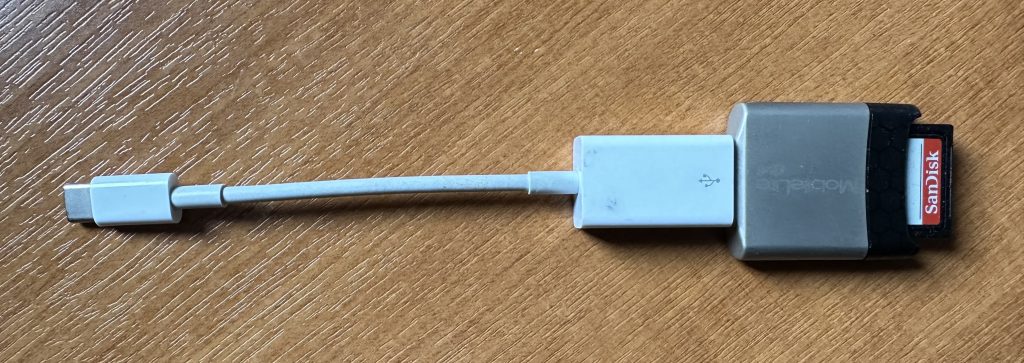
So for camera users (rather than smart phone users), you will first of all need to get the photos onto your device. This could be by a direct cable connection from your camera to your phone, or by transfer using Bluetooth or WiFi, but more likely might be by using a SD-card cable like this one I have for the Apple gear. [It will either have to have a Lightning or a USB-C connector – check first before buying one.]
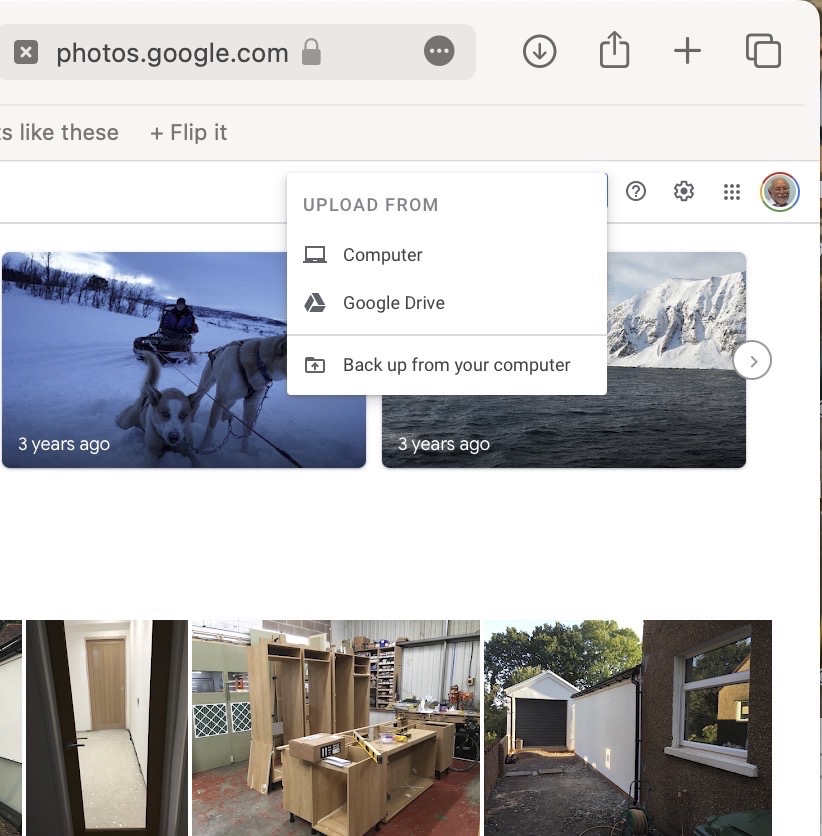
The image(s) thus transferred will be added to your photo library be it Google Photos, or Apple Photos. Another way of adding photos on your computer to your Google Photos would be an Upload to photos.google.com – you will need a Google account to do this. This is how you would do it …
Select Import to Upload images to Google PhotosSelect images from the Computer (or from Google Drive)
You could decide to use Google Backup to synchronise all your photos from your iPhone (or iPad) to Google Photos as an “easy” way of getting the photos on your Apple device into Google Photos, but this is not necessary to use Snapseed as it can access your Apple Photos directly; so I don’t because I’m already backing-up my photos to iCloud. [I only discovered in November I was also sync’ing to Google Photos, so I stopped doing that then and saved some Google Drive storage, and a whole lot of complications about knowing what was where.] But if you want to synchronise from your Apple Camera to Google, this is how you do it from the Google Photos app on your device …
Instructions on how to synchronise Photos on Apple devices to Google Photos
You should now install the Snapseed app on your device(s) from the Google Play, or Apple App stores, if you haven’t already. If you’re an Apple user you might choose to install the Google Photos app at the same time – although you don’t need it to use Snapseed, but you might just like to compare how it works.
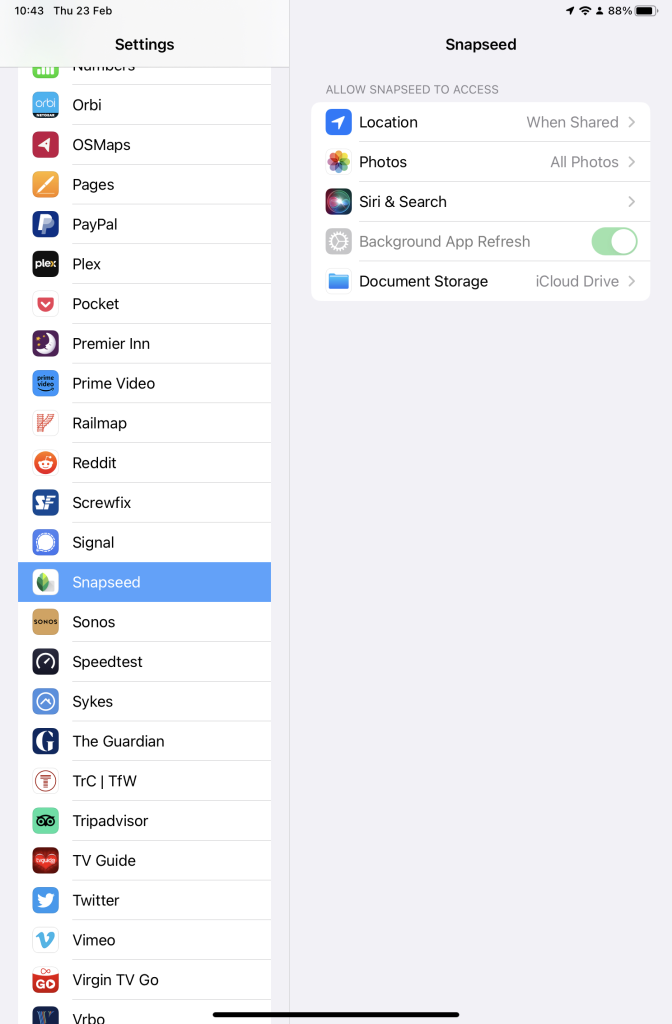
Next up, if you’re an Apple user you need to allow access to your Photo Library to Snapseed (and optionally Google Photos). This will allow both apps (on iOS) to access the Photos in your Camera Roll on your iPhone or iPad.
Setting up Google Photos and Snapseed to be able to look at Apple Photos on device(s)
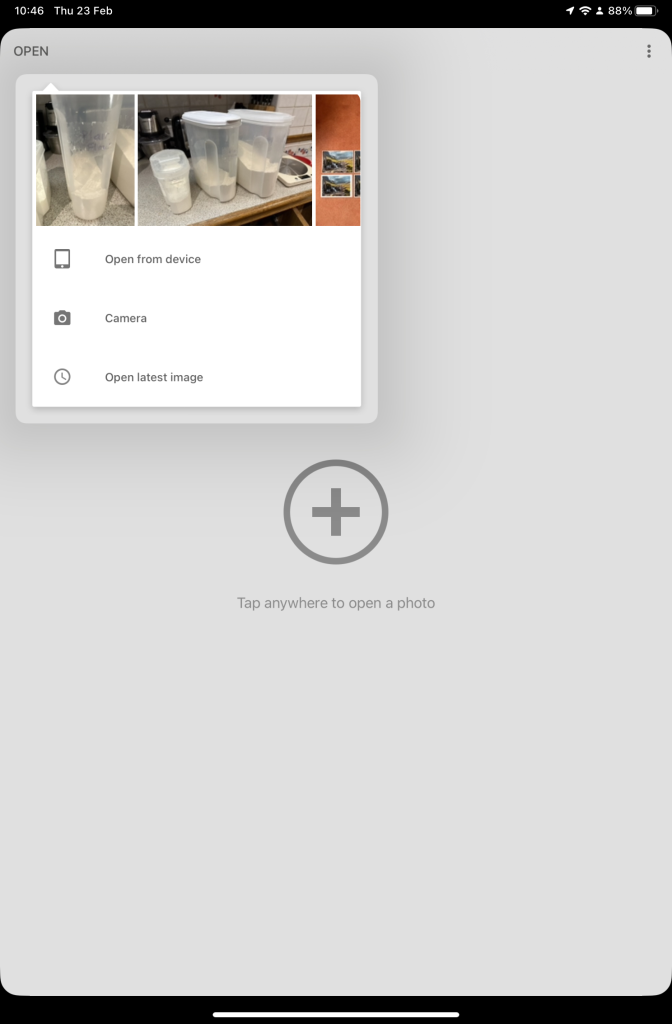
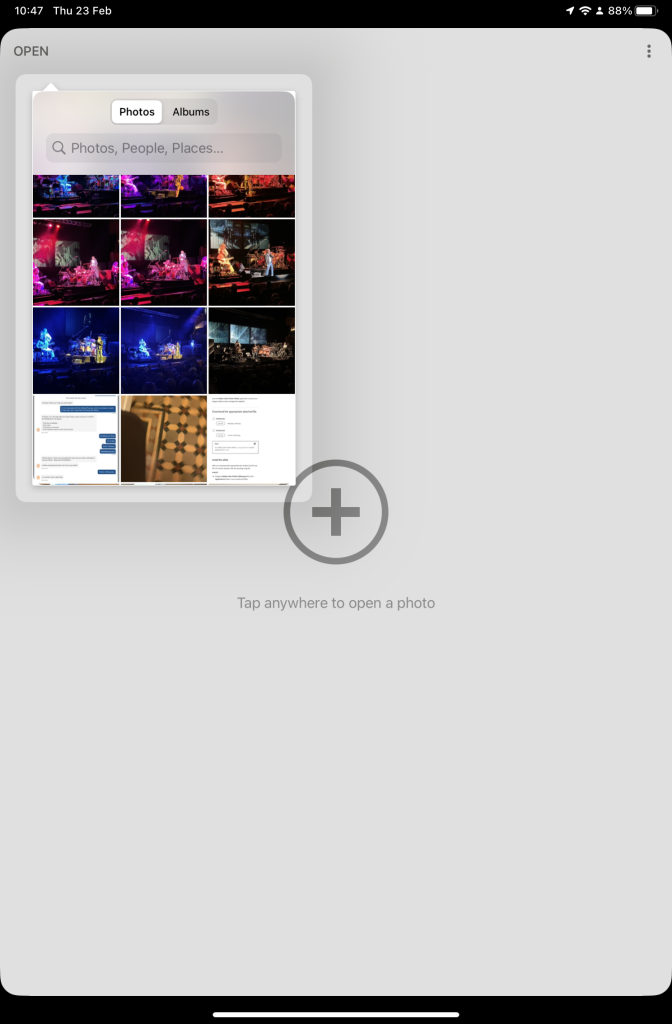
So now your ready to start editing. Open the Snapseed app on your device – you are prompted to Open from device (ie look at the images in your Photo Library), or you can access the camera to take a shot, or Open latest image that you’ve taken. The steps from then on are relatively straightforward and you will have selected the image that you want to Use.
Open Snapseed and look at the photos on your local deviceSelect an image to edit, and click-on Use… and so start editing.
That’s about it. This video (recorded from my screen, hence background noise and rather low audio volume) gives a reasonable introduction on how the Snapseed app works …
Here are some links that you might find of interest:
Using your Android camera to take photos; but I believe all Android phones have slightly different camera interfaces, so you’re better off researching that for yourself. [NB If you have come across a really good guide, let me know and I’ll add it to the list here.]
[Revised 17th January 2023 and February 22nd 2024]
Now there’s a question. Once upon a time it was a little easier to answer. You connected your computer with a piece of wire to a socket in the wall and beyond the wall was ??
So perhaps it’s never been easy to answer that question. It’s not magic, it’s not fluffy, it’s actually really complicated technology which works in a relatively simple way to make things relatively easy for us to use it. Let’s start with a few videos …
How does the internet work? – This [updated] BBC Bitesize page (produced for children) is a really good starting point to help you understand how the internet works and introduces some of the terminology (ie protocols, packets) that will be useful to you to understand the other videos.
How the Internet Works in 5 Minutes – the internet is not a fuzzy cloud. The internet is in effect a wire (or a fibre-optic cable), actually buried in the ground or carried as wires between posts. Computers connected directly to the internet are called Servers, while the computers you and I use are clients, because they are not connected directly to the internet, but through an Internet Service Provider. Mobile devices away from the home, connect to the internet using radio-waves to connect to cell-towers with increasing capacity being generated by increasing the frequency modulation of the waves (ie 3G, 4G, 5G and even 6G). Mobile devices in the home or in the office, or in public hot-spot spaces, use WiFi to connect to the internet using two frequencies – 2.4GHz and 6GHz. All of these require Routers to shuttle packets of information across the internet, and transmit e-mail, pictures, and web pages. Although this video is a little dated, it really does explain the process of what happens when you connect to the internet …
A more recent video and the ones that are referenced at the end of the video will get you a long way to understanding the technology that makes up the Internet.
How Does the Internet Actually Work? – this discusses how internet traffic can be labelled to ensure that packets of data can arrive at their destination with the minimum amount of disruption [- but it is a biased view in favour of scheduling]. However for an impartial point of view of Net neutrality, you should probably look at this video produced by Vimeo – strong supporters of Net Neutrality …
Finally a couple of alternative views of the internet. First, Andrew Blum (in a TED Global talk) philosophically examines What is the Internet, really? A journey that started for him when he found out a squirrel had chewed through a cable led to him exploring trans-ocean cables and the very physical nature of the internet – a wire! Then this rather entertaining video …
… takes us from very local internet and cell-phone technology, through an examination of data centres such as the former Western Union office at 60 Hudson in Manhattan, to laying ocean cables and the future with balloons acting as transmitting stations for low-density inhabitation, or remote areas.
You might also be interested in seeing a Google Data Centre, in particular the pieces on security and cooling are interesting. [However, all of this increasing use of the internet comes at a cost to our environment as the advance of Artificial Intelligence and its huge need for energy for increased computing power comes at a cost.]
No photo this time; and my apologies for the delay in publishing the notes. I thought I’d done them and only discovered I hadn’t when preparing for today’s meeting. Duh!
Quite a few apologies Jim, Sianed, Jenny, David Hughes, Sally, Kate and Renee. Some new members too – Rob, Maline and Hok. Welcome. Linda and Peter have decided the group is not for them, but we’re delighted to see Steve and Christine again.
I once again recommended members to take the occasional look at our Flipboard magazine , and to download Signal and take part in our chat between meetings.
On Signal in the past fortnight we’ve had a Google Update issue (Ted); Jim’s phone running out of memory – as yet unresolved; Ian’s disappearing old AOL email messages – resolved by AOL with a cautionary warning (do it within 7 days or it’s lost forever); a plug fro the Brave browser (from me); and discussion on the Windows 11 Photos app (Jim, Jonathan and me).
We had an update on Anne’s problems grappling with Windows 11 on her new laptop – a big change from the experience she was used to with Windows 7. Jonathan is providing assistance. Many thanks. I reported that I still hadn’t updated my iOS to v.16, or my MacOS to v.13 – I’m being very cautious this time and plan to go to v16.2 when it’s released in December and probably v.13.1 about the same time. I had experienced a strange issue with an app on my phone – the Coop shopping app that wasn’t allowing me to add new offers to my card, and yet I could do so through the web browser. I reported this to their help desk – I’m still awaiting a reply, but resolved the problem myself through an inspired guess. I disabled the VPN running on the phone, and it worked. [Message to self – you don’t need a VPN running all the time, really only when you’re away from your home network.]
I briefly mentioned the post I’d written a few years ago about using printer labels for Christmas cards and the added benefit of using the same template on plain paper to record the cards we’d received. I recommended using Avery format labels – the numbering is used by most printer label producers and so you can use their templates on whatever paper you buy.
Martin had a story to tell about his being “forced” into buying a new phone!! Being a mainly desktop user he’d decided to take the plunge and bought a Samsung. He’d found that SmartSwitch had helped a lot and prevented it being a nightmare and been able to use BlueTooth to do the transfer of information from the old phone to the new one. He’d found the SIM to be the wrong size but his telco had swapped the SIM for zero-cost. Currently he was finding that texts were not going out, but they were coming in. It was suggested that this might possibly be due to them being sent as MMS rather than SMS -we await the solution!
Don reported that he’d installed BT’s 100Gb cloud service and it had created three folders that he’d not requested. That’s the way, isn’t it. Just ignore them if you don’t want them, but they may provide automatic syncing back to the desktop.
Sue told us that she was getting fed-up with pop-up adverts, and wondered how she could get rid of them. I advised that this would be handled in the Privacy and Security session.
John Silk was puzzled by the growing number of acronyms. We helped him with what Android was, and updated him in the state of play with other mobile operating systems. These mainly being iOS/iPadOS and Chromecast. Microsoft’s offering hav efallen by the wayside.
Paul had moved from Win10 to Win11 and felt that performance on his machine had greatly improved; this may of course due to “clutter” having been removed in the upgrade.
Jonathan also noted that Win11 on his rebuilt laptop seemed to be running better.
Rob was puzzled by a problem with the display on his Toshiba Satellite Pro. It didn’t appear to be a BIOS problem. We advised that he consult “We will fix your PC” in Llanishen, and suggested that this was the standard advice we gave to new members for hardware problems. Generally these are beyond the scope of the group’s competence.
Ian queried the payment for meetings on Zoom, and in person. I advised that I would be sending out an email in due course but no one appeared to object to the idea of Zoom attendees paying something towards the cost of the meeting to defray costs of the meeting venue. He asked about the destruction of hard disks. He was advised that it’s possible to get data shredder software that makes recover of information from a disk impossible, a bit less drastic than hitting them with a hammer, or dissolving them in acid!
Christine had been having difficulties getting decent sound from a film given her by a friend. Turning the sound up on both the TV and the video-player software had not helped at all. Installing a soundbar had however solved the problem.
Anne was still coming to terms with issues arising from her move to Win11 and had experienced a strange request for subscription to what she thought was free Microsoft Photos software. We took this up outside the meeting.
I then closed by informing users that I was looking at Photo Book printing software and Canvas printing to get the benefit of Black Friday pricing. I use Blurb for photobooks. Jonathan pointed me towards Cewe (used to be available at Jessops, and now from Boots – possibly). I’d also some experience of using YoPhoto and Snapfish. The latter do very competitively priced canvas prints (up to 70% off currently) which I’d taken advantage of. There’s always Google Photos as well. I said I’d do a review, but I didn’t have time to do it in the end.
Before you give me any advice, let me explain the problem and what I am doing about it. I bought my Galaxy four years ago, and it has 16 GB of internal memory. All was well for a couple of years, and then I decided I needed to get some extra memory, so I bought a micro SD card, also with 16 GB of memory. I started by putting the photos from the phone’s camera on it, and later the ones from WhatsApp. Again all was well for a while, but in the past six months or so I have been having trouble again. The My Files app tells me I am using 15.32 GB of the internal 16 GB.
Every morning I check my phone’s apps for updates, and there is usually at least one. Some of the updates can be large, so some fail to install because of lack of memory. I suspect the apps must now be larger than they were a few years ago. I have tried moving some apps to the SD card, but only a few have allowed that. I have also looked into uninstalling the apps I don’t use, but again many don’t give me that option. I can sometimes uninstall updates, or disable the app, if that helps. I am now reduced to clearing caches. Incidentally I’ve noticed that Signal occasionally downloads a backup file, which is 116 MB. I assume I only need one backup file, so I’ve started deleting old ones.
Having (I hope) read all that, do you have any suggestions?
It’s always worth reviewing which search engine you should use, as it is the browser of choice to “surf the web”. The reasons you might wish to consider which search engine you might wish to use are greater privacy, enhanced security, minimise adverts being displayed, or to get more meaningful pages being displayed, but first we’ll look at the web browser you might want to use.
First things first. If you’re using Internet Explorer you must seriously consider moving to Edge as Microsoft are removing support for Internet Explorer and one day you’ll find it just doesn’t work. If you’re using the initial release of Edge you should also upgrade to the latest version. It’s faster, more stable and uses the same code base (which is the open source Chromium) as some of the other browsers I’ll talk about later.
The next thing to remember is that Google is not a Browser. If you have a Google app on your smart device, it’s just Google’s “convenient” way of getting you to use their search engine and capture lots of useful marketing data from you! Google’s browser is called Chrome, and it uses the same code base as Edge (as mentioned above) – others include Brave, Opera and Vivaldi.
Chrome is by far the most popular browser accounting for more than 80% of the internet browser traffic, it has a wide range of useful extensions, and if you can be bothered to create a Google account and navigate through the preference screens, you can make it reasonably private – but you may wish to install the AdBlock Plus extension – an advert blocker, to stop intrusive adverts appearing on your web pages. [Another way of doing this is to look for Reader View, created for users with visual disability originally, which simplifies the view of a page on your browser screen.
But why use Chrome when you can use another browser which has built-in privacy. I’m talking about Brave. You can deploy many of Chrome’s extensions in Brave and virtually everything you see looks like Chrome, but without tying you to Google. I seriously recommend you look at Brave.
If not Brave, why not Microsoft Edge. The complete re-write of Edge using Chromium and with the support of Microsoft behind it makes this an excellent choice for those who use a lot of Microsoft applications (eg Office 365 which you can run in the browser, just as you can run the Google apps in Chrome) and is growing fast in popularity even if it’s Preferences menus are a bit tricky to work your way through.
If you’re an Apple user, I suggest you look no further than Safari, although all of the others can run on MacOS. It’s optimised for the Apple platform and integrates well with the other apps in the Mac/iPhone/iPad ecosystem.
That leaves two “outliers”. Firefox was one of the first browsers growing out the original work done on Netscape, it’s open source and has a huge and committed user-base. I have nothing to say against it, and nothing much to say for it either. It’s a good solid internet browser.
So we turn to Search Engines. You want to find something out on the internet – you just google it, don’t you? Well you can, but there are other choices as well, and this is where privacy concerns might suggest you might want to look at an alternative.
I’ll be upfront. I’ve been using DuckDuckGo (often in combination with Brave) for a couple of years now. I value the fact that my activity on the internet isn’t tracked and the results that are returned are not slanted towards my prior search history, and most importantly my activities are not farmed off to marketing agencies.
There’s nothing wrong with Google Search – it’s the most popular on the internet, but that’s by default rather than choice. The results are presented well, but there is a slant towards promoted results and results based on previous searches. You can change your search preferences a bit, deploy an ad blocker (see above), but why should you haver to!
DuckDuckGo is now presented as an alternative search engine in most, if not all, browsers and exists as an app on smart devices as well. Give a try! It’s my default search engine on my Apple devices.
The only real alternative to Google Search and DuckDuckGo is Microsoft’s Bing. The service has its origins in Microsoft’s previous search engines: MSN Search, Windows Live Search and later Live Search. Bing is now the code base for Yahoo’s search facility as it is for Ecosia – an ethical green alternative. Ecosiaimportantly doesn’t use any third-party tracking tools, meaning that any search made on the service won’t be seen by any party other than Ecosia. Furthermore, any search made on Ecosia becomes anonymized after one week. In contrast, Google and Bing will hold onto bits of search data (such as the device or date), even after deleting browser history and cookies.
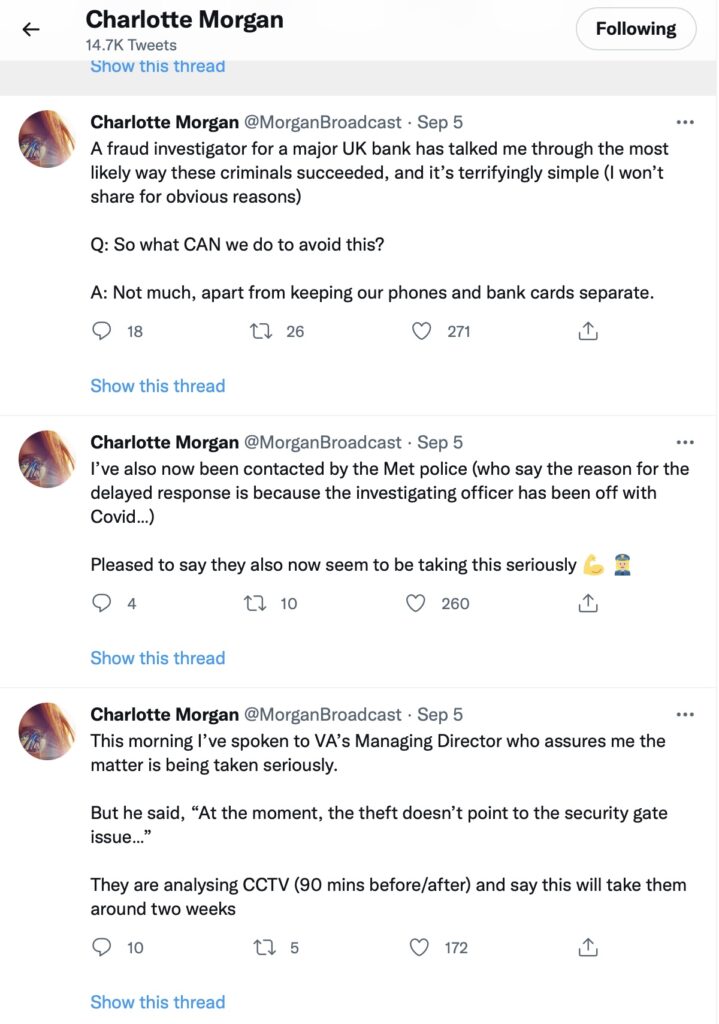
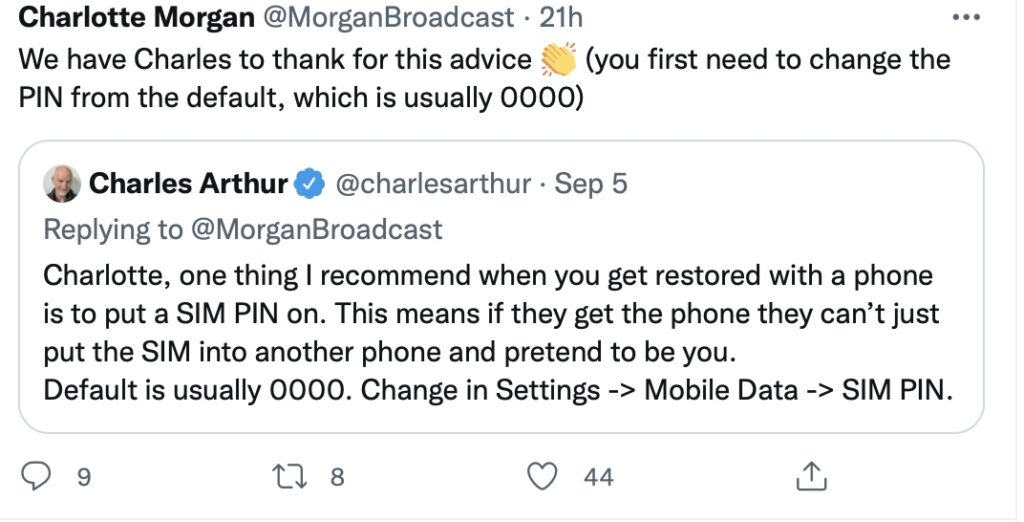
A rather disturbing incident involving a stolen phone and credit cards and the ability of a fraudster/thief being able to reset a user’s password/pass-number for a high-street bank occurred in September involving a journalist called Charlotte Morgan. She described what happened to her (and it transpired others) when her phone and credit cards were stolen from a locker in her local gym.
Charlotte chose to broadcast her experiences on twitter and got a range of helpful and supportive pieces of advice.
So we start with the first piece of advice – keep your phone and your credit cards separate. Don’t store/keep them in the same place. Maybe, if you follow the advice that follows later you should just keep the credit card details only on your phone and dispense with using plastic. For Apple that involves storing the card information in your Wallet.
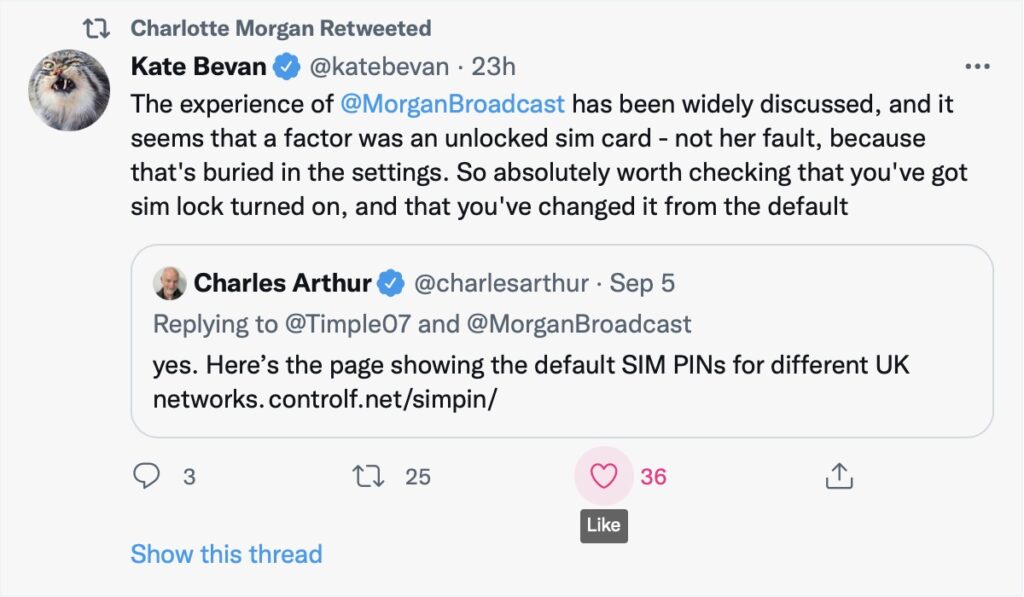
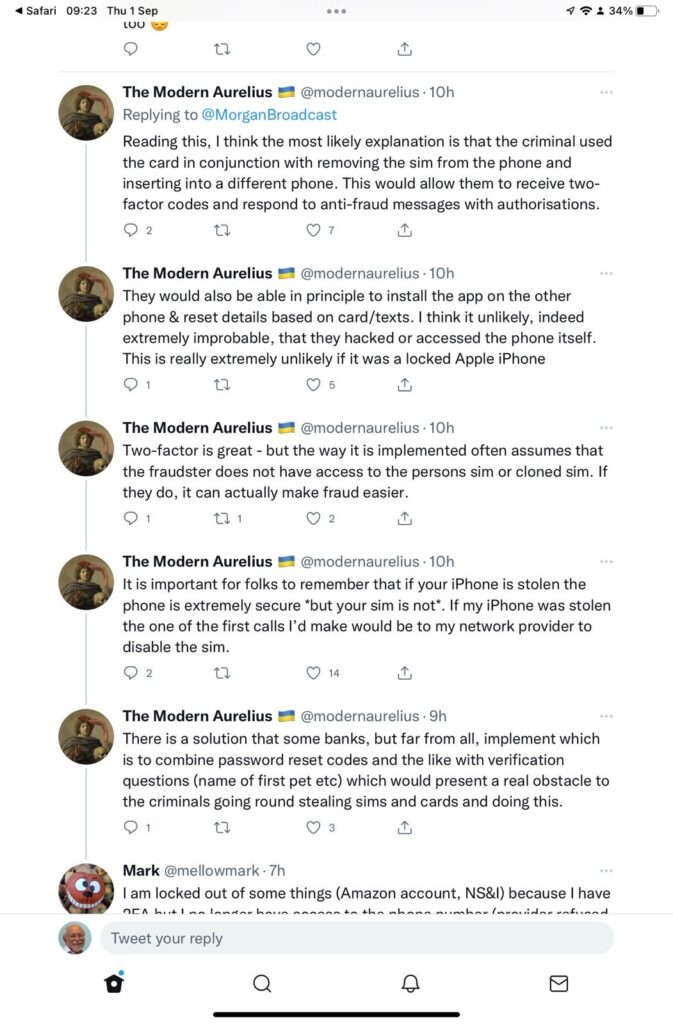
And this is the security loophole that the thief was exploiting. The default setting when you get your new phone, and insert the SIM is to leave the SIM unlocked. This means that the SIM can be taken out of the phone with your network details (and more), and inserted into another phone. Not really what you want, is it? So, lock the SIM to your phone, and by doing that, if the SIM is taken out – it is of no use in another phone. You will need to remember the new PIN you create which you will have to supply when you power-up your phone, or when you change it for a new/replacement. This is obviously an important piece of information to remember!!! There is no way you can recover the SIM PIN yourself if you forget it, you have to contact your carrier and get a new SIM and a PUK.
So what actually happened. This thread explains it well …
But what are the default SIM PINs that network operators use?
This link will be useful as it lists the default SIM PINs for the major network operators. These are the ones you need to change to your own personally chosen PIN.
It really is quite important. Change your SIM PIN and keep your credit cards separate from your phone.
Addendum: Remember – we had personal experience of SIM swapping and that’s written up in this post entitled “Identity theft”.
This article is prompted by a combination of a casual enquiry about sending photos from your iPhone to Google Photos (hosted on a Google Drive), and my own discovery that I was backing-up iPhone photos to BOTH iCloud and Google Photos.
Observation one. Google Photos and iCloud Photos don’t work in quite the same way. Whereas you can access the Photos you may have stored on Apple’s iCloud storage from icloud.com through the iCloud Photos app, you cannot access Google Photos from drive.google.com directly – you have to go to photos.google.com to access them. Google Photos uses up some of your Google Drive storage – you get 15Gb “for free” with a Google account – but it’s a standalone application, in the same way as Google Mail is. It’s an important distinction. Google provides you with applications which make use of their cloud storage, Apple provides cloud storage alongside access to applications which use that storage and which synchronises back to devices.
The iCloud window {Access to all Apple applications and cloud storage}The Google Drive window {NB No access to Photos, or Mail}The Google Photos window {separate from Google Drive}
Observation Two. This article concentrates principally on Google and Apple, because they are the two principal players in the Camera and Cloud Storage space. There are other cloud storage solutions on which you can store photos, eg Microsoft’s OneDrive, and Dropbox. I will only refer to these briefly at the end of this article. There are undoubtedly other cloud storage solutions, but I won’t be writing about them.
Observation Three. Anything I write about the link between Camera and Photos on an Android/Google system is second-hand knowledge, and I cannot verify it!
Observation Four – the final one. This article does not seek to cover the general topic of transferring photos from a phone to your computer. This is more than adequately covered in this article. I suggest you read it too.
Not wishing to be dismissive, but just because it’s so straightforward – I’m going to discuss Google Photos first. If you have an Android phone and thereby have a Google account, you automatically have 15Gb of cloud storage and the two are linked, and by default any photos you take on your phone are backed-up to your Google account. This is described well in the Google Support article. A couple of things are worth highlighting however: a) you can switch-off automatic back-up and synchronisation of your photos, in which case all backups would need to be done manually; b) you should carefully choose the “quality” of the photos you back-up – they may not be the same as that of the photo on your device; and c) it would appear that you could backup photos to a different account from your main one, thus adding to the free 15Gb you get with each account. [Alternatively, for £15.99 a year you could get an additional 100Gb of storage from Google. If you aren’t an Apple user this is definitely worth considering.]
It’s not that much more difficult if you want to save photos from your iOS (iPhone or iPad) device to the Google cloud storage. Again the Google Support article describes the process and the options quite well.
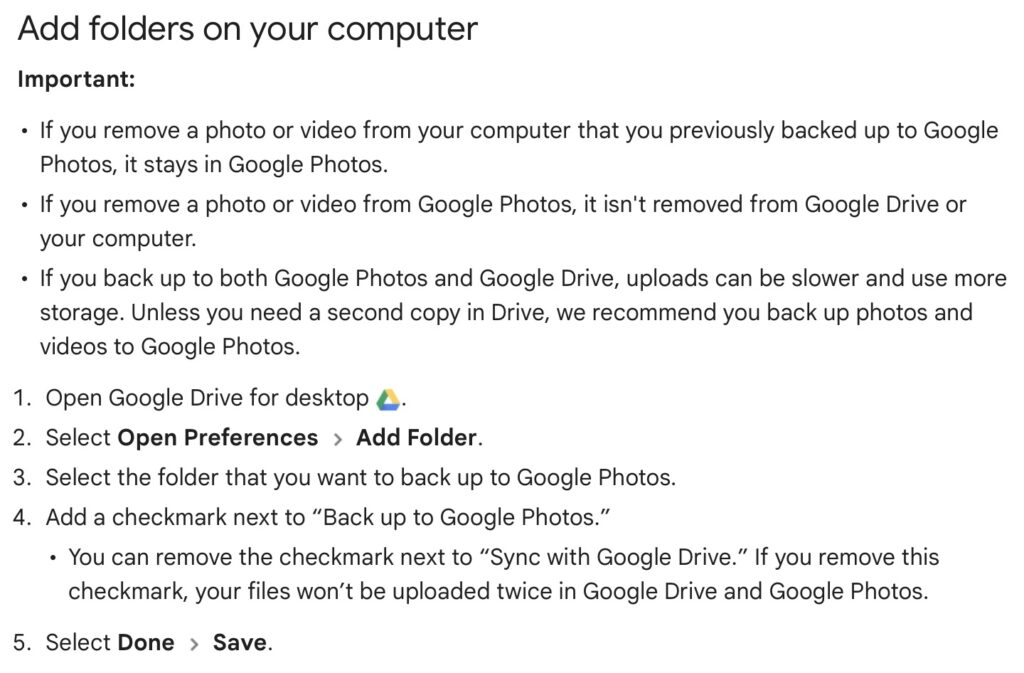
Similarly if you’ve transferred photos to your computer (eg from a camera SD-card), then Google’s got you covered to back-up and sync to their Cloud storage in this article. You should nominate a folder on your computer that Google Drive will monitor for newly added files which will then be backed-up and synced to either Google Drive, or to Google Photos, or both, depending upon the option(s) you’ve chosen.
Note (4) – you might get two copies if you don’t uncheck “Sync with Google Drive”
For this to work however, you do need to be sure you’ve a) installed the Google Drive on your computer, and b) you’ve set the preferences the way you want them. In my case, since I’ve increased the amount of Google storage I have, I’ve chosen to Mirror a folder (in itself called Google Drive) – then both the folder on the computer, and the one in the cloud should be exactly the same. A mirror in fact. Anything I add to (or edit on) my local Google Drive will be copied to my Google Drive in the cloud.
So we turn next to the Apple ecosystem. [I should feel more confident here, but as you may have noted that I disclosed at the start of this article that I was doing something extremely stupid and not noticing my idiocy.] Here the support page on Apple Photos and iCloud I think really does a good job of explaining your choices and how to set up backup to their cloud storage. I don’t think I can improve on it. But what if you’ve got Google Photos installed as well on your iOS device? This is where I made my foolish mistake. I enabled Backup and Sync on my iPhone and so I got TWO copies of every photo – one in my Google storage in Google Photos and the other in my iCloud storage. Duh!!!
Disabling the Backup and Sync left me with an image which was shared locally between the Google Photos and Apple Photos apps. How could I get that image (or group of images) onto Google Photos to perhaps share with friends or family?
It turns out that there are two reasonably easy ways of doing this. By enabling iCloud Photos on the phone (or tablet) …
Set iCloud Photos to On
… I can then download from iCloud to a folder on my computer which I can then upload to Google Photos from. Really rather simple and not a use case for Google Photos Backup and Sync to be employed.
Alternatively, I could go into the Google Photos app, select the image I want to send to Google Photos in the cloud and Share it by getting a link and then sending myself a message. The act of sharing it copies the image to the cloud, from which I can then add it albums, etc.
Using either of these approaches allows you then to obtain a link for the album which you can then Share to a list of users, or obtain a link for public sharing.
Once you get the photos onto Google Photos the fun starts. It’s not intuitive what happens when you decide you want to delete them either from the cloud, or from your device. In fact it’s downright confusing. I’ve written about this in another place (the public Thought grazing) and life is too short to repeat anything on here that I’ve already written over there, and believe still to be correct. Best of luck!!!
The situation with deleting photos from Apple Photos and iCloud Photos is slightly more straightforward and I’ve written this up already, so won’t repeat it.
It goes without saying that keeping it all in the Apple ecosystem (for me) makes a lot of sense, and with the ability to share albums on the way – it’s not yet as sophisticated as the Google Photo Albums service – I may transition away from Google Photos altogether in time.
For Dropbox users, you can setup an automatic upload of photos to the service. They even give you a bit more free storage if you enable this, or at least they used to!