If you’re using maps or navigation on your phone, it is pretty important to allow your phone to know where you are!!
If you don’t want adverts from a coffee chain, perhaps it’s a good idea to disable location services before you go into a cafe!
Or, if you don’t want anyone to know where you are (???) again perhaps a good idea to disable location services.
You can do this in quite a granular fashion, so you can switch off for the device, for the application on the device, or only when using the application on the device. That’s why it’s quite important to close down an application when you don’t need it, or aren’t using it, because it will continue tracking you after you think you’ve stopped using it!
Of course with the Covid-19 tracing capability Google and Apple have jointly worked upon, this relies on an element of location services to be working, but that’s to determine proximity of individuals and as I understand it, location is not stored on any central server.
Yes, to a very high sense it is totally compatible. Only at the most advanced usage with advanced use of macros might there be a problem.
The same is true of OpenOffice but Libre Office has one advantage over OpenOffice in that it can both read and write .docx files – the default format for Microsoft Office. Open Office can only read .docx, but writes out in a slightly different format.
As I recall, LibreOffice can also read .PDF files. We covered this in a Computer Group meeting and without checking I can’t remember that for a fact off the top of my head.
I’ve just loaded Malwarebytes on our iMac and MacBook Pro computers – provided by our bank – and only found one piece of tracker code, on one machine, which was very old and most probably not active. I deleted it.
Macs have a very good history of not being hacked, and when they are they close the problem down very quickly. This is a benefit of Apple owning both the hardware and software and being able to control which of the latter is installed on MacOS.
This was a question that was raised during the General Meeting discussions. PayPal has a Buyer Protection and Fraud Protection policy which for small transactions (ie <£100), and for transactions with companies/individuals you regularly do business with, is probably sufficient protection.
For large value items (ie >£100) and up to £30,000 you might prefer to choose using your credit card because of the Section 75 protection you get.
Well … a lot of people do, and even government and other public bodies do, I believe, and it’s supposed to be very good and used to be recommended by Which?
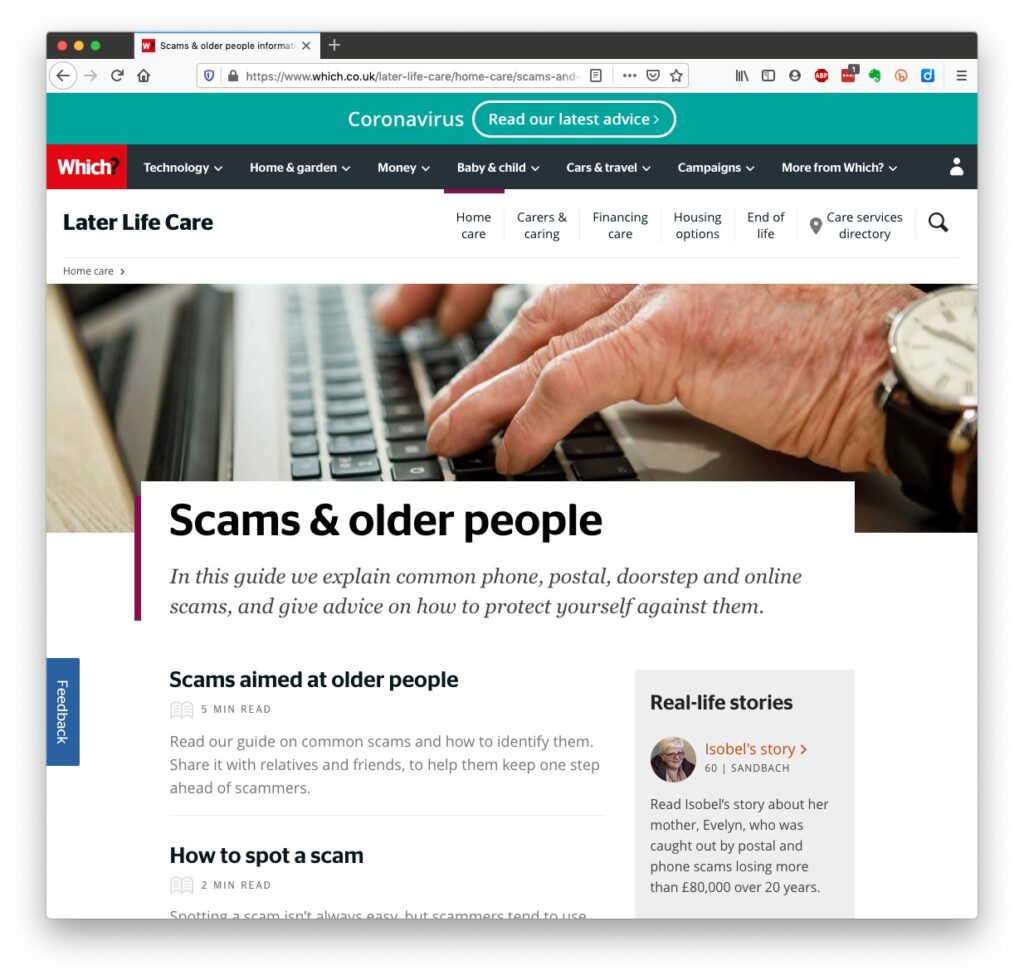
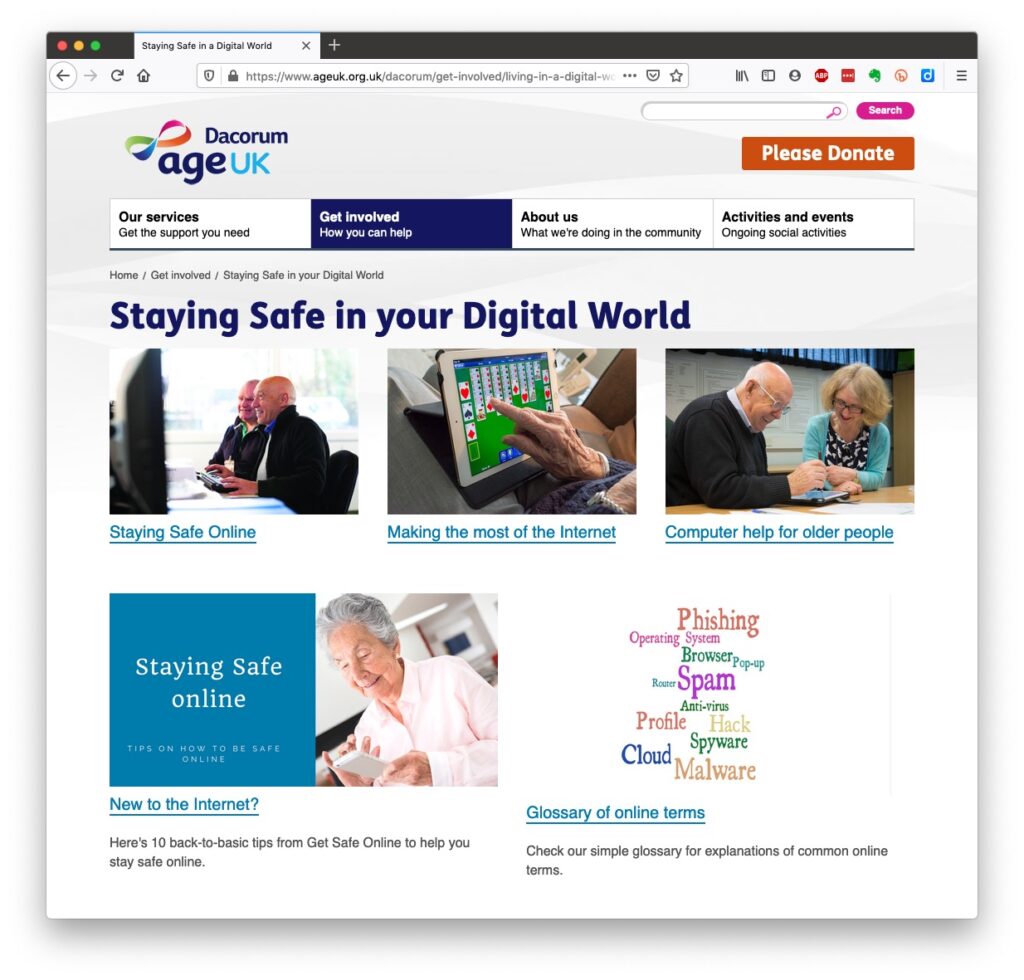
Luckily, there’s plenty of advice and guidance available – often slanted particularly towards our demographic (ie oldies) …
Those two sites are particularly easy to follow and understand, but others are equally informative and targeted.
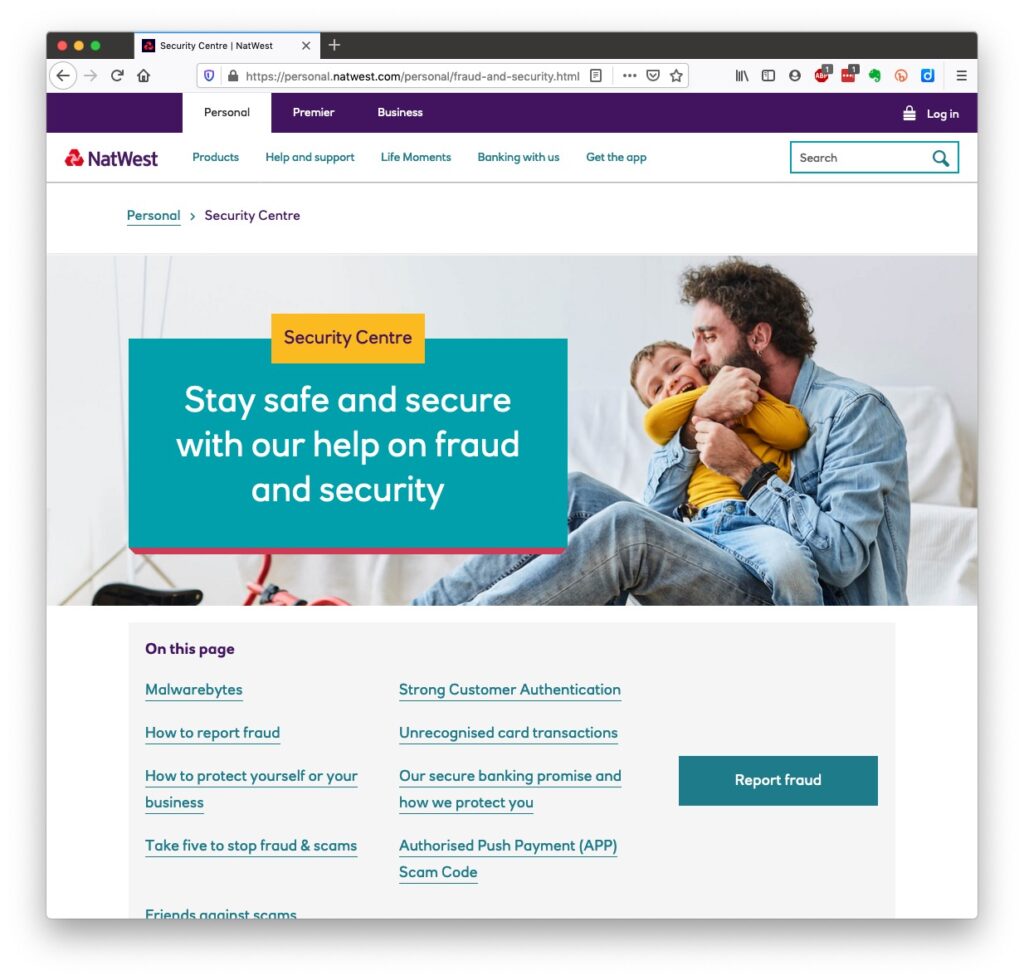
Your bank probably has guidance which it publishes online and which is accessible to everyone, not just their customers …
I’ll return to further information, guidance and references at the end of the talk, but first we need to look at a few issues, discuss some terminology that’s widely used and try and tease out what’s really important, and what’s just an inconvenience and then it’s up to you to judge where you find yourself on the scale of …
First let’s distinguish the difference between online security and online privacy. These are two different issues which are however linked. Sometimes you have to relinquish some privacy to receive a service – unless you choose to pay for it (and I’ve long been an advocate of paying for services if they do a job that is necessary); exactly how much privacy are you prepared to relinquish?
Security on the other hand is an absolute – you should not be prepared to accept less than your very best efforts . We’ll deal with that in the third part of the talk.
How do you relinquish your privacy, and how much of a loss of privacy is acceptable?
Some services could not be offered without income from adverts, or paid-for advertising – eg Facebook, twitter and instagram; and some eg Google and Amazon track and provide information to resellers if you don’t block them from doing so. As an example of how much value Google sees in getting knowledge of what you’re doing and where you’re doing it, they paid Apple $8bn recently to remain as the default search engine for any browser that’s running on an Apple device!
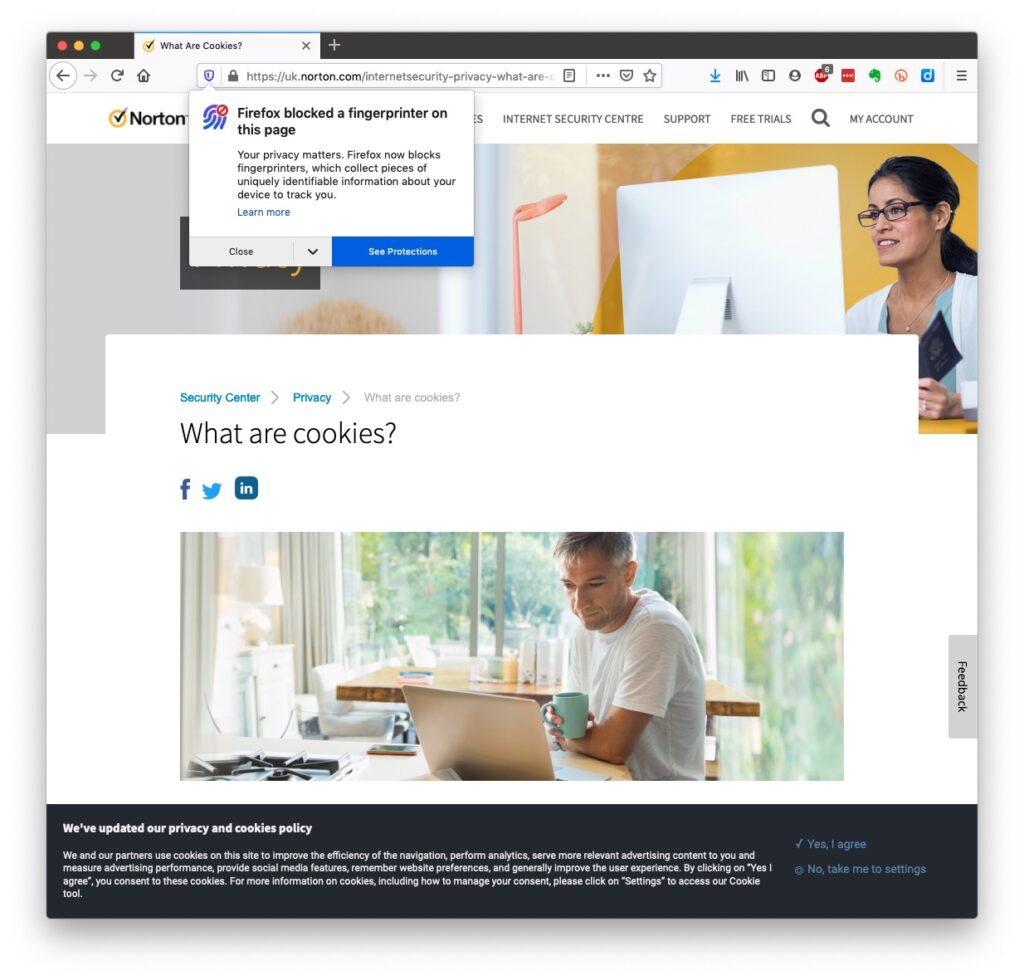
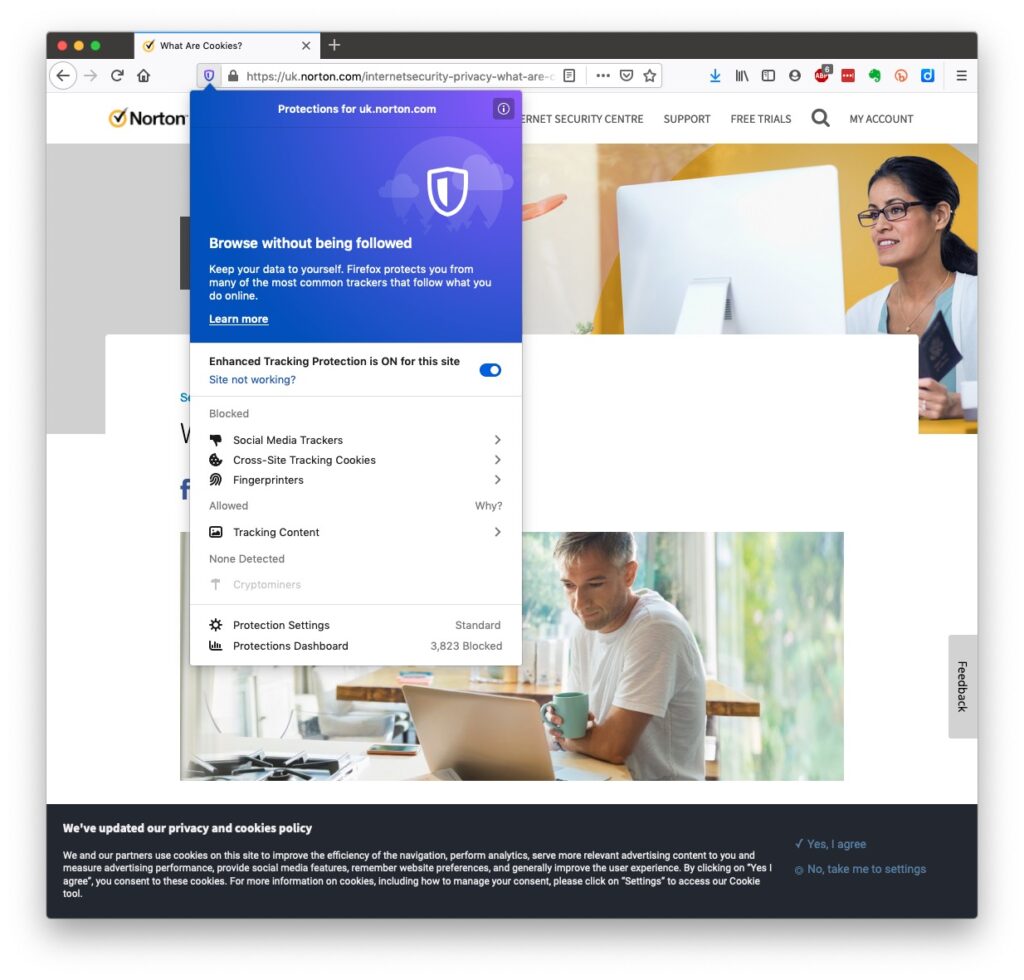
Incidentally, if you clicked on that link you’d have been asked whether you wanted to accept cookies – what exactly are they, and what do they do …
This article from Norton explains what they do quite well. Essentially, they record what you do on a website so that when you return some of the settings are remembered and applied. They do however also have a downside in that some can also act to track your activity once you’ve left the site. For that reason, you should disable in your browser the ability of third-parties to glean information from a cookie, and also to prevent them tracking your activity once you’ve left the site. You can at anytime, clear the cookies from your browser, and indeed on some internet browsers set them up to delete cookies when you leave (close the window) the site. You might also have noticed that my browser – Firefox – alerted me to the fact that Norton was using a Fingerprinting cookie itself …
… we’ll leave that for another day!
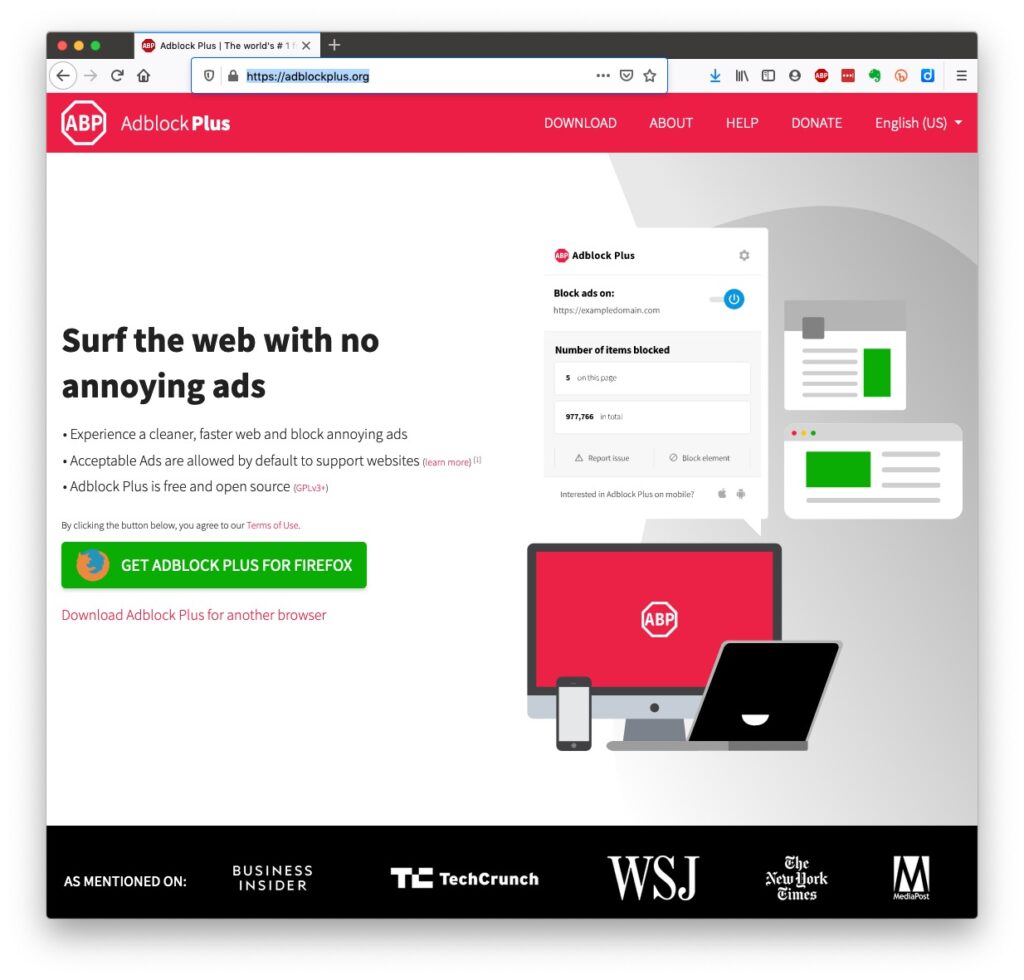
Another thing you might have observed when I opened the link in my Firefox browser was that the site requested that I enabled adverts to be shown. That is because Firefox, like Brave and Microsoft Edge, by default switches adverts off. These are often annoying and having a browser that blocks adverts, or if you use Chrome – using an ad-blocker like AdBlock Plus often makes for a more “pleasurable browsing experience” by limiting the intrusion you might feel upon your privacy.
Which brings us to browsers and search engines
Search engines are not created equal! Whilst Google is often thought to be the same as the internet and is often mistaken by U3A members to be an internet browser, it is in fact just one of a range of possible search engines that you can use to look for information on the internet. It uses a platform called Chromium to display the results of its searches to you through a browser called Chrome. However, other browsers – Microsoft’s new Edge, Brave and Opera all use the same underlying Chromium technology – the difference being they don’t track what you’re doing “to present the content that most meets your needs” (Google’s philosophy) and in some cases (eg Brave) they can actually prevent tracking of your browsing history. For the reasons given above, I use Apple’s Safari, or either Brave or Firefox as my internet browser.
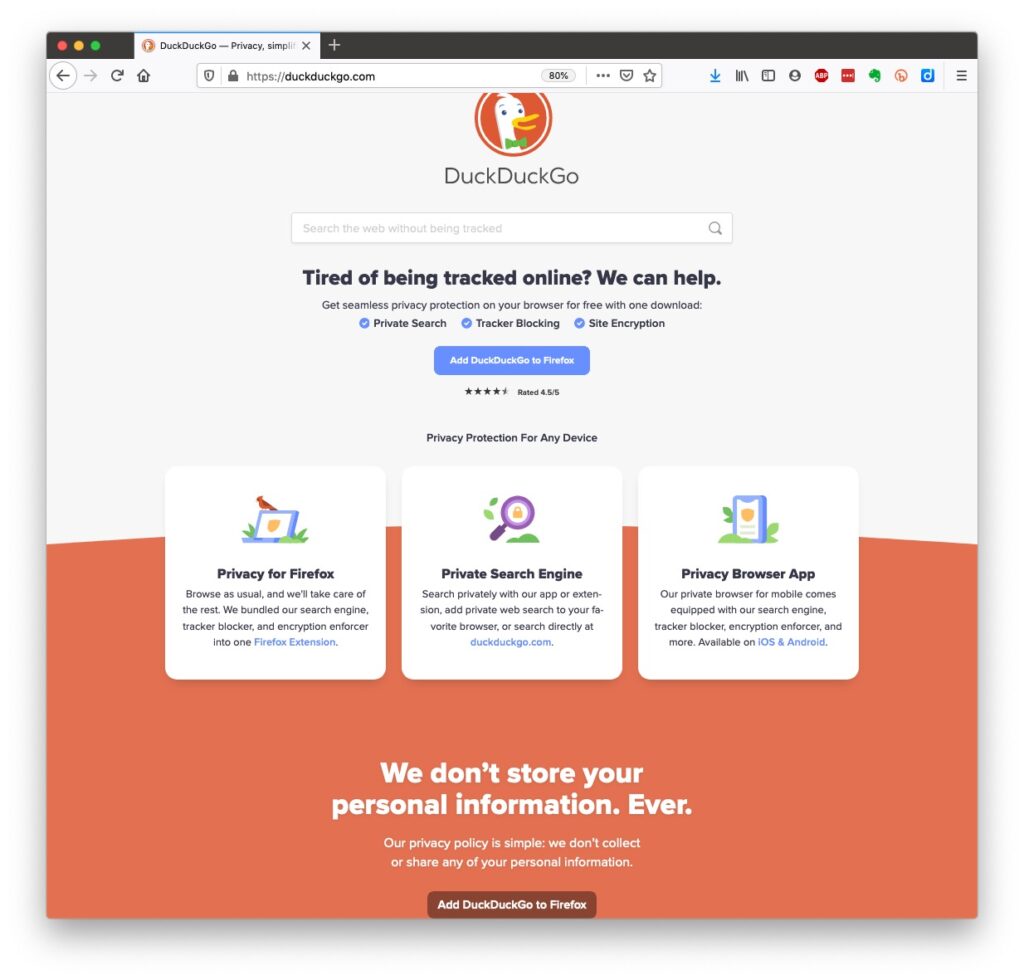
So what safe and private search engine could you use as an alternative to Google. I use DuckDuckGo …
… but others I could have used might have been Bing, Yahoo or another one included in this article or in the list of articles at the foot of the post …
Finally, no discussion of Privacy can ignore Social Media and Facebook in particular. These applications if left to their own default settings are effectively personal information mining engines. They grab what information they can from you, and sell it on to whoever is willing to pay for it, or are indeed the platform for data mining, vis the Cambridge Analytica affair. Online retailers are not exempt from this and Amazon for instance has a wonderful record of your browsing history and who knows what they do with it! So look at this table taken from the recent Which? Publication – Staying Secure in a Digital World – and just check whether you need to change your settings, if you use any Social Media apps …
So that’s Privacy dealt with.
Should you be frightened?
The take away message I want you to have is Frightened – no; cautious – yes!
Online banking is very secure – a recent survey in Which? produced the following scores …
… plus you are protected and most of the banks are increasingly opting to adopt an online and mobile guarantee to refund you where you’ve been the innocent victim of a fraud. Here for instance is Barclay’s “Online and Mobile Banking Guarantee.”
They really don’t want to shell out money, so are trying to educate us to be wise to scams. So let’s take a scam test …
Banks are also often supplying software free (or at reduced cost) for you to install to protect your machine, to protect you from fraud – and of course themselves from having to pay out! I was recently offered a piece of software called Malwarebytes by the NatWest and although I have an Apple Mac computer which are well known to be relatively secure from Viruses, Spyware, Trojans and other malware, I installed it. I was pleased to note that I didn’t have any malware on the machine. We’ll return to this later!
Surprisingly you might think … it’s safer to use the mobile app on your phone, or tablet to do online banking and retail purchases than a web browser. This is because the app on the mobile device has to be verified by Google for Android (Google Play Store) or Apple for iOS/iPadOS (Apple Store). Whereas a browser could be infected, or compromised with malware. That’s something I’ve learnt from preparing this talk!!!
What is more with the advent of Two-factor Authentication (2FA) which makes use of a personal device associated with you, your phone which you’ve protected with your fingerprint, or facial image), is even more secure.
When you’re out and about and NEED to do an online transaction from your mobile – use cellular rather than WiFi. The latter can be really open to “sniffers”. [I must admit I try to avoid doing online transactions when away from a domestic network.] Alternatively use a Virtual Private Network (VPN) to connect through the Public WiFi “Hotspot”.
So we come to phishing and pharming, vishing and smishing – I kid you not! We’ll leave aside spear phishing because we’re not important enough for that! [Please excuse me not going into details on any of these. You can follow the links for further information.]
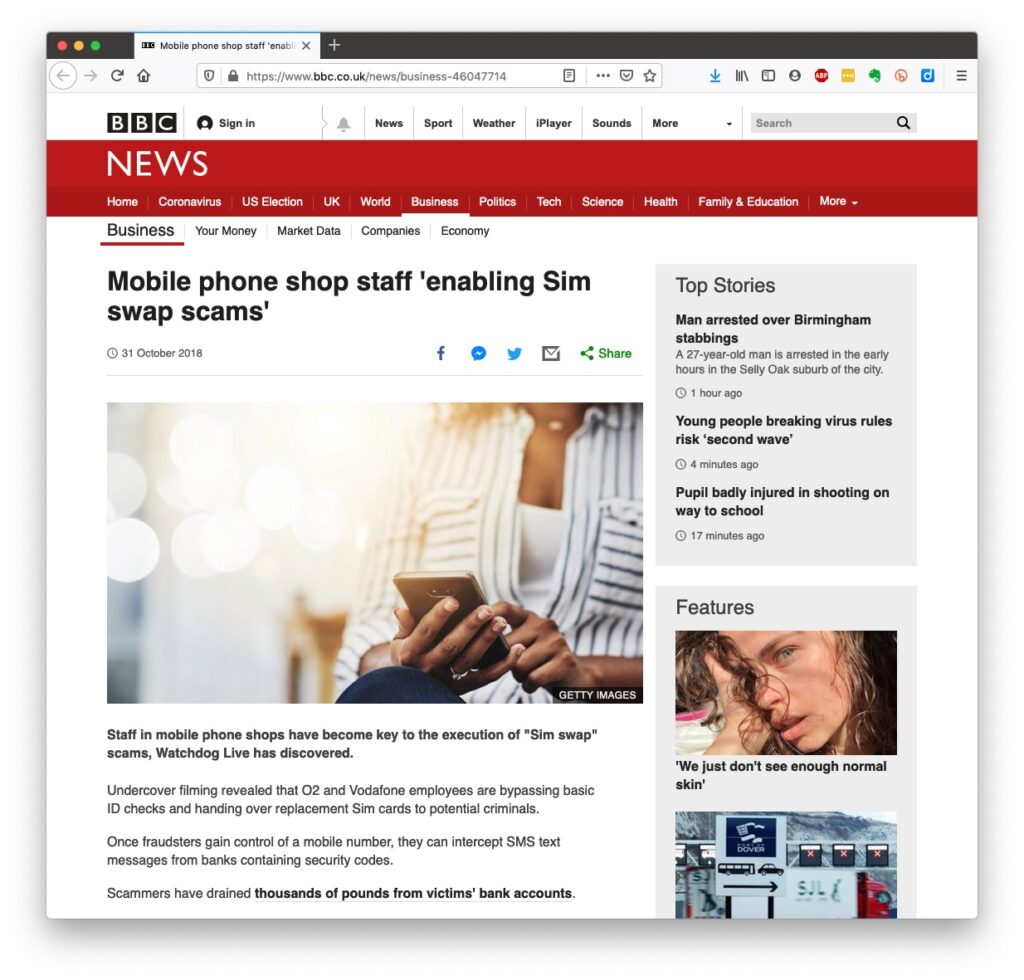
However the most scary scam I’ve been made aware of is one that befell a member of my family when they were distracted sufficiently to become the victim of SIM swapping.
Bruce Springsteen shouts out at his legendary concerts “Is there anyone alive out there?” I hope there are still many of you alive out there with me, because we now arrive at perhaps the most important part of the talk.
What should you do to protect yourself?
Some of these are really quite straightforward, some require some intervention by yourselves.
Keep your operating software up to date. This is particularly true if you’re a Windows user, and even more true if you are still running an older version of Windows than Windows 10. If you’re using Windows XP, Windows Vista or even Windows 7 you should seriously consider disconnecting your machine from the internet.
Install anti-malware, or anti-virus software if you’re a Windows user. Don’t pay more than you need to. Windows Defender from Microsoft is Free and for us relatively undemanding users more than sufficient. Keep it up-to-date as well! [As I said previously, your bank might be offering free software as well.]
Keep the software you use regularly up to date as well. Consider removing any software from your machine you don’t use – this is because software vulnerabilities are discovered sometimes quite a while after the software was first released.
Be cautious over installing extensions into your browser. These are often extremely useful and valuable tools, ie password managers, Dropbox, note taking, Google Back up and Sync, but if you don’t get them from the official sources then you might be importing vulnerabilities, eg spyware and trojans to your system.
Very seriously consider logging-out from social media and other retail sites when you’ve finished using them, especially Facebook, you just don’t know what tracking and logging of what you do, even where you are, if you’re logged in on a mobile device.
Free software is both a boon and a curse. Only download open source software from a reputable site such as Softpedia, and never try and get proprietary software for free. Read this article about Free download sites if you want to know more.
Remember the golden rule 1 – if it seems too good to be true, it probably is, so steer clear!
Remember the golden rule 2 – don’t speak to strangers (an oldie but goldie one, that); in other words if you don’t know where an email has come from – ignore it; if the website address looks a little strange – do an internet search on the company or organisation to check if the address you’re looking at is a spoof of the proper one.
Have more than one email address. Use one as your personal address, other ones you can use to “throw away”when you need to register to a website, but you’re unlikely ever to go back to it again. Or have an email address (UserID) specifically for online purchases. Splitting things like this reduces the risk of you being the victim of fraud.
Seriously consider using an email service that is NOT connected to your Internet Service Provider (ISP) – if you decide to change your ISP, and you should review them periodically, then you will have real problems if your email address is linked to their service!
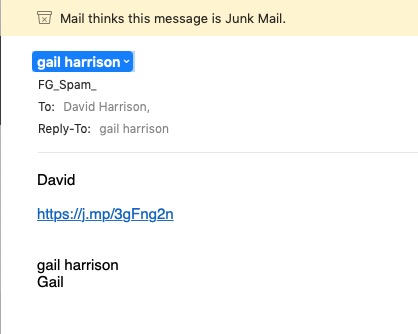
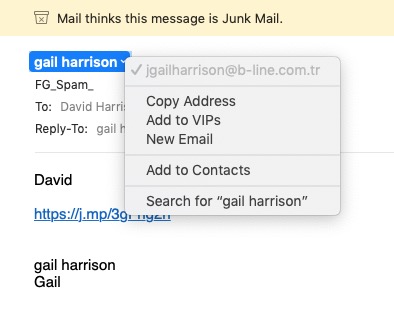
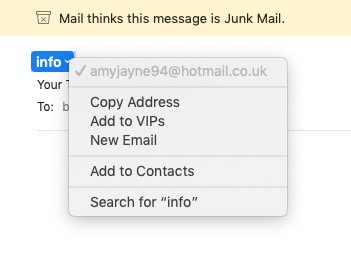
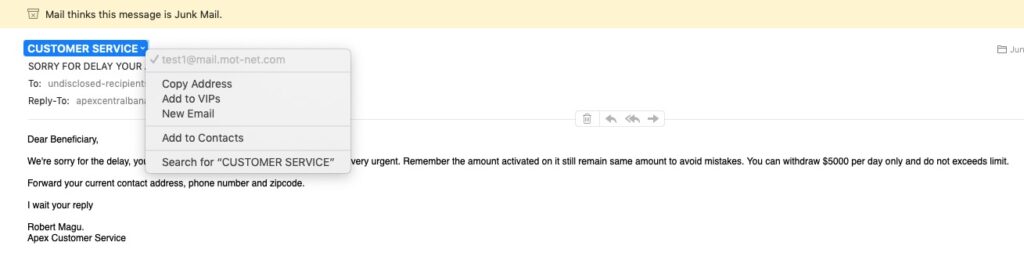
You’ve got Spam filters running? Of course you have – but you better check! Probably your ISP, or email provider (eg Gmail, Yahoo, Microsoft Outlook or Hotmail) is filtering out what it thinks is spam, but occasionally some gets through. If that’s the case then you can always look at the real sender of your message.
You can also apply filters to divert incoming email into different folders in your email system. That reduces the amount of Junk that you need to review. [I’ve also advocated using the “native” email application for your device rather than rely on the web-based service the email provider has. Thus on a Windows device – use Windows Mail (or Outlook); on a Mac use Mail. You can then easily synchronise your email between devices from multiple email accounts. Tidy!]
So we come to Passwords …
… this is the point at which you need to consider intervention and changing your behaviour! You might also need to do a fair bit of work, but it’s worth it if you want to have a secure internet experience.
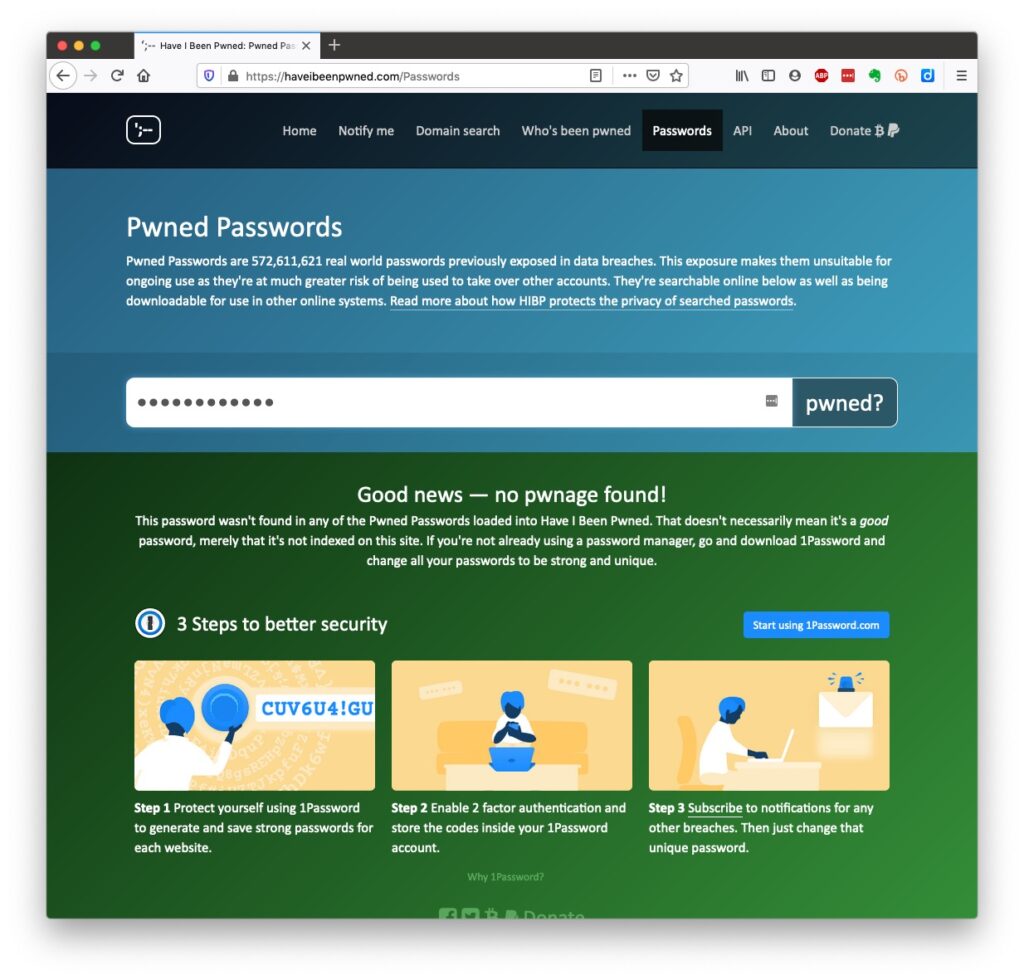
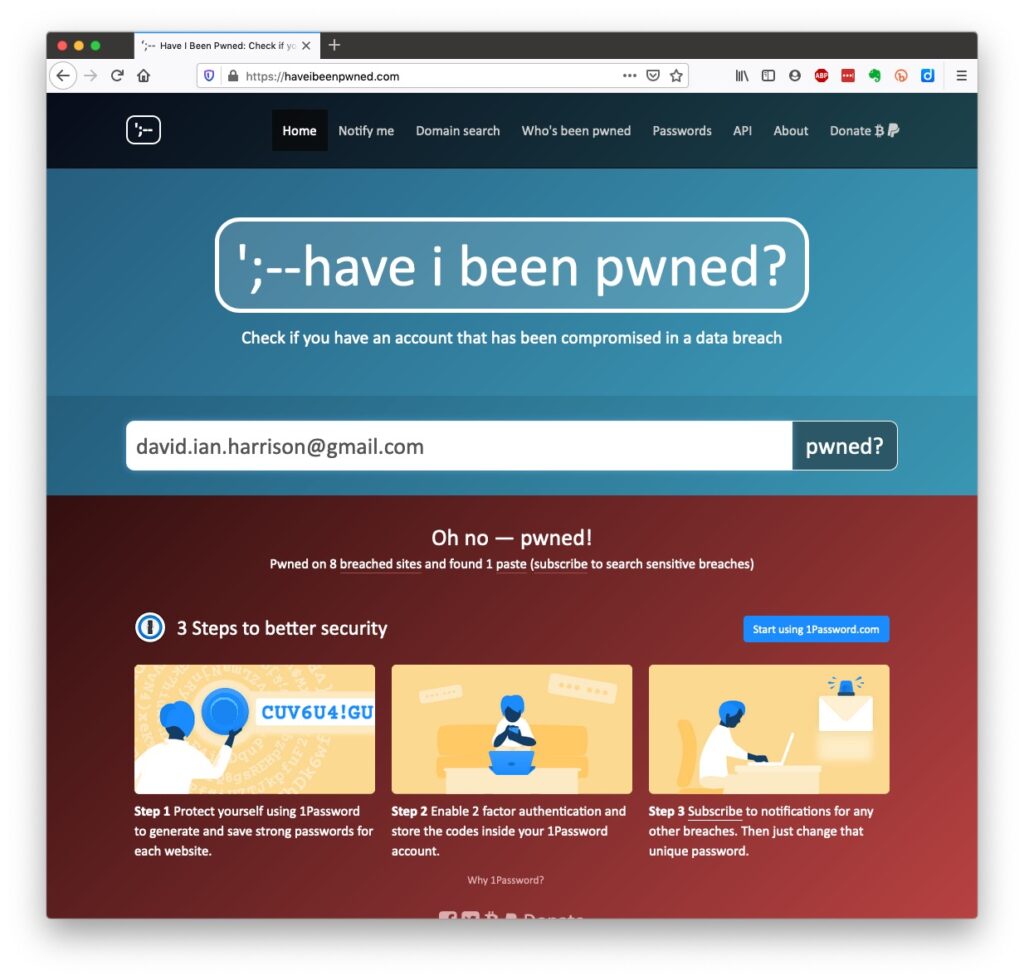
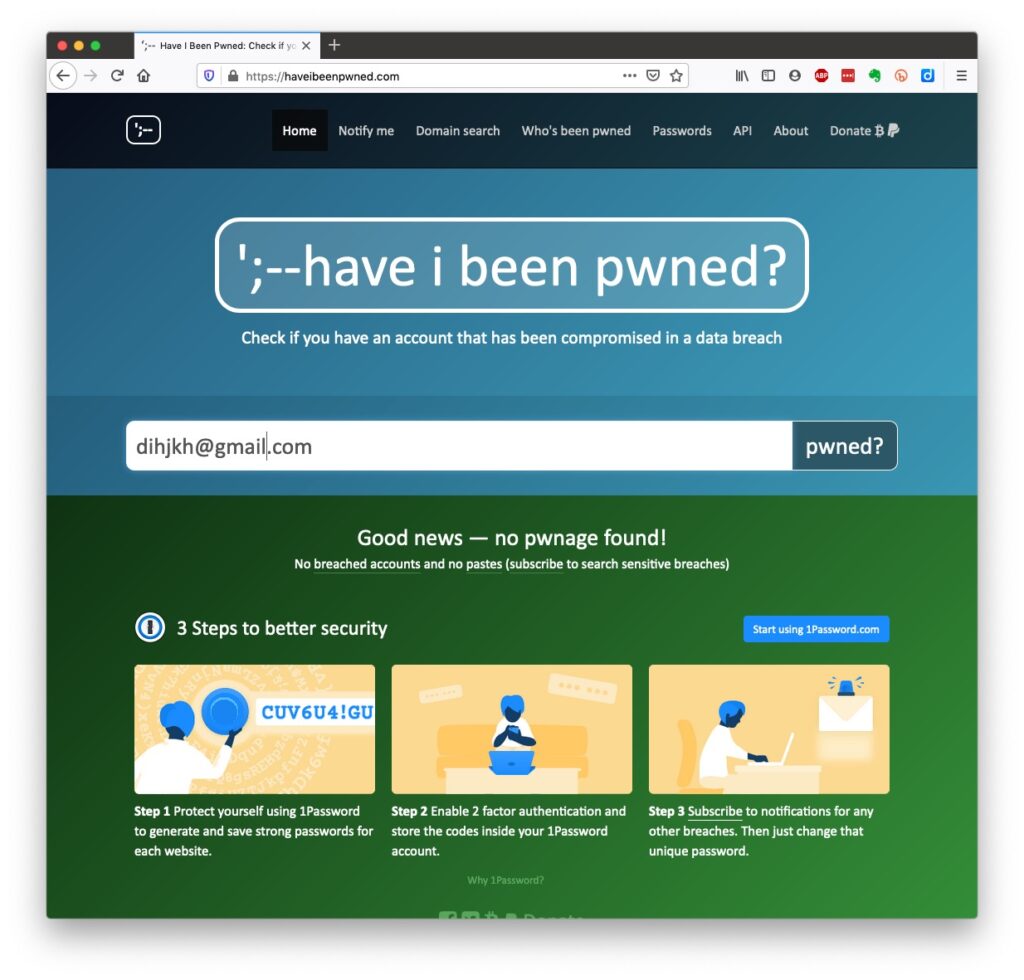
Oh no! I’ve been pwned … but it was a long time ago and I’ve changed my password many times since then!Ah! That’s better – my “throwaway” email and passwords are “safe”!
So … use a unique password for everywhere you sign on. There’s lots of tricks to achieve this; some of which I wrote about in a post quite a long time ago …
… but the real change of behaviour is to use a Password Manager – again I wrote about this a little while ago and linked it to using Two Factor Authentication, which I described earlier.
Password managers
I used to use LastPass and I believe there’s nothing wrong with it – despite the security scares last year, but other common ones are Dashlane and 1Password. Please make up your own minds after reading some Reviews and seriously consider using one.
However the biggest change in Online Security which started last year with Apple’s announcement of the launch of its’ implementation of FIDO is Passkeys.
The Video and the Slides from the talk given to the Cardiff u3a General Meeting
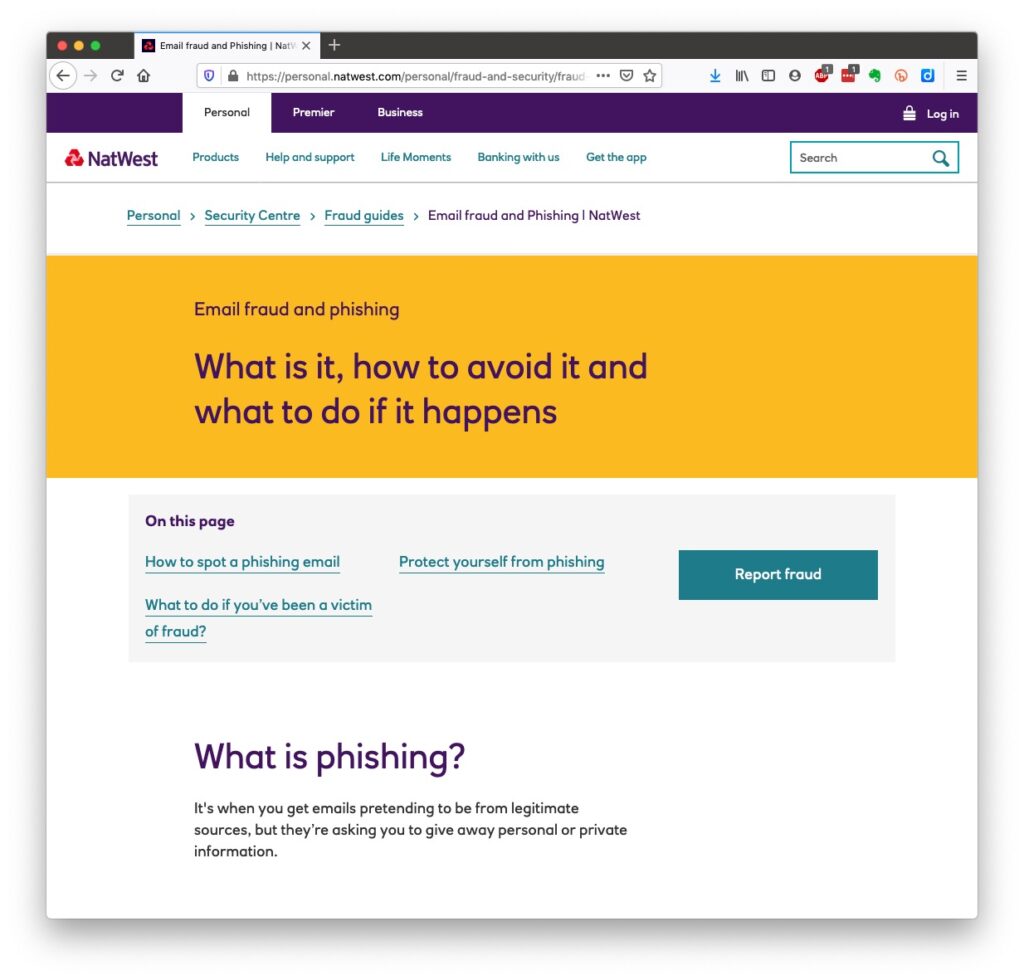
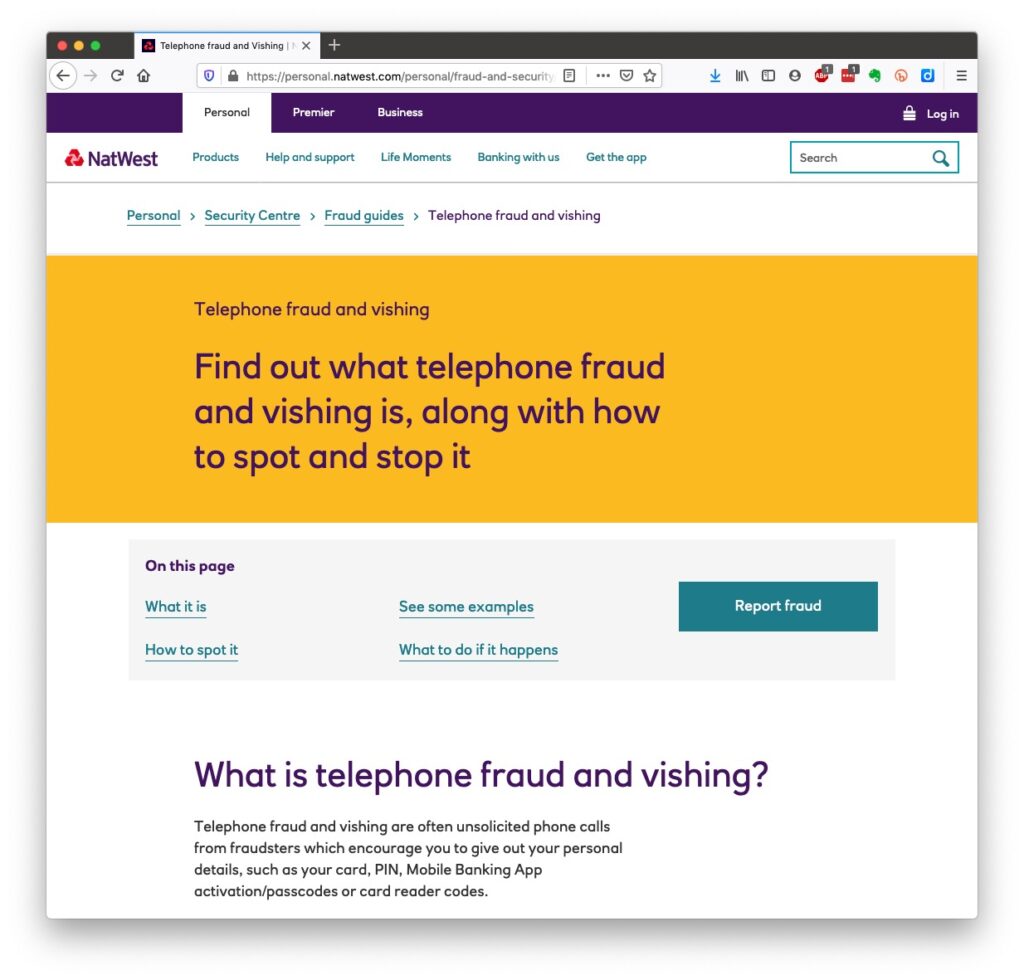
Your bank, eg NatWest – mine has a Security Centre web presence and particularly they provide a number of Fraud Guides
I could give a million references to changing your privacy settings on Social Media, but here are a couple relating to Facebook, perhaps the most challenging service of the lot.
Not a Spielberg masterpiece but something I knocked up this morning. There is one mistake in it, corrected in the second-half of the video. The Mac requires a 64-bit Linux distro, not a 32-bit one, so the same .iso file I used for the Dell Inspiron was used in trialling Ubuntu 20.0.4 on the 2008 MacBook Pro.
How I built a Ubuntu Linux 20.0.4 system on an iMac and tested it on an old MacBook Pro
I’ve also discovered that Etcher is available for Windows as well – go to pull-down button on this page. It might be worth looking at this as an alternative to Rufus.
This short note is written to advise on possible performance improvements you can employ if you feel that your network is “slowing down”. It may be that you just feel files, or pages, are taking longer to download, or display; or it may be that you feel it’s taking “too long” to connect to the remote site from your browser.
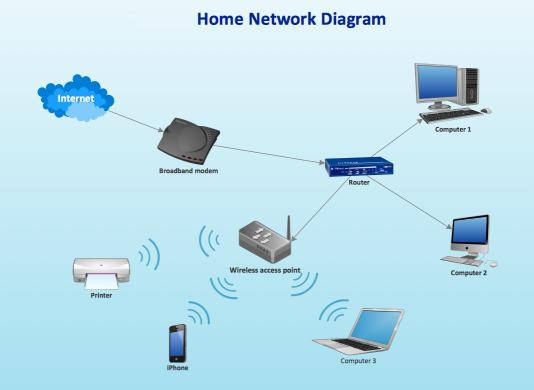
The first case can often be resolved by moving your WiFi router, if possible, to a better location. Remember that although WiFi can appear to go through walls and ceilings, the more you expect it to do, the worse will be the signal. So move the WiFi router and perhaps you’ll get a better signal. This is often not possible, so the next thing to consider is to use one of the ethernet ports on the back of the router and connect the computer to the router by ethernet cable, rather than using WiFi. This will always provide better network performance. This may not always be convenient so the last solution is to “extend” your network using either a WiFi extender, or a different approach called Powerline. This article explains the difference between the two and also includes a commentary on ethernet cable as well.
If you opt for Powerline, you will plug a unit into a 13amp socket near to your router and connect it with an ethernet cable to the router, and then on the same electric circuit (ring main) plug in another box which can be just another ethernet socket, or more likely it will have a WiFi capability. Systems from Trendnet, TP-Link, D-Link and others are amongst those you could purchase. Here’s a review of possible systems, most of which can be purchased from Amazon. It is possible to configure these to use the same SSID as your router, but you may have to make do with having a separate network when you connect to these points.
Alternatively, your ISP will often have a solution that will mean that you can use the same SSID for the extended WiFi access points, or you can purchase WiFi extenders (as described above) from Amazon which you can then configure to use the same SSID as your router. So that’s the first case taken care of. What if you just feel that your network is lazy, is there anything you can try to improve performance.
Well first – and perhaps you should have done this first anyway – you should check whether your ISP is delivering something near to the broadband speed it’s contracted to provide. We’ve talked about this before but test your internet speed using something like Speedtest. [As an aside, you can also download the Speednet app for your mobile device and walk round the house testing your signal this way too.] If that’s not the problem, and it just seems to take too long to make connections, then perhaps you should apply some new configurations to your router.
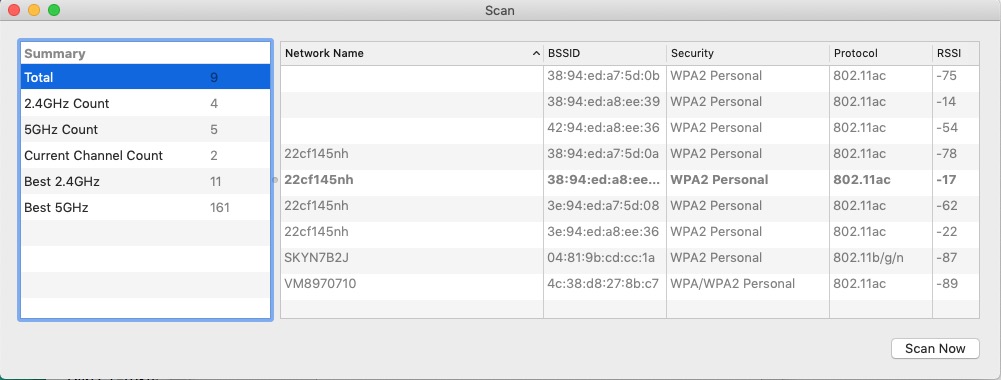
The first thing you can do is to see if you and your neighbours are battling to use the same wireless channels. The common ones used are 1, 6 and 11 as they don’t overlap. However for this reason, sometimes, routers might be “hard-wired” to use one of these channels and so two nearby networks might actually be using the same channel which could then be interfering with each other. Read this article to learn more about this, and then once you’ve tested your network and it looks as though you could be suffering this way, you’ll need to refer to your router manual (or talk to your ISP) to change the channel(s) you use. Why channels? Well because most routers now broadcast signals at two wavelengths – 2.4Ghz and 5Ghz. What’s the difference – read this article.
The other thing you can do is look at how your router is setup with its DNS server. Your ISP will have configured your router to use their DNS servers, but it might be that these are not the best ones for your locality – especially if you’re on a laptop and are moving about a bit! So what is a DNS server, and what does it do, and why might this be important?
A DNS server translates a URL (such as https://digital.cardiffu3a.org.uk/) into a sequence of numbers – an IP address – that instructs the modem that transmits and receives data going and coming from the internet where to go. This whole process is explained in some detail in this article. If you decide to change the DNS settings on your router, or just on a device, you can look at this article which shows you how to do it.
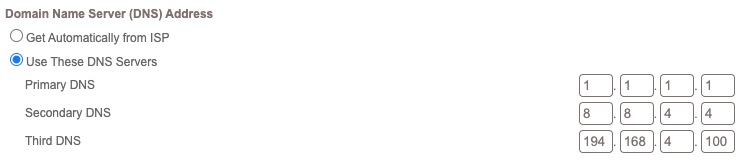
In my case, I’d been disappointed in the performance of my new Netgear Orbi routers which although they seemed to shovel the data around very fast, there was a noticeable lag/delay in achieving connections, and I’d also felt that the router was dropping connections more than it should. So, bearing in mind I have a Virgin Media Superhub that’s only running in modem mode with the Netgear Orbi router behind it, I changed the configuration of the router which was pointing at VirginMedia’s DNS servers to point at Google’s secondary DNS server. I also checked what channels were being used by nearby WiFi networks using the Mac’s Wireless Diagnostics tool described in this article …
… which indicated that I should change the 2.4Ghz channel that was being used from 1 to 11, and to set my 5Ghz channel to 161.
I left the DNS server setting on my devices to be ‘automatic’. This makes it much easier to “roam” away from the house with a mobile device. I then ran a test called namebench (from Google) to try and find the best DNS server for my home network, but you don’t need to do this. I would suggest you look at this article and then experiment with Cloudflare, Google, and OpenDNS perhaps in that order until you get a response to your internet request that satisfies you. Leave your ISPs DNS server in the list of servers (the third in the list below) – just-in-case.
Our last official meeting of the year, although please note the special meeting next Thursday when Phil and I will chat about creating a Linux machine on an old desktop or laptop, or just to run alongside your normal Windows, or MacOS from a USB-stick. You will need a 4GB USB-memory stick to fully take part in the session, and we would be grateful if you could let me know you’re wanting to join us as soon as possible so that we can send out some notes to you.
Sianed requested some advice on purchasing a PC for her journalist husband. The group provided a range of advice – a large screen, maybe look at an all-in-one. My advice … just make sure you can upgrade it (RAM, replace hard disk) and look to buy one with an SSD and as much RAM as you can afford up to your budget. Mario mentioned that you can AirPlay your iPad to your TV if you have an Apple TV box – that does work quite well. I’ve got one of the Generation 3 boxes.
Paul told us about his amazing (!) app to control his car provided by Toshiba; we all commented that was fine until it all started going wrong and was there a mechanical equivalent.
David reported on the comings and goings of life on the Esplanade. Alcohol was now an issue and there’ a campaign to make it an alcohol-free zone. He also mentioned the incursion of “mobile ethnic personnel” (using Paul’s terminology) but fortunately they didn’t stay long! The perils of living in Penarth, eh!?
Owen has been learning, and then applying himself, to PHP – a programming language for websites so that he can do some work on the backend of the Cardiff U3A website for creating forms, and other goodies. I suggested this was exciting, he didn’t seem that excited! With Python, that’s two new programming languages he’s had to grapple with since Lockdown .
Don survived an electrocution episode – I don’t think he actually described what happened, but it was something to do with his garage and a lawn mower. He’d had a printer problem which he’d solved by uninstalling the printer driver and re-installing it. That’s not the first time a member has had to do that with Windows recently. He also received advice from Stella on how to control ants (black pepper apparently) and told us about a cheap way to get a replacement key fob re-programmed at the house.
Margaret followed on the Insurance theme and mentioned that even though not a caravan owner she’d taken advantage of Caravan Club Insurance to protect their home during a longer than normal absence from home. She also mentioned she’d purchased a Logitech webcam for he PC which she’d installed and was using today. She’d also purchased headphones to improve her Zoom experience. She enquired about live-streaming because her church was considering using this as a means of accommodating parishioners who couldn’t attend socially-distant services. I undertook to look up potential solutions and sent some links on WhatsApp and will repeat these on our Computer Group Forum on this site. Anyone with any other ideas about live streaming please contribute to that Topic on the Forum.
Ted was considering getting a Raspberry Pi as a project but couldn’t think of anything other than a weather station to build. I’m sure an appropriate Google would yield many more ideas, and I know from buying one for my grandson there are books with project ideas in them. Phil showed us his Nature Camera which worked with his Raspberry Pi.
Jim is getting bored with sorting out his Google Photos and Albums but is getting towards the end of the task, labelling, titling and tagging as he goes. The next step is to start deleting photos on his phone. Good luck there. I think we had a session on that at the beginning of the year, didn’t we?
Christine had attended a zoom funeral that morning; had got her new Cello TV working with the Powerline supplied by BT (I think) and was doing something transferring photos from her phone – I’m sorry, my notes don’t help me be more clear!
Fred had found a wine supplier for his forthcoming important anniversary – FineWinesDirect (on Penarth Road); and had implemented WhatsAppWeb since the last meeting.
Stella was in the last week of her saga with BT and had found that tethering her phone to her laptop worked quite well, and better than her broadband. This is good news if she goes down the Network 3 Home Hub solution. We also discussed for David (F&C) the possibilities of a mobile dongle from 3 for a caravan if they decided they had to get away from the “mep’s” and other undesirables frequenting their front garden 🙂 Stella also told us about wetransfer.com as a service to transfer large files from one person to another. The link to the file lasts only 7 days though, but you do get notice that it’s about to expire.
Ann had successfully sorted out her WhatsApp images and videos and had found a new app that she could dictate her thoughts to – KeepNote. It’s an interesting addition to the plethora of note-taking apps. I’ve used EverNote for a long time, but there’s OneNote and Quick Note (both from Microsoft), amongst others.
We then discussed the way the group should run from the beginning of next session. I won’t say any more about this but it was a very useful discussion that helped me frame the email I sent to members after the meeting. We wanted more members to try Zoom and I offered to help anyone who wanted to try and use Zoom with one-to-one sessions. The next meeting will be a Zoom meeting on September 10th.
There was insufficient time to go through the media converter services I’d promised to demonstrate. I’ll write this up as a post on the public Thought grazing site, as I will edit the WordPress notes that are there, and also write up something on Facebook Privacy issues and also enhancing home network performance. That’s quite a bit of summer homework for me. I think I probably have to do something on Backup and Sync (specifically in the context of Google Photos) as my post on this is probably a bit out of date too. No rest for the wicked.
I sent a long email to members after our last meeting of the session yesterday and thought it probably a good idea to post it on the website as well for reference, and for comment.
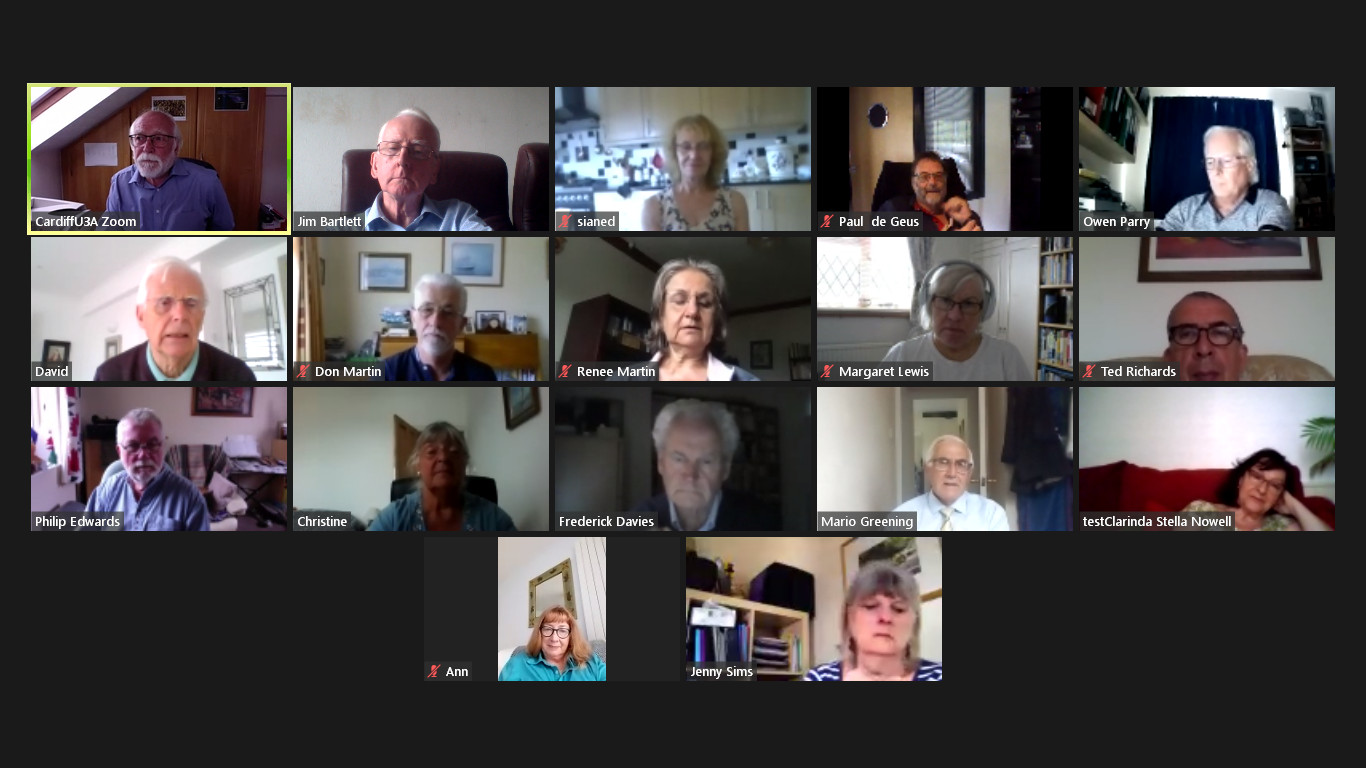
We’ve just finished our last meeting of the year – 17 of us met in our virtual state for a lively and very good natured (that means fun) session. Courtesy of Jim, I’m attaching a screenshot of those of us who took part.
We discussed next year, and how comfortable we felt about meeting in person again, and there was a general consensus that it was just too early to commit now to meeting as a group in September. That’s regretable, but completely understandable and a reasoning that I’m 100% in tune with. Until we can meet as a Group, in the same way as we used to meet, I won’t feel comfortable – especially in the small Meeting Room at URC.
There are other venues we could possibly meet in, and the Committee will be looking at possibilities for the re-start, and we will keep a “watching brief”, but as Phil Edwards said – the acid test will be when a crowd is possible at a Cardiff Blues match. Until then I think all of us have very understandable worries. Add the issue of Public Transport and mask-wearing and it really doesn’y make sense for us to take unnecessary risks when Zoom has been working so well for so many of us.
Over half the group has met at a meeting at some time since we started. The format of the meeting has been to go “round the screen” with attendees telling us what they’ve been up to, but more importantly the technology-related issues they’ve been facing. This has been very beneficial to all of us, so-much-so that I’ve rarely had to do much presentation. Being able to rely on the Group, or to “think on my feet” to provide solutions – it’s been great fun, and we’ve all learnt a lot I think. The Notes of the Zoom meetings have been written up and are on the Thought grazing website.
So … (and this is the point of this message) I wanted to let you all know that we’ve decided to continue with Zoom meetings for the time being. The first one of the new session being on Thursday 10th September at the usual time. They will then continue fortnightly (rather than 2nd and 4th Thursdays) like it used to be. I would like to encourage members who haven’t joined us on Zoom to consider giving it a go. If anyone would like me to help them setup Zoom ready for next session, please get in touch and we can arrange a one-to-one session to let you get some confidence on how it works. That’s how a few members in the attached screenshot joined Zoom and now they’re very active participants!!!
Zoom is always going to be a poor alternative to face-to-face meetings, but it has worked surprisingly well for those of us that have tried it out, and perhaps if you haven’t, then perhaps you might want consider giving it a go.
However, if you no longer want to receive these emails, and want to leave the Group, I would of course completely understand. Please let me know, or just leave the Group from the Beacon Members page. We would of course miss you and you could always rejoin once the “new normal” has been established! Your access to the Thought grazing website would in any case remain as long as you are a Cardiff U3A member.
Thanks for reading to the bottom of this long email.