Category: Software

  • Meeting 9th October 2025

    Here is the agenda for the meeting produced by Iain …

    There was quite a lot of discussion on the merits, or otherwise, of Perplexity (or any other ChatBot) being part of a browser – in this case Comet. The group agreed that a session to review and update our knowledge of advances in AI would be timely.

    … and the we had the Buzzword “Smart Watches” from Phil …

    This BuzzWord created a lot of comment especially on health issues, and we should take seriously the suggestion to ensure our Medical IDs were up-to-date on our smart phones, as well as getting confident about the benefits of using the watch rather than the phone for a lot of everyday tasks. Phil advocated that no one needed more than the entry level iPhone SE – if you were considering an Apple Watch.

    The main discussion of the session revolved around “The Apps I use”. I’ll try and write more about these in the Forum Topic that I created for this subject some time ago, so will here just list the apps. The Forum post will have (hopefully) a link to it added …

    Helen kicked a lively session off with her use of the Cardiff Bus app which enable her and others to easily see where the bus they were waiting for actually was. It also has good timetables and maps to plan your journey. A well used app by most members of the group, and one that was well appreciated and easy to use.

    Renee then highlighted her use of WordReference – an app that works like a dictionary, when you just can’t find the word you’re looking for.

    Sianed initiated a bit of a discussion around her use of Waze which she found much better than her satnav and Google Maps for helping her find the best route in the car from A to B, due to it’s crowd-sourcing of road conditions. It’s also a great source of engagement for grandchildren when driving them around as they feed the app with (hopefully) valid information and advise on when there’s a police car hiding!!

    Yvonne is very keen on using BBC Sounds – I must get round to using it more, especially as it not only has loads of music on it, but also live streaming of the radio channels, I believe.

    Don came up with Bluebirds, an app he’s been encouraged to use now that he’s. season ticket holder at Cardiff City. I think it was him that mentioned Find Me – a location tracker. This then led to mentioning of Life360 and using Find my xxx (if you’re an Apple Family member); all useful apps to track errant children or grandparents!!!

    Nita mentioned BusTimes.org, a website that allows you to stack buses all over the country with, it has to be said, a level of inaccuracy, but useful all the same to help you plan a journey. She also mentioned Your Parking Space, an app and website which enables you to book 350000 parking spaces across the UK. This of course kicked off a long discussion of car parking in general, and how awkward it can be to download an app to pay for parking in a location with a poor cell signal. So it might be advisable to download and install Ringo and PayByPhone onto your phone to reduce annoyance and anxiety! An alternative to Your Parking Space is JustPark which I’ve used to book a parking space in someone’s front garden in London. The things you can do!!

    Phil mentioned a Paint application on MacOS, similar to the one he’d first used on Windows 95, which was simple to use. I’ve tried to locate it, but so far have been unsuccessful. He also mentioned MusicScore, which was great for music notation scores when it was first launched in that it allowed you free access to music. Things have changed now and it’s not only a subscription service but you also have to pay for downloads.

    George then introduced us to two medical devices and their associated software. First he praised the Omron range of devices – blood pressure, weight, temperature, whose results could all be integrated into an app and then downloaded into a spreadsheet or fed to other Health apps. He also described the clever integration of hearing aids with controls on your phone to optimise the listening/hearing experience in different environments. Margaret mentioned her hearing aids were controlled by MyPhoneAK, I suspect there are other apps that do something similar, mine is Hearing Remote.

    Margaret then mentioned her use of her Windy app and the website, which gives a visual presentation of how the weather is progressing – strongly recommended to give it a look. I mentioned my use of Yr from the Norwegian weather service which I found particularly useful when travelling. George then added Marine Traffic (for boats) which works in a similar way to Flight Radar – mentioned by Shiela (for commercial airlines) in tracking the whereabouts of boats, and of course in identifying them from out of visual range.

    Anne loves the Translate app (Google or Apple), and who doesn’t! You’ll soon be able to have a real-time conversation with someone speaking your collective native languages with spoken translations instantaneously.

    Tom highlighted his use of Google’s Notebook LM which he uses for Research and Note Taking and Recall which (if I’ve understood it correctly) can summarise from articles, documents or books into a single “note” and then with Obsidian (a personal knowledge base and note-taking application) store it for you for later reference.

    Wordgames, puzzles and assistants were then mentioned by a number of people. Sheila uses Crossword Solver (I’m not sure which one – there are many) to help solve crosswords from known letters. Iain mentioned that he always had to be doing something, so in the blank spaces he would play Solitaire. Phil mentioned that he’d used ChatGPT to solve Sudoku puzzles, and Iain (and others) have used Anagram Solver. [I have to admit this is not, and never will be, an area of interest to me – shame on you, I hear you say!!]

    Dave (a self-described petrol-head) uses an application – Torque to help with his rebuilding/restoring of cars beyond their sell-by date 🙂

    Phil chipped in with a thumbs up for Tile Tags as a less expensive option to proprietary Apple tag devices, and ExpertRAW was mentioned as an Android alternative to Halide that I mention in my list of Favourite apps.

    Lastly, Helen asked if anyone had any thoughts on how to get old family videos that had been transferred onto DVD onto a Digital platform. Tom came back with a really useful suggestion – using MakeMKV from a DVD player on your computer. I think that (with perhaps an introductory session on video-editing might be a good idea for a practical session at some time in the future.

  • An interesting perspective on the CrowdStrike incident …

    As hardware/software has developed, has enough consideration been paid to redundancy (ie failsafe solutions). This article, whilst bemoaning the underlying architecture of Microsoft’s Windows operating systems (since Windows 3.1), points more widely to the way that modern systems don’t really address the issue of … “What if this happens, then what?”

  • Google Photos & Snapseed – an update

    I’ve posted articles on using Google Photos a few times. Of course with the passage of time, features, and interfaces, change, so it is always useful to just review “what’s occurring”, and see whether there’s anything that needs correcting, or adding to. I will try and go back and edit the posts listed below to reflect changes that I’m aware of.

    First and foremost it’s important to note that I don’t tend to use Google Photos for anything other than sharing photos with family and friends, so my use of the editing features is a bit limited. I am however a strong advocate of using Snapseed (available from both the Google Play, and Apple App Store) as a photo editor, but as it works best with the Google Photos app, it’s necessary to install Google Photos as well. [Snapseed is not available as a native desktop app on Windows or MacOS; it’s only available on mobile devices (Android and iOS/iPadOS).] So the first link that’s important to be aware of is this one …

    Google Photos and Apple revisited – if you’re an Android user you can skip this article and move to the next paragraph – all your photos taken with your camera will be safely housed in the Google Photos app!!! If you’re an Apple user it’s important to understand how synchronisation works with Google Photos and the Photos app on iOS. If you’re not careful you can either end up with duplicate photos on both platforms, or worse still deleting photos from a device thinking that there’s a copy “in the cloud”.

    The next bit of housekeeping is to understand what happens if you want to delete a photo from Google Photos – it’s not entirely straightforward (but it is easier than in the Apple world!!!). This article I wrote – “How do you delete photos from Google Photos?” – attempts to help you delete what you want to delete from your device, or from Google Photos on the web. This is particularly a problem if you’re an Apple user with a Camera Roll, rather than an Android user with Google Photos – so you’d be advised to read it.

    So we finally get to editing our photos and using Snapseed. This article – “Snapseed and Google Photos” – is a good overview and will take you quite a way down the road of installing Snapseed, it covers the basics of how to get photos from a camera (rather than a smart phone) into Google Photos, and some basic editing of a photo. There are also links in the article to earlier posts on using Google Photos as well as a video on “getting started” and some additional references that I found useful.

    The new stuff!

    How To Use Google Photos: The Ultimate Beginner’s Guide [2023] – if you want to just stick with what’s possible for you to do in Google Photos this is just about as good a guide as you’ll get. It goes through all the features of the app, but doesn’t cover editing photos in any detail. If you want a video that covers the same ground, you might like to watch this [I’d like to remind you of the point I made about his reference to Backup and Sync if you’re an Apple user – my earlier comments apply!!! He has decided to use both iCloud and Google Photos on the web for two backups.]. Google’s help guide to editing photos is provided here.

    So we turn to Snapseed – here’s a beginner’s video on how to use Snapseed for editing, you should also refer to the article quoted in the earlier post – Complete Guide To Using Snapseed To Edit Your iPhone Photos – from which I also recorded the video from my computer screen, but it’s obviously better using the link from the article. Also please note that although iPhone is mentioned in the title, it’s 100% applicable to Android phones as well. Finally you might probably want to look at this – SNAPSEED: ULTIMATE USER GUIDE + TIPS (2024 UPDATE) – if I’ve convinced you that Snapseed is the “goto” app for photo editing on your smart device.

    Google is always updating its apps, and this is particularly true now that we have AI. So a recent update introduces the possibility of background blur – which can make a portrait of a person stand out more, by weakening the effect of the background. Google writes about its new AI features here, and here,

    Finally … this article has been all about using Google Photos, which might have let you think that Apple’s Photos app is not so good. In a forthcoming post, I will be examining how Apple Intelligence (available in the autumn) will quite possibly revolutionise Apple’s photo applications, and will for some, if not all, Apple users mean they might be less likely to use Google Photos going forwards. They’ve already moved to allow the sharing of albums stored in iCloud to anyone via a link. That’s progress!!!

  • Thinking of moving from Windows to MacOS

    For me, the problem is the other way round of course, but I know a lot of people are put off switching to Apple because they think it might be too different, and therefore difficult for them to pick up.

    Here’s an “explainer” that shows some of the most common differences and explains the comparable names and facilities between the two systems.

  • Using Windows Copilot app on MacOS

    Here’s how to use Microsoft’s Copilot app on your Mac desktop.

  • Digital sound

    Starting small

    Our smartphone capability – (audio memos, sound recording apps for Android and Apple music recognition (Shazam) and streaming services.

    The terminology and technology involved in audio is mind-boggling. You really have to be an expert to get your head around it – and I’m not going to try. There are a wide range of differences in Audio Formats – What is HiRes Audio? It would appear that Spotify has only just recently entered the field of HiRes audio. I’ll just take it as read that I want the best, if I possibly can get it. Currently Apple seem as good, if not better, than the rest.

    How to play hi-res music and lossless audio on your iPhone

    To get the best quality audio for iPhone and for Android, you may need to dip into those two articles. For the Apple user, you can use AirPlay to stream audio (Apple) to a different device (eg a TV or HomeHub), or use Bluetooth (both Apple and Android) – but Bluetooth is generally not up to the mark on both platforms. Alternatively you should seriously consider using a wired connection using the headphone jack (some Android) or a lightning to aux (headphone jack) dongle (Apple). On my MacBook I do have a headphone jack and when on the desktop it’s connected to a pair of powered Logitech speakers.

    Streaming services and their apps

    As mentioned above, there a huge set of services requiring you to set up accounts, and install apps – unfortunately (but understandably) most of the free ones are not ad free, which can be distracting …

    Best free music apps 2023: free music on Android and iPhone (from What Hi*Fi?)

    The best free music apps for iOS and Android (from Digital Trends)

    The 7 Best Free Music Streaming Apps for iOS and Android (2023) (from LifeWire)

    8 Best Streaming Music Services With an Offline Mode (from LifeWire)

    My conclusions from this? We use Apple Music with the recently launched and integrated Classical service as well. Both of these are part of our Apple One subscription which we share with other members of our family. Three of the family still use Spotify, but our son in Australia uses Tidal (for HiRes streaming) and Soundcloud (for new music). You can (and I have) convert Spotify playlists to Apple Music playlists (and vice versa) and I have using this app – Songshift but there are other apps.

    Then we turn to Audiophiles, and the world of digital to analog convertors. By an audiophile (in this instance) I’m really just talking about someone who wants to connect a better set of speakers to their digital devices than the internal speakers that are supplied with the device. [In other words I’m setting the bar very low.]

    The starting point is to begin to understand the world of Digital to Analog convertors (DACs), so this video hopefully will give an introduction and explain what’s going on in this mysterious world of interconnecting equipment.


    I’ll follow this with a couple of articles that you might wish to peruse ..

    What is a DAC? And why do you need one? (from What Hi*Fi?)

    What is a DAC and why would you need one? (from Digital Trends)

    You want to use your mobile device as your music player? Use a lightning to USB dongle to connect Apple to a DAC and then to your speakers, or headphones, but be sure to get a Samsung ACTIVE USB to AUX dongle for Android phones, or a USB-C to USB-C (or USB-A depending on your DAC) dongle to connect to your DAC, and on to the headphones or speakers.

    So, if you’ve got this far, you might wish to really play your music at the best quality that it has been stored in digital format on your device Watching these two videos might help – or confuse you even more!

    For Android …

    For iOS …


    Recording and editing music/sound on your device – use Audacity, Garage Band (iOS, MacOS) or BandLab (Android or iOS).

    Then we turn to digital sound playing systems.

    A wide field of options including the portable MP3 player – but would anyone want one of these nowadays – and the smart home speaker (with voice assistant) – which we looked at last year, and is definitely a device to look at.

    Finally integrating with your home HiFi system.

    I wrote about my setup in 2016 and again in 2019 for the group. I also wrote about my experiences on trying to make iTunes work for me better back in 2018 – from this latter post, the MacMini and Plex still remain as part of my setup but I don’t use either to stream music, and iTunes is thankfully dead and buried – well almost!

    So what has changed from 2016? Well the external speakers connected to the Marantz amp have disappeared to be replaced by a Sonos Beam Soundbar connected to a new Samsung TV. All the other HifI components remain and are connected to the Marantz amp which is in turn connected to the Sonos Connect “hub”. The Bose speakers are still connected to the Marantz amp, but are rarely used now as we now have an Apple HomeHub which I can stream to using AirPlay, and which can be integrated with the Sonos speakers (I now also have a Sonos Move portable speaker) to provide home wide sound.

    It has to be said this is a technological project, rather than an audiophile one, as my hearing has deteriorated to the point where I couldn’t detect HiRes from ordinary sound anyway, and the last time we actually had the same music in the whole house must have been the week after we bought the HomeHub.

    The Apple HomeHub is a delightful device – we can “talk” to it using Siri or from Apple Music, and link the Sonos devices to it so that we can direct music to different speakers as required. It’s also the heart of our SmartHome project – more another day, and will provide moths of technology challenges for me using the Apple HomeKit and the interfaces that are being developed to link smart devices to that platform.

    The next project – we’re installing solar panels this week, with a battery and a gateway to link to link to the Grid (using Octopus flexible tariffs) – definitely a topic for next year when we’ve got it all sorted.

    Jonathan sent me his Sound setup which I reproduce below …

    Just for info. – my home audio/cinema set up has some similarities to yours.

    When we moved to Cardiff we bought a new house in Pontcanna which was still being built and I took the opportunity to have wiring installed in the walls to ceiling speakers in three rooms. I took advice from an AV specialist who advised Sonos, Spotify, blu-ray player and mini mac for my digital collection. 

    Sonos serves all 3 rooms, plus a portable speaker, via a marantz amp in the main tv room ( surround plus sub ) and Sonos amps in the other two ( stereo )

    Spotify provides all my music needs and I never now use the mac. Nor do I have a CD player in the house since the blu ray/receiver packed up. My cds are all packed up in boxes in the loft! The only stuff I miss is Neil Young and Joni Mitchel after Neil left in a huff!

    I have Samsung tvs in 4 rooms – 3 of them Smart and all of them now support Spotify, Youtube, netflix etc. We subscribe to Sky with a main Sky Q box in the main tv room and mini boxes in 3 others.

    I’m really happy with it but conscious that the Sonos gear is now 12 years old. They keep trying to get me to upgrade. One day it will be inevitable I guess. Sky might be considered an expensive luxury but we all need one or two of those. It’s brilliant!

  • Snapseed and Google Photos

    If you want to edit, even if only in a minor way, the photos on your smart device (phone or tablet, Android or Apple), two offerings from Google should be tried first. If you’re an Android (Google) device user, it’s a no-brainer.

    The Google Photos app will be installed on your device when you get it, and all you need to do is install Snapseed from the Google Play store. If you’re an iOS or iPadOS (Apple) device user then there’s a couple of extra steps you need to do before you can get started.

    This guide concentrates on Snapseed. I’ve written about Google Photos previously and I’m providing links to them below. I’ll check to see that things haven’t changed materially since I published these posts …

    Getting to grips with Google Photos – needs some updating and revising, and links need to be checked.

    More Google Photos – some simple image manipulation – basically sound, but I need to check to see if there are any additional tools added.

    Sharing an image (or album) from Google Photos – should be just about up-to-date.

    How do you delete photos from Google Photos? – more recent so I’m assuming that it’s good-to-go, but I’ll check of course.

    Although Snapseed is intended for use on smart mobile devices, you can install it on either a Windows PC or a Mac, but I have no experience of doing this, so it would be a project you would be taking on ahead of me. So for that reason I’m only looking at the app that you can download either from the Google Play, or Apple App stores.

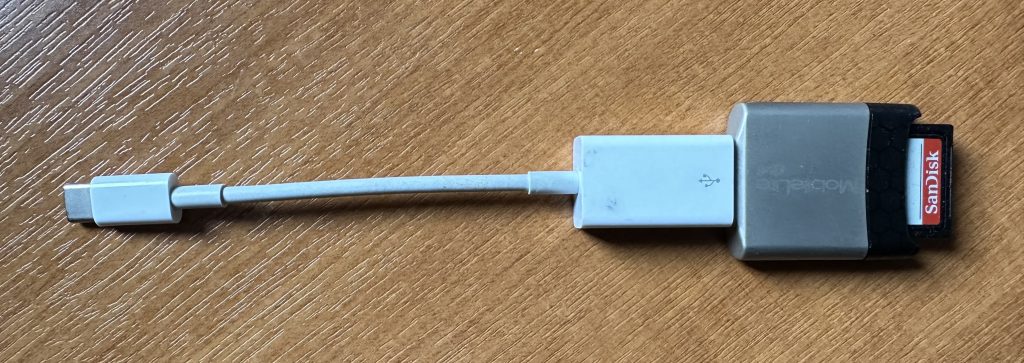
    So for camera users (rather than smart phone users), you will first of all need to get the photos onto your device. This could be by a direct cable connection from your camera to your phone, or by transfer using Bluetooth or WiFi, but more likely might be by using a SD-card cable like this one I have for the Apple gear. [It will either have to have a Lightning or a USB-C connector – check first before buying one.]

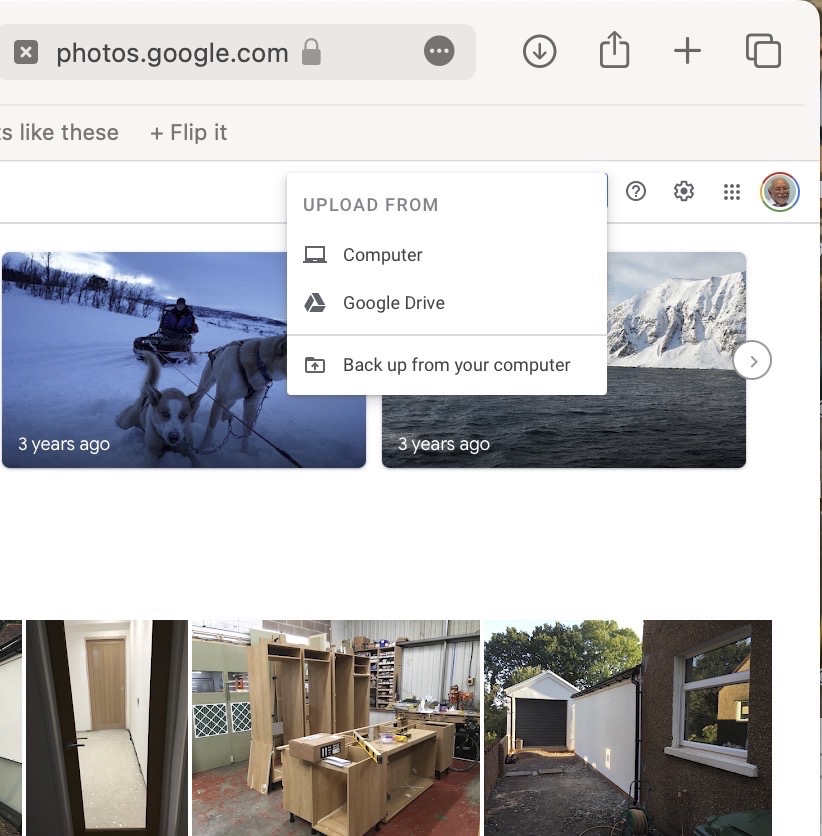
    The image(s) thus transferred will be added to your photo library be it Google Photos, or Apple Photos. Another way of adding photos on your computer to your Google Photos would be an Upload to photos.google.com – you will need a Google account to do this. This is how you would do it …

    Select Import to Upload images to Google Photos
    Select images from the Computer (or from Google Drive)

    You could decide to use Google Backup to synchronise all your photos from your iPhone (or iPad) to Google Photos as an “easy” way of getting the photos on your Apple device into Google Photos, but this is not necessary to use Snapseed as it can access your Apple Photos directly; so I don’t because I’m already backing-up my photos to iCloud. [I only discovered in November I was also sync’ing to Google Photos, so I stopped doing that then and saved some Google Drive storage, and a whole lot of complications about knowing what was where.] But if you want to synchronise from your Apple Camera to Google, this is how you do it from the Google Photos app on your device …

    Instructions on how to synchronise Photos on Apple devices to Google Photos

    You should now install the Snapseed app on your device(s) from the Google Play, or Apple App stores, if you haven’t already. If you’re an Apple user you might choose to install the Google Photos app at the same time – although you don’t need it to use Snapseed, but you might just like to compare how it works.

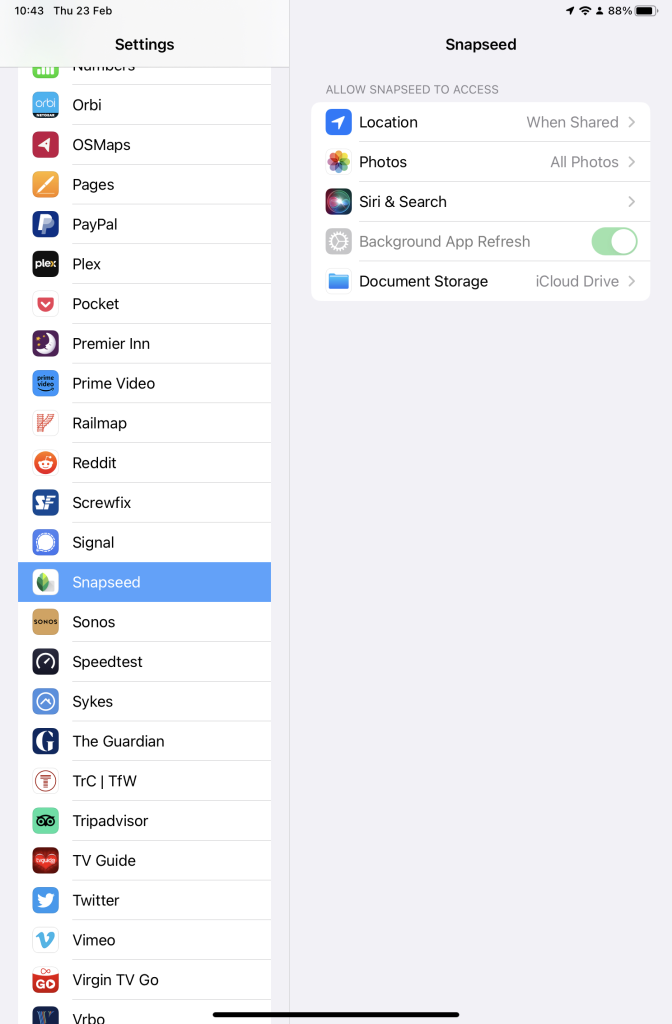
    Next up, if you’re an Apple user you need to allow access to your Photo Library to Snapseed (and optionally Google Photos). This will allow both apps (on iOS) to access the Photos in your Camera Roll on your iPhone or iPad.

    Setting up Google Photos and Snapseed to be able to look at Apple Photos on device(s)

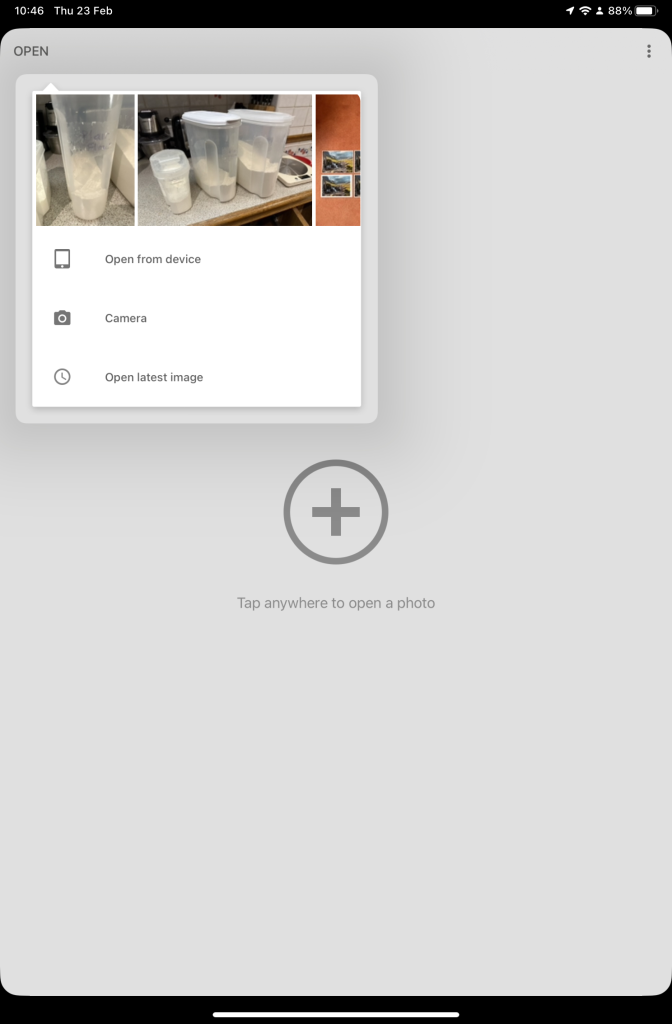
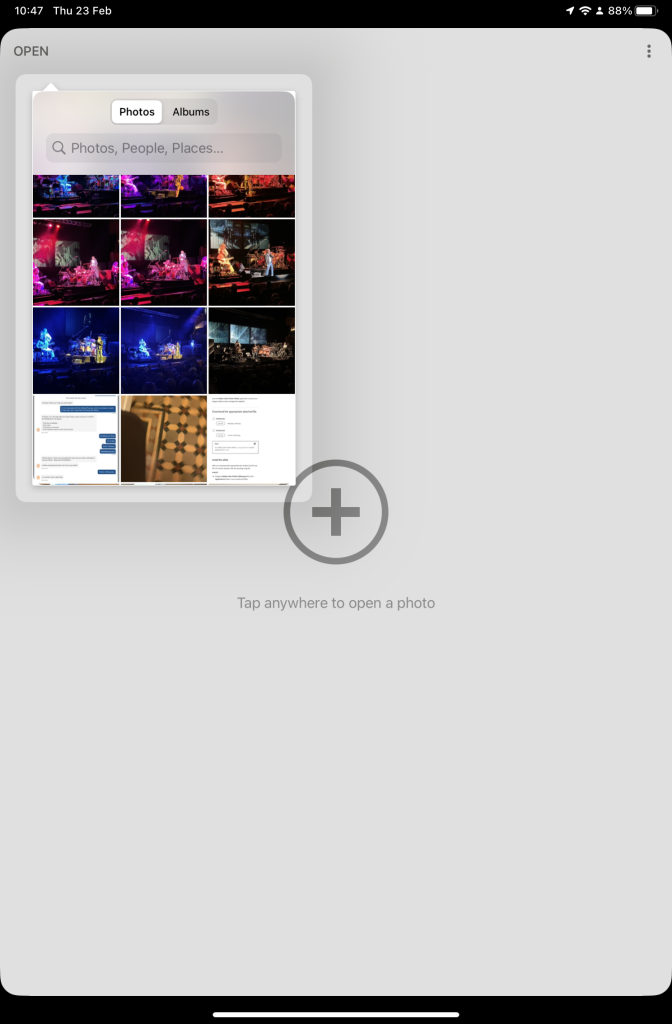
    So now your ready to start editing. Open the Snapseed app on your device – you are prompted to Open from device (ie look at the images in your Photo Library), or you can access the camera to take a shot, or Open latest image that you’ve taken. The steps from then on are relatively straightforward and you will have selected the image that you want to Use.

    Open Snapseed and look at the photos on your local device
    Select an image to edit, and click-on Use
    … and so start editing.

    That’s about it. This video (recorded from my screen, hence background noise and rather low audio volume) gives a reasonable introduction on how the Snapseed app works …

    Here are some links that you might find of interest:

    Complete Guide To Using Snapseed To Edit Your iPhone Photos

    How to Edit Photos in Snapseed

    Using your Android camera to take photos; but I believe all Android phones have slightly different camera interfaces, so you’re better off researching that for yourself. [NB If you have come across a really good guide, let me know and I’ll add it to the list here.]

    How to Use the Camera on an Android Phone: The Basics Explained

    Then for the iPhone …

    How to use iPhone Camera: A guide for beginners and pros

    A Beginners Guide To Incredible iPhone Photography

    How To Use The iPhone Camera App To Take Incredible Photos

    I hope that helps. Please advise if you come across something that doesn’t quite work for you, it might be my notes!!!

  • Browsers and Search Engines – 2022

    It’s always worth reviewing which search engine you should use, as it is the browser of choice to “surf the web”. The reasons you might wish to consider which search engine you might wish to use are greater privacy, enhanced security, minimise adverts being displayed, or to get more meaningful pages being displayed, but first we’ll look at the web browser you might want to use.

    First things first. If you’re using Internet Explorer you must seriously consider moving to Edge as Microsoft are removing support for Internet Explorer and one day you’ll find it just doesn’t work. If you’re using the initial release of Edge you should also upgrade to the latest version. It’s faster, more stable and uses the same code base (which is the open source Chromium) as some of the other browsers I’ll talk about later.

    The next thing to remember is that Google is not a Browser. If you have a Google app on your smart device, it’s just Google’s “convenient” way of getting you to use their search engine and capture lots of useful marketing data from you! Google’s browser is called Chrome, and it uses the same code base as Edge (as mentioned above) – others include Brave, Opera and Vivaldi.

    Chrome is by far the most popular browser accounting for more than 80% of the internet browser traffic, it has a wide range of useful extensions, and if you can be bothered to create a Google account and navigate through the preference screens, you can make it reasonably private – but you may wish to install the AdBlock Plus extension – an advert blocker, to stop intrusive adverts appearing on your web pages. [Another way of doing this is to look for Reader View, created for users with visual disability originally, which simplifies the view of a page on your browser screen.

    But why use Chrome when you can use another browser which has built-in privacy. I’m talking about Brave. You can deploy many of Chrome’s extensions in Brave and virtually everything you see looks like Chrome, but without tying you to Google. I seriously recommend you look at Brave.

    If not Brave, why not Microsoft Edge. The complete re-write of Edge using Chromium and with the support of Microsoft behind it makes this an excellent choice for those who use a lot of Microsoft applications (eg Office 365 which you can run in the browser, just as you can run the Google apps in Chrome) and is growing fast in popularity even if it’s Preferences menus are a bit tricky to work your way through.

    If you’re an Apple user, I suggest you look no further than Safari, although all of the others can run on MacOS. It’s optimised for the Apple platform and integrates well with the other apps in the Mac/iPhone/iPad ecosystem.

    That leaves two “outliers”. Firefox was one of the first browsers growing out the original work done on Netscape, it’s open source and has a huge and committed user-base. I have nothing to say against it, and nothing much to say for it either. It’s a good solid internet browser.

    A couple of references to follow this up then …

    The best web browsers for 2022 – ranks them under various categories.

    The top ten internet browsers for 2022 – reviews the pluses and minuses of various browsers.

    So we turn to Search Engines. You want to find something out on the internet – you just google it, don’t you? Well you can, but there are other choices as well, and this is where privacy concerns might suggest you might want to look at an alternative.

    I’ll be upfront. I’ve been using DuckDuckGo (often in combination with Brave) for a couple of years now. I value the fact that my activity on the internet isn’t tracked and the results that are returned are not slanted towards my prior search history, and most importantly my activities are not farmed off to marketing agencies.

    There’s nothing wrong with Google Search – it’s the most popular on the internet, but that’s by default rather than choice. The results are presented well, but there is a slant towards promoted results and results based on previous searches. You can change your search preferences a bit, deploy an ad blocker (see above), but why should you haver to!

    DuckDuckGo is now presented as an alternative search engine in most, if not all, browsers and exists as an app on smart devices as well. Give a try! It’s my default search engine on my Apple devices.

    The only real alternative to Google Search and DuckDuckGo is Microsoft’s Bing. The service has its origins in Microsoft’s previous search engines: MSN SearchWindows Live Search and later Live Search. Bing is now the code base for Yahoo’s search facility as it is for Ecosia – an ethical green alternative. Ecosia importantly doesn’t use any third-party tracking tools, meaning that any search made on the service won’t be seen by any party other than Ecosia. Furthermore, any search made on Ecosia becomes anonymized after one week. In contrast, Google and Bing will hold onto bits of search data (such as the device or date), even after deleting browser history and cookies.

    That’s about it, some references then …

    The ten best internet search engines of 2022 – a review, like the one above that highlights strengths and weaknesses of the various search engines.

  • Browsers and Search Engines – 2022

    It’s always worth reviewing which search engine you should use, as it is the browser of choice to “surf the web”. The reasons you might wish to consider which search engine you might wish to use are greater privacy, enhanced security, minimise adverts being displayed, or to get more meaningful pages being displayed, but first we’ll look at the web browser you might want to use.

    First things first. If you’re using Internet Explorer you must seriously consider moving to Edge as Microsoft are removing support for Internet Explorer and one day you’ll find it just doesn’t work. If you’re using the initial release of Edge you should also upgrade to the latest version. It’s faster, more stable and uses the same code base (which is the open source Chromium) as some of the other browsers I’ll talk about later.

    The next thing to remember is that Google is not a Browser. If you have a Google app on your smart device, it’s just Google’s “convenient” way of getting you to use their search engine and capture lots of useful marketing data from you! Google’s browser is called Chrome, and it uses the same code base as Edge (as mentioned above) – others include Brave, Opera and Vivaldi.

    Chrome is by far the most popular browser accounting for more than 80% of the internet browser traffic, it has a wide range of useful extensions, and if you can be bothered to create a Google account and navigate through the preference screens, you can make it reasonably private – but you may wish to install the AdBlock Plus extension – an advert blocker, to stop intrusive adverts appearing on your web pages. [Another way of doing this is to look for Reader View, created for users with visual disability originally, which simplifies the view of a page on your browser screen.

    But why use Chrome when you can use another browser which has built-in privacy. I’m talking about Brave. You can deploy many of Chrome’s extensions in Brave and virtually everything you see looks like Chrome, but without tying you to Google. I seriously recommend you look at Brave.

    If not Brave, why not Microsoft Edge. The complete re-write of Edge using Chromium and with the support of Microsoft behind it makes this an excellent choice for those who use a lot of Microsoft applications (eg Office 365 which you can run in the browser, just as you can run the Google apps in Chrome) and is growing fast in popularity even if it’s Preferences menus are a bit tricky to work your way through.

    If you’re an Apple user, I suggest you look no further than Safari, although all of the others can run on MacOS. It’s optimised for the Apple platform and integrates well with the other apps in the Mac/iPhone/iPad ecosystem.

    That leaves two “outliers”. Firefox was one of the first browsers growing out the original work done on Netscape, it’s open source and has a huge and committed user-base. I have nothing to say against it, and nothing much to say for it either. It’s a good solid internet browser.

    A couple of references to follow this up then …

    The best web browsers for 2022 – ranks them under various categories.

    The top ten internet browsers for 2022 – reviews the pluses and minuses of various browsers.

    So we turn to Search Engines. You want to find something out on the internet – you just google it, don’t you? Well you can, but there are other choices as well, and this is where privacy concerns might suggest you might want to look at an alternative.

    I’ll be upfront. I’ve been using DuckDuckGo (often in combination with Brave) for a couple of years now. I value the fact that my activity on the internet isn’t tracked and the results that are returned are not slanted towards my prior search history, and most importantly my activities are not farmed off to marketing agencies.

    There’s nothing wrong with Google Search – it’s the most popular on the internet, but that’s by default rather than choice. The results are presented well, but there is a slant towards promoted results and results based on previous searches. You can change your search preferences a bit, deploy an ad blocker (see above), but why should you haver to!

    DuckDuckGo is now presented as an alternative search engine in most, if not all, browsers and exists as an app on smart devices as well. Give a try! It’s my default search engine on my Apple devices.

    The only real alternative to Google Search and DuckDuckGo is Microsoft’s Bing. The service has its origins in Microsoft’s previous search engines: MSN SearchWindows Live Search and later Live Search. Bing is now the code base for Yahoo’s search facility as it is for Ecosia – an ethical green alternative. Ecosia importantly doesn’t use any third-party tracking tools, meaning that any search made on the service won’t be seen by any party other than Ecosia. Furthermore, any search made on Ecosia becomes anonymized after one week. In contrast, Google and Bing will hold onto bits of search data (such as the device or date), even after deleting browser history and cookies.

    That’s about it, some references then …

    The ten best internet search engines of 2022 – a review, like the one above that highlights strengths and weaknesses of the various search engines.

  • Where’s my media?

    A short (I hope) note on where media (and text messages) are stored on WhatsApp and Signal, how to backup and restore messages, and how to “get rid” of them – mainly to save space on your phone. I’m going to rely on the links referred to in the post, rather than repeat their contents, so click on the relevant ones.

    First, some important points to remember.

    • The primary device for both apps is the device that your phone number was registered with. Any other device that you access messages from the service are synchronised with the primary device (usually a phone). It follows from this that you should always think of both WhatsApp and Signal as mobile apps, not tablet or desktop applications.
    • If you lose your phone, or change your phone without backing it up in the app first, you will lose your message store, and all the media attached to messages. They will not be accessible from your tablet, or desktop, applications because the link for synchronisation will be broken.
    • This is because … NO MESSAGES OR MEDIA ARE STORED ON A SERVER – really, you must believe me!
    • All media that’s downloaded in WhatsApp will be (by default) saved to your Gallery (Android) or Camera Roll [Photos app] (iOS). This is not the case for Signal (see below).

    For Android devices, if you want to switch this off, you should read this article. Media files are automatically saved in your WhatsApp/Media/folder. If you have Internal Storage, the WhatsApp folder is located in your Internal Storage. If you do not have internal storage, the folder will be on your SD Card or External SD Card.

    For iOS devices, in the same vein, this article may be helpful if you don’t want WhatsApp to store media to your Camera Roll [Photos app].

    • It follows from the above that if you delete media inside WhatsApp and you haven’t changed the default settings, the media should still be in the Gallery, or Camera Roll of your device. [NB I haven’t checked this out because I no longer use WhatsApp.]

    If you want to backup your WhatsApp message store, you can refer to this article to find out how to do it for Android and iOS devices, and for PCs (for downloaded media only).

    The situation with iOS for Signal is different from that with Android when it comes to Downloading images. Signal does not save media to your Gallery or Camera Roll [Photos app]. If you want to manage the auto download of media to the app, you should read this article first which covers the situation well for Android users, but will need to have a look at this article to see how to switch-off automatic downloads into the app for iOS users. I’m not going to recommend this as a way forward for iOS. Stick to the default and only store the downloaded media in the app.

    If you want to Backup or Restore your Signal message store, you are advised to carefully read this article which applies to Android and iOS devices.

    Now some notes on deletion of media.

    • It follows from the note above on media saved outside the app that if you delete in the app, the media will still be in the Gallery or Camera Roll. If you delete in the Gallery, the media should still be in the app.
    • Deletion of a message from a Chat will delete the media attached to it, but will not delete the chat, or the media, from any recipients of any message you’ve sent – unless you’ve put an “automatic delete after”setting on the message (Signal only, I believe).
    • Thus, following from above, if a chat recipient replies to a message you’ve deleted, you may see a thumbnail of the media attached to the original message, in the reply.

    For iOS users, to delete media from within WhatsApp chats you should read this article. For Android users, this article should help you.

    For iOS and Android users, to delete media from within Signal chats you should read this article, save any media you want, select the items for deletion and press the trash icon.

    Finally, and I hope you’ve got this far, I think this link summarises the situation really well for our preferred solution – Signal. Media is stored in the app, you have the option manually to save selected images to Gallery or Camera Roll [Photos app], thus saving on storage space and gaining additional security along the way too.

    Phew! That’s taken a good deal longer than I expected it would.