Category: IT &Technology

  • Digital sound

    Starting small

    Our smartphone capability – (audio memos, sound recording apps for Android and Apple music recognition (Shazam) and streaming services.

    The terminology and technology involved in audio is mind-boggling. You really have to be an expert to get your head around it – and I’m not going to try. There are a wide range of differences in Audio Formats – What is HiRes Audio? It would appear that Spotify has only just recently entered the field of HiRes audio. I’ll just take it as read that I want the best, if I possibly can get it. Currently Apple seem as good, if not better, than the rest.

    How to play hi-res music and lossless audio on your iPhone

    To get the best quality audio for iPhone and for Android, you may need to dip into those two articles. For the Apple user, you can use AirPlay to stream audio (Apple) to a different device (eg a TV or HomeHub), or use Bluetooth (both Apple and Android) – but Bluetooth is generally not up to the mark on both platforms. Alternatively you should seriously consider using a wired connection using the headphone jack (some Android) or a lightning to aux (headphone jack) dongle (Apple). On my MacBook I do have a headphone jack and when on the desktop it’s connected to a pair of powered Logitech speakers.

    Streaming services and their apps

    As mentioned above, there a huge set of services requiring you to set up accounts, and install apps – unfortunately (but understandably) most of the free ones are not ad free, which can be distracting …

    Best free music apps 2023: free music on Android and iPhone (from What Hi*Fi?)

    The best free music apps for iOS and Android (from Digital Trends)

    The 7 Best Free Music Streaming Apps for iOS and Android (2023) (from LifeWire)

    8 Best Streaming Music Services With an Offline Mode (from LifeWire)

    My conclusions from this? We use Apple Music with the recently launched and integrated Classical service as well. Both of these are part of our Apple One subscription which we share with other members of our family. Three of the family still use Spotify, but our son in Australia uses Tidal (for HiRes streaming) and Soundcloud (for new music). You can (and I have) convert Spotify playlists to Apple Music playlists (and vice versa) and I have using this app – Songshift but there are other apps.

    Then we turn to Audiophiles, and the world of digital to analog convertors. By an audiophile (in this instance) I’m really just talking about someone who wants to connect a better set of speakers to their digital devices than the internal speakers that are supplied with the device. [In other words I’m setting the bar very low.]

    The starting point is to begin to understand the world of Digital to Analog convertors (DACs), so this video hopefully will give an introduction and explain what’s going on in this mysterious world of interconnecting equipment.


    I’ll follow this with a couple of articles that you might wish to peruse ..

    What is a DAC? And why do you need one? (from What Hi*Fi?)

    What is a DAC and why would you need one? (from Digital Trends)

    You want to use your mobile device as your music player? Use a lightning to USB dongle to connect Apple to a DAC and then to your speakers, or headphones, but be sure to get a Samsung ACTIVE USB to AUX dongle for Android phones, or a USB-C to USB-C (or USB-A depending on your DAC) dongle to connect to your DAC, and on to the headphones or speakers.

    So, if you’ve got this far, you might wish to really play your music at the best quality that it has been stored in digital format on your device Watching these two videos might help – or confuse you even more!

    For Android …

    For iOS …


    Recording and editing music/sound on your device – use Audacity, Garage Band (iOS, MacOS) or BandLab (Android or iOS).

    Then we turn to digital sound playing systems.

    A wide field of options including the portable MP3 player – but would anyone want one of these nowadays – and the smart home speaker (with voice assistant) – which we looked at last year, and is definitely a device to look at.

    Finally integrating with your home HiFi system.

    I wrote about my setup in 2016 and again in 2019 for the group. I also wrote about my experiences on trying to make iTunes work for me better back in 2018 – from this latter post, the MacMini and Plex still remain as part of my setup but I don’t use either to stream music, and iTunes is thankfully dead and buried – well almost!

    So what has changed from 2016? Well the external speakers connected to the Marantz amp have disappeared to be replaced by a Sonos Beam Soundbar connected to a new Samsung TV. All the other HifI components remain and are connected to the Marantz amp which is in turn connected to the Sonos Connect “hub”. The Bose speakers are still connected to the Marantz amp, but are rarely used now as we now have an Apple HomeHub which I can stream to using AirPlay, and which can be integrated with the Sonos speakers (I now also have a Sonos Move portable speaker) to provide home wide sound.

    It has to be said this is a technological project, rather than an audiophile one, as my hearing has deteriorated to the point where I couldn’t detect HiRes from ordinary sound anyway, and the last time we actually had the same music in the whole house must have been the week after we bought the HomeHub.

    The Apple HomeHub is a delightful device – we can “talk” to it using Siri or from Apple Music, and link the Sonos devices to it so that we can direct music to different speakers as required. It’s also the heart of our SmartHome project – more another day, and will provide moths of technology challenges for me using the Apple HomeKit and the interfaces that are being developed to link smart devices to that platform.

    The next project – we’re installing solar panels this week, with a battery and a gateway to link to link to the Grid (using Octopus flexible tariffs) – definitely a topic for next year when we’ve got it all sorted.

    Jonathan sent me his Sound setup which I reproduce below …

    Just for info. – my home audio/cinema set up has some similarities to yours.

    When we moved to Cardiff we bought a new house in Pontcanna which was still being built and I took the opportunity to have wiring installed in the walls to ceiling speakers in three rooms. I took advice from an AV specialist who advised Sonos, Spotify, blu-ray player and mini mac for my digital collection. 

    Sonos serves all 3 rooms, plus a portable speaker, via a marantz amp in the main tv room ( surround plus sub ) and Sonos amps in the other two ( stereo )

    Spotify provides all my music needs and I never now use the mac. Nor do I have a CD player in the house since the blu ray/receiver packed up. My cds are all packed up in boxes in the loft! The only stuff I miss is Neil Young and Joni Mitchel after Neil left in a huff!

    I have Samsung tvs in 4 rooms – 3 of them Smart and all of them now support Spotify, Youtube, netflix etc. We subscribe to Sky with a main Sky Q box in the main tv room and mini boxes in 3 others.

    I’m really happy with it but conscious that the Sonos gear is now 12 years old. They keep trying to get me to upgrade. One day it will be inevitable I guess. Sky might be considered an expensive luxury but we all need one or two of those. It’s brilliant!

  • Autumn cleaning – maintenance

    First, an overview

    This article from Norton is as good as any at summarising what you should do by way of maintenance – regular tasks that will make your machine run smoother, and possibly faster.

    Backups

    There are built-in options supplied for both Windows and MacOS – there’s no real reason to look beyond these. This table (for Windows 10) shows the different methods you might consider. I’ve also included this article that might help you understand what your need to do. However, with Windows (it’s never straightforward) you have another option File History, which maybe a better option, as it focuses on saving files to an external hard disk.

    For the Mac, I wouldn’t bother going further than TimeMachine. You’ve heard me rave on about the Mac, but it’s true. You may do things differently on a Mac, but they’re just easier.

    The most important thing is to do Backups, and do them regularly. My TimeMachine does an incremental backup every hour to an external hard disk. So the most I can lose should the machine crash, is the last 59 minutes. Some items will be excluded from this backup (eg photos) as they are backed-up automatically to iCloud when I import them on to my machine.

    Windows 10 and 11 Maintenance

    Let’s start by looking at this short video. You’ll want to go back and watch it more than once. Although it is aimed at Windows 10, I think all the utilities mentioned are available from Windows 11 too.

    If you prefer reading to watching, and you’re a Windows 11 user, you will possibly find this article useful. If you don’t trust yourself to do the maintenance regularly, then Windows 10 users might find this article useful as it tells you how to schedule automatic maintenance and what it will do, but if you prefer your instruction to be visual you could watch this video instead, or as well.

    If it’s just a speed-up you want from your Windows 11 system, you could work your way through the list in this article, but I’d be tempted to do the more comprehensive list of tasks mentioned in the videos above.

    MacOs Housekeeping

    Here it’s more housekeeping than maintenance, there are some things you can do to improve performance on your Mac, regular maintenance (as mentioned above) is not really required. This article aims to make your machine run better and faster – I’ll have to read it!!

    The software I use on my Mac is CleanMyMac X – this article describes what you should do to automatically do some decluttering, which is probably a good thing and which I run once in a while; it obviously recommends that you use CleanMyMac to do it. Quelle surprise!

    Operating system updates and upgrades

    These are usually well announced by Microsoft and Apple. Generally, if the update is described as a Security Update, you should do it immediately; if it’s described as a bug-fix, or a point release with new features, I would counsel waiting a while … perhaps a couple of weeks, before installing it. Of course you can leave your operating system to do these automatically, so check your settings (as described in the videos) and select the time that your updates will be done.

    More substantial upgrades are less frequent and my advice is to wait a while before installing these as it’s always challenging to go back to a previous release, and sometimes the upgrade will affect the running of one of your applications. All serious software developers will apply to get advance access to operating system upgrades to test their software on the new platform; but even with this access some bugs may not appear until the operating system is “out-in-the-wild”.

    Internet history, cache and cookie cleaning

    These were covered in the earlier videos but you should probably do these quite regularly anyway. You might have noticed that cookies weren’t “cleaned-out”. That’s probably because the majority of them will be re-installed the next time you go to a website, and cleaning them will also mean you have to re-enter information again. Generally, with good anti-virus software these days, cookie cleaning is not essential, as the malware threat has been reduced before they’re added to the browser.

    Anti-virus and malware checking

    For the Mac I have MalwareBytes (supplied by my bank). For the PC/Windows you know that I recommend Widows Defender, as it’s more than adequate for the “ordinary” user who’s not surfing the dark web! It’s evident that Microsoft have upped their game in this area and you can also deploy other tools to protect your machine. Take a look!

    Hardware upgrades – memory, batteries

    You might wonder whether you’re up to upgrading memory or batteries on your laptop or desktop, but actually this is a relatively easy job. You can use components from Crucial for memory and hard disk upgrades, and they describe how to do it for specific machines, or you can search for compatible components on the internet. Search for the instructions on how to fit for the specific DIY task. You’ll feel a sense of pride when you’ve completed the task too! A triumph for “person kind” over the machine

    A really good upgrade is to replace an old Hard Disk Drive (HDD) with a Solid State Drive (SSD). The performance enhancement you will experience will be noticeable. You can always deploy the old HDD as an external disk and maybe use it for your backups when you place it in an appropriate caddy.

    If you’ve not got the courage to do it yourself, you can always ask We will fix your PC to do it for you.

    Cleaning screens and keyboards

    Often overlooked, your screen and keyboard can always do with a clean, and you’ll be surprised at the difference it makes – to your mood if nothing else. I recently purchased this kit from Amazon to clean screens, keyboards and TV.

    Application housekeeping

    Another often overlooked consideration. You should look at whether your software should be upgraded. If it was purchased through an AppStore then you should be able to find out if there’s an upgrade available – you may have to purchase it, but often the upgrade will be free. Often the software provider – if you’ve registered your ownership – will inform/advise you of an upgrade to a new version, or release. Generally bug-fixes are not chargeable, but you may have to pay for feature-enhancements.

    Please be aware that it’s impossible to expect that a software developer will keep their software compatible with every release of operating system software, so if advised that this is the case you should seriously consider an Upgrade, or finding a replacement if the software passes “out-of-support”.

    You should also look to see whether (as was mentioned in the videos) you actually need the software anymore. At best it might just be taking up disk space you might need, at worst (as it becomes more outdated) it might provide a “backdoor” for malware to enter your system and upset your life!

    Some applications (as was mentioned in the videos) also have local data caches and backups (genealogy database software is notorious for this). As you exit your session you are prompted to save a backup – the question is … how many backups do you actually need!!

    All-in-one solutions

    For the PC/Windows you could look at CCleaner (free version) – I love this quote from the article “Macs don’t need standard cleaning” but I do have MacPaw’s CleanMyMac X on my machine, and I bought it! However if you’re a Windows user there’s a lot to be said to doing the cleanup manually following the suggestions mentioned in the videos, I have shown.

    Miscellaneous – eMail, Contacts, Calendars, Reminders, Notes, Photos

    Not strictly maintenance but something to bear in mind and perhaps make a regular task, is maintaining your “everyday” applications.

    Do you need to keep all your eMails? It may be possible to Archive them outside the Mail application – thus making it run faster and more efficiently. You can also if you’re using a local mail client (recommended) occasionally rebuild, or optimise, the email storage. It’s just a database and it will run more efficiently if it doesn’t have a lot of redundant links to deleted messages, and the like, contained in it. You may be surprised at the large number of files (especially photos) that are stored in your email. Perhaps you should save them to a Photos app, or at least download them to a folder on your machine – they’d be more accessible there.

    It’s surprising how many Contacts are duplicated, or how details and lists can get out-of-date. Always a good idea to review them and merge duplicates, edit changes and delete no longer needed entries.

    Calendars are less needing of maintenance. If the day has passed, so what; it’s more important to know the forthcoming events are accurate and up-to-date. However recurring entries should be reviewed occasionally.

    Again, like the above, it’s more important to keep Reminders up-to-date, and if you decide to use that utility, to stick to it. It’s an application that you shouldn’t use occasionally, you should commit to using it, and then be able to rely on it. As I demonstrated recently you can talk to it – as of course you can with a lot of utilities and applications.

    Notes can become a bit of a dustbin, and I suppose you should be allowed to have somewhere you just dump stuff. However, they do have a very useful role in planning, and charting progress of a project, or a trip – especially when you can show completion with a bullet-point format. The functionality is always improving and now you can store website addresses, photos, maps, music and more in a note and then share it with someone else so that they can collaborate with you on the topic. It’s just a bit embarrassing when you look back at what you’ve “noted” and realise it never actually “turned-out-like-that”.

    Finally Photos. Probably the biggest hard disk grabber of all. You need to plan a strategy for what you want to keep, the application you want to use to access them, or share them, and then – if at all possible – stick to your plan! Not always easy, but for your sanity, probably essential. The first task is to work out your duplicates. This is where DupeGuru comes in. Apiece of open source software that has proven to be a life-saver to me, and a tool that has allowed me to recover a lot of disk space. It works well with phoitos, but can also be used to find duplicates of other file types as well.

    … and there’s probably more – over to you!!!

    More reading

    PC Maintenance Software: 6 Best to Use in 2023

    Best free PC optimizer of 2023

    The 5 Best Free Repair Tools for Windows 11

    Top Free Software Picks: System Maintenance Utilities

  • What is a VPN?

    Here’s a video that explains what a Virtual Private Network does. I use NordVPN, but I must remember to switch it off when in the house as it’s quite unnecessary behind my router. It is useful when travelling however, and some might say essential when cruising.

    The second half is a bit techie and can be skipped if all you want to do is understand what it does and how it can be used.

  • Smart TVs

    I last ran this topic in 2019 pre-Covid, so a lot of water (dare I say streams) will have gone under the bridge since then, but actually not much has changed either. Essentially screen technology has improved and some suppliers have adopted a standard LED technology across their range, which makes choice easier, and also they (particularly LG, but other main players too) now use the same operating system platform across their range – thus making it easier to use different TVs from the same manufacturer.

    What hasn’t changed is the way they compete with each other for the “smartness” of their devices, so I will spend some time on that, without giving too much in the way of recommendations – that has to be a very personal choice, but hopefully if you’re undecided you may find something of use to make a choice.

    So first the questions you need to ask yourself, with a guide to possible answers.

    What size of TV do you need?

    What is Smart TV?

    Do you need a Smart TV? Concerns about privacy; advertising; snooping [Reveal – you don’t need a Smart TV, it’s just terribly difficult to avoid getting/buying a new one – and I certainly wouldn’t recommend buying an older model second-hand!]

    Articles on “How to buy a dumb TV” and Best Dumb TVs (US-based articles) and in the UK

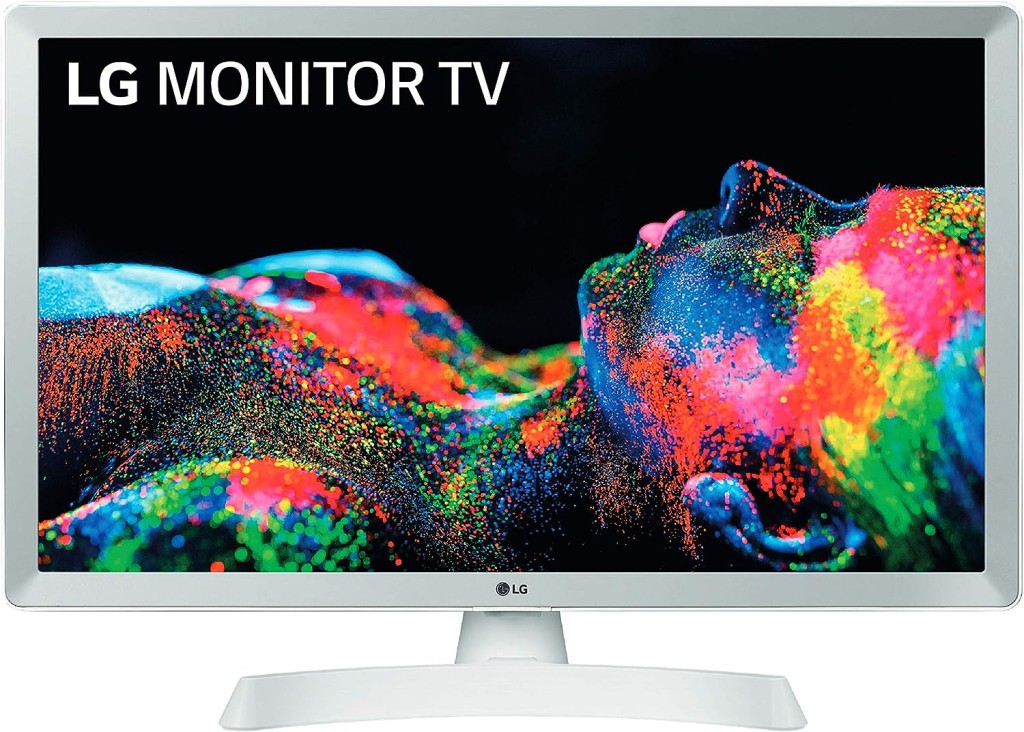
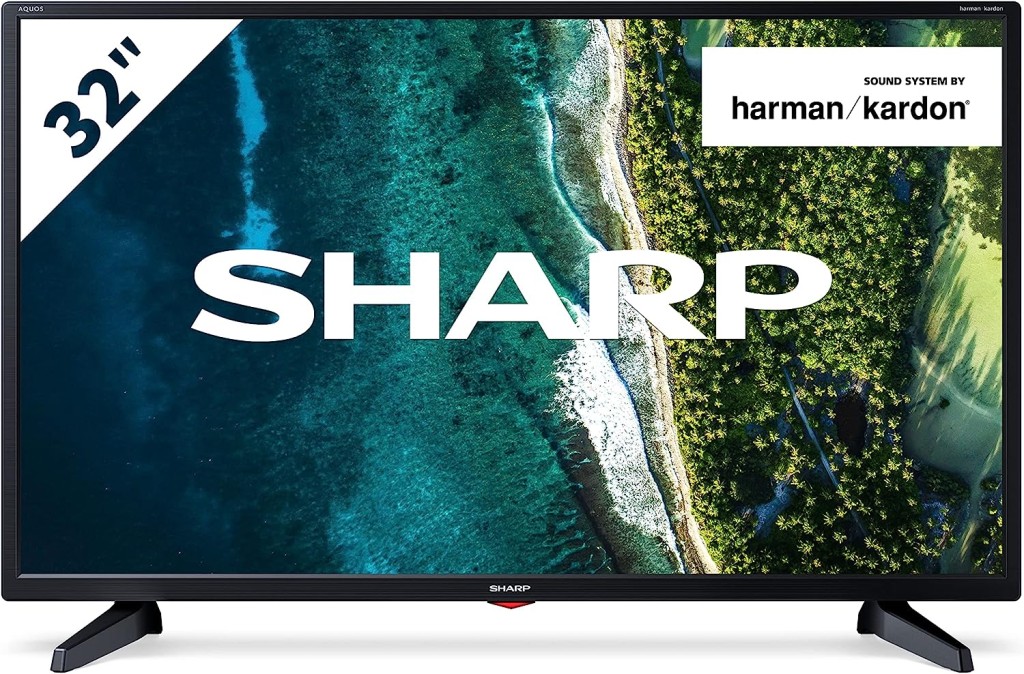
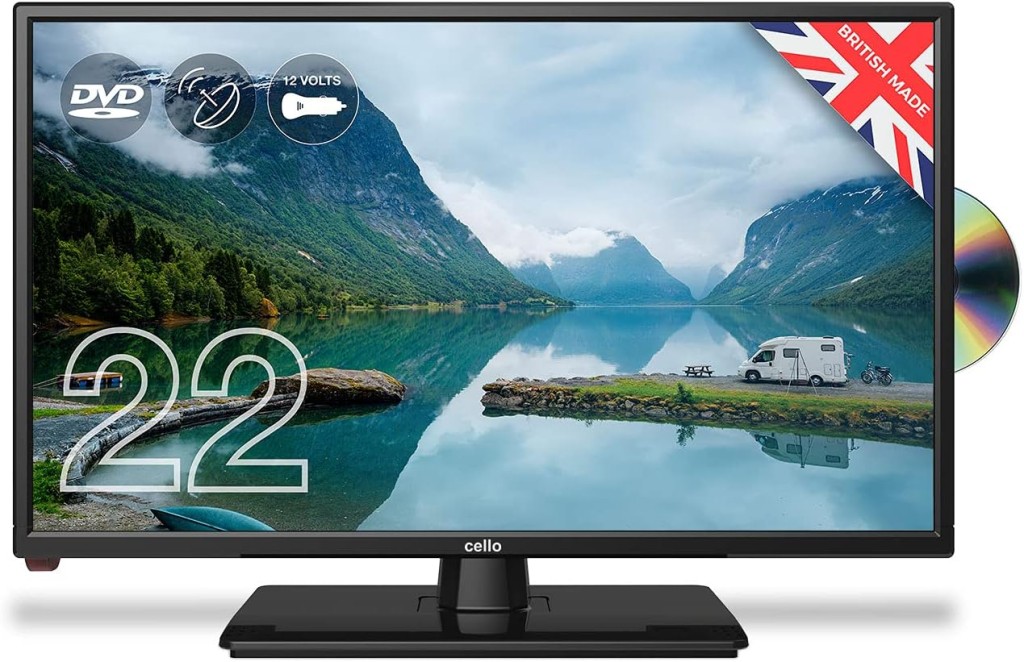
    Links to non-Smart TVs (from Amazon UK) – one model from LG; Sharp quite possibly; Cello the major supplier in the UK market.

    Finally a dated article from my last summary, but the findings are no less valid and do indicate that a streaming device might be worth considering.

    Is the built-in Smart TV provided the best way forward? Well from a convenience point of view, quite probably yes; but if you’re concerned about obsolescence of the Apps on the platform; privacy etc – quite possibly not. An alternative is to buy a TV monitor (or a computer monitor) and pair it with a streaming box from Apple, Roku, Amazon or Google. [This is an option I’m carefully looking at for a new TV in the kitchen, because all the main suppliers don’t seem to supply an option smaller than about 29″ which would (I feel) be just too imposing in a relatively small space).]

    Freeview or FreeSat? Both require an aerial or satellite dish, but there are ways of watching Freeview (Freeview Play) as a stream, or watch Freeview as an app on your mobile device and cast/play it to your TV. If you only want the main “terrestrial” services and don’t require streamed services (from the Internet) – these could be for you. There’s also YouView which is a packaged service combining terrestrial channels with some popular streamed services which is then available on certain platforms (ie BT TV, EE TV, TalkTalk TV and Sony TV) – a sort of semi-Smart TV service.

    Do you need a TV at all, or could you just use your laptop/tablet instead? Well that’s certainly a possibility. For personal use I’d not discount it and all the major streaming services do have apps for laptops/tablets.

    However as the reference to Youview (above) makes clear, if you choose to get your TV service from BT, or Virgin, or TalkTalk or EE, they will provide a box which could provide a lot of what you need for your TV viewing with out the need for Smart TV. These boxes will have replay, and recording as standard features.

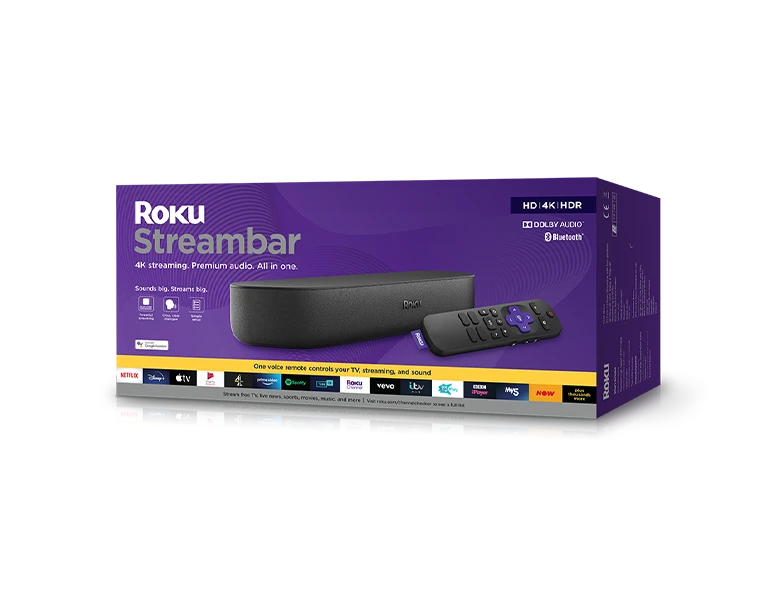
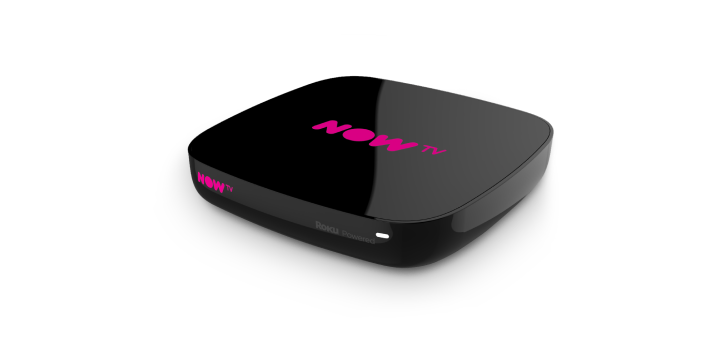
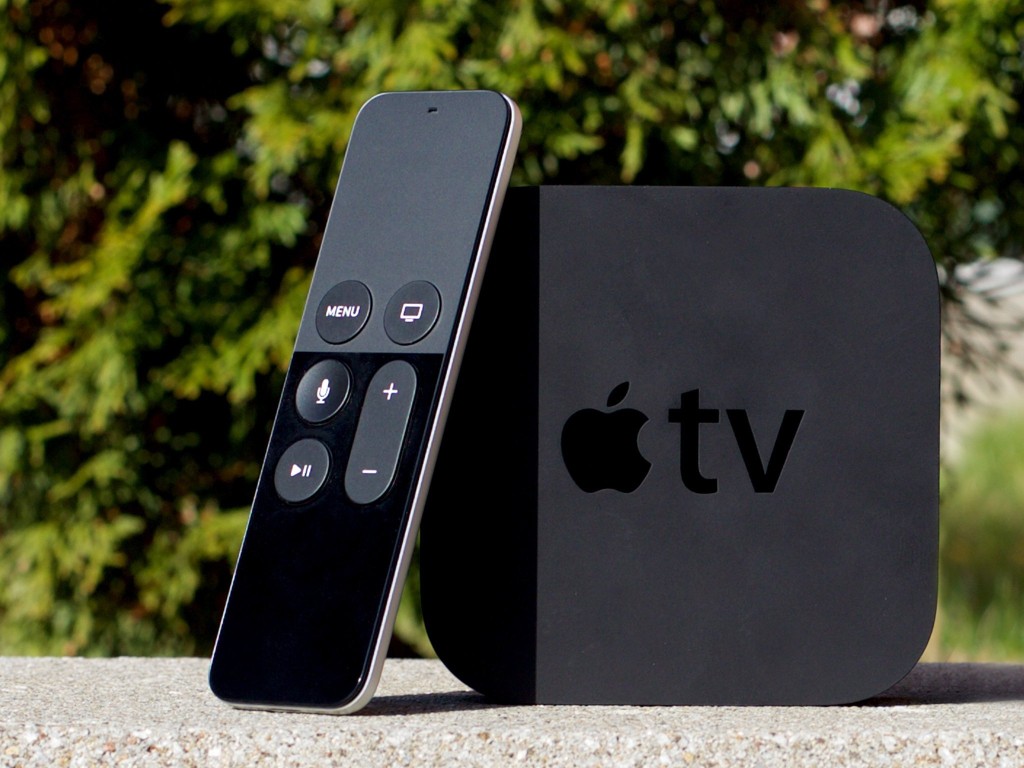
    Then there are the streaming service boxes – all of which have their own Smart TV features. I’ve mentioned Roku already, but there’s Google Chromecast, Now TV (which is built on the Roku platform) and of course Apple TV boxes, which can all run alongside your Smart TV apps, or add to your Dumb TV offerings. With a Roku device you can also use Apple’s Homekit and Airplay – useful for sending your Apple device’s screen to the TV – and control it with Amazon Alexa or Google Assistant.

    Which neatly leads into Voice assistants and Sound.

    Without much risk of contradiction I can say that the audio quality from all TVs is poor unless you are willing to pay mega-bucks. If you’re willing to pay a little bit extra, it’s worth investigating the Soundbar that pairs with your TV manufacturer, or alternatively to look at an offering such as Sonos – there are others, and I’m not going into this area.

    What is worth considering when looking at a Smart TV is how it integrates into the rest of your Smart Home. It really is worth stopping and considering whether you’re a Alexa, Google Assistant or Siri home. You quite possibly have acquired devices from several manufacturers not realising that they all have different voice assistants and not all of them integrate easily (if at all) into your Smart Home Hub – Nest, HomeKit, Echo, or SmartThings – to name a few.

    If we look at just the Voice assistants and TVs – Samsung supports its own Bixby (which integrates, I believe with it’s own SmartThings smart home platform), Google Assistant and Amazon Alexa and whilst it has a very good integration withe Apple through its Apple TV app, and through AirPlay doesn’t allow you to use Siri voice assistant, or integrate it into Apple’s Homekit ecosystem. Indeed it’s only LG that has a good integration with Apple Homekit enabling you to use Siri to control the TV. [Indeed LG is a good platform for voice assistants because it supports Google Assistant and Alexa as well as it’s own little known ThinQ system.]

    To give you an idea of the complexity of the problem, this article lists the commands you can use with a Samsung TV to control it in three “languages” – native Bixby, Assistant and Alexa. You should really look at this article to get a better handle on Voice Assistants for your TV.

    What other alternatives are there to watching streamed digital content on your TV?
    Well the most obvious one is to use your PC/Mac as the TV and use software on the PC/Mac to record Free-to-Air content. You will need a digital tuner for the PC/Mac to get the content.

    The best known company in this area is Hauppage and you can see a list of their products here … http://www.hauppauge.co.uk/site/products/prods.html

    There are other companies in this field but I can only vouch for Hauppage. I once installed a card in my Windows PC, and I still use a USB Tuner with my MacBook Pro to watch TV.
    Postscript.

    There also DIY streaming solutions. I have built a Plex server, but Plex as an app is also a possibility, streaming content across the internet from an app. My Plex server allows me to archive content I want to watch and watch it from anywhere in the world from a server running at home. That used to be useful for my family in Australia before they started using a VPN.

    I’d known about Plex for quite a long time but had (prior to 2016) not done anything about it. I’d formally used iTunes essentially as a media server built around a MacMini that sat under the TV with all content that I could record from Get iPlayer Automator and my media that I’d digitised including my CD collection, as well as the streamed versions purchased and downloaded from iTunes/Amazon.

    I set about a project to install Plex on the MacMini (which I’d upgraded with a new SSD drive, an extra 4Gb of RAM and an install of the latest MacOS (then High Sierra, it now runs Catalina). Here are a few links to show you my direction of travel.

    Plex now lets you stream and record live TV—if you have an antenna and tuner
    How it works
    Working with my Apple TV and Sonos
    And I’ve signed-up for a lifetime subscription to Premium services so that I can …
    Record free-to-air content … I’ll let you know how it goes!!

    I forgot to mention new display technologies from LG/Sony/Panasonic called OLED, and Samsung – QLED. This article explains what these are. It would appear that Samsung and Sony just lead the pack on their use of QLED technology, but it is a race that all will try and compete and try to win. WYSIWYG or what you like is what you buy (WYLIWYB).

    I haven’t handled other screen technology – 4K, 8K, HD-Ready, Curve-screen 3D and more – notes from the last time I did this topic, here and here (two different links).

    Other links (useful if you have an online Which? account) – not sure whether they’re open to everyone …

    http://www.which.co.uk/reviews/internet-tv-boxes/article/recommendations/which-best-buy-internet-tv-boxes
    http://www.which.co.uk/reviews/pvrs-and-set-top-boxes/article/recommendations/which-best-buy-pvrs-and-set-top-boxes

    Just too much to mention!!!!! So in conclusion, some more links …

    For the Samsung aficionados – their argument why their platform is the best for Smart TV; a persuasive argument (for me) from LG as to why their support for Apple Homekit maybe the best way forward for me; a review of HomeHubs which might be of use/interest in helping to come to a decision on what you might want to do in your house re. smart homes (a topic we will definitely study again in “Digital matters”); and finally a review of all the major Smart TV platforms for you to ponder over and consider whether anyone has a significant advantage over any of the others FOR YOU! I stress again, this is a very personal decision.

    And finally, some more links from the previous presentation to maybe make you think and help your decision-making.

    Watching Sky TV without signing-up to a long-term subscription service

    If you’ve got a Mac you can download programmes from BBC iPlayer and keep them forever using Get iPlayer Automator

    Then there’s TVCatchUp – watching TV “on the go”

  • Backup and Restore of Signal messages

    Ian recently had problems with his phone in which he lost his past Signal conversations. Renee had a similar problem last year as I recall. For those changing their phone and not wanting to lose their Signal conversations, this might be a useful link – https://screenrant.com/signal-transfer-conversations-new-iphone-android/

  • Creating shortcuts – to Thoughtgrazing in particular

    Image of iPhone Share

    Did you know … you can create a shortcut to Thought grazing on an iPhone (probably similar on an Android phone) by pressing the Share button when you’re on a page you want to have a quick link to; and then selecting Add to Home Screen and possibly editing the suggested name; then moving it to where you can easily find it on your phone Home screen. You can setup any number of shortcuts this way to any website you frequently use.

  • Apple’s iCloud and Google Photos

    A short post to highlight an issue that I wasn’t aware of, and now have to be very wary of. Indeed Ian’s comment about whether you need the Google Photos app installed on your iPhone is prescient – you most probably don’t if you’re backing-up photos to your iCloud account. And if you’re backing-up photos to a google account (as described in the earlier post), there are different ways of doing it which means you quite possibly don’t need the Google Photos app on your phone.

    Remember, you can always look at the photos stored in the Google cloud from photos.google.com on your Apple phone or tablet – you don’t need the app installed.

    So here goes … another learning point. I’ll type it in capitals so that you don’t miss it!

    IF YOU DELETE PHOTOS FROM THE GOOGLE PHOTOS APP ON YOUR IPHONE OR IPAD AND IGNORE THE WARNING – THEY WILL BE DELETED FROM ICLOUD AS WELL.

    There, I’ve said it. I didn’t realise it, and always shied away from deleting photos in Google Photos because I didn’t really understand what the warning meant. But now I do and obviously that’s not something I want to do, so how do I go about removing photos from the app, and/or from the Google cloud. Read on!

    Scary, eh?! Take care when deleting photos from your iPhone

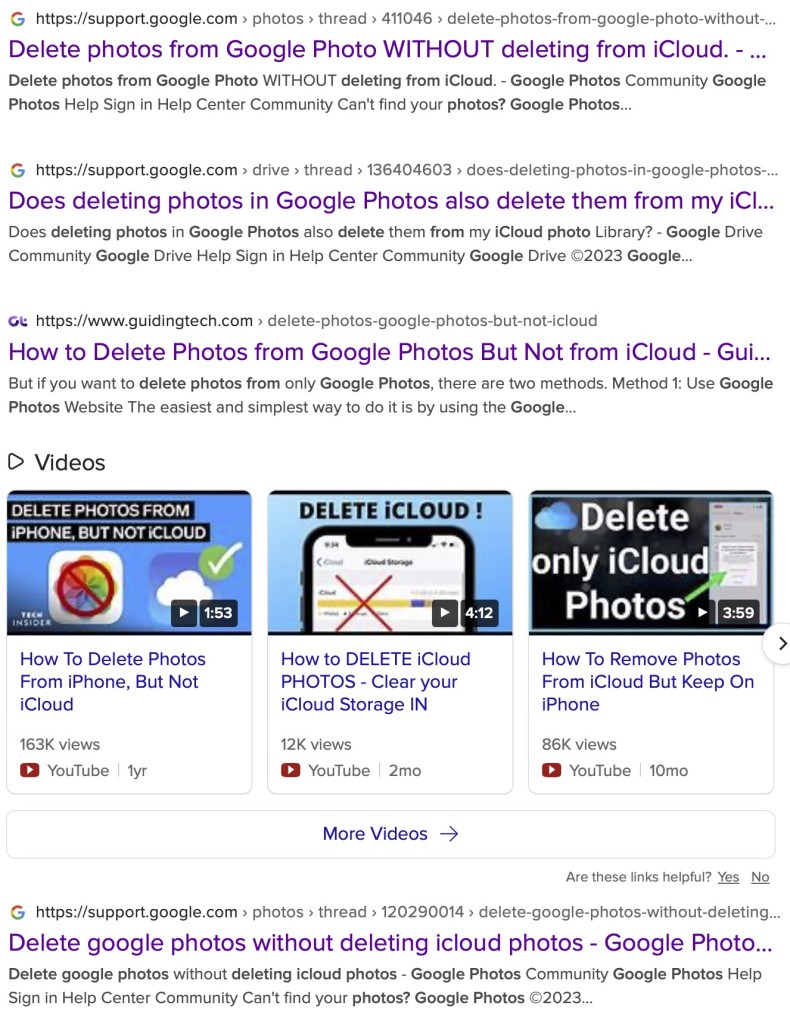
    What I’ve researched is well summarised in the following article …

    How to Delete Photos from Google Photos But Not from iCloud

    and a couple of posts on the Google Photos support forum …

    Does deleting photos in Google Photos also delete them from my iCloud photo Library?

    Google Photos deleted my iCloud Photos library

    So what do I take from this?

    1. If you want to delete photos from Google Photos – do it on the Google Photos website, not in the app on your iPhone or iPad. If you have synchronisation active, they will then be deleted from the app on your device as well.
    2. If you want to quickly delete all photos from your Google Photos app, just delete the app having first ensured that you’ve switched off Backup and Sync, because if you don’t, when you re-install the app, they will be synchronised back to your iPhone/iPad.
    3. If you don’t need the Google Photos app, uninstall the app, no photos will be deleted from your phone, they will still be in your Camera Roll and will have been stored on iCloud, nothing will be deleted from the Google Photos website either, so you will have to do that deletion from photos.google.com – see Case 1 above.
    4. An unlikely scenario, but one to be aware of – If you turn off iCloud before deleting photos from Google Photos on iPhone, then the photo will be removed from your device and Google Photos. It will stay on iCloud. However, if you enable iCloud again on the same phone, the photo will be removed from it too.
    5. And even more unlikely, but probably unexpected and a potential surpriseDisabling Backup and sync will not have any effect on your iCloud photos as it is just a setting to enable or disable backup service on Google Photos. If you disable it and then delete photos from the Google Photos app on your device, they will be removed from the device as you are technically deleting the device copy on your iPhone/iPad. And once it is deleted, the iCloud copy gets deleted automatically.

    Remember. Google Photos in the cloud, and iCloud Photos do NOT work the same way. Apple aims to synchronise all images across all devices with “the master” being held in the cloud. The Google Photos app is just a portal looking into the images on the device, and synchronising (if chosen) those images with ones stored on photos.google.com.

    I hope that makes it all perfectly clear 🙂 🙂 🙂

    In summary, do not delete photos in Google Photos directly from your iPhone if you have both apps on the device. Use the Google Photos website to remove photos. It is suggested that you should delete a few photos initially. Then, check them in iCloud after some time. If the photos are still there, you can go ahead and delete them in bulk.

  • Protected: Photo Albums

    This content is password-protected. To view it, please enter the password below.

  • Virtual Private Networks (VPNs)

    A piece of software that sits on your device and hides your IP address and user credentials from “snooping” network users. Of particular value when connecting to an unsecured public network (eg a cafe). Normally unnecessary on a home network when connecting to you router, but it obviously can provide additional security and hides your device completely from the internet.

    Here is a link that explains how they work, and another one from the provider I use (NordVPN).

    One additional use that they have is that because you can choose the geographical location of the VPN server you wish to connect through, you can logically (or virtually) place yourself in a different country, thus enabling you to appear to be in the UK – when abroad (so that you can watch UK TV); or alternatively appear to be in a different country from home (when assessing alternative cost options for say a holiday).

    — Forum Responses —

    Thanks for this, I am looking at NordVPN for location shifting.

    If I sign up can I use it on 2 Android phones, W10 Computer, and Android Tablet, all on one subscription ?

    Paul de Geus March 18, 2023 9:33 am

  • Snipping and OCR Reader

    From Ted Richards …

    How I get web pages that don’t print into a format where they will:

    Use the ‘snipping tool’ in Windows, select and paste it into Word or PowerPoint or something similar, and print.

    On a similar vein, if I want to copy some text and the web page is set not to allow copying of text, I use the snipping tool, select and same as a jpeg, then use the OCR reader https://www.newocr.com/ to convert the picture into text and copy into the document I want it to be in.