Visit to Barclays Eagle Labs – I’m thinking 13th February, but failing that 12th or 26th March
Need a convenor/facilitator/presenter for 27th February, Paul has kindly offered to do 26th March and 23 April. I’m assuming there will not be a meeting on 9th April because of Easter.
Gear Guide
Has anyone bought, or obtained anything recently they’d like to tell us about?It doesn’t have to be a computer, laptop, tablet or phone – just something that’s digital, ie used a computer processor in some way?
Apps Galore
That slot in the meeting where members are encouraged to share their experience (and possibly excitement) at a new app they’ve started using for their smartphone, tablet, laptop or desktop machine.
What’s IT all about?
That occasional slot in the meeting when we might do a bit of explanation of terms used in Computing, or in the use of digital devices.
This post was created for the Cardiff U3A Computer Group meeting on the 23rd January 2020, but is possibly of more general interest.
Starting Point – the givens; what we’re trying to achieve
Having a manageable amount of email will make your life easier and better.
Focus on lifestyle habits rather than hard-and-fast rules.
Work out what you don’t want from your email, and then create habits that prevent it from happening.
Work out how you will handle email daily and if you can – weekly, and monthly, and decide whether you need a method to archive or store emails, or the information contained in them.
The importance of context. Use the appropriate tool wherever possible.
You need an immediate answer – use the phone, and leave a voice message if there’s no reply, possibly with a text message – “please get back to me after you’re listened to your voice mail” – as backup.
You need a record of the answer to a question – use email; and seek confirmation by email if the answer comes back a different way.
You need to just keep in touch, or chat – use text (SMS) messaging or WhatsApp (or any other – I don’t want to recommend one – chat platform).
Tools you can use (all the “F’s”)
Forever email – whatever your email address is now, seriously consider getting an email address that will last forever and not be dependent upon your currently favoured Internet Service Provider (ISP). So … Google’s gmail.com mail would be a good choice, as (if you’re wedded to one technology, say Apple) would be the email provided by that supplier, eg icloud.com. Here’s an article that lists the best email accounts currently. Personally, I wouldn’t go beyond the first three, and I would be tempted to say only the first two! So that would give you a choice of Google, Microsoft plus (in my case) Apple. Fake email address – you don’t have to have just one email address. Create a duplicate for using when a retailer asks for your email address. For you alone – don’t share an email address with a partner; have separate ones; you can always setup an email programme to read both email accounts on one device (eg a tablet). Keep your personal email address for yourself, and for life! Feature-rich email program (a rather contrived “f” this one) – use the mailer that your operating system provides for you. On Windows and Apple this would be called Mail. On your phone or tablet it might be called Gmail or Outlook. There are others as well. Forward your email to one place – if you’ve set up a new email address, you can forward mail from your old address to your new one and then apply filters (see below). Filters – these are very useful and relatively easy to set up (or create). They allow rules to be followed and your email to be handled the way you want it to be handled and not just hang around clogging up your Inbox. Flags (or labels) – you can put a marker against individual messages in some email programs. Perhaps a colour code to indicate their urgency or priority. Folders – these are invaluable and when combined with a service such as the three (Google, Microsoft or Apple) I’ve mentioned, can ensure that you have an archive of messages that should last as long as you realistically would ever want them.
Techniques to keep your eMail under control
Aim for Only 20 Items in Your In-box
[Warning … Do as I say, not as I do!!!]. Twenty e-mails means that you can see your whole in-box without scrolling. As soon as you deal with a message, file or delete it. Only messages from the past week that you’ve yet to respond to belong in your in-box. Stick to a Schedule (difficult but invaluable)
[Warning … Discipline needed] Even though I check my mail several times a day just in case something pops up which really needs to be urgently handled, I try to not process them right away. I try to only do that once a day, either at the beginning of the day or in the evenings. So I need to adhere to respecting the difference between checking and processing. So … Delete ruthlessly, when you’re checking Don’t reply immediately unless …
Can you write back in two minutes or less? If so, do it immediately, and delete the incoming email from your Inbox. Your reply together with the original message should be in your Sent mail.
If an e-mail requires more time, perhaps flag it so it can be handled during a scheduled window later that day or the next morning.
Important … if an email looks as though it can’t be answered easily – pick up the phone!
Sounds obvious but … you don’t need to read every single mail that comes in. Pick and select what’s relevant to you.
I subscribe to several newsletters – but I don’t read all the mails that are sent to me. I don’t delete them either, because I know they may have valuable information contained in them. Instead, I sometimes set up filters to automatically archive them to different folders (labels on Gmail), or move them to the appropriate folder manually. I only read them when I want to get more information on the topic.
Remember you can Unsubscribe from an email list – it’s not difficult and can reduce the amount of email you get quite considerably! Turn off notifications that appear on your desktop. You really don’t need that kind of message appearing which drags you to your Inbox!! Close email when you need to concentrate on something else. Close your email application or sign out of webmail when you need to do work that requires real focus for at least 30 minutes. When an email program is open, it’s tempting to check periodically (or obsessively) for new mail. Closing the program entirely (not hiding it) removes the temptation.
Try to remember to remove old email messages from your Trash Can, unless you’ve set it to Auto-Delete after a week, or a month, or whatever. Email programs and setting up accounts. This is much easier now than it used to be and instructions are usually provided for your email provider on their website, eg Google’s Gmail.
More on Folders and Filters, and Flags (Apple)
Folders (or labels, if you use gmail) are there to help you organise your mails.
Firstly, use a relevant naming system to what you’re doing.
Secondly, use hierarchy structure. First level folders are for the big categories, and second level folders are for sub-categories, and so on.
These work best when you’re using an email program such as Mail or Outlook. Filters are tools that help you sort out the mail automatically when it gets into your mail. There are 2 basic things are required for a filter – (1) The term to look out for (2) Action to apply if the term is matched. You can set up filters for different email addresses, subject titles, body text … whatever! Depending on what filter it is, the mail will be automatically sorted into a respective folder / archived, or moved to the Trash can. Flags are ways of colour coding a message to give you an indication of how you might want to handle the message.
Your Computing or Digital Resolutions? These were received and will prove very useful in framing the programme for the next few months. I’ll try and get a pretty copy of it prepared and provide a link to it so that you can all see what you wanted to achieve!
News and other issues raised
Last time I showed you Ookla’s Speedtest to find out the bandwidth (speed) of your home internet connections from wired and WiFi connections to your Router. We’ve got some Speedtest results posted on WhatsApp, but could do with some more. Any comments from David, Jim, Marilyn and Paul?
Anyone on Virgin, who’s seen an improvement in their bandwidth? They’re upgrading all their customers (pre 1st Dec 2019) to 100Mbps download. End of life for Windows 7 (with video) What does this mean? What should you do? Further reading with suggested alternatives should you not wish to upgrade to Windows 10.
Gear Guide
Has anyone bought, or obtained anything recently they’d like to tell us about?It doesn’t have to be a computer, laptop, tablet or phone – just something that’s digital, ie used a computer processor in some way?
Did anyone buy (or was given) anything interesting for Christmas
What about the Turing Tumble – Build Marble-Powered Computers
I bought an Apple HomePod and we’re delighted with it, although Siri does seem to be selective in what it finds from our Music Library, preferring to search Apple Music rather than look for our locally installed tracks. I’ve linked it to our Sonos Play:5 system – which has very good sound quality and through our Apple TV I can also play the Siri selected music through the HiFi system. It’s been an interesting project!
Apps Galore
That slot in the meeting where members are encouraged to share their experience (and possibly excitement) at a new app they’ve started using for their smartphone, tablet, laptop or desktop machine.
Mario told us about an App that he’s found very useful in getting vertical lines for door frames, etc – or even getting the coffee table level! It is called Clinometer HD (on Android) and I think the same app is called Clinometer + bubble level (on iOS) where it costs £1.99.
Renee told us about iNaturalist which is Free on iOS (not sure whether it’s available on Android) which is helpful in identifying matters natural (plants, etc.)
I added there was an app called iGeology which gives you an idea of the geology of anywhere in the UK through maps.
What’s IT all about?
What’s an Operating System?
I thought given the immediacy of the Windows 7 “end-of-life” date, that discussing and talking about Operating Systems might be appropriate, and thanks Paul for planting the seed of the idea!
First a set of videos to set the scene …
An introduction (see Reference List below for text accompanying this video) …
… and the place of Operating Systems in a historical context …
… and then the beginnings of a technical information fo what they do …
[If you want to learn more you can follow the later videos in the series of the last one.]
So … some of important functions of an Operating System that originated and still exist in multi-user computers – the ones we may connect to when doing online banking, or shopping, are:
Memory Management
Processor Management
Device Management
File Management
Security
Control over system performance
Job accounting
Error detecting aids
Coordination between other software (applications) and users including the provision of application program interfaces to allow applications access to core OS functions
… and some of the important activities that an Operating System performs on a shared multi-user mainframe-like computer are:
Security − By means of password and similar other techniques, it prevents unauthorised access to programs and data.
Control over system performance − Recording delays between request for a service and response from the system.
Job accounting − Keeping track of time and resources used by various jobs and users.
Error detecting aids − Production of dumps, traces, error messages, and other debugging and error detecting aids.
Coordination between other softwares and users − Coordination and assignment of compilers, interpreters, assemblers and other software to the various users of the computer systems.
Of course Operating Systems have evolved from being programs that manage multi-user access to a shared computer, to being the program that controls (manages) a single-user’s access to their personal computer or mobile device through a User Interface – perhaps the feature most users equate with an Operating System – but that’s not where it ends.
The OS is critically involved in the way that computers are connected to networks, and in the way that computers (devices) are connected to each other. This extension of the Operating System (the incorporation of the way personal computing devices connect together using a LAN, dial-up or WiFi into the code of the OS) is where we are today. Together they work effectively as the brain of the computer.
From the second reference below … An operating system is the core set of software on a device that keeps everything together. Operating systems communicate with the device’s hardware. They handle everything from your keyboard and mice to the Wi-Fi radio, storage devices, and display. In other words, an operating system handles input and output devices. Operating systems use device drivers written by hardware creators to communicate with their devices. Operating systems also include a lot of software—things like common system services, libraries, and application programming interfaces (APIs) that developers can use to write programs that run on the operating system. The operating system sits in between the applications you run and the hardware, using the hardware drivers as the interface between the two. For example, when an application wants to print something, it hands that task off to the operating system. The operating system sends the instructions to the printer, using the printer’s drivers to send the correct signals. The application that’s printing doesn’t have to care about what printer you have or understand how it works. The OS handles the details. The OS also handles multi-tasking, allocating hardware resources among multiple running programs. The operating system controls which processes run, and it allocates them between different CPUs if you have a computer with multiple CPUs or cores, letting multiple processes run in parallel. It also manages the system’s internal memory, allocating memory between running applications. The operating system is the one big piece of software running the show, and it’s in charge of everything else. For example, the operating system also controls the files and other resources these programs can access. Most software applications are written for operating systems, which lets the operating system do a lot of the heavy lifting. For example, when you run Minecraft, you run it on an operating system. Minecraft doesn’t have to know exactly how each different hardware component works. Minecraft uses a variety of operating system functions, and the operating system translates those into low-level hardware instructions. This saves the developers of Minecraft—and every other program that runs on an operating system—a lot of trouble.
In complex control systems such as a power station, or weapons system there will be elements of a stripped down operating system at the core of the dedicated task the system is programmed to carry out. It is important that there is at the heart of every system some core code that interacts with the basic components of the system – its processor, its memory, the resources it calls upon and the devices it controls. That is the Operating System.
A selected reading list: What is an Operating System (with the first video) What is an Operating System (a bit more technical, and informative) How Operating Systems Work (the more or less complete guide for those who have difficulty sleeping)
… and here with a little history for those that have an Apple bent …
… and for a bit of fun, back to 1998 when personal computers first became a piece of equipment that you’d consider having in your living room …
… by the way, I have a friend who still has a working G3 iMac. I’m moving his work on it on to a new iMac in the next couple of weeks.
Boot-up No meeting in December – apologies News and other issues raised
I came across this in my Feedly – which I wouldn’t have seen in any other way – you might want to follow it up. Energy Pricing from the Big Six. Gear Guide Has anyone bought, or obtained anything recently they’d like to tell us about?It doesn’t have to be a computer, laptop, tablet or phone – just something that’s digital, ie used a computer processor in some way?
Not bought but perhaps considering buying a grandchild, niece or nephew a camera? [US site, so you’ll have to search for a UK price and supplier.]
Similarly, not gear exactly but are you making the most of your Amazon Prime subscription – if you’ve got one? Christmas Gift Ideas Turing Tumble – Build Marble-Powered Computers Apps Galore
That slot in the meeting where members are encouraged to share their experience (and possibly excitement) at a new app they’ve started using for their smartphone, tablet, laptop or desktop machine.
Feedly, Flipboard, Pocket and Evernote re-visited – getting the information delivered to you, that you want, when you want it! Today I want to look principally at Feedly. Feedly and Feedly Pro
– the Pro version offers no adverts, ability to save to Pocket, Evernote, etc. Let’s look at the free version (using a free account I set up earlier) … Login to Feedly Flipboard
I use this application to create magazines as I’ve described in the link to an earlier post; but you can also use it in a similar way to Feedly to search for content and have that delivered to you. The latest article I added to my Thought Grazing magazine for you to read is here. It describes the way that Firefox is attempting to create a “more friendly” web. A subject we’ll return to later.
Pocket and Evernote I’ve recently discussed. These are (with Browser extensions, or linked apps on a smartphone, or tablet) great ways of curating, or archiving, content to read later. What’s IT all about?
About time for another batch of Speedtest results? Get the Speedtest app from your Apple or Google app store to test your Internet speed and share the results on WhatsApp.
Here’s the result from my iMac beside the router that sits on my desk …
… and an impressive result using WiFi from the computer to the router beside the computer …
… and for my iPad beside the iMac, using WiFi …
What do you think that tells me? You can even share your results using a link like this one. A contract for the web
The Richard Dimbleby Lecture (ignoring the rudeness of Jonathan D. towards the Russian Embassy person towards the end) on iPlayer.
Tim Berners-Lee and “Contract for the Web”
An Article in The Guardian from earlier this year and one from the NY Times this week.
Boot-up Visits. We agreed visits to the Barclays ‘Maker Space’ which Mario will arrange for us after Christmas, and also a visit to the new BBC Centre after Easter.
Fred has offered to contact Brains and their new brewery at Cardiff Gate for a visit before Christmas. This has fallen through – should we have a social event instead; maybe at Cornerstone?
I have agreed with Mario that I will make the arrangements for the ‘Maker Space’ visit. News and other issues raised
Posting to the blog – thanks Jim; you’re all welcome and able to post.
A thumbs-up for “We will fix your PC” – Renee and Margaret … “Located on Parc Ty Glas directly opposite Bannatynes Health Club. 39 Lambourne Crescent Cardiff Business Park CF14 5GG. Mon – Fri 9 – 17 30 Sat 10 – 14 30. No appointment needed. Friendly. Experienced. Local. No fix no fee. Free quote. Phones repaired whilst you wait. iPhones fixed within 15 – 60 minutes. iPads repaired the same day. Walk in service. 02920 766039. 07999 056096″.
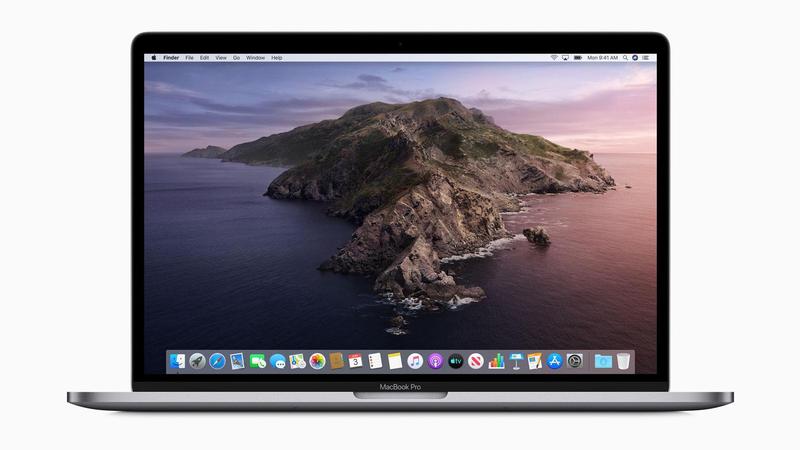
… personal recommendations from at least three members! An update for older iOS (Apple) devices – linked to GPS signals changing which mean location-based services on old iPhones/iPads would cease to work. New Apple MacBook Pro announced … in time for Christmas. Anyone got £2500 to spare for the base model. Gear Guide Has anyone bought, or obtained anything recently they’d like to tell us about?It doesn’t have to be a computer, laptop, tablet or phone – just something that’s digital, ie used a computer processor in some way?
Bluetooth transmitter [Marilyn, David]
Augmented reality on a phone [Jim]
Apps Galore
That slot in the meeting where members are encouraged to share their experience (and possibly excitement) at a new app they’ve started using for their smartphone, tablet, laptop or desktop machine. Using a Kindle, or a Kindle app (desktop or tablet) in a novel way. An attempt at a demonstration?? Removing content from a Kindle Device and deleting it from your Amazon account
Another use for Evernote – Evernote Web Clipper extension. Demonstration. What’s IT all about?
Not this week Video-calling Facebook Portal – and options Can you trust Facebook Portal devices with your Privacy – surprisingly … possibly yes! It works with Facebook Messenger and WhatsApp and makes use of Alexa.
What are the alternatives? Google Hangouts – multi-point video-conferencing (Personal if using Chrome/Brave and logged-in to your Google account) and Google Duo – new point-to-point video-calling (Personal – same advice applies). Apple Facetime and Group calls Amazon Alexa and Echo
Always Skype (from Microsoft) – same flexibility as Google Hangouts
and of course video-calls in WhatsApp …
A review from Time magazine of the alternatives.
Once a week I check to see if my Chrome and Firefox browsers are up to date, and occasionally they will install an update. Maybe that would happen automatically, I’m not sure, but it’s nice to know they are up to date. To do this I click on About Google Chrome or About Firefox, which are both in the Help menus. The Firefox menu is via a tab at the top of the page, the Chrome one is via the three dots on the top right.
This also applies to updating other programs, by the way.
Prompted by an article in the latest WebUser mag, I have installed Microsoft’s Your Phone app on my laptop. This allows me to see the last 25 photos I have taken with my Android phone on my laptop without going to Google Photos. I can also read and reply to text messages, and receive notifications, should I wish to. I already had the WhatsApp app installed, to read and reply to messages there.
On a related matter, I only recently discovered that my phone’s photos are stored in the My Files folder, and there are over 400 of them. I don’t see the need for that, so I will be doing some de-cluttering to reduce the memory used.
I tried to log in to my Windows 10 laptop with a password as usual yesterday, but Microsoft insisted I had to choose a PIN instead. While I resented that at the time, it does in fact speed things up.
Update: Whatever happened when I was asked to choose a PIN, I do now have the option to go back to using a password, should I so wish.
Welcome & Boot-up Introductions What do you want / expect from the Group?
Please tick your attendance, pay £1.50 and agree that you want to join the “Thought grazing” website I run where the notes of the meeting are posted, and that you are interested in joining a WhatsApp Group.
For those who’ve expressed an interest in “Thought grazing” and establishing a WhatsApp Group, I’ll send out an email following the meeting with UserIds and Initial Passwords for new members. [You can change your password if you want to – I’ll write a post that explains how you can do that.] The Password for Password Protected pages on the website is the same as everyone’s initial UserId Password, namely – Ca3rdyddU3A
Does anyone have any difficulties in connecting to the Thought grazing website?
Does anyone want to join the WhatsApp Group but is unsure how to do it? I think it best to gloss over the chaos that followed – we’ll get there; here’s how to add members to the Group so that I don’t forget … add member to Contacts on my phone, then I can see them in WhatsApp to add them as a member of the Group. Easy when you know how … duh!
Incidentally Paul has written a post detailing how you can add WhatsApp to a Tablet.
Do we all know the difference between Google and an Internet Browser? – Don’t be shy. This is perhaps the most important thing to be sure about before we go any further. Two links to look at – Just google it … and the notes from the first meeting last year. What’s happening to Digital Projects? Well the first one has been announced, it’s a re-run of a Digital Photography course using Adobe Lightroom and it’s announced in the latest Newsletter on the new Cardiff U3A website.
Which brings me to our webpage on the new website, the Photography Group has already added information to their page.
What do you think should be on it?
Should we have a number of pages?
Any ideas for an image to head the page?
Helping others in Cardiff U3A with Computing/IT issues …
a WhatsApp Help & Advice Group? We agreed to do this and I’ll write to the Committee for them to consider.
[Update: The committee is going to consider this at their meeting in October. Further update: We decided to withdraw our offer until we felt more confident in using a Group for ourselves!]]
opening-up Thought grazing to non-Group members? We agreed not to do this
Visits. We agreed visits to the Barclays ‘Maker Space’ which Mario will arrange for us, see details below … In addition, as part of our community commitment, we have also opened a new office in Cardiff designed to help businesses grow and start up in Cardiff. Great for budding Entrepreneurs (which statistics show can be high in the over 50s) and inventors. Part of the Eagle Lab office hosts a “Maker Space” that houses laser cutting, vinyl printing, 3D printing, electronics equipment including soldering etc. It has a distinctly digital feel too with a really switched on Engineer running the lab. We can host groups there and would be happy to chat with your Digital Projects group and your Science groups coordinators, to discuss with them what is available there and whether they would like to bring members along to take a look at the facilities, or host a meeting there. Please feel free to ask them to contact me and I can discuss what they need, what we have, what we can do to support your members.
… in the approach to Easter, and also a visit to the new BBC Centre after Easter.
I’ll approach Cardiff Uni about the possibility of a visit maybe before Christmas, and Fred suggested a visit to Brains new brewery site as an alternative. [Update: Unfortunately I was unsuccessful in getting a useful visit to the Computer Centre of Cardiff University; I have another idea, but Fred has offered to contact Brains and their new brewery at Cardiff Gate for a visit before Christmas.] Finally, I posted an article about the forthcoming MacOS Upgrade to Catalina – which is a 64-bit operating system – and what it might mean for Mac desktop/laptop users. This has prompted me to consider this as a topic (not Mac specific) for later in this meeting. There are several links in that article that you may wish to follow, and which are not listed below, if you’re a Mac user. Other issues raised: Gill asked whether it was possible to print from an iPhone to a printer. Members were able to say … yes, if the printer supports AirPrint. I presume there’s an Android equivalent? Renee asked about opening compressed files in emails on an iPhone. We got some way to solving that one, but agreed to take it onboard as a conversation on the WhatsApp Group. If I’ve forgotten anything, please let me know. Gear Guide
Has anyone bought, or obtained anything recently they’d like to tell us about? It doesn’t have to be a computer, laptop, tablet or phone – just something that’s digital, ie used a computer processor in some way? Apps Galore
That slot in the meeting where members are encouraged to share their experience (and possibly excitement) at a new app they’ve started using for their smartphone, tablet, laptop or desktop machine. Renee mentioned that she’d found DuoLingua a very interesting application for helping her learn a language just recently – others had used it as well. What’s IT all about?
The next upgrade to MacOS – Apple’s operating system for its desktops and laptops (not iPads and iPhones) is 64-bit. Any software that is not compliant, that is it’s not written to meet the specification of 64-bit, will not run on your machine once the operating system has been upgraded. What does this mean though? Do Windows users face a similar issue, now or in the future?
I’m going to use this article as the basis for the explanation, using Windows as the operating system in question. But first, does everyone know what an Operating System is?
It has to be said upfront that Microsoft has been extremely “kind” to its users, offering backward compatibility even back to MS-DOS (a 16-bit operating system) for a long time so that you can even now still run old DOS programs using a 16-bit emulator for Windows 10. However, Microsoft has also confused its users ever since Windows XP by providing two versions of its operating system, one for 32-bit and one for 64-bit. If you had a previous version of Windows – XP, 7, or 8 – which had the 32-bit operating system installed on your machine, you are more than likely to have got the 32-bit version of Windows 10 installed on it when you did the free upgrade. But you can upgrade to the 64-bit version if your hardware will allow it. And there’s the rub, not all hardware will allow 64-bit processing and that’s why the MacOS upgrade is both helpful and annoying.
It’s helpful in that it sets a new benchmark for all software developers. They’ve known since December 2018 that this change was coming, and it’s not particularly challenging for Mac users as machines back to 2012 (including therefore my MacBook Pro) will be able to make the switch.
But why the change? Well as the first article spells out the biggest advantage of using a 64-bit processor is that it can address a much larger amount of RAM (Random Access Memory) and so therefore machines with more than 4Gb of RAM will benefit from faster processing if the applications are written to the 64-bit code base. Also more programs will be able to held in RAM, enabling faster switching between applications. Graphics intensive applications with the dependance on a large amount of memory space will also work faster. So there are huge benefits.
So should you as a Windows user upgrade to 64-bit Windows 10? That depends upon what you use your computer for. If you decide to stick with 32-bit be aware that Microsoft will one day dump 32-bit in the same way they “dumped” DOS, but the community of users is so massive that undoubtedly a 32-bit emulator will be written, by someone! But, you may choose to make the switch, if your hardware can take it, before you’re forced to jump; and in the meantime be aware that you’ll undoubtedly and progressively experience a slowing down of your software as more of them become 64-bit, and if you try and run a large number of them concurrently (at the same time) in different windows.
Some more links for you to ponder … How to switch from 32-bit to 64-bit Windows 10 FAQs from Microsoft on 32-bit and 64-bit computing 32-bit app compatibility for Macs with current Mojave operating system Incidentally, my MacBook Pro is still running High Sierra, the operating system before the latest one – Mojave. I intend to upgrade it to Mojave and then leave it at that operating system so that I can run some 32-bit applications such as Office 2011 and Adobe Lightroom 6 (and earlier) for a while longer. It is a seven-year old machine … it’s doing very well with the upgrades it’s had to it’s hardware – solid state disk, RAM increased, replacement battery – it’s not ready for the scrapyard yet, and it’ll be more difficult to upgrade to Mojave soon, once Catalina has been released. My machine’s running slow!
Quite co-incidentally I’ve been approached by a U3A Group Facilitator who’s having problems with the performance of their machine.
This led me to do a search of Google for good articles that might be of help and value. We’ve looked at this before, of course for Windows, and I’m adding a couple of links below which might be of interest and assistance.
I use MacPaw‘s CleanMyMac 3 on my MacBook Pro, and I will probably upgrade to CleanMyMac X for both desktop and laptop before I do any upgrades to Catalina. Here’s a blogpost on how you can improve performance on your Mac.
Here’s an article that makes suggestions on how to clean-up both PCs and Macs.
So … to the Windows PC. Here are a couple of links: Some quick ways of speeding-up Windows 7, 8 and 10 PCs. Tips to improve performance with a Windows 10 PC – from Microsoft
Set of links from an earlier Thought grazing post on Windows 10 maintenance Easy-peasy photo-editing … believe me!
You’ve taken a photo, or been sent it in an email, but you just feel that you could make it just a little bit better. Don’t despair, there’s an easy way of editing a digital photo in just a few steps if you have a Google Photos account, and if you don’t – here’s how to get one and how to get started with organising your photos.
Some thoughts. Most smartphones take images of 12mp or perhaps a little more. You can print a decent 15 x 10 inch picture from an image of that size Google allows you to upload images without any compression up to 16mp – happy days!
So on to a demonstration … some simple edits to enhance an image.
For more guidance on Google Photos, the use of Backup and Sync and much more, you might like to visit (or re-visit) this Thought grazing page.
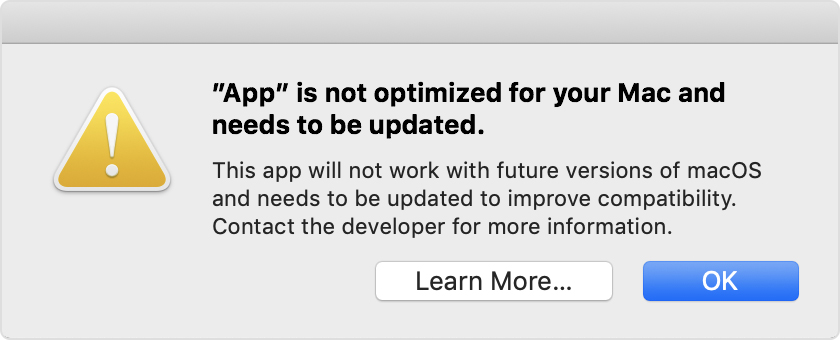
I was asked last week about a message that had appeared on a Lightroom 4 users’ screen with this warning …
… scary eh!?
Well yes it is but if you’ve got a relatively new Mac you do have the choice NOW of making sure you have the latest version of software that will support older versions of Lightroom, and do an upgrade to Mojave (v.10.14) BEFORE Catalina (v.10.15) is released later this year – probably in October. That way you’ll be nearly up-to-date with your version of MacOS and that may be sufficient for you if you don’t feel the need to have the latest version of MacOS.
If you have Lightroom 6 installed (or even 3, 4 or 5), you may be getting the message above EVEN THOUGH it is a 64-bit app. This is because the Installer/Uninstaller and Activation code software is 32-bit. That means the software “should” continue to work, but you won’t be able to re-install it to a MacOS of Catalina (v.10.15), or later.
The only other alternative if you want to stick with Adobe Lightroom is to swallow hard and subscribe at £9.98pm to the Photography Plan of Adobe’s Creative Cloud programme. You do get Photoshop as well as what Adobe call Lightroom Classic, plus their in the cloud version of Lightroom which they (confusingly) call Lightroom!
Adobe detail the changes and implications in this blog post. Another post from Laura Shoe Training gives more information here. UPDATE: I’ve just read this really useful and interesting article from the magazine MacWorld – I suggest you read it too – and I’ve found out that Microsoft 2011 and Picasa (amongst others on my iMac) will not work with Catalina. Whilst I’m not particularly concerned about losing either of these as there are alternatives I’m already using – such as (in the case of the former) Google Docs, Open Office, Libre Office or Apple’s Pages, Numbers or Keynote applications – it’s better to be prepared and to have made the decision to move before I have to jump! Also in the case of Picasa, that I haven’t got anything in the database that I haven’t catalogued elsewhere – I think that unlikely, but I ought to check!
I’ve also stumbled upon an entry in “About This Mac > System Report …” which you get to from the Apple Icon in the top-left corner of your desktop. Go to Software and if you’re running Mojave there’s an entry called Legacy Software. Look at that and you’ll be able to see quickly what software is unlikely to work in Catalina. If you’re running an earlier version of MacOS go to Software and click on Applications and look for non 64-bit applications (a column to the right of the window).
Other links worth following … MacOS 64-bit – what it means to you 32-bit app compatibility for Macs with current Mojave operating system