Category: IT &Technology

  • Improving home network performance

    Improving home network performance

    This short note is written to advise on possible performance improvements you can employ if you feel that your network is “slowing down”. It may be that you just feel files, or pages, are taking longer to download, or display; or it may be that you feel it’s taking “too long” to connect to the remote site from your browser.

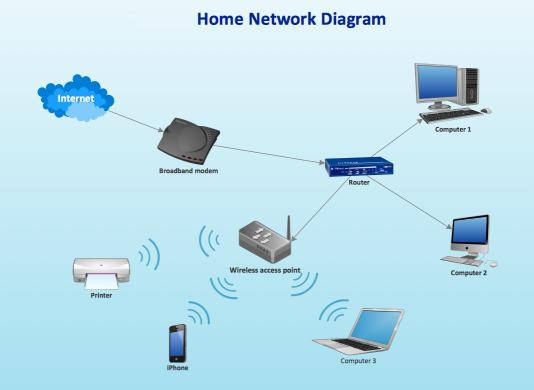
    The first case can often be resolved by moving your WiFi router, if possible, to a better location. Remember that although WiFi can appear to go through walls and ceilings, the more you expect it to do, the worse will be the signal. So move the WiFi router and perhaps you’ll get a better signal. This is often not possible, so the next thing to consider is to use one of the ethernet ports on the back of the router and connect the computer to the router by ethernet cable, rather than using WiFi. This will always provide better network performance. This may not always be convenient so the last solution is to “extend” your network using either a WiFi extender, or a different approach called Powerline. This article explains the difference between the two and also includes a commentary on ethernet cable as well.

    If you opt for Powerline, you will plug a unit into a 13amp socket near to your router and connect it with an ethernet cable to the router, and then on the same electric circuit (ring main) plug in another box which can be just another ethernet socket, or more likely it will have a WiFi capability. Systems from Trendnet, TP-Link, D-Link and others are amongst those you could purchase. Here’s a review of possible systems, most of which can be purchased from Amazon. It is possible to configure these to use the same SSID as your router, but you may have to make do with having a separate network when you connect to these points.

    Alternatively, your ISP will often have a solution that will mean that you can use the same SSID for the extended WiFi access points, or you can purchase WiFi extenders (as described above) from Amazon which you can then configure to use the same SSID as your router. So that’s the first case taken care of. What if you just feel that your network is lazy, is there anything you can try to improve performance.

    Well first – and perhaps you should have done this first anyway – you should check whether your ISP is delivering something near to the broadband speed it’s contracted to provide. We’ve talked about this before but test your internet speed using something like Speedtest. [As an aside, you can also download the Speednet app for your mobile device and walk round the house testing your signal this way too.] If that’s not the problem, and it just seems to take too long to make connections, then perhaps you should apply some new configurations to your router.

    The first thing you can do is to see if you and your neighbours are battling to use the same wireless channels. The common ones used are 1, 6 and 11 as they don’t overlap. However for this reason, sometimes, routers might be “hard-wired” to use one of these channels and so two nearby networks might actually be using the same channel which could then be interfering with each other. Read this article to learn more about this, and then once you’ve tested your network and it looks as though you could be suffering this way, you’ll need to refer to your router manual (or talk to your ISP) to change the channel(s) you use. Why channels? Well because most routers now broadcast signals at two wavelengths – 2.4Ghz and 5Ghz. What’s the difference – read this article.

    The other thing you can do is look at how your router is setup with its DNS server. Your ISP will have configured your router to use their DNS servers, but it might be that these are not the best ones for your locality – especially if you’re on a laptop and are moving about a bit! So what is a DNS server, and what does it do, and why might this be important?

    A DNS server translates a URL (such as https://digital.cardiffu3a.org.uk/) into a sequence of numbers – an IP address – that instructs the modem that transmits and receives data going and coming from the internet where to go. This whole process is explained in some detail in this article. If you decide to change the DNS settings on your router, or just on a device, you can look at this article which shows you how to do it.

    In my case, I’d been disappointed in the performance of my new Netgear Orbi routers which although they seemed to shovel the data around very fast, there was a noticeable lag/delay in achieving connections, and I’d also felt that the router was dropping connections more than it should. So, bearing in mind I have a Virgin Media Superhub that’s only running in modem mode with the Netgear Orbi router behind it, I changed the configuration of the router which was pointing at VirginMedia’s DNS servers to point at Google’s secondary DNS server. I also checked what channels were being used by nearby WiFi networks using the Mac’s Wireless Diagnostics tool described in this article

    … which indicated that I should change the 2.4Ghz channel that was being used from 1 to 11, and to set my 5Ghz channel to 161.
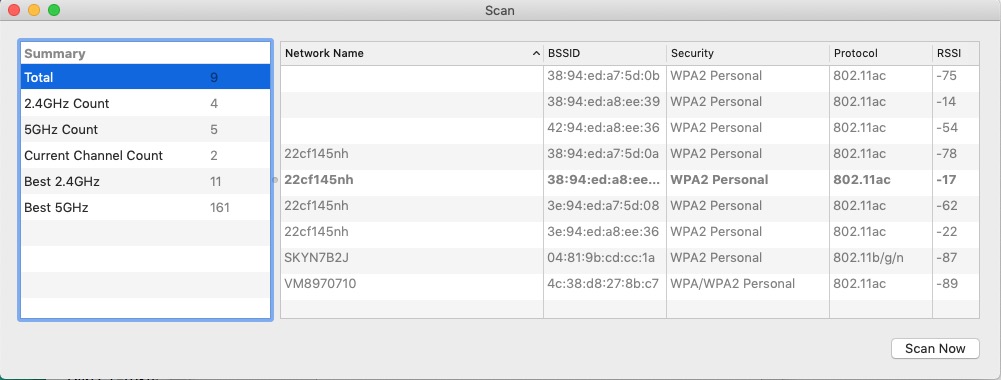
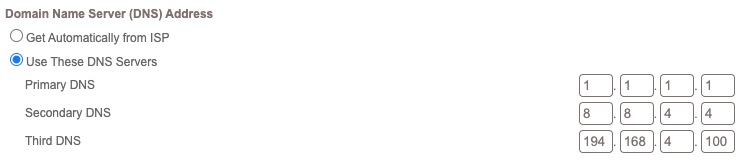
    I left the DNS server setting on my devices to be ‘automatic’. This makes it much easier to “roam” away from the house with a mobile device. I then ran a test called namebench (from Google) to try and find the best DNS server for my home network, but you don’t need to do this. I would suggest you look at this article and then experiment with Cloudflare, Google, and OpenDNS perhaps in that order until you get a response to your internet request that satisfies you. Leave your ISPs DNS server in the list of servers (the third in the list below) – just-in-case.

  • Linux

    Linux

    What is it and why might I be interested in it.

    Before I start, a little information for you.

    I’m typing this on my Acer laptop.

    It is a dual-boot system. It has both Windows and Linux Ubuntu installed on it. When I turn it on, it asks me at boot-up, whether I want to use Windows or Ubuntu. I hardly ever use Windows because I find Ubuntu so much better. However, for this, I’m using Windows because I know that most of the afternoon Zoom group use Windows. I’m using Windows this afternoon so I can see how the Windows installation of Linux works.

    Windows is horrible.

    So far I’ve had five pop-ups and two programs starting without me wanting them to start. Added to that, with Windows, this laptop takes ages to start. 

    You don’t get those sort of problems with Linux.

    You will also not need anti-virus software as Linux doesn’t appear to get viruses.

    Now, you might be interested in taking a look at Linux from a purely academic standpoint; something new to learn during lockdown.

    OR … you might have an old computer lying around; one that you’d like to drag back from the grave.

    So let’s get started

    Linux is an operating system. Windows and MacOS are also operating systems. An operating system is the program that actually makes your computer work.

    To proceed, you’ll need to do the following … and it would be best if you did this before next Thursday’s meeting because some of the processes take a bit of time, otherwise you’ll just have to accept being an observer.

    1. Take a look at the computer that you’ll be trying to revive – but remember you can run Linux from the USB drive without making changes to your computer, so it could be any machine. Make sure it has a USB drive. You’ll need an empty USB pen drive doohicky, at least 4Gb in size. Also, the computer that you intend targetting, it would be best to be a 64-bit system. Google your computer’s make and model to find out whether it is 64-bit.

    2. Download the Ubuntu Linux image file. Here’s the link.   https://ubuntu.com/download/desktop

    This is for Ubuntu Linux 20.04 LTS. LTS (Long-term support) means that the software will be supported for 5 years. A new version of Ubuntu comes out every April and every two years you have a new LTS release. This page also tells you the minimum requirements that you need on your computer for Ubuntu to run well. Incidentally Ubuntu is a South African enterprise. It is totally free to download, install and use. In fact, everything in the Linux world is totally free. Linux comes in many different flavours e.g. Mint, Red Hat, Fedora … you chose the flavour that best suits your needs. My opinion; they are all very similar. Ubuntu is probably the easiest to get to know and with the best support. It will take a while to download as it is a big file … about one hour in my house but I have Virgin cable.

    If you only have a 32-bit system there is another Linux operating system that works well on older 32-bit computers. It is called Bodhi Linux. Download the image file here. https://www.bodhilinux.com/download/   download the legacy version.

    You can also download an older versions of Ubuntu Linux for 32-bit systems from here. http://releases.ubuntu.com/16.04.6/

    Once Ubuntu has finished downloading, don’t do anything with it. Don’t double click on it or try to get it to run. Just make a note of where you’ve stored it.

    1. Now, you can’t just put the file that you’ve downloaded onto your USB drive. It is just a bit more tricky than that. You’ll need one more piece of software. It will transfer the Ubuntu file you’ve downloaded onto your USB drive and create a bootable disk image. These pages will give you a run down on what to do next on a Windows computer.

    You will need a piece of software called Rufus (free, open-source) to create the bootable disk image. Here’s the link to get it.

    You should Download AND install Rufus 3.11 1.1Mb onto your machine.

    Please note. These pages show you how to prepare a Ubuntu image if you are using a Mac to prepare the Ubuntu disk image. You need a piece of software called balenaEtcher instead of Rufus to do that. You can get it here.

    Now, on Thursday afternoon, in order to proceed, you will need the Ubuntu file stored in your computer and have Rufus downloaded and installed. We’ll talk you through the rest of the procedure over Zoom but rest assured, you’ve already done an awful lot.

    Please note. All the above assumes you will be working on the target machine; BUT you could prepare the USB pen drive on one machine and then apply it to another. For instance David prepared his Ubuntu installs on a Mac, with the intention of targeting an old Windows machine. It’s just important to know what your target machine is, that it’s 32-bit, or preferably 64-bit.

    Things you need to understand.

    Once you have Ubuntu on your USB pen drive you can:-

    1. Run Ubuntu on your computer just to see what it is like. This won’t make any changes to your computer. After you’ve taken a look around the system you can just shut down, pull out the USB drive and re-start. All will be just as it was before.
    2. Make a full Ubuntu install. This will completely change your computer to a Ubuntu device. There will be no turning back from this option. However, you will have use of all of the space on the hard-drive.
    3. You can choose a dual-boot installation. This will partition your drive into two sections. You can keep Windows on one section and Install Ubuntu on the other. Although this sounds complicated, it really isn’t … you just need to make a choice on the size of the partitions that you’ll need. If you chose this, every time the computer starts you’ll be asked whether you want to start Windows or Ubuntu.

    Other things to consider.

    You can get Windows programs to run on a Linux machine but this is a bit of a black art and beyond the scope of this project.

    However, Ubuntu comes with quite a few pieces of software pre-installed including Libre Office. This is very similar to Microsoft Office. You should know though that when you create a document in Libre Office, you can choose to save it in Microsoft Office format and a Windows computer will be able to read the document. Similarly Libre Office will open Microsoft Office files seamlessly.

    One of the pre-installed programs is called Synaptic. This is a bit like the app store on many mobile phones. You can find oodles of pieces of software within Synaptic, all totally free.

    One last thing to consider.

    Both myself and David have successfully undertaken these procedures and everything worked just fine. However, please realise that if anything does go wrong then you really should be prepared to take the responsibility yourself. We can’t really be held responsible for the vagaries of a variety of computer systems. However, usually just preparing the Disk Image on the USB stick and trying again is usually quite successful. All I can say is that many people have installed Ubuntu. I’ve just checked the website to find out how many Ubuntu users there are. It was quite refreshing to learn that Canonical; Ubuntu’s parent company do not harvest that sort of data. A rough estimate is that 1-2% of all of the computers in use world wide use some sort of Linux installation.

    Addendum. A note on Boot Order for PC-folk and your BIOS

    You’ve got your USB install drive; you’ve got a PC; the only “tricky” bit left for you is to change the boot order of your PC. By default the machine will look to boot from an internal hard drive, but it doesn’t have to. You want it to start from your USB drive. So read this to see how to change the boot order.

    If there’s no bootable USB drive in your machine it doesn’t matter; the boot sequence just looks for the next drive it could boot from – usually the internal hard drive. That’s why on some BIOS you’ll see the CD/DVD drive as first in the list as that’s where (traditionally) you would have installed/upgraded your Windows from – before the internet! Before that it was the floppy drive (a: or b:) – remember that; and that explains why the late-comer the hard-drive is always labelled c: or later, d: etc.

    Of course on the Mac, it’s much easier , you just have to keep the Alt/Opt depressed as you boot-up and then select the boot device 😉

    Second Addendum. Having problem with Booting your USB disk?

    You should look at these settings in your BIOS on a PC. Often the key to press when you want to access BIOS settings is F2.

    Getting the Boot order correct, and making sure that USB Boot is enabled.

    From the BIOS settings menu just make sure that Boot USB Devices First is enabled. If you have the USB Device inserted, it will also appear in this list. You could move it to the top of the list, but of course it will disappear from this list when you take it out – that’s why Boot USB Devices First is important. You could also Disable the Boot to Network option.

    Making sure you can Boot from your USB device

    From the same F2 BIOS Settings menu you should make sure that F10 is enabled (or whatever key is designated to Enter Boot Menu) and F12 is disabled as you don’t want to boot from the Network at this time. [You can always enable it at a later date, in the unlikely event this ever becomes a requirement.]

  • Google Photos – Album Archive

    This started when I wanted to find out how many images I have in Google Photos, which they don’t tell you. After some digging I discovered my Google Dashboard, which again isn’t easy to find, so here’s the link (to yours of course):
    myaccount.google.com/dashboard .
    This told me basic information about all my Google apps, including the fact that I have over 200 images in Photos. I was surprised to be told in addition that I have over 600 albums though! Following that link, I discovered that these are stored in my Album Archive.

    When my tablet and phone photos are uploaded, they are put into albums according to the day they are taken. That is OK, but it turns out that when I delete old images, the empty album remains. I will now start deleting these empty albums from the Archive, but it seems I have to do it one at a time. I can’t at the moment see a way of selecting a group of them.

    I hope that is of interest to someone.

  • Demo of Gutenberg Block Editor

    Watch this video from YouTube – amazing driving!

    Below is an embedded link from Flickr …

    Iris by pond

    But sadly, no easy way of linking to an image in Google Photos. You need to download the image to your local device and then upload it in the Image Block …

    There are more links and videos which you can read, and look at, from links in the Help menu item – How to write an article.

  • My first encounter with computers – notes from meeting

    Ted told us he’d managed to avoid computers until he started work then it was a PC – a heavy laptop which he took home (possibly a Compaq) on which he used spreadsheets like Lotus 1-2-3.

    Judith came across computers first when she started doing office work as a “temp” then later in the 60’s and 70’s she learnt how to use a word processor that led to her having an Amstrad PC at home eventually.

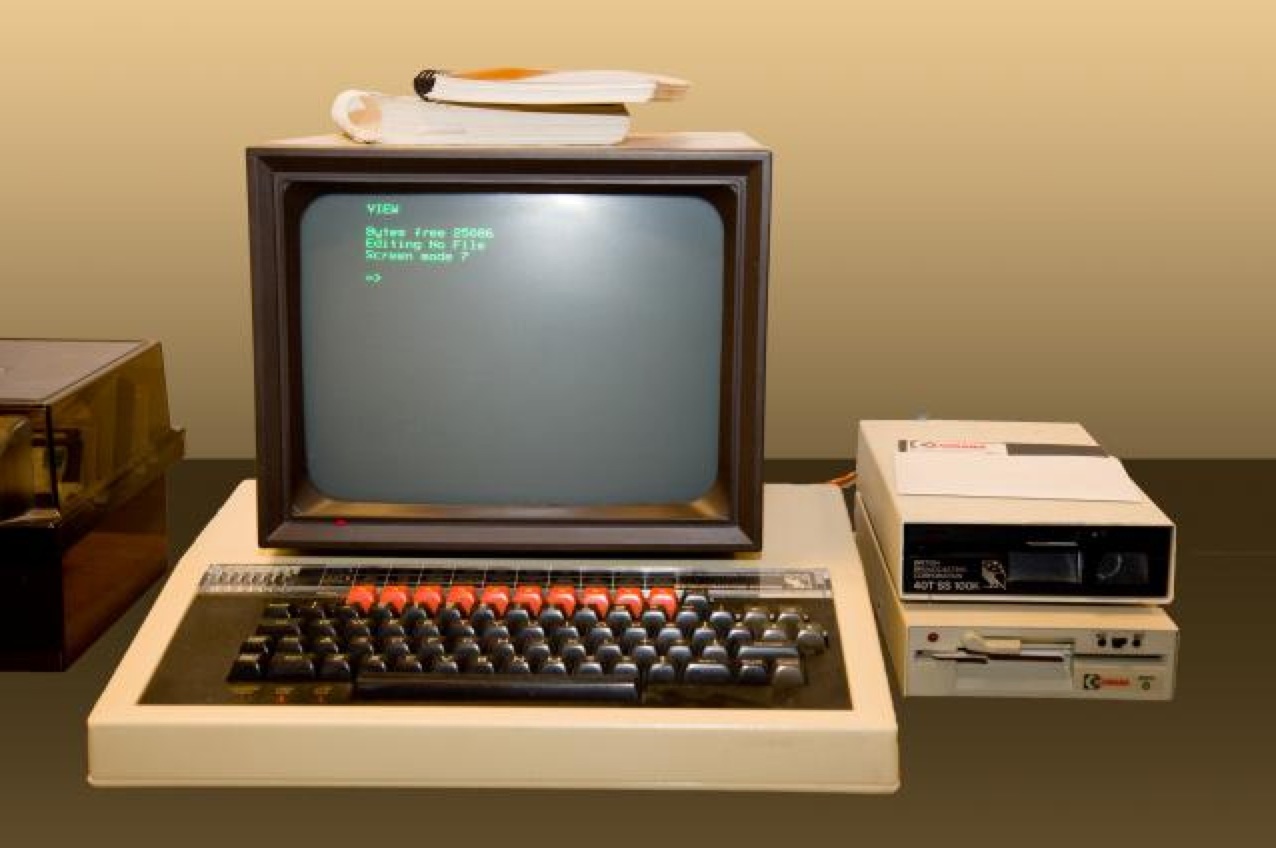
    Phil told us his involvement with computers started in the mid-10980’s through the Micro-electronics Programme for Schools (MEP Cymru??). he went on courses; then got involved with using a BBC-B in school and we shared a laugh at the way it loaded programmes from Cassette tapes and how you could type-in programmes from magazines such as BeebUser. Two he remembered were Base Invaders and Flight Simulator.

    Christine first encountered computers when she started working in a bank and saw a machine room; that persuaded her that this environment wasn’t for her and so she moved to a local authority computing and schools where, like Phil, she used a BBC-B.

    Ann also used a BBC micro in the late 1980’s. She went on several courses, leant quite a few pieces of application software and then went on to learning more advanced computing topics such as Oracle Database, C++ programming and learning about computer security.

    Marilyn didn’t use computers in work but did buy a Tiny PC fro a shop in town, She has been amazed at how much she has learnt from her use of computers including finding out that from a BBC website that there is a recording of Tennyson speaking his works online that was originally recorded to wax cylinder.

    Stella attended a Beginner’s Course in Computing when she was living in London. She had an Amstrad PC 1512 and thinks she probably worked on an IBM machine as well at that time. She’s impressed (like Marilyn) in what she can find online and cited the Enigma Machine in the National Archives (at Kew) as being a great example of a resource.

    Mike didn’t use the computer much in his work until it was necessary to complete MoT work (garage). His claim to fame is that he had three Sinclair ZXs and broke all three of them.

    Thanks to you all, and of course the others who talked about what they’d written here …

  • My first encounter with computers

    My first encounter with computers

    When I went to work in the Royal Insurance in Liverpool in 1962 they had installed  a computer system to the building I worked in.

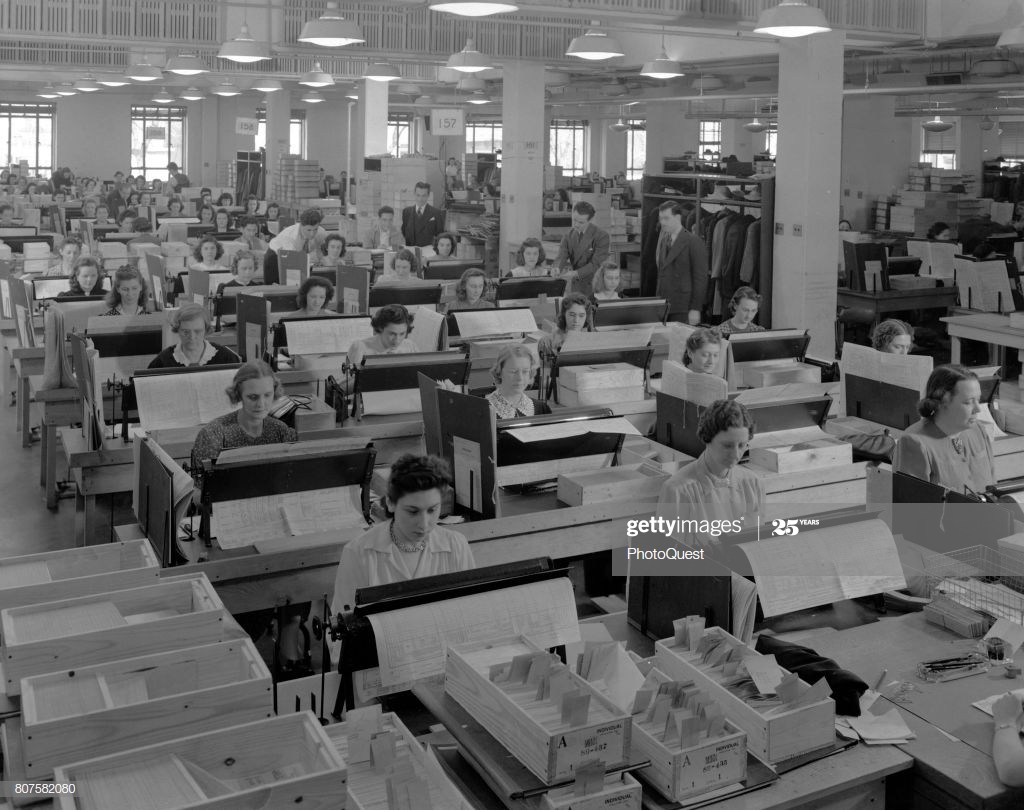
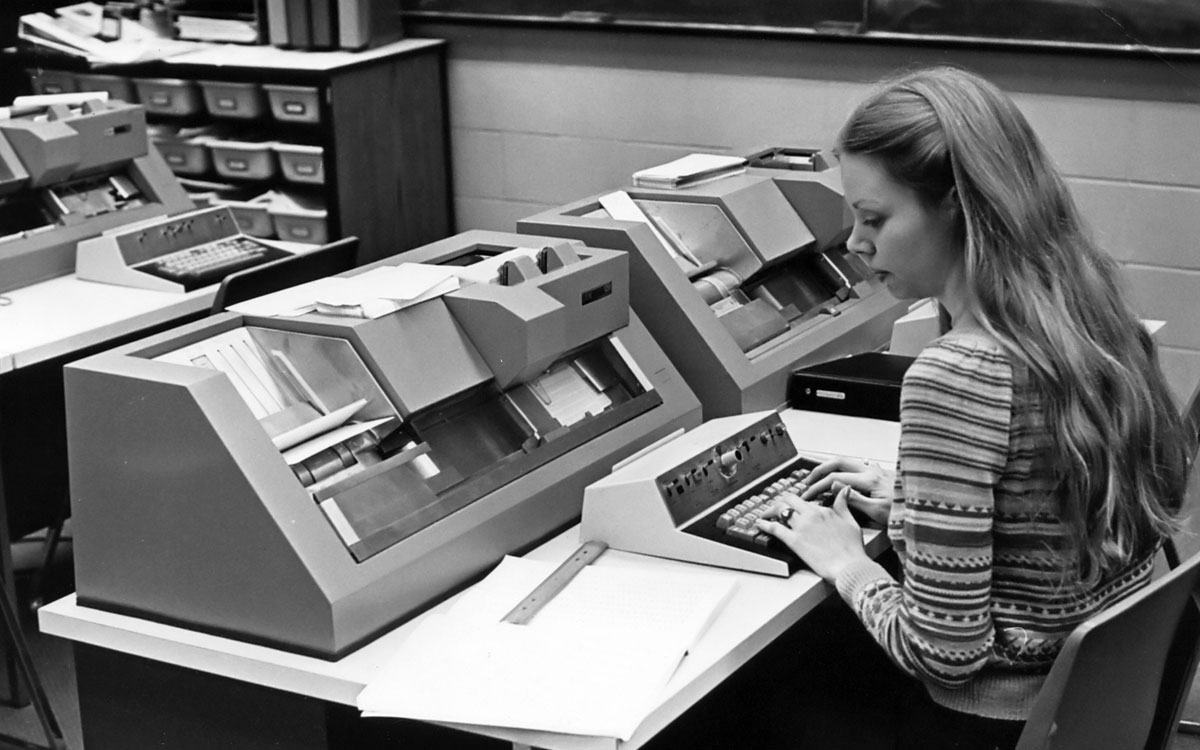
    More than fifty people, mainly young girls, would enter information on punch cards in a large office on the first floor. These would then be taken to the computer room. This was a big room, which was kept at a certain temperature. There were no windows and it had a viewing gallery around it, as we had many visitors, who came to see what we were doing.

    The room had a bank of collating machines, which sorted  the punch cards and also a lot of printers. Off the main room was an office with some engineers, who serviced the machines and dealt with any problems, which were fairly frequent!

    In a separate room there were about 20 programmers, who did the programmes for the machines and who thought of themselves as being a class apart!

    I think that there were other machines in the main computer room but at a distance of over fifty years it is difficult to remember.

    Anne Martin U3A, June 2020

  • My first encounter with computers

    My first encounter with computers

    It seems I was relatively late entering the world of computing.  For Christmas 1993 I treated myself to a Psion 3A, from Argos.  This little marvel taught me about word processing, databases, spreadsheets, and even basic programming.  The screen was black and white of course, and there was no web browser, but still…  And the RAM? 256K! Not enough for even one small image these days.

    I don’t remember when I first got to use a PC, but my first email, internal to the BBC and using my department’s log-in, was in April 1995.  I got my own log-in two years later.  In 1996 I got interested in writing web pages with HTML, which led to me having some formal training, getting involved with BBC Wales’ first web site, and then looking after my department’s pages on the Beeb’s intranet.

    I didn’t get my first laptop until October 2007.

    Jim Bartlett, June 2020

  • My first encounter with computers

    My first encounter with computers

    For me it would be being introduced to an ICL 4130 (formerly an Elliot Computing 4130) mainframe and the use of punch card decks. I was instructed on how to program the computer using the computer language Algol-60 and I had to write the code on sheets that were then punched by punch card operators. Somewhere, I have a booklet which describes the machine … somewhere!

    Anyway, by the time I’d got started on my computing life the 4130 was getting a bit long in the tooth and the form for Universities in those days (remember everything was centrally funded by the Universities Grant and Research Grant Committees of the Education Department then) was to get a visit from the Computer Board – a group of the wise and worldly (it must have been, I went on to serve on its successor body much later on – the Joint Information Systems Committee) who would adjudicate whether an institution needed a new computer or, if it was between its regular visits, whether the Computer Centre needed new peripherals such as disk drives, printers or plotters. As a research student (at UCW Aberystwyth) I, along with my other researchers were fully prepped to be able to say the right thing just in case one of these visiting folk asked a question. What fun! The preparation must have paid off because we got a new machine.

    The ICL 4130 was replaced by an ICL 1900 series machine running George 3 – a proper operating system [I think a second machine was purchased later on and they were linked so that one could handle batch punch card jobs and the other handled teletype terminals and possibly output]. Of course this was the time when Computer Operators were needed and they ran jobs (including back-ups) overnight and had to be in attendance to change magnetic tapes, and handle printed output – a lot of which was created by me!
    I was teaching myself multi-variate statistics, mainly based on linear and multiple regression models, but also principal components and factor analysis and using standard programs which I modified in part to my research subject because I needed mapped output, on a line-printer! The main program I worked with however was written (in Fortran IV) by David Wishart from St Andrews for Cluster Analysis, so I learnt to program in Fortran and this soon replaced Algol-60 as my preferred programming language. This program and its adaptation to spatial analysis (in which I followed the work of a fellow researcher called Stan Openshaw who was using the technique in human geography to group together similar grid cells from maps) was to take up a huge part of the next 10 years of my life as I worked hard to avoid actually going out to do any field work on my research topic “Contemporary Erosion in mid-Wales”. Most of my jobs were by now being run by remote job entry at the Manchester Regional Computing Centre as the size of my data set was too large to run in the UCW Aberystwyth Computer Centre.

    It was an exciting time to be a geographer and books and monographs were being published on quantitative geography amongst which were ones in the Institute of British Geographers CATMOG series, still in my possession, by a certain John Silk. A lovely coincidence that brings John and myself together and allows us to reminisce on the early 1970’s and “the quantitative revolution” as it was called by some!

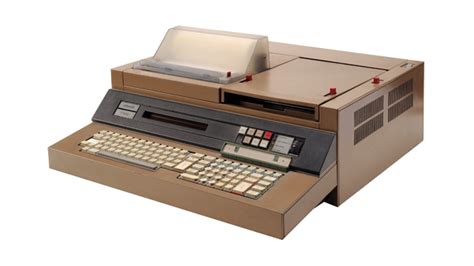
    Through the 1970’s I returned every summer holiday to Aber, and camped at the top of Penglais Hill to get time on the mainframe. In between these visits I would sit at a teletype at Doncaster College of Education, where I was now a Lecturer in Physical Geography, and submit jobs to the IBM 360 mainframe at what was then Sheffield Polytechnic. It had to be said that by 1978-9 my main interest (apart from the family that was now arriving on the scene) was in computing, not geography, and so when a friend asked me to put my knowledge to work in programming some engineering design problems, I accepted the challenge, set up my own consultancy (with my HoD’s approval) and started programming an Olivetti P6060 desktop computer using Basic. Having it at home to do the work allowed my eldest daughter (44 yesterday) to have a go at programming …
    So now the link to geography had begun to be broken. This was severed by Shirley Williams decision in 1978 to close the Teacher Training part of the College where I worked. I bravely, one of my colleagues thought foolishly given that we had by now three young children, decided to opt for voluntary redundancy on the basis of being given a year’s fully-paid retraining. I went to Bradford University and did a one-year MSc in Computer Science giving me letters after my name to go with my 10+ years programming experience. Here I was introduced to the DEC PDP-11/60 mini-computer – a lovely machine running Unix, which was a lovely operating system which I continue to use in it’s Linux incarnation, to this day. I wrote my thesis on building a disk operating system (Modus) for a PDP-8 using a high-level structured programming language (Wirth’s Modula) on the PDP-11. I could now program in Algol-60, Basic, Fortran iV, Fortran 66, Cobol, PDP Assembler, Pascal and Modula.

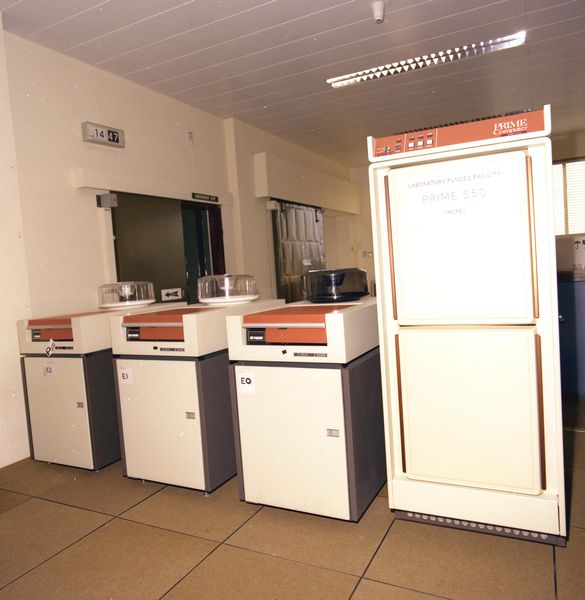
    It was the latter language (the first concurrent programming language and the precursor of first Modula-2 and then Ada) that enabled me to get a job as a Systems Programmer / Computer Lecturer at South Glamorgan Institute of HE at Llandaff. I was returning to Cardiff and HE. Not a very bold move and “only for 4 years max” (which is what I said to Jenny). That was not to be! At SGIHE/CIHE/UWIC I oversaw the introduction of a mini-computer service based initially on a Prime 550, then Prime 750 and so on, initially writing the systems programs for its operating system – Primos in Fortran, PL/P and SP/L, and then becoming Head of the Computer Centre where I dabbled in producing the first website for the institute, which has since been a continuing interest for me.
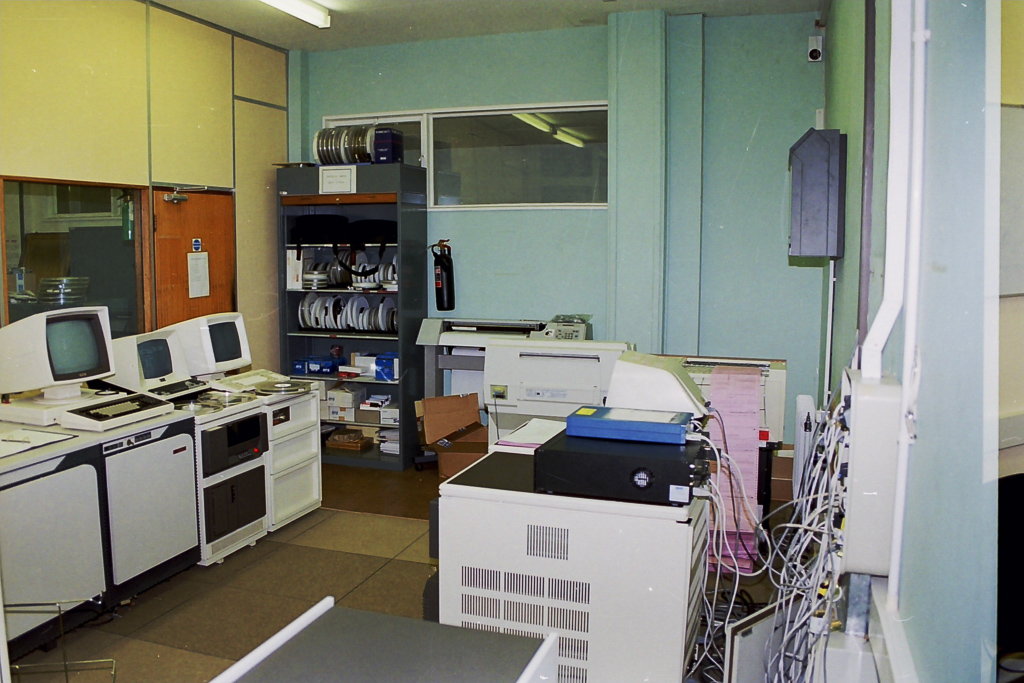
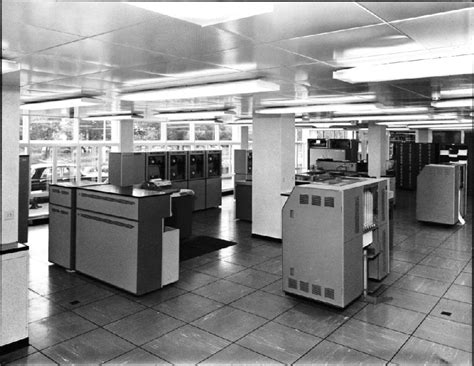
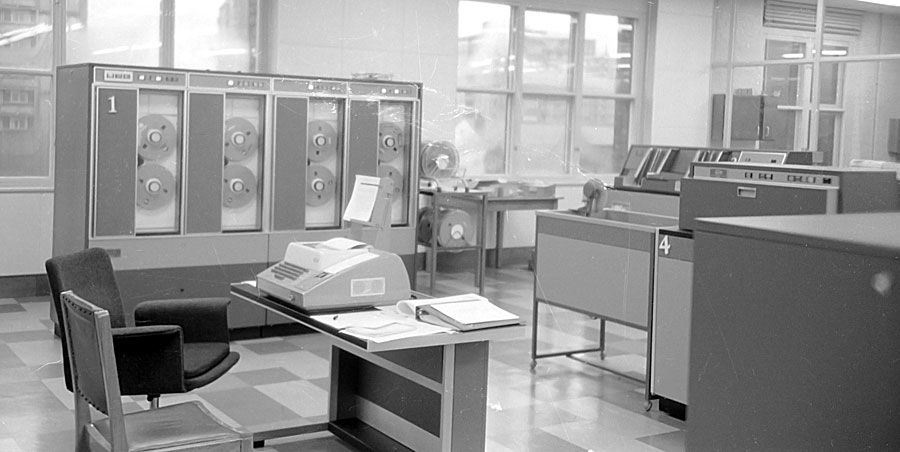
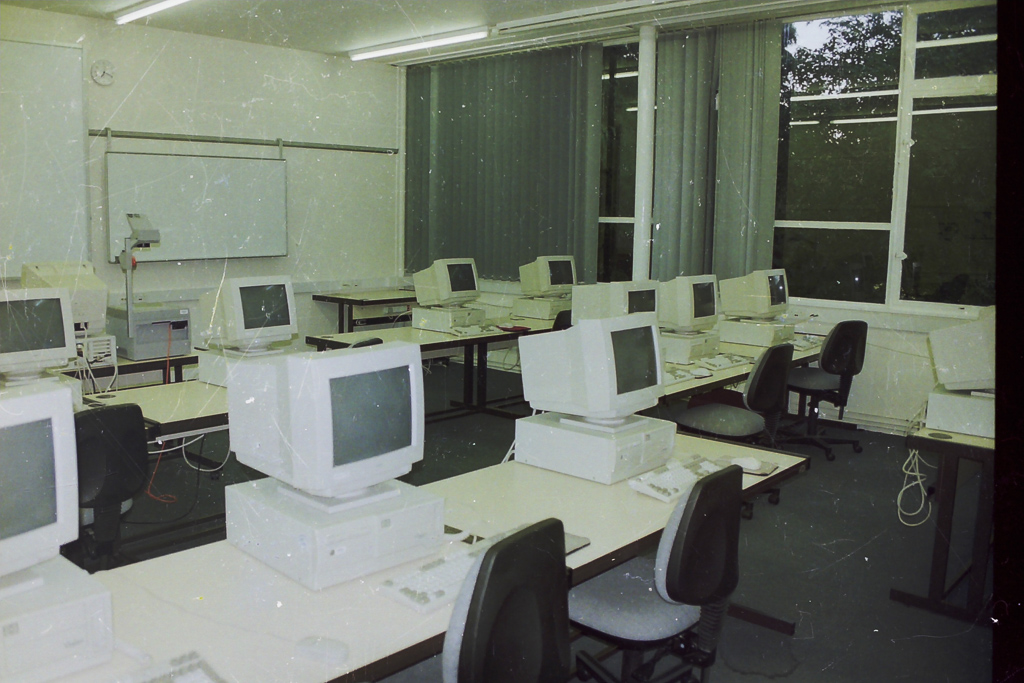
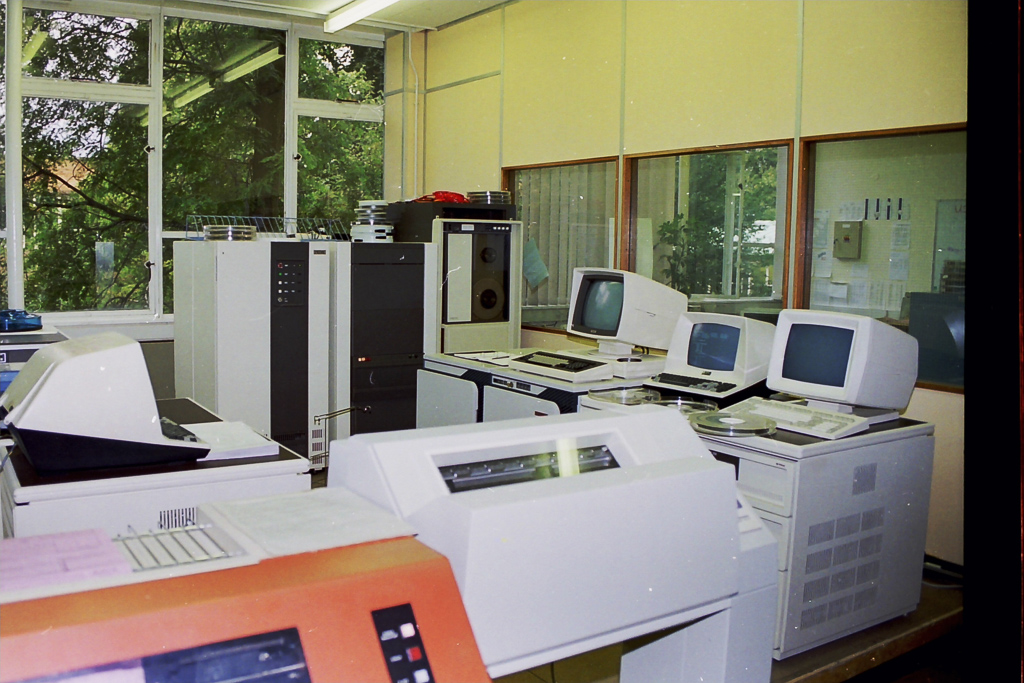
    Here are a few pictures of the Computer Centre at UWIC taken before I left for UWCM at UHW (The Heath) …

    The Operator’s Consoles for each system are on the left, the tape rack for the day’s tape back-ups are in the background, a terminal room with micro-computers was alongside the Computer Centre …

    The original Line printer (orange) was till in service, the Prime 750 is in the background …

    I’d become a manager, and the rest is another story, which I’ll record another day!

    At home we’d purchased one of the first BBC-B Computers – the first of a long series of domestic computers which again is another story, which I’ll record another day!

    David Harrison, June 2020


  • My first encounter with computers

    My first encounter with computers

    I first became aware of computers in 1964 in the sixth from.  As well as A level studies my school insisted that all sixth formers did a selection of other subjects according to their interests, abilities and possible usefulness for further studies or work.  Those subjects, each two periods a week, were non specialist and usually an introduction to topics that one not otherwise cover. 

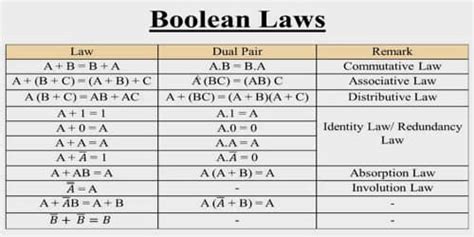
    One of my chosen subjects was ‘Maths for Sixth Form’ – don’t ask why.  Amongst other things, now forgotten, we did Venn diagrams, unheard of until then but now I believe staples of school maths, and touched on Boolean Algebra (not much idea then and none now!) and the binary system.  As part of all this it was decided we should go on a ‘trip’ to the County Council Treasurer’s department in County Hall just down the road to view the computer.  This was a main frame machine handling all the financial transactions, payroll etc.  As I remember, there was not much to look at, just a big apparatus in a large room.  We were given an explanation, pretty meaningless and long forgotten, and also a basic introduction to very simple Fortran, the machine’s programming language.  We were each given a print out card to keep and I think I did hang on to mine for some time as a souvenir of seeing something very exciting and which would never concern me as it was clearly only for very clever, and probably male, boffins.  More than the computer my clearest memory of the day is having a rather good free lunch in the staff canteen whilst my Father, an employee in a different department in County Hall looked across with his more staple paid for fare.

    My university geography degree required passing a compulsory statistics course in which computing played no part.  All calculations were done with books of log tables and working out formulae by paper and pen.  I then became aware of computers in use when working as a local authority planner but in the 1970s they were not for us and a closed book being the concern of the highways engineers with whom we worked closely in the same building.  My passive brush with computing continued, awareness but no involvement. 

    In the late 1980s it was decided that a home computer would be an asset for our secondary age children to assist with schoolwork and my husband selected and bought an Acorn BBC computer.  I had no interest in it or knowledge, it was just something that sat in the spare bedroom on a special little computer table bought from Argos.  I didn’t even know how to switch it on.  It used discs, square hard things that lived in a special plastic box.  I don’t think it was much more than a word processor – my husband typed out a Master’s degree thesis on it.  I am informed that it may still be in our loft! (why?!).    

    It was then time in the 1990s for me to learn how to use computers as they would be playing a more significant role in planning work.  We were all sent on Council courses, at first for word processing only.  I returned from my first stressed, vowing that I would never use one again as I couldn’t get the hang of it all and this thing called a mouse seemed to shoot out of control all over the place.  Personal computers on desks were being rolled out gradually and you were given one when you were deemed able and responsible enough and your line of work merited it.  Until then you had to go to the computer person in your department and ask them to do what you needed.  Eventually computer use was second nature to us all for report and evidence writing, bypassing the typing pool into which work would disappear for days, statistical projections, site histories, e mails (internal only!), databases on numerous matters, and GIS (geographic information systems) and mapping applications.

    I have now retired but enjoy using several computer devices for administration, social contact, photo processing etc.  I have travelled a long way in 50 years from visiting my father’s work location to simply view a computer to seeing my children’s focus on computer and IT ability and use in their careers whilst my own ability and interest in computer use has developed.       

    Margaret Lewis, June 2020

  • My first encounter with computers

    My first encounter with computers

    I used SPSS a statistics package at university but all that involved was writing coding sheets and receiving back printouts of analyses so not what I’d call real computing at all.

    That came later in 1978 when I was working as a research assistant at Sheffield Poly as was. I was developing a reading test for school leavers and not only had data to analyse but also wanted to see if I could set up a computerised question banking system from which different tests could be extracted.

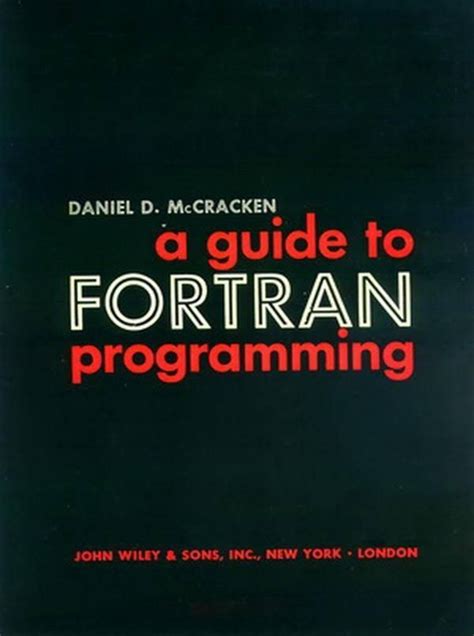
    The Computer Services dept were very helpful, listened carefully and then told me to go to the library, get out McCraken’s book on Fortran and do it myself. I taught myself Fortran and got on with it.

    I’m still programming – the calendars that appear on the U3A website for each group are derived from Beacon and added into Google Calendar using the Python programming language.

    Owen Parry, June 2020