
Category: Networking
-
Compromised Yahoo accounts
I think it might be a very good idea to change your password if you have an account associated with Yahoo, and that includes Flickr and Tumblr. Yahoo also provided the eMail service for BTinternet. After this breach I made a decision to move away from using my BTinternet eMail account. Just about done for me, but not for others in the family. What a pain!!
-
I can come off the fence now and unequivocably support Net Neutrality.
One of our own, a Brit – John Oliver, makes the case very persuasively on Late Night Tv in the States – if a bit foul-mouthed and OTT in places – so this balances up the Cisco video I shared with you in the blog post. They would of course want a fast lane, so that they can make more money from the communications companies by selling more kit. Then of course the big players (Amazon, Netflix) want Net Neutrality for a completely different set of commercial reasons – reducing their costs. So where business is involved, the argument is skewed by whatever camp you are in – communications company (network equipment or ISP), or information provider. However the balance of the argument goes in favour of Net Neutrality because a) this is a form of control that is not for the benefit of the consumer – it takes the pressure off the cable companies to improve their overall level of service, b) the consumer hasn’t asked for it – the market is rigged against us in any case in terms of the level of service provided by our ISPs, and c) this was the way the Internet was designed, by a Brit and by academics, and this is the way it should stay.
-
Quantum computing and the Internet??
I don’t begin to understand much of this, but what I do pick up from it is that Marie Christen’s question yesterday posed as a hypothetical “how does the digital internet handle quantum computers, or computing”, is being addressed.
As I read it, the transport of data between computers, around the world, could continue to be digital – ie the internet as we know it – but that users would communicate with distant quantum computers through Application Program Interfaces (APIs), using scripting languages (such as Python).
This is not dissimilar from the way current super-computers (such as the one in Cardiff Uni that I hope to set up a visit to see) connect to the current university network, and then on to the Internet.
The speed of data transmission will always be limited to three things. Firstly, the speed of light – the ultimate ceiling for the speed of data transmission on optical fibres; secondly, the speed at which the switches and routers can pump the bits and bytes through their electronics, and thirdly the speed at which the electronics in the interface between the computer and the network edge device can operate.
So, in practice the Quantum Computer is no different from any other computing device – it will be limited in its capability to communicate with the outside world by the electronics that it uses.
https://www.ibm.com/blogs/research/2017/03/quantum-computer-programming/?lnk=hmhmhmhmhmhmhm
-
Loads of discussion about Broadband speeds, WiFi routers (their type and security), and extenders or boosters.
[Health warning: some of the links in this post may not be reachable.]
A lot to cover here. I’ll try and make it as readable as possible.
We found a great variety in the broadband speeds being experienced by members, but not surprisingly the best performance was obtained from those using BT fibre connections to the Cabinet at the bottom of the road (provided by a lot of Internet Service Providers – ISPs), or those using VirginMedia which delivers fibre to the property. I mentioned that it’s important to record your interest in having a VirginMedia Fibre Connection to Virgin – that’s how you’ll influence their infrastructure build.
[I was asked how much my VirginMedia connection cost. It’s difficult to provide a definitive figure as it’s bundled together with TV Services which includes a HD Recording Box. So £100.22 a month includes £50-£60 of TV services, I would guess.]
Follow this link to get a better idea of what you might have to pay …
http://www.virginmedia.com/shop.html
The question of whether one had a ‘n’ or an ‘ac’ router was asked. I promised to research that. Here’s a link that explains the difference between the protocols and when they’re most appropriate.
http://homenetworkadmin.com/wireless-b-vs-g-vs-n-vs-ac-difference/
It’s important to remember that the same protocol needs to be used at both ends (router and device) so it will always be the slowest and usually oldest protocol that a router-device connection defaults to. Often however a router can operate in more than one mode, so you need to look at your router to see whether you have to configure this. For instance my routers allow me to connect at 2.4Ghz and 5Ghz (these are the wireless bands,). These are different from the channels which we discussed before and which I wrote about under flaky WiFi.
I’m afraid I can’t find a definitive way of finding which of ‘b’, ‘g’, ‘n’ or ‘ac’ a router is operating in. This article and the links it has should tell you a bit more about your home network.
http://lifehacker.com/5830886/know-your-network-lesson-1-router-hardware-101
It also covers WiFi security and snooping, which is not a problem if you use the most secure protocols, eg WPA-2.
Then there was a discussion on WiFi extenders and boosters. Essentially, from what I’ve read, a booster is a device that receives your WiFi signal from the router using WiFi and amplifies it to allow you to be further away from the router. A booster will often work by using the electric power circuit of your house (as long as it’s a single fusebox) to connect Ethernet over Power devices – sometimes called PowerNet. The equipment I use is from TRENDnet, called Powerline adaptors, and I purchased from Amazon. Here’s what I purchased in June 2015 …
… it gives me WiFi in the kitchen as well as a wired connection there, if I wanted it. I could connect up to 8 Powerline devices through the electrical mains.
That’s about it. I think I need a glass of whisky!!
-
Today some of us used WiFi Hotspots created by our Smart Phones to connect our laptops to the internet.
This called tethering. [Health warning, some of the links may not be working.]
How do you do it? Well if you’ve got an iPhone you go to Settings > Personal Hotspot and switch it on. On that screen you’ll see a Password – note it, because you’ll need to supply that on your laptop/desktop/iPad when you attempt to connect to the internet.
Next you go to your laptop/desktop/iPad Network Settings and look at the WiFi routers that are available to you. If all has worked correctly then you should see your iPhone in the list of possible network connections. Click on it, supply the password you got in the previous stage when requested, and you should be set to go.
If it doesn’t work, you may find this link (for iOS devices) of some help …
https://support.apple.com/en-gb/HT203302
For Android phones, the process is very similar and is described here …
http://www.pcadvisor.co.uk/how-to/mobile-phone/how-tether-google-android-phone-image-3279408/
For a general view of how to tether your laptop to your smart phone, you could look at this …
-

Flaky WiFi, or what?
Have you ever experienced a dramatic fall in the internet performance of your computer, phone or tablet when your device is connected to the WiFi network in your house? You have? You may be suffering from “flaky wifi” – I hadn’t heard the term before, but it’s for real! Just Google it and you’ll see it does exist; but what is it, and how do you rectify the problem? It might be intermittent, or might be permanent. Can you solve the problem? Yes you can.First some background information – you can skip this if you want.
Let’s look at how the broadband (the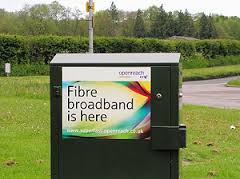 internet) enters your house. If you’re lucky you will have a fibre-optic connection which would give you the fastest speed and performance but the fibre only runs from the Exchange to a Street cabinet. From the cabinet to your house the connection will be by copper. You can
 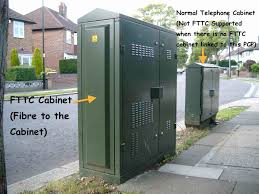 recognise whether you have fibre in your area by looking at the BT street cabinets. If they’re like the one on the left – you have. If they’re smaller like the one on the right of this picture and don’t have vents in them (necessary for cooling) – then you won’t … yet! Inside the cabinet it is still likely that there will be a tidy arrangement
  of cables and patch leads – not at all like the old telephone street cabinets which usually are rather untidy. So the picture to the left is a couple of rather proud BT engineers looking at a new fibre cabinet. So whether you have copper or fibre to the cabinet, the connection to the broadband in your house will be by copper. This is the same for the cable operators like Virgin Media as well.
Your broadband provider (your Internet Service Provider, or ISP) will have given you a device that presents the internet into your house. This could be done in a number of ways, but for this discussion I will call the device a hub. The hub incorporates two components – a modem which pulls the signal from the street cabinet and pushes a signal back, which in turn is connected to a router which handles the distribution of the signal to your various devices in the house. Sometimes these are two separate devices, in the case we’re considering they are one and the same. Your router will probably itself have two components – an aerial for sending and receiving a WiFi signal and a number of ethernet ports to allow you to directly connect a device by an ethernet cable to the router.
 [This is always faster and more reliable than using a WiFi connection – but more about that later.] In the diagram to the right the WiFi is being delivered from a separate Wireless Access Point. This is not the normal way of providing Home WiFi nowadays, but before the introduction of “the hub” – it was.What’s this got to do with “flaky WiFi” I hear you say … we’re getting there, but if you want to fully understand how the internet works you would benefit from an explanation of another piece of wizardry – the Internet Protocol, or IP address. You can skip this bit too if you like.
Every device connected to the internet has an IP address, some are Public, some are Private. Almost certainly all the IP addresses in your house, behind the router will have Private IP addresses. Your ISP will dynamically allocate an IP Address to your router when it sees it’s switched-on, ready for connection. This will be from a store of addresses it has and will look something like this – 86.10.6.1 – this is effectively the equivalent of the telephone number for your house. As the number of Public IP addresses is limited, your router will then allocate an IP address to each device from a Private range and these will look something like this – 10.0.1.2. It is the job of the router to map the devices from the Private range of IP addresses to the Public IP address space of the Internet.
So you can see I hope that the Router is a really important piece of equipment as it handles all the transfers of information to and from the internet using IP addresses. If you’re using wired ethernet connections that’s really all you need to know (there’s loads more but not for this post) and as long as your hub is working and has the correct lights shining all should be well. However we have the wireless network to consider, don’t we? So now we come to “flaky WiFi”. At last, I hear you say!!
Your wireless router (or hub) broadcasts signals to devices on different channels (like TV channels). Usually when you switch it on it will configure itself to use the best available one. However, if another network nearby (say next door) is using the same channel there will be interference between the two causing the signal to be interrupted, the information to be resent, the performance to drop. This is the most common reason why you will get “flaky WiFi”. Other reasons may be that you are too far away from the wireless router to get a good signal, you’re moving about, the walls are too thick, the router is not located in the best position to cover the whole house, the wireless card in your computer is damaged in some way (or is just too old to get good performance), or your software is not configured correctly.
I can’t deal with all of these but here are a few links that you may wish to follow up these …
For the Mac user – Lost WiFi: How to fix WiFi connection problems.A reasonably readable piece – How to troubleshoot wireless router problems.A more complex but good explanation – How to troubleshoot a flaky internet connection.… for now I’ll just go through a couple of situations.
1) If the signal as shown on your device gets stronger the nearer you get to the router, your problem is likely to be the siting of the router. You need to move it closer to where you wish to use the device, or consider a wired connection instead. This might sound daunting, running cables and the like, but you can buy a pair of Powerline plugs and connect the router to the device using your internal mains electric circuit. Alternatively, you could extend your network, again using Powerline technology to provide a Wireless Access Point near to where you want use your laptop, phone or tablet. [Note: There are other manufacturers and suppliers of this technology other than Trendnet and Amazon, try Maplins, this is just the kit I use.]
2) If the WiFi is definitely “flaky”, it’s intermittent, or undependable, you’re most likely to need to change the channel. You may be able to do this yourself using the management software provided for your hub, but you may also find it better to contact your ISP, explain your problem, say that you believe you may need to change the channel and they’ll talk you through doing just that. [They may indeed be able to change it remotely.]
That’s it. I knew about channels before writing this, but not the term “flaky WiFi”. I’ve learnt something new!
 PS If you want to know just well your device, and/or network is performing why not use Speedtest, it’s available for mobile devices like phones and tablets as well from the App Store or Android Store. Here’s a screenshot of a test I just did on a wired connection in my house using Virgin Media as my ISP. It’s quite addictive.


