Category: Networking

  • How does the Internet work?

    [Revised 17th January 2023 and February 22nd 2024]

    Now there’s a question. Once upon a time it was a little easier to answer. You connected your computer with a piece of wire to a socket in the wall and beyond the wall was ??

    So perhaps it’s never been easy to answer that question. It’s not magic, it’s not fluffy, it’s actually really complicated technology which works in a relatively simple way to make things relatively easy for us to use it. Let’s start with a few videos …

    How does the internet work? – This [updated] BBC Bitesize page (produced for children) is a really good starting point to help you understand how the internet works and introduces some of the terminology (ie protocols, packets) that will be useful to you to understand the other videos.

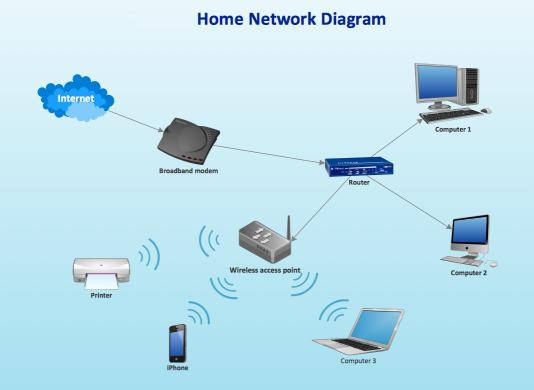
    How the Internet Works in 5 Minutes – the internet is not a fuzzy cloud. The internet is in effect a wire (or a fibre-optic cable), actually buried in the ground or carried as wires between posts. Computers connected directly to the internet are called Servers, while the computers you and I use are clients, because they are not connected directly to the internet, but through an Internet Service Provider. Mobile devices away from the home, connect to the internet using radio-waves to connect to cell-towers with increasing capacity being generated by increasing the frequency modulation of the waves (ie 3G, 4G, 5G and even 6G). Mobile devices in the home or in the office, or in public hot-spot spaces, use WiFi to connect to the internet using two frequencies – 2.4GHz and 6GHz. All of these require Routers to shuttle packets of information across the internet, and transmit e-mail, pictures, and web pages. Although this video is a little dated, it really does explain the process of what happens when you connect to the internet …

    A more recent video and the ones that are referenced at the end of the video will get you a long way to understanding the technology that makes up the Internet.

    How Does the Internet Actually Work? – this discusses how internet traffic can be labelled to ensure that packets of data can arrive at their destination with the minimum amount of disruption [- but it is a biased view in favour of scheduling]. However for an impartial point of view of Net neutrality, you should probably look at this video produced by Vimeo – strong supporters of Net Neutrality …

    … and the policy documents from the Internet Society and Electronic Frontier Federation.

    Finally a couple of alternative views of the internet. First, Andrew Blum (in a TED Global talk) philosophically examines What is the Internet, really? A journey that started for him when he found out a squirrel had chewed through a cable led to him exploring trans-ocean cables and the very physical nature of the internet – a wire! Then this rather entertaining video …

    … takes us from very local internet and cell-phone technology, through an examination of data centres such as the former Western Union office at 60 Hudson in Manhattan, to laying ocean cables and the future with balloons acting as transmitting stations for low-density inhabitation, or remote areas.

    You might also be interested in seeing a Google Data Centre, in particular the pieces on security and cooling are interesting. [However, all of this increasing use of the internet comes at a cost to our environment as the advance of Artificial Intelligence and its huge need for energy for increased computing power comes at a cost.]
  • Two Obscure Problems

    The first happened a month or so ago, but I decided it wasn’t worth mentioning in a meeting. I thought I’d include it in this post about the second problem though, which happened a few days ago. The problems were:

    WhatsApp, having to link my phone to the laptop every day.

    Phone network, loss of internet access.

    First, I originally linked the phone to the laptop, by scanning a QR code, and from then on I could read and write WhatsApp messages on my laptop. Then one morning I was asked to link again, and this happened for the next couple of days. I couldn’t work out why. Finally I got a message saying that I could link a maximum of four devices to my phone, and it turned out I had linked the laptop that number of times. The cure then was to unlink them all and start again. I’ve no idea how it all started though, as going through the linking process is not something you can do unintentionally.

    Second, I’ve got a pay-as-you-go contract with 3, and as I said, I lost access to the internet that way a few days ago. That meant I couldn’t check my PAYG balance amongst other things. I thought maybe it needed topping up, and managed to do that via my laptop, but it didn’t help. I called in to the 3 shop, and the assistant took my phone and played with it for a while, finally curing the problem. I asked him how, and he said he had gone in and out of ‘flight mode’ for a few seconds. Not something I had thought of trying.

    Maybe one of those might help someone in the group one day.

  • Home networks – some notes

    I’ve written and talked about this subject on a number of occasions. I’ll bring these together in one place, before delving into the specifics of router configuration which prompted the subject for the meeting on Feb 4th, 2021.

    For many of us home networking means WiFi, and the first article I wrote was on the subject of “Flaky WiFi” on October 11th, 2016. Members of the group had commented on their WiFi connection appearing to drop and in this article I tried to explain how all the bits and pieces hung together and how you could test your network to see it was working the way your Internet Service Provider (ISP) was proclaiming it should be!

    Then, later on (January 26th, 2017), we discussed “Broadband speeds, WiFi routers (their type and security), and extenders or boosters” and as the title suggests we focussed on networking in the house and how it is provided by Internet Service Providers, such as VirginMedia, BT, Sky or TalkTalk.

    I described “How the Internet works” in this post on June 29th, 2017, with links to a few videos and policy documents which hopefully explain the topic better than I could. Not much has changed since then; IPv6 is still to appear in the domestic market, so we still use IPv4 for internet addressing.

    Finally, on July 27th, 2020, I wrote about “Improving home network performance” which is really what I’m going to revisit in this post.

    So … what do you need to take a look at?

    On your router:

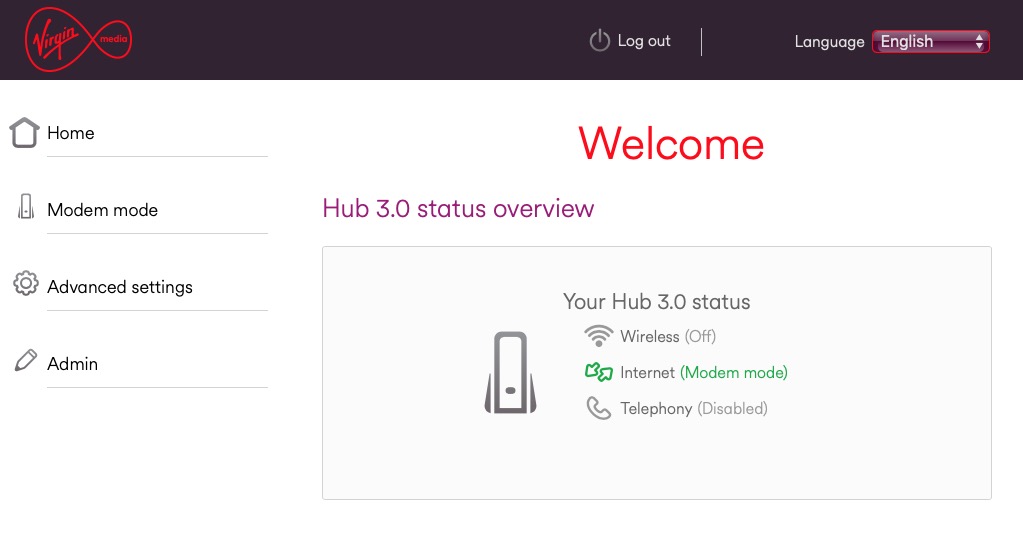
    If you’re using an integrated modem/router – often called a hub, typing in the IP address 192.168.1.1 will bring up a screen something similar to this …

    … mine is different because I’ve disabled the router functionality so that I can use my own router – a Netgear Orbi Mesh Network – so to just access the modem part of MY hub I use the IP address 192.168.100.1. You can see from the above that only the Modem is active.

    So for most users with an integrated modem/router, the first thing you need to be able to do is to access your Router’s Admin Dashboard. This article explains how to do it using the cmd prompt in Windows, but it is probable that your hub/router has an application you can start to do this, or that you can access it from a browser window. For most you would just enter the IP address 192.168.1.1 and supply the UserID admin and the password that I’ve created – the default is quite commonly ‘password’, so you ought to change that!!!

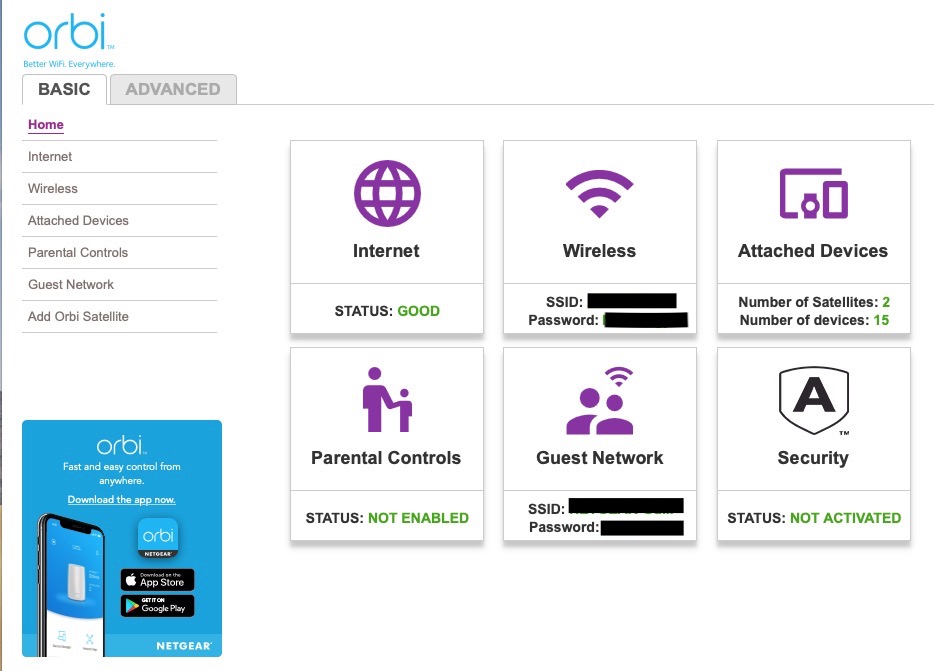
    The above screen is for my mesh network, but non-mesh would be similar. Clicking on Internet will give you the ability to change some of the settings for your connection.

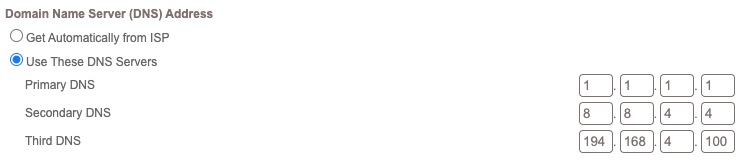
    Of these the most useful to change is the Domain Name Server (DNS) – these are the servers that translate a URL (eg digital.cardiffu3a.org.uk/) into an IP address. I've chosen to replace the default DNS supplied for my VirginMedia (ie 194.168.4.100) Hub (I've disabled the router functionality on the SuperHub so that it only acts as a modem) for two servers run by Google (1.1.1.1 and 8.8.4.4). The reason I've done this is that these servers are replicated around the internet and will almost certainly be closer to my router than VirginMedia which I think the closest one is in Bristol.

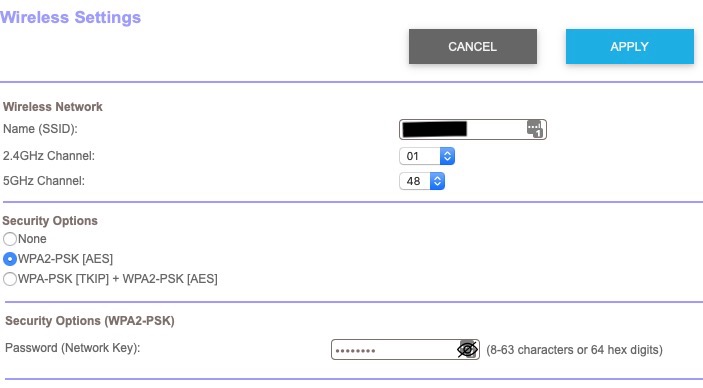
    All the other settings can probably be left as they are. The next option is where you configure the name of your network and the channels you’re going to use.

    If you don’t like the name supplied to your network by your ISP, you can change the SSID. I did to make it a little more meaningful. You should then consider changing the 2.4Ghz Channel. If you can set the channel to Auto – you should do so because generally the router will then find the best channel for your network. If that’s not possible and you have found your WiFi to be “flaky” due to you and your neighbour using the same Channel(s), try setting the channel manually to one that’s not being used. The article I mentioned before describes how you can find the best Channels for a Mac, and this one identifies a Windows Tool that does the same thing – there’s a Download link at the bottom of that documentation. Here’s an article that describes all the possibilities.

    Generally 2.4GHz has a wider range of signal but lesser bandwidth (throughput), and 5Ghz the opposite – shorter distance, but higher bandwidth. On my system my 2.4GHz channel gives me 400Mbps and the 5Ghz channel 866.7Mbps.

    You’ll want to look at your Security Options and make sure that you choose the best for the devices that you’re going to connect to your router. Generally, for a home network, WPA2-PSK [AES] should be sufficient.

    This article from the Apple website provides a very thorough and detailed examination of what settings you should deploy for your router, and why. Worth a read, even if you’re not an Apple Fanboy!

    On your device …

    Make sure the security settings match that you’ve just set on your router; remember the SSID and Password you’ve created, and re-connect to your network.

    And that’s about it … I hope. Questions??

  • Home Broadband using 5G

    Home Broadband using 5G

    I have for the years of my retirement chafed under the yoke of slower Internet access compared with when I was at work. Although I have had fibre from the cabinet as soon as it became available, I have rarely had more that 18-20 Mb/s download speed and commensurately slow upload speeds. I have also suffered with intermittent halts on the network where a succession of routers have decided to drop the connection back to the ISP, sometimes for several hours. And not just one ISP either. We have also had problems with Apple devices (iPad and iPhones) which frequently dislike the wireless network and have to have their lease renewed or their wireless function turned off and then on again.

    As my most recent contract was coming to an end in January 2021, I took the opportunity to explore other options. Fibre to the premises was my hope but not available and no prospect in sight. I had signed up to receive an indication of when it might become available but OpenReach has lived up to its reputation for impenetrability and Virgin Media have no interest in cabling up my end of Penylan.

    I did remember a member of the Computer Group had mentioned non-cabled access although my faulty memory suggested the word ‘radio’ and I couldn’t track that down. But the concept stuck and I looked at whether it was feasible to implement home broadband using mobile technology. The answer is of course, yes.

    I spent some time looking at the three possible providers – 3, EE and Vodafone. They all had different offerings: 3 the cheapest, EE possibly the most flexible and Vodafone another option. They all provide useful ways of determining just what service you can get at your address. 3 quickly dropped out as they did not provide 5G cover in my area. Then I investigated volume usage and checked with my existing supplier (Vodafone) as to what sort of throughput I was currently using. It turned out that EE’s highest level contract was an allowance of 300Gb per month and that if, as my wife and I do, you watch a number of subscription services over the Internet and do a lot of Zooming, you can approach that level quite easily.

    So there I was, Vodafone was the remaining option: the most expensive but offering unlimited usage. I struggled with their online system for investigating any further despite being a current customer but eventually came up trumps – I wonder if that’s a phrase that will fall out of favour now?? – using their chat system. A piece of advice : use the chat system from the sales page not the general or technical support page. The financial imperative means they give better answers and don’t want to send you to any other group!

    I quickly gained an assurance (in writing) that their 5G service would reach my house and provide good and consistent connections and importantly, there is a 14 day trial period to check it all out. I placed my order and on hearing of the difficulties I had had with the existing connection from Vodafone, have a £10 per month discount for 2 years. It’s still twice what I was paying, though.

    The Gigacube and SIM came the next day by courier. It took me 10 minutes to install, plug in my two Ethernet cable to the sockets; then 2 or 3 hours to visit every networked device and change it over to the new wireless network. My iPad is now downloading consistently at 170Mb/s and nothing in the whole set-up is slower than 45 Mb/s. Every room in the house has a good signal including the attic room two floors up.

    Issues? Yes, one. I distribute a wired Ethernet connection via powerlink devices (you connect one to the router, plug it into the mains and then get a network connection from similar devices plugged in elsewhere in the house). The main one is to my study for my PC and laptop. The new network didn’t seem to like this at first but after a few hours of head scratching and for no apparent reason, it suddenly started working. I haven’t worked out why yet.

    Verdict: well, it’s early days isn’t it? But I’m certainly very pleased so far. I’ll monitor usage and maybe ‘unlimited’ was a bit of a luxury.

  • Using Paypal instead of Credit Cards

    This was a question that was raised during the General Meeting discussions. PayPal has a Buyer Protection and Fraud Protection policy which for small transactions (ie <£100), and for transactions with companies/individuals you regularly do business with, is probably sufficient protection.

    For large value items (ie >£100) and up to £30,000 you might prefer to choose using your credit card because of the Section 75 protection you get.

  • Improving home network performance

    Improving home network performance

    This short note is written to advise on possible performance improvements you can employ if you feel that your network is “slowing down”. It may be that you just feel files, or pages, are taking longer to download, or display; or it may be that you feel it’s taking “too long” to connect to the remote site from your browser.

    The first case can often be resolved by moving your WiFi router, if possible, to a better location. Remember that although WiFi can appear to go through walls and ceilings, the more you expect it to do, the worse will be the signal. So move the WiFi router and perhaps you’ll get a better signal. This is often not possible, so the next thing to consider is to use one of the ethernet ports on the back of the router and connect the computer to the router by ethernet cable, rather than using WiFi. This will always provide better network performance. This may not always be convenient so the last solution is to “extend” your network using either a WiFi extender, or a different approach called Powerline. This article explains the difference between the two and also includes a commentary on ethernet cable as well.

    If you opt for Powerline, you will plug a unit into a 13amp socket near to your router and connect it with an ethernet cable to the router, and then on the same electric circuit (ring main) plug in another box which can be just another ethernet socket, or more likely it will have a WiFi capability. Systems from Trendnet, TP-Link, D-Link and others are amongst those you could purchase. Here’s a review of possible systems, most of which can be purchased from Amazon. It is possible to configure these to use the same SSID as your router, but you may have to make do with having a separate network when you connect to these points.

    Alternatively, your ISP will often have a solution that will mean that you can use the same SSID for the extended WiFi access points, or you can purchase WiFi extenders (as described above) from Amazon which you can then configure to use the same SSID as your router. So that’s the first case taken care of. What if you just feel that your network is lazy, is there anything you can try to improve performance.

    Well first – and perhaps you should have done this first anyway – you should check whether your ISP is delivering something near to the broadband speed it’s contracted to provide. We’ve talked about this before but test your internet speed using something like Speedtest. [As an aside, you can also download the Speednet app for your mobile device and walk round the house testing your signal this way too.] If that’s not the problem, and it just seems to take too long to make connections, then perhaps you should apply some new configurations to your router.

    The first thing you can do is to see if you and your neighbours are battling to use the same wireless channels. The common ones used are 1, 6 and 11 as they don’t overlap. However for this reason, sometimes, routers might be “hard-wired” to use one of these channels and so two nearby networks might actually be using the same channel which could then be interfering with each other. Read this article to learn more about this, and then once you’ve tested your network and it looks as though you could be suffering this way, you’ll need to refer to your router manual (or talk to your ISP) to change the channel(s) you use. Why channels? Well because most routers now broadcast signals at two wavelengths – 2.4Ghz and 5Ghz. What’s the difference – read this article.

    The other thing you can do is look at how your router is setup with its DNS server. Your ISP will have configured your router to use their DNS servers, but it might be that these are not the best ones for your locality – especially if you’re on a laptop and are moving about a bit! So what is a DNS server, and what does it do, and why might this be important?

    A DNS server translates a URL (such as https://digital.cardiffu3a.org.uk/) into a sequence of numbers – an IP address – that instructs the modem that transmits and receives data going and coming from the internet where to go. This whole process is explained in some detail in this article. If you decide to change the DNS settings on your router, or just on a device, you can look at this article which shows you how to do it.

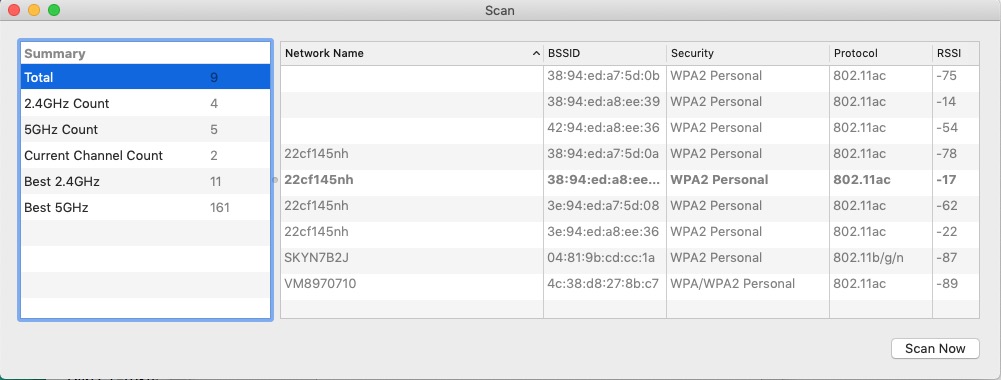
    In my case, I’d been disappointed in the performance of my new Netgear Orbi routers which although they seemed to shovel the data around very fast, there was a noticeable lag/delay in achieving connections, and I’d also felt that the router was dropping connections more than it should. So, bearing in mind I have a Virgin Media Superhub that’s only running in modem mode with the Netgear Orbi router behind it, I changed the configuration of the router which was pointing at VirginMedia’s DNS servers to point at Google’s secondary DNS server. I also checked what channels were being used by nearby WiFi networks using the Mac’s Wireless Diagnostics tool described in this article

    … which indicated that I should change the 2.4Ghz channel that was being used from 1 to 11, and to set my 5Ghz channel to 161.

    I left the DNS server setting on my devices to be ‘automatic’. This makes it much easier to “roam” away from the house with a mobile device. I then ran a test called namebench (from Google) to try and find the best DNS server for my home network, but you don’t need to do this. I would suggest you look at this article and then experiment with Cloudflare, Google, and OpenDNS perhaps in that order until you get a response to your internet request that satisfies you. Leave your ISPs DNS server in the list of servers (the third in the list below) – just-in-case.

  • Questionable Broadband Speed

    You can check potential speeds available to your own Post Code using the Uswitch Postcode speed checker here:

    https://www.uswitch.com/broadband/postcode_checker/

    You can check your current speed and potential suppliers here:

    https://www.uswitch.com/broadband/speedtest/

    You should also contact your current supplier for potential problems with your Broadband, they can run online checks on your system.


  • It's Internet Thursday – 28th November 2019

    Boot-up
    No meeting in December – apologies
    News and other issues raised
    I came across this in my Feedly – which I wouldn’t have seen in any other way – you might want to follow it up. Energy Pricing from the Big Six.
    Gear Guide
    Has anyone bought, or obtained anything recently they’d like to tell us about? It doesn’t have to be a computer, laptop, tablet or phone – just something that’s digital, ie used a computer processor in some way?
    Not bought but perhaps considering buying a grandchild, niece or nephew a camera? [US site, so you’ll have to search for a UK price and supplier.]
    Similarly, not gear exactly but are you making the most of your Amazon Prime subscription – if you’ve got one?
    Christmas Gift Ideas
    Turing Tumble – Build Marble-Powered Computers
    Apps Galore
    That slot in the meeting where members are encouraged to share their experience (and possibly excitement) at a new app they’ve started using for their smartphone, tablet, laptop or desktop machine.
    Feedly, Flipboard, Pocket and Evernote re-visited – getting the information delivered to you, that you want, when you want it! Today I want to look principally at Feedly.
    Feedly and Feedly Pro
    – the Pro version offers no adverts, ability to save to Pocket, Evernote, etc. Let’s look at the free version (using a free account I set up earlier) …
    Login to Feedly
    Flipboard
    I use this application to create magazines as I’ve described in the link to an earlier post; but you can also use it in a similar way to Feedly to search for content and have that delivered to you. The latest article I added to my Thought Grazing magazine for you to read is here. It describes the way that Firefox is attempting to create a “more friendly” web. A subject we’ll return to later.
    Pocket and Evernote I’ve recently discussed. These are (with Browser extensions, or linked apps on a smartphone, or tablet) great ways of curating, or archiving, content to read later.
    What’s IT all about?
    About time for another batch of Speedtest results? Get the Speedtest app from your Apple or Google app store to test your Internet speed and share the results on WhatsApp.
    Here’s the result from my iMac beside the router that sits on my desk …

    … and an impressive result using WiFi from the computer to the router beside the computer …

     
    … and for my iPad beside the iMac, using WiFi …

    What do you think that tells me? You can even share your results using a link like this one.
    A contract for the web
    The Richard Dimbleby Lecture (ignoring the rudeness of Jonathan D. towards the Russian Embassy person towards the end) on iPlayer.
    Tim Berners-Lee and “Contract for the Web
    An Article in The Guardian from earlier this year and one from the NY Times this week.

  • WiFi: improving your reception, and mesh systems – March 28th 2019

    We’re grateful to Paul for leading this session … here are his slides from the meeting.

  • How the web was won – Feb 28th 2019

    Boot-up
    Phishing quiz – https://www.makeuseof.com/tag/google-quiz-help-spot-phishing-emails/ – any feedback? [Ted was concerned about providing his details at the start of the Quiz. His fears were understandable, but unnecessary – read the Comment beneath this post, from me.]
    Google’s apps to help the hard of hearing [Ted, Jim, Martin]. Unfortunately (and as I clarified at the meeting) – it’s not possible for me to check every link for accuracy or relevance. All I can do is point you in possible directions. I will only make recommendations when I actually use the software, or hardware, that I write or talk about. Thus it’s unfortunate that Ted wasn’t able to test the apps referred to in this piece from the previous meeting. One because it wasn’t in Google’s Play Store, the other because it required a more recent Android device than the one he had. Such is life! Martin however brought in some information that I found on the Internet as well, and I’m pleased to be able to provide the link here.
    Mesh networks [Paul]. Paul was so impressed in the process of doing his research he even ate his own dog food and purchased a system. He’s going to discuss it, and other ways of improving your home WiFi in the session he’s going to lead on March 28th.
    Any other member issues?
    Well … David Hughes’ impassioned plea for guidance on buying TV systems, was met with much agreement so I’m going to do a session on that next time, as well as a bit more on websites – following on from todays’ session.
    News
    Getting more out of your camera with your iPhone.
    How hackers break into your Bank accounts.
    Sharing files between your iOS device (iPhone or iPad) and your Mac.
    Mesh WiFi on a budget.
    How to find your iPhone in the house, when it’s muted.
    Don’t want to use Dropbox to share a file with anyone – here’s five other ways of doing it.
    Be frightened, really, really frightened … maybe.
    How the web works
    I’ve shown this before, but it’s a good place to start and a refresher for what I’m going to work towards …

    BBC Computing — How Does The Internet Work? from Splinter on Vimeo.
    I’ve also shown this before, and again it’s worth just a quick look to explain how routers and IP addresses work.

    Well from this you can see the importance of IP Addresses, and there’s reference to how information is broken down into packets, but it’s difficult to envisage just how this works. Watch this and all will be explained …

    However there’s no reference to Domain Name Servers (or DNS) – which the first short film mentioned and perhaps surprisingly these are probably the most important part of the internet – the piece that really makes it work.

    Then we need to look at the components that we use, that make the internet usable to us. We’ve had quite a discussion this year about what is a browser, I wish I’d found this (rather dated but still accurate) little clip before …

    So we have a client (your browser – Brave, Firefox, Chrome, Safari, Edge, etc) and there is the information you want to look at which is stored on servers. We know that your client has to translate a web address (a URL – uniform resource locator) into an IP address using domain-name lookup, and then route packets across the internet from the client to the server, which then sends the information requested back to  the client. But how does this work given there are so many different devices, and quite a few different browsers?
    The answer is to be found in protocols (again as mentioned in the first video) of which the most important is http (or HyperText Transfer Protocol); in fact this is the assumed protocol that the browser will try and use, unless it’s told otherwise; so much so that you no longer need to precede your URL with http:// – your browser just assumes that is what you’re going to use. To make this protocol more secure, a later development has been the introduction of SSL (secure socket layer) and https:// – but I’m not going to go into how this works, at least not today!
    But having a protocol (how you talk to another device) is just the starting point. It’s no use for devices to talk different languages to each other! That’s where HTML (HyperText Markup Language) comes in – it’s an instructional language that tells a device exactly how the information should be displayed on a screen, or on a smartphone, or on any device connected to the internet.
    At first if you wanted to display certain kinds of content you had to have plugins installed in your browser – of which the most notorious was Adobe Flash player – for showing video clips; but other approaches have been to use a programming language plugin, such as Javascript, or to devise systems which can interact with database content, such as Active Server Pages. None of these are particularly recommended nowadays as there were found to be the potential for many security issues. So now most of the effort in HTML is to improve the code, and that is where we are with HTML5 – the latest iteration of the language.
    As the range and type of devices has proliferated, eg smartphones, smartwatches, tablets – to name but three, so the language has had to be extended and expanded to cope with devices to become responsive which is the term used to describe the behaviour of a webpage when you rotate a webpage, change the size of a browser window, embed a video in a page (as I have done in this page today), or choose to show a pop-up window on a page.
    So to conclude – what does a webpage look like under the hood so-to-speak.
    Do you want to see? Here’s the HTML for this page
    =====
    <span style=”font-size: 18pt; font-family: arial, helvetica, sans-serif;”><strong>Boot-up</strong></span>
    Phishing quiz – <a href=”https://www.makeuseof.com/tag/google-quiz-help-spot-phishing-emails/” target=”_blank” rel=”noopener noreferrer”>https://www.makeuseof.com/tag/google-quiz-help-spot-phishing-emails/</a> – any feedback? [Ted was concerned about providing his details at the start of the Quiz. His fears were understandable, but unnecessary – read the Comment beneath this post, from me.]
    Google’s apps to help the hard of hearing [Ted, Jim, Martin].
    Mesh networks [Paul].
    Any other member issues?
    <span style=”font-size: 18pt; font-family: arial, helvetica, sans-serif;”><strong>News</strong></span>
    Getting more out of your <a href=”https://www.cultofmac.com/607708/apple-shows-us-how-to-make-the-most-of-iphones-camera-features/” target=”_blank” rel=”noopener noreferrer”>camera</a> with your iPhone.
    <a href=”https://www.makeuseof.com/tag/methods-hackers-bank-account/” target=”_blank” rel=”noopener noreferrer”>How hackers break into your Bank accounts</a>.
    <a href=”https://www.makeuseof.com/tag/what-is-airdrop/” target=”_blank” rel=”noopener noreferrer”>Sharing files between your iOS device (iPhone or iPad) and your Mac</a>.
    <a href=”https://www.makeuseof.com/tag/amplifi-instant-review/” target=”_blank” rel=”noopener noreferrer”>Mesh WiFi on a budget</a>.
    <a href=”https://www.cultofmac.com/608840/find-iphone-muted/” target=”_blank” rel=”noopener noreferrer”>How to find your iPhone in the house, when it’s muted</a>.
    <a href=”https://www.makeuseof.com/tag/dropbox-quickest-ways-share-file-si/” target=”_blank” rel=”noopener noreferrer”>Don’t want to use Dropbox to share a file with anyone – here’s five other ways of doing it</a>.
    <a href=”https://www.makeuseof.com/tag/internet-of-things-hacks-exploits/” target=”_blank” rel=”noopener noreferrer”>Be frightened, really, really frightened … maybe</a>.
    <span style=”font-size: 18pt; font-family: arial, helvetica, sans-serif;”><strong>How the web works</strong></span>
    I’ve shown this before, but it’s a good place to start and a refresher for what I’m going to work towards …
    <iframe src=”https://player.vimeo.com/video/128575085?title=0&amp;byline=0&amp;portrait=0″ width=”640″ height=”360″ frameborder=”0″ allowfullscreen=”allowfullscreen”></iframe>
    <a href=”https://vimeo.com/128575085″>BBC Computing — How Does The Internet Work?</a> from <a href=”https://vimeo.com/splinterdesign”>Splinter</a> on <a href=”https://vimeo.com”>Vimeo</a>.
    I’ve also shown this before, and again it’s worth just a quick look to explain how <strong>routers</strong> and <strong>IP addresses</strong> work.
    <iframe src=”https://www.youtube.com/embed/7_LPdttKXPc” width=”560″ height=”315″ frameborder=”0″ allowfullscreen=”allowfullscreen”></iframe>
    Well from this you can see the importance of IP Addresses, and there’s reference to how information is broken down into <strong>packets</strong>, but it’s difficult to envisage just how this works. Watch this and all will be explained …
    <iframe src=”https://www.youtube.com/embed/ewrBalT_eBM” width=”560″ height=”315″ frameborder=”0″ allowfullscreen=”allowfullscreen”></iframe>
    However there’s no reference to <strong>Domain Name Servers</strong> (or DNS) – which the first short film mentioned and perhaps surprisingly these are probably the most important part of the internet – the piece that really makes it work.
    <iframe src=”https://www.youtube.com/embed/72snZctFFtA” width=”560″ height=”315″ frameborder=”0″ allowfullscreen=”allowfullscreen”></iframe>
    Then we need to look at the components that we use, that make the internet usable to us. We’ve had quite a discussion this year about what is a <strong>browser</strong>, I wish I’d found this (rather dated but still accurate) little clip before …
    <iframe src=”https://www.youtube.com/embed/BrXPcaRlBqo” width=”560″ height=”315″ frameborder=”0″ allowfullscreen=”allowfullscreen”></iframe>
    So we have a <strong>client</strong> (your browser – Brave, Firefox, Chrome, Safari, Edge, etc) and there is the information you want to look at which is stored on <strong>servers</strong>. We know that your client has to translate a web address (a <strong>URL</strong> – uniform resource locator) into an IP address using <strong>domain-name lookup</strong>, and then route packets across the internet from the client to the server, which then sends the information requested back to  the client. But how does this work given there are so many different devices, and quite a few different browsers?
    The answer is to be found in <strong>protocols</strong> (again as mentioned in the first video) of which the most important is <strong>http</strong> (or HyperText Transfer Protocol); in fact this is the assumed protocol that the browser will try and use, unless it’s told otherwise; so much so that you no longer need to precede your URL with http:// – your browser just assumes that is what you’re going to use. To make this protocol more secure, a later development has been the introduction of SSL (secure socket layer) and https:// – but I’m not going to go into how this works, at least not today!
    But having a protocol (how you talk to another device) is just the starting point. It’s no use for devices to talk different languages to each other! That’s where <strong>HTML</strong> (HyperText Markup Language) comes in – it’s an instructional language that tells a device exactly how the information should be displayed on a screen, or on a smartphone, or on any device connected to the internet.
    At first if you wanted to display certain kinds of content you had to have <strong>plugins</strong> installed in your browser – of which the most notorious was Adobe Flash player – for showing video clips; but other approaches have been to use a programming language plugin, such as Javascript, or to devise systems which can interact with database content, such as Active Server Pages. None of these are particularly recommended nowadays as there were found to be the potential for many security issues. So now most of the effort in HTML is to improve the code, and that is where we are with <strong>HTML5</strong> – the latest iteration of the language.
    As the range and type of devices has proliferated, eg smartphones, smartwatches, tablets – to name but three, so the language has had to be extended and expanded to cope with devices to become <strong>responsive</strong> which is the term used to describe the behaviour of a webpage when you rotate a webpage, change the size of a browser window, embed a video in a page (as I have done in this page today), or choose to show a pop-up window on a page.
    =====
    Finally, there’s a lot of information about the internet, going online, and what you can do on the BBC’s Webwise pages – a real shame it’s not being updated anymore.