I’m loading this onto the website before the meeting so that you can download the PDFs and have them available to help you with what is a quite information intense subject.
The Presentation is quite a large document, so perhaps best to download and save, or just view online here which you can view in full-screen by clicking on the icon to enlarge in the bottom right-hand corner of the presentation box below …
The guide (do not print without looking at it first – large document – perhaps better to download and save on your device …
Here’s a short guide that’s easier to show to someone who’s not been to the sessions …
… and a couple of other notes. This one details why/how you should continue to use a Password Manager for those sites that haven’t implemented Passkeys as well as storing Passkeys …
… and then a couple of links that might be worth checking to review how you can move Passkeys to another device …
Here is the agenda for the meeting produced by Iain …
There was quite a lot of discussion on the merits, or otherwise, of Perplexity (or any other ChatBot) being part of a browser – in this case Comet. The group agreed that a session to review and update our knowledge of advances in AI would be timely.
… and the we had the Buzzword “Smart Watches” from Phil …
This BuzzWord created a lot of comment especially on health issues, and we should take seriously the suggestion to ensure our Medical IDs were up-to-date on our smart phones, as well as getting confident about the benefits of using the watch rather than the phone for a lot of everyday tasks. Phil advocated that no one needed more than the entry level iPhone SE – if you were considering an Apple Watch.
The main discussion of the session revolved around “The Apps I use”. I’ll try and write more about these in the Forum Topic that I created for this subject some time ago, so will here just list the apps. The Forum post will have (hopefully) a link to it added …
Helen kicked a lively session off with her use of the Cardiff Bus app which enable her and others to easily see where the bus they were waiting for actually was. It also has good timetables and maps to plan your journey. A well used app by most members of the group, and one that was well appreciated and easy to use.
Renee then highlighted her use of WordReference – an app that works like a dictionary, when you just can’t find the word you’re looking for.
Sianed initiated a bit of a discussion around her use of Waze which she found much better than her satnav and Google Maps for helping her find the best route in the car from A to B, due to it’s crowd-sourcing of road conditions. It’s also a great source of engagement for grandchildren when driving them around as they feed the app with (hopefully) valid information and advise on when there’s a police car hiding!!
Yvonne is very keen on using BBC Sounds – I must get round to using it more, especially as it not only has loads of music on it, but also live streaming of the radio channels, I believe.
Don came up with Bluebirds, an app he’s been encouraged to use now that he’s. season ticket holder at Cardiff City. I think it was him that mentioned Find Me – a location tracker. This then led to mentioning of Life360 and using Find my xxx (if you’re an Apple Family member); all useful apps to track errant children or grandparents!!!
Nita mentioned BusTimes.org, a website that allows you to stack buses all over the country with, it has to be said, a level of inaccuracy, but useful all the same to help you plan a journey. She also mentioned Your Parking Space, an app and website which enables you to book 350000 parking spaces across the UK. This of course kicked off a long discussion of car parking in general, and how awkward it can be to download an app to pay for parking in a location with a poor cell signal. So it might be advisable to download and install Ringo and PayByPhone onto your phone to reduce annoyance and anxiety! An alternative to Your Parking Space is JustPark which I’ve used to book a parking space in someone’s front garden in London. The things you can do!!
Phil mentioned a Paint application on MacOS, similar to the one he’d first used on Windows 95, which was simple to use. I’ve tried to locate it, but so far have been unsuccessful. He also mentioned MusicScore, which was great for music notation scores when it was first launched in that it allowed you free access to music. Things have changed now and it’s not only a subscription service but you also have to pay for downloads.
George then introduced us to two medical devices and their associated software. First he praised the Omron range of devices – blood pressure, weight, temperature, whose results could all be integrated into an app and then downloaded into a spreadsheet or fed to other Health apps. He also described the clever integration of hearing aids with controls on your phone to optimise the listening/hearing experience in different environments. Margaret mentioned her hearing aids were controlled by MyPhoneAK, I suspect there are other apps that do something similar, mine is Hearing Remote.
Margaret then mentioned her use of her Windy app and the website, which gives a visual presentation of how the weather is progressing – strongly recommended to give it a look. I mentioned my use of Yr from the Norwegian weather service which I found particularly useful when travelling. George then added Marine Traffic (for boats) which works in a similar way to Flight Radar – mentioned by Shiela (for commercial airlines) in tracking the whereabouts of boats, and of course in identifying them from out of visual range.
Anne loves the Translate app (Google or Apple), and who doesn’t! You’ll soon be able to have a real-time conversation with someone speaking your collective native languages with spoken translations instantaneously.
Tom highlighted his use of Google’s Notebook LM which he uses for Research and Note Taking and Recall which (if I’ve understood it correctly) can summarise from articles, documents or books into a single “note” and then with Obsidian (a personal knowledge base and note-taking application) store it for you for later reference.
Wordgames, puzzles and assistants were then mentioned by a number of people. Sheila uses Crossword Solver (I’m not sure which one – there are many) to help solve crosswords from known letters. Iain mentioned that he always had to be doing something, so in the blank spaces he would play Solitaire. Phil mentioned that he’d used ChatGPT to solve Sudoku puzzles, and Iain (and others) have used Anagram Solver. [I have to admit this is not, and never will be, an area of interest to me – shame on you, I hear you say!!]
Dave (a self-described petrol-head) uses an application – Torque to help with his rebuilding/restoring of cars beyond their sell-by date 🙂
Phil chipped in with a thumbs up for Tile Tags as a less expensive option to proprietary Apple tag devices, and ExpertRAW was mentioned as an Android alternative to Halide that I mention in my list of Favourite apps.
Lastly, Helen asked if anyone had any thoughts on how to get old family videos that had been transferred onto DVD onto a Digital platform. Tom came back with a really useful suggestion – using MakeMKV from a DVD player on your computer. I think that (with perhaps an introductory session on video-editing might be a good idea for a practical session at some time in the future.
What a question! Total of course might be the first answer, but is it actually the right one. It’s an entirely personal choice, and you have to weigh up how much you want to share of yourself online, how much personal information you need to share online, and how to secure that which you have to provide online to obtain services. Yes – it’s not an easy question to answer! But first some highlights …
So where should we start. Well … I thought I’d just ask Perplexity and Claude to help me …
Perplexity advise me thus …
The amount of privacy you need or want depends on your personal values, lifestyle, and circumstances. Here are some considerations:

Factors Influencing Privacy Needs

	1.	Personal Boundaries: Privacy allows you to maintain control over sensitive information about yourself, such as financial, medical, or personal details.

	2.	Life Stage: Adolescents often need privacy to explore their identity and independence, while adults may seek it to protect personal data or maintain emotional boundaries.

	3.	Cultural and Social Context: In some environments, privacy can be a matter of safety (e.g., journalists in authoritarian regimes), while in others, it may be less critical.

Balancing Privacy and Openness
        •       Online Privacy: Use tools like password managers, VPNs, and privacy-conscious apps to protect your data.
	•	Relationships: Healthy relationships respect privacy but avoid secrecy that harms trust.
	•	Public Interactions: Avoid oversharing in public spaces or online forums to maintain control over your personal information.

Practical Steps
	•	Define what information you’re comfortable sharing.
	•	Use privacy tools to secure digital data.
	•	Communicate clearly about boundaries with others.
Ultimately, the right level of privacy is subjective and should align with your comfort level and values.
… whilst Claude “goes the extra mile” and provides me with a Comprehensive Personal Privacy Guide …
# Digital Privacy Mastery: Protecting Your Online Presence
## Digital Privacy Landscape
### Understanding Digital Privacy Digital privacy is about controlling your personal information in the online world, protecting yourself from: - Data collection and tracking - Unauthorized access to personal information - Potential misuse of your digital footprint - Cybersecurity threats - Online surveillance and profiling
### Digital Privacy Threat Landscape
#### Primary Digital Privacy Risks 1. **Data Harvesting** - Corporate data collection - Targeted advertising - Behavioral tracking - Comprehensive digital profiling
2. **Cybersecurity Vulnerabilities** - Personal data breaches - Identity theft - Financial fraud - Unauthorized account access
3. **Online Tracking Mechanisms** - Cookies and tracking technologies - Social media data mining - Search engine tracking - Cross-platform data sharing
### Digital Privacy Assessment Levels
#### Basic Digital Privacy (Beginner Level) - Limited awareness of online tracking - Minimal privacy settings - Using default browser and app configurations - Sharing personal information freely online
#### Intermediate Digital Privacy (Aware Level) - Understanding basic tracking mechanisms - Selective social media sharing - Using some privacy tools - Aware of potential online risks - Implementing basic security measures
#### Advanced Digital Privacy (Expert Level) - Comprehensive online protection strategy - Minimal digital footprint - Advanced encryption and anonymity tools - Proactive threat monitoring - Strategic online information management
### Comprehensive Digital Privacy Toolkit
#### 1. Personal Information Management - Audit existing online accounts - Minimize personal data sharing - Use alternative/temporary contact information - Create dedicated email addresses for different purposes
#### 2. Authentication and Access Control 1. **Password Management** - Use complex, unique passwords - Implement password manager - Enable two-factor authentication - Regularly update passwords
2. **Account Security** - Review app and service permissions - Disconnect unused accounts - Use privacy-focused authentication methods - Implement login alerts
2. **Tracking Prevention** - Block third-party cookies - Use anti-tracking browser extensions - Disable location tracking - Limit browser fingerprinting
#### 4. Social Media and Online Presence 1. **Platform Privacy Settings** - Minimize public profile information - Restrict personal data visibility - Control tagging and sharing permissions - Regularly audit connected applications
2. **Content Strategy** - Be selective about online sharing - Use pseudonyms when appropriate - Understand platform data policies - Implement content self-censorship
#### Digital Privacy Mindset - Treat personal data as valuable asset - Develop critical thinking about online sharing - Stay informed about privacy technologies - Cultivate a proactive privacy approach
#### Continuous Privacy Improvement 1. Regular privacy audits 2. Stay updated on emerging threats 3. Adapt privacy strategies 4. Learn from privacy best practices 5. Invest in privacy education
### Legal and Ethical Dimensions - Understand data protection regulations - Know your digital rights - Recognize ethical data use - Support privacy-focused initiatives
### Conclusion: Your Digital Privacy Journey Digital privacy is an ongoing process of: - Awareness - Strategic management - Continuous learning - Technological adaptation
**Key Takeaway**: Your digital privacy is a personal responsibility and a fundamental right in the digital age.
### Action Plan 1. Conduct immediate privacy audit 2. Implement basic protection tools 3. Develop privacy-conscious habits 4. Continuously educate yourself 5. Regularly reassess your digital privacy strategy
… so with that, I might as well stop and let AI take over!!!! Here’s Claude’s presentation …
# Securing Your Digital Privacy
## Table of Contents 1. Understanding Digital Privacy 2. Risks in the Digital Landscape 3. Protective Strategies 4. Essential Tools and Techniques 5. Best Practices for Everyday Protection
---
## 1. Understanding Digital Privacy
### What is Digital Privacy? Digital privacy is the protection of personal information in the online world, encompassing: - Personal data protection - Control over personal information sharing - Prevention of unauthorized access to digital identities - Maintaining anonymity and security in digital interactions
### Why Does Digital Privacy Matter? - Prevent identity theft - Protect personal and financial information - Maintain personal autonomy - Avoid targeted manipulation - Safeguard professional and personal reputation
---
## 2. Risks in the Digital Landscape
### Common Digital Privacy Threats - Data breaches - Phishing attacks - Social engineering - Tracking and profiling - Unauthorized data collection - Malware and ransomware
### Potential Consequences - Financial fraud - Personal information exposure - Reputation damage - Stalking and harassment - Professional and personal discrimination
---
## 3. Protective Strategies
### Personal Information Management - Minimize personal data sharing - Use privacy settings on social media - Be cautious about online forms and surveys - Regularly audit online accounts and permissions
### Digital Footprint Reduction - Use pseudonyms when possible - Limit personal information in public profiles - Be mindful of location sharing - Regularly delete unnecessary online accounts
### Practical Privacy Tips - Use two-factor authentication - Regularly update software and devices - Be skeptical of unsolicited communications - Use unique passwords for each account - Enable encryption on devices - Avoid public Wi-Fi without VPN protection
### Online Behavior - Think before posting - Limit personal information sharing - Be aware of app permissions - Regularly review privacy settings - Use privacy-focused search engines
---
## Additional Resources
### Recommended Websites - [Electronic Frontier Foundation (EFF)](https://www.eff.org/) - [Privacy Tools](https://privacytools.io/) - [Have I Been Pwned](https://haveibeenpwned.com/)
### Learning More - Take online privacy courses - Follow cybersecurity blogs - Stay informed about latest privacy technologies
---
## Conclusion
### Your Digital Privacy is Your Right - Be proactive - Stay informed - Continuously educate yourself - Protect your digital identity
*Remember: Digital privacy is an ongoing process, not a one-time solution!*
… that’s just too much to take-in isn’t it, so I think I still have a place, and I’ll simplify things down to just a few points – but please take note of both of these AI contributions as a checklist to visit and re-visit on a regular basis.
So my plan is to cover the following:
Safeguarding
Cookies – Deny usually works (but you may need to temporarily switch off adblockers if the site is of particular value/importance to you – but remember to switch it back on afterwards. Alternatively – look for a different site that doesn’t impose that requirement. It’s nearly always imposed to get marketing information from you – what you’re doing, what you’re looking at, where you are, what you’re buying etc etc.
Adblockers – these protect you from yourself to some extent, as you won’t see adverts that you might be tempted to click on; but they also remove invasive ads from appearing on your screen and interrupting your reading. They should also prevent pop-ups (in small windows) appearing – but be aware that some websites have this facility hard-wired into their code, so the best solution is to avoid such websites as you can’t switch-off the pop-ups. Claude gives advice on the best ad blockers available …
Choosing the best ad blocker depends on your specific needs, such as browser compatibility, customization options, and additional features like privacy protection. Here are some of the top ad blockers for different scenarios:

## Top Ad Blockers for 2025

### 1. **AdGuard**
   - **Best For:** System-wide ad blocking and broad compatibility across multiple browsers and devices.
   - **Features:** Offers robust app coverage, parental controls, browsing security, and a VPN. It has a user-friendly interface and provides detailed statistics on blocked ads.
   - **Compatibility:** Browsers, Windows, macOS, Android, and iOS.
   - **MV3 Compliance:** Yes, with a compliant beta extension for Chrome.
   - **Cost:** Starts at $29.88, with plans covering up to nine devices[1][2].

### 2. **uBlock Origin**
   - **Best For:** Customization and Firefox users.
   - **Features:** Highly customizable with the ability to add custom filters and scripts. It is free and open-source.
   - **Compatibility:** Primarily for browsers.
   - **MV3 Compliance:** No.
   - **Cost:** Free[1][3].

### 3. **Total Adblock**
   - **Best For:** Ease of use and YouTube/Facebook ad blocking.
   - **Features:** Blocks third-party trackers, improves page load times, and offers a premium plan with antivirus software.
   - **Compatibility:** Browsers.
   - **MV3 Compliance:** Currently unaffected but lacks a clear transition plan.
   - **Cost:** Free version available, with premium starting at $1.59/mo[2].

### 4. **Surfshark CleanWeb**
   - **Best For:** Unlimited devices and VPN integration.
   - **Features:** Blocks ads across multiple devices, including smart TVs, and offers VPN benefits like data encryption and phishing protection.
   - **Compatibility:** Unlimited devices, including smart TVs.
   - **MV3 Compliance:** Unaffected.
   - **Cost:** Bundled with Surfshark VPN[2].

### 5. **Ghostery**
   - **Best For:** Privacy-focused users.
   - **Features:** Offers anti-tracking features and detailed ad-blocking statistics.
   - **Compatibility:** Chromium-based browsers, Android, and iOS.
   - **MV3 Compliance:** Yes.
   - **Cost:** Free, with premium options available[1][3].

### 6. **Adblock Plus**
   - **Best For:** General ad blocking with acceptable ads feature.
   - **Features:** Allows acceptable ads to support websites, with a user-friendly interface.
   - **Compatibility:** Chrome and other browsers.
   - **MV3 Compliance:** Not specified.
   - **Cost:** Free[8].

### Comparison Table

| Ad Blocker | Best For | Compatibility | MV3 Compliance | Cost |
|------------|---------|---------------|----------------|------|
| AdGuard    | System-wide blocking | Browsers, Windows, macOS, Android, iOS | Yes | $29.88+ |
| uBlock Origin | Customization, Firefox | Browsers | No | Free |
| Total Adblock | Ease of use, YouTube/Facebook | Browsers | Unaffected | $1.59/mo+ |
| Surfshark CleanWeb | Unlimited devices, VPN | Unlimited devices | Unaffected | Bundled with VPN |
| Ghostery | Privacy features | Chromium-based browsers, Android, iOS | Yes | Free+ |
| Adblock Plus | General ad blocking | Chrome and other browsers | Not specified | Free |

Each of these ad blockers offers unique benefits depending on your priorities, whether it's customization, privacy, or ease of use.

Sources
[1] Best Ad Blockers of 2025 - Cookies https://www.aboutcookies.org.uk/ad-blockers
[2] Best Ad Blockers That Still Work in Chrome March 2025 https://allaboutcookies.org/best-ad-blockers-for-chrome
[3] The Best Ad Blockers for 2025 - PCMag https://www.pcmag.com/picks/best-ad-blockers
[4] What is the best AdBlocker for Chrome? (browser opinions aside) https://www.reddit.com/r/Adblock/comments/1ex5hyq/what_is_the_best_adblocker_for_chrome_browser/
[5] Best ad blockers of 2025 - TechRadar https://www.techradar.com/pro/best-ad-blockers
[6] AdBlock — block ads across the web - Chrome Web Store https://chromewebstore.google.com/detail/adblock-%E2%80%94-block-ads-acros/gighmmpiobklfepjocnamgkkbiglidom
[7] Best Ad Blocker 2025 | My top choices that REALLY work! - YouTube https://www.youtube.com/watch?v=92ITOpOxRcQ
[8] Adblock Plus | The world's #1 free ad blocker https://adblockplus.org
… add to this Magic Lasoo if you use Apple kit with the added benefit that it blocks ads on YouTube if you view through Safari [otherwise you’ll need to consider purchasing YouTube Premium at £12.99pm, which might be worth it if you’re a big YouTube watcher].
Password managers
A subject we’ve looked at before; recommended password managers would be one from this article, 1Password has my son’s recommendation; but as you know I rely on the less feature-rich but very effective – within a 100% Apple environment – Password app (using iCloud Keychain)
Two factor authentication (2FA)
You might care to look at this page from the BBC on 2FA as well – I would recommend using Authy, if you go down the third-party authenticator route
[A Postscript from Signal – 28/03/2025]
I don’t think I mentioned it yesterday but with an increasing number of apps, the two above included, you don’t need to provide login credentials, you can “Login with Apple” or Google, and I think Microsoft for some. This means the app account is tied to your Apple account (or whatever) and an anonymous userId is created which provides privacy as well as not needing to create a password as well.
Don’t proceed with Free option, or 7-day trial if ads appear immediately you take your first step (eg I followed after research a link to the best recommended software for a particular purpose, but after I downloaded it – no problems, I was immediately bombarded by ads when I started the app up with the plea to pay for an ad-free version), and don’t take the 10% off next purchase offer – this is a particularly insidious “trick” often linked to travel websites, where you are offered 15% off your next purchase, only to find that by clicking on the link you have to provide information, or permission, to send personal information to other businesses.
Be mindful of links on purchase sites – similar to the above, but just be aware that the re-direction takes you away from the original website where you might have felt relatively safe. On that not, always use a Credit Card for online purchases (or Apple or Google Pay, or Paypal) as you’re provided with some protection against fraud.
Beware of location tracking – switch-off all that don’t need your location to work. In your apps just be aware that not all apps need to know where you are – maps … yes; weather – maybe; asda – not really!
Privacy settings in apps – Facebook, Google
Facebook (from Perplexity) …
To enhance your privacy on Facebook, here are key settings to adjust:

1. Control Who Sees Your Posts
Go to Settings & Privacy > Settings > Privacy.
Adjust the audience for your posts: choose "Friends," "Only Me," or customize it further. Avoid "Public" for maximum privacy.

2. Manage Profile Visibility
Edit your "About" section to limit shared details like work, education, and contact info. Set visibility to "Friends" or "Only Me".
Turn off search engine linking to your profile under Settings & Privacy > How People Find and Contact You.

3. Secure Your Account
Enable two-factor authentication and use a strong password.
Regularly review apps connected to your account and remove unnecessary ones.

4. Limit Old Posts
Use the "Limit Past Posts" option in Privacy Checkup to restrict visibility of older posts.

5. Control Tags and Posts on Your Profile
Under Profile and Tagging, decide who can post on your profile and who can see tagged posts. Set to "Friends" or stricter options.

6. Ad Preferences
Turn off personalized ads by reviewing ad preferences in Settings & Privacy > Ad Preferences.

Review these settings periodically for better privacy control!
… and remember my advice to logout from Facebook and Instagram after use. A belts and braces protection of your privacy.
Google offers several privacy settings to help users control their data and online experience. Here are key privacy settings you should consider adjusting:

Web & App Activity
Turn off this master privacy control to limit Google's collection of your search history, location data, and app usage. To do this:
Go to any Google website
Click on your profile picture
Select "Google Account"
Navigate to "Data & Privacy"
Find "Web & App Activity" and turn it off

Location History
Disable location tracking by turning off both Web & App Activity and Timeline (formerly Location History). This prevents Google from storing detailed information about your movements.

Auto-Delete Options
If you prefer to keep some features enabled, set up auto-delete for your data:
Go to "Privacy & Personalization"
Select "Web & App Activity" or "Timeline"
Choose "Auto-delete" and set your preferred time period

Ad Personalization
Limit targeted advertising by adjusting these settings:
Go to "Privacy & Personalization"
Find "Ad Personalization"
Turn off personalized ads

Chrome Privacy Settings
For Chrome users, consider these adjustments:
Disable automatic sign-in: Settings > Sync and Google Services > Turn off "Allow Chrome Sign-In"
Sign out of Chrome: Click your profile picture > Sign out
Manage sync settings: Settings > Sync and Google Services > Manage What You Sync

Additional Controls
Review and limit data sharing with third-party apps and services
Use Google's Privacy Checkup tool to review and adjust your settings
Explore the "Data & Privacy" section in your Google Account for more options

Remember, while these settings can enhance your privacy, they may also affect some Google services' functionality. Regularly review and update your privacy settings to maintain your desired level of data protection.
Options you might consider …
Subscription rather than free – a hobby horse of mine! If it’s worth using, it’s worth paying for – especially if it prevents your information being sold on to other sites, or marketing organisations.
Privacy focussed solutions as a choice – Proton vs Google;
Open source as a consideration – always investigate whether there is a FreeWare or DonationWare option, and then consider offering a subscription is requested – Wikipedia, Signal, Libre, etc etc
Wise choices when downloading – be sure of the website before you download software
Here are some of the best sites for downloading safe freeware:

1. **FileHippo**
   - **Features**: Offers a wide range of current apps, categorized for easy navigation. Provides older versions of software, which can be useful if newer versions cause issues.
   - **Benefits**: Properly labels any additional software offers, making it easy to avoid unwanted downloads[2].

2. **Softpedia**
   - **Features**: Over 1 million software titles, regularly updated and checked for malware. Offers mirrors for previous versions of programs.
   - **Benefits**: Detailed descriptions, user reviews, and editor ratings help ensure safe downloads[1][2].

3. **MajorGeeks**
   - **Features**: Long-standing reputation for reliability, with a curated list of top freeware picks.
   - **Benefits**: Known for its trustworthiness, despite a somewhat outdated interface[2].

4. **SnapFiles**
   - **Features**: Highlights a "Freeware Pick" and a "Random Pick" to discover new apps. Includes user reviews and warnings about bundled software.
   - **Benefits**: Offers a section for portable programs, ideal for running apps without installation[2].

5. **Ninite**
   - **Features**: Allows downloading multiple apps at once, automatically rejecting toolbars and unwanted software.
   - **Benefits**: Ideal for setting up new PCs or reinstalling software securely, with background updates[2].

6. **Tucows**
   - **Features**: Established reputation with a wide range of software available.
   - **Benefits**: Known for reliability and safety, though less frequently updated[1].

7. **Portable Freeware**
   - **Features**: Curated directory focusing on portable freeware with comprehensive descriptions and user comments.
   - **Benefits**: Ensures software runs without installation and leaves no traces on the host machine[3].

8. **Chip.de/Chip.eu**
   - **Features**: Offers a variety of software with hints about potential toolbars or adware within the software itself.
   - **Benefits**: Known for avoiding adware wrappers in downloads[1].

9. **Nonags**
   - **Features**: Specializes in non-adware freeware, ensuring safe downloads.
   - **Benefits**: Ideal for those seeking software without bundled unwanted programs[1].

10. **GitHub**
    - **Features**: A platform primarily for open-source software development, offering a wide range of free and safe software.
    - **Benefits**: Software is often reviewed and audited by the community, ensuring safety and quality[3].

Sources
[1] what's your trusted site for freeware? (sourceforge ect.) : r/software https://www.reddit.com/r/software/comments/1xwokn/whats_your_trusted_site_for_freeware_sourceforge/
[2] Safest Websites to Download Windows Software - Bug Zero https://blog.bugzero.io/safest-websites-to-download-windows-software-ffff6b2e152b
[3] Best Website for downloading Freeware Software? - Bogleheads.org https://www.bogleheads.org/forum/viewtopic.php?t=404839
[4] The best free software that's completely safe (we've checked) https://www.which.co.uk/news/article/the-best-free-safe-software-ajW7U4V3dBVU
[5] CNET Download: Free Software Downloads and Reviews for ... https://download.cnet.com
[6] The 10 Safest Free Software Download Sites for Windows in 2023 https://www.youtube.com/watch?v=KCaTww_6YcY
[7] Top 10 Sites to Download Free PC Games Completely Safe and Legit https://www.movavi.com/learning-portal/sites-to-download-free-pc-games.html
A VPN offers a degree of protection (even with a cell connection)
Using a VPN while connected to a cellular internet connection is not strictly necessary but is highly recommended for several reasons:

### **Why Use a VPN on Cellular Data?**
1. **Enhanced Privacy**:
   - Cellular providers can track and log your online activity. A VPN encrypts your data, preventing your Internet Service Provider (ISP) from monitoring or selling your browsing habits[2][3][4].

2. **Increased Security**:
   - While cellular networks are generally more secure than public Wi-Fi, they are not immune to threats like phishing or malicious attacks. A VPN adds an extra layer of encryption to protect sensitive information[1][2][3].

3. **Bypass Geo-Restrictions and Throttling**:
   - A VPN allows you to spoof your IP address, enabling access to region-specific content or bypassing ISP throttling during high-bandwidth activities like streaming or gaming[2][3].

4. **Protection Against ISP Tampering**:
   - Some ISPs compress or modify website content for mobile browsing. A VPN ensures you access unaltered content[1].

### **When You Might Not Need a VPN**
- If your primary concern is casual browsing or using apps like WhatsApp or Facebook, and you trust your cellular provider, a VPN might not feel essential[5].
- Using a VPN increases data usage (by 5–15%) and can drain your battery faster, so it may not be ideal if you're on a limited data plan or low battery[1][2][4].

### **Conclusion**
While cellular networks are safer than public Wi-Fi, using a VPN enhances privacy and security. It is particularly valuable if you frequently handle sensitive data, want to avoid ISP tracking, or access geo-restricted content. However, consider the trade-offs in terms of data usage and battery life.

Sources
[1] Does a VPN work on mobile data? - Surfshark https://surfshark.com/blog/does-vpn-work-on-cellular-data
[2] Should you use a VPN when connected to cellular data? | Tom's Guide https://www.tomsguide.com/computing/vpns/should-you-use-a-vpn-when-connected-to-cellular-data
[3] Does VPN work on mobile data? - Cybernews https://cybernews.com/what-is-vpn/does-a-vpn-work-on-mobile-data/
[4] Does a VPN work without Wi-Fi? - NordVPN https://nordvpn.com/blog/does-vpn-work-without-wifi/
[5] Who here uses VPN when on mobile data? - Reddit https://www.reddit.com/r/VPN/comments/n8x2kv/who_here_uses_vpn_when_on_mobile_data/
[6] Do you need a VPN on your phone? Here's the truth. - Mashable https://mashable.com/article/do-you-need-a-vpn-on-your-phone
[7] Why You Need a VPN on Your Smartphone | McAfee Blog https://www.mcafee.com/blogs/mobile-security/privacy-please-why-a-vpn-on-your-smartphone-may-be-a-smart-move-for-you/
[8] Do I Really Need a VPN at Home? - PCMag https://www.pcmag.com/how-to/do-i-need-a-vpn-at-home
So it’s up-to-you – how much privacy do you actually want; how much privacy do you need!
[A short series of posts that I aim to also put up on the Digital Matters page of the Cardiff u3a website]
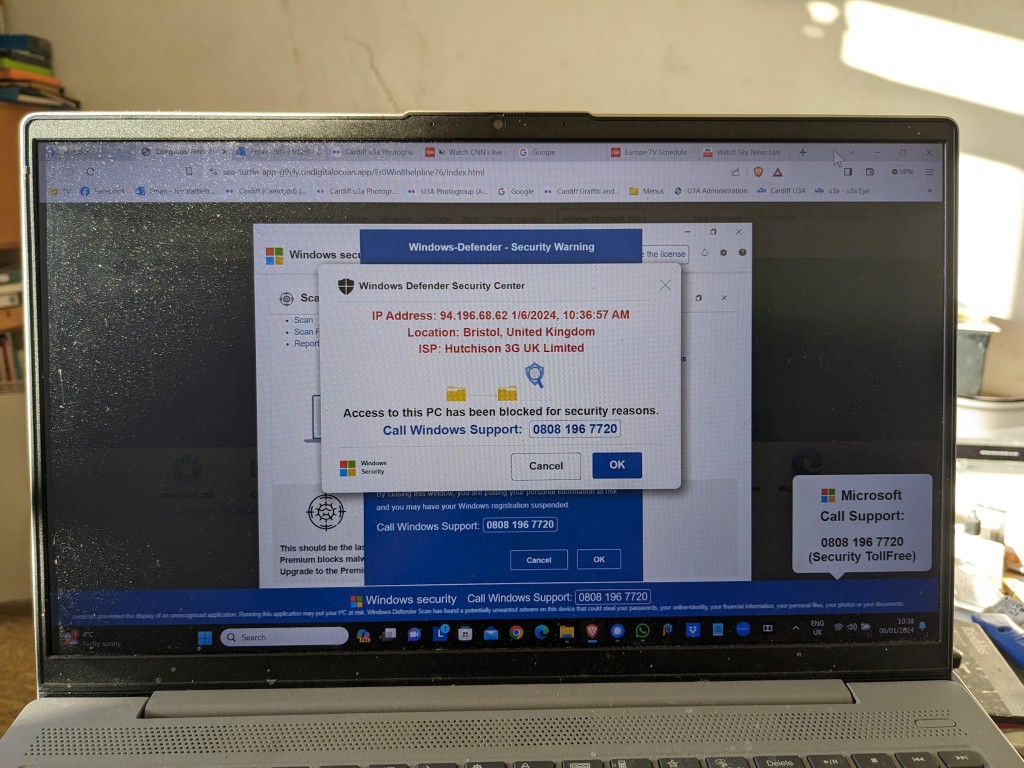
If you watched Rip Off Britain on January 15th [Episode 35 of Series 15 at c. 29mins 45secs into the programme] you will see an expert describe the Scam that one of our members has experienced recently and which has led me to write this post which may well be the first of a number on the subject of Scams.
This scam manifests itself by your computer screen being taken over by a popup which also freezes your screen. You are instructed by a voice-over not to turn off your machine but instead to ring a telephone number where you will be “assisted” to unlock your computer which has been locked – in this case supposedly by Microsoft, but it could be any large tech company – for your protection.
This alarming message plus the fact that your screen has frozen may lead you into thinking you better click on the button to seemingly connect to Microsoft. This will lead to a telephone conversation where you will be requested to supply information that will undoubtedly lead to fraud.
Do nothing!
Note well: No tech company will approach you in this way. They will not be doing this form of online monitoring of your devices. In this case the scam is preying on the fact that you are being led to think that your Windows Defender Security package is not working properly. No tech company would readily admit to its users of a deficiency in their programs in this way – that could lead potentially to legal action being taken against them. For a genuine issue they might issue an alert on their webpages and a request to upgrade (or whatever), or they might be forced to send an email to registered users, but they would not send unsolicited messages in this way.
It is important to realise that with this scam, at this stage, the scammers know NOTHING about you. The scam works by malicious code having been added to a website you are visiting, or to an advert on the website you are visiting. The simple solution is to press F11 to unlock your screen, note the website address and make a note not to go to that site again. [I would probably also recommend clearing your internet cache and history from your browser before closing down your computer; waiting a few moments; and then re-booting it.]
The more long-term solution is to install an Ad Blocker such as AdBlock Plus as an extension to your browser. This would act in conjunction with your standard security software which on a Windows machine could well be Windows Defender.
Happy, safer surfing.
If you want to see the recording of the message that our Digital Matters member made of the scam, watch the video below …
All looking very serious – and I wasn’t disinterested … honest!
In addition to the serious looking faces above, Barbara joined us for a short while until Geoff switched-off the ring main!! We had apologies from Jonathan, Sianed and Christine. We welcomed back Stella who had been suffering from the after effects of her Covid jabs.
We also agreed to experiment with a voice-to-text transliteration system to assist folk who were finding it difficult to follow the audio in Zoom meetings.
I started the meeting by explaining the changes to the website, and doing a quick demo. [I further made some more changes the following day – I note that some of the Help screens, now need new images. They’ll have to wait …] I also was pleased to report that I’d sorted Fred’s Signal installation out, and had finally managed to reply to Phil’s Signal message on using Thought grazing. I offered to help anyone having difficulties with either the website, or Signal, to get in touch.
I then highlighted a few items that I’d added to Flipboard – a lot of them connected to Privacy, which seems a very live issue currently. Apple, after it’s developer’s conference is certainly focussing on privacy, including traps of pixel trackers, it’s intentions to move away from passwords and the addition of FaceID and/or TouchID to Google’s Authenticator – increasing the security of this means of connecting to websites. The EU appears to be going after the way multi-nationals (Google, Microsoft, Apple, twitter and Facebook) export data – an issue I’ve been mentioning for a while – watch this space! The UK’s Competition & Market Authority are also going after Google because of its use of cookies to track users, and usage, in Chrome. Google says, don’t worry we’re going to stop using cookies, and we’re going to give the industry an open-source alternative – FLoC; but it doesn’t appear that anyone else wants to follow. The US Congress is also looking at introducing anti-trust legislation and this is causing the multi-nationals to be a little bit more than concerned and they are lobbying hard against it. Here’s Apple’s plea to Nancy Pelosi. Apple take Privacy very seriously and they have released this white paper which you might care to read.
Mike was delighted with his new speakers which had improved his music listening (from the computer) as well as the quality of his Zoom calls.
Owen reported that he could not recommend the cookie-completion software he’d mentioned four weeks previously. In a test of at least 100 websites, he’d found that it had only worked with 7 sites and in some cases had stopped the websites working. Back to the drawing board! He also reported that the Committee was contemplating a reservation system for when we return to face-to-face meetings to cope with any constraints in numbers and/or social distancing in certain venues. I indicated that I was not too happy with such a proposal. It may not come to pass, however Owen has been charged (or volunteered) to see if the current systems can be tweaked to facilitate this. Zoom has now introduced ‘Live Transcript’, an automated subtitling system. It is by no means 100% perfect, but it should enable those who find it hard to follow in Zoom meetings an enhanced opportunity to hear and see what is spoken. Further information is to be found here. We then discussed how best we might extend the Group to those not participating via Zoom, and I agreed to try to see if any members wanted to join the Signal group.
David H mused on the death of John McAffee (as did Jim later); he reported that the barn was being converted as per his CAD drawings; that he had solved a Samsung phone problem with the radical solution of turning it off, and then switching it back on again; and enquired as to whether anyone had advice on purchasing a new TV. There was a lot of discussion; Steve commended 4K; Ann mentioned the Which? tool to assess size of TV vs size of room, viewing angle and distance from the screen; I asserted that most reviews appeared to favour LG’s OLED technology over Samsung’s QLED technology; we all agreed it was important to assess what we wanted, before we made a decision.
Paul was having problems with rapid battery drain on his Android phone; unfortunately no one had a concrete answer to the problem other than ditching unwanted, unused apps; enquiring whether an update had recently taken place, and again (radical thinking) – switch it off, and back on again!!! Here’s a link that might be useful too.
Don had bought a new Dell G3 system from JLP and it had arrived very quickly. It was so fast, it was like driving an Audi after the Vauxhall he’d had previously (no disrespect intended). He enquired about installing the security package from BT – I suggested to wait awhile before doing that – to try using Windows Defender first. He was going to investigate how to transfer his data from the old laptop. Neil (We will fix your PC) would do it for £30, or put the old hard disk in a caddy for £20. He also enquired about how to get his Gmail onto the new machine – I suggested using Windows native email client and offered to speak to him offline and provide some assistance [which I’ve done].
Phil drew attention to something he’d written about Podcasts which he and many of us use and like and commended CyberClean as a product to clean keyboards. Following the meeting he added another Topic to the Genealogy Forum on one of his ancestors which I recommend you read as a great multi-media experience.
Steve had brought his Sony HX90 camera to show Ann, and she was delighted that after visiting the Camera Centre, she’d plumped for a Sony HX99 for her carry around take pictures of birds camera. A great choice! That or the Panasonic TZ200 would have been my shortlist. He also commended BBC Sounds for Podcasts – good recommendation, thanks! He also enquired whether we thought showing a YouTube video on Zoom infringed copyright – we thought not.
Renee was wanting to look at Tasks in Google but couldn’t find it; we suggested it was included in one of the other members of the Google Office Suite – maybe Calendar. Hopefully this link will help – you access it from either Mail or Calendar.
Finally Ann just told her of her experience (very good) of visiting Camera Centre to purchase her camera which she expected to pickup after the meeting. She was buying a refurbished (but guaranteed unused) model at a discount. All the best – I suggested that she might like to consider joining the afternoon Photography group.